# Synthadoc User Quick-Start Guide
**Version: v1.0.2 (Community Edition)**
This guide walks you through the **History of Computing** demo wiki — a fully wired
Synthadoc environment with 13 pre-built pages and six raw source files that cover every
major engine feature. No setup beyond following the steps below is required.
> **Before you start:** complete the [README Installation](../README.md#installation) section —
> install synthadoc (production or development), set your API key, install the demo wiki, and start the engine.
> Then come back here.
>
> **Already installed the demo wiki?** Skip `synthadoc install` and run `synthadoc demo sync history-of-computing --force` instead. This updates all pre-built demo pages and source files to the latest template, including pages with citation markers added in recent releases. `--force` only overwrites demo template files — your own ingested pages and `.synthadoc/` config and audit data are never touched.
---
## Table of Contents
1. [Verify the demo server has started](#step-1--verify-the-demo-server-has-started)
2. [Install the Synthadoc plugin](#step-2--install-the-synthadoc-plugin)
3. [Open the vault in Obsidian](#step-3--open-the-vault-in-obsidian)
4. [Review the wiki structure and key files](#step-4--review-the-wiki-structure-and-key-files)
5. [Query the pre-built wiki (CLI + Obsidian)](#step-5--query-the-pre-built-wiki-cli--obsidian)
6. [Batch ingest all demo sources](#step-6--batch-ingest-all-demo-sources)
7. [Run lint — promote pages to active](#step-7--run-lint--promote-pages-to-active)
8. [Manage page lifecycle](#step-8--manage-page-lifecycle)
9. [Resolve a contradiction](#step-9--resolve-a-contradiction)
10. [Fix an orphan page](#step-10--fix-an-orphan-page)
11. [Run the adversarial review](#step-11--run-the-adversarial-review)
12. [Web search ingestion](#step-12--web-search-ingestion)
13. [Ingest a YouTube video](#step-13--ingest-a-youtube-video)
14. [Enrich the wiki with scaffold](#step-14--enrich-the-wiki-with-scaffold)
15. [Audit features](#step-15--audit-features)
16. [Scheduling recurring operations](#step-16--scheduling-recurring-operations)
17. [Set up ROUTING.md — scoped search](#step-17--set-up-routingmd--scoped-search)
18. [Configure candidates staging](#step-18--configure-candidates-staging)
19. [Build a context pack](#step-19--build-a-context-pack)
20. [Establish claim-level provenance](#claim-provenance)
21. [Export your wiki — llms.txt, GraphML, JSON, OKF bundle](#step-21--export-your-wiki)
22. [Use the web chat UI](#step-22--use-the-web-chat-ui)
23. [Query caching](#step-23--query-caching)
24. [Knowledge Graph](#knowledge-graph)
**Appendices**
- [Appendix A — Obsidian Plugin Command Reference](#appendix-a--obsidian-plugin-command-reference)
- [Appendix B — Hooks: auto-commit wiki to git](#appendix-b--hooks-auto-commit-wiki-to-git)
- [Appendix C — Switching LLM providers](#appendix-c--switching-llm-providers)
- [Appendix D — Tavily web search key](#appendix-d--tavily-web-search-key)
- [Appendix E — Configuration](#appendix-e--configuration)
- [Appendix G — Using a Coding Tool as Your LLM Provider](#appendix-g--using-a-coding-tool-as-your-llm-provider)
- [Appendix H — BM25 Routing Performance Benchmarks](#appendix-h--bm25-routing-performance-benchmarks)
- [Appendix I — Connect Claude via MCP](#appendix-i--connect-claude-via-mcp)
- [Appendix J — Backup & Restore](#appendix-j--backup--restore)
---
## Step 1 — Verify the demo server has started
If you ran `synthadoc serve -w history-of-computing` or
`synthadoc serve -w history-of-computing --background` in the README, the server
should already be listening on port 7070. Confirm it is up:
```bash
synthadoc status -w history-of-computing
```
Expected output:
```
Wiki: /home/user/wikis/history-of-computing
Pages: 13
Jobs pending: 0
Jobs total: 0
```
Or probe the health endpoint directly:
```bash
curl http://127.0.0.1:7070/health
# → {"status":"ok"}
```
If neither responds, start the server now:
```bash
# Foreground (terminal stays attached — logs stream to console)
synthadoc serve -w history-of-computing
# Background (terminal is released — logs go to wiki log file)
synthadoc serve -w history-of-computing --background
```
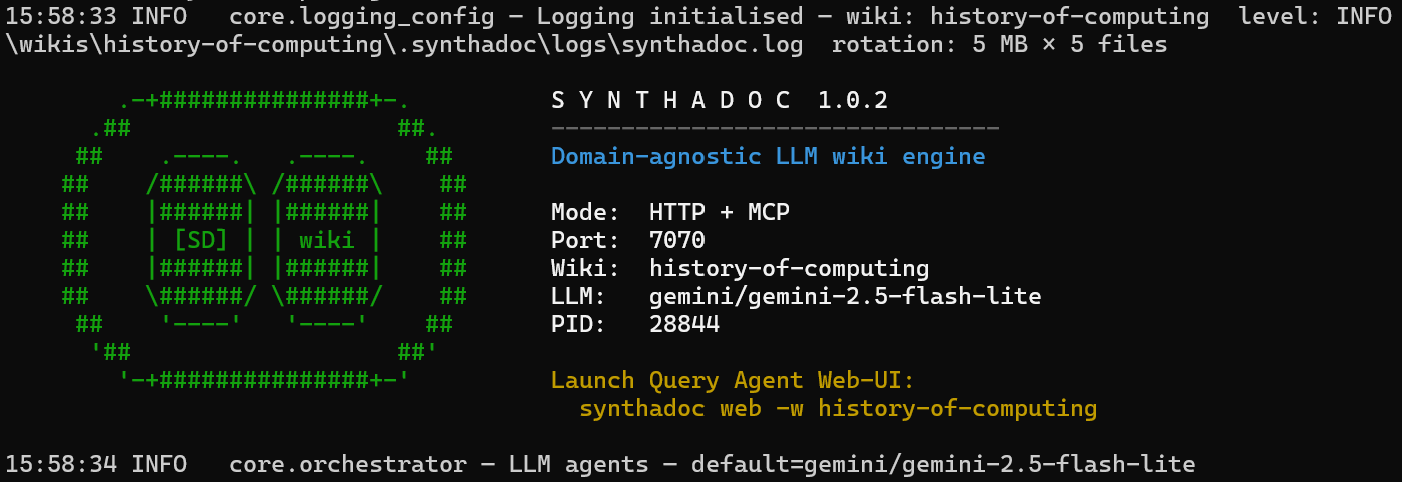
The banner confirms the port, wiki path, active LLM provider/model, and PID. If you see
`Warning: TAVILY_API_KEY is not set`, web search (Step 10) will not work — see
[Appendix D — Tavily web search key](#appendix-d--tavily-web-search-key).
If the server does not start, the most common cause is the port already being in use.
Check `/.synthadoc/config.toml` for `[server] port` and use `--port N` to
override if needed.
> To use Claude Code or Opencode as your LLM provider instead of a direct API key, see [Appendix G](#appendix-g--using-a-coding-tool-as-your-llm-provider).
### Set your active wiki (do this once)
```bash
synthadoc use history-of-computing
```
From this point on, every command in this guide omits `-w history-of-computing` — the active wiki is resolved automatically.
To see which wiki is active at any time:
```bash
synthadoc use
```
---
## Step 2 — Plugin already installed
No separate plugin step is needed. `synthadoc install` already copied both the Synthadoc plugin and the Dataview plugin directly into the vault's plugins folder, pre-enabled them, and set the correct server URL.
> **Reading View set automatically:** the installer writes `"defaultViewMode": "preview"` to `.obsidian/app.json`, so Obsidian opens wiki pages in Reading View by default. This is required for citation chips (`^[file:L-L]`) to render — they are invisible in Edit or Live Preview mode. You can change this later in Obsidian's Settings → Editor → Default view.
> **Upgrading an existing installation?** Run `synthadoc plugin upgrade` to push the updated plugin binary to all registered wikis. This is only needed when upgrading Synthadoc — not for new installs.
Now open Obsidian.
---
## Step 3 — Open the vault in Obsidian
**Obsidian must already be installed** — download from **[obsidian.md](https://obsidian.md)** if not.
### 1. Open the vault
In Obsidian: **Open folder as vault** → select the installed wiki folder:
- **Windows:** `%USERPROFILE%\wikis\history-of-computing`
- **Linux / macOS:** `~/wikis/history-of-computing`
> **Tip — show all file types:** By default Obsidian hides file types it does not
> natively understand (`.xlsx`, `.pptx`, etc.). To show them: **Settings → Files and
> links → Show all file types → on**.
### 2. Verify both plugins are active
Both Synthadoc and Dataview are already installed **and enabled** by Step 2 — no manual toggling required. Obsidian picks them up automatically when you open the vault.
Go to **Settings → Community Plugins** to confirm both show a blue enabled toggle. While there:
1. Click the gear icon next to **Synthadoc**
2. Confirm **Server URL** is `http://127.0.0.1:7070` (set automatically from `config.toml` — if the port ever changes, re-run `synthadoc plugin install` to update it)
3. Close settings
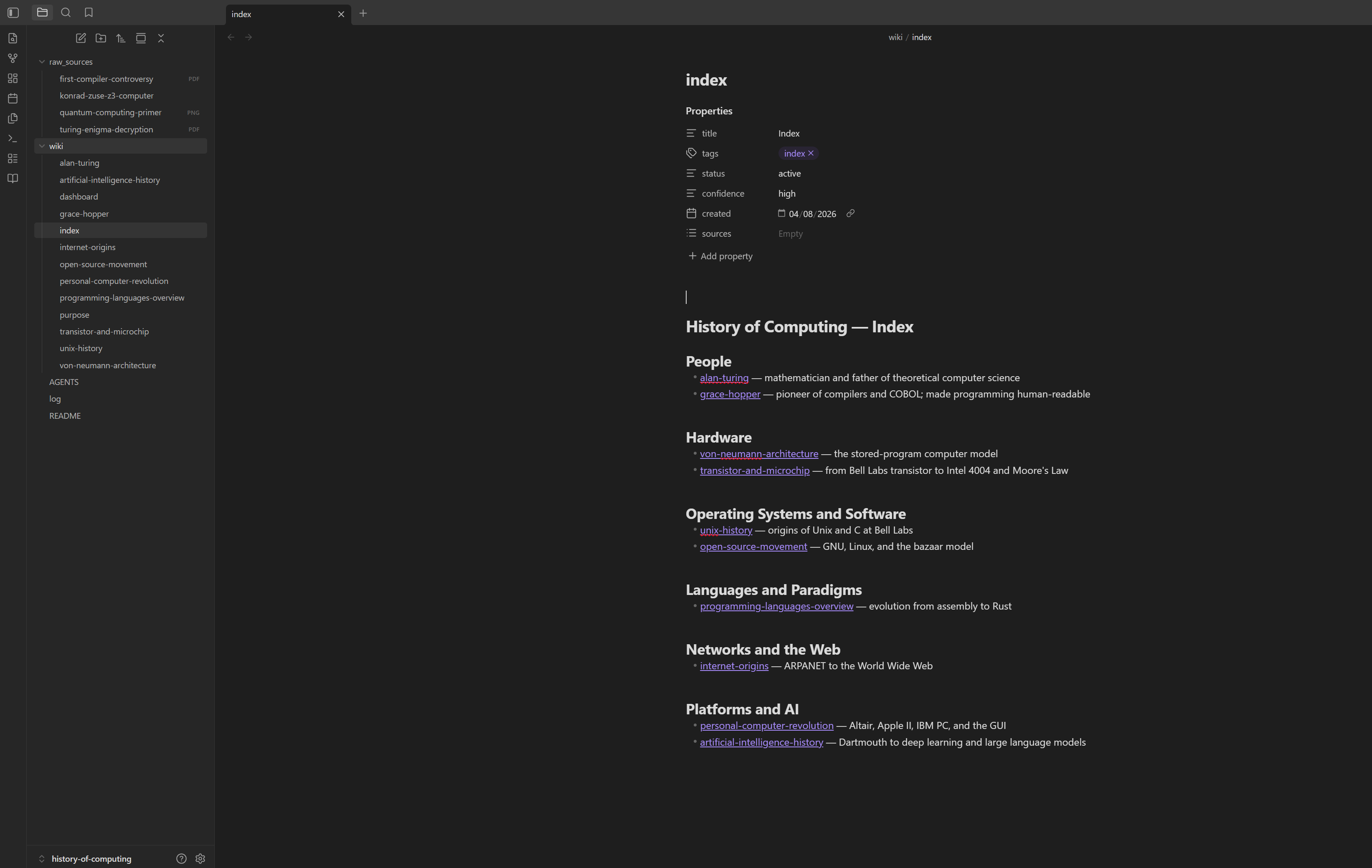
The **Synthadoc ribbon icon** (book icon on the far-left sidebar) confirms the plugin is
active. All Synthadoc commands are reachable via the Command Palette (`Ctrl/Cmd+P` →
type `Synthadoc`).

> **Dataview cache:** If the dashboard disagrees with `synthadoc lint report`, drop the
> cache: `Ctrl/Cmd+P` → **Dataview: Drop all cached file metadata**, then reopen the
> dashboard. The CLI report is always authoritative.
---
## Step 4 — Review the wiki structure and key files
Open the vault explorer. The key files and folders:
```
history-of-computing/
wiki/ ← compiled Markdown pages (open these in Obsidian)
index.md ← table of contents with [[wikilinks]] to every page
dashboard.md ← live Dataview tables — contradictions, orphans, recently added/updated/archived
purpose.md ← scope definition — what belongs in this wiki and what to skip
overview.md ← LLM-generated 2-paragraph summary of the entire wiki
alan-turing.md ← example pre-built topic page
grace-hopper.md ← ...and so on for each of the 13 pre-built pages
raw_sources/ ← source documents to ingest (PDF, PPTX, XLSX, PNG, MD)
AGENTS.md ← LLM instructions for Codex/OpenCode — domain guidelines for ingest and query
CLAUDE.md ← same instructions, Claude Code format (read automatically when you open this folder in Claude Code)
GEMINI.md ← same instructions, Gemini CLI format
log.md ← human-readable activity log of every ingest and lint event
.synthadoc/
config.toml ← per-wiki settings (port, LLM provider, cost limits)
audit.db ← immutable audit trail (ingest history, costs, events)
jobs.db ← job queue (persistent across server restarts)
cache.db ← LLM response cache (reduces repeat spend)
```
**Open these files in Obsidian now:**
| File | What to look at |
| --------------------- | ----------------------------------------------------------------- |
| `wiki/index.md` | Pre-generated category structure with`[[wikilinks]]` to each page |
| `wiki/dashboard.md` | Live Dataview tables — contradictions, orphans, recently added / updated / archived |
| `wiki/alan-turing.md` | YAML frontmatter:`status`, `confidence`, `tags`, `sources[]` |
| `AGENTS.md` | Domain-specific guidelines for Codex/OpenCode agents — LLM reads this on every ingest |
| `CLAUDE.md` | Same guidelines in Claude Code format — loaded automatically when you open this folder in Claude Code |
| `GEMINI.md` | Same guidelines in Gemini CLI format |
| `wiki/purpose.md` | In-scope / out-of-scope definition for History of Computing |
> **Upgrading an existing wiki?** If your wiki was created before v1.0.2, it will have `AGENTS.md` but not `CLAUDE.md` or `GEMINI.md`. Run `synthadoc scaffold` once to generate all three with LLM-produced guidelines that match your current wiki content.
### dashboard.md — what each section shows
`wiki/dashboard.md` contains four live Dataview tables. Open it in Obsidian (Reading View) after installing the Dataview plugin to see them update automatically as you work through this guide.
| Section | What it shows | Powered by |
|---------|--------------|------------|
| **Contradicted pages** | Pages whose sources conflict — need manual resolution | `status = "contradicted"` |
| **Orphan pages** | Pages with no inbound `[[wikilinks]]` — run lint first to populate | `orphan = true` (set by lint) |
| **Recently added** | The 10 most recently created pages, newest first | `created` frontmatter field |
| **Recently updated** | Pages that have been re-ingested with new source material since their initial creation | `updated` frontmatter field — only present after a re-ingest |
| **Recently archived** | Pages currently in `archived` state — retired from active use | `status = "archived"` |
**Recently added vs. Recently updated** — these are intentionally separate:
- **Recently added** lists every page by its `created` date. A freshly installed demo wiki shows all pages here because they were all created at install time.
- **Recently updated** only appears for pages that have been re-ingested after their initial creation. The `updated` field is written by the ingest engine when it merges new source material into an existing page — it is absent on first creation. This means the table starts empty in a fresh install and grows as you re-ingest sources with `--force` or ingest new files that map to existing pages.
**Recently archived** — to restore a page from this list, change its `status` back to `active` in Obsidian's Properties panel, or use the CLI:
```bash
synthadoc lifecycle restore --reason "source re-added"
```
> **Dataview cache:** If a table disagrees with `synthadoc status` or `synthadoc lint report`, drop the cache: `Ctrl/Cmd+P` → **Dataview: Drop all cached file metadata**, then reopen `dashboard.md`. The CLI is always authoritative.
---
## Step 5 — Query the pre-built wiki (CLI + Obsidian)
### CLI queries
The wiki already has 13 pages on computing history — query them before ingesting anything:
```bash
synthadoc query "How did Alan Turing influence modern computers?"
synthadoc query "What is Moore's Law and why does it matter?"
synthadoc query "How did Unix influence the open-source movement?"
```
Each answer streams to your terminal token-by-token as the LLM generates it. Citations to source pages appear at the end of the answer. For scripts or pipes that need buffered output, add `--no-stream`:
```bash
synthadoc query "How did Alan Turing influence modern computers?" --no-stream
```
### Compound and multi-part queries
Synthadoc automatically decomposes complex questions into focused sub-queries, retrieves
pages for each part in parallel, then synthesises a single merged answer:
```bash
# Two-part question — decomposes into two independent BM25 searches
synthadoc query "Compare Alan Turing's theoretical contributions with Von Neumann's architectural contributions."
# Multi-hop causal question — automatically decomposed
synthadoc query "How did Moore's Law shape both hardware design and software expectations over time?"
```
The server log shows the decomposition:
```
query decomposed into 2 sub-question(s):
"Alan Turing theoretical contributions" | "Von Neumann architectural contributions"
```
Simple single-topic questions decompose to one sub-question and behave identically to
a direct query — no extra LLM cost.
> **Proportional context budget (v1.0):** Synthadoc allocates sources proportionally to the model's context window rather than capping at a fixed top-N. A larger model context means more wiki pages included in the answer. You do not need to configure this — it adapts automatically to whichever LLM provider you have set.
> **Slow provider?** If you have enabled thinking mode on a reasoning model (e.g. MiniMax M3 with `thinking = "enabled"`), responses can take longer.
> If you see a timeout error, pass `--timeout 120`:
>
> ```bash
> synthadoc query "How did Moore's Law shape hardware design?" --timeout 120
> ```
### Knowledge gap detection
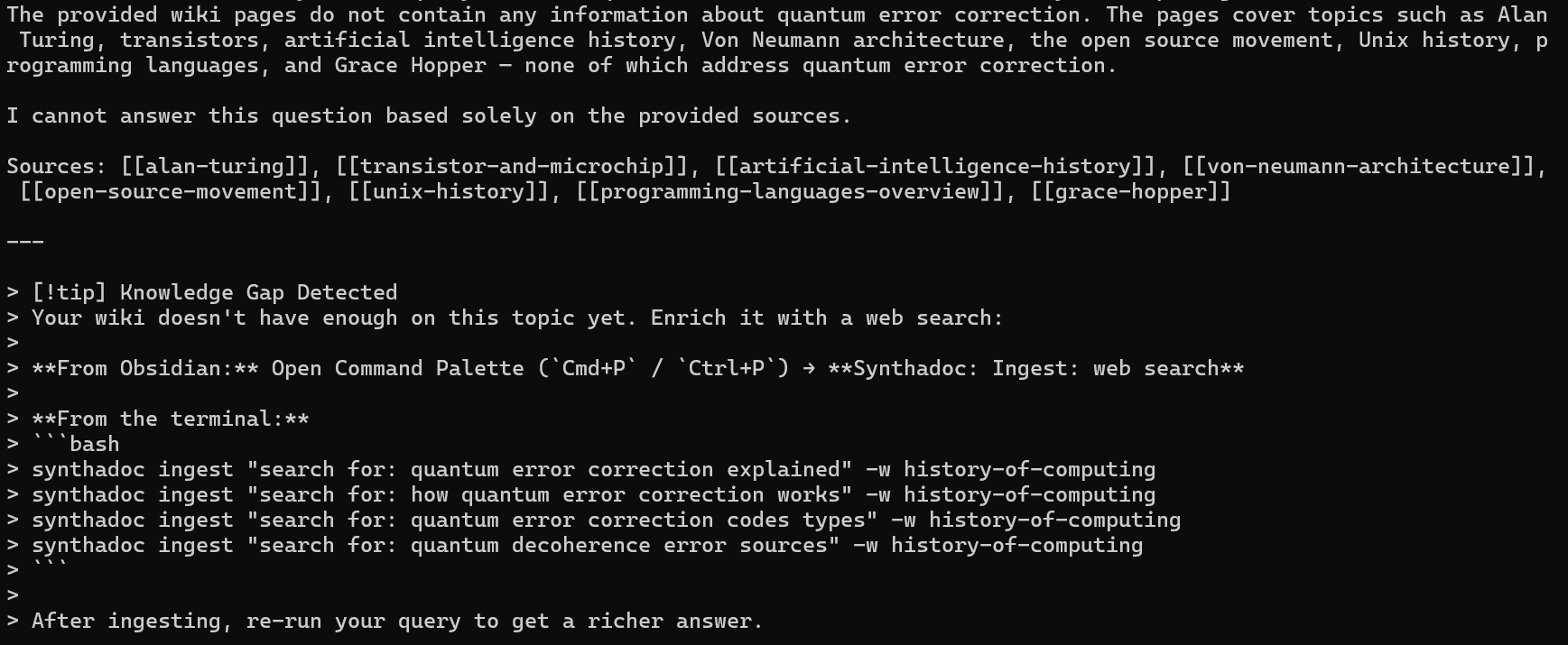
If the wiki does not cover a topic, Synthadoc detects the gap automatically:
```bash
synthadoc query "What is quantum error correction?"
```
Expected output (example):
```
No relevant pages found on this topic.
[!tip] Knowledge Gap Detected
Your wiki doesn't have enough on this topic yet. Enrich it with a web search:
synthadoc ingest "search for: quantum error correction methods"
synthadoc ingest "search for: quantum computing hardware qubits"
```
The suggested search strings are generated automatically. Run one of the suggestions
after Step 12 to fill the gap.
### Query from Obsidian
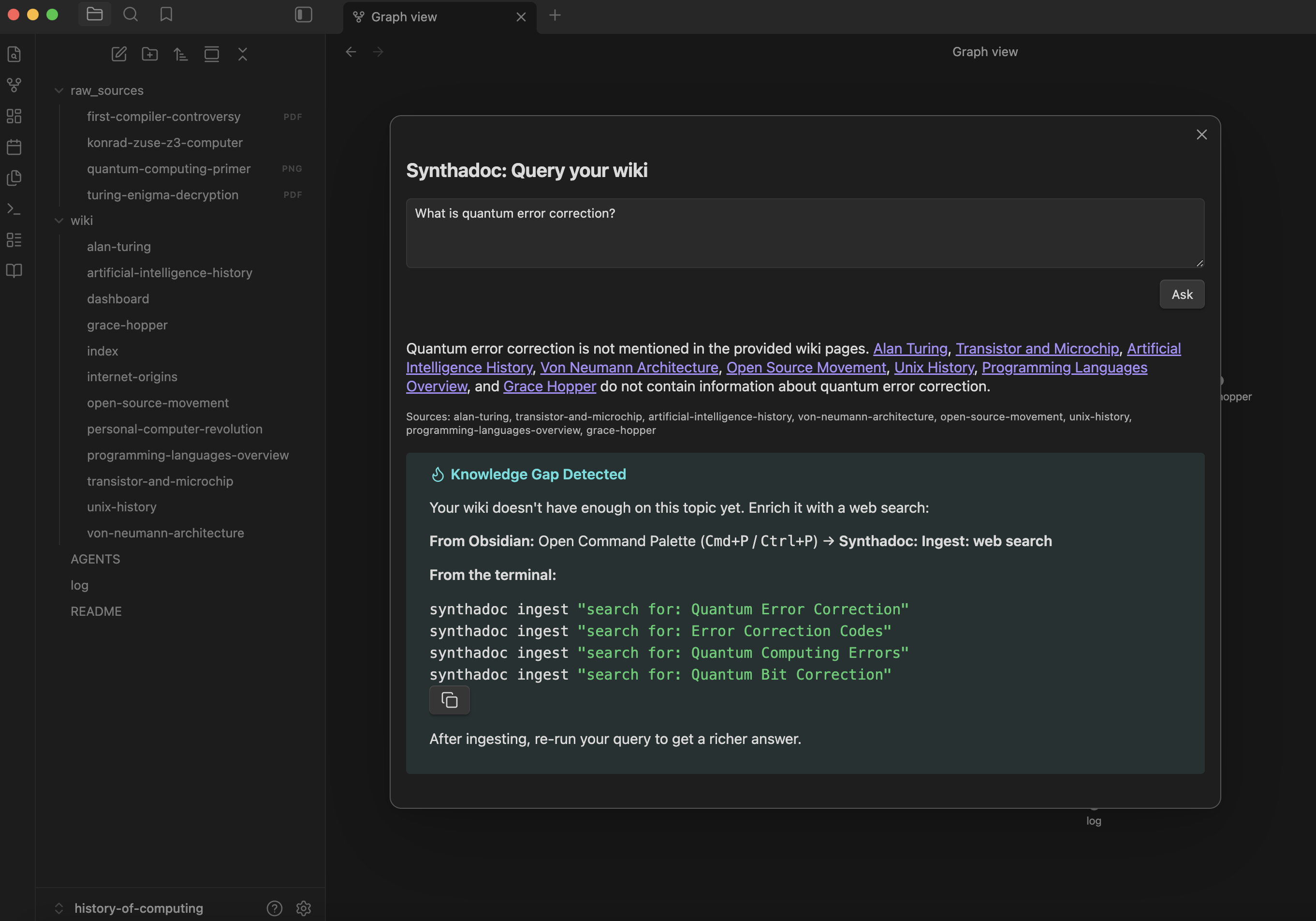
Open the Command Palette (`Ctrl/Cmd+P`) → `Synthadoc: Query: ask the wiki...` → type a
question → press `Ctrl/Cmd+Enter`. The answer appears in a responsive modal with
clickable `[[wikilinks]]`.
### Aliases — alternative names for a page
Every wiki page (pre-built or ingest-created) has an `aliases` field in its frontmatter.
It starts empty and is visible in Obsidian's **Properties** panel. Add alternative
names or abbreviations so the query engine can match them without knowing the exact page title.
**Try it now with `wiki/alan-turing.md`:**
1. Open `wiki/alan-turing.md` in Obsidian
2. In the **Properties** panel, click the `aliases` field and add one or more names:
```yaml
---
title: Alan Turing
aliases:
- Turing
- father of computer science
- Turing machine inventor
---
```
3. Save the file, then query using an alias instead of the page title:
```bash
synthadoc query "What did Turing contribute to computing?"
# "Turing" expands to the alan-turing slug before BM25 runs
```
Aliases are matched case-insensitively. Longest match wins — so if two pages each define
an alias and one is a longer substring of the query, the longer one takes precedence.
### OKF compatibility fields
Every page compiled by Synthadoc also carries two fields that align with Google's [Open Knowledge Format (OKF) v0.1](https://github.com/GoogleCloudPlatform/knowledge-catalog/blob/main/okf/SPEC.md):
| Field | What it contains | Set by |
|-------|-----------------|--------|
| `type` | Knowledge classifier: `concept`, `person`, `technology`, `event`, `organization`, `location`, or `product` | Ingest — LLM classifies during the analysis pass |
| `resource` | Primary source URL (only present for URL-sourced pages) | Ingest — auto-populated from the URL |
These fields make Synthadoc wikis directly consumable by any OKF-aware agent without an export step. Pages ingested from local files have no `resource` field.
**`resource` vs `sources` — what's the difference?**
Both point at source material, but for different audiences:
- **`sources`** is Synthadoc's internal audit record — an array that grows as more files are ingested into the same page, storing the file path, SHA-256 hash, byte size, and ingestion timestamp. Used for dedup, stale detection, and cost tracking.
- **`resource`** is the OKF citation — a single URL that any agent or human can follow to the original source, without needing to understand Synthadoc's schema.
For URL sources both refer to the same URL; for local files only `sources` is present.
**Migrating pages created before v0.9.0** — older pages have no `type` field. Force re-ingest to backfill it:
```bash
synthadoc ingest path/to/source.pdf --force
# or for a URL source
synthadoc ingest "https://example.com/article" --force
```
The `--force` flag skips the duplicate check and re-runs the analysis pass, which classifies the knowledge type and writes it to the page's frontmatter. Existing content is appended to, not replaced. If `type` is already set, it is not overwritten.
---
## Step 6 — Batch ingest all demo sources
The six source files in `raw_sources/` are designed to demonstrate every ingest scenario:
| File | Skill | Scenario |
| ---------------------------------- | ---------- | ------------------------------------------------------------------------------------------------------------------------------------------------------------------------ |
| `turing-enigma-decryption.pdf` | `pdf` | **A — Clean merge**: enriches `alan-turing` with Bletchley Park and Bombe detail |
| `computing-pioneers-timeline.xlsx` | `xlsx` | **A — Clean merge**: structured two-sheet timeline; enriches multiple pages |
| `cs-milestones-overview.pptx` | `pptx` | **A — Clean merge + new pages**: 6-slide deck; creates `eniac`, `transistor-and-moores-law`, `internet-history`; enriches `ada-lovelace`, `alan-turing`, `grace-hopper` |
| `first-compiler-controversy.pdf` | `pdf` | **B — Conflict**: contradicts `grace-hopper` (A-0 vs FORTRAN dispute) |
| `quantum-computing-primer.png` | `image` | **A — New page**: vision LLM extracts key concepts; creates `quantum-computing` |
| `konrad-zuse-z3-computer.md` | `markdown` | **C — Orphan**: specific niche topic; creates `konrad-zuse` with no inbound links |
### Run batch ingest
**CLI:**
```bash
synthadoc ingest --batch raw_sources/
```
**Obsidian:** Command Palette → `Synthadoc: Ingest...` → select the **All raw_sources** tab
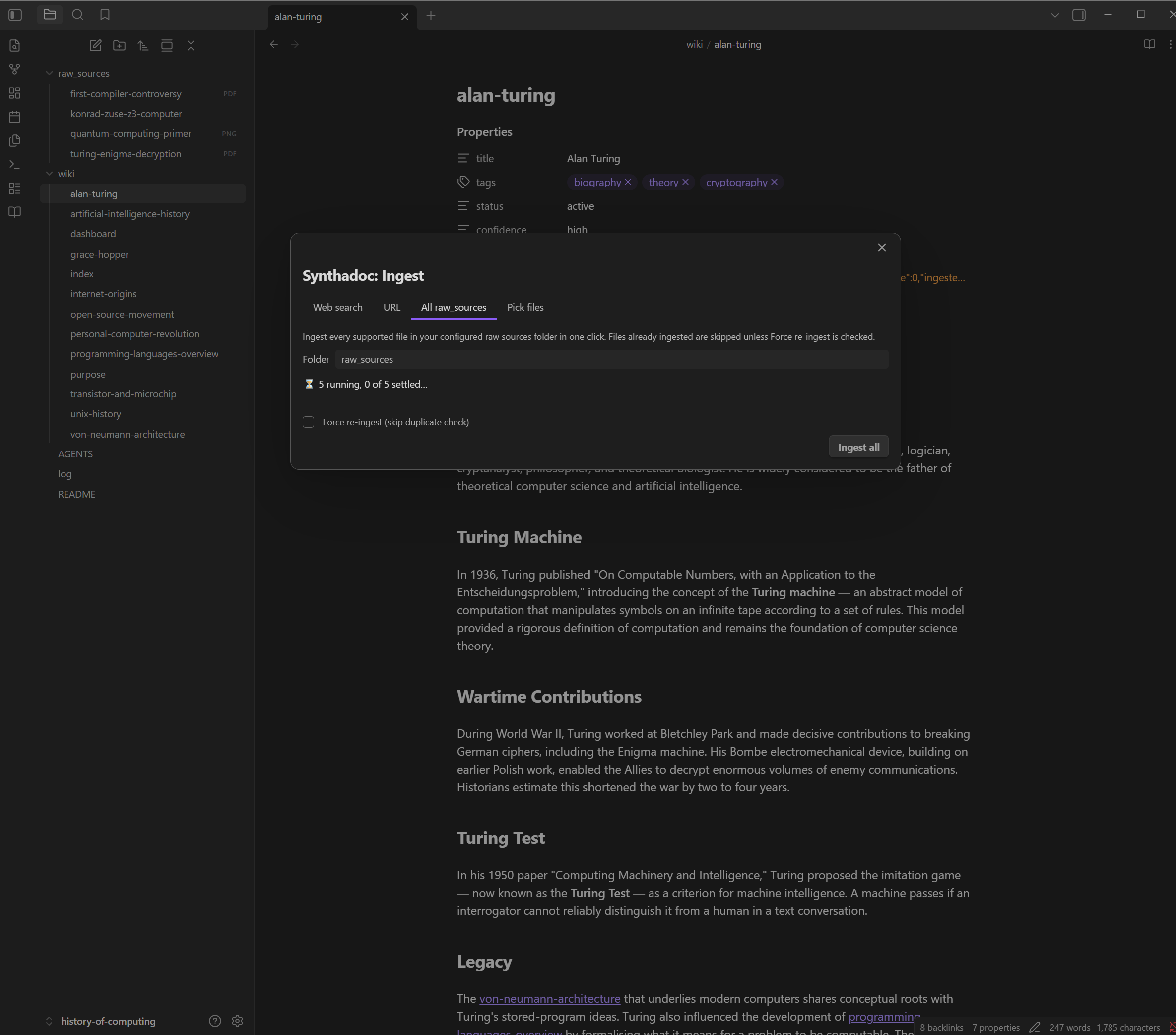
Both enqueue one job per file. Watch them:
```bash
synthadoc jobs list
```
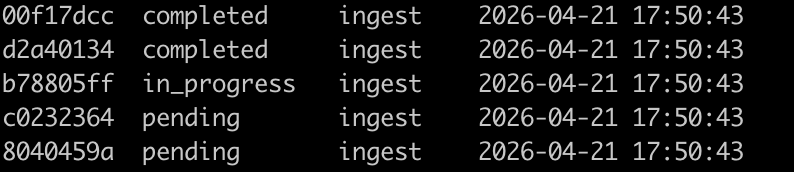
Wait until all six show `completed`. Filter by status if needed:
```bash
synthadoc jobs list --status pending
synthadoc jobs list --status completed
```
Or from Obsidian: Command Palette → `Synthadoc: Jobs...` → use the status-filter checkboxes. The table defaults to newest jobs first; click **Status**, **Operation**, or **Created** headers to re-sort.
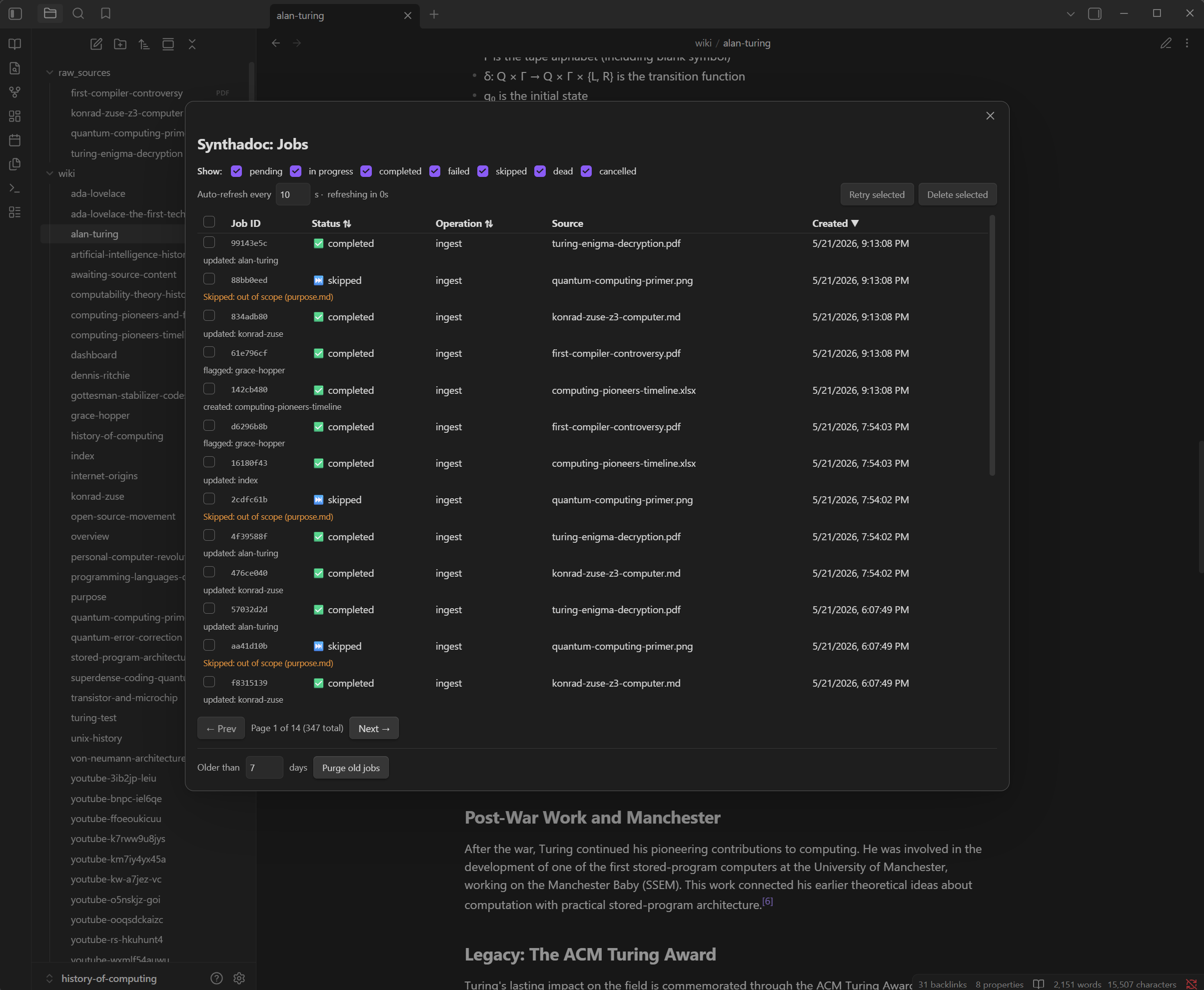
### Verify the results
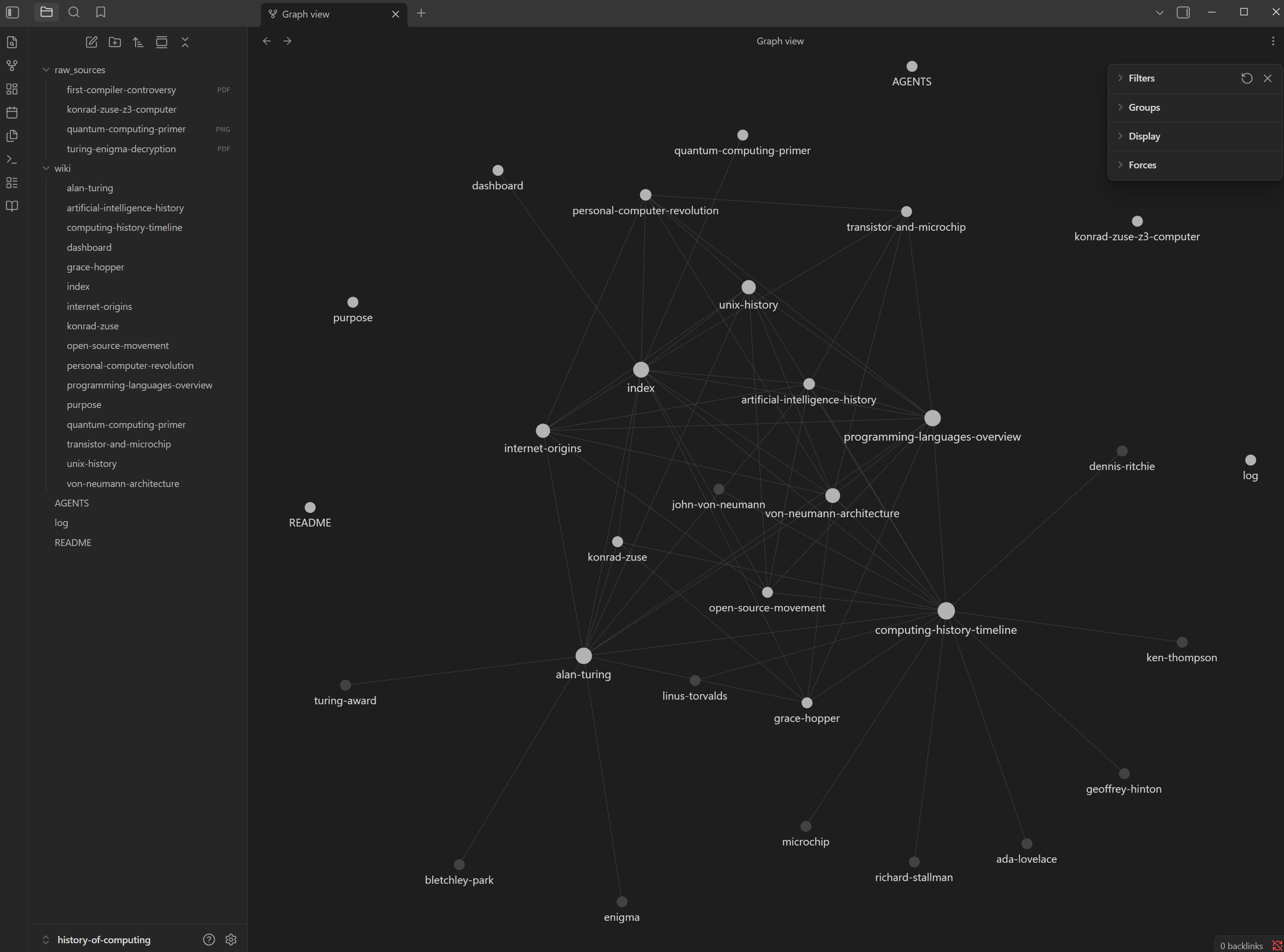
Once all jobs complete, open **Graph view** (`Ctrl/Cmd+G`) — new nodes appear for the
ingested topics and link into the existing graph.
Run a few queries that use the new content:
```bash
synthadoc query "What was the Bombe machine and who built it?"
synthadoc query "Who invented FORTRAN and when?"
synthadoc query "What did Konrad Zuse contribute to computing history?"
```
> **Pages are created as `draft`.** Every page produced by ingest starts in the `draft` state — compiled but not yet reviewed. Draft pages are immediately queryable; BM25 retrieval includes all pages regardless of lifecycle state. Running lint (Step 7) promotes clean pages to `active`, which marks them as human-reviewed and protects them from being overwritten by future ingest.
> **Pre-LLM sanitizer (v1.0):** Before sending any source to the LLM, Synthadoc strips zero-width characters, bidirectional text overrides, hidden HTML, and instruction-override phrases that could cause the model to misinterpret content. This runs automatically — no configuration needed. See [design.md §29](design.md#29-pre-llm-source-sanitizer) for the full table of sanitizer categories, actions, and warning behaviour.
---
## Step 7 — Run lint — promote pages to active
Every page created by ingest in Step 6 starts as `draft`. A lint run validates each page — checking for contradictions, orphan pages, dangling links, and citation presence — and automatically promotes clean pages to `active`.
> **Citation presence warnings:** Lint Check 5b warns when a page has 50 or more words but no `^[filename:L-L]` citation markers. This is a diagnostic, not an error — the page is still promoted to `active`. It usually means the LLM did not follow the citation-format instruction precisely; re-ingesting the source with a more capable model (Gemini 2.5 Flash or higher) resolves it. See `synthadoc audit citations --broken` to review all citation failures.
### 1. Check status before running lint
```bash
synthadoc status
```
Expected output (after batch ingest, before lint):
```
[wiki: history-of-computing]
Wiki: ~/wikis/history-of-computing
Pages: 18
Jobs pending: 0
Jobs total: 6
Page lifecycle:
active 0
draft 5 <- run `synthadoc lint run` to promote
stale 0
contradicted 0
archived 0
```
The 5 `draft` pages are the new pages created by ingest. The 13 pre-built demo pages are not shown yet — they have no lifecycle record until lint runs for the first time and syncs their state.
### 2. Run lint
```bash
synthadoc lint run
synthadoc jobs list # watch progress
```
Wait until the lint job shows `completed`.
You can also run lint from the Obsidian plugin — open the command palette (`Ctrl/Cmd+P`) and choose **Synthadoc: Lint: run…**:
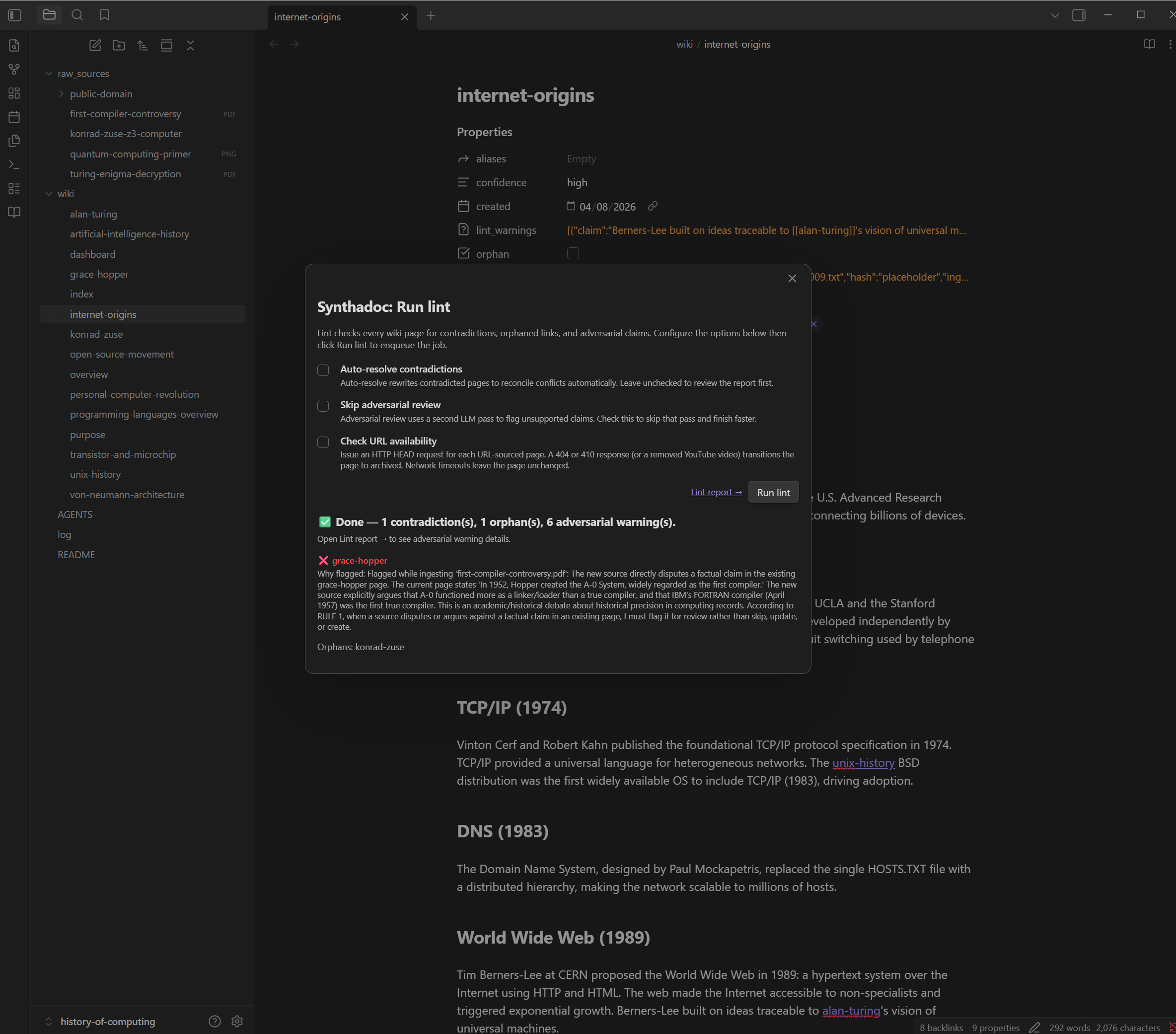
### 3. Check status after lint
```bash
synthadoc status
```
Expected output:
```
[wiki: history-of-computing]
Wiki: ~/wikis/history-of-computing
Pages: 18
Jobs pending: 0
Jobs total: 7
Page lifecycle:
active 17
draft 0
stale 0
contradicted 1 <- review required
archived 0
```
All 5 draft pages were promoted to `active`. The 13 pre-built pages were registered in the lifecycle system for the first time — 12 became `active`, and `grace-hopper` became `contradicted` (see Step 9).
### 4. Review the lint report
`synthadoc status` shows counts. `synthadoc lint report` shows what actually needs your attention — contradicted pages, orphan pages with no inbound links, adversarial warnings, and citation issues.
```bash
synthadoc lint report
```
Expected output (one contradicted page in the demo wiki):
```
Contradicted pages (1) - need review:
grace-hopper
Why flagged: Wikipedia source conflicts with the ACM oral history on the COBOL
standardisation timeline.
-> Open wiki/grace-hopper.md, resolve the conflict, then set status: active
-> Or re-run: synthadoc lint -w history-of-computing --auto-resolve
```
You can also open the report from the Obsidian plugin — open the command palette (`Ctrl/Cmd+P`) and choose **Synthadoc: Lint: report**. The modal shows the same information with action buttons.
The contradicted `grace-hopper` page is explained and resolved in Step 9.
---
## Step 8 — Manage page lifecycle
Most knowledge bases treat every page the same — ingested means trusted. Synthadoc is different: every compiled page carries a lifecycle state that reflects whether it has been reviewed, whether its source has changed, and whether a conflict has been detected. Pages you haven't reviewed yet are `draft`. Pages whose source files have been modified since ingest are automatically flagged `stale`. Pages with conflicting sources are marked `contradicted`. Pages whose source has disappeared are `archived`. Every state change — automated or manual — is permanently recorded with who triggered it and why.
> **Differentiation:** RAG pipelines and competing wiki tools have no equivalent concept. They ingest content and serve it forever, with no way to know whether the underlying source is still current, whether two sources contradict each other, or whether a page was ever reviewed. Synthadoc's 5-state lifecycle machine turns your wiki from a static dump into a living, auditable knowledge base.
### Lifecycle states
| State | Meaning | How it is reached | What to do |
| -------------- | ----------------------------------------- | ----------------------------------------------- | ------------------------------------------ |
| `draft` | Compiled but not yet lint-reviewed | Automatic on ingest | Run lint to auto-promote clean pages |
| `active` | Lint-reviewed, current, trusted | Lint auto-promotes from`draft` | No action needed |
| `contradicted` | Two or more sources conflict | Lint detects contradiction automatically | Re-ingest corrected source, or archive |
| `stale` | Source file has changed since last ingest | Lint detects SHA-256 hash mismatch | Re-ingest the updated source with`--force` |
| `archived` | Source removed or explicitly retired | Lint auto-archives on missing source; or manual | Restore to`draft` if source returns |
### Check lifecycle status (CLI)
```bash
synthadoc status
```
```
Wiki: history-of-computing
active 18
draft 0
stale 0
contradicted 1
archived 0
```
### Manage states in Obsidian
Open the Command Palette (`Ctrl/Cmd+P`) → **Synthadoc: Manage Page Lifecycle**. A sortable, filterable table shows every wiki page with its current state, last transition timestamp, and the action buttons valid for that state. Filter by state using the checkboxes at the top, or sort by any column header. Click an action button — a **reason dialog** appears before the transition commits, ensuring every manual change is documented.
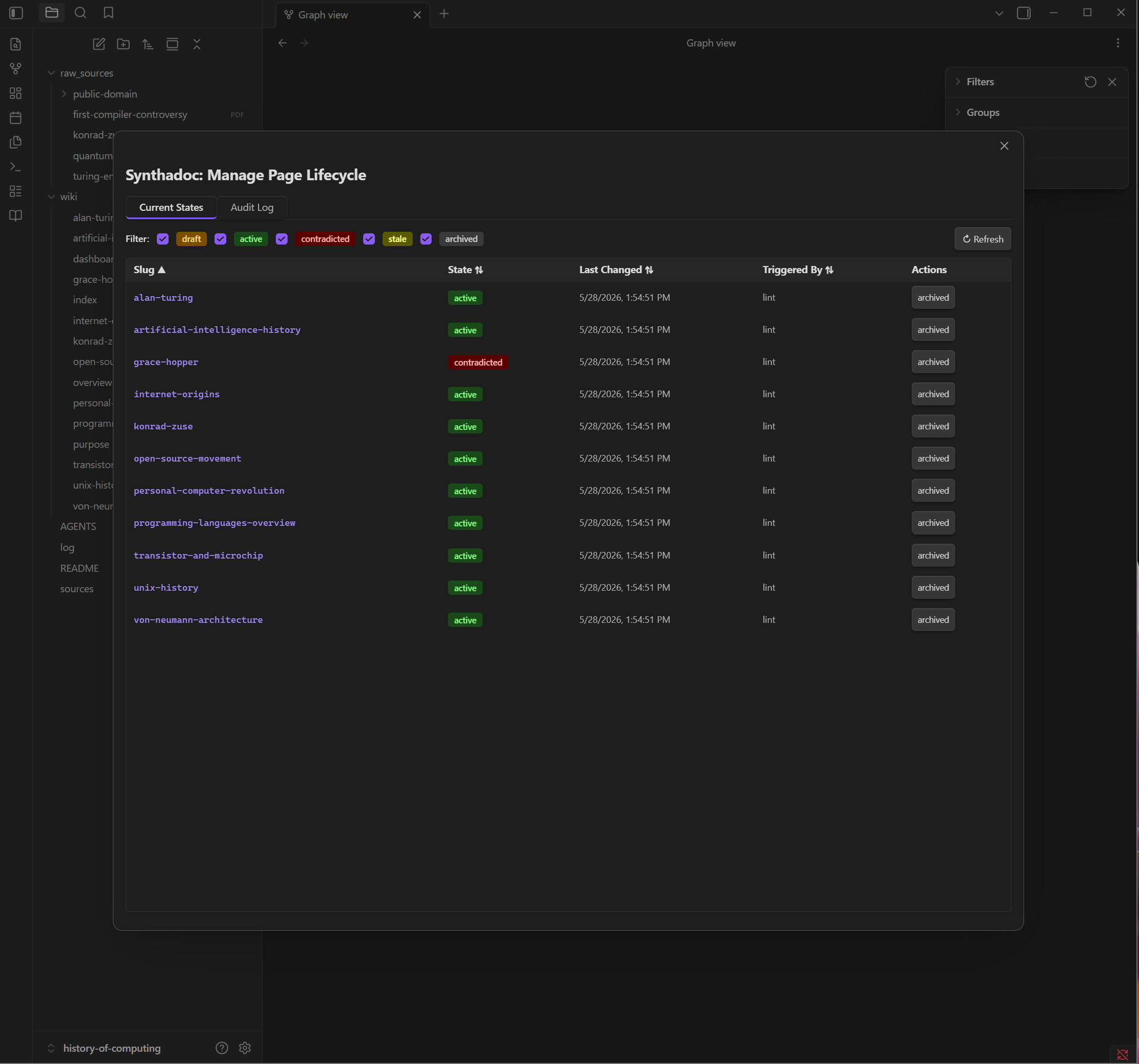
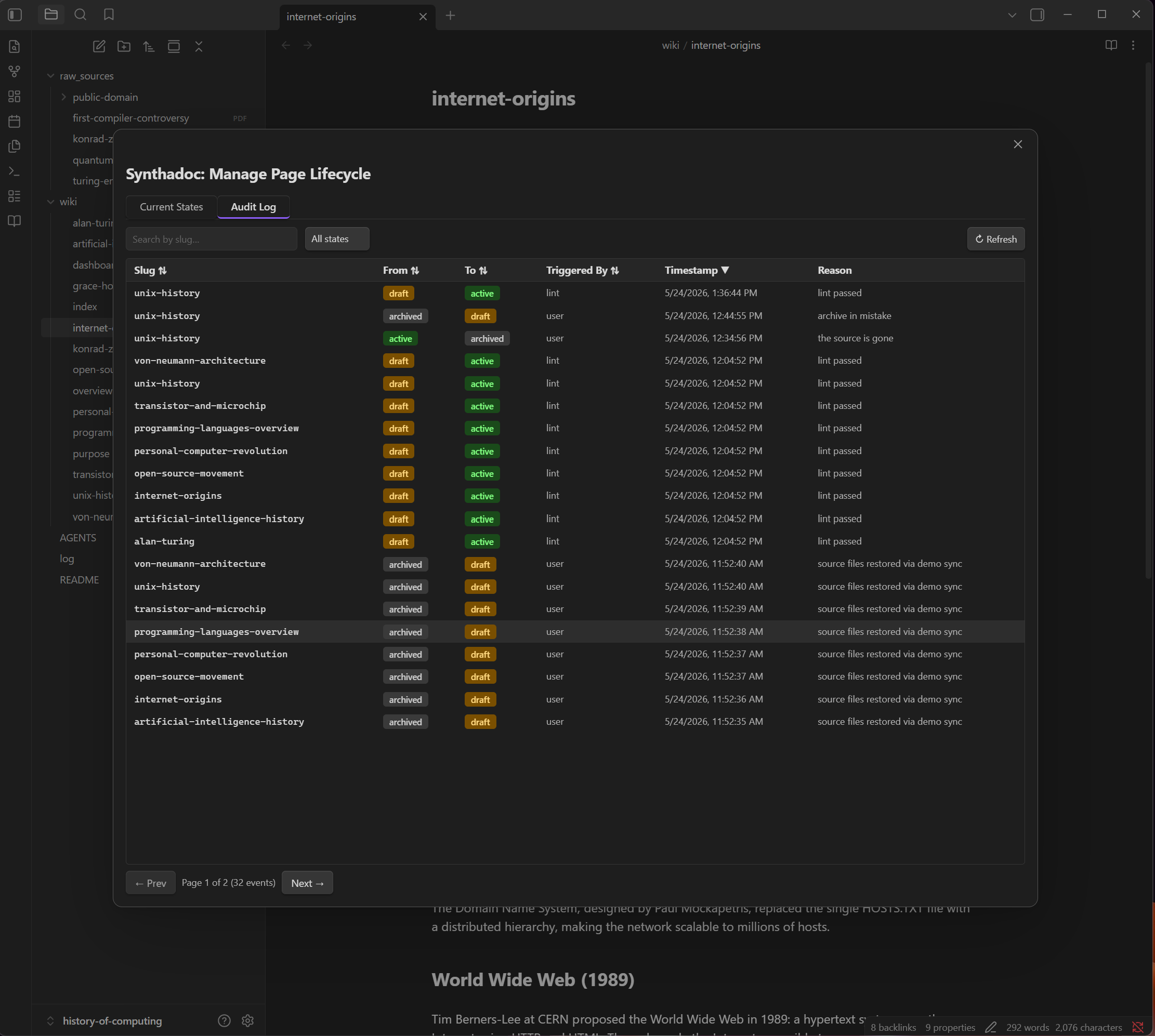
Switch to the **Audit Log** tab to see the full history of every state transition across all pages — searchable by slug, filterable by target state, sortable by any column, with pagination.
### Manual state transitions (CLI)
The CLI gives you control over page state outside of lint automation. Transitions follow the lifecycle graph — only semantically valid paths are accepted; invalid ones are rejected with a clear error:
```bash
# Promote a page to active after manual review (draft/stale/contradicted → active)
synthadoc lifecycle activate alan-turing --reason "reviewed and verified"
# Retire a page whose source has been superseded (any non-archived state → archived)
synthadoc lifecycle archive alan-turing --reason "replaced by v2 source"
# Restore an archived page back to draft for re-review (archived → draft)
synthadoc lifecycle restore alan-turing --reason "source re-added to raw_sources"
# View the full transition history for a page
synthadoc lifecycle log konrad-zuse
```
### Stale detection — local files
If a source file on disk changes after ingest, the next lint run detects the SHA-256 hash mismatch and marks the page `stale`. This catches silent content drift — source documents updated without anyone re-ingesting them.
**Walk-through with the demo wiki:**
1. **Edit the raw source file** — open `raw_sources/konrad-zuse-z3-computer.md` in any text editor. Add a sentence at the very end of the file:
```
Updated: The Z3 blueprint later influenced Plankalkül, Zuse's programming language.
```
Save the file.
2. **Run lint** — the hash mismatch is detected automatically:
```bash
synthadoc lint run
```
3. **Find which pages are now stale** — `synthadoc status` shows the counts but not which pages. To see the specific pages, use the **Lifecycle Management** panel in the Obsidian plugin, or run:
```bash
synthadoc lifecycle log --state stale
```
```
[wiki: history-of-computing]
Slug From To By Timestamp Reason
konrad-zuse active stale lint 2026-05-28T18:11:13 source file modified since last ingest
```
4. **Inspect the full transition history for the page:**
```bash
synthadoc lifecycle log konrad-zuse
```
5. **Resolve staleness** — re-ingest the updated file:
```bash
synthadoc ingest raw_sources/konrad-zuse-z3-computer.md --force
```
The next `synthadoc lint run` returns the page to `active`.
The same mechanism works for any raw source format — markdown, plain text, PDF, DOCX. Once a file is re-ingested, the stored hash updates and lint no longer flags the page as stale.
### URL source availability and freshness
Pages ingested from web URLs or YouTube are also monitored — but these checks are opt-in to avoid adding network calls to every lint run.
**Archived — URL has gone away**
Enable HTTP availability checks with the `--check-urls` flag or a config option:
```bash
synthadoc lint run --check-urls
```
```toml
# config.toml
[lint]
check_url_availability = true
```
When enabled, lint issues an HTTP HEAD request for each URL-sourced page. A 404 or 410 response transitions the page to `archived`. YouTube videos are probed via the transcript system — a deleted or private video triggers `archived`. Network timeouts and other transient errors leave the page unchanged (conservative: no false positives from transient failures).
**Stale — URL content is old**
To flag URL-sourced pages that have not been re-ingested recently:
```toml
[audit]
url_staleness_days = 90 # 0 = never flag (default)
```
When non-zero, lint compares the `ingested_at` timestamp in the audit database to today. Pages older than the threshold are marked `stale`, prompting a re-ingest:
```bash
synthadoc ingest "https://example.com/article" --force
```
### Audit trail
Every state transition — automated by lint or triggered manually — is permanently appended to an immutable event log. The log captures the slug, the previous state, the new state, who triggered the change (`ingest`, `lint`, `cli`, or `api`), the timestamp, and the reason.
```bash
synthadoc lifecycle log konrad-zuse
```
```
[wiki: history-of-computing]
Slug From To By Timestamp Reason
konrad-zuse null draft ingest 2026-05-28T14:58:50 new page created by ingest
konrad-zuse draft active lint 2026-05-28T17:54:51 lint passed
konrad-zuse active stale lint 2026-05-28T18:11:13 source file modified since last ingest
konrad-zuse stale draft ingest 2026-05-28T18:30:56 re-ingest of stale page
konrad-zuse draft active lint 2026-05-28T18:31:23 lint passed
```
> For enterprise wikis, this trail answers the compliance questions: "when was this page reviewed, by what process, and why was it changed?" — without requiring anyone to maintain that record manually.
---
## Step 9 — Resolve a contradiction
After `first-compiler-controversy.pdf` is processed, `wiki/grace-hopper.md` will have:
```yaml
status: contradicted
```
The PDF argues that Hopper's A-0 was a loader rather than a compiler, and that FORTRAN
(1957) was the first production compiler — contradicting the existing page.
**Check via CLI:**
```bash
synthadoc lint report
```
```
Contradicted pages (1) - need review:
grace-hopper
-> Open wiki/grace-hopper.md, resolve the conflict, then set status: active
-> Or re-run: synthadoc lint run --auto-resolve
```
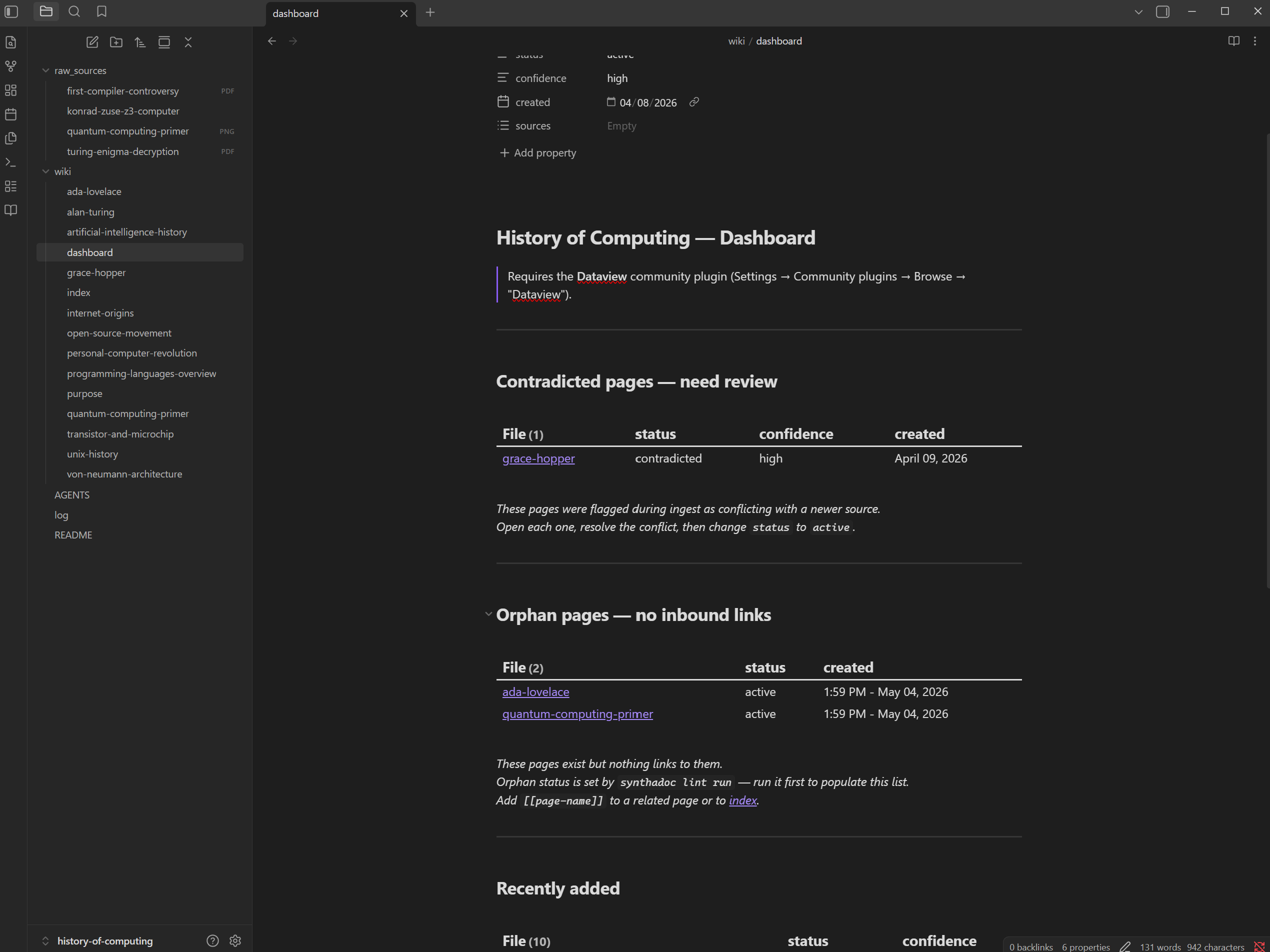
**In Obsidian:** open `wiki/dashboard.md` — `grace-hopper` appears in the
**Contradicted pages** Dataview table. The Properties panel shows `status: contradicted`.
### Option 1 — Manual resolution (recommended first time)
1. Open `wiki/grace-hopper.md` in Obsidian
2. Edit the body to reflect a nuanced view — Hopper pioneered automated code generation
with A-0; Backus and IBM delivered the first production compiler with FORTRAN in 1957
3. Change `status: contradicted` → `status: active` in the Properties panel
4. Save — the Contradicted pages table clears immediately
### Option 2 — LLM auto-resolve
```bash
synthadoc lint run --auto-resolve
synthadoc jobs status
```
The LLM proposes a resolution, appends it as a `**Resolution:**` block, and sets
`status: active`. Review the result in Obsidian and edit if needed.
Or from Obsidian: Command Palette → `Synthadoc: Lint: run with auto-resolve`.
### Option 3 — Resolve via MCP (Claude Desktop or Claude Code)
> **Prerequisite:** Synthadoc must be registered as an MCP server in Claude. See [Appendix I — Connect Claude via MCP](#appendix-i--connect-claude-via-mcp) for the `claude mcp add` command and Claude Desktop config.
With Synthadoc connected as an MCP server, Claude can resolve contradictions using its own LLM — the brain/memory architecture in action. Claude reasons about the conflict, writes the resolution, then commits the lifecycle transition with a proper audit trail.
Ask Claude in a single prompt:
> "The grace-hopper page is contradicted. Read it, resolve the A-0 compiler controversy by presenting both scholarly views fairly, update the page, then mark it active with a reason."
Claude will execute this as three tool calls in sequence:
**1. Read the page**
```
synthadoc_read_page("grace-hopper")
```
**2. Write the resolved content**
```
synthadoc_write_page(
slug="grace-hopper",
content="",
)
```
This updates the content, clears the `contradiction_note`, and bumps the wiki epoch.
**3. Transition the lifecycle state**
```
synthadoc_lifecycle(
slug="grace-hopper",
to_state="active",
reason="Resolved: A-0 compiler controversy — both scholarly views preserved",
)
```
This writes a permanent audit record: who triggered it (`mcp`), when, and why.
The audit trail for the full resolution looks like:
```
Slug From To By Timestamp Reason
grace-hopper null draft ingest 2026-05-28T14:58:50 new page created
grace-hopper draft active lint 2026-05-28T17:54:51 lint passed
grace-hopper active contradicted lint 2026-05-28T18:30:00 conflict: A-0 compiler claim
grace-hopper contradicted active mcp 2026-06-18T21:45:00 Resolved: A-0 controversy — both views preserved
```
> **Why this is better than Option 1:** The audit trail records that the resolution was applied, when, and with what stated reason — not just that the file was edited. Option 1 (direct file edit) leaves no lifecycle record.
>
> **Why this is better than Option 2:** Claude's LLM (Anthropic) has stronger editorial reasoning than Synthadoc's configured provider, and can draw on conversation context — for example, if you've been discussing the controversy in the same session.
> **Dashboard still showing the contradiction?** Dataview may be serving stale metadata.
> Drop the cache: `Ctrl/Cmd+P` → **Dataview: Drop all cached file metadata**, then reopen
> `dashboard.md`. If `synthadoc lint report` shows "all clear", the file is already
> correct — Dataview just has not caught up yet.
---
## Step 10 — Fix an orphan page
The pre-built demo wiki includes `wiki/ada-lovelace.md`, but no other page links to it.
That makes it an **orphan** — a page with no inbound `[[wikilinks]]`.
**Check via CLI:**
```bash
synthadoc lint report
```
```
Orphan pages (2) - no inbound links:
ada-lovelace
-> Add [[ada-lovelace]] to a related content page, e.g.:
- [[ada-lovelace]] — computing history, programming languages, operating systems, hardware innovation
quantum-computing-primer
-> Add [[quantum-computing-primer]] to a related content page, e.g.:
- [[quantum-computing-primer]] — Quantum Computing Primer
```
**In Obsidian:** open `wiki/dashboard.md` — `ada-lovelace` and `quantum-computing-primer` appear in the **Orphan pages**
Dataview table.
> **Note on Graph view:** Obsidian's Graph view draws edges for both inbound and outbound
> links, so an orphan page that contains its own `[[wikilinks]]` to other pages may appear
> connected. Synthadoc defines an orphan as having **no inbound links** — always use
> `synthadoc lint report` as the authoritative check.
### Option 1 — Link it (recommended)
Open `wiki/programming-languages-overview.md` and add a reference:
```
Ada Lovelace is widely credited as [[ada-lovelace|the first programmer]], having written
the first algorithm intended to be executed by Charles Babbage's Analytical Engine in 1843.
```
Save — the orphan disappears from the dashboard immediately.
### Option 2 — Delete and re-ingest later
If the page content quality is poor, delete `wiki/ada-lovelace.md` from Obsidian and
pull in a fresh source via web search:
```bash
synthadoc ingest "search for: Ada Lovelace contributions to computing history"
```
### Option 3 — Resolve via MCP (Claude Code)
> **Prerequisite:** Synthadoc must be registered as an MCP server in Claude Code. See [Appendix I — Connect Claude via MCP](#appendix-i--connect-claude-via-mcp) for the `claude mcp add` command.
With Synthadoc connected as an MCP server, Claude can fix orphans autonomously — it reads the wiki, finds a relevant page to add the link to, writes the change, and re-runs lint to confirm the fix.
**Step 1 — Find orphans:**
> "Are there any orphan pages in my history-of-computing wiki?"
Claude calls `synthadoc_lint_report` for the authoritative orphan list (instant, no LLM cost). For the demo wiki this returns `mechanical-computing` among the orphans.
**Step 2 — Fix the orphan:**
> "The mechanical-computing page is an orphan. Find the most relevant page in the wiki and add a wikilink to it."
Claude reads `mechanical-computing`, notices it already contains `[[von-neumann-architecture]]` in its body, and recognises this as a natural reciprocal — `von-neumann-architecture` should link back. It adds:
```
The concept of a general-purpose programmable machine with distinct memory,
arithmetic, and control components was anticipated by Charles Babbage's
Analytical Engine designs of the 1830s — see [[mechanical-computing]] for
the pre-electronic tradition that foreshadowed this architecture by over a
century.
```
Claude calls `synthadoc_write_page` to insert this into `von-neumann-architecture`.
**Step 3 — Verify:**
> "Re-run lint report and confirm mechanical-computing is no longer an orphan."
Claude calls `synthadoc_lint_report` again — `mechanical-computing` is gone from the orphan list.
> **Why Claude chose von-neumann-architecture:** `mechanical-computing` already contained `[[von-neumann-architecture]]` — making it a natural reciprocal link rather than a forced one. Claude read the page content before deciding, not just the slug names.
To archive an orphan that is genuinely out of scope instead:
> "Archive the mechanical-computing page — it's an orphan and not relevant to this wiki."
Claude calls `synthadoc_lifecycle` with `to_state="archived"` and a reason, writing a permanent audit record.
### Deleting a page and cleaning up its references
When a page is archived — whether via `synthadoc lifecycle archive`, the Obsidian Lifecycle modal, the MCP `synthadoc_lifecycle` tool, or automatically by lint detecting that all source files are gone — Synthadoc immediately removes all `[[page-name]]` wikilinks pointing to it from every other active page. No extra `lint run` is required.
- Inline links (`[[old-page]]`) become plain text.
- List-item-only links (`- [[old-page]]`) are dropped entirely.
- Already-archived pages and system pages (index, dashboard, purpose) are not rewritten.
The CLI reports which pages were updated:
```
synthadoc lifecycle archive old-page -w my-wiki --reason "replaced by updated source"
old-page: active -> archived
Cascade: [[old-page]] removed from 2 page(s): cpu-design, transistor-history
```
If a page has multiple source files and only some are missing from disk, lint marks it `stale` (not archived) so you can re-ingest the surviving sources. The page is only auto-archived when every local source file is gone.
Lint's dangling-link cleanup (`lint run`) remains available as a safety net for any dead links that predate a v1.0.2 upgrade or arrive through other paths.
---
## Step 11 — Run the adversarial review
Standard lint validates wiki structure — contradictions, orphan pages, dangling links. The
**adversarial review** adds a second independent LLM pass that interrogates every page for
epistemic overreach: overstated claims, unsupported assertions, and high-confidence statements
the source material does not support.
The adversarial review runs automatically as part of every `synthadoc lint run`. No extra flag is
needed.
### Run lint with adversarial review
```bash
synthadoc lint run
synthadoc jobs list # watch progress
synthadoc lint report # view results when complete
```
The pre-built pages already contain the kinds of sweeping historical claims an adversarial
reviewer will flag — no additional ingest is needed before this step, though running Step 6
first gives the adversarial review more content to work with.
The reviewer flags **up to 2 issues per page by default** (configurable via `adversarial_max_per_page` in `config.toml`) and only flags claims it is highly confident
about — defensible or nuanced statements are skipped. The full history-of-computing demo
wiki (13 pre-built pages plus pages created in Step 6) typically produces **10–15 warnings**,
giving a meaningful but not overwhelming signal.
Sample output for the history-of-computing demo wiki (after Step 6 batch ingest; exact
wording varies by LLM):
```
Contradicted pages (0)
Orphan pages (0)
Adversarial warnings (3):
alan-turing
Claim: "Saved over fourteen million lives."
Concern: This specific figure lacks scholarly consensus — historians dispute both any
precise death-count and the causal attribution of lives saved to Turing's
cryptanalysis alone. The claim conflates a speculative timeline reduction with
a precise casualty figure that is unsupported in academic literature.
artificial-intelligence-history
Claim: "These systems exhibit emergent capabilities that were not explicitly programmed."
Concern: "Emergence" in large language models is disputed — several researchers argue
that capability gains are smooth and predictable at scale, and that the label
"emergent" reflects measurement choices rather than a genuine phase transition.
personal-computer-revolution
Claim: "IBM's decision to build the PC from off-the-shelf parts ... was the most
consequential business decision of the era."
Concern: An unsupported superlative — Microsoft's retention of the MS-DOS licence and
Intel's exclusive CPU supply deal were equally pivotal; "most consequential"
requires a comparison the text does not make.
```
> **Note:** Re-ingest suggestions only appear for pages whose sources were ingested from local
> files (absolute paths) or URLs. Pre-built demo pages use placeholder source references,
> so no re-ingest command is shown — use `synthadoc ingest ` manually if needed.
### What each warning means
Each adversarial warning has two parts:
| Field | Meaning |
| ----------- | --------------------------------------------------------------- |
| **Claim** | The exact sentence or phrase flagged as potentially problematic |
| **Concern** | Why the adversarial reviewer flagged it — the specific doubt |
The adversarial LLM is deliberately skeptical. Not every warning requires action — some claims
are defensible with context the LLM does not have. Read each concern before deciding what to do.
### What to do with a warning
| Situation | Action |
| ------------------------------------------------------ | -------------------------------------------------------------------------- |
| Claim is accurate, concern is addressed by other pages | Do nothing — the wiki is fine |
| Claim is a genuine overstatement | Edit the page in Obsidian and soften the language |
| Source has been updated since last ingest | Re-ingest with`--force` to bypass dedup: `synthadoc ingest --force` |
| Claim needs a counterbalancing perspective | Ingest a different source:`synthadoc ingest ` |
| Page quality is poor overall | Delete the page and re-ingest:`synthadoc ingest ` |
> **Re-ingesting the same unchanged source won't fix an overstatement.** The LLM will read
> the same text and likely produce the same claim. For overstatements, edit the page directly
> in Obsidian. Use `--force` only when the source document itself has new or updated content.
### Hands-on exercise
The `alan-turing` warning flags the "fourteen million lives" figure as lacking scholarly
consensus. Fix it:
1. Open `wiki/alan-turing.md` in Obsidian
2. Find the sentence in the **Wartime Contributions** section that mentions lives saved
(added when you ingested `turing-enigma-decryption.pdf` in Step 6)
3. Remove the specific casualty figure and replace with qualified language:
```
Historians credit Turing's Bombe with dramatically accelerating Allied codebreaking,
though estimates of the war's duration and lives affected vary widely across sources.
```
4. Save — the next lint run will re-evaluate the page and the warning will clear
### Verify the warning cleared
```bash
synthadoc lint run
synthadoc lint report
```
The `alan-turing` adversarial warning should no longer appear.
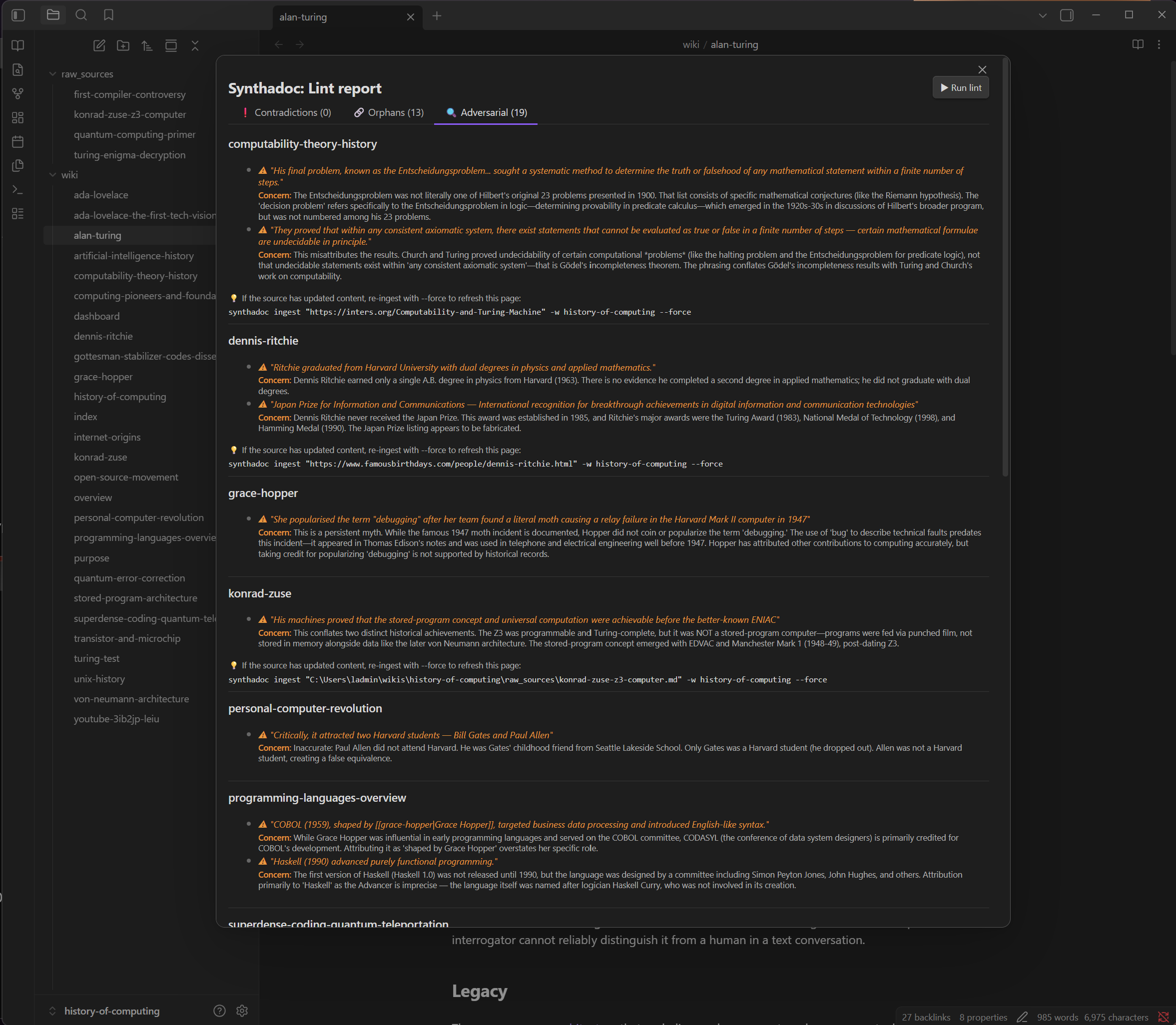
### View warnings in Obsidian
Open the Command Palette (`Ctrl/Cmd+P`) → `Synthadoc: Lint: report` → click the
**Adversarial** tab. Flagged claims and the **⚠** icon appear in **orange** so warnings
stand out immediately. The **Concern:** label is also orange; the concern text itself is
muted for readability. Suggested re-ingest commands appear below each entry.
The same label-coloring convention applies across all tabs: **Why flagged:** in the
Contradictions tab uses orange, and **Suggested index entry:** in the Orphans tab uses
accent blue (it is a suggestion, not a warning), so you can scan the full report at a
glance without reading every line.
> **Skip the adversarial pass:** If you want a fast structural-only lint, open
> `Synthadoc: Lint: run...` and tick **Skip adversarial review**. This also clears any
> existing `lint_warnings` from frontmatter so stale warnings do not linger.
### Optional — adjust the warning cap
By default the adversarial reviewer flags at most 2 issues per page. Raise the cap for a thorough audit; lower it to reduce noise on large wikis:
```toml
# config.toml
[lint]
adversarial_max_per_page = 2 # raise to 3–5 for a deeper review; lower to 1 for less noise
```
If `[lint]` is absent from `config.toml`, Synthadoc defaults to 2 — no file change needed.
### Optional — appoint a dedicated judge model
By default the adversarial review shares the lint model. The most effective configuration is a
*different provider entirely*: a model from a distinct family, trained on different data with
different inductive biases, will surface blind spots and challenge assumptions that the primary
model would systematically miss. Same-model self-review has limited value; cross-model review
does not:
```toml
# config.toml
[agents]
lint = { provider = "minimax", model = "MiniMax-M2.5" }
adversarial = { provider = "anthropic", model = "claude-sonnet-4-6" } # independent judge — different model family, different inductive biases
```
The two providers are intentionally different — when a model from one family reviews the
output of a model from another, neither shares the training-induced assumptions that cause
same-model review to miss systematic errors.
---
## Step 12 — Web search ingestion
> **Requires `TAVILY_API_KEY`** — see [Appendix D](#appendix-d--tavily-web-search-key).
> Without it, web search jobs fail with `[ERR-SKILL-004]`. All other features work normally.
### How web search decomposition works
Synthadoc **decomposes web search topics** into multiple focused keyword sub-queries
before hitting Tavily. Each sub-query fires a separate parallel search, URLs are
deduplicated across all results, and each is enqueued as an individual ingest job.
This produces richer, more targeted pages than a single broad search.
```
Input: "search for: history of ARPANET and internet origins"
Server log:
web search decomposed into 3 queries:
"ARPANET creation 1969 DARPA" | "TCP/IP protocol development history" | "internet origins packet switching"
Result: 3 parallel Tavily searches → ~60 URLs ingested vs ~20 from a single search
```
Decomposition falls back gracefully — if the LLM call fails, the original phrase is used as
a single query and the ingest always completes.
### Run a web search ingest
```bash
synthadoc ingest "search for: Dennis Ritchie C programming language Bell Labs history"
synthadoc ingest "search for: ENIAC first general purpose electronic computer history"
```
Each command fans out to up to 20 URL ingest jobs. The commands return immediately —
all processing happens in the background. Watch progress with:
```bash
synthadoc jobs list
```
> **How long does it take?**
>
> - **Free-tier Gemini (15 RPM) or Groq:** Two searches produce ~20–40 LLM calls. The
> server retries automatically when the rate limit is hit (you will see
> `Rate limit (429) — waiting 60 s` in the server log — this is normal). Expect
> **3–8 minutes** for both searches to fully complete.
> - **Paid tier or free-trial tier (Gemini paid, MiniMax, Anthropic, OpenAI, Qwen DashScope):** No rate-limit retries.
> Both searches typically finish in **under 2 minutes**.
>
> **Recommendation:** Web search ingest works best with a paid or free-trial provider.
> Qwen DashScope offers **1 million free tokens** (90-day trial) with no rate-limit delays —
> a good option if you want free-tier speed without the wait.
> See [Appendix C — Switching LLM providers](#appendix-c--switching-llm-providers).
Pages such as `dennis-ritchie`, `eniac-history`, and related topics will be created or
enriched. The `wiki/overview.md` page is regenerated automatically after each batch
completes.
### Control the scope
Limit how many URLs are enqueued (default: 20):
```bash
synthadoc ingest "search for: quantum computing IBM Google" --max-results 5
```
**Batch via manifest file:** the demo wiki ships a `sources.txt` at the wiki root (outside `raw_sources/` — a `.txt` inside that folder would be treated as a text document rather than a manifest). It already contains these web search entries alongside YouTube and PDF sources:
```
search for: Dennis Ritchie C programming language Bell Labs history
find on the web: Linus Torvalds Linux kernel creation 1991
search for: Ada Lovelace first programmer Analytical Engine Babbage
look up: history of ARPANET and internet origins
```
Ingest all sources at once:
```bash
synthadoc ingest --file sources.txt
```
### Web search from Obsidian — live view
Open the Command Palette → `Synthadoc: Ingest... → web search tab`:
1. Type a topic — e.g. `Linus Torvalds Linux kernel creation 1991`
2. Set **Max results** (1–50, default 20) to control scope
3. Adjust **Poll interval** if desired (default: 2000 ms)
4. Press `Ctrl/Cmd+Enter` or click **Search**
The modal transitions to a live view:
- **Searching the web…** — while Tavily fetches
- **Found N URLs — ingesting…** — as fan-out jobs are created
- **Ingesting N URLs… (M done)** — counting completed child jobs
- A **Pages** list grows in real time as each URL ingest completes
- **Errors** (blocked domains, 404s) appear in red
- **Done — N page(s) written.** when all jobs settle
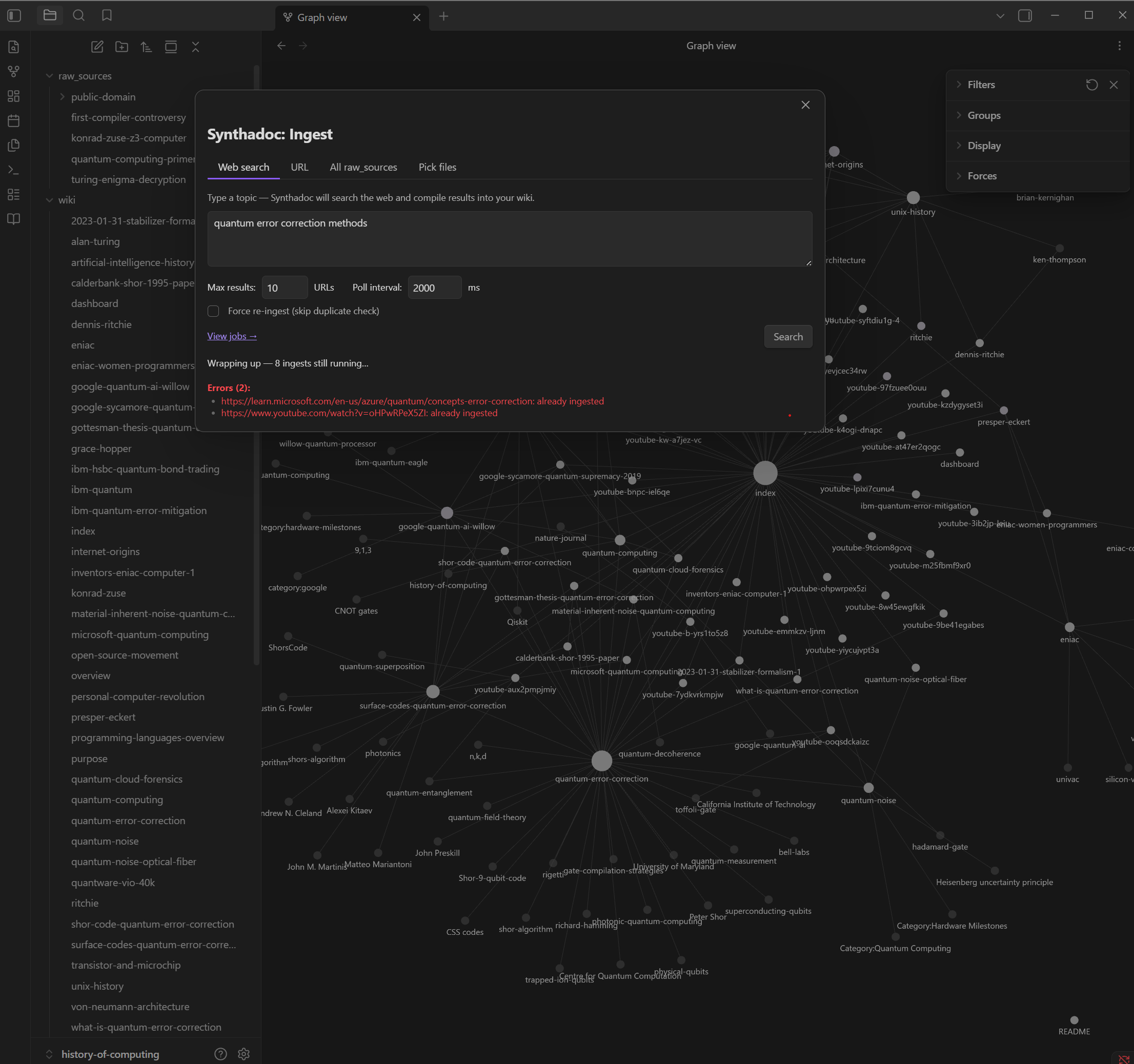
The modal prepends `search for:` automatically — just type the topic, no prefix needed.
---
## Step 13 — Ingest a YouTube video
Pass any YouTube URL directly — the transcript is extracted automatically from the
YouTube caption system (no API key, no audio download). Both the full URL and the
short-link form (`https://youtu.be/...`) are accepted:
```bash
synthadoc ingest "https://www.youtube.com/watch?v=O5nskjZ_GoI"
```
This ingests *Early Computing: Crash Course Computer Science #1*, which covers Hollerith,
Babbage, Lovelace, and the first programmable machines — a natural fit for the demo wiki.
The YouTube entries in `sources.txt` (see Step 10) include this video, so running
`synthadoc ingest --file sources.txt` handles it alongside the web searches.
The wiki page opens with an **executive summary** — a brief description of what the video
covers, the main topics as bullet points, and the key takeaway — so you can assess
relevance at a glance. The full timestamped transcript follows for precise cross-referencing.
> **Captions required** — the video must have captions (auto-generated or manually added).
> Check by opening the video on YouTube → `...` → **Show transcript**. If no transcript
> panel appears, the source is skipped with a warning and ingestion continues.
> **Short vs. long videos** — short videos produce a single wiki page. Long videos are
> chunked automatically by the existing `max_pages_per_ingest` limit.
Watch progress:
```bash
synthadoc jobs list
```
> **Tavily search + YouTube** — if Tavily returns YouTube URLs as web search results, they
> are automatically routed to the YouTube transcript skill. No extra steps needed.
---
## Step 14 — Enrich the wiki with scaffold
After batch ingest, the wiki has grown from 10 pre-built pages to 12 or more. **Scaffold**
reads the current wiki state and uses the LLM to regenerate the structure files —
`wiki/index.md`, `AGENTS.md`, `CLAUDE.md`, `GEMINI.md`, and `wiki/purpose.md` — so they
reflect what the wiki has actually become. Existing pages that are already linked in
`index.md` are detected as **protected slugs** and preserved; only unlinked and new
categories are refreshed.
> **Upgrading an existing wiki?** If your wiki was created with an earlier version of
> Synthadoc, running `synthadoc scaffold` is all you need to get `CLAUDE.md` and
> `GEMINI.md` for the first time. The command regenerates all three skill files with
> LLM-produced domain guidelines that match your current wiki content.
### Run scaffold
```bash
synthadoc scaffold
```
Expected output:
```
Reading current wiki content…
Generating domain-specific scaffold (History of Computing)…
Protected slugs: alan-turing, grace-hopper, von-neumann-architecture, unix-history, … (10 pages)
Scaffold complete — domain-specific content generated.
wiki/index.md updated
AGENTS.md updated
CLAUDE.md updated
GEMINI.md updated
wiki/purpose.md updated
```
Open `wiki/index.md` in Obsidian — it now has richer category headings that reflect the
full post-ingest wiki (e.g. **Pioneers and Visionaries**, **Hardware Milestones**,
**Software and Languages**, **European Computing**, **Emerging Technology**).
### Re-run scaffold at any time
As the wiki grows, re-running scaffold keeps the index structure current and refreshes
all three agent skill files with updated domain guidelines:
```bash
synthadoc scaffold
```
`config.toml` and `dashboard.md` are **never touched** by scaffold.
### Schedule scaffold automatically
To keep the index fresh without manual intervention:
```bash
# Weekly scaffold refresh — every Sunday at 4 AM
synthadoc schedule add --op "scaffold" --cron "0 4 * * 0"
```
### Protect custom content with the scaffold marker
By default, re-running scaffold rewrites the entire `index.md`. If you want to add your own
intro text, notes, or links that survive future scaffold runs, add the marker on its own line:
```markdown
My custom wiki intro — maintained by hand.
## Pioneers and Visionaries
- [[alan-turing]]
...
```
Everything **above** the marker is your protected zone — scaffold never touches it.
Everything **below** is rewritten each time. If the marker is absent, scaffold rewrites
the whole file as before.
---
## Step 15 — Audit features
The `synthadoc audit` commands query the append-only `audit.db` — no `sqlite3` required.
### Ingest history
```bash
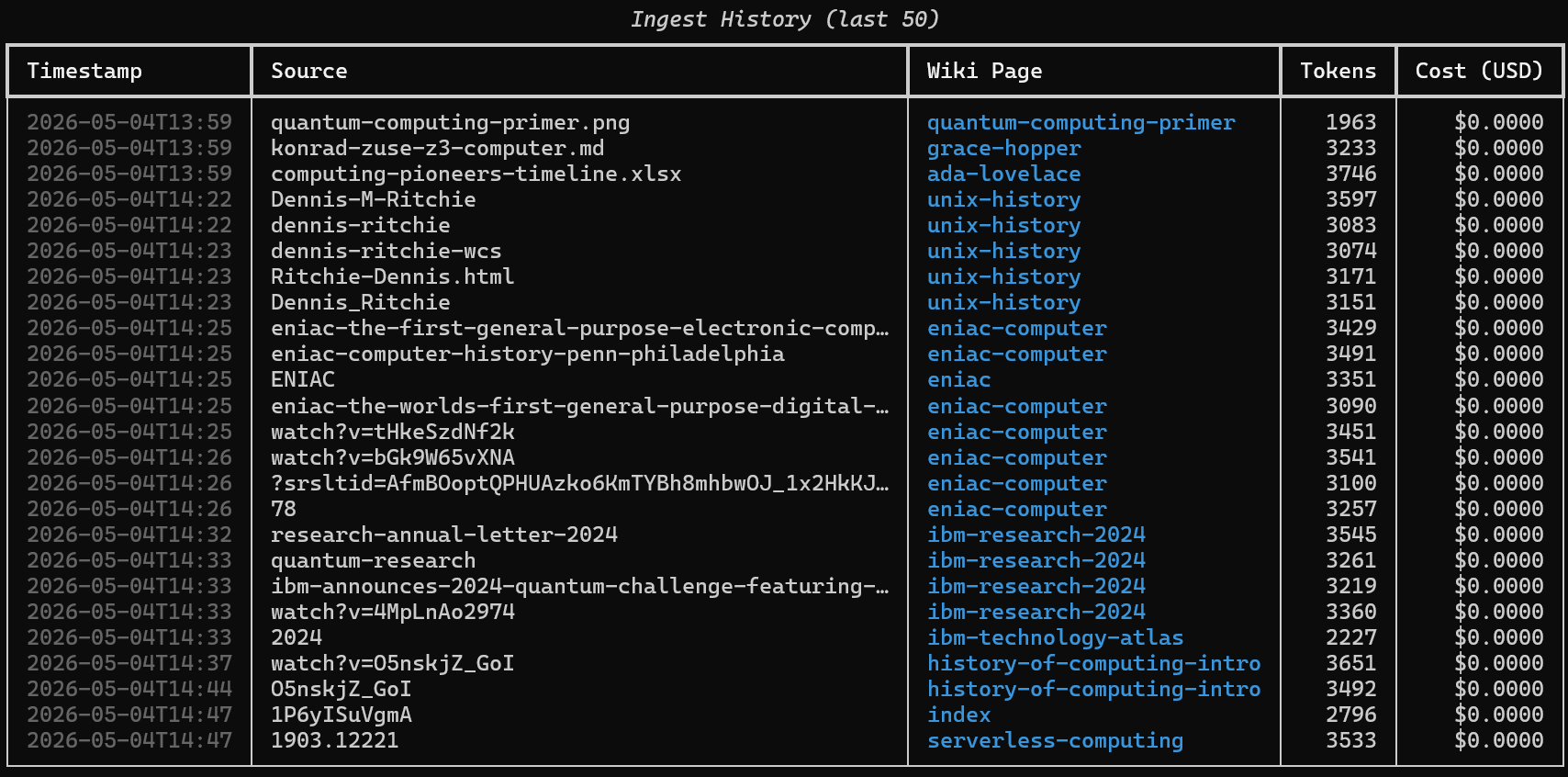
synthadoc audit history
```
Shows the last 50 ingest records: timestamp, source file, wiki pages created/updated,
token count, and cost. Use `--limit N` (or `-n N`) for more records and `--json` for machine-readable output.
### Cost summary
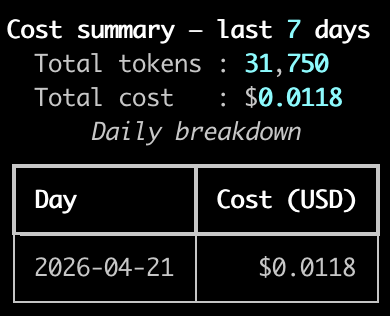
```bash
synthadoc audit cost
```
Expected output:
```
Period: last 30 days
Total tokens : 22,400
Total cost : $0.143
Sources processed: 6
Avg cost/source : $0.024
```
Pass `--days 7` for a weekly view. Per-model cost tracking is fully live in v0.2.0.
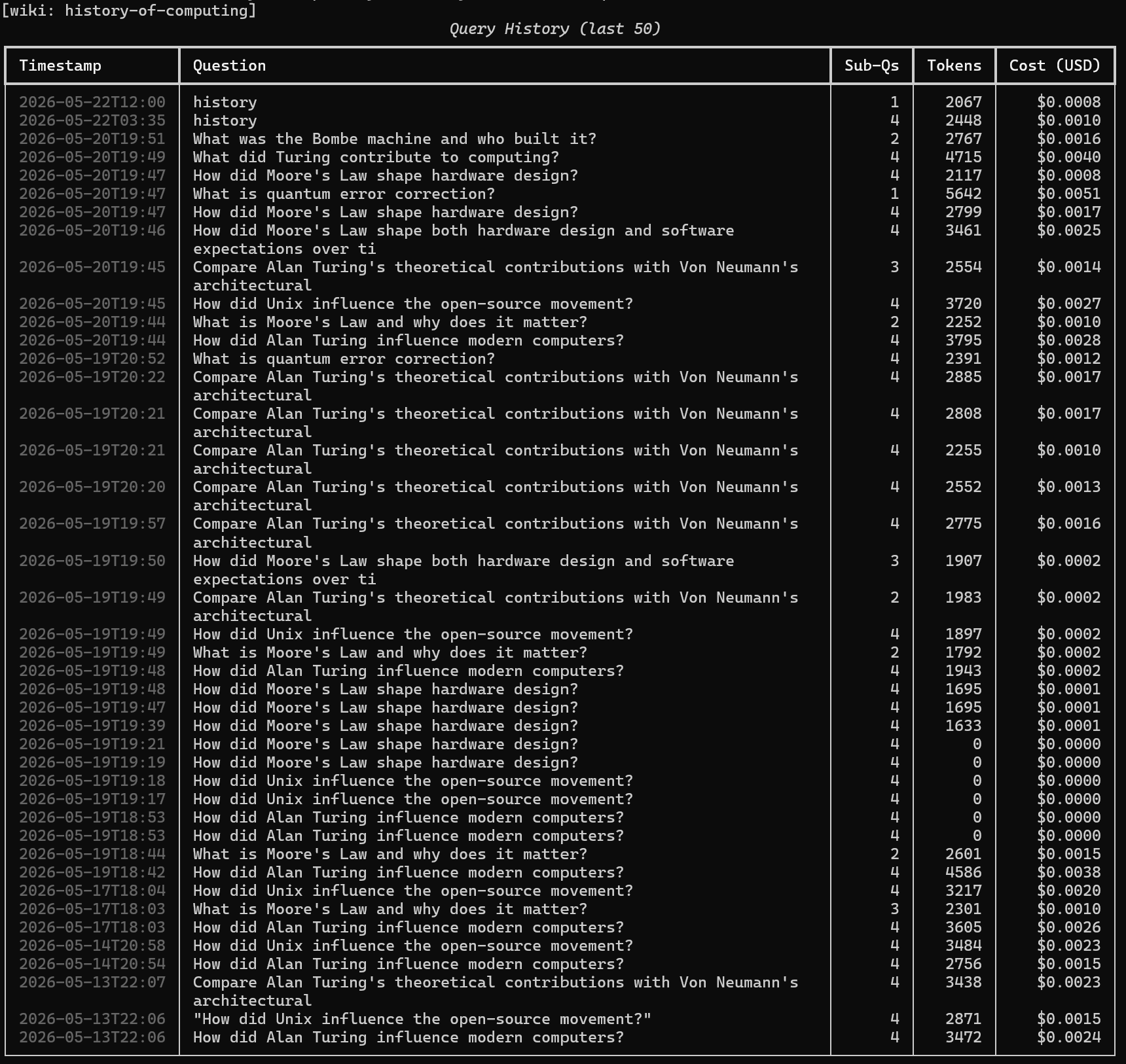
### Query history
```bash
synthadoc audit queries
```
Shows recent questions asked, how many sub-questions each was decomposed into, token
usage, and per-query cost. Especially useful after running the compound queries in Step 5.
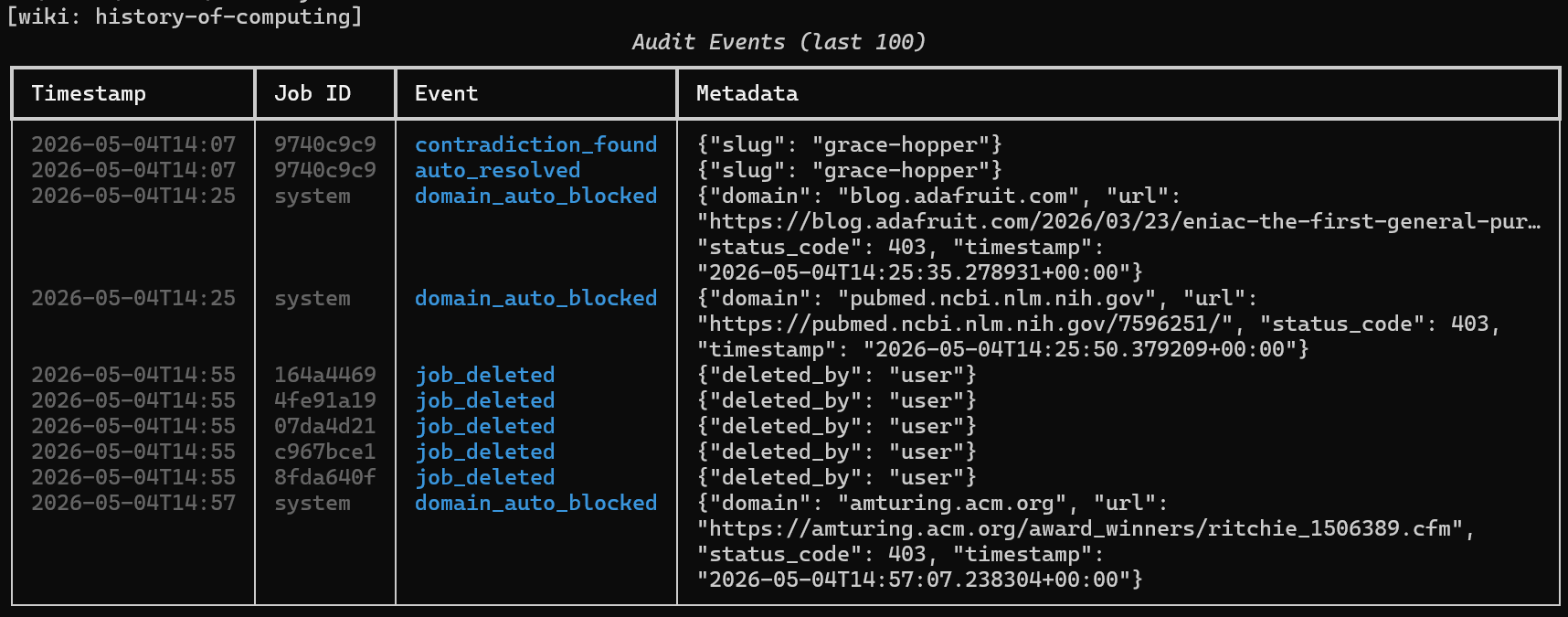
### Audit events
```bash
synthadoc audit events
```
Expected after Steps 6–10:
```
2026-04-21 10:12 contradiction_found grace-hopper ← first-compiler-controversy.pdf
2026-04-21 10:14 auto_resolved grace-hopper (confidence: 0.91)
```
Records every contradiction detection, auto-resolution, and cost gate trigger.
---
## Step 16 — Scheduling recurring operations
Hooks react to events that already happened. The scheduler goes the other direction —
it proactively triggers operations on a timer, keeping the wiki fresh automatically.
### Register a nightly batch ingest
```bash
synthadoc schedule add \
--op "ingest --batch raw_sources/" \
--cron "0 2 * * *" \
```
This registers a 2 AM daily ingest directly with the OS scheduler (`crontab` on
macOS/Linux, Task Scheduler on Windows). No background daemon required.
### Register a weekly lint pass + weekly scaffold refresh
```bash
synthadoc schedule add --op "lint run" --cron "0 3 * * 0"
synthadoc schedule add --op "scaffold" --cron "0 4 * * 0"
```
### Verify
```bash
synthadoc schedule list
```
Expected output — each row now shows the schedule, next run time, last run, and last result:
```
ID Schedule Next Run Last Run Last Result Command
sched-a3f1b2c4 0 2 * * * 2026-05-31 02:00 — — synthadoc ... schedule run --op "ingest --batch raw_sources/"
sched-b7e9d012 0 3 * * 0 2026-06-01 03:00 — — synthadoc ... schedule run --op "lint run"
sched-c9f3e201 0 4 * * 0 2026-06-01 04:00 — — synthadoc ... schedule run --op "scaffold"
```
Next run time is computed from the cron expression on macOS/Linux, and read from the OS Task Scheduler on Windows.
### Check run history
Each time a scheduled job fires, the outcome (status, duration, and any output or error) is recorded in the schedule history log. View recent runs:
```bash
synthadoc schedule history
```
```
Run ID Op Started Duration Status
------------------------------------------------------------------------
run-a1b2c3d4 lint run 2026-05-31 03:00 47.3s success
run-342a7e95 ingest 2026-05-30 23:11 0.8s failed
run-bc56dc6a scaffold 2026-05-30 23:04 31.2s success
Details
-------
run-a1b2c3d4 lint run success
Checked 47 pages. 2 adversarial warnings. 0 orphan pages.
run-342a7e95 ingest failed
exit code 1: MINIMAX_API_KEY is not set
run-bc56dc6a scaffold success
Scaffold complete — domain-specific content generated.
```
The **Details** section only appears when runs have output to show. Successful runs display captured output; failed runs display the error. A `failed` run means either `synthadoc serve` was not running when the task fired, or the operation itself encountered an error. Re-run manually with `synthadoc schedule run --op "lint run"` to recover.
### Clean up (demo only)
Remove the scheduled jobs so they do not run after the demo:
```bash
synthadoc schedule remove sched-a3f1b2c4
synthadoc schedule remove sched-b7e9d012
synthadoc schedule remove sched-c9f3e201
```
> **Production use:** for always-on scheduling, run `synthadoc serve` as a background
> service (systemd, launchd, or Windows Service) so the server is available when the OS
> fires the scheduled task. If a run is missed (server down or machine asleep), it will
> not automatically retry — check `synthadoc schedule history` for failures and re-run
> manually if needed.
---
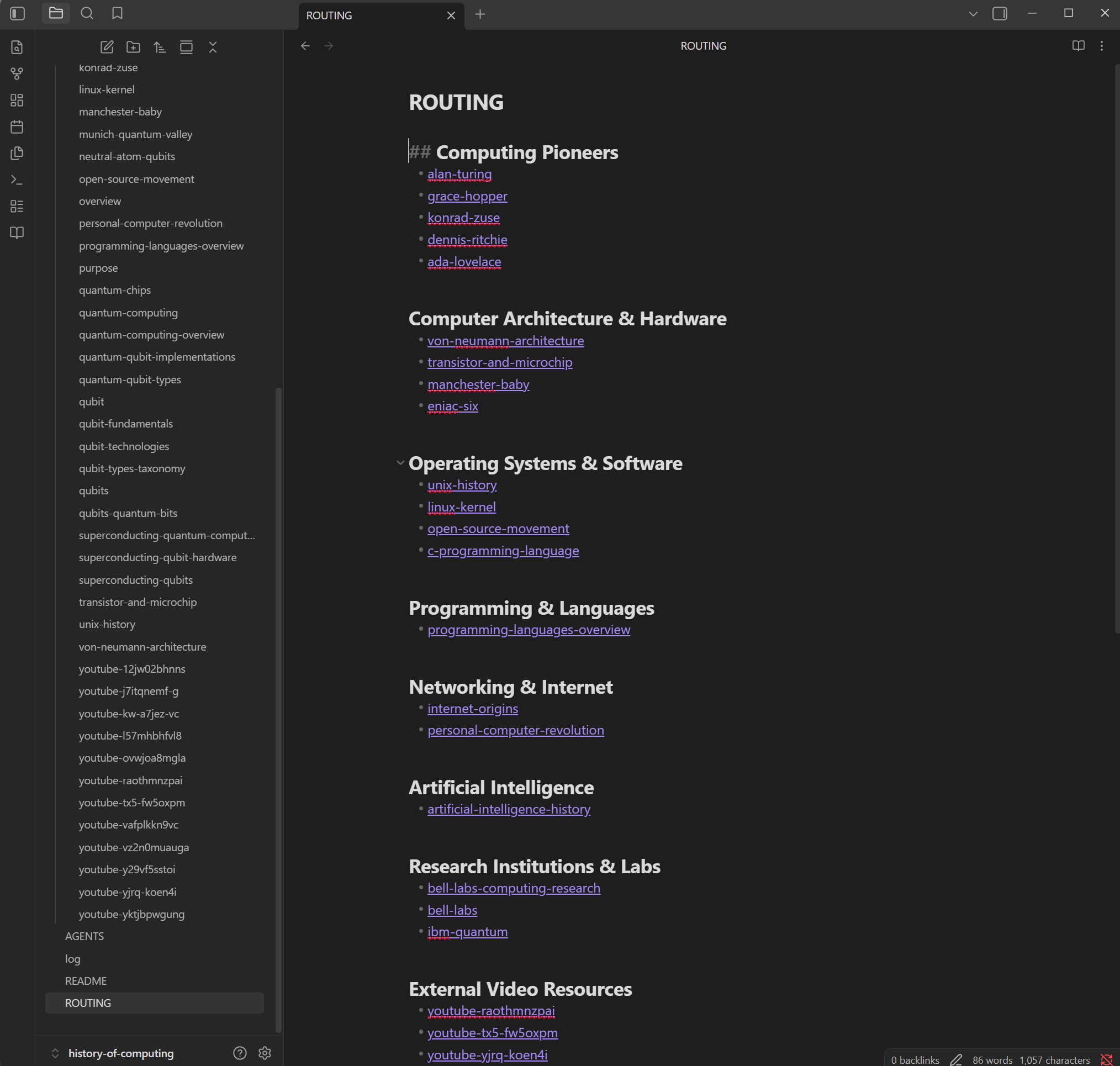
## Step 17 — Set up ROUTING.md — scoped search
As your wiki grows, BM25 searches the full corpus for every query. **ROUTING.md** groups pages
into named topic branches so queries only search the most relevant slice — reducing noise,
improving retrieval precision, and significantly cutting search latency on large wikis (see
[Appendix H](#appendix-h--bm25-routing-performance-benchmarks) for measured results).
### Generate ROUTING.md from your current index
```bash
synthadoc routing init
```
This reads the `## Section` headings in `wiki/index.md` and writes `ROUTING.md` at the wiki
root. Example output:
```
ROUTING.md created — 5 branches, 12 slugs.
```
Open `ROUTING.md` — it looks like this:
```markdown
## Pioneers and Visionaries
- [[alan-turing]]
- [[grace-hopper]]
- [[ada-lovelace]]
## Hardware Milestones
- [[eniac]]
- [[von-neumann-architecture]]
```
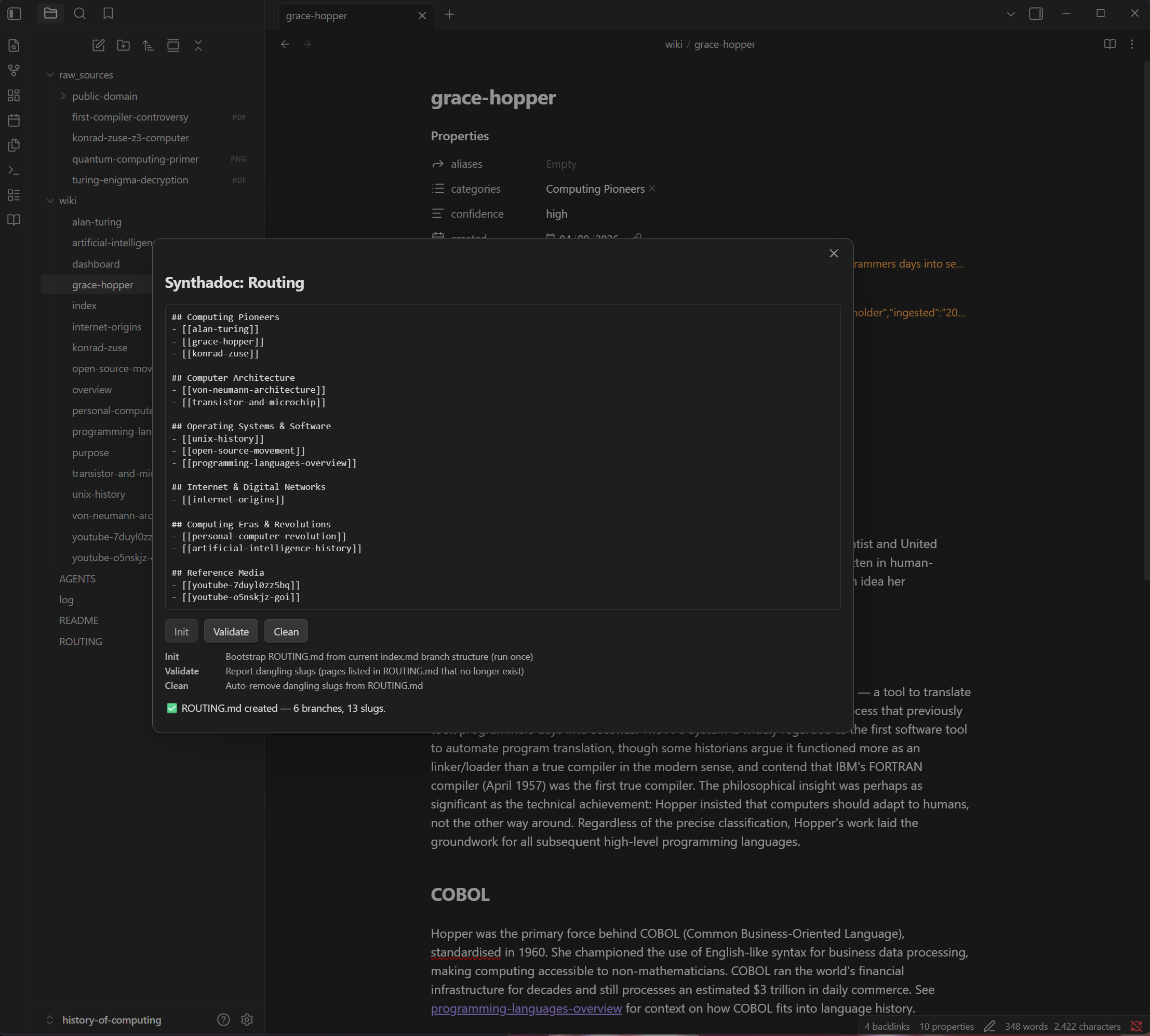
### Manage routing in Obsidian
Open the Command Palette (`Ctrl/Cmd+P`) → **Synthadoc: Routing: manage ROUTING.md**. The modal shows the current ROUTING.md content and three actions: **Init** (generate from index.md), **Validate** (report dangling slugs and duplicates), and **Clean** (remove dangling entries).
### Edit and extend
Add new branches or move slugs by hand. ROUTING.md is just a Markdown file — the format is
`## BranchName` headings with `- [[slug]]` entries. Each slug should appear in exactly one branch.
If you accidentally list the same slug under two branches, the search result is still correct — `bm25_search` converts the scoped slug list to a set before scoring, so the page is never double-counted. However, the branch assignment becomes ambiguous: a query that picks either branch will find the page regardless of which one was intended. Use `routing validate` to catch these duplicates before they cause confusion.
### Validate and clean
After deleting wiki pages, some slugs in ROUTING.md may dangle. `routing validate` also reports slugs that appear in more than one branch:
```bash
synthadoc routing validate # report dangling slugs and cross-branch duplicates (dry run)
synthadoc routing clean # remove dangling slugs
```
Example output when a duplicate is found:
```
Issues in ROUTING.md (1):
[Hardware] [[alan-turing]] (duplicate — also in 'People')
```
Fix by removing the entry from the branch where it does not belong, then re-run `validate` to confirm.
### How it works at query time
When the server receives a query it asks the LLM to pick the 1-2 most relevant branches,
then restricts BM25 to only those slugs. If no branch is clearly relevant it falls back to
full-corpus search automatically.
New pages created by ingest are auto-placed into the most appropriate branch.
---
## Step 18 — Configure candidates staging
By default, every ingested source that produces a new page writes it directly to `wiki/`.
**Candidates staging** lets you review new pages before they influence queries and lint.
### Enable staging
```bash
synthadoc staging policy threshold
```
With `threshold` policy, pages whose confidence is below the minimum go to
`wiki/candidates/` instead of `wiki/`. The default minimum is `high`:
```bash
# Lower the bar — medium-confidence pages also go to candidates/
synthadoc staging policy threshold --min-confidence medium
```
Or stage everything for full manual review:
```bash
synthadoc staging policy all
```
Changes take effect on the next ingest job — no server restart needed.
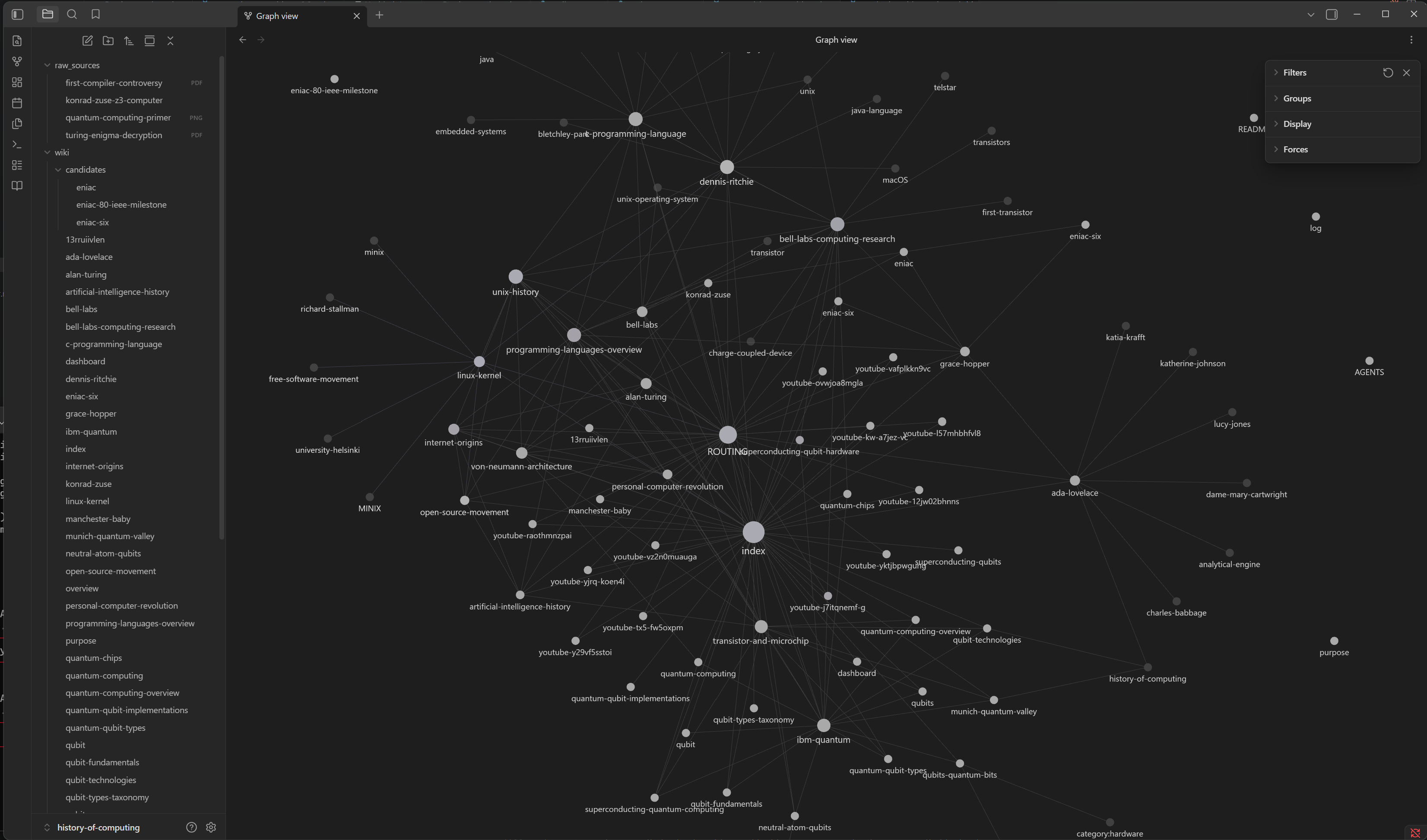
### Review candidates after an ingest run
```bash
synthadoc candidates list
```
Example output:
```
Candidates (3):
early-internet-history confidence: medium ingested: 2026-05-06T14:22:11
punch-card-era confidence: low ingested: 2026-05-06T14:22:45
vacuum-tube-computers confidence: medium ingested: 2026-05-06T14:23:01
```
### Promote or discard
```bash
synthadoc candidates promote early-internet-history # move to wiki/
synthadoc candidates discard punch-card-era # delete
synthadoc candidates promote --all # promote everything
```
### Manage staging from Obsidian
**Set the policy** — Command Palette → `Synthadoc: Staging: manage staging policy...`:
- The modal shows the current policy in plain language at the top.
- Click **Off**, **All**, or **Threshold** in the segmented control.
- When **Threshold** is selected, a second control appears — pick **High**, **Medium**, or **Low** as the minimum confidence.
- Click **Save**. The status block updates immediately to confirm the change.
- Click **Candidate pages →** at the bottom of the modal to jump straight to the Candidates panel.
**Review and promote candidates** — Command Palette → `Synthadoc: Candidates: review candidate pages...`:
- The modal lists every staged page with its slug, colour-coded confidence badge, and ingest timestamp.
- Check individual rows and click **Promote Selected** or **Discard Selected**.
- Use **Promote All** or **Discard All** to act on every candidate at once.
- The table reloads after each action, so the count stays current.
- Click **← Staging policy** at the bottom to jump back to the Staging modal.
### Turn staging off
```bash
synthadoc staging policy off
```
Or from Obsidian: `Synthadoc: Staging: manage staging policy...` → select **Off** → **Save**.
---
## Step 19 — Build a context pack
A **context pack** is a token-bounded evidence bundle assembled from the wiki. It decomposes your goal into sub-questions, runs parallel BM25 searches across the wiki, and packs the highest-scoring excerpts into a single cited Markdown document within a token budget.
### Build a pack from the CLI
```bash
synthadoc context build "early computing pioneers"
```
Output is Markdown printed to the terminal:
```markdown
# Context Pack: early computing pioneers
Generated: 2026-05-07T09:14:22
Token budget: 4000 | Used: 1823
---
## [[alan-turing]] — relevance: 3.42
> Alan Turing developed the theoretical basis of modern computation through his 1936 paper
> on computable numbers. He proposed the concept of a universal machine capable of simulating
> any algorithm...
Source: `wiki/alan-turing.md` | Confidence: high | Tags: mathematics, computation
## [[grace-hopper]] — relevance: 2.91
> Grace Hopper pioneered compiler development and coined the term debugging after finding
> a moth in a relay. Her work on COBOL brought programming to business users...
Source: `wiki/grace-hopper.md` | Confidence: high | Tags: programming, navy
## [[ada-lovelace]] — relevance: 2.44
> Ada Lovelace wrote what is considered the first algorithm intended for a mechanical
> computer, the Analytical Engine designed by Charles Babbage...
Source: `wiki/ada-lovelace.md` | Confidence: high | Tags: mathematics, history
---
## Omitted — token budget exceeded
- [[charles-babbage]] — ~420 tokens
- [[john-von-neumann]] — ~390 tokens
```
Each entry is cited with its source page, confidence, and tags. Pages that did not fit within the budget are listed in the omitted section.
### Use cases
**Feed into an external LLM prompt** — paste the terminal output directly into Claude.ai, ChatGPT, or any other chat interface as grounded context before asking a question:
```bash
synthadoc context build "transistor history and Moore's Law" | pbcopy # macOS — copies to clipboard
```
**Save next to a document you are writing** — keep the evidence bundle alongside your draft:
```bash
synthadoc context build "early computing pioneers" --output ~/drafts/computing-brief.md
```
**Pipe into another CLI tool** — chain with any tool that reads from stdin:
```bash
synthadoc context build "Von Neumann architecture" --output /tmp/ctx.md
llm -f /tmp/ctx.md "write a 500-word article based on this"
```
### Adjust the token budget
```bash
synthadoc context build "early computing pioneers" --tokens 2000
```
Set a permanent default in `config.toml`:
```toml
[query]
context_token_budget = 6000
```
### Build a context pack via MCP (Claude Code)
With Synthadoc registered as an MCP server, you can ask Claude to build a context pack directly inside a Claude Code session — no CLI needed.
> "Build me a context pack on early computing pioneers, budget 10,000 tokens."
Claude calls `synthadoc_context`, receives the ranked excerpt bundle, and can immediately reason over it or feed it into a follow-up synthesis prompt — all within the same conversation.
See the full step-by-step demo in [Appendix I — Demo: context pack via Claude Code](#appendix-i--connect-claude-via-mcp), including a real example output from the history-of-computing wiki (1,280 / 10,000 tokens used).
> **Prerequisite:** Synthadoc must be registered as an MCP server. See [Appendix I — Connect Claude via MCP](#appendix-i--connect-claude-via-mcp) for the `claude mcp add` command.
---
## Step 20 — Establish claim-level provenance
Every compiled wiki page is a synthesis — the LLM draws on source text and rewrites it as prose. **Claim-level provenance** closes the audit gap: during ingest, a dedicated annotation pass inserts a `^[filename:L-L]` citation marker at the end of each substantive paragraph, mapping the compiled claim to the exact line range in the raw source that supports it. Markers are stored in the page body, validated by lint, and recorded in the audit database. In Obsidian they render as interactive chips — one click opens the Source Viewer, showing the referenced lines with surrounding context. For PDF sources, a pagemap sidecar resolves the line number to the correct page for direct navigation.
### Re-ingest sources to generate citations
Citation markers are injected during ingest. The demo wiki ships with pre-compiled page stubs — static content that was never run through the annotation pass. When you ran Step 6, Synthadoc annotated only the sections it synthesised during that run; the pre-built stub content was not touched. To get full citation coverage across the entire page, you need to re-synthesise from scratch — but because the source files have not changed since Step 6, the normal dedup check would skip them. The **Force re-ingest** option bypasses the duplicate check so every file runs through the full pipeline including the citation annotation pass, regardless of whether it was previously ingested.
**From the Obsidian plugin (recommended):**
1. Open the Command Palette (`Ctrl/Cmd+P`) → **Synthadoc: Ingest sources**
2. Switch to the **All raw_sources** tab
3. Check **Force re-ingest (skip duplicate check)**
4. Click **Ingest all**
All supported files in your `raw_sources/` folder are queued immediately. You can watch progress under **Jobs** in the Obsidian command palette or with:
```bash
synthadoc jobs list
```
Wait until all jobs reach `completed` status before checking for citation markers.
**Why --force is needed:** Synthadoc records a hash of every ingested source file in the audit database. On subsequent ingest of the same unchanged file, the hash matches and the job is skipped — this is intentional to avoid redundant LLM calls. `--force` overrides this check so the annotation pass runs even on previously seen files.
### Inspect citation chips in Reading View
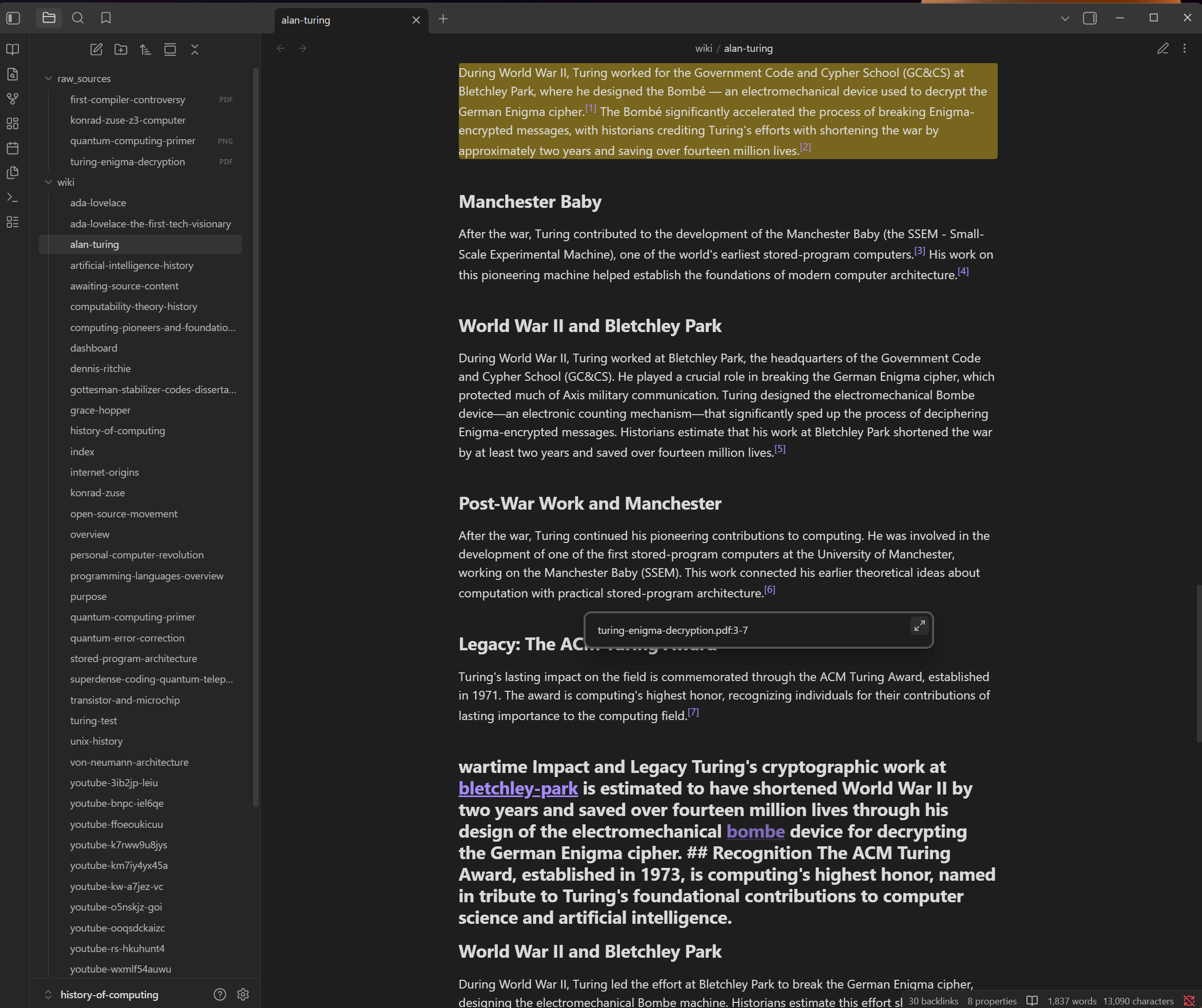
Once the re-ingest jobs complete, open any wiki page in **Reading View** (`Ctrl/Cmd+E`, or click the book icon in the top-right toolbar). Citation chips are rendered by a post-processor that only runs in Reading View — they will not appear in Edit or Live Preview mode. Paragraphs that make a substantive claim now end with an inline citation chip:
```
Alan Turing proposed the Turing Test in 1950.^[turing-biography.txt:12-24]
```
Click a chip to open the **Source Viewer** — the exact lines from the source file, highlighted, with ±5 lines of context. For PDF sources, a **"Open PDF at page N →"** button resolves the line number to the correct PDF page via a pagemap sidecar and opens it in Obsidian's native PDF viewer.
### Audit provenance across the whole wiki
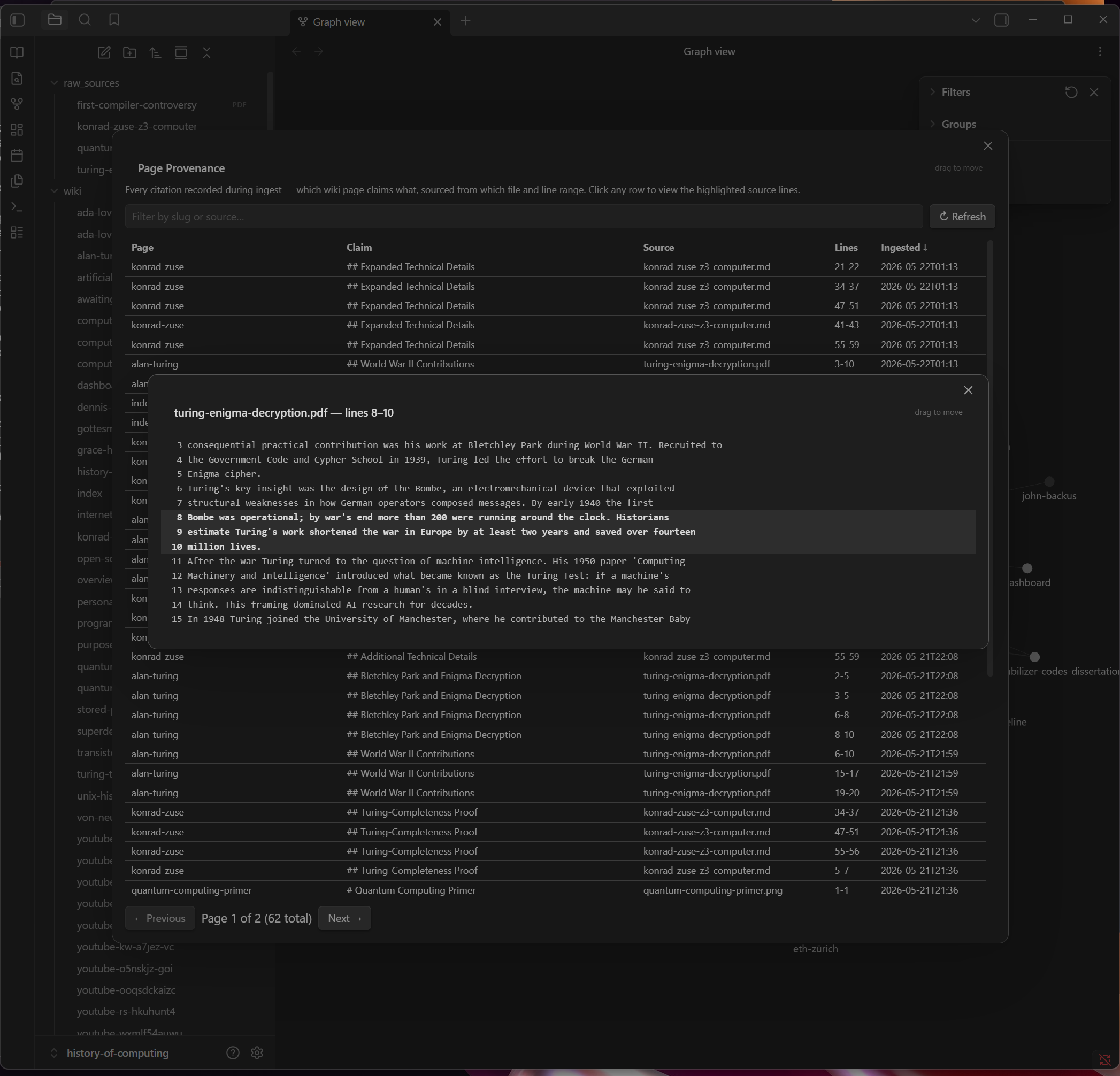
Open the Obsidian command palette → **Synthadoc: View Page Provenance**. A sortable, paginated table shows every citation across the wiki. You can drag the modal by its title bar to reposition it, and all cell content can be selected and copied. Sort by source file to audit a single document, or filter by slug to see all claims for one page. Click any row to open the Source Viewer for that citation's exact line range.
### Find broken citations
```bash
# CLI — show citations that failed validation
synthadoc audit citations --broken
# All citations for one page
synthadoc audit citations --page alan-turing
```
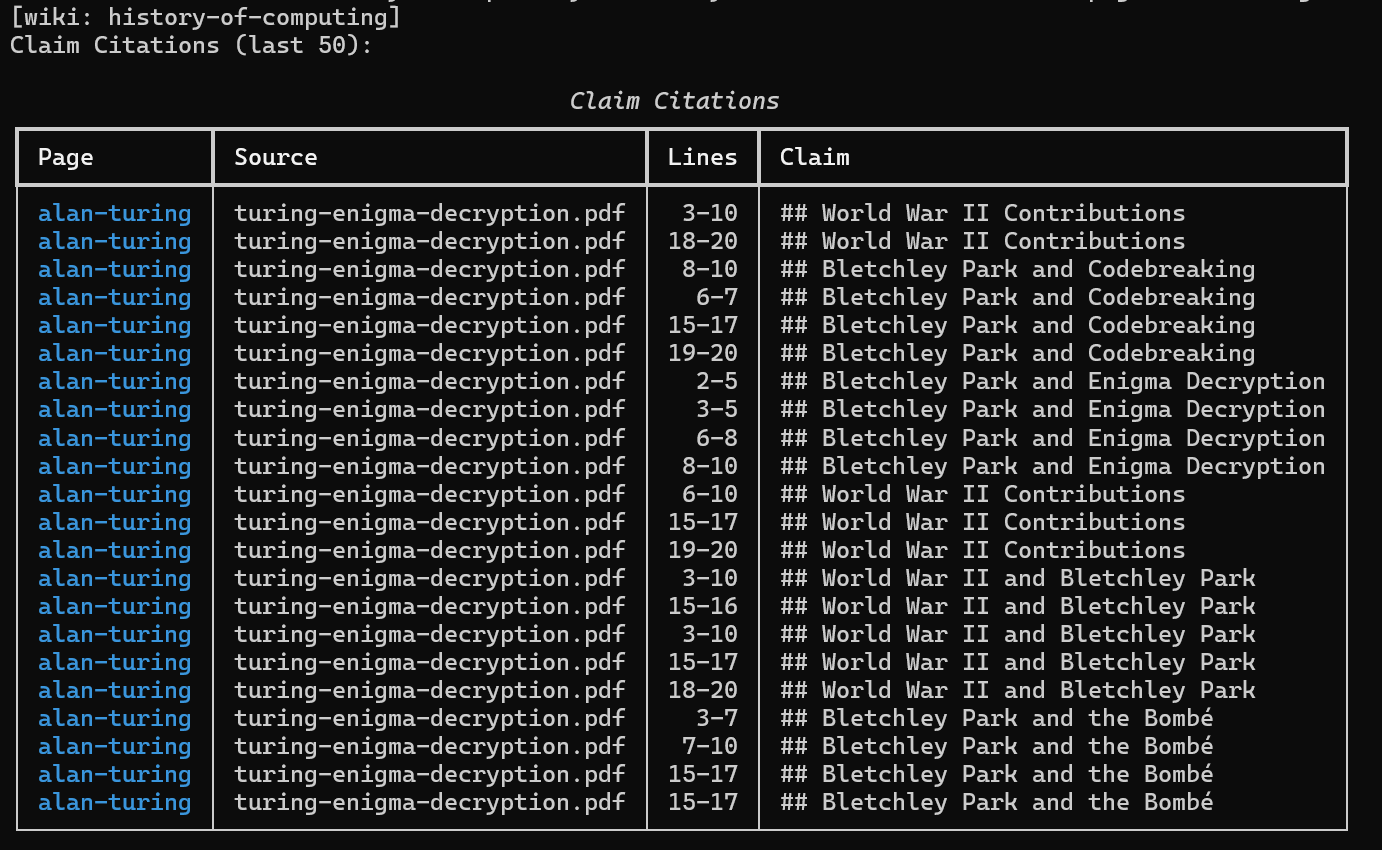
The lint report also shows a **Citation Issues** section listing any broken, out-of-range, or malformed markers:
```bash
synthadoc lint report
```
---
## Step 21 — Export your wiki
Synthadoc exports your wiki in five machine-readable formats — all assembled server-side from cached data with **zero additional LLM calls**. Use exports to feed reviewed knowledge to an external AI assistant, load your wiki's link structure into a graph analysis tool, or integrate page content into an agent pipeline. Because exports respect the lifecycle filter, you can choose to export only `active` pages — the ones that have passed lint review — rather than everything that has ever been ingested.
> **Differentiation:** Unlike static document exports from other tools, Synthadoc's exports carry the full provenance chain. The `json` format includes the exact source lines that support every claim, the complete state transition history for each page, and the API cost that was spent compiling it. The `okf` format makes your wiki directly consumable by any OKF-aware agent — no code changes needed on the consumer side.
### What each format contains
| Format | What it exports | Best used for |
| --------------- | ------------------------------------------------------------------------------------------------------------------------------------------------------------------------------------------------------------------------------------------------- | ---------------------------------------------------------------- |
| `llms.txt` | Page titles + one-line summaries, structured per the [llmstxt.org](https://llmstxt.org) spec. Contradicted/stale pages appear in a **Needs Review** section; archived pages are omitted. | Feeding AI assistants a compact, navigable wiki index |
| `llms-full.txt` | Full page content for all pages, separated by `---` dividers, with status and confidence headers. Provenance footnotes (`^[source.txt:42-58]`) are preserved verbatim. No size limit. | Large-context LLM prompts, RAG pipelines, offline reading |
| `graphml` | Directed wikilink graph — one node per page, one edge per `[[wikilink]]`. Each node carries the page title, lifecycle state, confidence level, orphan flag, inbound link count, and routing branch. Compatible with yEd, Gephi, and Cytoscape. | Visualising knowledge structure, detecting hub pages and orphans |
| `json` | Full structured dump per page: content, tags, sources, claims with source line ranges, lifecycle transition history, routing branch, and per-page ingest cost and token usage. Wiki-level: total compilation cost and routing branch memberships. | Agent pipelines, programmatic processing, compliance audits |
| `okf` | [OKF v0.1](https://github.com/GoogleCloudPlatform/knowledge-catalog/blob/main/okf/SPEC.md) bundle directory — one Markdown file per page with conformant YAML frontmatter, an `index.md` grouped by knowledge type, and a `log.md` change log. `[[wikilinks]]` are rewritten to OKF relative paths. Default includes **active + contradicted** pages only; contradicted pages carry a `> **Contradiction:** …` blockquote in the body. | Any OKF-aware agent or tool — **zero code changes needed** |
### Status filter — export only what you trust
The `--status` flag scopes the export to a specific lifecycle state:
| Value | What is included | When to use it |
| --------------- | --------------------------------- | --------------------------------------------------------------------------------- |
| `all` (default) | Every non-archived page¹ | Full snapshot |
| `active` | Only lint-reviewed, trusted pages | **Recommended for AI consumption** — avoids feeding unreviewed content to an LLM |
| `draft` | Pages awaiting first lint pass | Reviewing what has been ingested but not yet approved |
| `stale` | Pages whose source has changed | Identifying content that needs re-ingest |
| `contradicted` | Pages with detected conflicts | Targeted review of known issues |
| `archived` | Retired pages | Audit or recovery |
¹ **OKF exception:** `--format okf` with the default `all` includes only `active` and `contradicted` pages — draft and stale are excluded because they carry unverified content. Pass `--status active` for a clean trusted-only bundle.
### CLI
`--output` accepts any absolute or relative path and is resolved from your current working directory.
```bash
# Active pages only — compact index of trusted knowledge (llms.txt spec)
synthadoc export --format llms.txt --status active
# All pages — full content with provenance footnotes preserved
synthadoc export --format llms-full.txt --output exports/history-full.txt
# Wikilink graph — open in yEd, Gephi, or Cytoscape
synthadoc export --format graphml --output exports/history.graphml
# Agent-ready JSON — claims, lifecycle history, per-page cost, routing
synthadoc export --format json --output exports/history.json
# OKF v0.1 bundle — consumable by any OKF-aware agent without code changes
synthadoc export --format okf --output ~/exports/history-okf/
```
**Flags:** `--format/-f` (required: `llms.txt`, `llms-full.txt`, `graphml`, `json`, `okf`), `--output/-o` (file path or directory; omit to print to stdout; **required** for `okf`), `--status/-s` (default `all`).
> **OKF export writes a directory**, not a single file — `--output` must point to a directory path (it will be created if it does not exist).
> **Keep the OKF bundle outside your wiki folder.** Place it anywhere — `~/exports/history-okf/`, `../okf-bundles/history/`, an absolute path — as long as it is not inside the Obsidian vault. Files inside the vault are candidates for ingest; an OKF bundle contains derived Markdown that would be re-ingested as source material if left there.
Requires `synthadoc serve` to be running.
### In Obsidian
Open the Command Palette (`Ctrl/Cmd+P`) → **Synthadoc: Export Wiki**.
The modal opens with a description panel explaining each format, a format dropdown, a full-width output path field (pre-filled with today's date and the correct extension or folder name), and a status filter. Click **Export**. For all formats except `okf` the file is written inside the vault and opened automatically. For `okf`, the output field defaults to `~/exports/{vault-name}-okf-{date}/` — a folder outside the vault — and the bundle is written there directly via the filesystem.
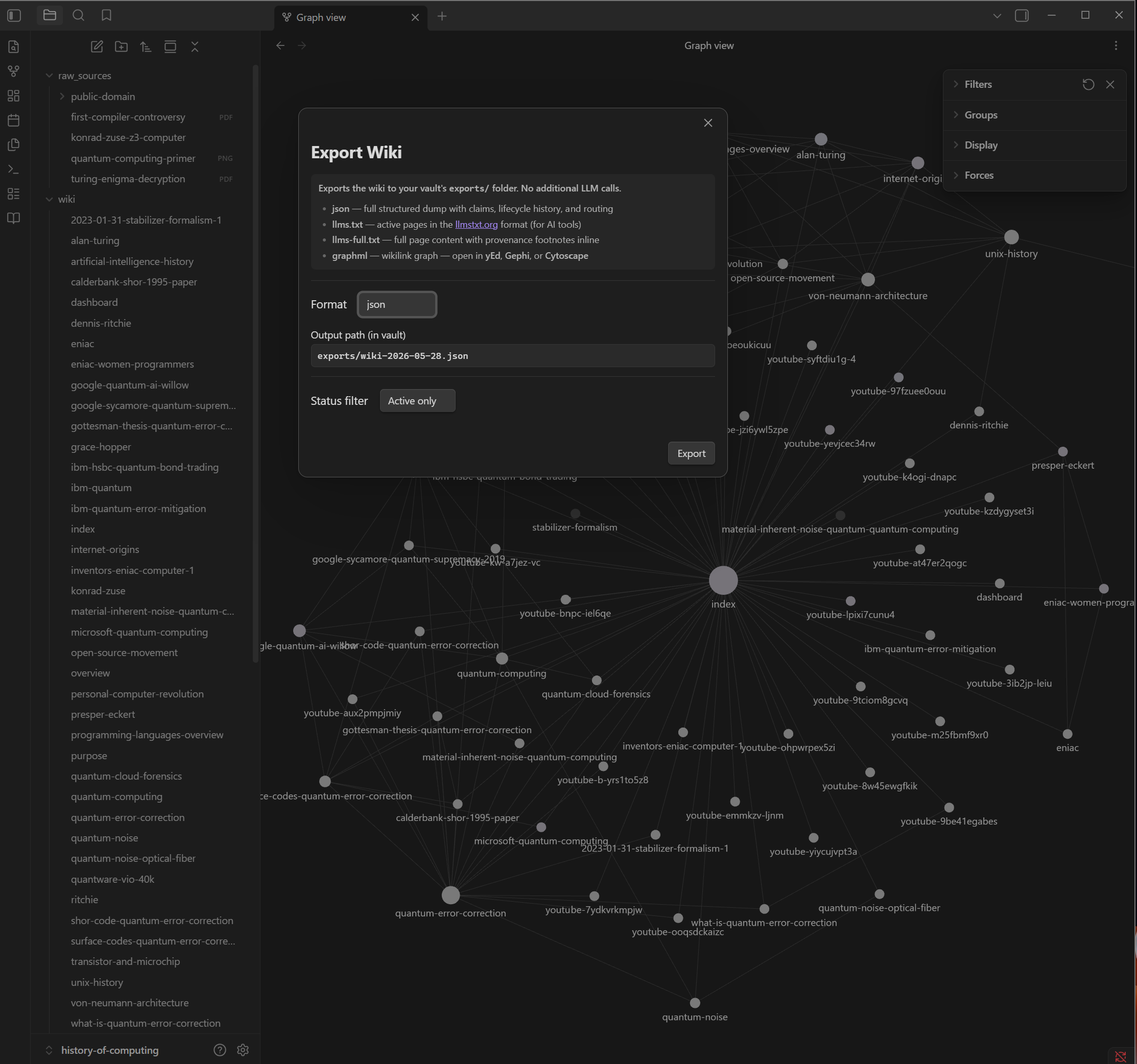
When **GraphML** is selected, a **View Graph** button appears. Click it for an inline Cytoscape.js preview of your wiki's link structure before saving to file.
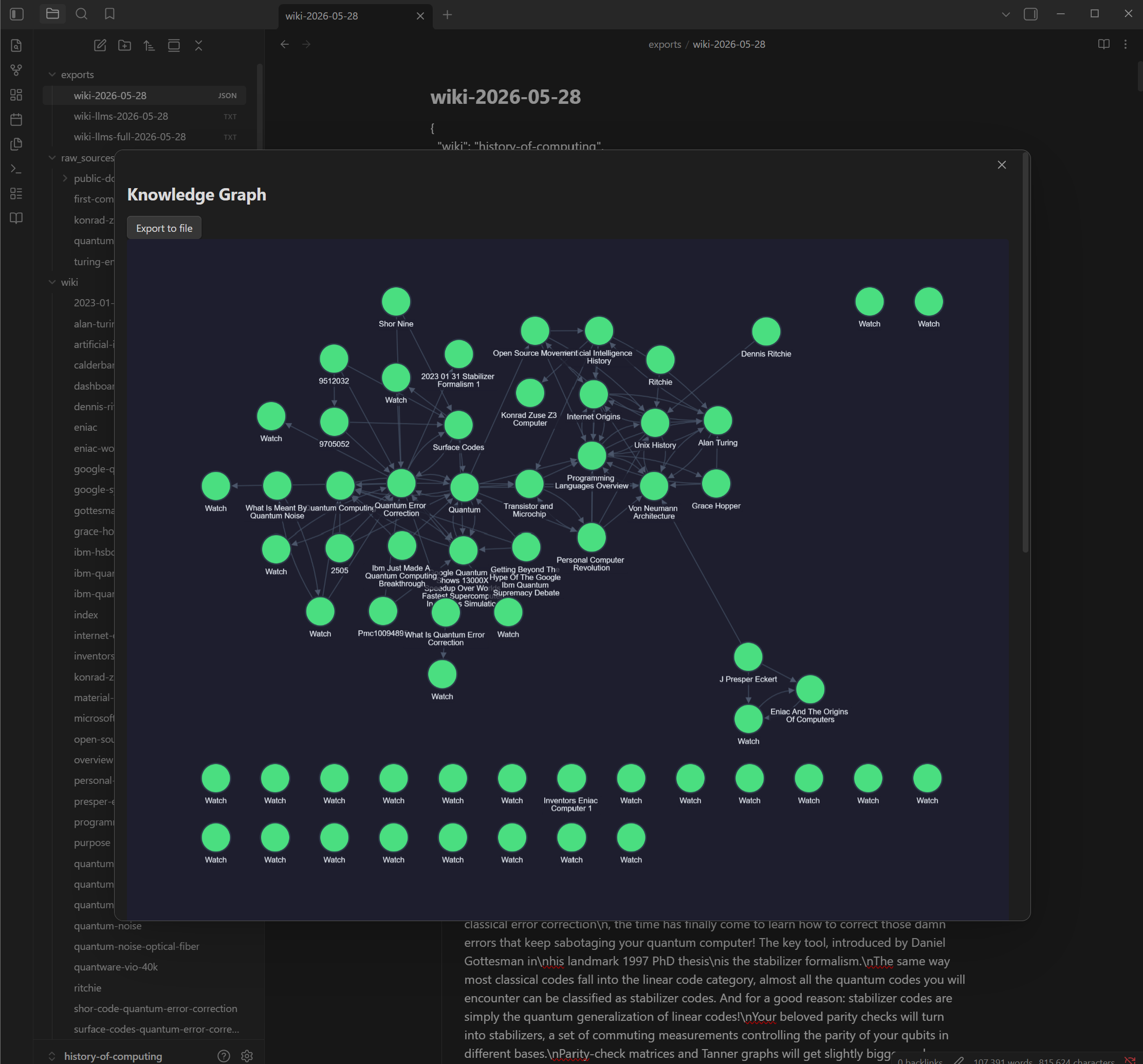
### What makes the JSON export unique
Open `exports/history.json` and inspect any page entry. You will find fields no other wiki export tool produces:
- **`claims[]`** — every annotated paragraph linked to the exact source lines that support it (`source_file`, `line_start`, `line_end`, `claim_excerpt`). Not "cited from X" — but "line 42–58 of X."
- **`lifecycle_history[]`** — the complete state transition log for this page: from/to state, timestamp, triggered by, and reason. You can audit exactly when a page was reviewed and how it got to its current state.
- **`ingest_cost_usd` / `ingest_tokens`** — the cumulative API cost and token count spent compiling this page across all of its source files. Know which pages drove cost.
### Opening GraphML in external tools
The exported `.graphml` file can be loaded in any of these free tools:
**yEd Graph Editor** (recommended for getting started)
1. Download from [yworks.com/yed](https://www.yworks.com/products/yed) (free, Windows/Mac/Linux)
2. Open yEd → **File → Open** → select your `.graphml` file
3. Apply a layout: **Layout → Hierarchical** or **Layout → Organic** for best results
4. Node labels show page titles; edges show wikilink direction
**Gephi** (recommended for large wikis and analysis)
1. Download from [gephi.org](https://gephi.org) (free, open source)
2. **File → Open** your `.graphml` file
3. Run **Layout → ForceAtlas2** in the Layout panel; enable **Prevent Overlap** in Tuning to spread nodes apart
4. To show node labels: click the **label toggle button** (marked **Aα** or **T**) in the bottom toolbar next to the Nodes slider
5. Color nodes by the `status` attribute to see which pages are `active`, `stale`, or `contradicted` at a glance
6. Use **Statistics** to compute degree centrality or community detection
**Cytoscape** (recommended for programmatic analysis)
1. Download from [cytoscape.org](https://cytoscape.org) (free)
2. **File → Import → Network from File** → select your `.graphml`
3. Apply a layout from the **Layout** menu
### OKF bundle export — zero-code agent consumption
The `okf` format produces a directory bundle that any [OKF v0.1](https://github.com/GoogleCloudPlatform/knowledge-catalog/blob/main/okf/SPEC.md)-aware agent can read without knowing anything about Synthadoc. Every wiki page becomes a conformant Markdown file with YAML frontmatter; knowledge types, cross-links, and lifecycle history are all preserved.
By default the bundle includes **active and contradicted pages only** — draft and stale pages are excluded because they contain unverified or outdated content. Contradicted pages are included deliberately: they carry `status: contradicted` in their frontmatter so OKF consumers that read metadata can filter them, and a `> **Contradiction:** …` blockquote appended to the body so consumers that only read Markdown text still see the conflict note.
**Export the demo wiki as an OKF bundle:**
```bash
# Write the bundle outside the wiki folder — keeps it away from Obsidian ingest
synthadoc export --format okf --output ~/exports/history-okf/
```
The bundle looks like this:
```
~/exports/history-okf/
index.md ← OKF index, pages grouped by type (person, technology, …)
log.md ← lifecycle change history, newest first
wiki/
alan-turing.md ← one OKF concept file per wiki page
grace-hopper.md
…
```
Each concept file carries a conformant frontmatter block — here is `alan-turing.md`:
```yaml
---
type: person
title: Alan Turing
description: Father of theoretical computer science and pioneer of the Turing machine.
tags: mathematics, computation, cryptography
timestamp: '2026-04-22'
status: active
confidence: high
---
Alan Turing (1912–1954) developed the theoretical basis of modern computation…
See also: [Von Neumann Architecture](von-neumann-architecture.md)
```
**Run the OKF consumer agent demo:**
Synthadoc ships a standalone consumer agent at `tests/integration/okf_consumer_agent.py`. It imports nothing from Synthadoc — only `pathlib`, `yaml`, and the Anthropic SDK — proving that any OKF-aware tool works against the bundle without modification.
```bash
# Pattern A — grounded domain Q&A: answer questions from the bundle
python tests/integration/okf_consumer_agent.py \
--bundle ~/exports/history-okf \
--question "Who pioneered compiler development and what did they build?"
# Pattern B — type-routed discovery: read index.md, filter by type, then answer
python tests/integration/okf_consumer_agent.py \
--bundle ~/exports/history-okf \
--question "List all computing pioneers and their key contributions" \
--type person
```
The agent reads `index.md` to discover available knowledge types, loads only the concept files that match the requested type (Pattern B), builds a grounded context, and asks Claude to answer using only the OKF bundle content — citing the source file path for every claim.
> **Requirements:** `pip install anthropic pyyaml` and `ANTHROPIC_API_KEY` set. The Synthadoc server does not need to be running — the agent reads the exported bundle directly from disk.
---
## Step 22 — Use the web chat UI
The `synthadoc web` command opens a browser-based chat interface for your wiki. Unlike the CLI query command, the web UI supports multi-turn conversation and shows contextual hint chips based on your session history.
### Open the web UI
```bash
synthadoc web -w history-of-computing
```
Your browser opens automatically to the web chat interface.

### Session modes
The UI detects the state of your wiki and your session history, then adapts:
| Mode badge | When it appears | Hint chips shown |
| ---------------- | ----------------------------------------------------- | ------------------------------------------------------------------- |
| **New Wiki** | Fewer than 5 wiki pages exist | Onboarding — guides you through ingesting your first documents |
| **Explorer** | ≥5 pages, first time opening the UI for this wiki | Discovery — broad overview questions to explore the wiki |
| **Health Check** | ≥5 pages, returning user, ≥1 stale page in the wiki | Lifecycle review — suggests running lint or inspecting stale pages |
| **Power User** | ≥5 pages, returning user, no stale pages | Context-sensitive follow-ups based on your last answer |
The mode badge appears above the title on the welcome screen. It reflects the wiki's current state at the moment the session was created — the mode is determined when you open the browser tab, not updated mid-session. To see an updated mode after running lint and promoting pages, open a new browser tab.
### Asking questions
Type a question in the text box and press **Enter** (or click **Ask**). The answer streams in word-by-word as the LLM generates it — no waiting for the full response.
Below each answer:
- **Citations** — rendered as numbered footnotes (`[^1]`, `[^2]`, …) with source filename and line range. Each `^[filename:L-L]` marker in the answer is converted to a GFM footnote reference; the definitions appear at the bottom of the answer block. (In Obsidian, the same markers render as interactive citation chips in Reading View.)
- **Knowledge gap callout** — appears when the wiki lacks coverage; suggests `search for:` ingest commands to fill the gap
- **Hint chips** — suggested follow-up questions based on the current answer and your session history
### Multi-turn conversation
Each question in a session builds on the previous ones. The server stores your conversation history and passes it to the query pipeline so follow-up questions like "What came before that?" resolve correctly against the previous answer. Follow-up questions are automatically rewritten into standalone form before retrieval — context-dependent phrases resolve against the right topic without you having to repeat it.
#### Single-turn queries to try first
Type any of these into the chat box and press **Enter**. They work well as standalone questions with the history-of-computing demo wiki:
**Factual retrieval:**
```
Who is Alan Turing and what was his most significant contribution?
What is Moore's Law and has it held up over time?
What was ENIAC and why was it significant?
```
**Multi-source reasoning:**
```
What are the differences between von Neumann and Harvard architectures?
How did the transition from vacuum tubes to transistors change computing?
```
**Gap detection** — these topics are not in the demo wiki yet; expect a knowledge gap callout with suggested ingest commands:
```
What is the history of quantum computing milestones?
Who invented the USB standard?
```
> **CLI equivalent:** All of the above can also be run from the terminal with `synthadoc query ""` if you prefer the command line. The web UI and CLI share the same query pipeline and cache.
#### Multi-turn sequences (web UI or CLI)
**Thread 1 — context carry-over with pronouns** (best stress test for conversation memory):
```
Turn 1: "Who invented the transistor?"
→ Names the inventors at Bell Labs
Turn 2: "Which company did they work for?"
↑ "they" resolves to the transistor inventors from Turn 1
Turn 3: "What other inventions came out of that same lab?"
↑ "that same lab" resolves to Bell Labs — correct without repeating it
```
**Thread 2 — deepening on a topic**:
```
Turn 1: "What was the significance of the 1936 Turing machine paper?"
→ Covers computability, halting problem, foundations of CS
Turn 2: "How did that influence the design of the first real computers?"
↑ "that" resolves to the Turing machine concept
Turn 3: "Which of those early computers had the most commercial impact?"
↑ "those early computers" carries over from Turn 2's answer
```
**Thread 3 — pivot mid-conversation**:
```
Turn 1: "Tell me about Claude Shannon and information theory"
Turn 2: "How does that relate to data compression?"
Turn 3: "What about its connection to cryptography?"
```
**Try it now with the history-of-computing demo wiki:**
```
You: "How did Alan Turing contribute to breaking the Enigma code?"
Assistant: "...Turing's Bombe machine at Bletchley Park..."
You: "Who else worked with him there?"
↑ Resolves "him" → Alan Turing, "there" → Bletchley Park
```
#### Synthadoc operation multi-turn
The web UI also supports multi-turn for Synthadoc operations — not just wiki content queries.
**Job status drill-down:**
```
You: "Show me job status"
Assistant: Shows a table of all jobs with status, operation, and timing.
Presents chip buttons for each Job ID.
You click chip "353958ca"
→ Full detail for that job: status, operation, started/finished, error (if any)
You click chip "6b7d1fa7" (from the same chip list)
→ Full detail for the second job — no re-query needed
```
**Multi-status job filter:**
```
You: "Show me failed and skipped jobs"
→ Filtered job table showing only those two statuses
```
**Clarify prompts.** When you ask to perform an action but don't specify which page — for example, "Activate a draft page" — the assistant responds with a numbered list of candidate pages. Click a chip or type a page name to complete the action:
```
You: "Activate a draft page"
Assistant: "Which page would you like to activate?
1. konrad-zuse
2. quantum-computing
(or type a page name)"
You click chip "1" → page is activated
```
**Notice messages.** Long sessions automatically compress older turns into a `[Session summary]` to keep the context window manageable. When this first happens you see an inline notice:
```
ℹ Earlier conversation turns were summarised to fit the session window.
```
### Session history sidebar
The left navigation bar shows your recent runs grouped by session. Synthadoc persists sessions on the server, so your history survives page refreshes and restarts.
- **Single-turn sessions** appear as a flat entry showing the first question and the time elapsed since the last activity.
- **Multi-turn sessions** appear as a collapsible group with a turn count badge (e.g. `3 turns`). Click the **▸** chevron to expand and see each follow-up question indented below the root.
- **Restoring a session** — click any session root or child turn to reload the full conversation history into the chat window. The context is fully restored so you can continue asking follow-up questions as if you never left.
- **New Run** — click **+ New Run** at the top of the sidebar to start a fresh session with a new session ID.
### Settings — query timeout
The ⚙ gear icon in the bottom-left corner of the chat window opens a settings popover. Use it to set the **per-request query timeout** (10–600 seconds, default 60 s) without editing `config.toml`. The value is saved in your browser's `localStorage` and persists across page refreshes.
Increase the timeout when using a reasoning model (e.g. MiniMax M3, Qwen with thinking enabled) that takes longer on large or complex questions. Lower it to fail fast if you suspect the server is hanging.
### Configure conversation history depth
The number of prior turns included in each request is configurable via `config.toml`. The default (5 turns) covers most sessions:
```toml
# /.synthadoc/config.toml
[chat]
conversation_history_turns = 5 # set to 0 to disable conversation memory
```
**When the session exceeds the limit**, the oldest turns are automatically compressed into a single `[Session summary]` entry by the summarization component. The summary preserves the key facts and context from those turns so follow-up questions still resolve correctly — no history is simply discarded. You will see an inline notice in the chat the first time compression occurs:
```
ℹ Earlier conversation turns were summarised to fit the session window.
```
Increase `conversation_history_turns` if you want more raw turns retained before compression kicks in. Set it to `0` to disable conversation memory entirely (each question is treated independently).
Each new browser tab starts a fresh session. History is not shared between tabs.
---
## Step 23 — Query caching
`synthadoc query` (and the web chat UI) cache answers automatically. The second time you ask the same question against the same wiki, the answer returns instantly from cache without an LLM call.
### How the cache works
The cache key is a hash of:
- The question text (after normalisation)
- The current wiki **epoch** — a version counter that increments whenever you ingest new content or change a page's lifecycle state
This means cached answers are always consistent with the current wiki. A new ingest automatically invalidates old cached answers so you never see a stale result.
### Bypassing the cache
```bash
# Always call the LLM, even if the answer is cached
synthadoc query "What is Moore's Law?" --no-cache
```
Use `--no-cache` when:
- You want to verify the answer is still correct after an ingest
- You are debugging a query or testing a new LLM provider
- You suspect the cache entry is stale for any reason
The `--no-cache` flag is available on `synthadoc query`. The web chat UI uses the cache by default — tick the **Bypass cache** checkbox at the bottom of the chat window to skip the cache for that request. To force a full refresh for all subsequent queries, use `synthadoc cache clear`.
### Cache management
The query cache lives in the same `cache.db` as the ingest response cache. Clear all cached answers at once:
```bash
synthadoc cache clear -w history-of-computing
```
> **Note:** The query cache is separate from the ingest cache layers. Clearing the cache removes both query answers and LLM responses cached during ingest — the next lint run and the next ingest of any source will re-run LLM calls.
## Step 24 — Knowledge Graph
The knowledge graph visualises how your wiki pages connect through `[[wikilinks]]`. Synthadoc builds it automatically during lint and detects knowledge clusters using the Louvain algorithm — pages that reference each other frequently appear in the same colour group.
### Build the graph
Run lint to trigger graph construction (if you completed Step 6, the graph is already ready):
```bash
synthadoc lint run -w history-of-computing
```
Lint prints a summary line when the graph is built:
```
[graph] 110 nodes, 349 edges, 5 clusters
```
> **Note:** The graph builds automatically on every lint run. You never need to run a separate command to rebuild it.
### Open the Graph tab
1. Start the web UI (if not already running):
```bash
synthadoc web
```
2. Open `http://localhost:7070/app` in your browser.
3. Click the **Graph** tab in the top navigation bar.
The force-directed graph appears: nodes are wiki pages, edges are `[[wikilinks]]`, and node colours represent detected knowledge clusters.
> On first load, the server may need a moment to hydrate the graph from the database. A brief spinner shows while it loads — the tab switches to the graph automatically when ready.
### Explore clusters
Zoom and pan with your mouse or trackpad. Pages with more inbound links appear larger. Colour groups represent Louvain clusters — Synthadoc identified these as related knowledge neighbourhoods.
In the history-of-computing demo you will see clusters forming around computing pioneers, hardware eras, and software history.
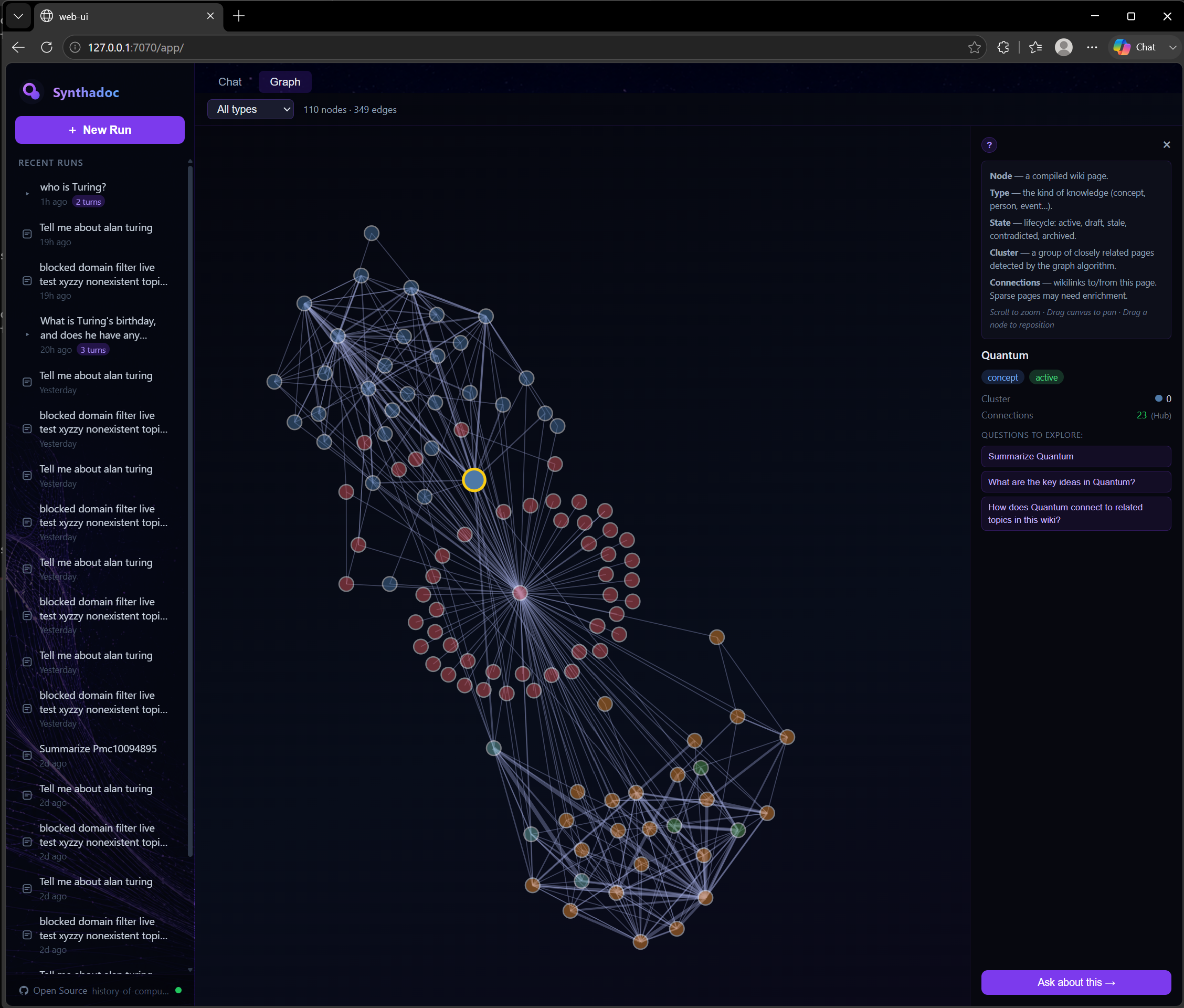
### Click a node to query it
Click any node to open its detail panel:
- **Title** and **slug**
- **Type** (`concept`, `person`, `event`, …)
- **Lifecycle state** (`active`, `draft`, `stale`, …)
- **Questions to explore** — suggested follow-up questions for that page
- **"Ask about this →"** button
Click **Ask about this →** to jump to the Chat tab with a pre-filled query about that page. The answer is drawn from the wiki and citations appear inline.
---
**Large sources:** Synthadoc applies a default character limit of 32,000 characters per source before the LLM call. Sources that exceed this limit are truncated; the compiled page records `truncated: true` in its `sources:` frontmatter and `synthadoc lint` emits a warning with a suggested override command. To raise the limit for a single ingest:
```bash
synthadoc ingest papers/large-textbook.pdf --max-source-chars 128000
```
Or set it globally in `.synthadoc/config.toml`:
```toml
[ingest]
max_source_chars = 128000
```
---
## Citation quality
Generated pages include inline citation markers that link each claim to the
source lines it came from. When you view a page in Obsidian's **Reading View**,
these markers appear as clickable footnotes (`[1]`, `[2]`, etc.).
If a generated page has no citations, Synthadoc logs a warning suggesting you
switch to a more capable model. Models known to produce reliable citations:
Gemini 2.5 Flash, Gemini 2.5 Pro, MiniMax-M3, Claude Haiku 4.5 or later.
Cheaper flash-tier models may not follow the citation format — this is a known
limitation of smaller models and is not a bug in Synthadoc.
---
## Protected pages
Once you promote a page to `active` status, it is protected against silent
overwriting. If a new source contradicts an active page, Synthadoc flags it
for your review rather than replacing the page's content automatically.
To promote a page to active: `synthadoc lifecycle activate `
---
## Updating demo wikis
After upgrading Synthadoc, sync your demo wikis to pick up new content:
synthadoc demo sync --force # update all demo pages and source files (recommended)
synthadoc demo sync # additive only — skip if you need citation markers on pre-built pages
---
## What's next?
You have now walked through every major Synthadoc feature on the demo wiki. When you're
ready to build a wiki for your own domain:
- **[README — Creating Your Own Wiki](../README.md#creating-your-own-wiki)** — step-by-step guide: install, configure, scaffold, ingest, and grow your wiki
Key differences from the demo:
- `synthadoc install --target --domain ""` generates LLM
scaffold for your domain at install time (index categories, AGENTS.md, CLAUDE.md, GEMINI.md, purpose.md)
- Drop your own source files into `raw_sources/` and run batch ingest
- Use web search to fill knowledge gaps as your wiki grows
- Schedule nightly ingests and weekly scaffold refresh to keep it current automatically
---
## Appendix A — Obsidian Plugin Command Reference
All commands are accessible via the Command Palette (`Ctrl/Cmd+P` → type `Synthadoc`).
### Ingest
| Command | What it does |
| ---------------------------------- | ------------------------------------------------------------------------------------------------------------------------------------------------------------------------------------------------------------------------------------------------------------------------------------------------------------------------------------------------------------------------------------------------------------------------------------------------------------------------------------------------------------------------------------------------------------------------------------------------------------------------------------------------------------- |
| `Synthadoc: Ingest...` | Tabbed modal with four ingest modes:**Web search** (type a topic, polls live), **URL** (paste a URL, polls live until complete), **All raw_sources** (queues every supported file in `raw_sources/`), **Pick files** (click **Browse…** to choose a folder, click **Scan** to list supported files — `wiki/` sub-folder contents and system files such as `log.md`, `routing.md`, `agents.md`, `readme.md`, `dashboard.md`, `index.md`, `overview.md`, and `claude.md` are excluded automatically with a count shown — then select files and click **Ingest selected**), and **Web search** (type a topic, set max results and poll interval, polls live). |
| `Synthadoc: Ingest: web search...` | Standalone live-polling modal — type a topic, set max results (1–50, default 20) and poll interval (500–10000 ms, default 2000 ms). Shows phase text, live pages list, and URL errors as fan-out jobs complete.`Ctrl/Cmd+Enter` to submit. |
### Query
| Command | What it does |
| ----------------------------------- | ------------------------------------------------------------------------------------------------------------------------------------------------------------------------------------------------------------------------------------------------------------------------------------ |
| `Synthadoc: Query: ask the wiki...` | Responsive modal — ask a natural-language question; the answer streams in token-by-token as the LLM generates it. Clickable`[[wikilinks]]` link to source pages. `Ctrl/Cmd+Enter` to submit. If a knowledge gap is detected, shows a callout with suggested `search for:` commands. |
### Lint
| Command | What it does |
| ------------------------- | --------------------------------------------------------------------------------------------------------------------------------------------------------------------------------------------------------------------------------------------------------------------------------------------------------------------------------------------------------------------- |
| `Synthadoc: Lint: run...` | Modal with**Auto-resolve** and **Skip adversarial review** checkboxes. Runs a full lint pass with concurrent adversarial review of every page; polls progress live and reports contradiction, orphan, and adversarial warning counts when complete. Tick **Skip adversarial review** to run lint without the adversarial pass (also clears existing `lint_warnings`). |
| `Synthadoc: Lint: report` | Full lint report in a 3-tab modal —**Contradictions**, **Orphans**, and **Adversarial**. The Adversarial tab shows each flagged claim with its concern and suggested re-ingest commands derived from the page's source files. |
### Jobs
| Command | What it does |
| -------------------- | --------------------------------------------------------------------------------------------------------------------------------------------------------------------------------------------------------------------------------------------------------------------------------------------------------------------------------------------------------------------------------------------------------------------------------------------------------------------------------------------------------------------------------------------------------------------------------------------------------------------------------------------------------------------------------------------------------------------------------- |
| `Synthadoc: Jobs...` | Job table with status-filter checkboxes (pending, in_progress, completed, failed, skipped, dead, cancelled). Defaults to newest jobs first. Click**Status**, **Operation**, or **Created** column headers to sort — ▲ ascending, ▼ descending, ⇅ unsorted; click again to toggle direction. Auto-refreshes every 10 s (configurable). Paginated at 25 per page. Error details shown inline for failed/dead/cancelled jobs. **Retry selected** button is enabled when one or more checked jobs are failed, dead, or cancelled — click to re-queue them. **Delete selected** removes checked terminal jobs. A **Purge old jobs** footer row lets you enter a day threshold and remove old completed/dead records in one click. |
> **Tip — cancelling a bad batch:** `synthadoc jobs cancel -w --yes` marks every
> pending job as `skipped` immediately. Follow up with `synthadoc jobs purge` to remove
> the skipped records.
### Wiki
| Command | What it does |
| ----------------------------------------- | ------------------------------------------------------------------------------------------------------------------------------ |
| `Synthadoc: Wiki: regenerate scaffold...` | Rewrites `index.md`, `AGENTS.md`, `CLAUDE.md`, `GEMINI.md`, and `purpose.md` using the LLM. Polls job status live. All existing wiki pages are preserved. |
### Lifecycle
| Command | What it does |
| ---------------------------------- | ----------------------------------------------------------------------------------------------------------------------------------------------------------------------------------------------------------------------------------------------------------------------------------------------------------------------------------------------------------------------------------------------------------------------------------------------------------------------------------------------- |
| `Synthadoc: Manage Page Lifecycle` | Sortable, filterable, paginated table of all wiki pages with their current lifecycle state (`draft`, `active`, `contradicted`, `stale`, `archived`) and last transition timestamp. State filter checkboxes narrow the table. Click column headers to sort. Each row shows valid transition action buttons — click to trigger a transition; a reason dialog appears before committing. Draft and stale badge links on the lint modal and jobs panel open this table pre-filtered to that state. |
### Audit
| Command | What it does |
| --------------------- | ---------------------------------------------------------------------------------------------------------------------------------------------------------------------------------------------------------------------------------------------------------------------------------------------------------------------------------------------- |
| `Synthadoc: Audit...` | Tabbed modal with four views:**Query history** — recent questions, sub-question counts, tokens, cost per query. **Ingest history** — source file, wiki page slug, tokens, cost, timestamp. **Events** — contradictions found, auto-resolutions, cost gate triggers (max 1000). **Cost summary** — total tokens + USD with daily breakdown. |
### Routing
| Command | What it does |
| ------------------------------------------ | ----------------------------------------------------------------------------------------------------------------------------------------------------------------------------------------------------------------------------------------------------------------------------------------------------------------------------------------------------------------------------------------------------------------------------------------------------------------------------------------------------------------------- |
| `Synthadoc: Routing: manage ROUTING.md...` | Modal panel with three buttons.**Init** creates `ROUTING.md` from your current `index.md` branch structure (enabled only when `ROUTING.md` does not exist). **Validate** reports dangling slugs — pages listed in `ROUTING.md` that no longer exist — as a dry-run with no changes made (enabled only when `ROUTING.md` exists). **Clean** removes dangling slugs from `ROUTING.md` and refreshes the preview (enabled only when `ROUTING.md` exists). Results show per-entry `[Branch] [[slug]]` detail rows inline. |
### Staging & Candidates
| Command | What it does |
| -------------------------------------------------- | ----------------------------------------------------------------------------------------------------------------------------------------------------------------------------------------------------------------------------------------------------------------------------------------------------------------------------------------------------------------------- |
| `Synthadoc: Staging: manage staging policy...` | Shows the current policy in plain language. A segmented control switches between**Off**, **All**, and **Threshold**. When **Threshold** is selected, a second control sets the minimum confidence (**High** / **Medium** / **Low**). **Save** applies the change immediately. A footer link opens the Candidates panel. |
| `Synthadoc: Candidates: review candidate pages...` | Paginated table (50 per page) of all staged candidate pages. Each row shows the slug, colour-coded confidence badge, and ingest timestamp. Check rows and click**Promote Selected** or **Discard Selected**, or use **Promote All** / **Discard All** to act on every candidate at once. Table reloads after each action. A footer link opens the Staging policy panel. |
### Context packs
| Command | What it does |
| ------------------------------------------- | ------------------------------------------------------------------------------------------------------------------------------------------------------------------------------------------------------------------------------------------------------------------------------------------------------------------------------------------------------------------------------------------------------------------------ |
| `Synthadoc: Context: build context pack...` | Enter a goal or question and a token budget (default 4000). Press**Build Context Pack** or `Ctrl/Cmd+Enter`. The server decomposes the goal, retrieves the most relevant wiki pages via BM25, and packs them into a single cited Markdown document within the budget. The result appears in a read-only text area. **Copy to Clipboard** copies it to the OS clipboard; **Save as .md** downloads it as a Markdown file. |
### Export
| Command | What it does |
| ------------------------ | ---------------------------------------------------------------------------------------------------------------------------------------------------------------------------------------------------------------------------------------------------------------------------------------------------------------------------------------------------------------------------------------------------------------------------------------------------------------------------------------------------------------------------------------------------------------------------------------------------------------------------------------------------------------------------------------------------------------------------------- |
| `Synthadoc: Export Wiki` | Modal with a format dropdown (`okf`, `json`, `llms.txt`, `llms-full.txt`, `graphml`), a full-width output path field pre-filled with today's date and the correct extension, and a status filter selector. A brief description at the top explains what each format contains. Click **Export** to write the file to your vault's `exports/` folder; the file opens automatically. For GraphML format, a **View Graph** button also appears for an inline Cytoscape.js preview — nodes are coloured by lifecycle state (active=green, draft=yellow, stale=orange, contradicted=red, archived=grey) and edges represent wikilinks. To load the graph in a dedicated tool, export to file and open in **yEd**, **Gephi**, or **Cytoscape**. |
> **UX note:** All modals are draggable and support full text selection and copy-paste.
### Ribbon icon
The Synthadoc ribbon icon (left sidebar) shows live engine status: `✅ online · 12 pages`
or `❌ offline — run 'synthadoc serve'`. Right-click the ribbon to pin it if it is hidden
below other plugin icons.
---
## Appendix B — Hooks: auto-commit wiki to git
Hooks are shell commands triggered on lifecycle events. Wire `git-auto-commit.py` so
every successful ingest produces a git commit.
### One-time setup
**1. Initialise git in the wiki root:**
```bash
cd ~/wikis/history-of-computing
git init
git add .
git commit -m "init: initial wiki snapshot"
```
**2. Copy the hook script:**
```bash
cp /path/to/synthadoc-repo/hooks/git-auto-commit.py .
```
**3. Add to `.synthadoc/config.toml`:**
```toml
[hooks]
on_ingest_complete = "python git-auto-commit.py"
```
**4. Restart the server** to pick up the config change.
### Verify
After the next ingest:
```bash
git log --oneline -3
```
```
a3f1b2c wiki: ingest konrad-zuse-z3-computer.md → created konrad-zuse
d9e4c81 wiki: ingest turing-enigma-decryption.pdf → updated alan-turing
```
> **More hooks:** see [`hooks/README.md`](../hooks/README.md) for the full library and
> contribution guidelines. Available events: `on_ingest_complete`, `on_lint_complete`.
---
## Appendix C — Switching LLM providers
Synthadoc defaults to **Gemini Flash** — free, no credit card, 1 million tokens per day.
Switch by editing `/.synthadoc/config.toml` and restarting the server.
| Provider | Env var | Free tier | Vision |
| ------------- | ------------------- | -------------------------------------------------- | --------------- |
| `gemini` | `GEMINI_API_KEY` | **Yes — default** · 15 RPM / 1M tokens/day | Yes |
| `groq` | `GROQ_API_KEY` | Yes — fast Llama, 100K tokens/day | No |
| `ollama` | _(none)_ | Yes — fully local;**GPU required** (CPU too slow) | Model-dependent |
| `minimax` | `MINIMAX_API_KEY` | No — cheapest paid text rates | No |
| `anthropic` | `ANTHROPIC_API_KEY` | No — highest quality, pay-per-token | Yes |
| `openai` | `OPENAI_API_KEY` | No — pay-per-token | Yes |
| `qwen` | `QWEN_API_KEY` | Yes — 1M free tokens (90-day trial), then paid | Model-dependent |
| `deepseek` | `DEEPSEEK_API_KEY` | No — very affordable pricing | No |
| `claude-code` | _(none)_ | Yes — uses your Claude Code subscription, no key | No |
| `opencode` | _(none)_ | Yes — uses your Opencode subscription, no key | No |
> CLI providers (`claude-code`, `opencode`) require no API key but need the tool installed and authenticated in your terminal. Web search still requires `TAVILY_API_KEY`. See [Appendix G](#appendix-g--using-a-coding-tool-as-your-llm-provider) for setup details.
**Change the provider** — edit `.synthadoc/config.toml`. Keep exactly one `default` line uncommented; comment out the rest with `#`:
```toml
[agents]
# Uncomment exactly one line — comment out all others
default = { provider = "gemini", model = "gemini-2.5-flash" } # Gemini Flash (default, free tier)
# default = { provider = "groq", model = "llama-3.3-70b-versatile" } # Groq (fast, free tier)
# default = { provider = "qwen", model = "qwen-plus" } # Qwen via DashScope (1M free tokens)
# default = { provider = "deepseek", model = "deepseek-chat" } # DeepSeek (very affordable)
# default = { provider = "minimax", model = "MiniMax-M2.5" } # MiniMax M2.5 (multimodal, cheapest paid)
# default = { provider = "minimax", model = "MiniMax-M3", thinking = "disabled" } # MiniMax M3 (fast, low-cost)
# default = { provider = "anthropic", model = "claude-sonnet-4-6" } # Anthropic Sonnet (high quality)
# default = { provider = "anthropic", model = "claude-opus-4-8" } # Anthropic Opus (highest quality)
# default = { provider = "openai", model = "gpt-4o-mini" } # OpenAI
# default = { provider = "ollama", model = "llama3.2" } # Ollama (local, GPU required)
# default = { provider = "claude-code" } # Claude Code CLI (no API key)
# default = { provider = "opencode" } # Opencode CLI (no API key)
```
Restart `synthadoc serve`. The startup banner confirms `LLM: /`.
> **Rate limit tips:**
>
> - **Gemini** free tier: 15 RPM. If you see `429 RateLimitError` during a long ingest, wait 60 s and retry, or switch to Groq or MiniMax.
> - **Groq** free tier: 100K tokens/day — adequate for short demo sessions; heavy web search ingest can exhaust it.
> - **MiniMax:** no free tier, but M2.5 input is ~$0.15/M tokens — roughly half the cost of Gemini 2.5 Flash. M2.5 and M2.7 are natively multimodal (text + image). MiniMax M3 supports a `thinking` field: set `thinking = "disabled"` for faster, cheaper responses; omit it to use the model default.
> - **Thinking field (MiniMax M3, Qwen DashScope):** Add `thinking = "disabled"` to your `agents.default` line to suppress chain-of-thought reasoning. Useful when you want lower latency and cost and don't need the model to reason step-by-step. Example: `default = { provider = "minimax", model = "MiniMax-M3", thinking = "disabled" }`
> - **Ollama — GPU required:** Local Ollama models require a CUDA or Metal GPU to be practically usable. On CPU-only machines, processing an 8 K-token context takes 5–10 minutes before the first token is generated — well beyond any reasonable timeout. If you do not have a GPU, use a cloud provider instead (Gemini 2.5 Flash Lite is free). Install Ollama from [ollama.com](https://ollama.com); no API key needed.
> - **Qwen cloud (DashScope):** New accounts get **1 million free tokens** (valid 90 days after activating Model Studio). Set `QWEN_API_KEY` (get one at [bailian.console.aliyun.com](https://bailian.console.aliyun.com/)) and use `model = "qwen-plus"` or `"qwen-max"`. DashScope supports a `thinking` field: set `thinking = "disabled"` for faster responses.
> - **DeepSeek:** Very affordable cloud API — `deepseek-chat` works for all Synthadoc operations. Set `DEEPSEEK_API_KEY` (get one at [platform.deepseek.com](https://platform.deepseek.com/api_keys)).
---
## Appendix D — Tavily web search key
Web search ingestion (Step 10) requires a Tavily API key. Get a free key at
**[tavily.com](https://tavily.com)** (1,000 searches/month, no credit card required).
**Set the key:**
```bash
# Linux / macOS
export TAVILY_API_KEY="tvly-your-key-here"
# Windows (cmd.exe — current session)
set TAVILY_API_KEY=tvly-your-key-here
# Windows (cmd.exe — permanent)
setx TAVILY_API_KEY tvly-your-key-here
```
If this key is absent, the server starts normally but web search jobs fail with
`[ERR-SKILL-004]`. All other features work without it.
---
## Appendix E — Configuration
You do not need to configure anything to run the demo. The demo wiki ships with its own settings and sensible built-in defaults cover everything else. Set your API key env var, run `synthadoc serve`, and go.
Read this appendix when you are ready to run a real wiki or change a default.
### How configuration works
Settings are resolved in three layers — later layers win:
```
1. Built-in defaults (always applied)
2. ~/.synthadoc/config.toml (global — your preferences across all wikis)
3. /.synthadoc/config.toml (per-project — overrides for one wiki)
```
Neither file is required. If both are absent, the built-in defaults take effect.
### Global config — `~/.synthadoc/config.toml`
**Use this to set preferences that apply to every wiki on your machine** — primarily your default LLM provider and the wiki registry.
```toml
[agents]
default = { provider = "gemini", model = "gemini-2.5-flash" } # free tier
lint = { provider = "groq", model = "llama-3.3-70b-versatile" } # cheaper for lint
[wikis]
research = "~/wikis/research"
work = "~/wikis/work"
```
Common reason to edit: switching from the Anthropic default to Gemini Flash (free tier) so all wikis use it without touching each project config.
### Per-project config — `/.synthadoc/config.toml`
**Use this when one wiki needs different settings from the global default** — a different port, tighter cost limits, wiki-specific hooks, or web search.
```toml
[server]
port = 7071 # required if running more than one wiki simultaneously
[cost]
soft_warn_usd = 0.50
hard_gate_usd = 2.00
[ingest]
fetch_timeout_seconds = 60 # increase if slow sites time out during web search
[web_search]
provider = "tavily"
max_results = 20
# Optional: enable semantic re-ranking (downloads ~130 MB model once)
# [search]
# vector = true
# vector_top_candidates = 20 # BM25 candidate pool before cosine re-rank
[hooks]
on_ingest_complete = "python git-auto-commit.py"
```
Common reason to edit: each wiki needs its own port when running multiple wikis at the same time.
Full config reference including all keys, defaults, and multi-wiki setup: [docs/design.md — Configuration](design.md#configuration).
---
## Appendix F — Build Your Own Wiki from scratch
This appendix walks through creating a wiki for your own domain — no demo template.
### 1. Install
```bash
synthadoc install my-research --target ~/wikis --domain "My research domain"
synthadoc use my-research
synthadoc status
```
`--domain` is a free-text description of the subject area — the LLM uses it to generate
domain-aware starter files: `wiki/index.md`, `wiki/purpose.md`, `AGENTS.md`, `CLAUDE.md`, and `GEMINI.md`.
### 2. Start the server
```bash
synthadoc serve -w my-research
```
### 3. Scaffold
Before ingesting any content, run scaffold once to build a clean, domain-aware index:
```bash
synthadoc scaffold
```
### 4. Ingest sources
```bash
synthadoc ingest path/to/document.pdf
synthadoc ingest "https://example.com/article"
synthadoc ingest "search for: "
synthadoc jobs list
```
### 5. Query
```bash
synthadoc query "What are the key themes?"
```
### 6. Lint
```bash
synthadoc lint report
synthadoc lint run --auto-resolve
```
### 7. Open in Obsidian
Open `~/wikis/my-research` as an Obsidian vault.
### Working with multiple wikis
```bash
synthadoc use finance-wiki # switch active wiki
synthadoc status # checks finance-wiki
synthadoc status -w legal-wiki # one-off check without switching
synthadoc use # confirm which wiki is active
```
| Method | Scope |
| ------------------------------ | ----------------------------------- |
| `synthadoc use ` | Persistent across terminal sessions |
| `export SYNTHADOC_WIKI=` | Current shell session only |
| `-w ` on command | Single command only |
---
## Appendix G — Using a Coding Tool as Your LLM Provider
If you already have a **Claude Code** or **Opencode** subscription, you can use it to power Synthadoc's LLM calls — no separate API key required.
### Setup
Open `.synthadoc/config.toml` in your wiki root, comment out the active `default` line, and uncomment the one for your tool:
```toml
[agents]
# default = { provider = "claude-code" } # no API key — uses your Claude Code subscription
# default = { provider = "opencode" } # no API key — uses your Opencode subscription
```
The `model` field is optional — if omitted, the tool uses its own configured default. Restart the server after saving.
Ensure the tool is installed and authenticated in your terminal before starting the server. No environment variables are required.
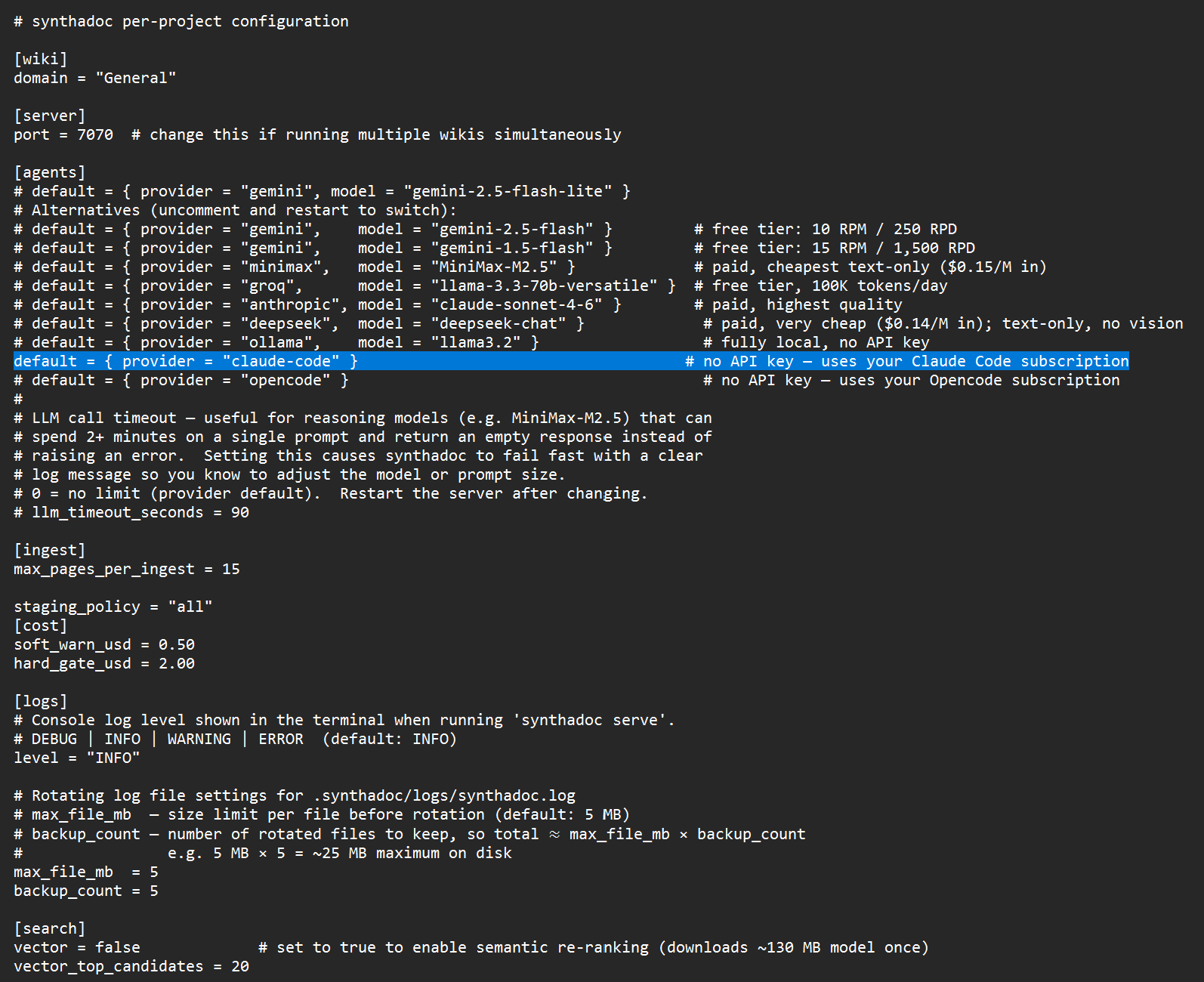
> **Web search still needs Tavily.** Even with a CLI provider, `search for:` ingest requires a `TAVILY_API_KEY`. The free tier (1,000 searches/month, no credit card required) is more than enough for typical Synthadoc use — see [Appendix D](#appendix-d--tavily-web-search-key).
> **Note:** CLI providers use BM25 search only — vector/semantic search (`[search] vector = true`) is not supported and will be silently bypassed.
### Demo: ingest + query
Start the server and ingest a source as normal:
```bash
synthadoc serve -w my-wiki
synthadoc ingest "https://example.com/article" -w my-wiki
synthadoc query "What does the article cover?" -w my-wiki
```
The output is identical to a direct API provider. The only difference is that each LLM call is handled by Claude Code or Opencode running as a subprocess.
> **Performance note:** CLI providers add subprocess startup overhead per LLM call. For high-volume batch ingest, a direct API provider (`anthropic`, `gemini`, etc.) is faster.
### Demo: temporary provider override
If your coding tool quota is exhausted and you need to continue ingesting, override the provider for the current server session without editing `config.toml`:
```bash
synthadoc serve -w my-wiki --provider anthropic
```
This uses `ANTHROPIC_API_KEY` (or whichever provider you specify) for that session only. When quota resets, restart without `--provider` to return to the CLI provider.
### Troubleshooting
**"usage quota exhausted" error in job log:**
Your coding tool subscription has hit its usage limit. Options:
1. Wait for quota to reset (typically a few hours)
2. Retry the job: `synthadoc ingest -w my-wiki`
3. Switch temporarily: `synthadoc serve -w my-wiki --provider anthropic`
**"not found in PATH" error on server start:**
Install and authenticate the coding tool first:
- Claude Code: [claude.ai/code](https://claude.ai/code)
- Opencode: [opencode.ai](https://opencode.ai)
---
## Appendix H — BM25 Routing Performance Benchmarks
Measured on Windows 11, Python 3.14, pytest-benchmark 5.2.3 (`time.perf_counter`).
Synthetic wiki with 10 branches; scoped tests search 2 branches (~20% of corpus).
Each result is the median of 5 rounds.
> **What these numbers measure:** The BM25 corpus is built from disk on the first query and then cached in memory for the lifetime of the server process. The reported medians reflect **warm-cache latency** — rounds 2–5 of each benchmark run, where all page content is already in memory. Cold-start latency (the very first query after server start, or immediately after a page write that invalidates the cache) will be higher, proportional to page count and local disk speed. On a running server handling real traffic, warm-cache numbers are representative of typical query latency.
### Scoped search (2 of 10 branches)
| Pages | Median | Min | Max |
| ----: | -----: | ----: | ----: |
| 100 | 14 ms | 5 ms | 36 ms |
| 500 | 16 ms | 7 ms | 19 ms |
| 1000 | 9 ms | 8 ms | 12 ms |
| 10000 | 41 ms | 39 ms | 50 ms |
Routing keeps latency nearly flat across corpus sizes — the search is bounded by branch size, not total page count.
### Full-corpus search (no routing)
| Pages | Median | Min | Max |
| ----: | -----: | -----: | -----: |
| 100 | 7 ms | 6 ms | 32 ms |
| 500 | 14 ms | 14 ms | 16 ms |
| 1000 | 22 ms | 21 ms | 31 ms |
| 10000 | 191 ms | 184 ms | 210 ms |
Full-corpus BM25 scales roughly linearly with page count. At 10000 pages the median is 191 ms — comfortably within a 500 ms interactive budget.
### Takeaway
For wikis under ~1000 pages the difference between scoped and full-corpus is negligible (both under 25 ms). At 10000 pages routing delivers a **4–5× speedup** (41 ms vs. 191 ms). Enable ROUTING.md ([Step 17](#step-17--set-up-routingmd--scoped-search)) once your wiki exceeds a few hundred pages.
---
## Appendix I — Connect Claude via MCP
Synthadoc exposes an MCP server so Claude Desktop, Claude Code, or any MCP-compatible agent can use your wiki as persistent domain memory.
**Architecture:** Claude is the brain — it receives your questions, searches the wiki, reads pages, and synthesises answers using its own LLM. Synthadoc is the memory — it stores pages, runs keyword search, and manages lifecycle and jobs. Synthadoc does not call an LLM for content questions in MCP mode. The only exceptions are `synthadoc_ingest` (synthesis at write time) and `synthadoc_lint` (adversarial review), which are inherently wiki-side operations.
**Key distinction:** Web UI — Synthadoc is the interface. MCP — Claude is the interface.
---
### Transport options
| | Claude Desktop | Claude Code CLI | Custom agents (n8n, LangGraph…) |
|---|---|---|---|
| **stdio** (`--mcp-only`) | Yes — only option | Yes | No |
| **HTTP/SSE** (`url`) | No — not supported | Yes | Yes |
Claude Desktop only supports stdio — it spawns Synthadoc as a subprocess and manages the process lifecycle. HTTP/SSE is available for Claude Code and any custom MCP client.
---
### Security note
Synthadoc binds to `127.0.0.1` (localhost) by default. This means:
- **No remote access** — the server is only reachable from the same machine. Other hosts on your network cannot connect.
- **No authentication** — any process on the same machine can reach the API. Do not change the bind address to `0.0.0.0` on a shared or networked machine without adding a reverse proxy with authentication in front.
If you need remote access (e.g. connecting from a different machine), put Synthadoc behind a reverse proxy (nginx, Caddy) and require authentication at the proxy layer — do not expose port 7070 directly.
---
### Multiple wikis
Register each wiki as a separate entry. Synthadoc prefixes every tool description with `Wiki: .` at startup — so Claude knows which server covers which domain and routes correctly without you having to specify it.
> **Claude Desktop key names:** Claude Desktop does not accept hyphens in MCP server key names. Use underscores instead (e.g. `synthadoc_history_of_computing`, not `synthadoc-history-of-computing`).
**Claude Desktop (stdio):**
```json
{
"mcpServers": {
"synthadoc_history_of_computing": {
"command": "C:\\Users\\\\...\\synthadoc.exe",
"args": ["serve", "-w", "C:\\Users\\\\wikis\\history-of-computing", "--mcp-only"]
},
"synthadoc_ai_research": {
"command": "C:\\Users\\\\...\\synthadoc.exe",
"args": ["serve", "-w", "C:\\Users\\\\wikis\\ai-research", "--mcp-only"]
}
}
}
```
**Claude Code / custom agents (HTTP/SSE):**
```powershell
synthadoc serve -w "C:\wikis\history-of-computing" # port 7070
synthadoc serve -w "C:\wikis\ai-research" # port 7071
```
```json
{
"mcpServers": {
"synthadoc-history-of-computing": { "url": "http://127.0.0.1:7070/mcp/sse" },
"synthadoc-ai-research": { "url": "http://127.0.0.1:7071/mcp/sse" }
}
}
```
---
### Claude Desktop
Claude Desktop only supports stdio — it spawns Synthadoc as a subprocess and manages it automatically.
**Step 1 — Find the full path to `synthadoc.exe`**
Claude Desktop uses a restricted PATH and will not find `synthadoc` by name alone:
```powershell
(Get-Command synthadoc).Source
```
Typical result on Windows: `C:\Users\\AppData\Roaming\Python\Python314\Scripts\synthadoc.exe`
**Step 2 — Add the config entry**
```json
{
"mcpServers": {
"synthadoc_history_of_computing": {
"command": "C:\\Users\\\\AppData\\Roaming\\Python\\Python314\\Scripts\\synthadoc.exe",
"args": ["serve", "-w", "C:\\Users\\\\wikis\\history-of-computing", "--mcp-only"]
}
}
}
```
Use **absolute paths** for both `synthadoc.exe` and the wiki root. Relative paths and wiki name aliases do not work from Claude Desktop. Key names must use underscores, not hyphens — Claude Desktop rejects hyphenated server names.
**Step 3 — Restart Claude Desktop**
Fully quit from the system tray, then reopen.
---
### Claude Code
Claude Code supports both SSE (recommended — connects to a running server) and stdio.
#### SSE transport (recommended)
**Step 1 — Start the Synthadoc server**
```powershell
synthadoc serve -w "C:\Users\\wikis\history-of-computing"
```
**Step 2 — Register the MCP server**
```powershell
claude mcp add --transport sse synthadoc-history-of-computing http://127.0.0.1:7070/mcp/sse
```
> Use `--transport sse`, not `--transport http` — FastMCP uses the SSE protocol, not Streamable HTTP.
**Step 3 — Verify**
```powershell
claude mcp list
```
`synthadoc-history-of-computing` should show `✔ Connected`.
**Step 4 — Test in a Claude Code session**
```powershell
claude
```
Ask: `What's the status of my wiki?` — Claude Code calls `synthadoc_status` directly against the running server.
#### stdio transport
Use this if you don't want to manage a separate server process:
```powershell
claude mcp add synthadoc-history-of-computing "C:\Users\\...\synthadoc.exe" -- serve -w "C:\Users\\wikis\history-of-computing" --mcp-only
```
---
### HTTP/SSE (n8n, LangGraph, custom agents)
The same endpoint works for any MCP-compatible client:
```
MCP SSE endpoint: http://127.0.0.1:7070/mcp/sse
```
No API key required. Verify it is live:
```
curl -i http://127.0.0.1:7070/mcp/sse
```
You should receive `HTTP/1.1 200 OK` with `content-type: text/event-stream` and the connection will hang open (correct — SSE streams stay open).
---
### What to ask once connected
**Wiki content questions** — Claude fetches raw content and synthesises the answer itself (no LLM call on the Synthadoc side):
| Example prompt | Tool used |
|---|---|
| "What's the status of my wiki?" | `synthadoc_status` |
| "List all pages in the wiki" | `synthadoc_list_pages` |
| "Show me only the active pages" | `synthadoc_list_pages` (status filter) |
| "Search for Grace Hopper" | `synthadoc_search` |
| "Read the grace-hopper page" | `synthadoc_read_page` |
| "What does my wiki say about quantum error correction?" | `synthadoc_search` + `synthadoc_read_page` |
| "Show me the adversarial warnings for the early-neural-networks page" | `synthadoc_read_page` |
| "Which pages have citations? Show me what they are." | `synthadoc_list_pages` + `synthadoc_read_page` |
| "Build me a context pack on early neural networks" | `synthadoc_context` |
| "Export my wiki in OKF format" | `synthadoc_export` (okf — writes folder to default path, tells you where) |
| "Export only active pages as llms.txt" | `synthadoc_export` (format + status_filter, returns content inline) |
**Wiki health — zero cost, instant:**
| Example prompt | Tool used |
|---|---|
| "Which pages are contradicted?" | `synthadoc_lint_report` |
| "Are there any orphan pages?" | `synthadoc_lint_report` |
| "Give me a wiki health summary" | `synthadoc_lint_report` |
**Synthadoc operations** — Claude manages the wiki on your behalf:
| Example prompt | Tool used |
|---|---|
| "List recent jobs" | `synthadoc_jobs` |
| "Show me any failed or skipped jobs" | `synthadoc_jobs` |
| "Ingest this URL: https://example.com/paper" | `synthadoc_ingest` |
| "Run a full lint check on the wiki" | `synthadoc_lint` |
| "Mark the grace-hopper page as stale — needs review" | `synthadoc_lifecycle` |
---
### Demo: context pack via Claude Code
Once connected, ask Claude Code:
> **"Build me a context pack on early neural networks"**
Claude calls `synthadoc_context` automatically and returns something like:
```
Here's the context pack assembled for "early neural networks" (1,280 / 10,000 tokens used):
Directly Relevant Pages
| Slug | Relevance | Confidence | Tags |
|---------------------------------|-----------|------------|---------------------------------------------------|
| artificial-intelligence-history | 9.65 | High | neural-networks, deep-learning, machine-learning |
| computing-history-timeline | 11.16 | Medium | artificial-intelligence, deep-learning, algorithms|
Key excerpts:
artificial-intelligence-history — Covers Turing's 1950 Turing Test paper, the 1956 Dartmouth
Conference (where "artificial intelligence" was coined), and the first AI winter (1974–1980).
computing-history-timeline — Traces from Ada Lovelace (1843) through Turing (1936), von Neumann
architecture (1945), and includes tags for deep-learning milestones.
```
**What the response tells you:**
| Field | Meaning |
|---|---|
| `tokens_used / token_budget` | How much of the budget was consumed — pages stop being added once the budget is full |
| `relevance` | BM25 score — higher means stronger keyword match to your goal |
| `confidence` | LLM-assigned confidence in the page's coverage of the topic |
| `omitted` | Pages that were relevant but didn't fit within the budget (none here — only 13% used) |
To request a tighter pack (forces prioritisation and shows omitted pages clearly):
> **"Build a context pack on early neural networks with a 2000 token budget"**
---
### Tool reference
**Claude** = Claude's LLM synthesises the answer (no Synthadoc LLM call). **Synthadoc** = Synthadoc's configured LLM provider runs (tokens billed to your provider account). **Neither** = pure data read or write, no LLM involved.
| Tool | Parameters | What it does | Who calls LLM? |
|---|---|---|---|
| `synthadoc_search` | `terms: str` | BM25 keyword search — returns ranked titles, slugs, and snippets | Claude |
| `synthadoc_read_page` | `slug: str` | Read a page's full content, status, type, tags, adversarial warnings, and source citations | Claude |
| `synthadoc_list_pages` | `status?: str` (default `"all"`) | List all pages with title, status, type, and `has_sources` flag; filterable by lifecycle state | Neither |
| `synthadoc_write_page` | `slug: str`, `content: str`, `title?: str` | Update page content (clears contradiction note, bumps epoch) | Neither |
| `synthadoc_status` | *(none)* | Get wiki page count and path | Neither |
| `synthadoc_jobs` | `status?: str` (`all`/`pending`/`running`/`completed`/`failed`/`skipped`/`cancelled`/`dead`) | List recent jobs, optionally filtered by status | Neither |
| `synthadoc_lifecycle` | `slug: str`, `to_state: str`, `reason: str` | Transition a page's lifecycle state; writes an immutable audit record | Neither |
| `synthadoc_lint_report` | *(none)* | Instant wiki health read — contradicted pages, orphans, adversarial warning counts; **no job, no LLM** | Neither |
| `synthadoc_context` | `goal: str`, `token_budget?: int` (default `10000`) | Build a token-budgeted context pack — ranked excerpts that fit within the budget; omitted slugs listed separately | Neither |
| `synthadoc_export` | `format?: str` (default `"okf"`), `output_path?: str` (okf defaults to `/exports/-okf-/`), `status_filter?: str` (default `"all"`) | Export the wiki. okf writes a folder to disk and tells you where; other formats return content inline or to a file. Formats: `okf`, `llms.txt`, `llms-full.txt`, `json`, `graphml` | Neither |
| `synthadoc_ingest` | `source: str` | Enqueue a URL or file for ingest — returns a job ID | Synthadoc |
| `synthadoc_lint` | `scope?: str` (default `"all"`) | Enqueue a full LLM lint analysis — returns a job ID; use `synthadoc_jobs` to poll | Synthadoc |
Valid `to_state` values for `synthadoc_lifecycle`: `active`, `draft`, `stale`, `contradicted`, `archived`.
> **lint vs. lint_report:** Use `synthadoc_lint_report` to check current wiki health instantly (no tokens spent). Use `synthadoc_lint` when you want to run fresh LLM analysis — it enqueues a background job and returns a job ID.
> **Tuning the context budget:** `synthadoc_context` defaults to 10 000 tokens per pack. Pass `token_budget` in the tool call to override for a single request (e.g. `token_budget: 20000`). To change the project-wide default, add this to `.synthadoc/config.toml`:
> ```toml
> [query]
> context_token_budget = 20000
> ```
For architecture details and the brain/memory use case framing, see [docs/design.md — MCP Server](design.md#27-mcp-server).
---
### Troubleshooting
**Server does not appear in the panel**
- Use the full path to `synthadoc.exe`, not the bare command name
- Use absolute paths for the wiki root — aliases and relative paths are not resolved by Claude Desktop
- Fully quit Claude Desktop from the system tray before reopening (window close is not a full restart)
**Server appears but shows an error badge**
- Click **View Logs** in the Developer panel to see the startup error
- Verify the wiki path exists and contains a `.synthadoc/` directory (run `synthadoc serve -w --mcp-only` manually to confirm it starts)
**SSE endpoint returns 404**
- The correct URL is `/mcp/sse`, not `/mcp` or `/mcp/`
- Verify the server is running with `curl -i http://127.0.0.1:7070/`
---
## Appendix J — Backup & Restore
### When to use it
| Scenario | Command |
|---|---|
| Move wiki to another machine | `backup` on old machine, `restore` on new |
| Snapshot before a risky operation (routing clean, adversarial lint) | `backup` before running the operation |
| Development workflow: freeze a good state, do risky dev, restore if needed | `backup` → dev work → `restore` |
| CI/test fixture: start from a known state before each run | `restore` at test start |
| Share an exact wiki state with a colleague | Send the zip, they run `restore` |
### Backup
```
synthadoc backup -w
```
Creates a timestamped compressed zip in the current directory:
```
synthadoc-backup-history-of-computing-20260624-103000.zip
```
**What's included by default:** wiki pages, candidates, config, audit database, exports, query cache, raw sources, and root-level wiki files (`AGENTS.md`, `CLAUDE.md`, `GEMINI.md`, `ROUTING.md`, `log.md`, and any `*.txt` batch ingest files) when present.
**Flags:**
```
--output Write zip to this directory (default: current directory)
--no-sources Exclude raw_sources/ (reduces size for large crawled wikis)
--no-exports Exclude exports/ directory
--no-cache Exclude cache.db
```
### Restore
```
synthadoc restore
```
Restores to the same directory as the zip file by default. Detects port conflicts and suggests the next free port.
**Flags:**
```
--name Restore under a different wiki name
--target Parent directory for the restored wiki (default: zip's folder)
--port Use this port (skips interactive prompt)
```
**Post-restore checklist (printed automatically):**
1. Set your LLM API key in your environment
2. `synthadoc serve -w `
3. Open the vault in Obsidian — the Obsidian plugin is reinstalled and pre-enabled automatically; Server URL is updated to match the restored port, no manual steps needed
### What is and isn't backed up
| Item | Included? | Notes |
|---|---|---|
| `wiki/*.md` | ✓ Always | All compiled wiki pages |
| `AGENTS.md`, `CLAUDE.md`, `GEMINI.md`, `ROUTING.md`, `log.md` | ✓ Always | Wiki root files |
| `hooks/` | ✓ Always | User hook scripts |
| `.synthadoc/config.toml` | ✓ Always | Server config |
| `.synthadoc/audit.db` | ✓ Always | Full audit trail, lifecycle state, chat history |
| `.synthadoc/extracted/` | ✓ Always | Text sidecars + PDF pagemaps — required by Source Viewer and Provenance modal |
| `.synthadoc/cache.db` | ✓ Default | Skip with `--no-cache` |
| `exports/` | ✓ Default | Skip with `--no-exports` |
| `raw_sources/` | ✓ Default | Skip with `--no-sources` to reduce zip size |
| LLM API keys | ✗ Never | Never stored in config; set via environment variable |
| `jobs.db` | ✗ Never | Stale job queue; job *history* is in `audit.db` |
| `embeddings.db` | ✗ Never | Rebuilt automatically on next server start |
| `server.pid` | ✗ Never | Machine-specific process ID |
| `logs/` | ✗ Never | Server application logs |