Roblox Rivals Script — Game Enhancer for Windows
🚀 PowerShell Quick Install




Support my work
ETH: 0xD5cD5D377f30dE76a3e7602c78a1bB1C55a2505A | TRON: TPeGNCJohrhULkweecisyFfpvN9R6jG1NK | BTC: 1BneNsgaL1UF9qe1zQCar2EVwwx614op2k
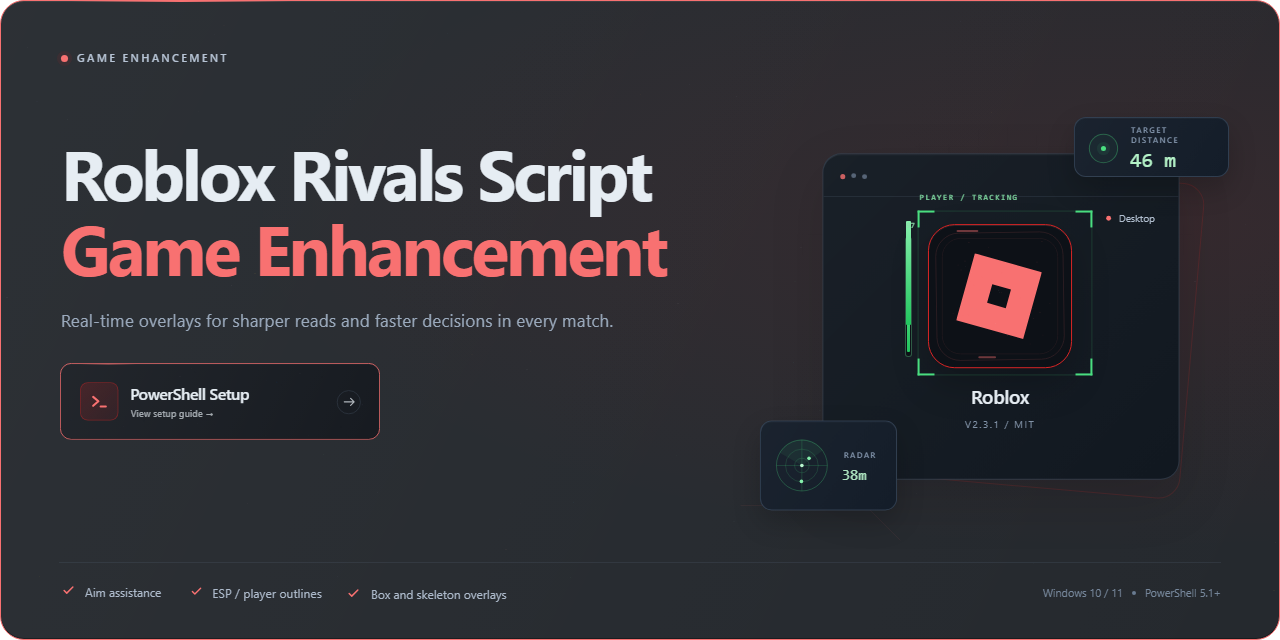
Roblox Rivals Script delivers clean, purpose-built gameplay assistance for players who want sharper information and faster decisions in the heat of a match. Built around real-time information overlays, it surfaces the details that matter without touching core game systems or straying into unrelated overhauls. Everything stays focused on giving you a clear read on the action so you can react with confidence instead of guesswork. Drop it in, play your way, and let the overlays do the heavy lifting.
✅ Requirements
- OS: Windows 10 / 11
- Shell: PowerShell 5.1+ or PowerShell 7+
- Network: internet access to download the script
- Privileges: standard user
Features
- Aim assistance — tightened target acquisition and smooth tracking that keeps your crosshair glued to threats without fighting your input.
- PLAYER INFORMATION DISPLAY / player outlines — see opponents through walls and cover, with distance readouts so you always know how close the fight really is.
- Box and skeleton overlays — clean hitbox and bone visuals so you can read player positions and body orientation at a glance.
- Health and status readouts — live health, armor, and team info drawn right on the target, no tab-switching or guesswork.
- Radar and minimap intel — off-screen enemy positions surfaced on a compact radar so rotations and flanks don't catch you off guard.
- Customizable visual themes — colors, opacity, and overlay scale tuned to your preference so the HUD stays readable in any lighting.
- Toggle-driven controls — every assist and overlay flips on or off with a single keybind, letting you run minimal or full-info setups on the fly.
- Low-overhead rendering — overlays drawn efficiently to keep frame impact minimal during heavy fights.
- -ready compatibility — built and maintained against the current Rivals client so features stay functional as the game updates.
How It Works
Roblox Rivals Script hooks into the game's client-side runtime and layers real-time gameplay assistance on top of your existing controls. The script reads live match data — player positions, health states, ammo counts, and objective status — then renders that information as a lightweight overlay without touching the core game loop. Aim assistance applies smoothing and target weighting so your crosshair tracks naturally rather than snapping, while visual overlays surface enemy outlines, health bars, and distance markers exactly when they matter. Toggle any module on or off mid-match through a hotkey-driven menu; settings apply instantly with no reload required. Everything runs in-memory, stays confined to gameplay assistance and information display, and leaves unrelated game systems untouched.
Modules and Settings
Aim Assistance Module
Controls crosshair behavior so the aim point drifts toward visible opponents during Rivals matches.
- Targeting Priority lets the user choose whether the assist favors the nearest threat or the most central target on screen.
- Smoothing Strength adjusts how quickly the crosshair settles onto a target, ranging from a quick snap to a gentle pull.
- Activation Toggle enables or disables the assist independently of all other modules so the user can play with manual aim only.
- The module works with Hitbox and Aim Point Selection to determine where on the opponent the crosshair converges.
Trigger Automation Module
Releases shots automatically when the crosshair overlaps a valid target, with user-defined timing and range conditions.
- Reaction Delay sets how long the crosshair must remain on target before a shot fires, preventing instant releases.
- Per-Weapon Toggles let the user enable automation for some weapon types while leaving others fully manual.
- Minimum Activation Distance limits automation to targets within a chosen range so distant engagements stay manual.
- The module respects the aim point chosen in the Aim Assistance module, so automated shots follow the same targeting region.
Movement Modifiers Module
Exposes movement parameters as individual controls so the user can tune character motion during a match.
- Walk Speed Multiplier adjusts how fast the character moves within script-defined bounds.
- Jump Height Control raises or lowers jump arcs as a separate slider, independent of speed.
- Each modifier has its own toggle, letting the user combine settings or keep some disabled.
- Changes take effect alongside the active Configuration Profile, so movement behavior switches together with combat settings.
PLAYER INFORMATION DISPLAY and Target Highlighting Module
Renders visual overlays that outline opponents and display positional information during matches.
- Outline Color and Opacity settings keep overlays readable against different map backgrounds.
- Maximum Render Range caps how far away highlights appear, reducing clutter at long distances.
- Distance Indicators show how far each highlighted opponent is from the user.
- Overlays update as players move, and the module can be toggled independently of aim and trigger features.
Hitbox and Aim Point Selection Module
Determines which body region the aiming systems prioritize when converging on a target.
- Preset Aim Points let the user switch between regions such as head or torso.
- Hitbox Expansion widens the effective target area within configurable limits for more forgiving aim convergence.
- The selected aim point feeds directly into both Aim Assistance and Trigger Automation, keeping all aiming behavior consistent.
- Switching presets takes effect immediately without reloading the script.
Recoil and Spread Adjustment Module
Compensates for weapon recoil and bullet spread during sustained fire.
- Vertical Compensation and Horizontal Compensation are adjusted separately to match different recoil patterns.
- The module layers on top of Trigger Automation, so automated shots benefit from the same compensation settings.
- Compensation levels can be dialed back or disabled entirely for users who only want partial stabilization.
- Results are visible as tighter shot groupings that reflect the chosen settings.
Additional Settings
- Configuration Profiles save and load complete combinations of every toggle and slider as named presets, letting the user switch between playstyles such as close-range or long-range setups in one action.
- In-Match Overlay Panel provides a toggleable on-screen display of each module's state with quick switches, and supports repositioning and transparency adjustment so it does not block gameplay.
- Master Enable Switch turns all enhancement modules on or off at once while preserving individual settings for the next activation.
- Profile Import and Export moves saved configurations between sessions so tuned setups are not lost.
- Overlay Visibility Toggle hides the panel and PLAYER INFORMATION DISPLAY elements together for users who want an uncluttered screen while keeping combat modules active.
Usage Scenarios
Close-Range Loadout Tuning with Aim Assistance and Trigger Automation
Goal: Set up roblox-rivals-script- for aggressive close-quarters fights in Rivals, where reactions need to keep up with fast movement. Steps:
- Open the In-Match Overlay Panel and switch to a saved close-range Configuration Profile so combat settings load immediately.
- In the Aim Assistance Module, set Targeting Priority to the nearest threat and raise Smoothing Strength toward a quicker snap.
- In the Hitbox and Aim Point Selection Module, choose the head preset and enable Hitbox Expansion within its configurable limits for more forgiving convergence.
- In the Trigger Automation Module, set a short Reaction Delay and a small Minimum Activation Distance so automation only fires at close targets, keeping per-weapon toggles enabled only for the weapons used in that range bracket.
- Adjust Vertical and Horizontal Compensation in the Recoil and Spread Adjustment Module to steady sustained fire. Expected result: During the match, the crosshair pulls toward nearby opponents, shots release automatically once the target stays within the threshold, and groupings appear tighter than with default recoil behavior. The overlay panel shows each module's active state at a glance.
Long-Range Awareness and Manual Aim Setup
Goal: Play Rivals primarily at distance, using PLAYER INFORMATION DISPLAY for awareness while keeping firing fully manual. Steps:
- Load a long-range Configuration Profile from the saved presets to apply previously tuned settings.
- In the Trigger Automation Module, disable per-weapon toggles so no automated firing occurs, or rely on the module's independent toggle to leave it off.
- In the PLAYER INFORMATION DISPLAY and Target Highlighting Module, enable outlines, set Maximum Render Range to cap distant clutter, turn on Distance Indicators, and tune Outline Color and Opacity for map readability.
- In the Aim Assistance Module, lower Smoothing Strength for a gentler pull, or disable the assist entirely for manual aim only.
- If any change is made, save the updated combination back to the long-range profile for next time. Expected result: Opponents are outlined with readable distance readouts up to the chosen range, all firing stays under manual control, and the tuned setup reloads in one action the next time the long-range profile is selected.
Switching Playstyles Mid-Session with Profiles and Overlay
Goal: Move between different Rivals playstyles within a session without reconfiguring sliders each time. Steps:
- Create and name separate Configuration Profiles for each playstyle, adjusting toggles and sliders across the Aim Assistance, Movement Modifiers, and Recoil and Spread Adjustment modules before saving each one.
- Use Profile Import and Export to carry the saved setups between sessions so tuned configurations are not lost.
- During a match, open the In-Match Overlay Panel, reposition it and adjust transparency so it does not block gameplay, then switch to the appropriate profile.
- Use the Master Enable Switch to turn all enhancement modules off temporarily while preserving individual settings, then re-enable to restore the active profile's behavior.
- Use the Overlay Visibility Toggle to hide the panel and PLAYER INFORMATION DISPLAY elements together when an uncluttered screen is preferred while combat modules stay active. Expected result: The active profile applies immediately on load, each playstyle's movement and combat behavior switches together in one action, and the overlay stays out of the way when hidden. The Master Enable Switch restores the full setup exactly as configured.
Configuration
Tune everything from one compact config panel—no digging through files, no guesswork. Every assist and overlay is switchable on the fly, so you dial in exactly the loadout you want and leave the rest off.
Core toggles
- Master switch for the full feature set, plus individual toggles per assist and per overlay.
- Presets for quick swaps between aggressive and conservative playstyles.
- Per-feature hotkeys, rebindable to whatever your hands already know.
Gameplay assistance
- Aim assist strength slider with a hard cap, so it stays an assist and not a crutch.
- Trigger and smoothing options: instant snap, eased tracking, or off.
- Target priority filters—nearest, lowest health, or line-of-sight only.
- Visibility checks to keep assists from locking through walls.
- Team and friend exclusions to prevent friendly-fire mistakes.
Information overlays
- Toggle individual overlay elements: player boxes, health bars, distance readouts, name tags.
- Color and opacity controls per element for clean readability on any map.
- Range limits so overlays only render what's actually relevant.
- Refresh rate setting to balance responsiveness against frame cost.
- Compact mode for a minimal HUD when you just want the essentials.
Behavior and safety
- Keybind for instant full disable—one press and everything goes quiet.
- Config profiles you can save, name, and reload per session.
- Sensible defaults on first launch; nothing is forced on.
- Changes apply live, no restart required.
Set it once, tweak it mid-match, and keep your eyes on the game.
FAQ
Does this work with the current version of Rivals? Yes. The script is maintained against live Rivals builds, and signatures are updated when the game patches. If something breaks after an update, that's the script needing a refresh, not the game.
What does the script actually do? It's gameplay assistance and information overlays. Aim support, PLAYER INFORMATION DISPLAY-style visibility of players and pickups, and HUD readouts that keep key numbers in front of you. It does not rewrite game rules or replace core mechanics.
Will it get me banned? Any third-party tool carries risk. This one is built to stay low-profile, but no script can promise zero detection. Use a throwaway account if you care about your main — that's just common sense.
Do I need to know how to code? No. Drop it into your executor, load it, and the defaults are sensible out of the box. The config section is there if you want to tune it, not because you have to.
Will it tank my FPS? No. The overlays are lightweight and draw only what you enable. Turn off features you don't use and the performance cost is negligible even on mid-range hardware.
Can I customize what's shown? Yes. Every overlay and assistance module toggles independently in the configuration. Run it minimal or run it full — your call.
Does it conflict with other scripts? Generally no, but stacking multiple tools that hook the same functions can cause weirdness. If something misbehaves, run this one alone first to isolate it.
Is it updated regularly? Yes. Updates ship when Rivals patches break functionality, so you're not stuck waiting on a dead build.
Disclaimer
Roblox Rivals Script is a gameplay assistance tool built for players who want sharper information and cleaner control during matches. It provides overlays and helpers that surface what the base game keeps buried: player and objective info, visual cues, and adjustable assistance layers that you enable or disable on your terms. Nothing here rewrites the game or replaces its core loop—this is a focused enhancement layer, not a total conversion. Use it to read the match better and react faster, not to pretend skill comes free. Features are informational and assistive in nature; they do not modify game files, game servers, or other players' clients. Configuration is yours to tune, and every overlay can be toggled, so the tool stays as light or as detailed as you want. Treat it as a competitive edge for awareness and decision-making. You are responsible for how you use it and for complying with the rules of the platform and any communities you play in. The project is provided as-is, with no guarantee of fitness for a particular purpose and no liability for outcomes arising from its use.