Moyai
Press Cmd+K (Windows/Linux: Ctrl+K) to search session titles and saved messages, jump to settings, or act on the open session: copy its link, rename it, pin it, or move it to a folder. The sidebar search button opens the same palette. Use ↑/↓ and Enter to select, or Escape to close. Cmd+Shift+O (Ctrl+Shift+O) opens a new session. Search follows the selected My/All sessions scope.
A self-hosted coding agent for background work. Give it a task from your browser or Slack; it edits code, runs tests, and opens a pull request for review. Send corrections while it works or resume with saved files and conversation history.
Search sessions by title, original request, or words inside saved user and assistant messages. Matching excerpts appear in the sidebar, including agent conversations and side chats. Search covers older sessions beyond the recent list and follows your selected My sessions/All sessions view. Archived sessions remain recoverable by asking Moyai in chat.
Confirm Delete session once to stop its agents, close their sandboxes, and remove the session for everyone. Cleanup continues if you close the page or the app restarts, and retries automatically when a sandbox provider is temporarily unavailable. New work is blocked while the session shows Deleting. Stored conversation data, files, billing records, and backups remain retained; independent side chats remain available.
Ask “What is this session’s ID?” or send /session-id in web chat or Slack
thread chat to get the current Moyai session ID directly. These standalone requests
use no model calls, tool searches, or sandbox startup, and leave active work alone.
Web replies are saved in the conversation; Slack replies use the same durable
control-message delivery as status. Requests with attachments or additional work
continue through the agent normally.
Harnesses
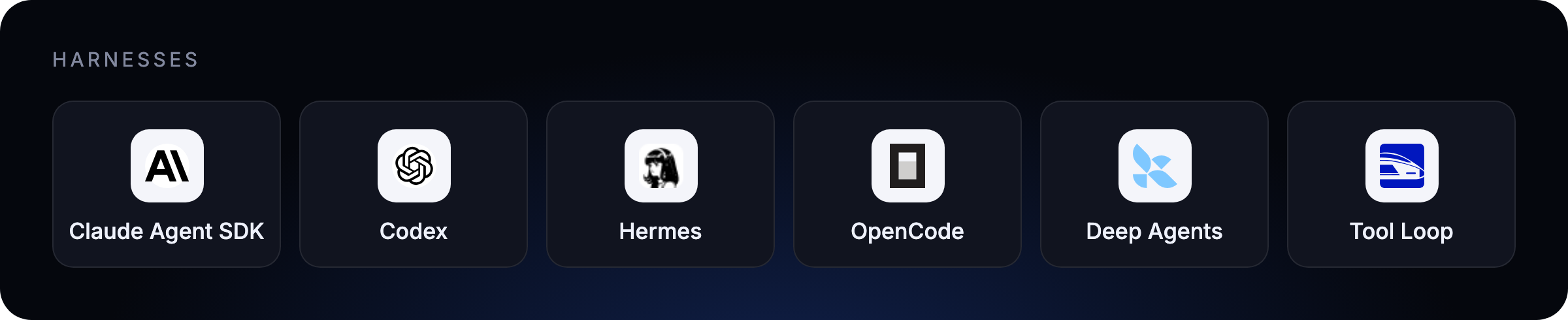
New sessions automatically use Codex SDK for openai/ models and Claude Agent SDK for anthropic/ models, including new model versions. Other model prefixes fall back to Claude Agent SDK. You can pick a different harness for each session: Hermes, Claude Agent SDK, Codex, OpenCode, Deep Agents, Tool Loop, or Pi. Every harness runs in the same isolated workspace with the same tools and permissions. See supported combinations and custom harnesses.
GPT-6 Astra uses normal processing by default. Choose GPT-6 Astra Ultrafast in the model picker to opt into Ultrafast mode. The choice is saved to your account immediately, survives sign-out and server restarts, and becomes the default for new sessions, just like choosing Opus. Choose regular GPT-6 Astra to opt out. Existing sessions and already queued messages retain their own model choices.
Ultrafast automatically selects Codex for new sessions because it requires the Responses API. An explicitly selected incompatible harness is rejected with guidance to choose Codex or regular Astra. The saved ID openai/gpt-6-astra-ultrafast is a Moyai preference: requests still use the existing gateway model openai/gpt-6-astra, with service_tier: "ultrafast" only for opted-in Responses requests and "default" for regular Astra Responses requests. No new gateway deployment or database migration is needed. Ultrafast requires upstream access and uses its pricing and rate limits; context summaries and memory review retain normal processing.
Models and providers
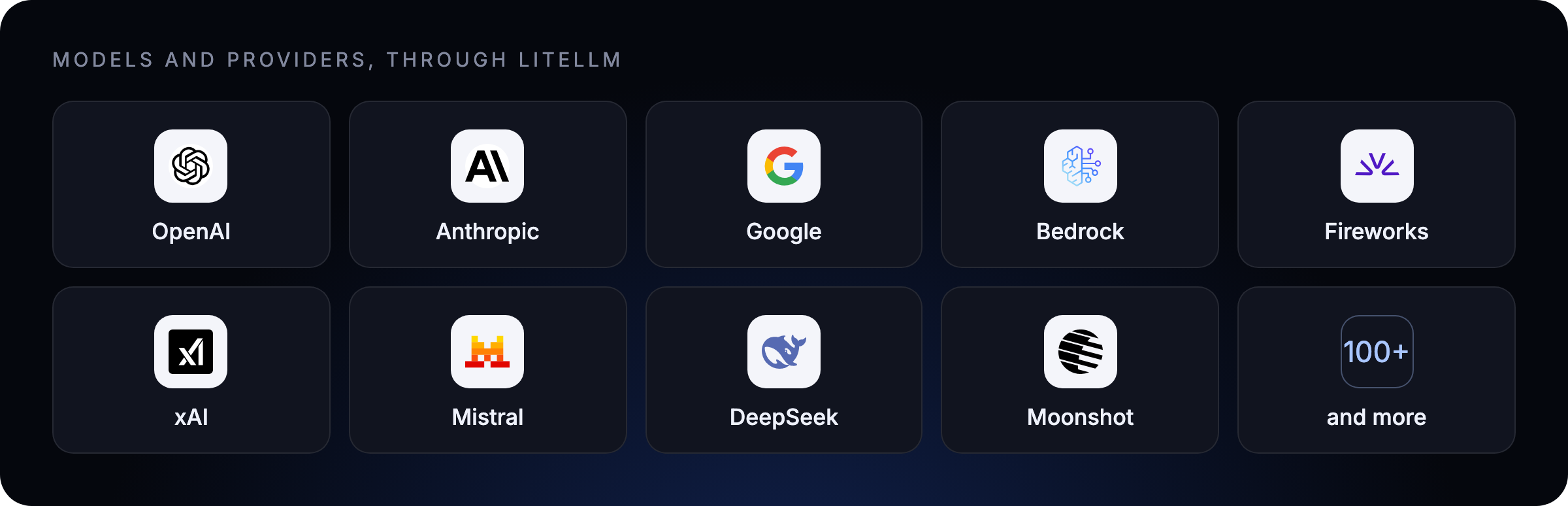
Moyai uses LiteLLM for inference, so it can run on any of the 100+ providers LiteLLM supports. Point it at your LiteLLM gateway, switch models between messages, and spend is tracked per teammate. Provider keys stay on the server, and the sandbox never sees them.
See it in action
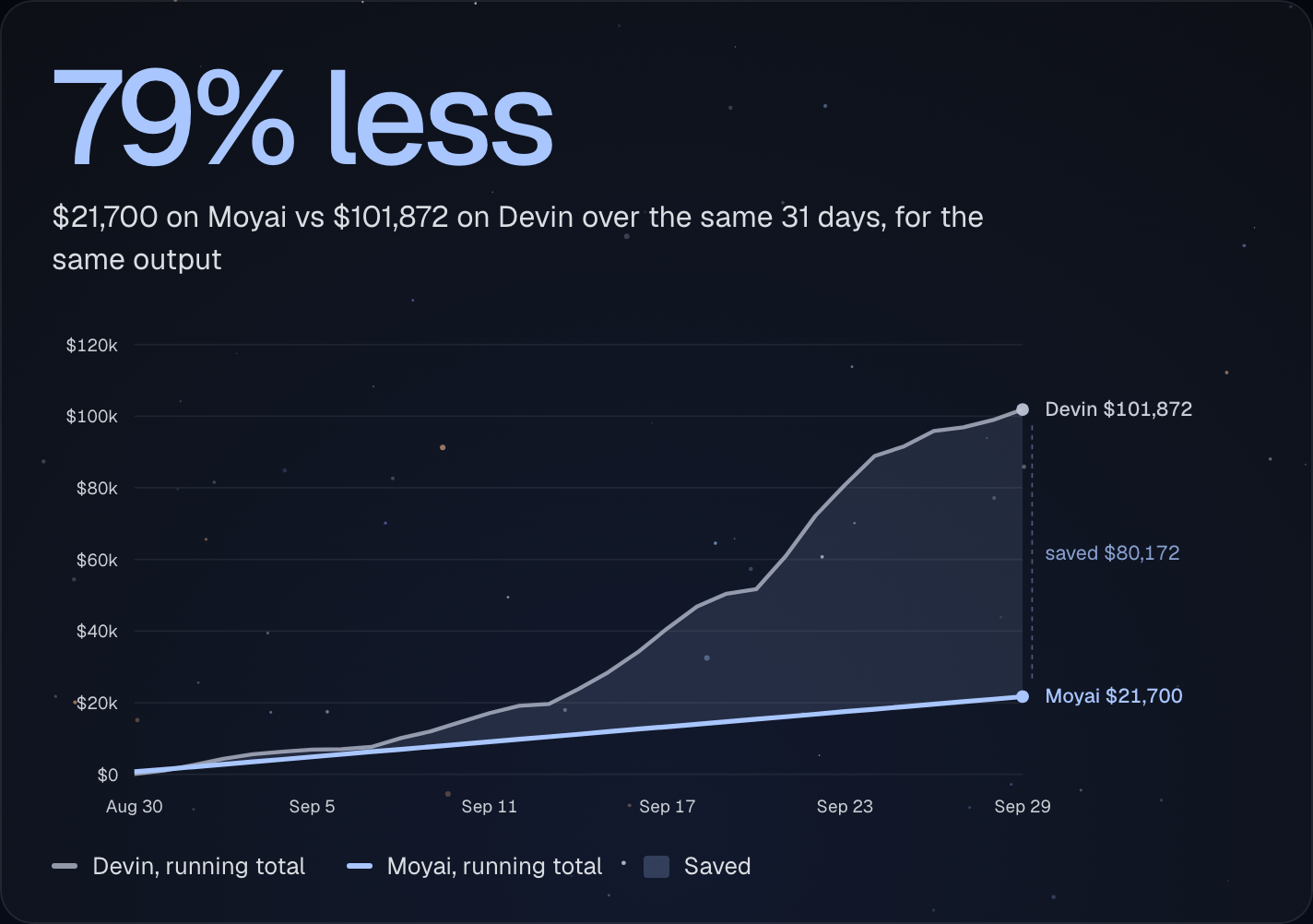
Before vs after: 79% cheaper
We moved our internal coding agent from Devin to Moyai. Same work, same 31 days: $101,872 on Devin vs about $21,700 on Moyai
Before: Devin, $101,872 in 31 days
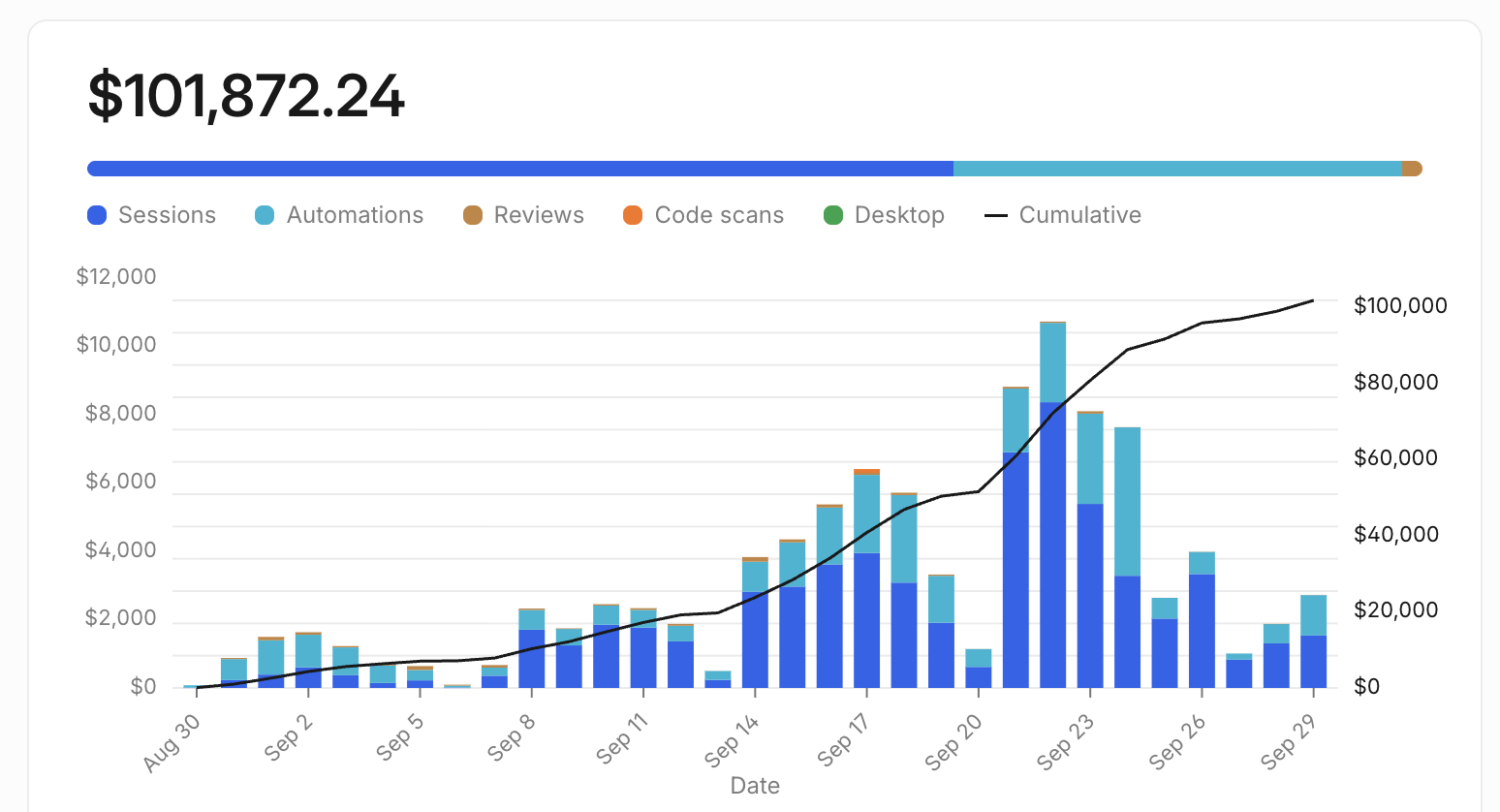
After: Moyai, about $700 a day
Read the full story in the launch post: Moyai is now open source
Getting started
Choose Modal, Substrate, or AWS Lambda MicroVMs for agent sandboxes in Settings → Runtime. Modal is the default. Follow the provider's setup guide to connect your own infrastructure.
This setup runs Moyai on Modal, using GPT-6 Astra + the Claude Agent SDK harness through LiteLLM. You can choose another model or harness.
You'll need Git, Python 3.12+, uv, a Modal account, and a LiteLLM gateway with GPT-6 Astra enabled. Commands use a macOS/Linux shell; Windows users can use WSL.
1. Install
git clone https://github.com/BerriAI/moyai.git
cd moyai
uv sync --frozen
cp .env.example .env
chmod 600 .env
2. Add your credentials
Log in to Modal:
uv run modal token newOpen ~/.modal.toml in a private editor window. Copy your workspace's token_id and token_secret into .env, then fill in the model settings:
MODAL_TOKEN_ID=<your Modal token_id>
MODAL_TOKEN_SECRET=<your Modal token_secret>
LITELLM_API_BASE=https://your-gateway.example.com/v1
LITELLM_API_KEY=<your LiteLLM gateway key>
AGENT_MODEL=openai/gpt-6-astra
SESSION_TITLES_ENABLED=false
Ask your gateway administrator for the URL and a key with access to openai/gpt-6-astra through the Messages API. Leave the other settings unchanged for now, and keep .env out of Git and chat.
3. Deploy and sign in
Deployment starts billed compute. Use a fresh Modal workspace; redeploying an existing installation interrupts its active tasks.
uv run python deploy_modal.pyOpen the printed Workspace URL. Sign in with WORKSPACE_PASSWORD from .env, which the script generates for you. It also sets up HTTPS and the required secrets. Keep this .env for future deployments.
4. Run your first task
Start a new session. Under Context & tools, choose Cloud session and leave the repository empty. Select Claude Agent SDK in the harness picker and GPT-6 Astra in the model picker, then send:
Create
/workspace/hello.pythat printsHello from Moyai, run it, and show me the output.
The first run may take several minutes to build the agent image. Check Activity for the command output and Files for hello.py.
Next: connect your GitHub repository to work on your code and open PRs. Add Slack, Linear, or Notion when you need them.
To stop compute charges, stop the web app and remaining sandboxes in the Modal dashboard. Closing your browser leaves them running.