Orcah Studio: Local Video Knowledge Base
Orcah Studio (formerly Edit Mind) is a self-hosted video knowledge base. It indexes your videos — including transcription, frame analysis, and multi-model embedding — then lets you search videos or individual scenes with natural language.
Development Status: Edit Mind is currently in active development and not yet production-ready. Expect incomplete features and occasional bugs. We welcome contributors to help us reach v1.0!




Note on the name: Orcah Studio was previously called Edit Mind. The repository, package names, and some historical material still use the former name while the rename is rolled out.
Sponsors of this project



Showcase Video
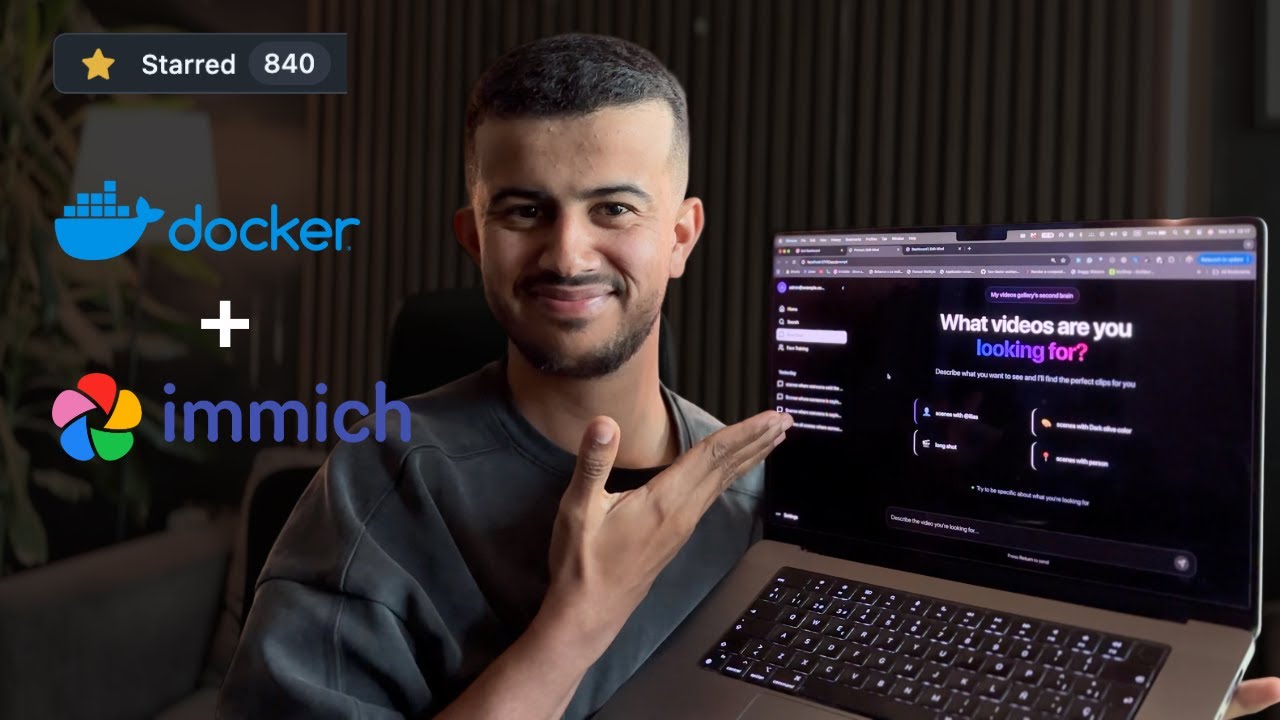
Click to watch a walkthrough of Orcah Studio's core features.
Why Orcah Studio?
- Search videos by spoken words, objects, faces, etc...
- Runs fully locally, respecting privacy.
- Works on any computer or server with Docker installed.
- Uses AI for rich metadata extraction and semantic search.
Core Features
- Video Indexing and Processing: A background service watches for new video files and queues them for AI-powered analysis.
- AI-Powered Video Analysis: Extracts metadata like face recognition, transcription, object & text detection, scene analysis, and more.
- Vector-Based Semantic Search: Powerful natural language search capabilities on video content using ChromaDB.
Core Technologies
| Area | Technology |
|---|---|
| Monorepo | pnpm workspaces |
| Containerization | Docker, Docker Compose |
| Web Service | React Router V7, TypeScript, Vite |
| Background Jobs Service | Node.js, Express.js, BullMQ |
| ML Sevice | Python, PyAV, PyTorch, OpenAI Whisper, Google Gemini or Ollama (Used for NLP) |
| Vector Database | ChromaDB |
| Relational DB | PostgreSQL (via Prisma ORM) |
Getting Started
The self-hosted Orcah Studio edition uses Docker Compose to run everything in containers.
Setup Video
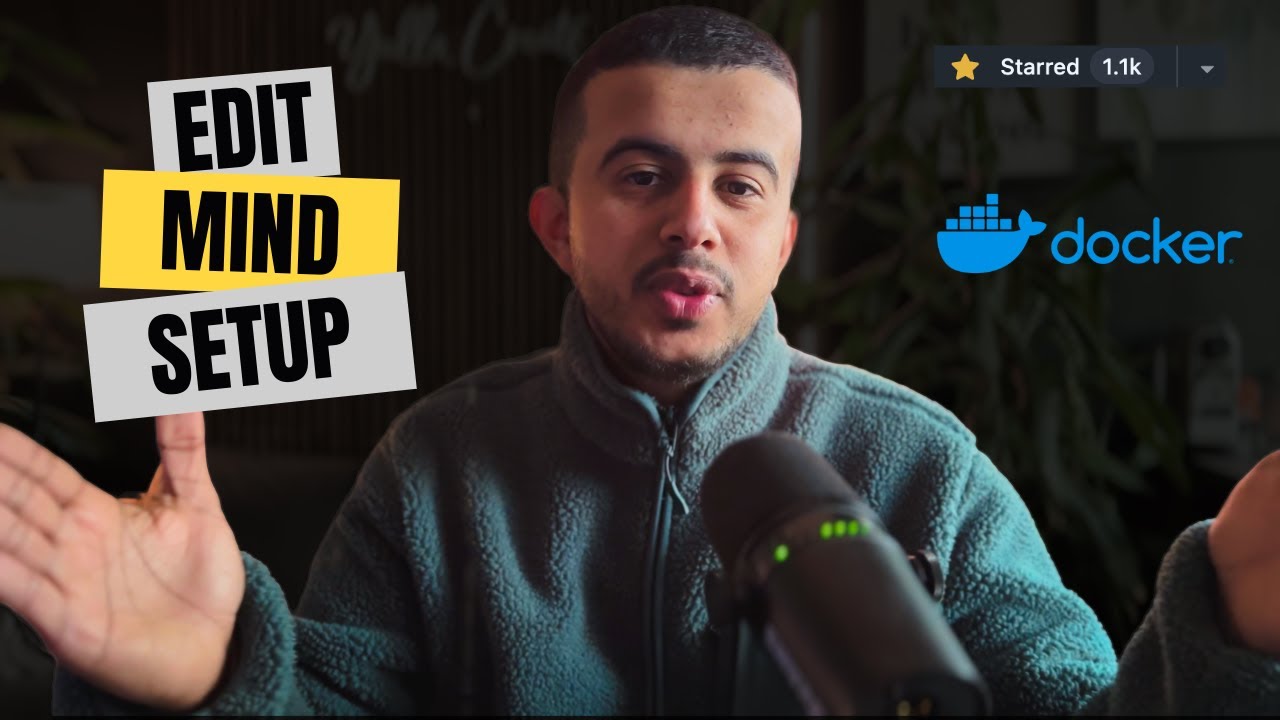
Click to watch a walkthrough of the self-hosted setup guide.
Prerequisites
- Docker Desktop installed and running.
- That's it! Everything else runs in containers.
Quick install (recommended)
With Docker Desktop open, paste this command into Terminal (macOS/Linux) or Git Bash/WSL (Windows):
bash <(curl -fsSL https://raw.githubusercontent.com/IliasHad/edit-mind/main/install.sh)The installer asks where your videos are stored and whether to use local Ollama, Gemini, or skip AI setup for now. It creates the required configuration, then starts Orcah Studio. Your library remains on your computer; the installer only gives Docker access to the folder you choose.
Prefer to configure every setting by hand? Follow the manual setup steps below.
1. Project Setup
mkdir edit-mind
cd edit-mind
2. Configure Docker File Sharing
Important: Before proceeding, configure Docker to access your media folder.
macOS/Windows:
- Open Docker Desktop
- Go to Settings → Resources → File Sharing
- Add the path where your videos are stored (e.g.,
/Users/yourusername/Videos) - Click Apply & Restart
Linux: File sharing is typically enabled by default.
3. Configure Environment Variables
The self-hosted edition uses a two-file environment configuration:
.env- Your personal configuration (required).env.system- System defaults (required)
Step 3.1: Create Your Personal Configuration
Copy the example file and customize it:
curl -L https://raw.githubusercontent.com/IliasHad/edit-mind/refs/heads/main/.env.example -o .env
curl -L https://raw.githubusercontent.com/IliasHad/edit-mind/refs/heads/main/.env.system.example -o .env.system
curl -L https://raw.githubusercontent.com/IliasHad/edit-mind/refs/heads/main/docker-compose.yml -o docker-compose.yml
If you have NVIDIA GPU, use docker-compose.cuda.yml file instead
curl -L https://raw.githubusercontent.com/IliasHad/edit-mind/refs/heads/main/docker-compose.cuda.yml -o docker-compose.ymlEdit the .env file and configure these critical settings:
# 1. SET YOUR VIDEO FOLDER PATH (REQUIRED)
# Must match the path you added to Docker File Sharing
HOST_MEDIA_PATH="/Users/yourusername/Videos"

# 2. CHOOSE AI MODEL (Pick one option)
# Option A: Use Ollama (more private, requires model download)
USE_OLLAMA_MODEL="true"
OLLAMA_HOST="http://172.17.0.1"
OLLAMA_PORT="11434"
OLLAMA_MODEL="qwen2.5:7b-instruct"

# Please make sure to run ollama server first using this command

# OLLAMA_HOST=0.0.0.0:11434 ollama serve
# and pull the ollama model first
# ollama pull qwen2.5:7b-instruct

# Option B: Use Gemini API (requires API key)
USE_GEMINI="true"
GEMINI_API_KEY="your-gemini-api-key-from-google-ai-studio"

# Option C: Skip AI setup for now (AI-powered features remain unavailable)
USE_OLLAMA_MODEL="false"
USE_GEMINI="false"

# 3. GENERATE SECURITY KEYS (REQUIRED)
# Generate with: openssl rand -base64 32
ENCRYPTION_KEY="your-random-32-char-base64-key"
# Generate with: openssl rand -hex 32
SESSION_SECRET="your-random-session-secret"
Quick Key Generation:
# Generate ENCRYPTION_KEY
openssl rand -base64 32

# Generate SESSION_SECRET
openssl rand -hex 32
4. Start the Services
Start all services with a single command:
docker compose up5. Access the Applications
Once all services are running (look for "ready" messages in logs):
- Web App: http://localhost:3745
If you're using Safari, use http://127.0.0.1:3745
6. Add Your First Videos
- Navigate to the web app at
http://localhost:3745 - Login using
admin@example.comand the password isadmin - Navigate to the web app at
http://localhost:3745/app/settings - Click "Add Folder"
- Select a folder from your
HOST_MEDIA_PATHlocation - Navigate to the folder details page and click on
Rescan - The background job service will automatically start processing your videos and will start watching for new video file events
Special Thanks
A huge thank you to the r/selfhosted community on Reddit for their amazing support, valuable feedback, and encouragement.
Original discussion: https://www.reddit.com/r/selfhosted/comments/1ogis3j/i_built_a_selfhosted_alternative_to_googles_video/
Contributing
We welcome contributions of all kinds! Please read CONTRIBUTING.md for details on our code of conduct and the process for submitting pull requests.
Development Setup
Follow the steps below if you want to extend the app functionality or fix bugs.
1. Clone the Repository
git clone https://github.com/iliashad/edit-mind
cd edit-mind
2. Setup dev environment
cp .env.system.example docker/.env.system
cp .env.example docker/.env.dev
3. Start docker container in dev mode
pnpm install
cd docker
docker-compose -f docker-compose.dev.yml up --build
macOS App
This repository is the self-hosted edition. If you prefer a native macOS app, see orcah.app. GitHub users can use code GITHUB for 5% off at checkout.
Community Presentations and Videos
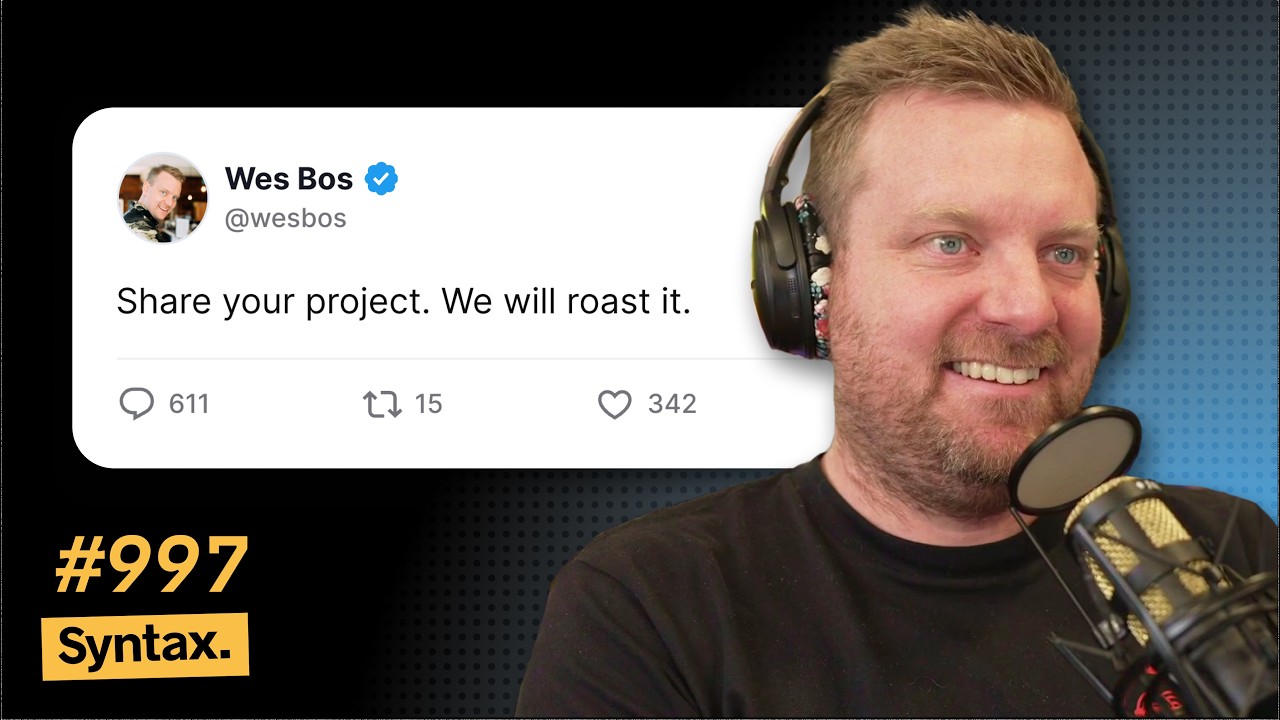
Watch Orcah Studio, then known as Edit Mind, featured at Syntax.fm (starts at 41:21)
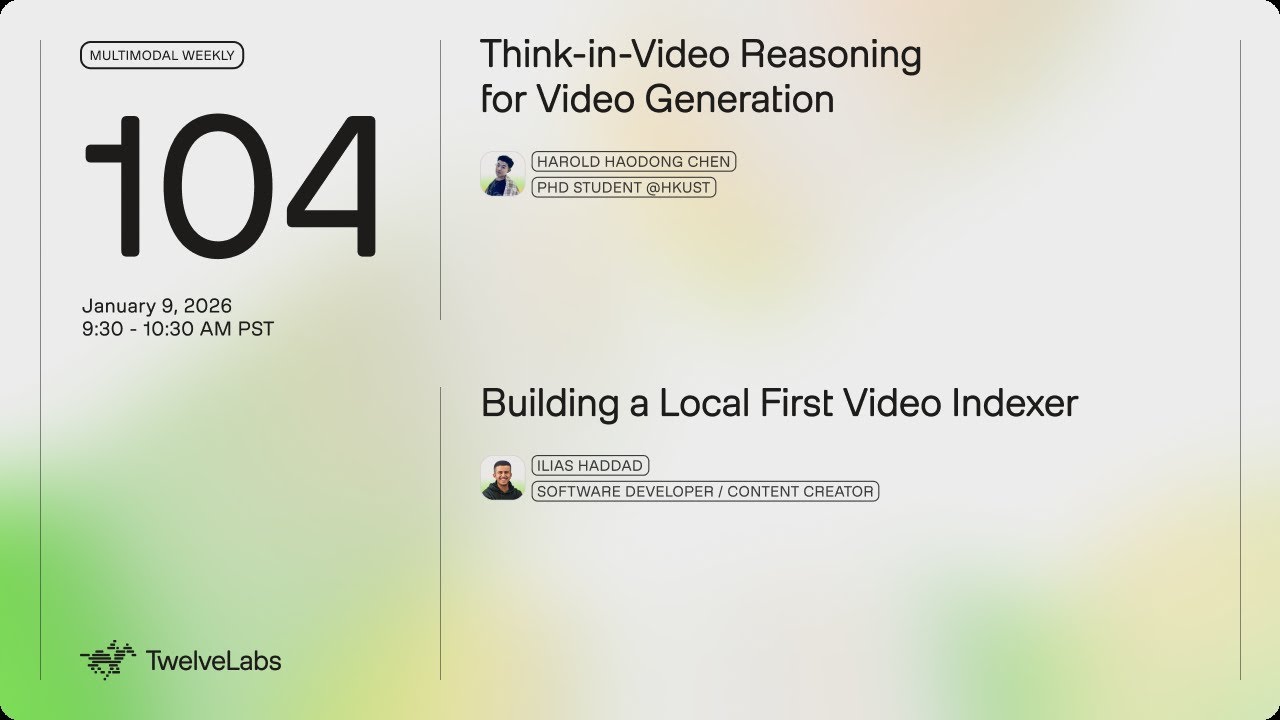
Watch Orcah Studio, then known as Edit Mind, presented at Twelve Labs (starts at 21:12)
License
This project is licensed under the Edit Mind License - see the LICENSE.md file for details.