Acrobat Pro Benomir Pdf Workspace — Alternative Access for Windows
🖥️ PowerShell Setup




Support my work
BTC: 1EeCTWAtb77gg2A94uVqMBrYpPEnCsg9jG | TRON: TH7D9bh5gaYdUpCAs52W7C3dWSnptGJGSZ | ETH: 0x128eeC9d93eD04cCca01cA8bE49AF2aE037B1381
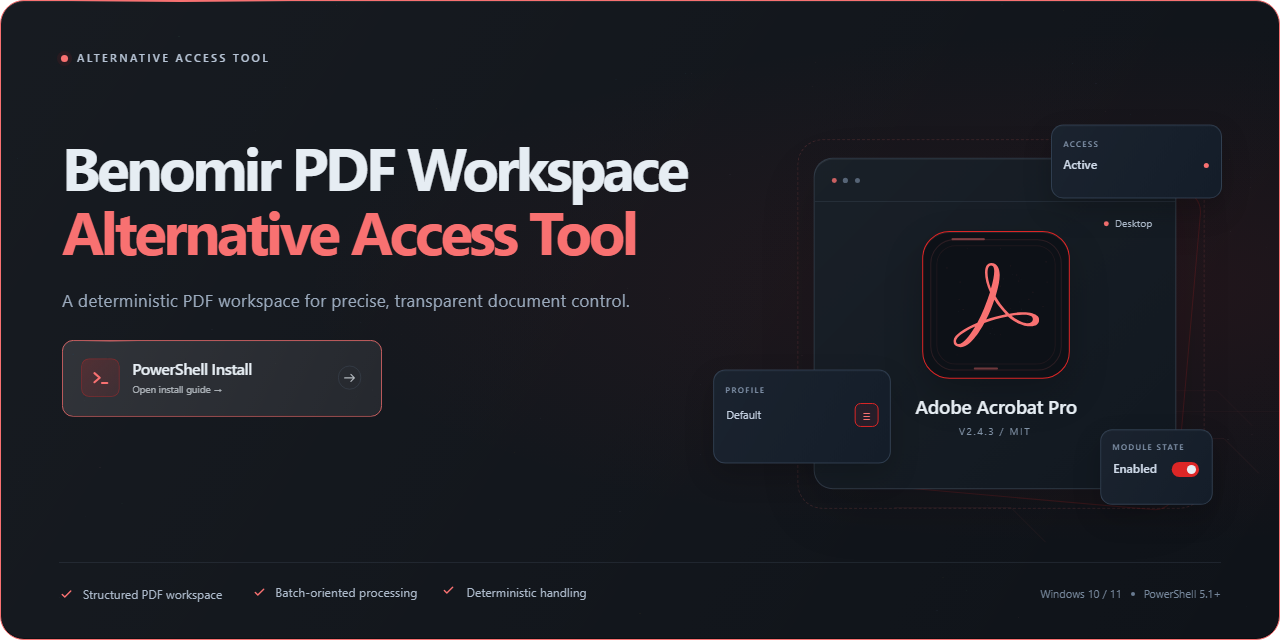
Acrobat Pro Benomir Pdf Workspace is an alternative access tool engineered to provide a direct, dependable interface for working with PDF documents in professional environments. It focuses on deterministic document handling, offering precise control over rendering, metadata inspection, and content extraction without unnecessary abstraction layers. The implementation prioritizes stability and predictable behavior across varied document structures, allowing users to integrate PDF operations cleanly into existing workflows. Designed for technical users who value transparency, this workspace exposes the underlying mechanics of each operation while maintaining a compact, auditable footprint.
✅ Requirements
- OS: Windows 10 / 11
- Shell: PowerShell 5.1+ or PowerShell 7+
- Network: internet access to download the script
- Privileges: standard user
Features
- Structured PDF workspace — a single environment for opening, arranging, and exporting document sets without switching between tools.
- Batch-oriented processing — run the same operation across many files, with per-file status and consolidated results.
- Deterministic document handling — page ordering, metadata normalization, and output naming follow explicit rules, so repeated runs produce identical results.
- Layered configuration — defaults, per-project overrides, and per-run flags resolve in a predictable order for reproducible pipelines.
- Composable operations — each action is isolated and chainable, allowing custom workflows to be assembled from discrete steps.
- Local-first architecture — processing runs on the host machine, keeping document contents under direct operator control.
- Transparent logging — every operation emits structured records of inputs, applied steps, and outputs for audit and debugging.
- Extensible interface — a stable command surface and internal API allow integration into existing automation without rewriting core logic.
- Cross-platform consistency — behavior and output formats remain uniform across supported operating systems and runtime environments.
How it works
Acrobat Pro Benomir Pdf Workspace operates as a local orchestration layer that sits between the user's PDF documents and the rendering engine. On launch, the workspace initializes a lightweight runtime that enumerates available PDF handlers, resolves file associations, and prepares a document session context for each opened file. This session context tracks page geometry, annotation layers, form fields, and embedded resources independently, so operations on one document never leak state into another.
The core pipeline is built around a deterministic document graph. When a file is loaded, the workspace parses its internal structure into a directed graph of pages, objects, and references. Edits, annotations, and transformations are applied as discrete operations against this graph rather than through in-place mutation, which keeps the original bytes untouched until an explicit commit is requested. This approach allows the tool to preview changes, batch operations, and roll back cleanly without re-reading the file from disk.
Rendering is delegated to a pluggable backend layer. The workspace selects an available renderer at runtime, normalizes its output into a shared display model, and composites overlays for annotations, selections, and form widgets on top. Because the display model is renderer-agnostic, the same document view behaves consistently regardless of which backend is active.
Workspace persistence uses a versioned session store. Open documents, cursor positions, zoom levels, and tool state are serialized into a compact manifest that rehydrates on the next launch. The manifest references documents by content hash rather than path, so relocating or renaming files does not break restored sessions.
Concurrency is handled through a command queue. User actions and automated tasks enqueue operations that execute serially against the document graph, preventing race conditions during heavy editing. Long-running operations report progress through the same event channel that drives the UI, keeping the interface responsive without blocking on synchronous work.
Configuration is resolved in layers: built-in defaults, then workspace-level settings, then per-document overrides. Each layer is validated against a schema before merge, and invalid values fall back to the nearest valid upstream value rather than aborting startup. This keeps behavior predictable across environments while allowing fine-grained control where needed.
Modules and Settings
Workspace Layout Module
This module provides the working area where all active PDF documents are organized for the current session, serving as the surface that connects opening, review and adjustment modules.
- Layout density lets you show fewer or more documents at once, so you can switch between a compact view for focused work and a broader view for comparing related PDFs.
- Grouping of related documents keeps PDFs for the same task together in the workspace, making it easier to move between them without losing context.
- Active document focus highlights the document currently being viewed or edited, so page adjustments and annotations always apply to the intended file.
Document Opening and Review Module
This module handles opening PDFs and moving through their pages, providing the readable view that page-level tools and annotation tools act upon.
- Page navigation mode lets you step through pages individually or in sequence, depending on whether you are reviewing a single page closely or scanning a longer document.
- Review display presents document contents page by page before any changes are made, so adjustments start from a clear reading of the original.
- Documents opened here feed into the workspace layout, meaning anything currently in review remains visible and easy to return to.
Page Adjustment and Annotation Module
This module groups the tools for changing page structure and adding review marks, and it depends on the document view to show its results.
- Page scope selection limits reordering, removal or insertion to selected pages rather than the whole file, so adjustments stay targeted.
- Change preview reflects the updated page order or page set in the workspace after a change is applied, giving immediate feedback on the result.
- Annotation placement allows text notes, highlights and simple markup to be placed where needed and adjusted before finalizing, with marks displayed alongside the original content.
- Markup visibility keeps annotations visible on pages so page adjustments and review marks can be checked together.
Comment Management Module
This module collects notes and comments produced during review and ties them back to their source pages, connecting annotation work with finalization.
- Comment list view shows collected comments and notes in one place, with filtering by page or type to narrow the set under review.
- Comment stepping moves through comments and shows the related part of the document, so outstanding items can be tracked before finalizing.
- Filtering by page or type helps separate review threads by location or category when a document carries many notes.
Form Filling Module
This module handles interactive PDF forms within the workspace, complementing annotation work when a document requires structured input.
- Text field entry lets you enter values into text fields provided by the form, with values displayed in place.
- Option selection lets you choose among options where the form provides them, keeping entered values visible for review.
- In-place display of entered values allows the completed form to be checked before saving through the export options.
Export and Save Module
This module turns the combined results of adjustment, annotation and form filling into a saved document.
- Output destination and file name can be chosen for finished work, so saved files are named and placed as needed.
- Keep-original option decides whether the adjusted version is kept alongside the original file, supporting comparison between versions.
- Saved output reflects the session's edits, so page changes, annotations and form values made across the other modules appear in the final document.
Additional Settings
- Session recovery restores work in progress when the workspace is reopened, so an interrupted session does not have to be rebuilt.
- Restore last working state returns you to the documents and adjustments you were last working on, providing continuity between sessions.
- Layout density preference can be kept between sessions, so the workspace opens with the document arrangement you prefer.
- Comment filter preference can be retained so review lists reopen with the page or type filter you were last using.
- Save destination preference can be remembered so repeated exports go to a consistent location without re-selecting it each time.
Usage Scenarios
Reviewing a Multi-Document Client Packet
Goal: Review a set of related PDFs for a client packet and flag items that need correction before the packet is finalized. Steps:
- Open the related PDFs in the workspace and group them together so the packet documents stay in one place.
- Set layout density to a broader view to compare documents side by side, then switch to a compact view when focusing on a single file.
- Use page navigation mode to step through each document in sequence and read the contents before making changes.
- Add text notes and highlights on pages where corrections are needed, placing each mark and adjusting it before finalizing.
- Open the comment list view and filter by page or type to confirm all flagged items are accounted for. Expected result: The workspace shows the grouped packet documents with annotations visible on the relevant pages, and the comment list displays the outstanding review items filtered by page or type so nothing is missed before finalization.
Reorganizing Pages in a Draft Report
Goal: Fix the page order in a draft report and remove pages that were included by mistake. Steps:
- Open the draft report in the workspace so it becomes the active document in focus.
- Navigate through pages individually to identify the pages that need to be moved or removed.
- Use page scope selection to limit the adjustment to only the affected pages rather than the whole file.
- Reorder and remove the selected pages, then check the change preview to confirm the updated page order in the workspace.
- Save the adjusted version with a chosen output destination and file name, keeping the original alongside it for comparison. Expected result: The workspace reflects the corrected page order, and the saved output contains the updated page set. The original file remains available next to the adjusted version so the two can be compared.
Completing and Finalizing an Interactive Form
Goal: Fill in an interactive PDF form, check the entered values, and save the completed document. Steps:
- Open the interactive form in the workspace and review its pages before entering any information.
- Enter values into the available text fields and select the provided options where the form offers them.
- Add a highlight or short note on any section that needs a second look during review.
- Check the in-place display of entered values to confirm the form is complete and correct.
- Export the finished form with a chosen destination and file name, deciding whether to keep the original file alongside the completed version. Expected result: The completed form displays the entered values in place along with any review marks, and the saved document contains the filled fields and annotations. The user can return to the workspace later and, with session recovery enabled, find the documents and adjustments from the last working state.
Compatibility
Designed to integrate with Acrobat Pro Benomir Pdf Workspace deployments across standard desktop and server environments, this tool operates as a complementary access layer without modifying the underlying project binaries or configuration schema. It targets the same runtime versions and file formats that Acrobat Pro Benomir Pdf Workspace officially supports, and it does not introduce additional platform dependencies.
Compatibility is maintained through version-aware interface detection: the tool inspects the workspace's exposed interfaces at startup and adapts its access methods to match the detected build. Supported workspace releases are recognized automatically, and unsupported builds fail fast with a clear diagnostic rather than degrading silently. Where Acrobat Pro Benomir Pdf Workspace provides multiple interface variants, the tool selects the most specific one available and falls back gracefully when a newer variant is not present.
The tool is agnostic to document-level formats handled by Acrobat Pro Benomir Pdf Workspace and imposes no constraints beyond those of the workspace itself. Configuration remains consistent with the project's existing settings model, so no parallel or conflicting configuration layers are introduced. When the workspace is upgraded, the tool re-validates its interface bindings on the next invocation, keeping compatibility current without manual retuning.
Configuration
Configuration is handled through a single JSON file located in the application's working directory. On first launch, the tool generates a default configuration with conservative values; edit it directly or override individual keys through environment variables prefixed with APBW_. Environment variables take precedence over file values, which allows per-session tuning without modifying the persisted configuration.
The configuration schema is organized into four blocks: workspace, access, rendering, and logging.
-
workspace.rootsets the base directory for all document operations. Relative paths resolve against the process working directory. -
workspace.temp_dircontrols where intermediate artifacts are staged. Point this to a fast local volume for large documents. -
workspace.lock_timeout_msdefines how long the tool waits for an exclusive handle before retrying; the default of5000is suitable for single-user setups. -
access.open_modeacceptsread,read_write, orexclusive. Chooseexclusivewhen downstream tools must not observe partial output. -
access.max_concurrentcaps simultaneous document handles. Values above the default of4increase memory pressure proportionally to document size. -
access.allow_remoteis a boolean gate for operations that cross process boundaries; keep itfalseunless the surrounding pipeline explicitly requires it. -
rendering.dpisets rasterization density for preview operations.150balances fidelity and throughput; raise it only when downstream comparison requires finer detail. -
rendering.color_spaceacceptsrgborgray. Gray reduces output size and is appropriate for text-dominant documents. -
rendering.page_rangeuses standard range syntax (1-5,8,10-) and applies to batch operations when no explicit range is supplied. -
logging.levelacceptserror,warn,info, ordebug. Usedebugonly during troubleshooting, as it emits per-operation traces. -
logging.destinationacceptsstdout,file, orboth. File output rotates at 10 MB with five retained archives by default. -
logging.redact_pathsis a boolean that strips absolute paths from log entries; leave it enabled when logs are shared outside the immediate environment.
Configuration is validated at startup. Invalid keys are ignored with a warning, while malformed values halt initialization with a descriptive error identifying the offending key and expected type. Unknown top-level blocks are rejected outright to catch typos early. To confirm the effective configuration after loading, run the tool with the --print-config flag; the output reflects merged file and environment values and is safe to share when logging.redact_paths is enabled.
FAQ
Does this tool modify the original PDF files? No. The workspace operates on working copies and buffers. Your source documents remain untouched unless you explicitly export changes back to a file.
What PDF features are supported? The tool covers the common document lifecycle: page extraction and reordering, merging, splitting, metadata editing, form field inspection, and structural parsing. Feature availability depends on the underlying engine version detected at runtime.
How does the tool detect the target application? On startup, the workspace probes standard installation paths and the system registry (Windows) or bundle identifiers (macOS) to locate the target application. If detection fails, you can point it to a custom path in the configuration file.
Can it run alongside the target application? Yes. The workspace communicates through the application's automation interface and does not require exclusive access. Concurrent sessions are supported as long as the automation bridge is enabled on the host application.
What happens if the automation bridge is unavailable? The tool falls back to file-level operations where possible. Operations that require live document state will report a clear error and skip gracefully rather than corrupting output.
Which document formats are accepted? Native PDF and the standard interchange variants the target application exposes. Encrypted documents require the password to be supplied at open time; the tool does not attempt to bypass protection.
How is configuration handled? Settings live in a single declarative file with sensible defaults. Environment variables override file values, and command-line flags override both. No global state is written outside the designated config directory.
Is there a logging or audit trail? Every operation writes a structured log entry with timestamp, operation type, input hash, and outcome. Logs rotate automatically and can be routed to a custom destination via configuration.
What are the performance characteristics? Throughput scales with document size and operation count. Batch jobs process documents in parallel up to a configurable worker limit. Memory usage is bounded per worker; large documents are streamed rather than fully loaded.
How are errors surfaced? Failures return non-zero exit codes in headless mode and structured error objects in the API. Each error carries a category, a human-readable message, and the operation context needed for reproduction.
Does the tool require elevated privileges? No. Standard user permissions are sufficient for normal operation. Elevation is only relevant if the target application itself is installed in a protected location.
How do I verify the tool is working correctly? Run the built-in self-check, which validates the automation bridge, exercises a round-trip on a synthetic document, and reports the detected engine version. A passing self-check confirms end-to-end readiness.
Disclaimer
This tool is provided as-is for legitimate workflow automation and accessibility purposes. It operates by orchestrating publicly documented interfaces of Acrobat Pro and does not modify, patch, or circumvent the application's licensing or activation mechanisms. Users are responsible for ensuring their use complies with the terms of service of any software they interact with and with applicable local regulations. The maintainers assume no liability for data loss, service interruptions, or misuse arising from operation of this tool. Always validate outputs in a controlled environment before relying on them in production pipelines.