NVIDIA G-SYNC Tweaks
Stop your G-SYNC / VRR monitor from flipping between 60 Hz and 120 Hz - the cause of annoying brightness flicker on high-refresh OLED monitors and of stutter at 60 FPS on 240 / 360 Hz panels - and tune the other hidden VRR settings of the NVIDIA driver, with a clear Windows 11 style interface.
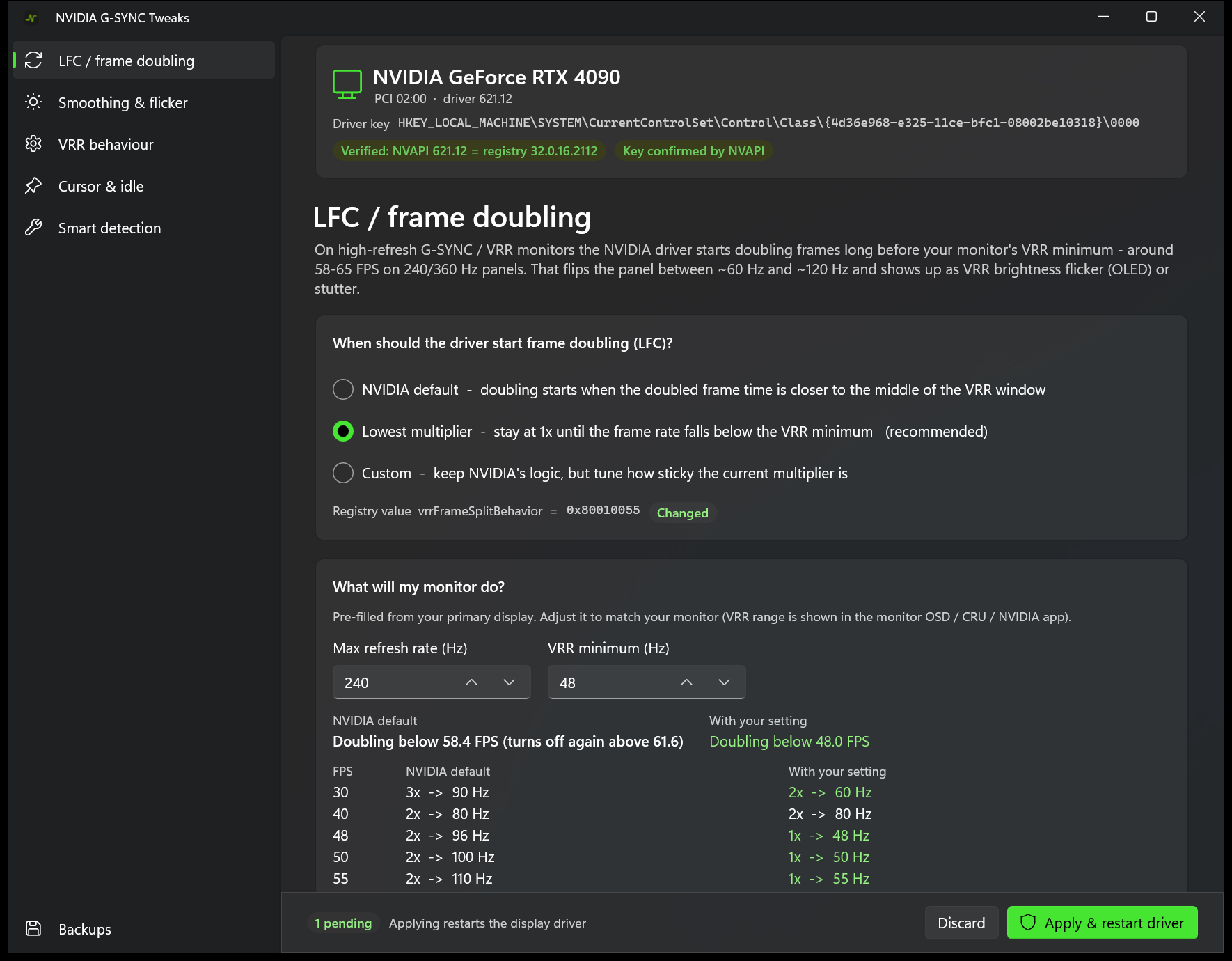
The problem
On high-refresh monitors the NVIDIA driver starts frame doubling (LFC) around 58-65 FPS, long before your monitor's real VRR minimum (usually 48 Hz). A game running at ~60 FPS then keeps jumping between 1x (60 Hz) and 2x (120 Hz). On OLED panels that shows up as flicker, on other panels as stutter. Frame-rate caps do not help, and lowering the monitor to 120 Hz avoids it but throws away the high refresh rate.
The cause is a hidden driver setting, vrrFrameSplitBehavior. It was found and documented by u/PykeFeed in the
Reddit thread "[Fix] NVIDIA G-SYNC kicks in LFC at ~60 FPS instead of 48 on high-refresh OLEDs".
This tool applies that fix for you - no registry editing - and shows what it will do to your monitor before you apply it.
Download and install
- You need Windows 10 / 11 (x64), an NVIDIA GPU with the NVIDIA driver (tested with 621.12) and the Windows App Runtime 2.x (download from Microsoft).
- Download the zip from the Releases page, extract it anywhere and start
NvidiaGsyncTweaks.exe.
No installer and no administrator rights are needed to start the app.
Use it
- Start the app. It finds your GPU and the driver's registry key by itself and shows what the driver does now.
- On the LFC / frame doubling page choose Lowest multiplier (recommended). The preview shows what your monitor will do, using your max refresh rate and VRR minimum.
- Click Apply & restart driver. Windows asks for administrator permission (the shield on the button), your screens flicker for a few seconds, and the driver restarts - no reboot.
To check that it works, cap a game at 55 FPS: your monitor's refresh counter should show about 55 Hz (before: about 110 Hz).
What you can change
| page | what it is for |
|---|---|
| LFC / frame doubling | The fix: when does the driver start doubling frames? NVIDIA default, lowest multiplier, or your own stickiness - with a live preview, a table for other refresh rates, how fast the frame-time estimate reacts, and the frame-generation pacing switch. |
| Smoothing & flicker | How the driver evens out uneven frame times (a major cause of OLED VRR flicker). |
| VRR behaviour | Keep VRR always on, tearing behaviour, monitor detection over DisplayPort / HDMI, refresh limits. |
| Cursor & idle | What happens to the mouse cursor while a game is not delivering frames. |
| Smart detection | Experimental detectors for slideshow-like content and jittery frame times. |
| Backups | Restore points; one is created automatically before every change. |
Every setting shows its driver default, a Changed / Custom badge and a Reset. Settings that can cause trouble are marked Use with care or Experimental.
Good to know
- Restarting the driver makes all screens go black for a few seconds and can crash running games, video or GPU programs. Close them first.
- Undo: use Reset on a setting, or restore a backup on the Backups page. The backups are plain
.regfiles in%LOCALAPPDATA%\NvidiaGsyncTweaks\Backups. - The switch point does not disappear, it moves to your VRR minimum. A game hovering right around 48 FPS can still flicker, and close to the minimum a late frame can cause a small hitch.
- Some VRR flicker is inherent to OLED panels at high refresh rates. This tool removes the part caused by the 1x / 2x switching.
- The settings are undocumented. NVIDIA can change or remove them in any driver update. A clean driver installation may reset them, a normal update keeps them.
- Made for NVIDIA GPUs with G-SYNC / VRR monitors (the Reddit thread has reports from GTX 16 to RTX 50 series cards). The settings apply to all monitors on that GPU. No effect on AMD or Intel graphics.
Questions
Why does it need administrator permission? Only to write the settings to the registry and to restart the display driver. The app itself runs as a normal user; only that one step asks for permission.
Where are the settings stored? In the registry key of your graphics adapter: HKEY_LOCAL_MACHINE\SYSTEM\CurrentControlSet\Control\Class\{4d36e968-e325-11ce-bfc1-08002be10318}\000N. The app finds the right 000N through NVAPI and shows it at the top.
Is it safe? The fix itself is a single, well understood value. Every change is saved as a restore point first, and the app only ever writes the values listed in the interface. Still: it is an unofficial tweak of an undocumented driver setting - use it at your own risk.