DeskBox
A free, open-source Windows desktop organizer with native-feeling WinUI 3 widgets.
English | 简体中文
External pull requests are not being merged at this time — bug reports, ideas, and discussions are very welcome via Issues / Discussions. See CONTRIBUTING.md.







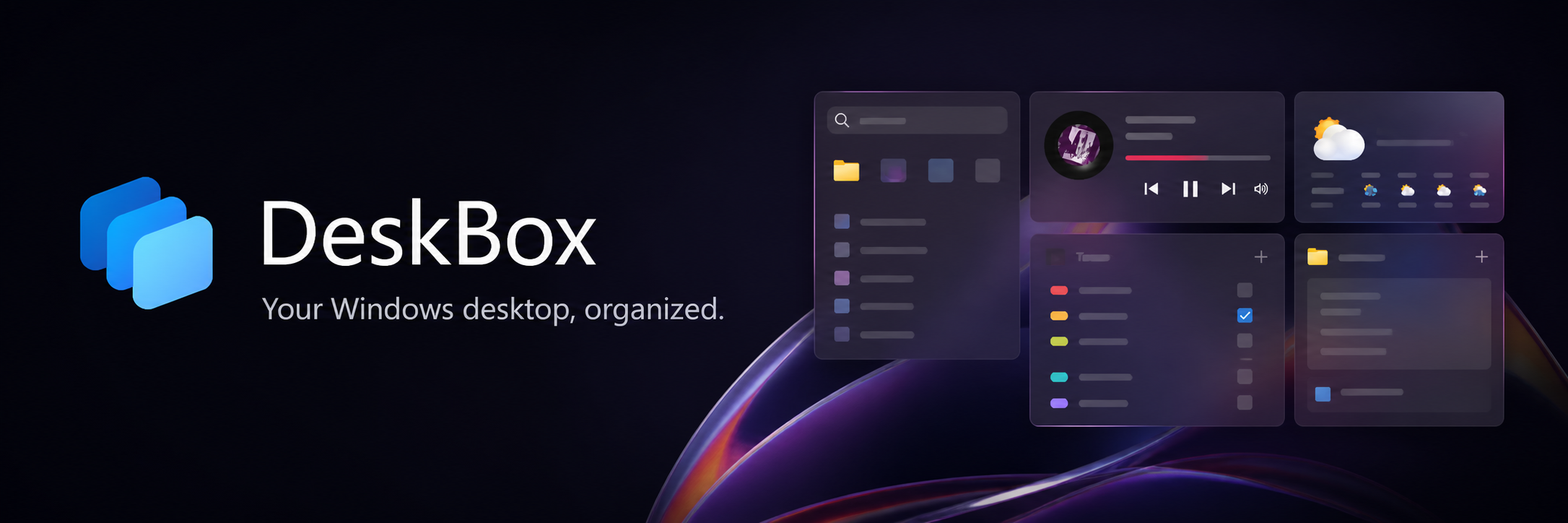
DeskBox organizes desktop files, maps existing folders, and keeps everyday tools close without replacing Explorer or changing how your files work. Its real-folder-backed widgets make it a modern open-source alternative to tools such as Stardock Fences, while Glance, todos, quick notes, search, weather, and music controls remain useful extras rather than the product's core promise.
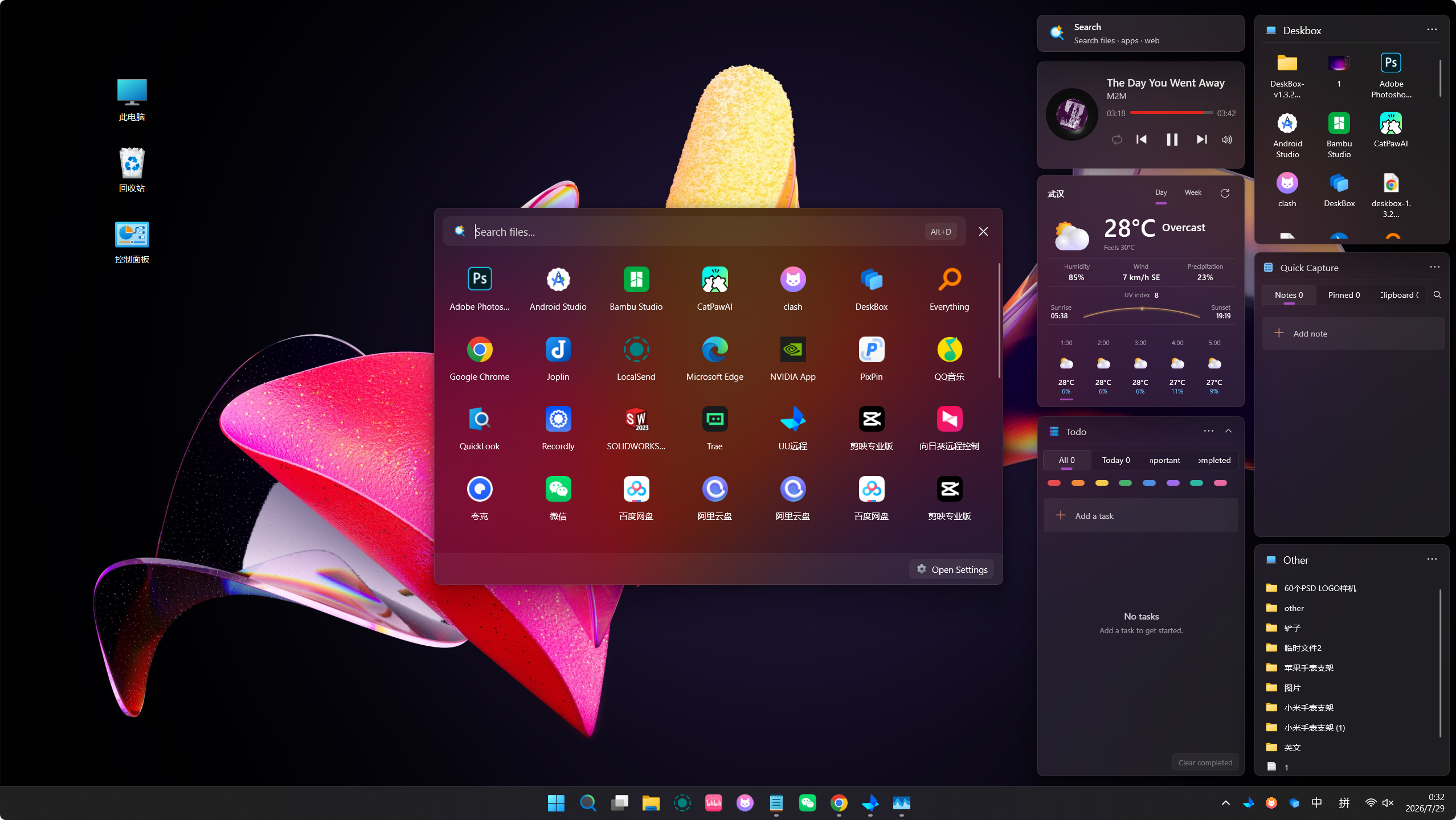
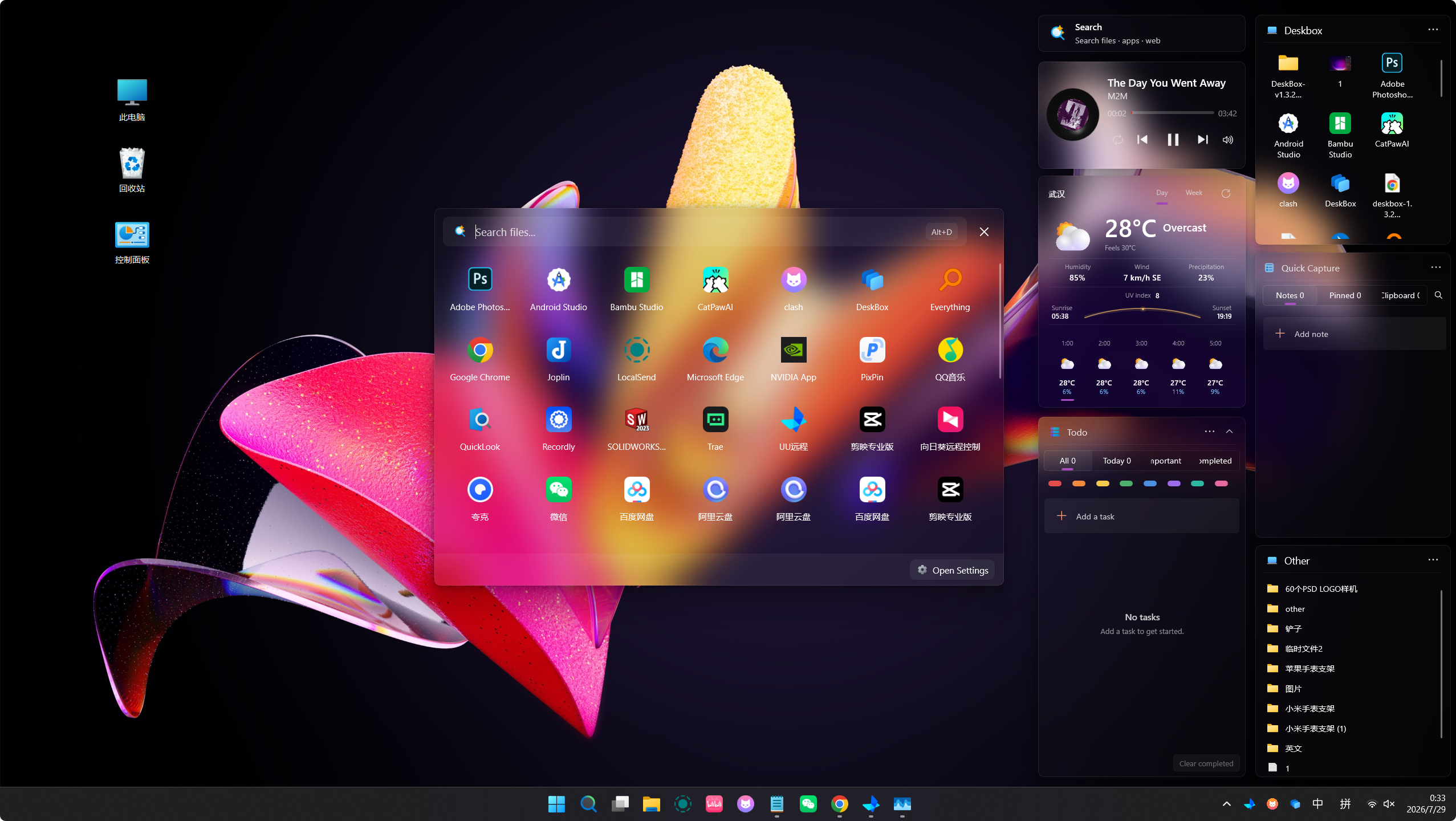
Mica and Acrylic on the desktop
DeskBox uses native-feeling Windows materials and keeps ordinary desktop files and folders in place.
| Mica | Acrylic |
|---|---|
 |  |
DeskBox at a glance
| Platform | Windows 10/11, x64 and ARM64 |
| Technology | C#, WinUI 3, .NET 10 Native AOT, Windows App SDK 2.4, Rust native Shell layer |
| Storage model | Local-first; files, notes, tasks, settings, and layouts remain on the PC |
| Languages | English, Simplified Chinese, Traditional Chinese, Japanese, German, Brazilian Portuguese, Hindi, Spanish, French, Arabic, Bengali, Russian |
| License | GPL-3.0-only |
All twelve selectable languages share the same resource-key and formatting-placeholder coverage.
Download
DeskBox 1.5.3 is prepared for release. The GitHub Releases download links below will become available after publication.
- DeskBox 1.5.3 for x64, recommended for most Intel and AMD PCs.
- DeskBox 1.5.3 for ARM64, recommended for Snapdragon, Surface Pro X, and other Windows on ARM PCs.
Both packages are Full Native AOT builds with the matching private Windows App Runtime 2.4, so they can install offline without downloading a separate .NET 10 or Windows App Runtime package.
Every release also publishes a matching .sha256 sidecar for each installer. The installers are currently unsigned, so verify the hash before running one if that matters to you.
DeskBox itself installs for the current user by default.
Features
File organizer and folder widgets
- Create managed file widgets backed by ordinary folders, or map an existing folder without moving it.
- Use icon or list layouts, title styles, detail and path controls, manual or rule-based sorting, compact display density, per-widget icon size override, and one-line, two-line, or hidden file names. Widgets resize down to 50×50.
- Reorder items directly, move or copy them into a folder item, and create a folder with automatic scrolling and inline naming. Manual order is restored after restart.
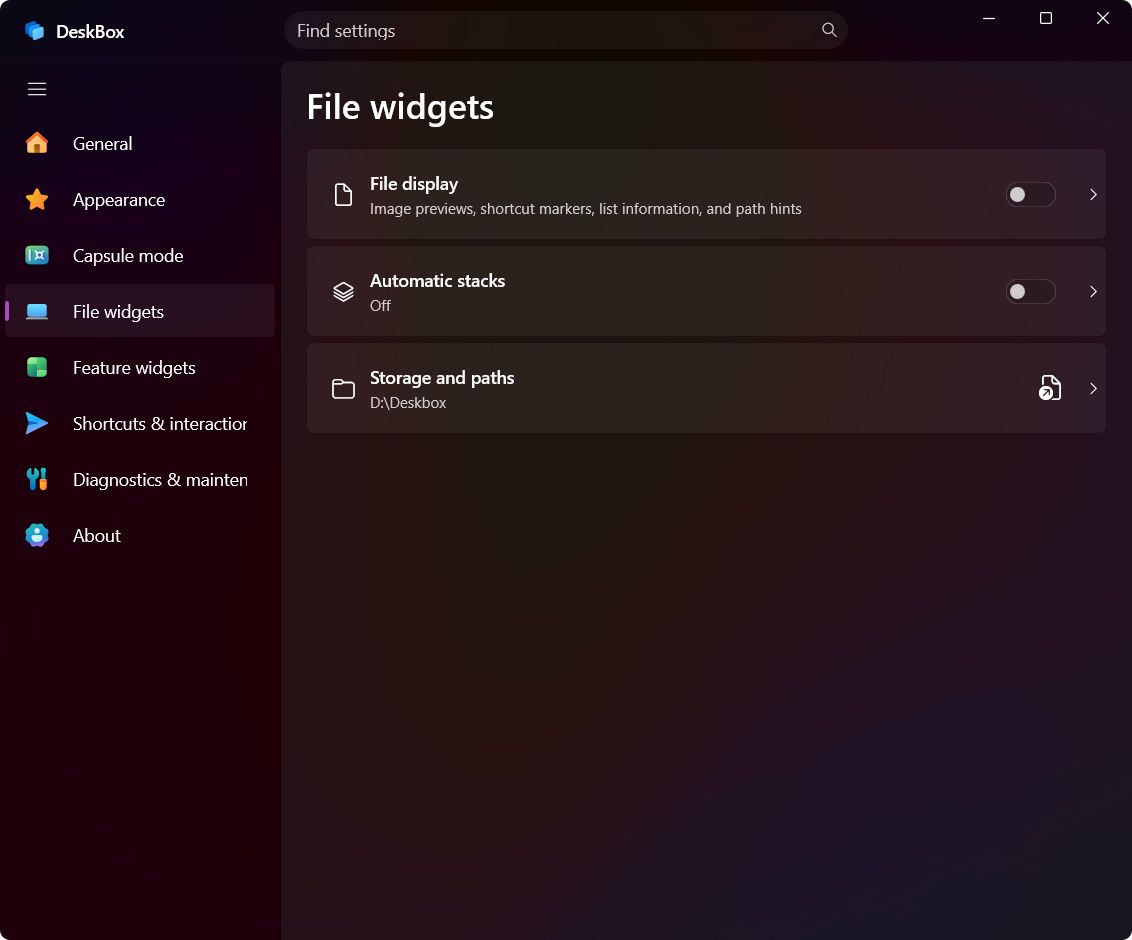
- Stack files manually, or let automatic grouping do it as a separate opt-in switch. A stack can expand inside the widget or open as an Adaptive, 3×3, or 5×5 popover that shares the grid's icon size, density, selection, and Ctrl+mouse-wheel behavior and stays within screen edges.
- Drag files and shortcuts in or out, copy, cut, paste, rename, delete, and reveal in Explorer. Dragging can follow the Windows default copy-or-move decision, including cross-volume behavior and modifier-key shortcut creation, with native drop images and target descriptions.
- Shell copy and move operations show per-item progress while keeping the source, destination, and receiving folders protected from conflicting changes.
- Create shortcuts, permanently delete with confirmation and partial-result reporting, run a supported executable as administrator, or open the rest of the native Shell menu near the pointer.
- Drop content from Explorer, WeChat, or a browser; remote image and file URLs can be downloaded and imported.
- Preview supported files through a running QuickLook instance by pressing Space.
Widget groups and desktop organization
- Merge file widgets into a group without changing their backing folders, then switch members from the title, mouse wheel, or cyclic Ctrl+Tab shortcut.
- Detach a member or dissolve a group safely; grouped and standalone file widgets share the same views, settings, menus, sorting, drag-and-drop, and QuickLook behavior.
- Preview desktop organization by category before moving anything, and choose whether each category creates a folder or reuses an existing widget.
- Optionally include retained folders, large files, and items beyond the quick batch, and get access-denied, in-use, changed, unavailable, or failed transfers explained separately instead of a silent skip.
- Optionally organize new desktop files after downloads, extraction, and same-path replacements reach a stable state.
Todo and Quick Capture
- Work in responsive Todo and Quick Capture list/detail layouts that switch between single- and dual-pane modes, with an adjustable master pane on wide widgets.
- Track tasks with due dates, reminders, recurrence, color markers, Markdown notes, attachments, filters, and batch actions.
- Save reusable text, links, images, and files in Quick Capture with pinning, paper styles, Markdown editing and preview, removable attachments, and focused editing.
- Keep attachment files linked to their original location or copy them into DeskBox-managed storage.
Desktop search
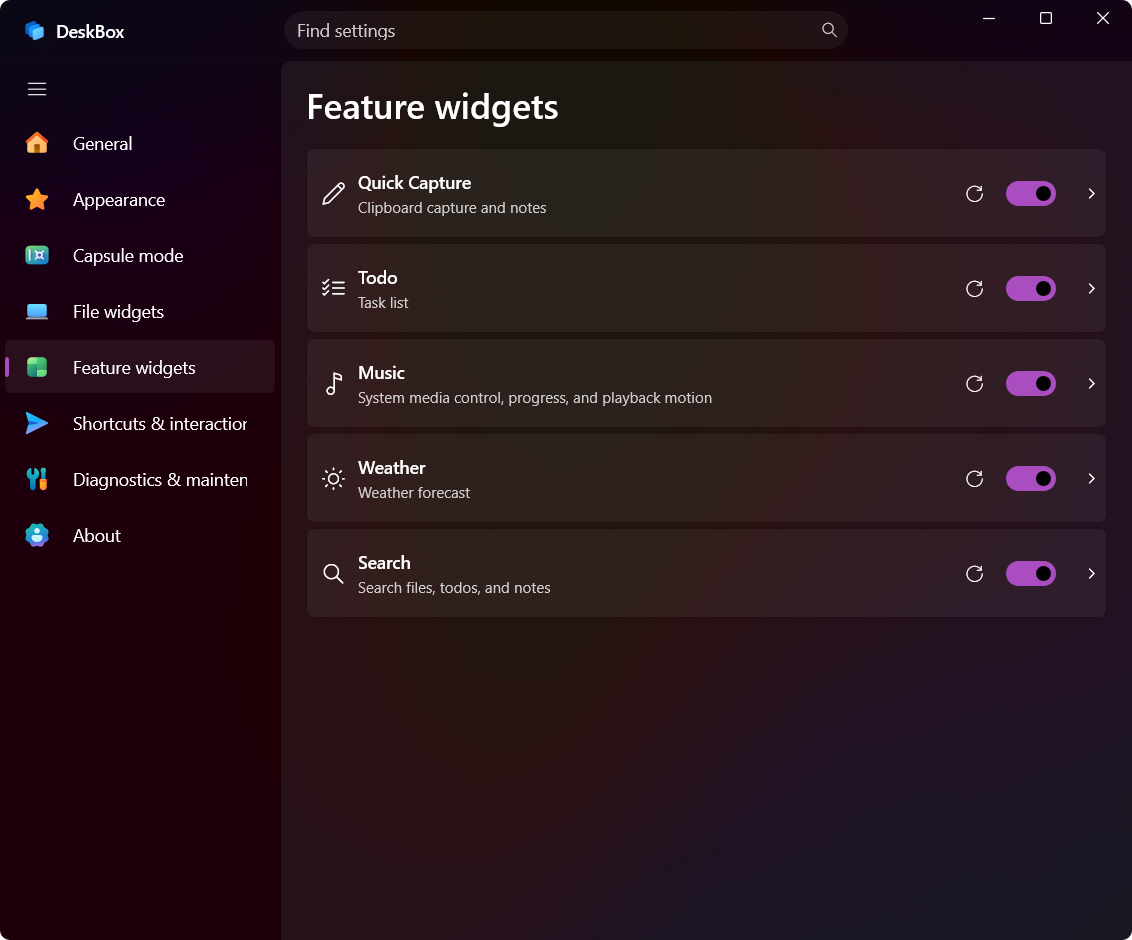
- Search files, folders, applications, settings, notes, and todos from one popup or search widget.
- File results come from Everything's existing local index over IPC and merge with DeskBox content in the same window. DeskBox no longer maintains a duplicate file index.
- Everything is detected or launched from Settings, where you can choose its executable, see connection and permission status, opt into advanced syntax, and filter low-value system and cache paths. Everything itself is not bundled and must be installed separately.
- Use configurable filters, sortable detail columns, result limits, history, favorites, and a global search hotkey.
- Select multiple rows with Ctrl or Shift, drag a selection rectangle with edge auto-scroll, and apply batch actions to the result set.
- Receive staged incremental results while individual providers stay isolated from one another when a source fails.
- The popup shell is warmed during idle time so a widget click can show and focus it first, while recommendations and icons recover in the background. A search window left hidden long enough can release its visual tree; disabling Search releases the complete search runtime.
Glance, weather, and music
- Glance keeps the date, weekday, lunar calendar, and festivals visible, with your own background image or rotation and an independent image transparency control.
- View current conditions plus hourly and multi-day forecasts with MSN Weather and automatic Open-Meteo fallback.
- Choose a theme-aware Standard weather skin or the richer condition-based skin, with responsive Day and Week views across widget sizes. Startup shows a fresh cached forecast immediately and keeps refresh work off the interaction path.
- Control the active Windows media session, playback mode, progress, and system volume from the music widget, or switch between available media sessions and follow the system-selected source.
- Use responsive cover, controls, record, and compact layouts with optional album-color ambience.
Capsule mode and native Windows behavior
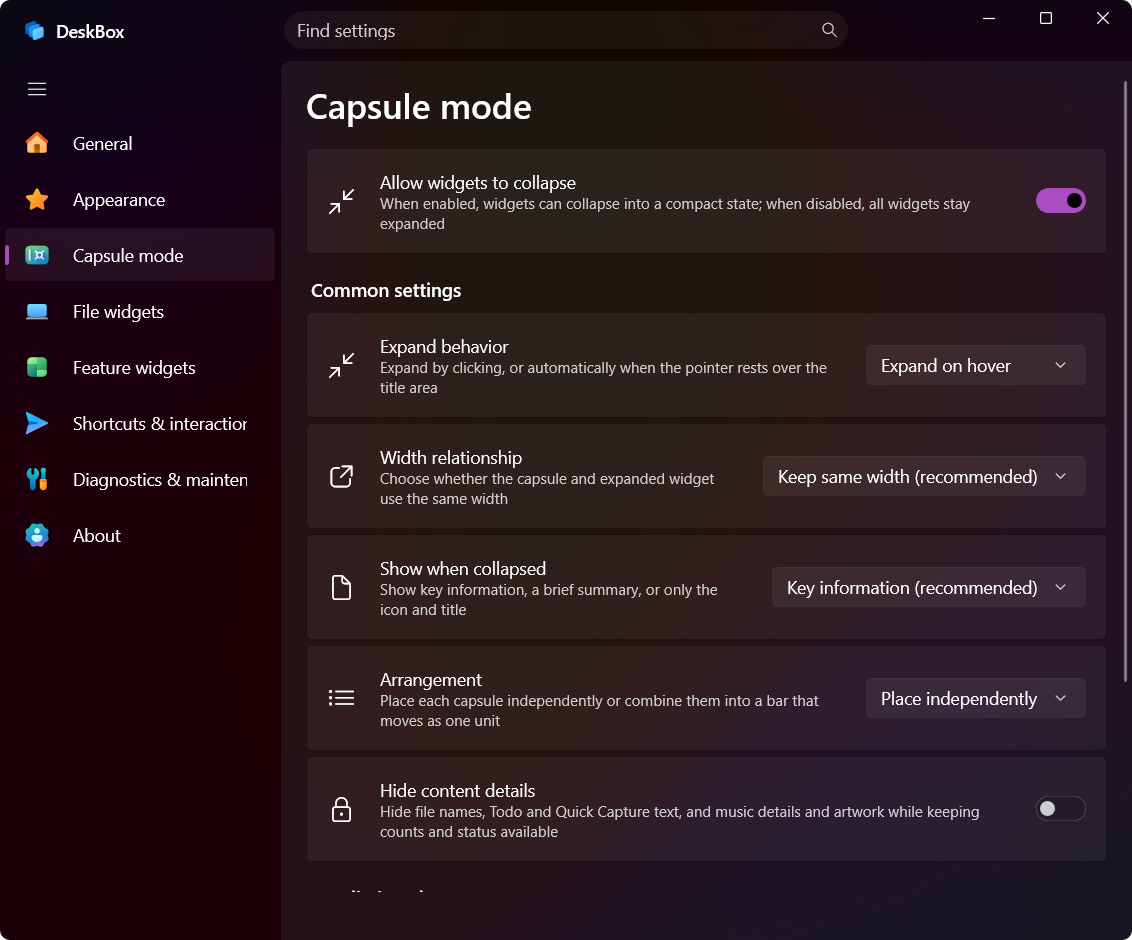
- Collapse widgets into smart capsules with click-to-toggle or hover-to-expand behavior; the expansion choice is the main capsule control, with ready-made hover presets.
- Show key information, a short summary, or only an icon and title; hide sensitive Todo and Quick Capture text while collapsed.
- Arrange capsules independently or combine them into a movable, ordered bar.
- A hover-expanded capsule or group stays open while you use a stack popover, context menu, drag operation, title editor, or close confirmation, and collapses only after the interaction ends and the pointer has left.
- Raise or hide all widgets from the tray, F7, double Ctrl, Alt+Space, Win+Space, a single Win-key tap, a custom shortcut, or an optional double-click on a blank desktop area. Reserved Windows combinations warn about their system-side effect before you enable them, and modifier-only or incomplete taps are ignored.
- Quick Reveal temporarily shows widgets above other windows without permanently changing their desktop-layer behavior, and keeps the first activating click instead of losing it.
- Serialized repeated-toggle handling and recovery cover display, DPI, sleep, and Explorer changes.
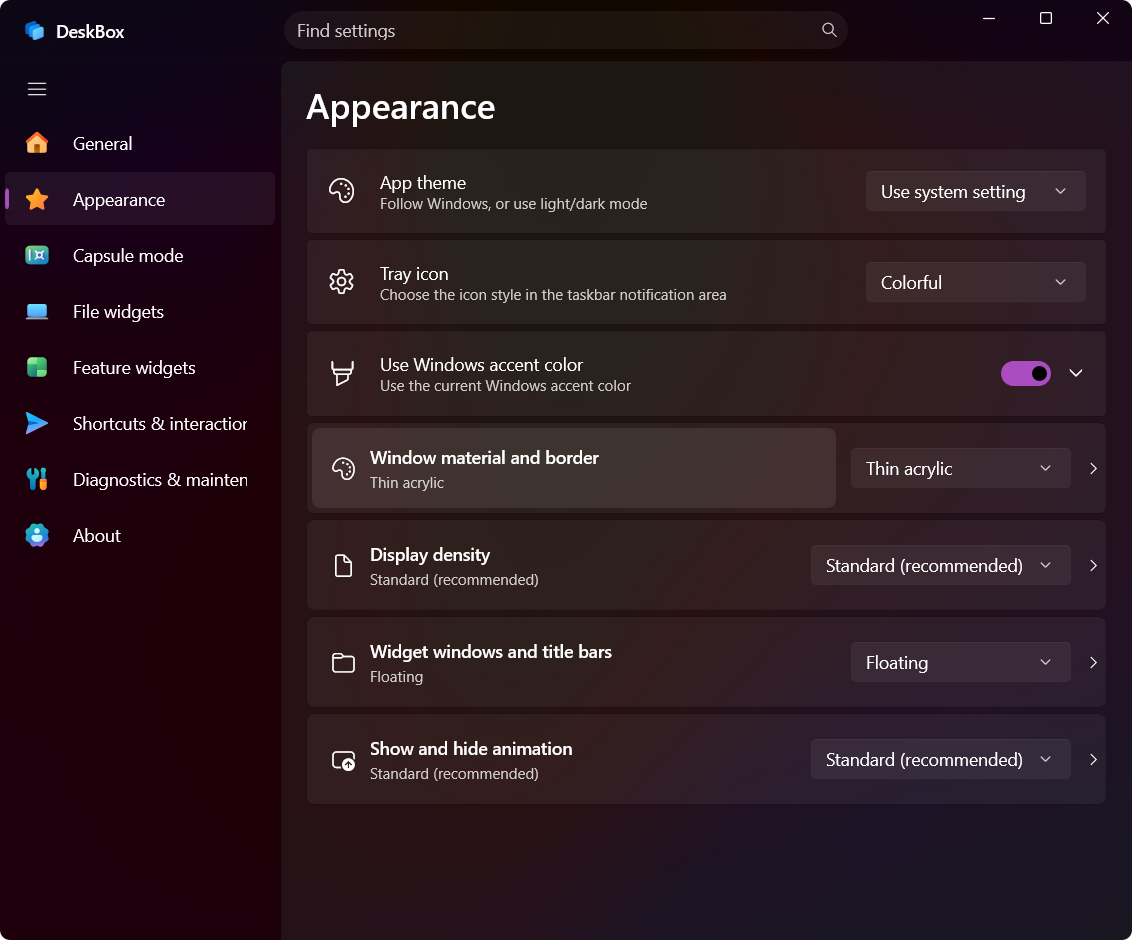
- Customize Mica/acrylic materials, opacity, borders, DWM corners, animation, title bars, icon size, and text size. Widget text and monochrome controls can follow the app theme or use light, dark, custom, and per-widget colors, with an optional text edge treatment.
Layout, displays, and performance
- DeskBox stores a separate widget layout for each known monitor topology. Reconnecting a display arrangement restores the positions, sizes, group surfaces, and capsule placement saved for it. Hot-plug, work-area, and DPI changes settle before restore, and layout writes pause during the transition so temporary coordinates cannot overwrite a saved layout.
- A replacement or differently scaled monitor receives a proportional in-bounds layout instead of leaving widgets off-screen.
- Hold Ctrl while dragging a widget title to move every eligible widget on the current display as one bounded group. Snapping works while moving as well as resizing, with a configurable gap and screen-edge protection.
- Choose Balanced, Resource saver, or Custom performance modes. Custom controls hidden-widget cache cleanup, visible-idle cleanup, transient-window release, icon/thumbnail/image cache budget, and individual continuous animations such as text marquee, vinyl rotation, Glance image rotation, and capsule effects.
- Hidden and inactive widgets release recreatable UI surfaces, decoded images, icons, and thumbnails according to the selected policy, while process-wide WinRT settings reuse, shared brushes, cached window factories, and targeted list updates keep the hot paths quiet. Animation pacing adapts to the current display's refresh rate, with extra frame-pacing and backdrop safeguards on Windows 10.
- Startup waits for Explorer's desktop icon host to stabilize before attaching desktop-layer widgets, so widget restoration does not disturb Windows' own icon-position recovery. If the managed storage drive is temporarily disconnected, widgets stay intact and recover once it returns.
Updates, backup, and diagnostics
- Check for updates in the app, read long release notes in a dedicated view, retry failed downloads, or continue from the official website.
- Start a visible installer after DeskBox closes; upgrades reuse and lock the existing installation path instead of creating a second copy.
- Back up and restore settings, and export a privacy-filtered diagnostics package for troubleshooting.
- Recover settings from resilient snapshots, flush pending changes during shutdown, and report save failures instead of silently reverting to defaults.
What's new in 1.5.3
- Choose how DeskBox starts with Windows. Direct installations offer standard startup by default for new users and an optional scheduled task. Existing methods are preserved, failed task registration can fall back to verified standard startup, and Windows disable choices are respected.
- Enable scheduled startup with Unicode paths. Task definitions are read directly as Unicode, avoiding the code-page mismatch that could reject Chinese account names and installation paths.
- Handle notification activation in the correct order. Notifications are registered before activation arguments are read, and early input waits for the main instance to be ready. The Store version keeps Windows StartupTask.
- Improve startup recovery and diagnostics. Tray creation retries while the desktop starts, fatal initialization failures release the instance by exiting, and boolean diagnostic checks remain readable without exposing private paths.
Read the complete changelog or the 1.5.3 release notes.
What's new in 1.5.2
- File widgets show everything again. Fixes a 1.5.1 regression where a file box displayed at most its first 30 items: folders up to the render threshold list every item, and larger folders extend the rendered window whenever the visible area is not yet filled.
Read the complete changelog or the 1.5.2 release notes.
What's new in 1.5.1
- Storage moves survive read-only files. Changing the default storage location no longer fails when a folder contains read-only files; cleanup only deletes files that were verifiably copied, and a blocked cleanup finishes the move with an explicit recycle-the-leftovers choice instead of rolling the whole migration back.
- The search popup's app grid finally works with the mouse. Single-click selects a card, double-click opens it, arrow keys plus Enter launch it, and icons now appear on the very first open instead of only after reopening the popup.
- Big folders no longer freeze widgets. Folders with thousands of files render in a window and hydrate more rows as you scroll; the first launch after a fresh install is also faster thanks to batched shell-icon extraction.
- Open files by dropping them on a shortcut tile. Drop files onto an application shortcut tile to open them with that application — from the desktop or between widgets.
- More ways to switch and launch. Hover a dragged file over a group tab to switch members, use the new Copilot-key global hotkey preset, or click the title bar to collapse a widget in click-collapse mode.
- Capsule transitions fully fixed. Expanding a capsule after collapsing no longer clips the title bar by a few pixels, and the very first expansion on a fresh install no longer leaves capsule icon and title ghosts over the expanded body.
- A snappier native context menu. Clicking an item in the native Windows right-click menu no longer stalls the whole system; the menu hook now runs off the UI thread and unloads when the menu closes.
- Icons never shrink. Associated icons whose artwork sits inside a larger transparent canvas keep their full size in file tiles.
- Harder Organize Desktop recovery. Unrecoverable restores get an explicit abandon path with diagnostics, orphaned journals are cleaned up, and mapping conflicts auto-resolve or reveal the conflicting tiles.
- Leaner defaults. New installations start on the Resource saver preset (5-minute visible maintenance, 30-second hidden cache release, small cache budget), and the experimental immediate working-set trim waits 3 seconds so quick hide/show round trips trim at most once. Upgrades never rewrite existing settings.
Read the complete changelog or the 1.5.1 release notes.
Current interface
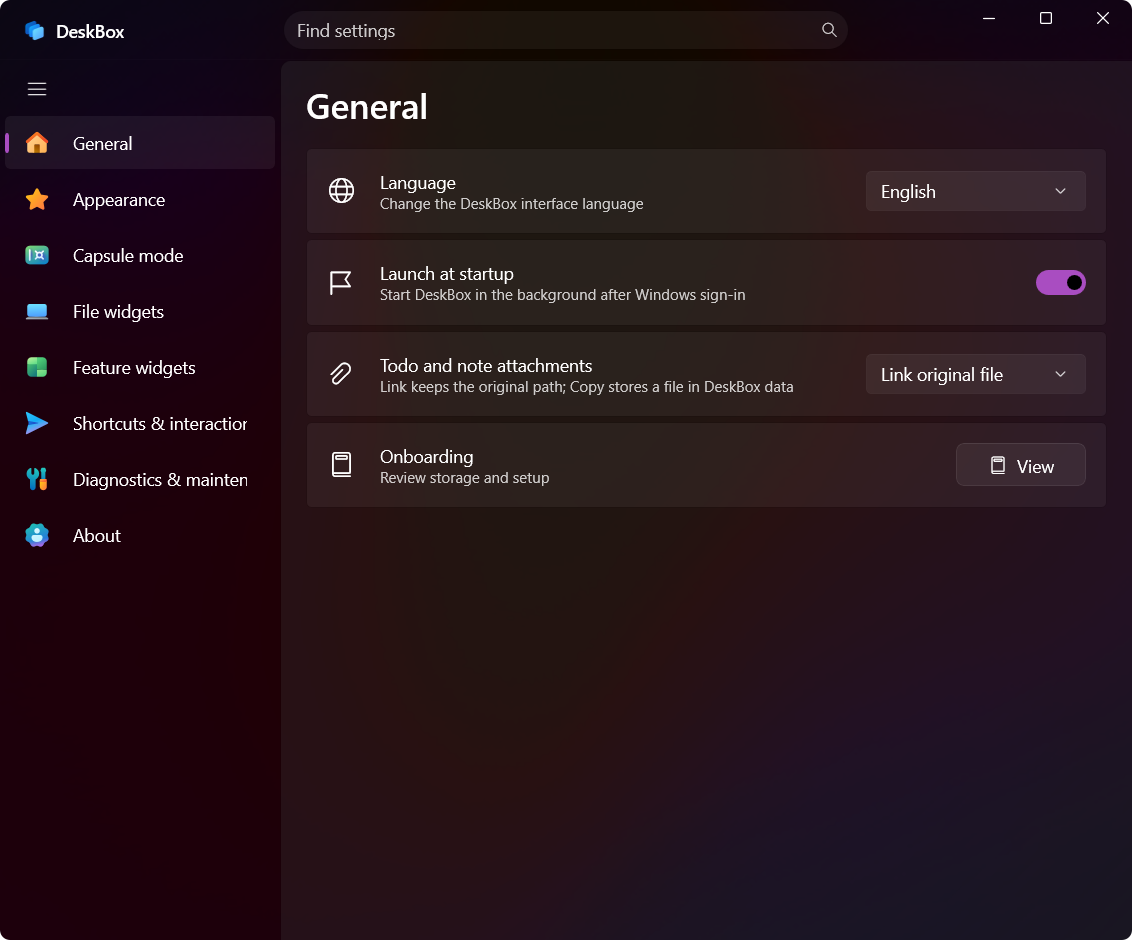
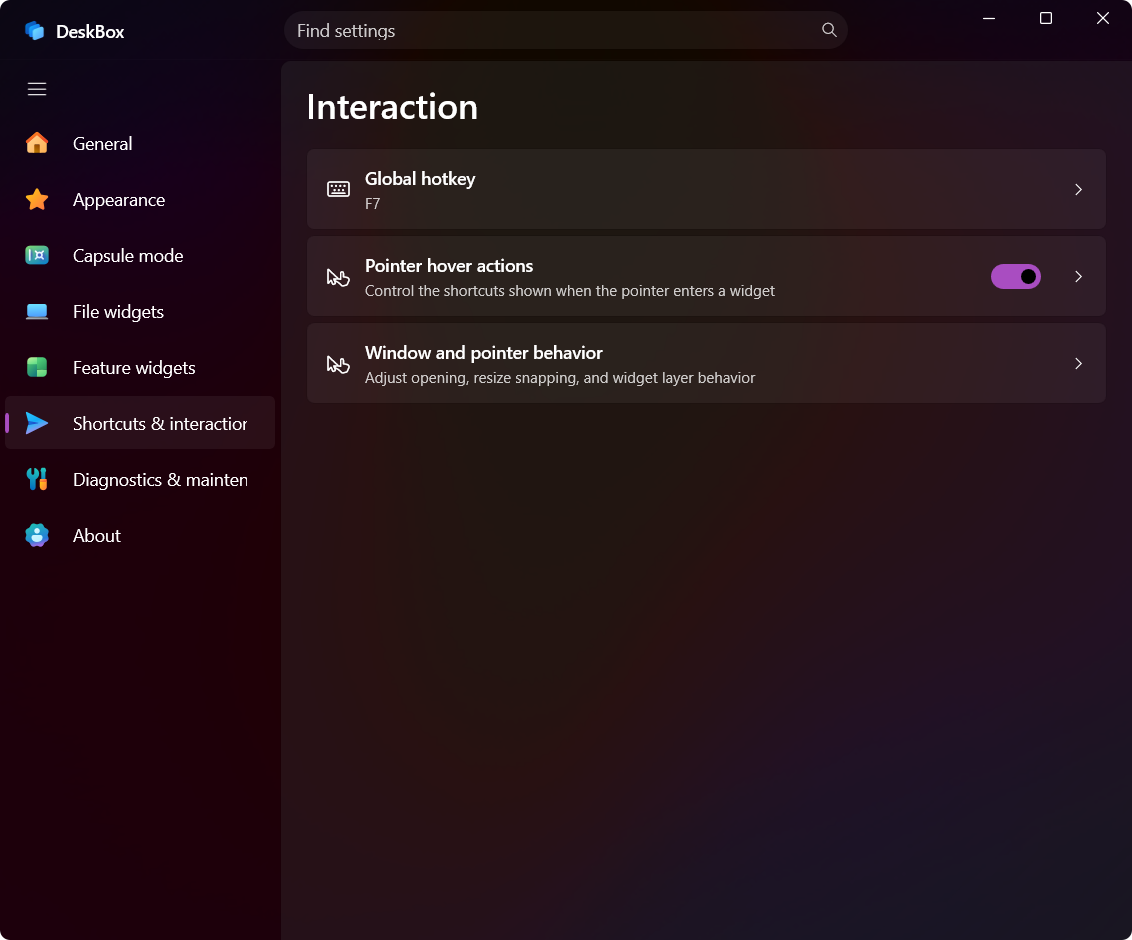
These screenshots are representative of the current DeskBox settings interface.
Settings
| General | Appearance |
|---|---|
 |  |
| Capsule mode | File widgets |
|---|---|
 |  |
| Feature widgets | Shortcuts & interaction |
|---|---|
 |  |
Local-first data and privacy
DeskBox does not require an account or cloud synchronization. Widget configuration, todos, quick notes, search history, layouts, and managed files are stored locally.
Some actions intentionally use the network:
- Weather requests use MSN Weather or Open-Meteo.
- Update checks contact the DeskBox update endpoint or GitHub Releases.
- DeskBox 1.4.8 and later Full installers carry the matching Windows App Runtime; older Direct installers download a missing runtime when needed.
- A remote URL dragged from a browser is downloaded only when you import it.
Capsule privacy mode hides selected text in the collapsed presentation; it is a presentation control, not file encryption.
System requirements
- Windows 10 version 21H2 (build 19044) or later; Windows 11 version 22H2 or later for the full visual treatment.
- x64 or ARM64 processor matching the installer.
- Windows App Runtime 2.4. DeskBox 1.4.8 and later Full installers include a private matching runtime, and Native AOT requires no separate .NET 10 runtime.
On Windows 10, unsupported materials, rounded corners, and some animations automatically fall back to compatible visuals; file sync, drag-and-drop, and core widget behavior are validated against the compatibility floor.
Installation, updates, and removal
DeskBox uses an Inno Setup installer and installs for the current user by default. Overwrite installation preserves app settings, widget configuration, and managed storage. Older administrator-level installations under Program Files are migrated to avoid elevated-process drag-and-drop restrictions.
Startup launch is tray-first and silent. If DeskBox is already running, a second startup instance exits instead of opening another settings window.
Auto-start uses a per-user Run entry, so DeskBox appears in Settings → Apps → Startup. Legacy scheduled-task registrations migrate automatically when it is safe to do so, and disabling DeskBox from Windows is reflected by the in-app switch.
Uninstall offers explicit choices to keep application data or permanently remove it. Permanent removal clears %LocalAppData%\DeskBox, %LocalAppData%\DeskBox-Recovery, temporary files, and DeskBox-owned registration data; user files in the managed storage path are always preserved. Silent uninstall keeps application data unless an administrator explicitly supplies /PURGEUSERDATA.
FAQ
Is DeskBox a Windows desktop replacement?
No. Explorer remains the desktop shell, and files remain normal files and folders. DeskBox adds independently managed widgets above the existing desktop.
Where does DeskBox store data?
- App settings and widget data:
%LocalAppData%\DeskBox\data - New-user managed storage: a fixed non-system drive with enough free space when available, such as
D:\DeskBox\username; otherwise%UserProfile%\DeskBox
Both locations can be backed up from DeskBox settings.
Which installer should I choose?
Choose x64 for almost all Intel and AMD Windows PCs. Choose ARM64 for native Windows on ARM devices such as Snapdragon PCs. Check Settings → System → About → System type if unsure.
Why can the installer need the internet?
The currently published 1.4.7 and earlier Direct installers can download a missing Windows App Runtime. Starting with 1.4.8, the standard x64 and ARM64 Full installers bundle the matching private runtime and can install offline; Native AOT needs no separate .NET runtime.
Does disabling a feature widget remove its data?
No. Disabling a feature closes its UI and releases runtime resources, while its saved configuration remains available for the next time you enable it.
Build from source
Development requires the .NET 10 SDK and a Windows 11 environment. Visual Studio with the Windows App SDK workload is recommended. The Rust toolchain pinned by rust-toolchain.toml is required when publishing with -p:DeskBoxRustNative=true, which is what shipping builds use for the shortcut, system volume, Quick Access, Recycle Bin, and Explorer Shell native paths.
Restore, test, and build the x64 Debug version:
dotnet restore .\DeskBox.sln -p:Platform=x64
dotnet test .\DeskBox.Tests\DeskBox.Tests.csproj --configuration Debug --no-restore -p:Platform=x64 -v:minimal
dotnet build .\src\DeskBox\DeskBox.csproj --configuration Debug --no-restore -p:Platform=x64 -v:minimal
scripts\publish-aot-retail.ps1 is the authoritative path for retail packages. It produces a Full Native AOT payload with private Windows App Runtime components, builds the matching Rust DLL, generates the install manifest used for safe upgrades, and audits the produced binaries:
.\scripts\publish-aot-retail.ps1 -Platform x64
.\scripts\publish-aot-retail.ps1 -Platform ARM64
The publish output is self-contained for both .NET Native AOT and Windows App SDK deployment. Do not replace this script with a bare dotnet publish: the installer requires the generated DeskBox.InstallManifest.txt to remove files owned by older payloads without touching user-created files.
With Inno Setup 6 or newer installed, compile the standard-named offline installers:
ISCC.exe /DDeskBoxNativeAot=1 /DDeskBoxBundledRuntime=1 /DMyAppReleaseDir=..\.artifacts\aot-retail\win-x64\publish .\installer\DeskBox.iss
ISCC.exe /DDeskBoxNativeAot=1 /DDeskBoxBundledRuntime=1 /DMyAppReleaseDir=..\.artifacts\aot-retail\win-arm64\publish .\installer\DeskBox.arm64.iss
Expected outputs:
Output\DeskBox_Setup_1.4.8_x64.exe
Output\DeskBox_Setup_1.4.8_arm64.exe
Project layout
src\DeskBox                 WinUI 3 application (widget shell, services, views)
src\DeskBox.Updater         direct-release updater helper
native                      Rust native layer, Shell ABI, and thumbnail proxy
tests\DeskBox.Tests         service, policy, and AOT contract tests
scripts                     build, publish, audit, and memory measurement scripts
installer                   x64/ARM64 Inno Setup scripts
docs\architecture           current architecture, native ABI contracts, AOT stages
docs\articles              product articles and tutorials
docs\images                 README and release imagery
docs\releases               release copy and test checklists
.github\workflows           CI, ARM64 runtime, and distribution audits
Feedback and localization
DeskBox is currently developed and maintained by a solo developer. External pull requests are not being accepted at this stage so the project can keep a consistent architecture and clear copyright boundaries, but bug reports, feature requests, translations, and UI/UX feedback are welcome through GitHub Issues.
Special thanks to @magisph for the Brazilian Portuguese localization.
You can also visit deskbox.fun or use the contact information in the app's About page.
Author and license
- Developer: Tianyu Zhu
- Repository: https://github.com/Tianyu199509/DeskBox
- License: GPL-3.0-only
Earlier DeskBox versions already published under the MIT License remain available under that license. The change is not retroactive.
Star history
If DeskBox helps you, a star ⭐ is a big encouragement for this solo project.