NixOS & Hyprland with Catppuccin Macchiato Theme Configuration





Table of Contents
- About
- Showcase
- Components
- Features
- Tailscale
- Installation
- Keybindings
- Useful aliases in Fish Shell
- AI Tools and Services
- Useful info for Rustaceans
- Yubikey on NixOS
- License
📖 About
This repository houses my NixOS Linux ❄️ flake configuration, featuring the Hyprland window manager and adorned with the stylish Catppuccin Macchiato theme. I rely on this setup as my daily driver for work and programming, primarily in Rust 🦀. Feel free to utilize it in its entirety or borrow specific components for your own configuration.
[!NOTE] It's essential to note that this configuration is not minimalistic or lightweight and may require some disk space and knowledge to understand. If you're looking for something simpler, this configuration may not be suitable for you.
This system leverages cutting-edge channels and versions of software to provide you with the latest updates and features. Notably, it utilizes:
- flake (An experimental feature of the Nix package manager)
nur (The Nix User Repository)*currently disabled- nixpkgs: unstable
- rust: stable version
This approach ensures that you stay on the forefront of technology, receiving the most recent software advancements promptly.
[!WARNING] However, it's important to note that this emphasis on bleeding-edge software may impact the stability of the system.
[!IMPORTANT] Please note that the system utilizes Podman instead of Docker for containerization due to various reasons, primarily related to security (rootless and daemonless containers), easier migration to Kubernetes, availability of pods, compatibility with systemd, and better security for
distrobox. If you prefer to use Docker instead of Podman, you can make the switch by commenting out the Podman section in thenixos/virtualisation.nixfile and uncommenting the Docker section. More details on Docker configuration in NixOS can be found here.
[!NOTE] The system enables AppArmor and additional hardening through kernel LSMs, along with security services such as Fail2Ban and USBGuard. Firejail is also preinstalled for sandboxing desktop applications.
You have the flexibility to customize these configurations according to your needs by modifying the respective configuration files.
🌟 Showcase
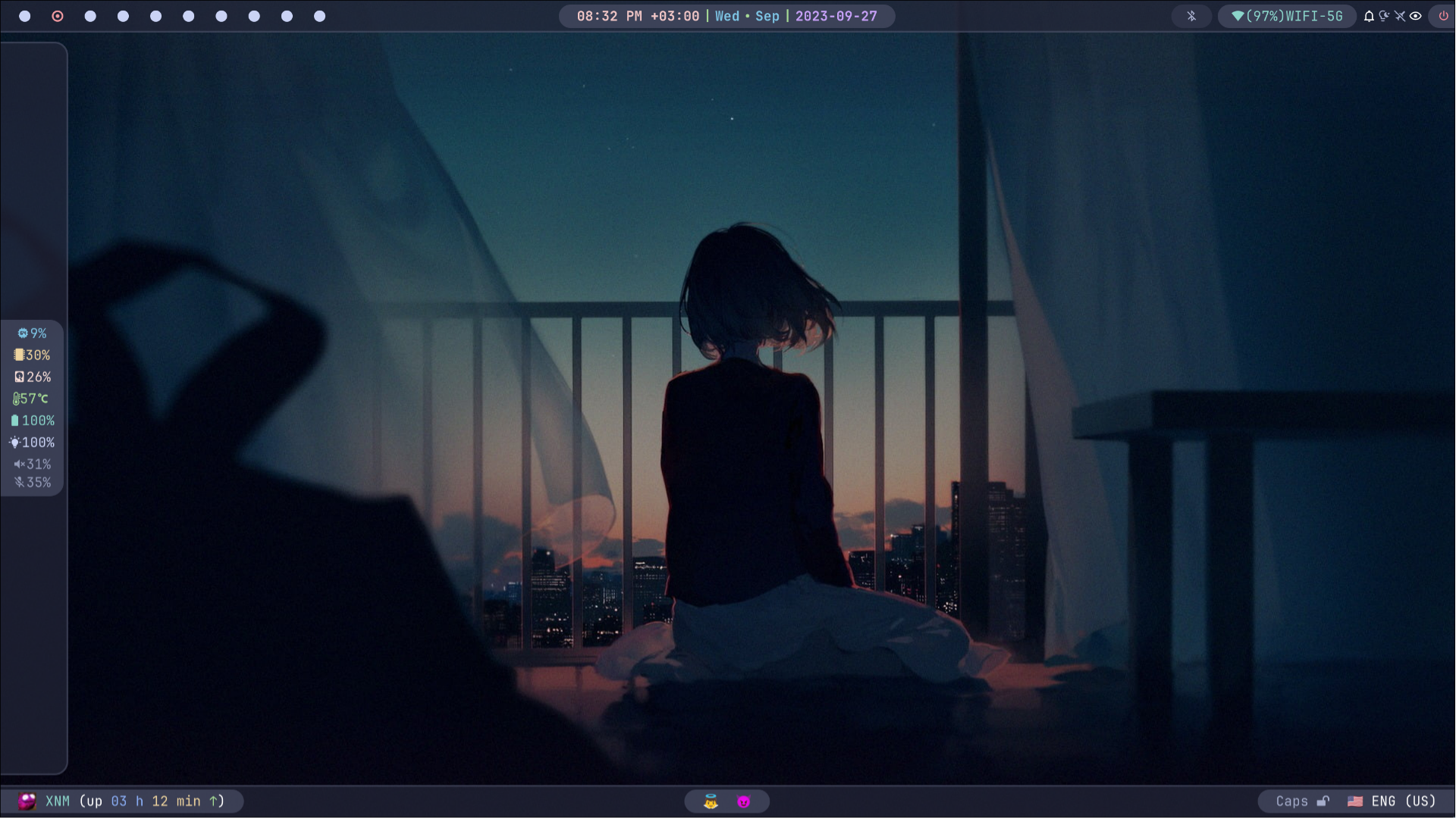
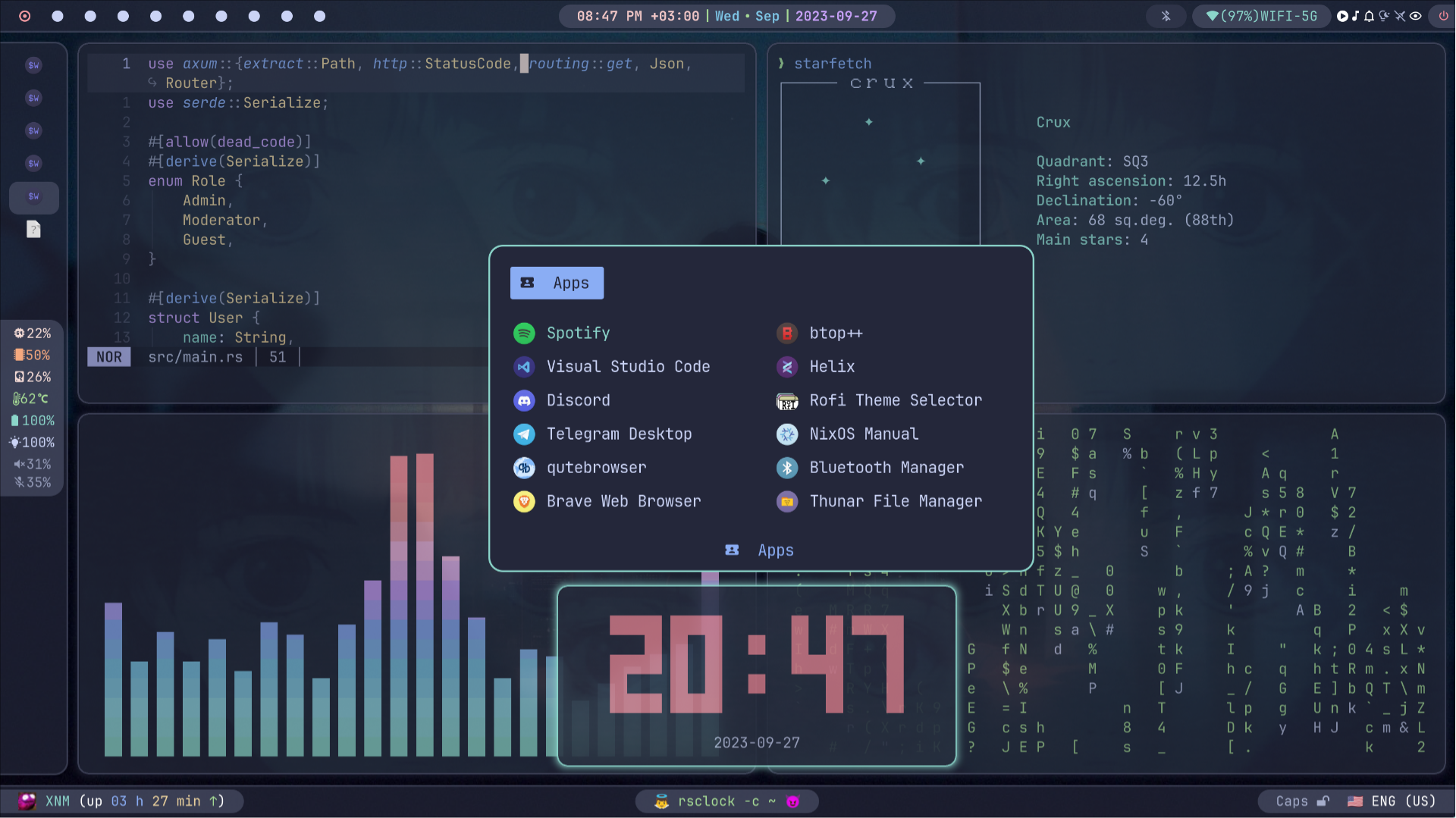
[!IMPORTANT] The showcased images do not reflect the latest version of the system's appearance. The final setup may vary slightly.
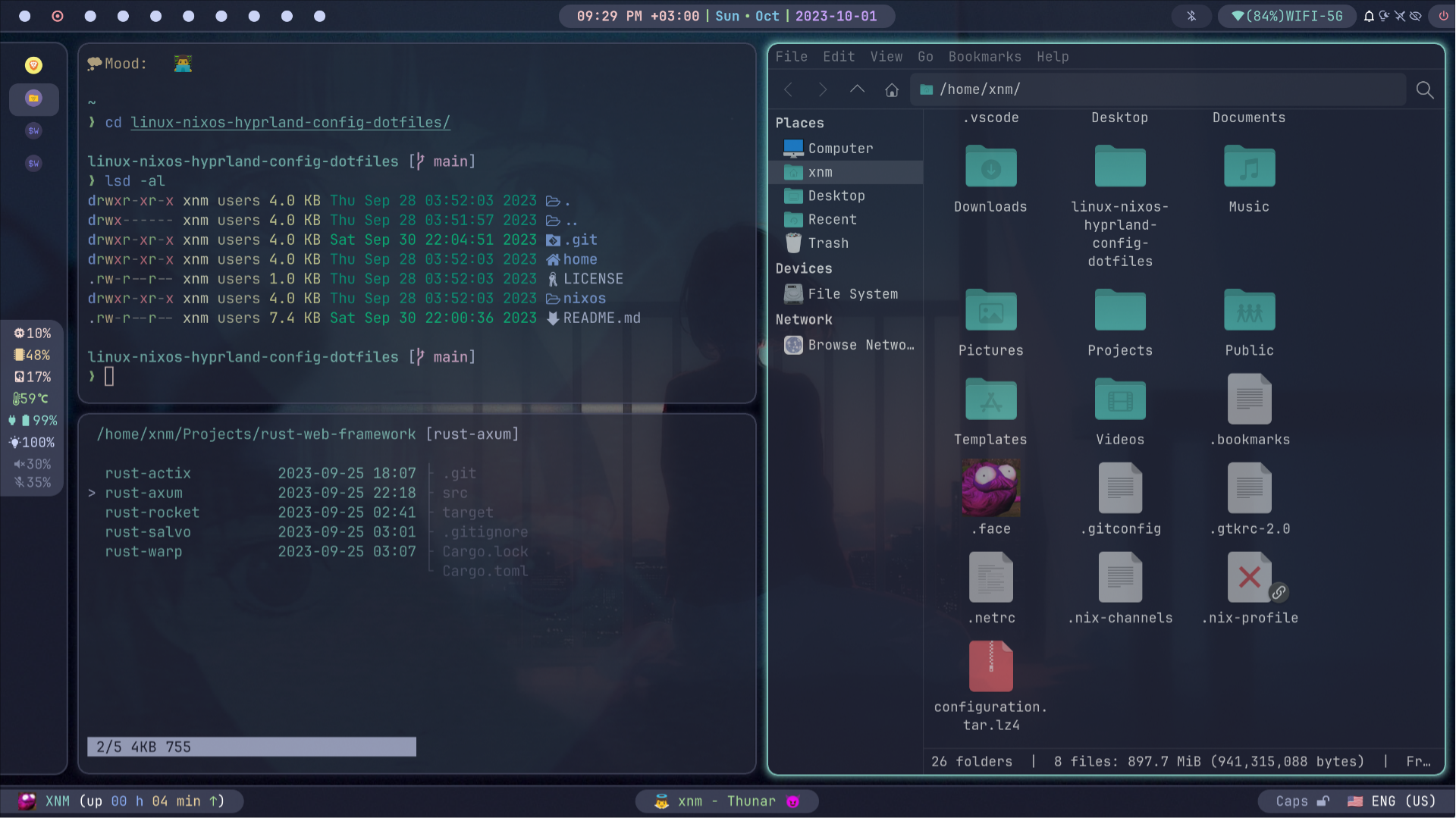
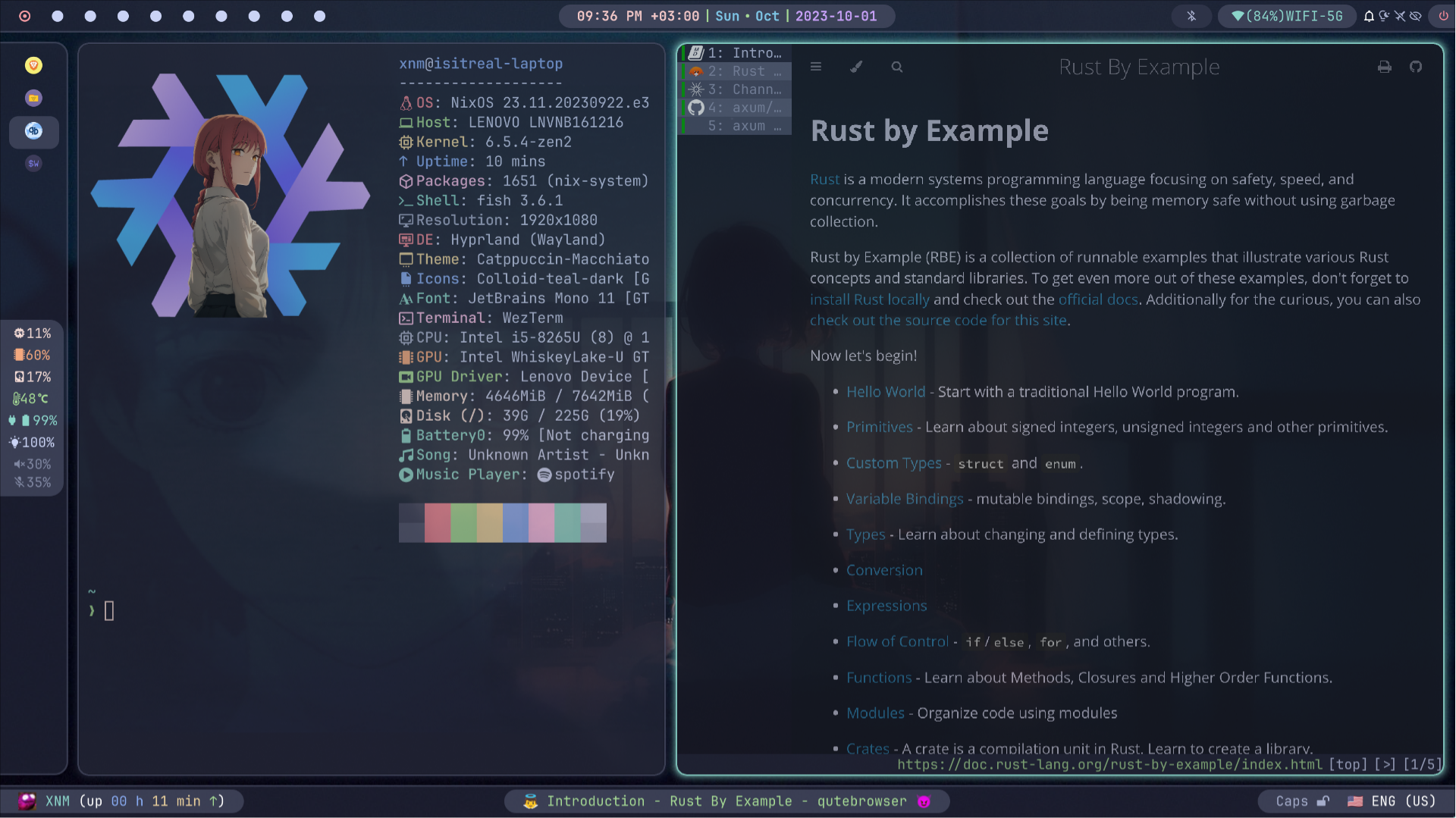
🔧 Components
| Component | Version/Name |
|---|---|
| Distro | NixOS |
| Kernel | Zen |
| Shell | Fish |
| Display Server | Wayland |
| WM (Compositor) | Hyprland |
| Bar | Waybar |
| Notification | Dunst |
| Launcher | Rofi-Wayland |
| Editor | Helix |
| Terminal | Kitty + Starship |
| OSD | Avizo |
| Night Gamma | Hyprsunset |
| Fetch Utility | Fastfetch |
| Theme | Catppuccin Macchiato |
| Icons | Colloid-teal-dark, Numix-Circle |
| Font | JetBrains Mono + Nerd Font Patch |
| Player | Pear Desktop + Spotify |
| File Browser | Thunar + Yazi |
| Internet Browser | Qutebrowser, Brave + Vimium + NightTab + Stylus |
| Mimetypes | MPV, Imv, Zathura |
| Image Editor | Swappy |
| Screenshot | Grim + Slurp |
| Recorder | Wl-screenrec |
| Color Picker | Hyprpicker |
| Clipboard | Wl-clipboard + Cliphist + Wl-clip-persist |
| Idle | Hypridle |
| Lock | Hyprlock |
| Logout menu | Wlogout |
| Wallpaper | Hyprpaper |
| Graphical Boot | Plymouth + Catppuccin-plymouth |
| Display Manager | Greetd + Tuigreet |
| Containerization | Podman |
| Mesh VPN | Tailscale |
And many other useful utilities. The full list can be found in the system configuration files at nixos directory.
✨ Features
-
🔄 Reproducible: Built on NixOS, this configuration can be effortlessly reproduced on other machines, ensuring a consistent setup.
-
🖌️ Consistent: Nearly every component has been meticulously styled to adhere to the Catppuccin Macchiato theme, providing a visually cohesive experience.
-
✅ Complete: This system is equipped with a wide range of components and utilities, akin to the completeness of operating systems like MacOS or Windows.
-
🎨 Customizable: Leveraging the power of Linux and Hyprland, this configuration offers extensive customization options, allowing you to tailor your setup to your preferences.
🔗 Tailscale
Tailscale is enabled through nixos/vpn.nix, with the tailscale CLI installed. Routing features are disabled, and the configured Tailscale UDP port is allowed through the firewall.
After rebuilding the system, authenticate the machine and verify its connection:
sudo tailscale up
tailscale status
🚀 Installation
- Download and Install NixOS from the official site.
- Temporarily install ripgrep and fish using the command:
nix-shell -p ripgrep fish --run fish. You can also use classic bash and grep for the next step without installing fish and ripgrep. - Run the command
rg --hidden FIXMEand change/add lines to match your device, swaps, partitions, peripherals, file systems, etc. in the configuration files.
[!IMPORTANT] Ensure that you configure USBGuard in the
nixos/usb.nixfile to avoid potential issues. By default, USBGuard blocks all USB devices, which can lead to the disabling of crucial hardware components such as the integrated camera, bluetooth, wifi, etc. To configure USBGuard properly, add your trusted USB devices to the configuration. You can obtain a list of all connected devices by using thelsusbcommand from theusbutilspackage.
[!WARNING] Failure to configure USBGuard appropriately may result in the inability to connect any USB devices to your machine. If needed, you can also disable USBGuard altogether by setting
services.usbguard.enabletofalsein the configuration:services.usbguard.enable = false;. This step ensures that USBGuard is not actively blocking any USB devices.
[!IMPORTANT] Remember to update the monitor settings in the Hyprland configuration file located at
home/.config/hypr/hyprland.lua.
[!IMPORTANT] Also, important: If you use disk encryption with LUKS and want to use encrypted swap, you need to enable swap on LUKS. This is usually auto-generated in
/etc/nixos/configuration.nixas theboot.initrd.luks.devices."luks-...".device = "/dev/disk/by-uuid/...";code block, if you set this option up during the NixOS installation process. You can simply copy this snippet to eithernixos/swap.nix,nixos/hardware-configuration.nix, ornixos/configuration.nix(Personally, I prefer to copy it tohardware-configuration.nix). Alternatively, you can set it up manually or use swap encryption with a random key.
- To change the default username and/or hostname, run the command
rg --hidden 'xnm'to find and fix all instances of the username, andrg --hidden 'isitreal-laptop'for the hostname.
[!IMPORTANT] Make sure to change the username to match yours set during installation to avoid login issues.
[!IMPORTANT] Also, don't forget to delete or change to my git settings in
home/.gitconfig,home/projects/.gitconfig.personal,home/.ssh/config, andhome/work/.gitconfig.workfiles, as they are configured for my personal use.
- For the first rebuild, enable
nix-commandandflakestemporarily if your current system does not already have them (more here). After the first successful rebuild, this repo keeps both features enabled throughnixos/nix-settings.nix. - Copy or move all files (with replacements) from the
homedirectory to your$HOMEdirectory in Linux. - Copy or move all files (with replacements and sudo permissions) from the
nixosdirectory to/etc/nixos/.
[!IMPORTANT] Ensure that
system.stateVersion = "your_version";is correctly set to the release version of the initial installation of your system in theconfiguration.nixfile.
[!IMPORTANT] Also, for security reasons, ensure all files in the
/etc/nixosdirectory are owned by root. If not, change ownership using the command:sudo chown -R root:root /etc/nixos.
- Run the command
sudo nix flake update --flake /etc/nixos; and sudo nixos-rebuild switch --flake /etc/nixos#your-hostnameornswitchu. If you chose first command, replaceyour-hostnamewith your hostname before running the command; by default, hostname is set toisitreal-laptop. - Post-installation configuration:
-
Import GNOME settings along with the theme by executing the following command:
dconf load / < home/.config/gnome_settings_backup.dconf. Additionally, you can use tools like gnome-tweaks or themechanger to fine-tune specific theme preferences to your liking. -
Install dictionaries for spellchecking in Qutebrowser by using the similar command in bash:
$(find $(nix-store --query --outputs $(which qutebrowser)) -iname '*dictcli.py*' | head -1) install en-US hi-IN. To obtain a list of all available dictionaries, run:$(find $(nix-store --query --outputs $(which qutebrowser)) -iname '*dictcli.py*' | head -1) listin bash. For more information, visit the Qutebrowser page on the nixos wiki. -
Apply Catppuccin theme for websites in your browser (Brave, Firefox, Chromium):
- Install the Stylus Extension from its official website.
- Open the extension's settings page and navigate to the Backup section.
- Click "Import" and select the file
home/.config/stylus-catppuccin.json.
-
Apply Catppuccin theme for Cool-Retro-Term:
- Launch Cool-Retro-Term.
- Right-click on the window and select "Settings".
- In the General panel, click "Import" and select the file
home/.config/cool-retro-term-style.json. - Select the imported profile named "catppuccin-theme".
- Click "Load" and exit from "Settings".
-
Apply Open-WebUI Settings (only if you enable
services.open-webui.enable = trueinnixos/llm.nix)- Navigate to the Open-WebUI page:
http://localhost:8888. - Signup or signin if you haven't already done so.
- Click on the user photo in the top-right corner.
- From the dropdown menu, select "Admin Panel".
- In the Admin Panel, go to the "Settings" tab.
- Under the Settings tab, locate and click on the "Database" section.
- Click "Import Config from JSON File" and select the configuration file:
home/.config/open-webui-config.jsonfrom your file manager.
- Navigate to the Open-WebUI page:
-
Login to your accounts.
-
Customize graphical applications to suit your preferences.
After this, you will have a complete system.
⌨️ Keybindings
Main
| Key Combination | Action |
|---|---|
| SUPER + ALT + R | Resize windows mode |
| SUPER + ALT + M | Move windows mode |
| SUPER + H, J, K, L/Arrows | Change window focus |
| SUPER + 1..0 | Change workspace (1-10) |
| SUPER + ALT + 1..0 | Change workspace (11-20) |
| SUPER + SHIFT + 1..0 | Move window to workspace (1-10) |
| SUPER + SHIFT + ALT + 1..0 | Move window to workspace (11-20) |
| SUPER + SHIFT + Q | Kill active window |
| SUPER + SHIFT + F | Toggle floating window |
| SUPER + CTRL + F | Toggle full-screen |
| SUPER + SHIFT + O | Toggle split |
| SUPER + SHIFT + P | Toggle pseudo |
| SUPER + CTRL + E | Expose all windows using pyprland |
| SUPER + CTRL + M | Expose all minimized windows using pyprland |
| SUPER + M | Minimize or restore a window using pyprland |
| SUPER + CTRL + T | Launch scratchpad with kitty using pyprland |
| SUPER + CTRL + V | Launch scratchpad with pavucontrol using pyprland |
| SUPER + T | Launch kitty |
| SUPER + D | Launch rofi -show drun |
| SUPER + B | Launch qutebrowser |
| SUPER + SHIFT + B | Launch brave |
| SUPER + F | Launch thunar |
| SUPER + ESCAPE | Launch wlogout |
| SUPER + S | Launch spotify |
| SUPER + Y | Launch pear-desktop |
| SUPER + SHIFT + D | Launch discord |
| SUPER + SHIFT + T | Launch telegram |
| SUPER + SHIFT + L | Launch hyprlock |
| SUPER + SHIFT + S | Take screenshot |
| SUPER + E | Launch swappy to edit last taken screenshot |
| SUPER + R | Record screen area (MP4) |
| SUPER + SHIFT + R | Record screen area (GIF) |
| SUPER + C | Launch color picker (using hyprpicker) |
| SUPER + Z | Toggle Zoom (with pyprland) |
| SUPER + V | Launch clipboard menu (rofi -dmenu) |
| SUPER + SHIFT + V | Launch clipboard menu (rofi -dmenu) (copy to clipboard) |
| SUPER + X | Launch clipboard deletion item menu (rofi -dmenu) |
| SUPER + SHIFT + X | Clear clipboard |
| SUPER + U | Launch bookmark menu (rofi -dmenu) |
| SUPER + SHIFT + U | Add text from clipboard to bookmark |
| SUPER + CTRL + U | Launch bookmark deletion item menu (rofi -dmenu) |
| SUPER + SHIFT + A | Toggle airplane mode |
| SUPER + SHIFT + N | Toggle notifications |
| SUPER + SHIFT + Y | Toggle bluetooth |
| SUPER + SHIFT + W | Toggle wifi |
| SUPER + P | Toggle play-pause player |
| SUPER + ] | Player next track |
| SUPER + [ | Player previous track |
You can find all other keybindings in /home/.config/hypr/hyprland.lua in the bind section. All system fish scripts are located at /home/.config/fish/functions directory.
🐟 Useful aliases in Fish Shell
This system includes a fish shell configuration file (/home/.config/fish/config.fish) that provides various aliases to enhance your experience working with it.
Common commands:
cl: clear the terminal screen (shorthand forclear)lgit: launch thelazygitcommand-line Git clientldocker: launch thelazydockercommand-line Docker clientconf: navigate to the~/.configdirectory
NixOS-specific commands:
nswitch: rebuild your system using the current flakenswitchu: rebuild and update your system using the current flakenau: add the unstable channel to the package managernsgc: optimize the nix store and remove unreferenced and obsolete store paths (equivalent tosudo nix-store --gc)ngc: delete all old generations of user profiles (equivalent tosudo nix-collect-garbage -d)ngc7: delete generations of user profiles older than 7 days (equivalent tosudo nix-collect-garbage --delete-older-than 7d)ngc14: delete generations of user profiles older than 14 days (equivalent tosudo nix-collect-garbage --delete-older-than 14d)nixos: navigate to the/etc/nixosdirectorystore: navigate to the/nix/storedirectory
You can customize this configuration by adding more aliases to the file and editing existing ones. This makes your experience more personalized and smoother.
🤖 AI Tools and Services
This configuration includes several AI/LLM tools and services for local development and experimentation:
Local AI Services:
-
Ollama - Local LLM server with pre-loaded models:
- Accessible at
http://localhost:11434 - Current defaults include
llama3.2:3b,smallthinker:3b,gemma3n:e4b,gemma3:4b,gpt-oss:20b,second_constantine/gpt-oss-u:20b,qwen3:14b,devstral-small-2:24b,glm-4.7-flash,x/z-image-turbo,x/flux2-klein:4b, andx/flux2-klein:9b - Text embedding model:
nomic-embed-text-v2-moe - CUDA acceleration enabled for GPU inference
- See
nixos/llm.nixfor the current model list
- Accessible at
-
SearXNG (Searx fork) - Privacy-respecting meta search engine:
- Accessible at
http://localhost:7777 - Supports HTML and JSON formats
- 🔒 Remember to set
SEARX_SECRET_KEYin your environment file:home/.config/.env.searxng
- Accessible at
-
Open WebUI - Optional local ChatGPT-style UI for Ollama:
- Configured for
http://localhost:8888 - Disabled by default in
nixos/llm.nix - Supports model switching and prompt templates when enabled
- Configured for
AI Tools:
aichat- ChatGPT-like CLI and REPL with lots of featuresoterm- TUI LLM client with markdown supportfabric-ai- Prompt and workflow toolkit for local AI usageopencode- Terminal coding agent powered by local and remote modelsagent-browser- Browser automation tool for AI workflows
[!NOTE] Ollama and SearXNG are enabled by default. Open WebUI is available in the configuration, but disabled by default.
To disable them:
- Edit
nixos/llm.nix - Disable services by setting their
enableattribute tofalse:services.ollama.enable = false; services.searx.enable = false; services.open-webui.enable = false; - Remove AI CLI tools from
environment.systemPackagesif desired - Rebuild your configuration with
nswitch
🦀 Useful info for Rustaceans
Here are some tips to enhance your Rust experience on this system:
-
Installation Customization: This system utilizes rust-overlay for Rust installation using the Nix approach. To customize the installation, including modifications to compilation targets, components, channels, or profiles, follow these steps:
-
Locate the
nixos/rust-toolchain.tomlfile and make the necessary adjustments based on your requirements. -
If you are working on multiple projects with distinct
rust-toolchain.tomlfiles or need to switch between stable and nightly Rust versions, consider the following options:-
Set up a Nix environment using
flake.nixand rust-overlay for each project separately. Utilizenix developordirenvto manage project-specific Rust environments. -
Alternatively, you can install
rustupthroughenvironment.systemPackagesand nixpkgs for a system-wide Rust setup. This allows you to manage Rust versions globally throughrustup.
-
-
-
Troubleshooting Compilation Issues: If you encounter issues during Rust compilation, particularly those related to OpenSSL, SQLite, Wayland, or any other program utilized by
pkg-configin the compilation process (see here), you can employ thenix-shell -p pkg-config {your_dependency} [other_dependencies] --run fishcommand. This command opens a Nix shell with the necessary dependencies, facilitating seamless code compilation. Alternatively, you can employ the approach outlined in the initial section (Installation Customization) by utilizingflake.nixwith dev shell instead ofnix-shell. Moreover, when using the Nix Dev shell, be aware that the compilation takes place in the runtime directory, which might be insufficient for certain projects. To address this, you can adjust the runtime directory size in thenixos/users.nixfile underservices.logind.extraConfig="RuntimeDirectorySize=8G". -
Cross-Compilation: For cross-compilation, consider using tools like
zigbuildorcross. Personally, I findzigbuildpreferable, but both are valuable options for your cross-compilation needs. -
Cargo and Rust Tools: This system comes equipped with a variety of cargo and rust tools to ensure a smooth Rust development experience. Some of these tools include:
rust-analyzercargo-watchcargo-denycargo-auditcargo-updatecargo-editcargo-outdatedcargo-licensecargo-tarpaulincargo-crosscargo-zigbuildcargo-nextestcargo-spellcheckcargo-modulescargo-bloatcargo-unused-featurescargo-featurecargo-features-managerbacon
-
Environment Setup: You can set up your Rust project environment on this system using
nix developornix-shellwithdefault.nix,shell.nix, orflake.nixto create a tailored environment for your Rust project (Also, I personally recommend using it alongside with direnv).
🔑 Yubikey on NixOS
This repo contains a NixOS configuration file (nixos/yubikey.nix) enabling:
- Yubikey authentication with pam_u2f
- Passwordless login in greetd, sudo, and hyprlock
[!WARNING] While convenient, using a Yubikey for display managers (like greetd) and screen lockers (like hyprlock) without additional two-factor or multi-factor authentication (2FA/MFA) has risks. If your Yubikey is lost or stolen, someone could gain full system access before you reset keys. Yubikeys excel at protecting against online attacks but are less secure against offline attacks.
[!TIP] For enhanced security and a passwordless experience: You can consider a YubiKey Bio Series device. These keys support FIDO2/WebAuthn and FIDO U2F and has built in fingerprint scanner for strong authentication. Please note, they do not offer Smart card, OpenPGP, or OTP functionality.
📜 License
This project is licensed under the MIT License - see the LICENSE file for details.