OwnVoice Meet
聽得懂會議,用自己的聲音回答。
Understand the meeting. Answer in your own voice. · English · 網站 ownvoice.chroniclecore.com
給開會時一下子想不出英文怎麼說,但還是想用自己的話、自己開口的人。想說什麼就用中文打,OwnVoice Meet 把它變成好唸的口語英文短句,你照著唸。話是你自己的,聲音也是你自己的。
狀態:0.3.2,Windows 與 Mac(測試中)。已經接上真實服務使用。架構說明見 docs/ARCHITECTURE.md。
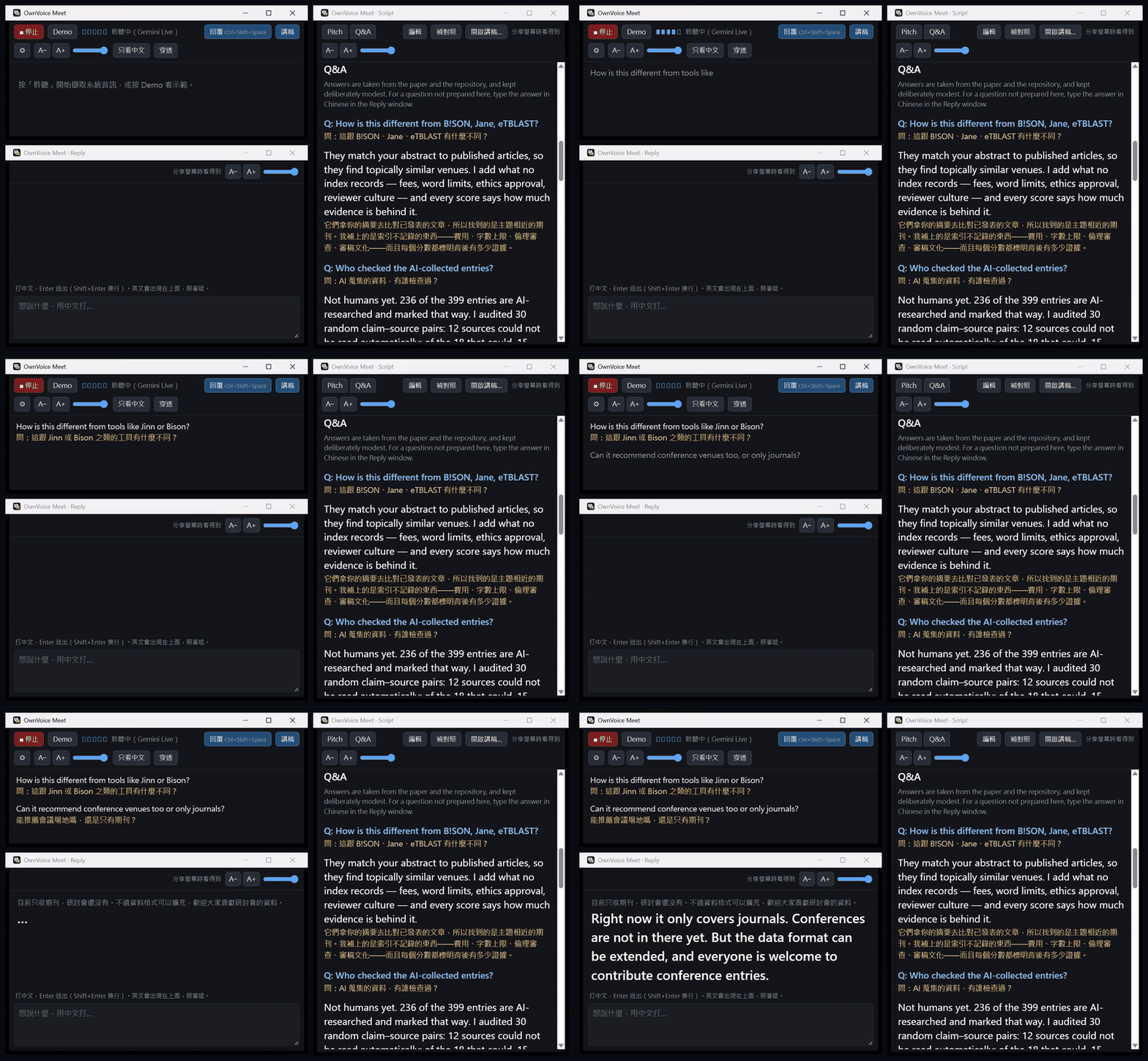
用真實流程錄製(Gemini Live 聽、Claude Haiku 5.5 翻),講稿是作者在 JCDL 2026 用的那份:第一個問題右邊講稿裡已經準備好答案;第二個問題用中文打回覆,變成要唸的英文。提問是語音合成的。MP4 版。
使用手冊:docs/MANUAL.md(安裝、開會流程、講稿、省錢組合、本機執行、常見問題)
它做什麼
三個視窗,用得到的才開,各自放在順手的位置。
| 視窗 | 功能 |
|---|---|
| 回覆 | 打中文、按 Enter,大字英文出現,照著唸。它知道會議剛剛在講什麼、你的講稿裡寫了什麼,所以名字和術語會用對。在 Zoom、Teams 裡按 Ctrl+Shift+Space 就會叫出來。建議放在攝影機旁邊。 |
| 字幕 | 別人說的英文即時出現,每句下面接著中文意思。 |
| 講稿與備忘 | 你的簡報稿、準備好的回答和備忘,每行附中文意思,分頁顯示,連結和指令可以一鍵複製。直接在視窗裡寫(內建範本與格式說明),寫英文或中文都行:補對照 會補上另一半,英文句補中文意思,中文句補要唸的英文。會自動保存,下次打開還在。真實範例見 JCDL 2026 講稿。 |
在研討會會場也能用:收音改成麥克風,同時把錄音和逐字稿存在電腦上(每個場次一個檔,按「新段落」或 Ctrl+Shift+F9 切換,名稱可以先貼議程)。網路斷了錄音照樣繼續;網路太差可以只錄音、不辨識。見使用手冊。
跟不上時看摘要:按「摘要」打開一個視窗,列出到目前為止的重點,每幾分鐘自動更新(可調,或關掉)。它只整理別人說過的話,不編造、不建議你說什麼。開啟存檔時一併存成 summary.md。
不只英文:別人說日文、韓文、德文、法文、西班牙文、越南文、泰文、印尼文也聽得懂,字幕照樣翻成中文(設定 →「別人說的語言」)。回覆和講稿的「補對照」也可以改成你要說的語言(設定 →「我說的語言」)。預設是英文。
每個視窗有自己的字級(A− / A+)和背景透明度,會記住。字幕可以只顯示中文,也可以讓滑鼠點擊穿過去操作下面的會議(用 Ctrl+Shift+F8 或系統匣圖示關掉)。分享螢幕時,回覆與講稿視窗不會出現在分享畫面、錄影和截圖裡(需 Windows 10 2004 以上;設定裡可以關)。字幕視窗不隱藏。
它不做什麼
它不會替你作答。沒有 AI 代寫的回答,也沒有合成語音:說什麼由你決定,也由你自己說出口。OwnVoice Meet 只幫你處理英文。
起源
我是 Zaious,來自台灣的獨立研究者(ChronicleCore Studio 編年史記工作室),英文看得懂,但開會時常常一下子想不出該怎麼說。2026 年 10 月 16 日,我要在 JCDL 2026(ACM/IEEE 數位圖書館聯合會議)的線上 Demo 場發表:一分鐘簡報,接著在 breakout room 回答提問。當天下午我花大約兩小時做出第一版(Python、自己 GPU 上的 Whisper、Claude Haiku 5.5),開著它撐完 1.5 小時的場次:別人說話時看字幕和中文意思,旁邊是中英對照的講稿和準備好的回答,沒準備到的就用回覆框。
那一晚一個半多小時的場次,翻譯費用是 0.11 美元(Claude Haiku 5.5,Claude Console 數字):輸入 5,570,065 個 token、輸出 28,585 個。輸入大多是講稿:每次請求都會帶著它,名字和術語才會對;它從提示快取讀取,所以幾乎不花錢。語音辨識跑在自己的 GPU 上,不用錢。
之後很多人來要這個工具。OwnVoice Meet 就是為了分享而重做的版本:語音辨識可以走雲端或在電腦上跑,不需要 GPU,服務也由你挑。那天晚上講稿的公開部分(簡報和準備好的回答)在 examples/scripts/journal-atlas-jcdl2026.md。
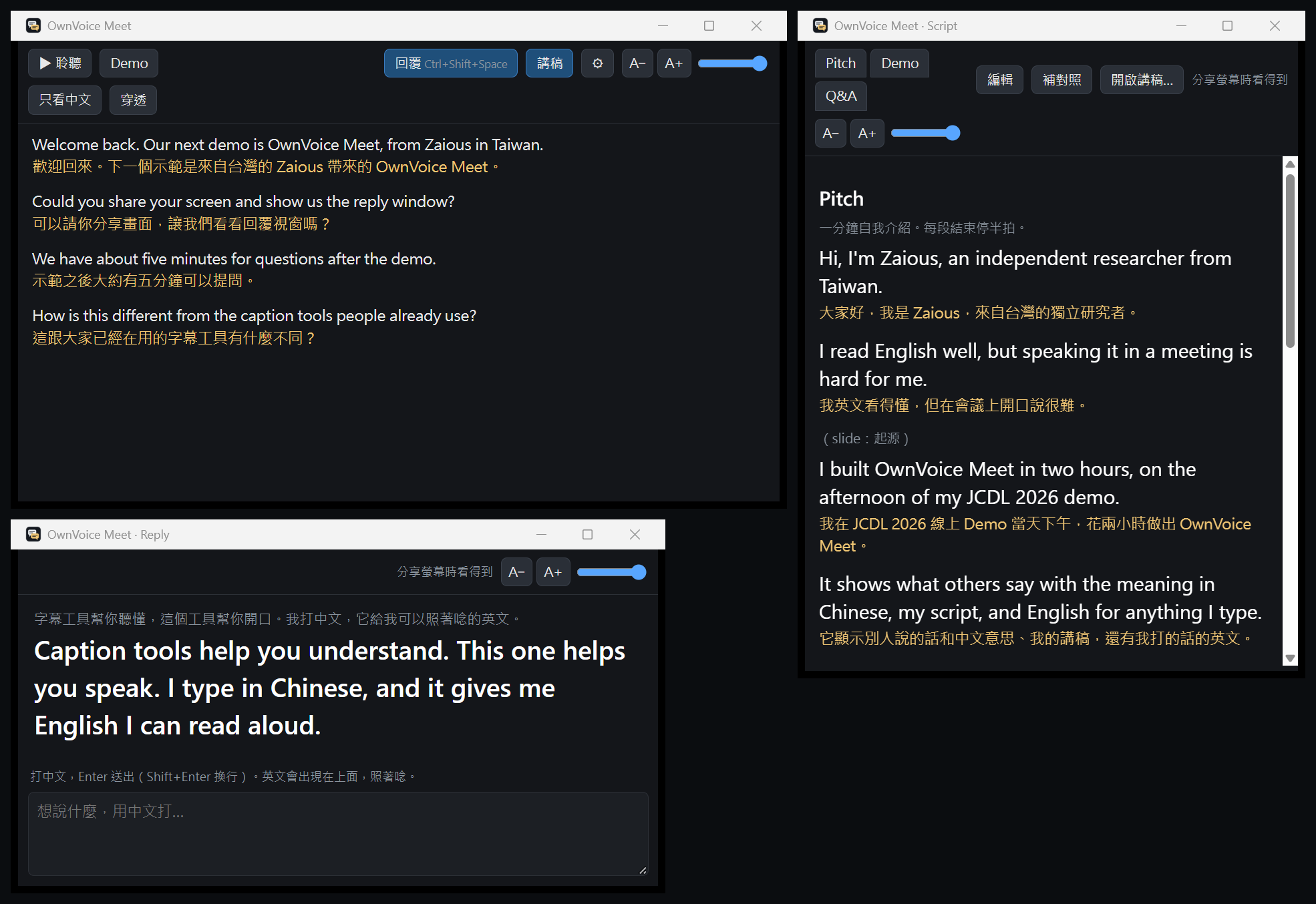
按 Demo 就能看到三個視窗在做什麼,不需要音訊也不需要 key。
服務與費用
用你自己的 key;設定裡有每家申請 key 的連結,key 存在系統的認證管理員。聽和翻各選一個:
| 聽(語音辨識) | 翻(翻譯與回覆) |
|---|---|
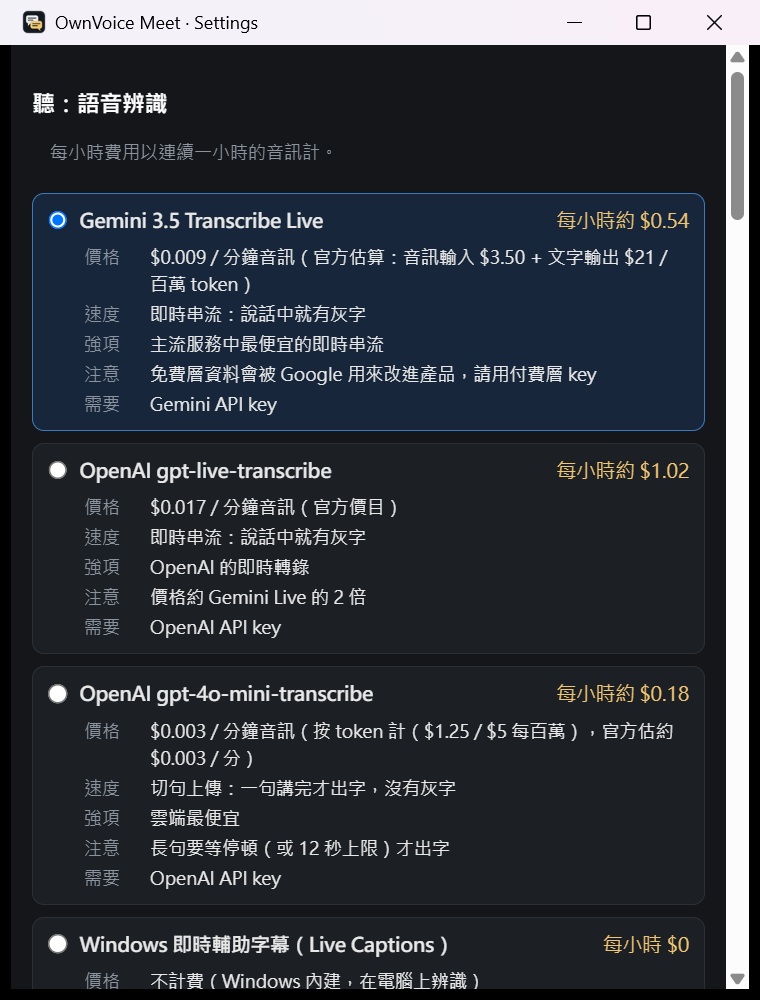
| Gemini 3.5 Transcribe Live(即時,約每小時 0.54 美元) | Claude Haiku 5.5、Sonnet 5.5 |
| OpenAI gpt-live-transcribe(即時,約每小時 1.02 美元) | OpenAI gpt-6-luna、gpt-6.1-sol |
| OpenAI gpt-4o-mini-transcribe(一句講完才出字,約每小時 0.18 美元) | Gemini 3.5 Flash-Lite、3.8 Flash |
| 自己電腦上的 Whisper 伺服器(免費) | 自己電腦上的 vLLM 或 Ollama(免費) |
| Windows 11 即時輔助字幕(即時、免費、在電腦上辨識、不需要 key;實驗功能,設定會帶你完成一次性設定) |
長句子講到一半就會先翻(約 4 秒後,之後每 2 秒更新),不用等講者停下來;句子講完再換成完整翻譯。
翻譯選最快一級時每小時只要幾美分(例如 Claude Haiku 5.5,忙碌的一小時約 0.03 美元)。設定裡每個選項都列出價格和實測速度,也會記錄估算用量。價格是官方牌價,實際以各家帳單為準。省錢組合見 使用手冊第 6 節。
全部在自己電腦上跑,只要在設定裡填網址:見 docs/LOCAL.md。Apple 裝置上的選項(macOS 26)規劃中。
隱私
會議聲音會送到你選的語音辨識服務,文字送到你選的翻譯模型,用的是你自己的帳號。有些會議有保密要求,有些地方轉錄談話需要所有人同意,開始前請先確認。會拿免費層資料訓練的服務(Gemini 是),請用付費層的 key。選本機伺服器,一切都留在你的電腦;聽的部分選 Windows 即時輔助字幕也一樣。開啟存檔時,錄音和逐字稿只存在你的電腦(設定裡的存檔資料夾),預設不存。
下載
Windows 10、11 與 macOS 11 以上,到 最新版下載頁:
- 安裝版(
OwnVoice.Meet_<版本>_x64-setup.exe):只裝給目前使用者,不需要系統管理員權限。設定 → 檢查更新會找到新版,按「更新並重新啟動」會先驗證簽章再安裝。 - 免安裝版(
OwnVoice.Meet_<版本>_x64_portable.zip):解壓縮到任何地方,執行OwnVoice Meet.exe。不會自己更新;檢查更新會帶你到下載頁。 - Mac 版(
OwnVoice.Meet_<版本>_universal.dmg,0.3.0 起,測試中):Intel 和 Apple 晶片都能用。打開 dmg,把 OwnVoice Meet 拖到「應用程式」。有 Apple 簽章並經過 Apple 公證,直接打開就能用。Mac 版只能收麥克風,收不到電腦播放的聲音。見使用手冊。
Windows 版還沒有數位簽章,Windows 可能顯示「Windows 已保護您的電腦」:按「其他資訊」,再按「仍要執行」。Windows 版需要 Microsoft Edge WebView2 Runtime(Windows 11 內建)。啟動 20 秒後,程式會問 GitHub 一次有沒有新版,有的話設定按鈕會出現小點;可以在設定關掉,關掉後只有按「檢查更新」時才會連到 GitHub。
版本沿革
- 0.3.2(2026-11-23):不只英文:別人說日文、韓文、德文等也聽得懂,字幕照樣翻成中文;回覆和講稿「補對照」可以改成你要說的語言(設定的「別人說的語言」「我說的語言」)。
- 0.3.1(2026-11-22):設定改了就自動儲存,「儲存」按鈕固定在視窗底部(之前按鈕夾在設定頁中間,沒按就關掉會全部不見)。
- 0.3.0(2026-11-22):Mac 版(測試中):Intel 和 Apple 晶片都能用,有 Apple 簽章與公證,用麥克風收音。新增即時摘要視窗,每幾分鐘整理一次目前為止的重點。
- 0.2.3(2026-11-22):啟動時檢查有沒有新版,有就提醒(可以關掉)。
- 0.2.2(2026-11-22):安靜 3 分鐘自動暫停辨識、20 分鐘自動結束,忘了關也不會一直扣錢。
- 0.2.1(2026-11-21):修正字幕每一行只顯示一小截。
- 0.2.0(2026-11-21):研討會會場也能用:麥克風收音、錄音與逐字稿存在電腦、分段、只錄音不辨識。
- 0.1.3(2026-10-17):翻譯一律台灣繁體;英文字幕不再黏字;設定的「聽」「翻」可以收合。
- 0.1.2(2026-10-17):回覆視窗跟著 app 一起打開;新增「清除」;key 貼錯欄會提醒。
- 0.1.1(2026-10-17):第一個公開版本。
每一版的完整說明在 GitHub Releases。
從原始碼建置
需要 Node.js 20+、Rust(stable),Windows 上需要 WebView2 Runtime(Windows 11 內建)。
npm install
npx tauri dev
按 Demo 可以在沒有音訊和 key 的情況下看字幕。開發時把 env.example 複製成 .env.local(不會進 git)填入 key,debug 版會讀它。
檢查:npm test、npm run typecheck,以及在 src-tauri 裡跑 cargo test --lib;CI 每次 push 都會跑。需要呼叫真實服務或喇叭的測試標為 ignored,清單在 docs/ARCHITECTURE.md。
支持作者
如果它幫上你,歡迎到 portaly.cc/chroniclecore 贊助(設定 → 關於 也有連結)。
授權
Apache License 2.0,見 LICENSE 與 NOTICE;從其他專案移植的邏輯列在 THIRD_PARTY_NOTICES.md。以 OwnVoice Meet 為基礎的作品必須附上 NOTICE;「OwnVoice Meet」這個名稱不授權給其他作品使用。
English
Understand the meeting. Answer in your own voice.
For people who can follow a meeting in English but can't always find the words in the moment, and still want to answer in their own words and their own voice. Type what you mean in your own language; OwnVoice Meet turns it into short, natural English that you read aloud. The words are yours, and so is the voice. The interface is in Traditional Chinese for now.
Status: 0.3.2, Windows, and Mac (being tested). Working with real services. See docs/ARCHITECTURE.md. The demo above was recorded with the real pipeline (Gemini Live listening, Claude Haiku 5.5 translating) and the author's JCDL 2026 script; the questions are text-to-speech.
What it does
Three windows; use the ones you need and put each where it helps.
| Window | What you get |
|---|---|
| Reply | Type in Chinese, press Enter, read the English aloud in large type. It knows what was just said in the meeting and what is in your script, so it uses the right names and terms. Ctrl+Shift+Space brings it up while Zoom or Teams has focus. Put it next to your webcam. |
| Captions | What others say, in English as they speak, with the meaning in Chinese under each sentence. |
| Script & notes | Your talk, prepared answers and notes, each line with its meaning, in tabs, with copy buttons for links and commands. Write it in the window (a template and a format guide are built in), in English or in Chinese: 補對照 fills in the other half, the Chinese meaning of an English line or the English to read for a Chinese one. It is saved and comes back next time. See the JCDL 2026 script for a real one. |
At a conference venue, too: switch the sound source to a microphone and keep the recording and the transcript on your computer, one file per session (press 新段落 or Ctrl+Shift+F9 to move on; names can come from a pasted programme). The recording keeps going when the Wi-Fi drops, and on a bad network you can record without recognition.
A live summary when you fall behind: 摘要 opens a window with the main points so far, brought up to date every few minutes (adjustable, or off). It only sums up what others said: nothing invented, no suggestions of what to say. With saving on it is kept as summary.md too.
Not only English: captions follow Japanese, Korean, German, French, Spanish, Vietnamese, Thai or Indonesian too, always translated into Chinese (Settings, 別人說的語言). Replies and the script's 補對照 can be written in the language you speak (Settings, 我說的語言). English is the default.
Each window has its own text size (A− / A+) and background opacity, remembered between runs. Captions can show the translation only, and can let clicks pass through to the meeting underneath (turn it off with Ctrl+Shift+F8 or the tray icon). When you share your screen, the Reply and Script windows stay off the share, recordings and screenshots (Windows 10 2004 or later; can be turned off in Settings). The Captions window is not hidden.
What it does not do
It does not answer for you. There are no AI-written replies and no synthetic voice: you decide what to say, and you say it. OwnVoice Meet helps with the English.
How it started
I'm Zaious, an independent researcher from Taiwan. I read English well, but in a meeting I often can't find the words in time. On 16 October 2026 I had an online demo at JCDL 2026, the ACM/IEEE Joint Conference on Digital Libraries: a one-minute pitch, then questions in breakout rooms. That afternoon I built a first version in about two hours (Python, Whisper on my own GPU, Claude Haiku 5.5) and kept it open through the whole 1.5-hour session: captions with the Chinese meaning while others spoke, my bilingual script and prepared answers beside them, and the reply box for anything I had not prepared.
Translation for that evening, a session of an hour and a half and a bit, cost US$0.11 on Claude Haiku 5.5, according to the Claude Console: 5,570,065 input tokens and 28,585 output tokens. Most of the input is the prepared script, which goes with every request so names and terms come out right; it is read from the prompt cache, which is why it costs so little. Speech recognition ran on my own GPU, so it cost nothing.
Many people asked for the tool afterwards. OwnVoice Meet is that tool rebuilt to be shared: speech recognition in the cloud or on the device, so you do not need a GPU, and your choice of providers. Press Demo to see all three windows without audio or keys.
Providers and cost
Bring your own keys; Settings links to each provider's key page, and keys are kept in the system keychain. Pick one option for listening and one for translation:
| Listening | Translation and replies |
|---|---|
| Gemini 3.5 Transcribe Live (live, about $0.54/hour) | Claude Haiku 5.5, Sonnet 5.5 |
| OpenAI gpt-live-transcribe (live, about $1.02/hour) | OpenAI gpt-6-luna, gpt-6.1-sol |
| OpenAI gpt-4o-mini-transcribe (per sentence, about $0.18/hour) | Gemini 3.5 Flash-Lite, 3.8 Flash |
| A Whisper server on your own machine (free) | vLLM or Ollama on your own machine (free) |
| Windows 11 Live Captions (live, free, on the device, no key; experimental, Settings walks you through a one-time setup) |
Long sentences are translated while they are still being spoken (after about 4 seconds, then every 2 seconds), so you are not left waiting for the speaker to pause; the final translation replaces it when the sentence ends.
Translation costs a few cents an hour on the fastest models (for example Claude Haiku 5.5, about $0.03 for a busy hour). Settings shows every option with its price, measured speed, strengths, cautions and what it needs, and tracks estimated usage. Prices are list prices; your provider's bill is the authority. Running everything locally is a matter of URLs in Settings: see docs/LOCAL.md. Apple on-device options (macOS 26) are planned.
Privacy
Meeting audio goes to the speech service you choose, and text to the language model you choose, under your own account. Some meetings are confidential, and some places require everyone's consent before a conversation is transcribed: check before you turn it on. Use paid-tier keys where the provider uses free-tier data for training (Gemini does). Local servers keep everything on your machine, and so does Windows Live Captions for listening. With saving on, recordings and transcripts stay on your computer, in the folder Settings shows; saving is off by default.
Download
Windows 10 and 11, and macOS 11 or later, from the latest release:
- Installer (
OwnVoice.Meet_<version>_x64-setup.exe): installs for your user only, no administrator rights. Settings > Check for updates finds a newer version, and Update installs it after checking its signature. - Portable (
OwnVoice.Meet_<version>_x64_portable.zip): unzip anywhere and runOwnVoice Meet.exe. It never updates itself; Check for updates links to the download page. - Mac (
OwnVoice.Meet_<version>_universal.dmg, from 0.3.0, being tested): for Intel and Apple silicon. Open the dmg and drag the app to Applications. It is signed and notarized by Apple, so it opens like any other app. The Mac version listens through a microphone only, not to what the computer plays.
The Windows builds are not code-signed yet, so Windows may say "Windows protected your PC": choose More info, then Run anyway. On Windows it needs the Microsoft Edge WebView2 Runtime, which Windows 11 includes. Twenty seconds after start OwnVoice Meet asks GitHub once whether a newer version is out and puts a dot on the settings button if so; turn it off in Settings and GitHub is contacted only when you press Check for updates.
Changes
- 0.3.2 (2026-11-23): Not only English: captions follow Japanese, Korean, German and more, translated into Chinese; replies and the script's 補對照 can be in the language you speak (Settings).
- 0.3.1 (2026-11-22): Settings save themselves as they change, and the save button stays at the bottom of the window (before, it sat mid-page and closing without it lost everything).
- 0.3.0 (2026-11-22): A Mac version (being tested): Intel and Apple silicon, signed and notarized by Apple, listening through the microphone. A live summary window brings the main points up to date every few minutes.
- 0.2.3 (2026-11-22): Checks for a newer version at start and tells you (can be turned off).
- 0.2.2 (2026-11-22): Pauses recognition after 3 quiet minutes and stops after 20, so a forgotten session does not keep costing money.
- 0.2.1 (2026-11-21): Caption lines are no longer cut short.
- 0.2.0 (2026-11-21): For conference rooms: microphone input, recordings and transcripts on your computer, segments, record without recognition.
- 0.1.3 (2026-10-17): Translations always in Taiwan Traditional Chinese; English captions no longer glue words; collapsible Listen and Translate settings.
- 0.1.2 (2026-10-17): The reply window opens with the app; a Clear button; a key pasted into the wrong field is caught.
- 0.1.1 (2026-10-17): First public release.
Full notes for each version are on GitHub Releases.
Building from source
Requirements: Node.js 20+, Rust (stable), and on Windows the WebView2 runtime (included in Windows 11).
npm install
npx tauri dev
Press Demo to see captions without audio or keys. For development, copy env.example to .env.local (git-ignored) and fill in keys; debug builds read it.
Checks: npm test, npm run typecheck, and cargo test --lib in src-tauri; CI runs them on every push. Tests that call real services or need speakers are marked ignored; docs/ARCHITECTURE.md lists them.
Support and license
If OwnVoice Meet helps you, you can support the author at portaly.cc/chroniclecore. Apache License 2.0: see LICENSE and NOTICE; logic ported from other projects is credited in THIRD_PARTY_NOTICES.md. A work based on OwnVoice Meet must carry the NOTICE; the name "OwnVoice Meet" is not licensed for other works.