Star 历史趋势
数据来源: GitHub API · 生成自 Stargazers.cn
README.md
LockScreen Calendar Shortcut
This script for the Scriptable app generates minimalistic wallpapers for iPhone featuring a yearly calendar, event display, and current year progress.
Description
The script automatically scans your iOS calendars, filters them by a special prefix (or you can add them manually in script itself), and displays events on a yearly grid on your lock screen. Event colors are taken directly from iOS Calendar settings. It supports custom wallpapers from your Photos album, beautiful gradients, or clean solid colors.
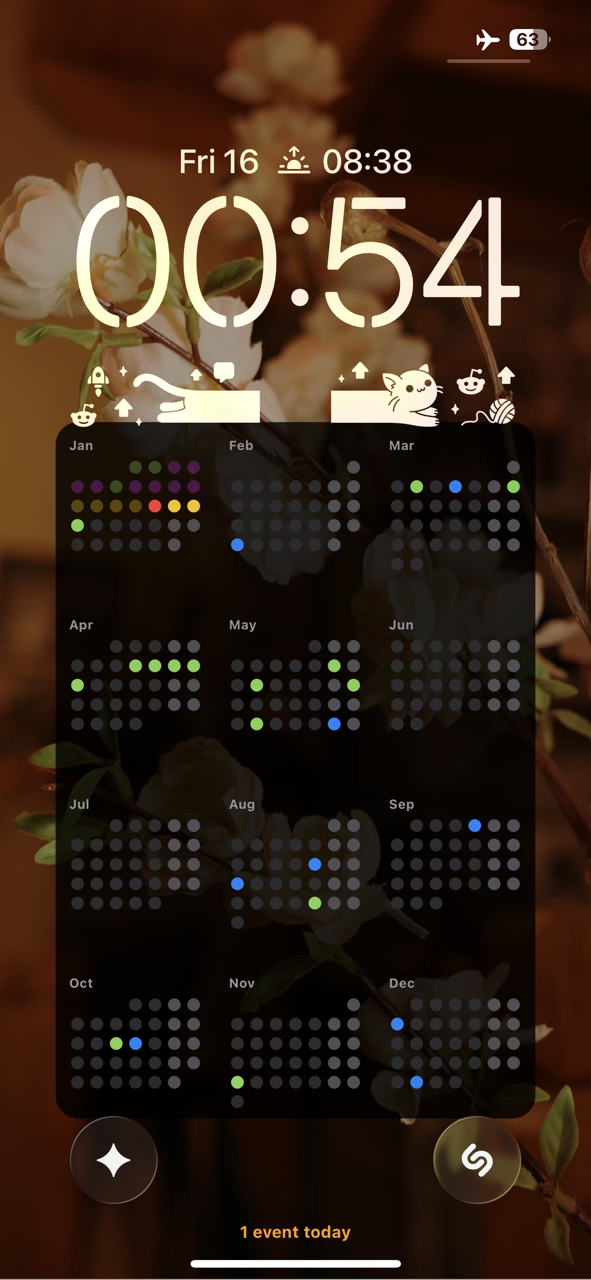
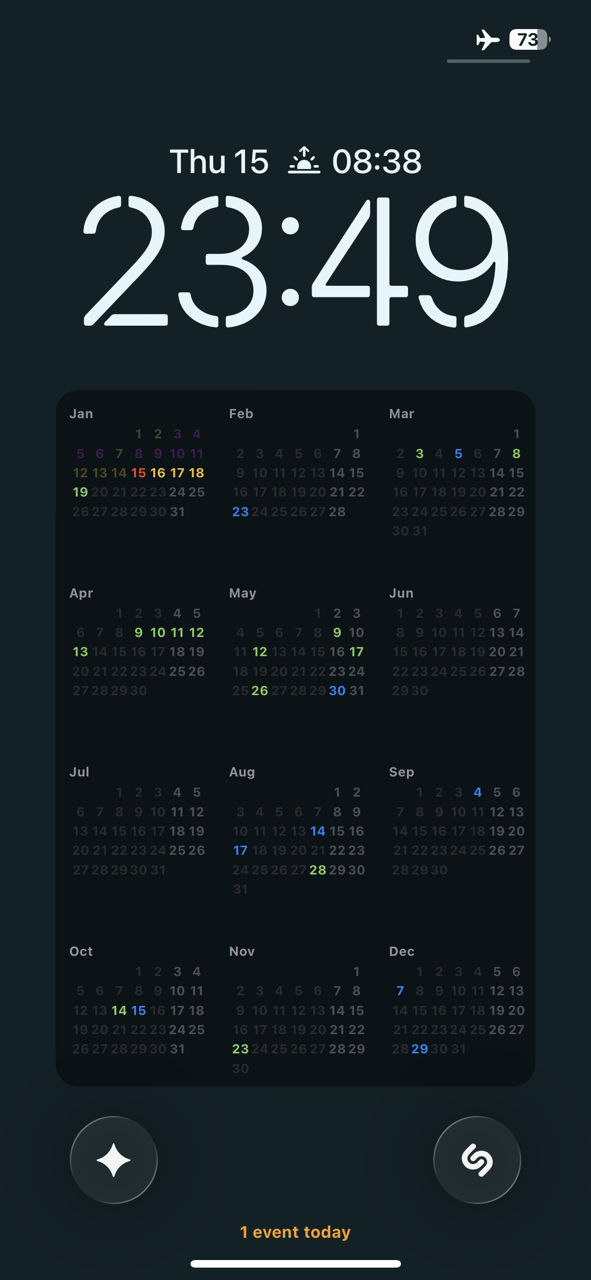
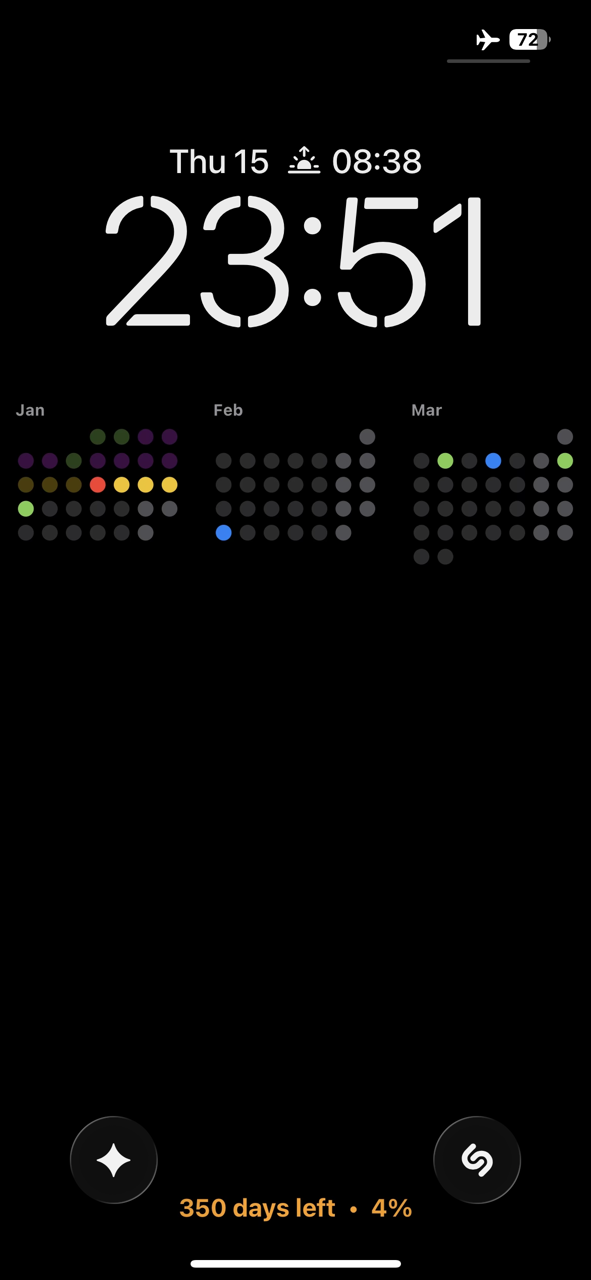
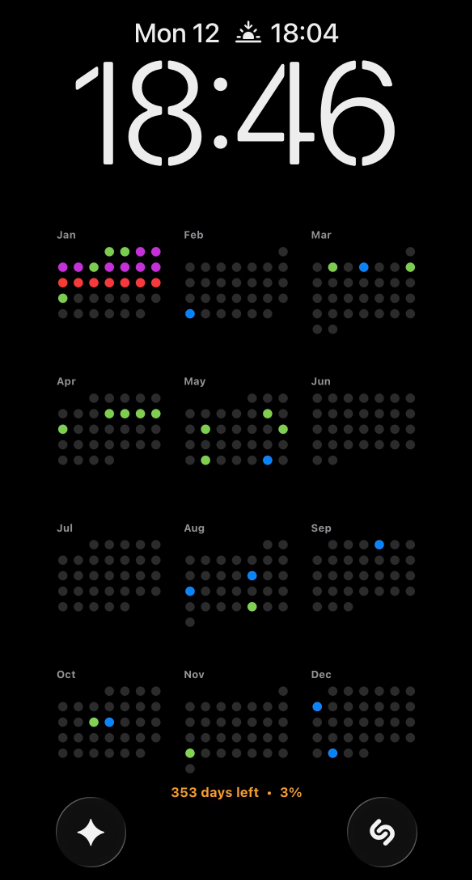
Features
- Auto-Adaptation: Adapts to your iPhone's screen size.
- Native Colors: Uses colors set in the Calendar app.
- Filtering: Displays only calendars with a specific prefix (default
*), or you can add them manually in script itself to keep the screen uncluttered. - Event Priority: When events overlap, priority is determined alphabetically by calendar name or randomly (in case of manually added calendars priority is determined by order in script).
- Backgrounds:
- Custom Photos: Use any photo from your library as a background.
- Gradients: Use stylish CSS-like linear gradients (3 colors).
- Solid Colors: Minimalist solid background.
- Legibility: "Container" card option to ensure calendar is readable on any background.
- Statistics: Shows events count or year progress.
Installation and Setup
Option A: Using Scriptable App (Recommended)
- Install Scriptable from the App Store.
- Create a new script, name it
LockScreenCalendar, and copy the code fromscript.jsinto Run Script action. - In iOS settings (Calendar), rename existing calendars that you want to display by adding
*to the beginning (e.g.,*Work) or add them manually in script.
Option B: Paste Directly in Shortcuts
- You can skip creating a file in Scriptable and paste the entire code directly into the Run Script action in Shortcuts.
Shortcuts Workflow Setup
1. Basic Setup (Solid Color / Gradient)
- Create a new Shortcut.
- Add Run Script action (Scriptable). Select your script (or paste code).
- Add Set Wallpaper action.
- Image: Select "Output" from previous step.
- Screen: "Lock Screen".
- Disable "Show Preview" and "Crop to Subject".
- For gradient background, ensure
showWallpaperis set tofalsein the script. anduseGradientis set totrue.
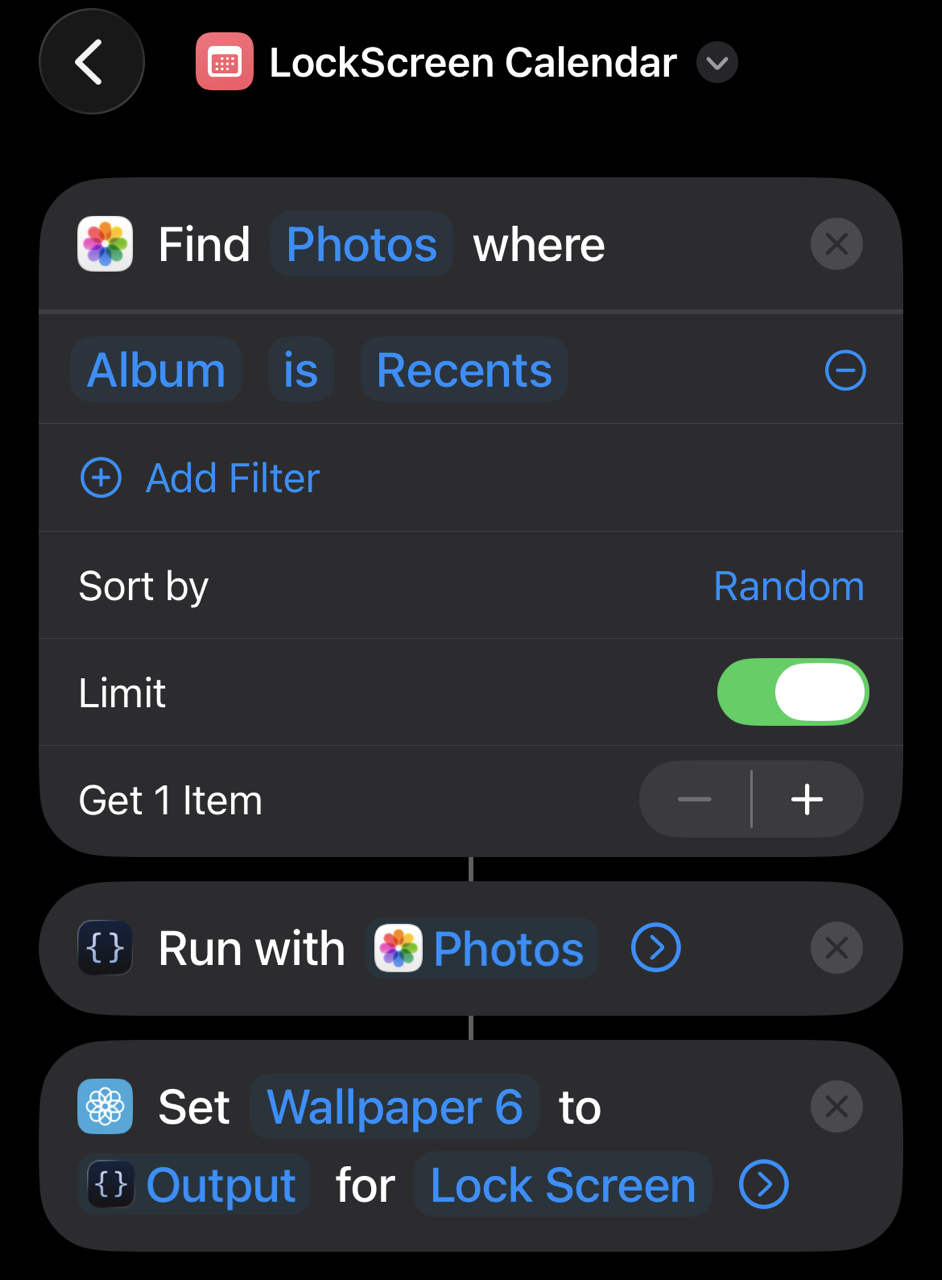
2. Using Custom Wallpaper (Photos)
To use a random photo from an album as a background:
- Create an album in Photos (e.g., "Wallpapers").
- In Shortcuts, add Find Photos action at the very top.
- Filter: Album is "Wallpapers".
- Sort by: Random.
- Limit: Get 1 Item.
- In the Run Script action:
- Tap and hold the Parameter field (it might say "Input" or be empty).
- Select Photos (the output from the first step).
- In the script
CONFIG, ensure:showWallpaper: true
Automation
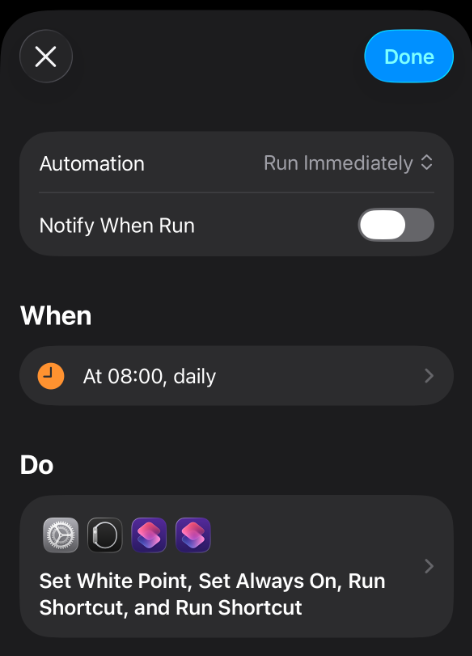
To update daily:
- Go to "Automation" tab -> "Personal Automation".
- Select Time of Day (e.g., 08:00).
- Add Run Shortcut action -> Select your shortcut.
- Disable "Ask Before Running" and "Notify When Run" so it happens in the background.
Configuration
Customize CONFIG at the top of the script:
const CONFIG = {
  // --- 1. GENERAL & APPEARANCE ---
  monthsToShow: 12,        // 12 = Year, 3 = Quarter, 1 = Month
  monthsPerRow: 3,         // Standard is 3
  monthOffset: 0,          // Start from 0 = Current, -1 = Previous, 1 = Next
  contentScale: 1.0,       // Global Scale Multiplier

  // Day & Dot Settings
  showDayNumbers: false,   // true = numbers, false = dots
  firstDayOfWeek: 1,       // 0 = Sunday, 1 = Monday
  highlightWeekends: true,
  dimPastDays: true,       // If true, past days are 30% opacity

  // --- 2. BACKGROUND SETTINGS ---
  // Custom Wallpaper (Photo from Shortcuts)
  showWallpaper: true,     // Priority 1: Use photo if provided via Input
  overlayOpacity: 0.3,     // Darken photo (0.0 - 1.0)

  // Gradient (Priority 2: Used if no photo or showWallpaper=false)
  useGradient: true,
  gradientColors: ["#0F2027", "#203A43", "#2C5364"], // Example: "Moonlit Asteroid"

  // Container (Card behind calendar for better visibility)
  showContainer: true,
  containerOpacity: 0.80,
  containerRadius: 15,

  // ... (Other standard settings)
};