clock-tui (tclock)
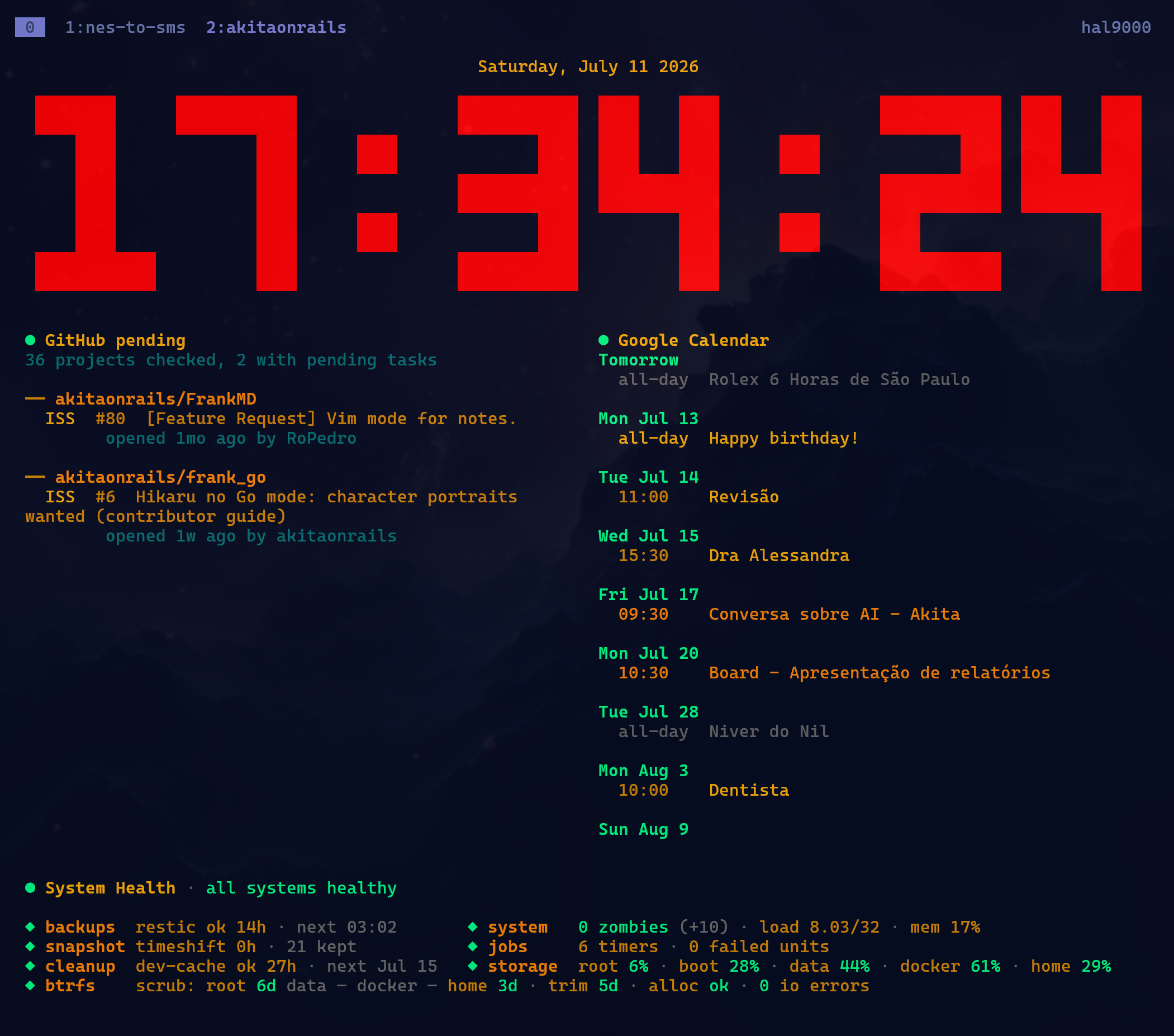
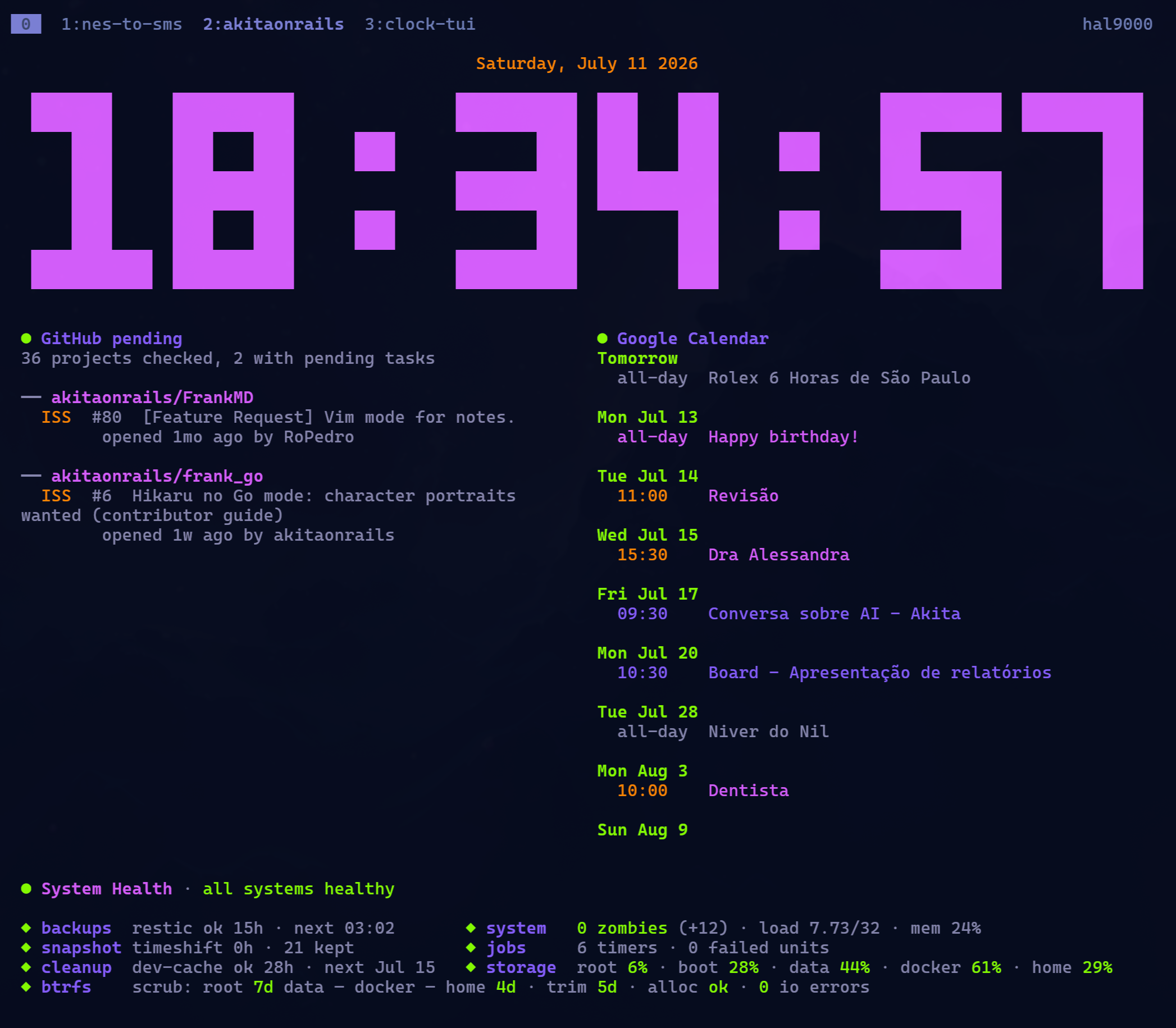
Clock mode supports runtime themes; these screenshots show the built-in nerv and evangelion themes with command widgets. Press Shift+T to cycle default → evangelion → nerv.
tclock is a terminal clock app with clock, timer, stopwatch, and countdown modes.
This repository is a maintained fork of the original race604/clock-tui. The original project appears to have been paused for a long time, so this fork keeps the core idea and modernizes it with updated Rust dependencies, GitHub release binaries, AUR packaging, and clock-mode command widgets.
Install
Arch Linux / AUR
The recommended install method on Arch Linux is the prebuilt AUR package from this fork:
yay -S clock-tui-binGitHub Releases
Prebuilt Linux binaries are published for x86_64 and aarch64:
https://github.com/akitaonrails/clock-tui/releases
Download the tarball for your architecture and put tclock somewhere in your PATH.
Build from source
To install this fork directly from GitHub:
cargo install --git https://github.com/akitaonrails/clock-tui --package clock-tuiTo build a local checkout:
cargo build --releaseThe binary will be at target/release/tclock.
Basic usage
tclockPress q to exit. In the main loop, press c, w, or t to switch to clock, stopwatch, or timer mode. Press Space to pause/resume modes that support pausing.
Use --help for all options:
tclock --help
tclock clock --help
tclock timer --help
Display options (every mode)
These flags work in every mode, before or after the mode name, and they survive the c/w/t mode switches:
| Flag | Effect |
|---|---|
-T, --title TEXT | Header above the digits. Timer accepts one title per duration. |
-S, --no-seconds / --seconds | Hide or show seconds. Hidden seconds give an H:MM display in every mode. |
-M, --no-millis / -m, --millis | Hide or show fractional seconds. |
-D, --no-date / --date | Hide or show the date line (clock mode). |
-P, --paused | Start paused (timer and stopwatch). |
-c, --color, -s, --size, --theme | Color, size, and initial theme. |
Precedence, highest first: the flag, the mode's config section, [default], then the mode's built-in default. Built-in defaults: the clock shows the date and seconds; timer and stopwatch show fractional seconds; countdown shows whole seconds.
tclock stopwatch --title Deep\ work --no-seconds
tclock timer -d 25m 5m -T Focus Break -P
tclock countdown -t 20:00 -T Dinner --no-millis
Put the mode name before --title when a title has several words, since --title takes every following word until the next flag.
Modes
Clock
tclock clock

# The clock is also the default mode:
tclock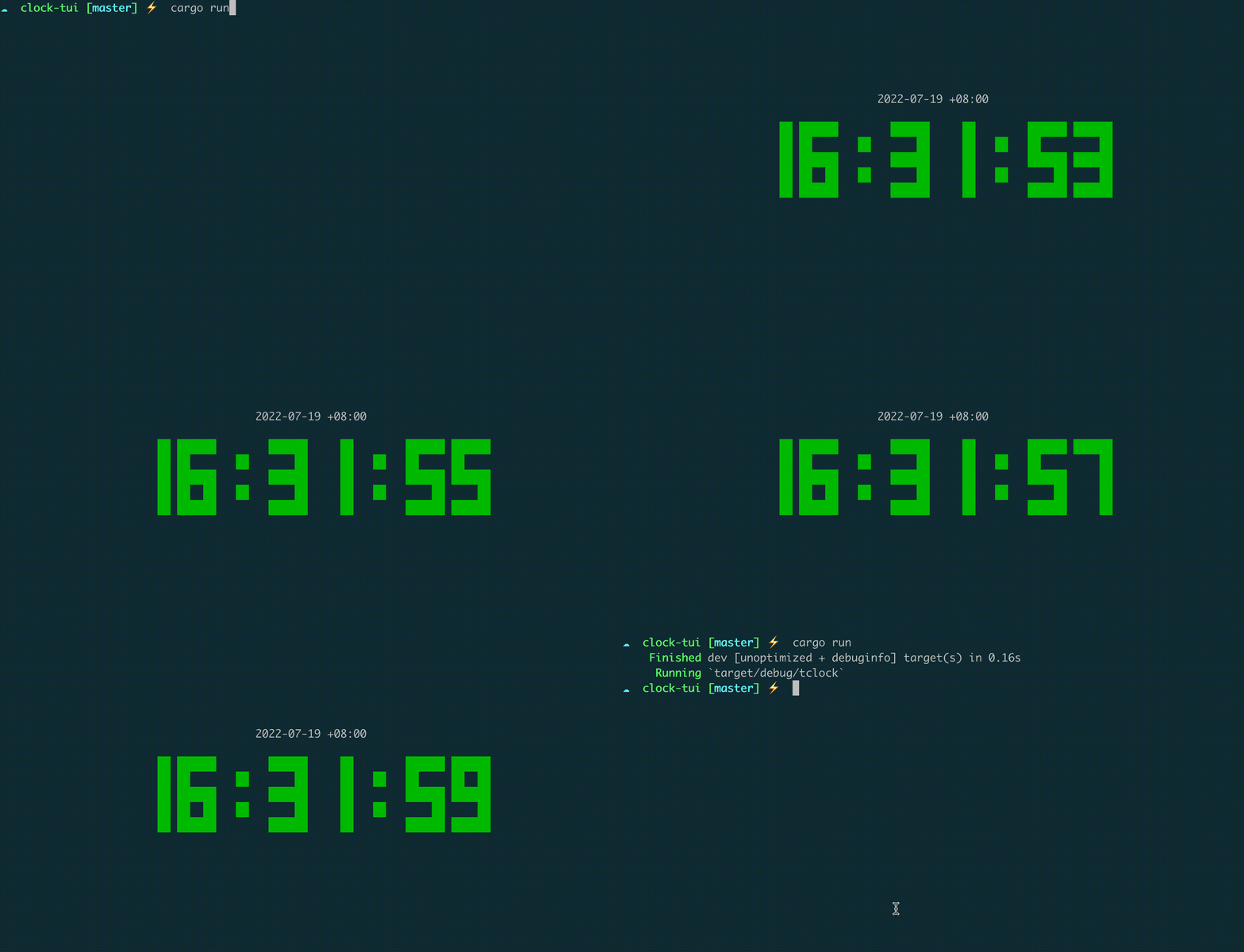
The clock has one option of its own, the timezone. Everything else comes from the display options. A title shares the header line with the date:
tclock clock --timezone America/New_York
tclock clock --no-seconds
tclock clock --title Study
tclock --color '#e63946'
tclock --size 2
tclock --theme nerv
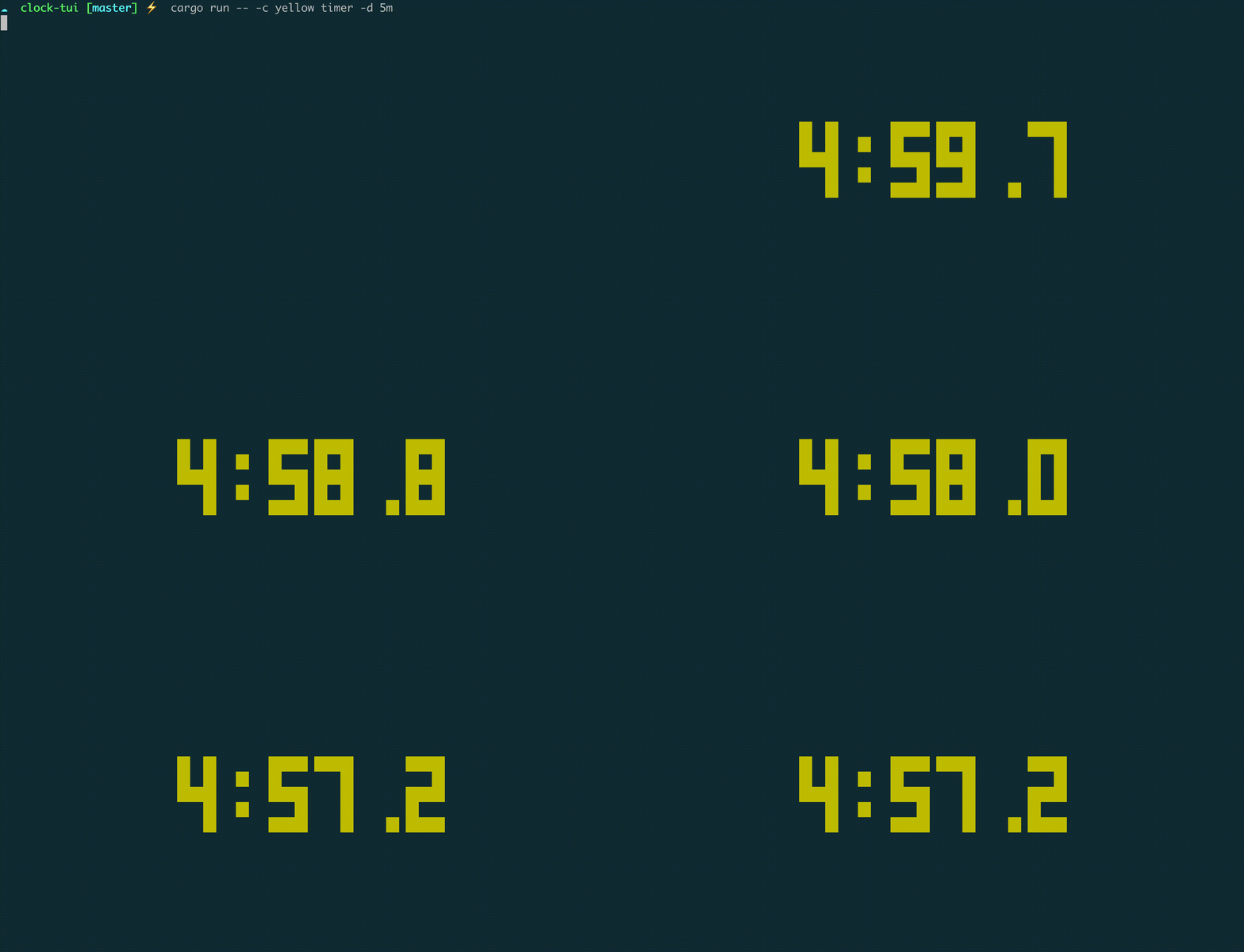
Timer
# Start a 5-minute timer
tclock timer --duration 5m
Durations can use suffixes such as s, m, h, and d. Without --duration, the timer uses [timer] durations from the config, then 5m. Timer mode can run several durations sequentially and can execute a command when time is up:
tclock timer --duration 25m 5m --title Focus Break
tclock timer --duration 25m --execute terminal-notifier -title tclock -message "Time is up!"
--execute falls back to [timer] execute from the config. --paused starts the timer paused; --no-millis hides fractional seconds.
Stopwatch
tclock stopwatch
tclock stopwatch --title Lap --no-millis
tclock stopwatch --no-seconds --paused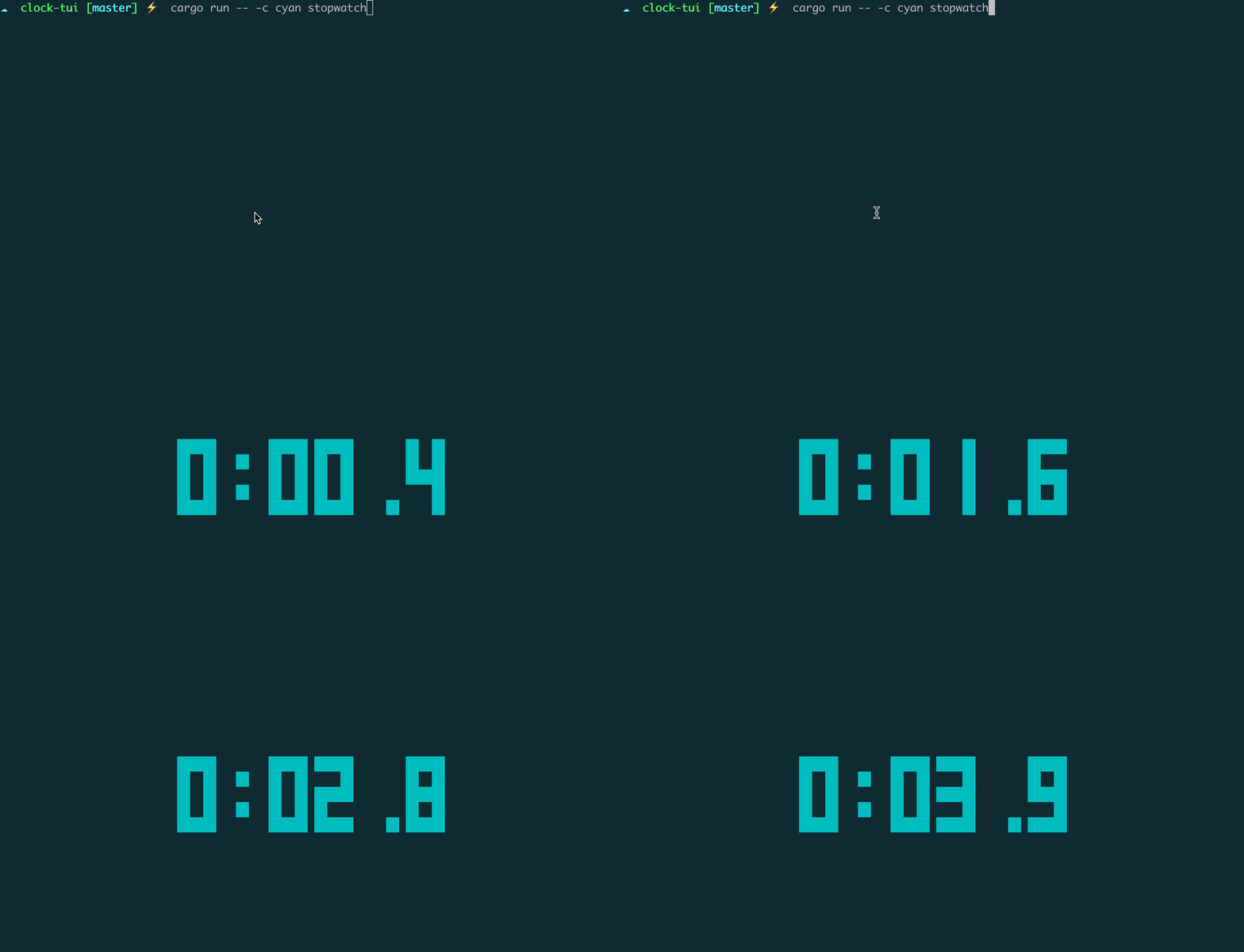
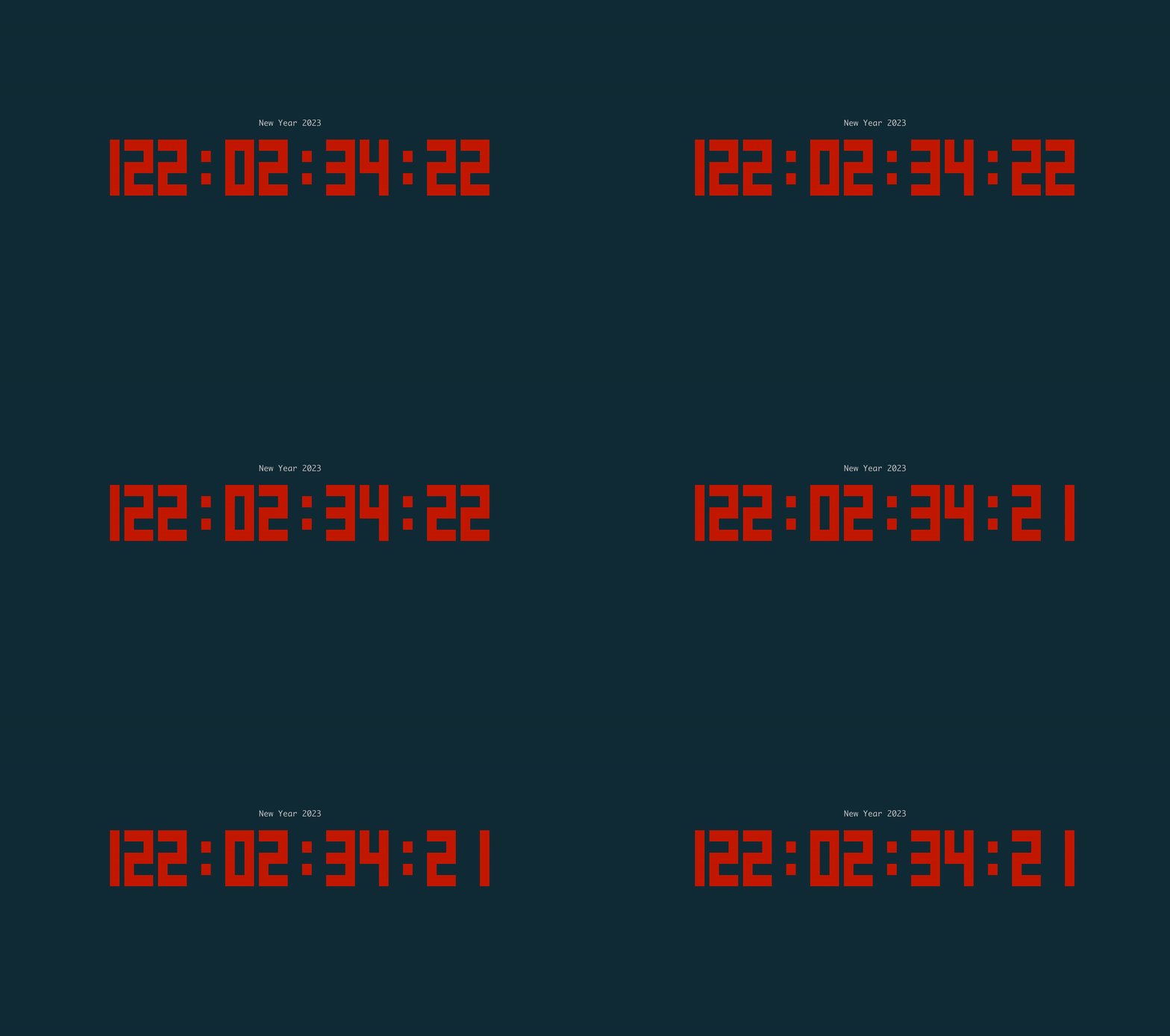
Countdown
tclock countdown --time 2026-01-01 --title 'New Year 2026'--time accepts values such as 2026-01-01, 20:00, 2026-12-25 20:00:00, or 2026-12-25T20:00:00-04:00. -C, --continue keeps counting past zero, -r, --reverse counts up instead.
Configuration
tclock reads the first config file it finds in this order:
$XDG_CONFIG_HOME/tclock/config.toml  # when XDG_CONFIG_HOME is absolute
~/.config/tclock/config.toml
<OS-native config dir>/tclock/config.toml
The OS-native fallback preserves existing setups, such as
~/Library/Application Support/tclock/config.toml on macOS. Duplicate paths
are checked only once.
Missing config is ignored. Invalid TOML prints an error and falls back to defaults.
Example:
[default]
mode = "clock"
color = "green"
size = 1
# Display keys here apply to every mode unless a mode section overrides them.
show_seconds = true
show_millis = false

[clock]
show_date = true
timezone = "America/Sao_Paulo"

[timer]
durations = ["25m", "5m"]
titles = ["Focus", "Break"]   # one per duration; wins over `title`
repeat = false
show_millis = true
start_paused = false
auto_quit = false
execute = ["notify-send", "Time is up"]

[stopwatch]
title = "Lap"
show_millis = false

[countdown]
time = "20:00"
title = "Dinner"
continue_on_zero = false
reverse = false
The display keys title, show_date, show_seconds, show_millis, and start_paused are accepted under [default] and under every mode section. A mode section wins over [default]; a command-line flag wins over both. Keys that a mode cannot use (show_date outside the clock, start_paused outside timer and stopwatch) are ignored.
Clock widgets
Clock mode can display command widgets below the clock. A widget runs a command, captures its output, renders ANSI colors/styles, and refreshes independently.
Widgets are useful for small status panels: GitHub pending work, calendars, system stats, reminders, CI state, or any command that prints useful text and exits.
The clock automatically sizes itself into the top area when widgets are configured, and the bottom area shows up to 2 widgets on square-ish terminals, 4 on wide terminals, and 6 on ultra-wide terminals.
Widgets with position = "bottom" are placed in a full-width band beneath the widget row instead, stacked in config order and each sized to exactly fit its output. The widget row keeps a minimum height when both are present, and a bottom widget that cannot get at least 3 rows is hidden rather than squeezed. Bottom widgets don't count against the per-row widget limits, so a status strip can coexist with a full row of columns.
When a widget has more output than fits on screen, scroll it with the mouse wheel over that widget. Home and End jump the active widget to the top or bottom. In clock mode, press Shift+T to cycle the configured clock theme; lowercase t still switches to Timer mode. Press g to cycle widget groups (see Widget groups). Press z to toggle a clock-only layout that hides every widget and centers the clock in the full terminal; press z again to restore the previous widget/group layout. Hidden widgets do not refresh. Widgets can also contribute key-bound popup actions.
Each widget supports:
title: optional display title; omit it to fall back to the command name, or set it to an empty string (title = "") to suppress the title line entirely so the command output owns the whole widget (useful for self-rendered headers)command: executable string, or array form with argumentsrefresh_secs: refresh interval, default900timeout_secs: command timeout, default30position:"auto"(default, widget row) or"bottom"(full-width band below the row, sized to content)group: optional group name; widgets in the same group are shown together and swapped as a set withg(see Widget groups)popup_actions: optional key bindings that run a command and show its output over the clock
widget_themes controls the clock-mode theme cycle. For built-in app palettes (default, evangelion, and nerv), the app themes the clock digits, date/header text, and widget base/chrome styles itself, and also injects the current theme name into every widget subprocess as TCLOCK_WIDGET_THEME. tclock --theme nerv or TCLOCK_WIDGET_THEME=nerv tclock chooses the initial theme and keeps the configured cycle order after it. Other names are still passed to widget commands, but the app UI falls back to default styling unless that palette is added to tclock too. Theme names are a contract between your config and the widget commands: a command must understand the name it receives if it wants to match its internal ANSI palette.
[clock]
widget_themes = ["default", "evangelion", "nerv"]
An empty or single-item list makes Shift+T harmless. For coherent app + bundled-widget theming, keep built-in names such as default, evangelion, and nerv unless you also add the palette to both tclock and tclock-system-health.
Widget popup actions
A widget can bind any single character except the reserved quit key q to a popup command. The action reruns the widget command by default and appends args, which lets one executable provide both its compact status and its detailed view. Set command on the action to run a different executable instead. Action commands receive the current TCLOCK_WIDGET_THEME just like normal refreshes.
[[clock.widgets]]
title = "Service monitor"
command = "service-monitor"
refresh_secs = 300

[[clock.widgets.popup_actions]]
key = "d"
label = "details"       # added to the generated popup title
args = ["--details"]    # appended to service-monitor
# title = "Services"    # optional complete popup-title override
# command = ["journalctl", "--user", "-p", "warning"] # optional replacement
# timeout_secs = 45     # optional; otherwise inherits the widget timeout
The binding is active only while its widget is visible. If visible widgets share a key, the last widget scrolled with the mouse wins; otherwise the first matching widget in config order does. Widget actions take precedence over the clock's mode-switch keys when deliberately assigned the same character. Inside a popup, use the mouse wheel, arrow keys, PageUp/PageDown, Home, or End to scroll, and Esc to close it.
Widget groups
Screen space is finite, and the widget row only fits 2–6 columns depending on terminal width. Groups let you configure more widgets than fit at once and swap between them: give widgets a group name, and press g to cycle to the next group.
- A widget with no
groupis always on screen, in every group. - A widget with a
groupis only on screen while that group is active. - Groups cycle in the order they first appear in the config, so the first grouped widget decides which group is shown at startup.
- Switching groups keeps each widget's last output, so returning to a group is instant instead of showing
Loading.... Hidden widgets don't refresh, so an expensive command costs nothing while it's off screen. - With fewer than two groups,
gdoes nothing.
[clock]
show_date = true

# Always visible — has no group, so it survives every `g` press.
[[clock.widgets]]
title = "Google Calendar"
command = "google-calendar-tui"
refresh_secs = 3600

# Group "weather" appears first, so it's the group shown at startup.
[[clock.widgets]]
title = "Weather"
group = "weather"
command = ["sh", "-c", "curl -s 'https://wttr.in/Florianopolis?0&Q&M'"]
refresh_secs = 1800

# Press `g` to swap the weather column out for this one.
[[clock.widgets]]
title = "GitHub pending"
group = "github"
command = "ghpending"
refresh_secs = 900
To show a different region, change the location in the wttr.in URL — it accepts a city (wttr.in/Curitiba), a city with country when the name is ambiguous (wttr.in/Porto+Alegre,BR), an airport code (wttr.in/GRU), or ~ for a landmark (wttr.in/~Cristo+Redentor). Use + for spaces and drop accents. The query flags: 0 prints today only (keeping the widget short), Q hides the location header, M reports wind in m/s. Don't add T — it strips the ANSI colors that the widget would otherwise render. Leaving the location out entirely (wttr.in/?0) geolocates by IP, which behind a VPN reports the VPN's exit city.
Bundled example: system-health widget
The repo ships a ready-to-use widget at examples/widgets/tclock-system-health. The AUR package installs it as /usr/bin/tclock-system-health; release tarballs include it beside tclock, so manual installs can extract it to ~/.local/bin or copy it to /usr/local/bin. It renders a two-column health dashboard with a one-line verdict header: backup/cleanup timer freshness, timeshift snapshots, live system/jobs/storage state, and a full-width btrfs row (scrub age per filesystem, fstrim age, allocation pressure, device I/O error counters) — all without root. A failed automount whose paired mount has recovered is shown as a retained warning instead of a live failure. Low Btrfs device-unallocated space is reported as a separate allocation problem only while the filesystem still has ordinary free space; when the filesystem itself is nearly full, the storage alert remains the actionable diagnosis.
Run it with no arguments and it auto-detects common setups (backup-looking user timers with staleness derived from each timer's own period, timeshift via grub-btrfs, btrfs rows only when btrfs is mounted, removable media excluded). Host-specific tuning is plain flags — see tclock-system-health --help. The intended pattern is a tiny wrapper script on your PATH holding your host's flags, referenced from the widget config:
The widget supports named color themes, including default, the original purple/lavender evangelion theme, and the screenshot-inspired red/amber/green nerv theme. It honors TCLOCK_WIDGET_THEME, so it works with Shift+T without a wrapper; an explicit --theme or TCLOCK_SYSTEM_HEALTH_THEME still wins. See System-health widget themes for usage and contributor notes. Packaged installs also include this guide as /usr/share/doc/clock-tui/widget-themes.md.
[[clock.widgets]]
title = ""                    # the script renders its own title+verdict line
command = "my-system-health"  # your wrapper around tclock-system-health
refresh_secs = 300
position = "bottom"

[[clock.widgets.popup_actions]]
key = "d"
label = "details"
args = ["--details"]
Example wrapper using the NERV theme:
#!/usr/bin/env bash
exec tclock-system-health --theme nerv "$@"
Press d while the widget is visible to open the details popup. It starts with a Flagged list — every warning or critical finding behind the dashboard verdict, worst first, tagged with the row it came from — followed by sections for failed or retained units and unsuccessful timer jobs, system state (zombie processes with their parents, load, memory), Timeshift snapshots, scheduled jobs, storage, and Btrfs allocation and I/O state. Storage details include exact used/free values and a three-second, best-effort scan of the largest readable child directories for filesystems over the warning threshold. The command is read-only: it never resets units, deletes files, or runs a balance (it only prints the commands you could run). Esc closes the popup.
Screenshot example
The screenshot at the top uses the current local config from this fork, with three widget commands:
ghpendingfor GitHub pending tasksgoogle-calendar-tuifor Google Calendar agenda outputtclock-system-healthas a bottom status strip
[clock]
show_date = true

[[clock.widgets]]
title = "GitHub pending"
command = "ghpending"
refresh_secs = 900

[[clock.widgets]]
title = "Google Calendar"
command = "google-calendar-tui"
refresh_secs = 3600

[[clock.widgets]]
title = ""
command = "tclock-system-health"
refresh_secs = 300
position = "bottom"

[[clock.widgets.popup_actions]]
key = "d"
label = "details"
args = ["--details"]
Array commands are supported when you need arguments or a shell wrapper:
[[clock.widgets]]
title = "GPU"
command = ["nvidia-smi"]
refresh_secs = 60

[[clock.widgets]]
title = "Shell command"
command = ["sh", "-c", "printf 'hello from a widget'"]
Widget commands should be finite stdout-producing commands that exit. Long-running alternate-screen TUIs are not a good fit unless they also provide a command or flag that prints a snapshot and exits.
Widget output is intended for compact status text and is capped in memory; very large command outputs are truncated.
Credits
Original project and core app by Race604. This fork keeps the original MIT license and continues the project with maintenance, packaging, and widget features.
License
MIT License. See LICENSE.