Solara Roblox Executor — Windows 10/11
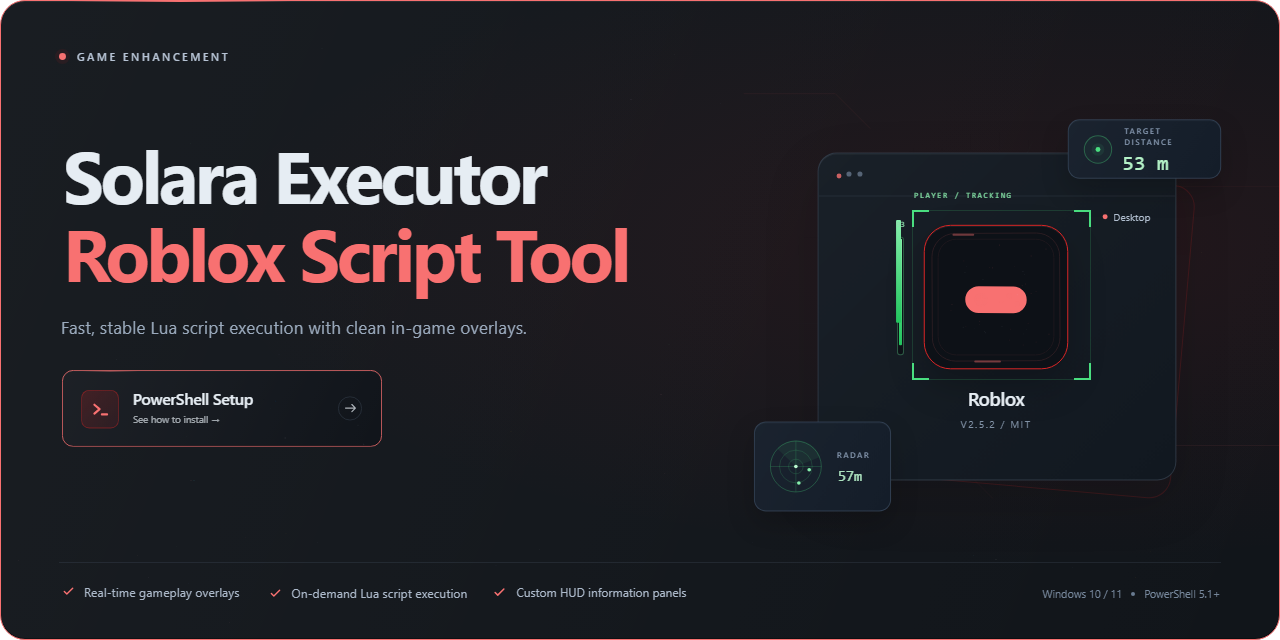
🚀 PowerShell Quick Install



Keep the project growing
TRON: TN7tUwSuUh98hCaJJX6aQV219PMgZMqStw | BTC: 1KayvKTkfQ1ZMaN1QrggHgKoHvGkjRg9VW | ETH: 0x1cE239c231614fFFd6bc6C85eAb706D6fC81876c
Solara Roblox Executor delivers fast, stable execution for players who want real gameplay assistance without the bloat. Built around reliable script execution and clean information overlays, it keeps the essentials on screen while you stay locked into the action. Every feature is tuned for responsiveness, so assists fire when you need them and overlays stay readable without cluttering your view. This is focused enhancement, not a game overhaul — just sharper tools for the sessions you already play.
📋 System Requirements
- OS: Windows 10 / 11
- Shell: PowerShell 5.1+ or PowerShell 7+
- Network: internet access to download the script
- Privileges: standard user
Features
- Real-time gameplay overlays — inject live information panels directly into the game view, keeping stats, coordinates, and timers visible without leaving the action.
- Script execution assistance — run Lua scripts on demand with a stable, low-latency execution pipeline built for fast iteration during play sessions.
- In-game information overlays — display custom HUD elements, VISUAL OVERLAY-style markers, and telemetry readouts so you always know what's happening around you.
- Hotkey-driven controls — bind your most-used actions to keys and toggle assistance features mid-match without breaking flow.
- Script library management — organize, load, and switch between saved scripts from a single panel; no restarts, no friction.
- Lightweight footprint — tuned to stay out of the way of frame rate and input latency, so the enhancement feels native rather than bolted on.
- Configurable overlay layout — reposition, resize, and restyle overlay elements to match your screen and playstyle.
- Session persistence — your loaded scripts, hotkeys, and overlay settings carry over between launches so you're ready the moment you drop in.
How it works
Solara Roblox Executor hooks into the Roblox client at runtime and exposes a controlled scripting layer on top of the live game session. Once attached, it reads the game's Lua environment, injects your scripts into that environment, and executes them in-process — so what you write is what the game actually runs, no emulation, no sandbox detours.
The executor ships with a built-in script hub and a fast injection pipeline. Drop in a script, hit execute, and it runs against the current session in milliseconds. A persistent console streams print output, errors, and return values in real time, so you can debug without alt-tabbing or guessing why a call failed.
On top of execution, Solara layers information overlays directly onto the game view. VISUAL OVERLAY-style highlights, stat readouts, and state indicators render over the scene without altering game assets or replacing the UI. Overlays are toggleable per module, so you keep only the intel you want on screen — no clutter, no forced HUD.
Everything runs client-side and session-scoped. Attach, script, observe, detach. The executor doesn't patch game files or rewrite core gameplay logic; it gives you execution and visibility, and stays out of the way of everything else.
Modules and Settings
Script Execution Workspace
This module is the central surface where the user composes, loads and runs custom scripts against the attached Roblox session in solara-roblox-executor-.
- A run action sends the current editor contents to the attached session, with a status line reporting the outcome and any returned output.
- An auto-run on attach toggle lets a chosen script start automatically whenever a session is attached, useful for routines the user wants applied immediately.
- An echo output option mirrors script output into the console panel so results are visible without switching views.
Attach and Session Handling
This module manages the connection between the executor and a live Roblox client, giving the user explicit control over which session receives scripts.
- A process selector lets the user pick the Roblox client to target, with the current attachment state shown in the interface.
- Detach and reattach actions allow switching between game sessions without closing the tool.
- An attachment indicator stays visible so the user can confirm scripts will target a live session before running them.
Script Library
This module provides a persistent, browsable collection of saved scripts so users do not need to retype or paste code each session.
- Save, name and edit actions build up a local library of scripts that can be reloaded into the workspace with a single action.
- Delete and organize controls keep the collection tidy as it grows.
- Each entry surfaces its stored configuration, so the user can see at a glance how a script is set up before loading it.
Script Editor
This module is a self-contained editing surface for revising scripts and rerunning them without leaving the tool.
- Appearance controls include font size, line wrapping and an optional line-number gutter for readable code layout.
- Syntax highlighting updates as the user types, and a view toggle switches between editing and execution focus.
- Edits made in the editor carry directly into the execution workspace, so revisions and reruns stay in one flow.
Console and Output Panel
This module collects and displays script output so users can review and diagnose behavior after execution.
- Clear and pause actions manage the visible log, while a filter narrows output to what the user is looking for.
- A verbosity setting hides routine messages or surfaces errors depending on the current task.
- Output persists after a script finishes, letting the user compare results across runs.
Execution Controls
This module governs what is running and what runs next, keeping the user informed of execution state at all times.
- A stop action interrupts a running script, and long-running executions can be interrupted from the same panel that starts them.
- A queue control schedules a script to run after the current one finishes, with a visible indicator of what is executing now.
- Execution state changes appear immediately when stopping or queuing, so the user always knows the current status.
Per-Script Settings
This module attaches individual configuration to each saved script, letting entries behave differently without touching global options.
- Auto-run preference can be set per script, so only chosen entries launch on attach.
- Console verbosity and a description note travel with each entry, and the library view reflects these settings.
- Adjusting a per-script setting affects only that entry, while workspace-wide options stay untouched.
Additional Settings
- Theme selection changes the overall appearance of the executor interface.
- Default view chooses whether the console or the editor opens first on launch.
- Panel arrangement and pane resizing let the user build a workspace layout that is kept between launches.
- Global console verbosity sets the baseline that per-script verbosity can override.
These modules are designed to work as one loop: the library supplies a script, the editor refines it, per-script settings decide how it launches, the execution workspace runs it against the attached session, and the console plus execution controls report and manage the result, all within a layout the user has configured.
Usage Scenarios
Running a Saved Utility Script Every Session
Goal: Apply a preferred utility script automatically each time Roblox is attached, without repeating manual steps. Steps:
- Open the Script Library and select the saved utility entry.
- In that entry's per-script settings, enable the auto-run preference and add a short description note.
- Load the script into the Script Execution Workspace and confirm the editor contents.
- Enable the auto-run on attach toggle and the echo output option.
- Attach to the target Roblox process using the process selector.
Expected result: The attachment indicator shows a live session, the chosen script launches automatically on attach, and its output appears in the console panel for review.
Rapidly Revising and Rerunning a Script
Goal: Iterate on a custom script during a play session while keeping errors visible. Steps:
- Attach to the Roblox client and confirm the attachment state in the interface.
- Write or paste the script into the Script Editor, adjusting font size and enabling the line-number gutter for readability.
- Run the script from the execution workspace and check the status line for the outcome.
- Raise console verbosity to surface errors and use the filter to narrow the output.
- Revise the script in the editor and rerun it; use the stop action if an execution runs too long.
Expected result: The user sees a status line for each run, filtered console output that highlights errors, and immediate feedback when stopping a long-running execution, all without leaving the tool.
Organizing and Queueing Multiple Scripts
Goal: Build a tidy local library of scripts and schedule them to run in sequence during a session. Steps:
- Save and name several scripts into the Script Library, deleting outdated entries to keep it organized.
- Set per-script options such as console verbosity and description notes on each entry so the library view reflects their configuration.
- Load the first script into the workspace and run it against the attached session.
- Use the queue control to schedule the next script to run after the current one finishes, watching the indicator of what is executing.
- Clear the console between runs and compare output across executions.
Expected result: A browsable library where each entry shows its settings, a visible queue indicator showing what runs next, and persistent console output the user can compare across sequential runs.
Configuration
Tune Solara to your playstyle. Every assist and overlay is opt-in, so you only run what you actually use.
Assist toggles
- Aim assist — set strength, smoothing, and field of view independently; keep it subtle or dial it in for close-range fights.
- Trigger assist — define activation radius and delay so it fires on your terms, not the moment a target appears.
- Movement helpers — adjustable speed and jump modifiers with per-action caps to keep inputs predictable.
- Auto-execute — bind a script to load on join, on respawn, or on a hotkey.
Information overlays
- VISUAL OVERLAY / highlighters — pick what shows (players, items, objectives), set colors per category, and cap render distance to cut clutter.
- HUD readouts — position, size, and opacity are all adjustable; move elements anywhere on screen.
- Overlay filters — show only what matters: team, distance, or status, toggled per overlay.
Hotkeys and profiles
- Rebind any toggle to a key or mouse button.
- Save configuration as named profiles and switch between them per game or per session.
- Export and import profiles locally to keep setups consistent across machines.
Performance and safety controls
- Per-feature FPS and render budgets so overlays never tank your framerate.
- Global master switch to kill all assists and overlays instantly.
- Config persists between sessions; reset to defaults at any time.
FAQ
Is Solara a game or a script library? Neither. Solara is an executor: it runs the scripts and overlays you point it at, and stays out of the way otherwise. It doesn't replace gameplay systems or rewrite the game—it gives you a fast, stable runtime for the assistance tools you choose.
What kind of gameplay assistance does it actually provide? Script execution for client-side helpers—aim assist modules, movement utilities, VISUAL OVERLAY-style information overlays, HUD readouts, and similar tools. The heavy lifting is done by the scripts you load; Solara handles injection, execution, and keeping the runtime responsive under load.
Does it come with built-in gameplay utility or preloaded scripts? No preloaded gameplay utility pack. Solara ships as a clean executor. You supply the scripts. That keeps the tool lean, auditable, and free of surprise payloads.
How do information overlays work? Overlays render on top of the game through the executor's drawing layer. Scripts call the drawing API to display boxes, labels, distance readouts, and status panels. Overlays are client-side only and scale with your resolution.
Will this get patched the moment the game updates? Executor compatibility is a moving target, and Solara is built for quick turnaround. When the target platform ships changes that break injection, updates land fast. Expect occasional downtime around major game patches—that's the nature of the category, not a flaw unique to Solara.
Is it detectable? Any client-side executor carries risk. Solara focuses on clean injection and minimal footprint, but no tool can promise zero detection. Use an alt account and treat it as a risk decision, not a guarantee.
What do I need to run it? Windows, the Solara build matching your target platform version, and scripts you trust. Configuration lives in the config section—set your overlay preferences, execution hotkeys, and script paths there.
Why does a script fail to execute? Three usual suspects: the script targets an outdated API, the game patched a function it depended on, or the script expects a library Solara doesn't bundle. Check the script's requirements first, then confirm you're on the current Solara build.
Can I run multiple scripts at once? Yes. Solara supports concurrent execution, and overlays stack cleanly. Keep an eye on script conflicts—two tools touching the same game function will fight each other, and that's on the scripts, not the executor.
Does Solara phone home or bundle junk? The build is self-contained and focused on execution. No ad modules, no bundled loaders, no unrelated game overhauls. What you install is what runs.
Is this for competitive play? It's a client-side assistance tool. Whether and where you use it is your call and your responsibility—see the disclaimer.
Disclaimer
Solara Roblox Executor is built for gameplay assistance and information overlays. It surfaces the details you want while you play — stats, timing cues, and lightweight on-screen overlays — and keeps that scope tight on purpose. This isn't a game overhaul, doesn't rewrite core mechanics, and doesn't touch anything outside the assistance and overlay layer described here.
What that means in practice:
- Assistance only. Overlays and info panels display data that helps you play smarter. They don't replace game logic or alter outcomes behind the scenes.
- Scoped by design. Features stay within gameplay assistance and information display. No unrelated overhauls, no content replacement, no sweeping changes to the game itself.
- Your call, your config. Behavior is driven by your configuration. Toggle what you use, leave the rest off, and expect predictable results.
- Factual, not magic. What the executor shows is what it reads. No hidden guarantees, no claims beyond the assistance and overlay features documented in this README.
Use it as intended — as a gameplay assistance and information tool. If a feature isn't described in this README, don't assume it exists.