Fake Apple TV (atv-core) 📺
English Version | 中文版本
Turn the Apple TV Remote that's already built into your iPhone into a controller for Android TV and Mac. Pull down Control Center, pick your device, and start navigating — no jailbreak, no third-party app, no extra hardware.
iPhone: Find the Remote and Start Using
Swipe down from the top-right corner to open Control Center, tap "Apple TV Remote", select the device running the receiver, pair it, and you're ready to swipe and click.
| Find the Remote | Use the Remote |
|---|---|
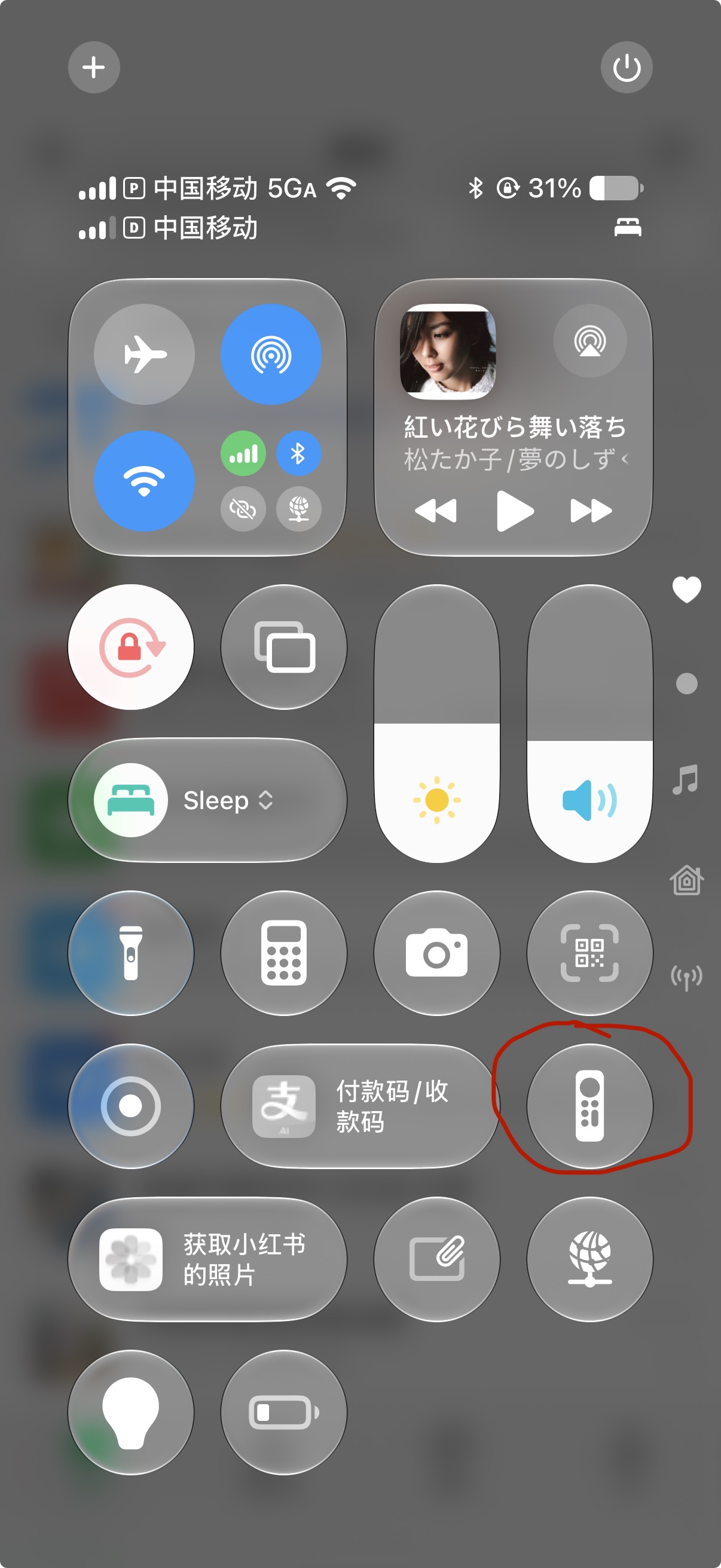 | 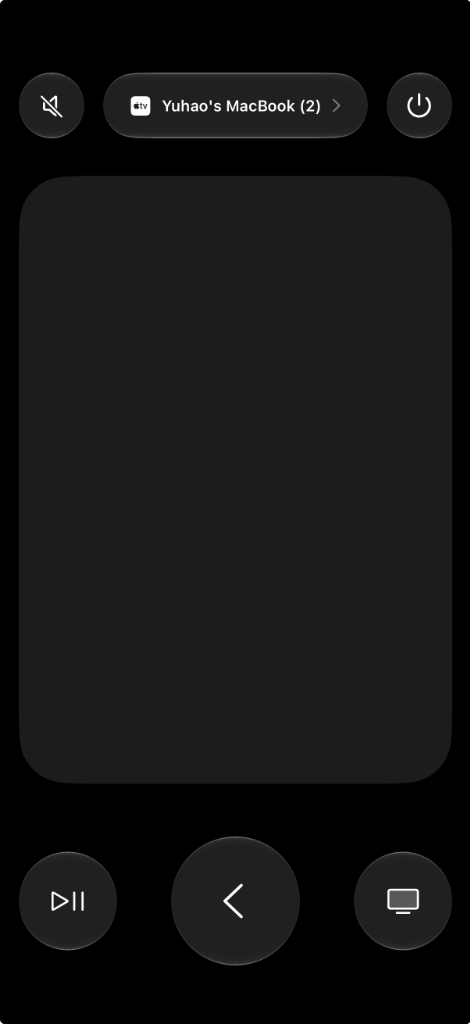 |
| Swipe down from top-right to open Control Center, tap the circled remote icon (If missing, go to Settings → Control Center to add it) | Touchpad on top for swipes / cursor navigation Buttons below for Select, Back, Play/Pause, Volume, etc. |
📖 Full walkthrough & demo: Blog Post
Download
Prebuilt binaries are attached to the latest release:
| Platform | Download |
|---|---|
| macOS (Apple Silicon) | AppleTVRemote-arm64.dmg |
| macOS (Intel) | AppleTVRemote-x86_64.dmg |
| Windows (x86_64) | AppleTVRemote-windows-x86_64.zip / .exe |
| Android TV / Google TV | FakeAtv-release.apk |
Prefer to build it yourself? See Build from source.
Compatibility
| Supported | Notes | |
|---|---|---|
| Controller | iPhone / iPad with the native Apple TV Remote in Control Center | No app install needed on the phone |
| macOS targets | Apple Silicon & Intel Macs (menu bar app + CLI) | Requires Accessibility permission |
| Android targets | Android TV, Google TV, TV boxes, emulators | Requires network ADB; see limitations |
| Network | Controller and target on the same LAN | AP isolation / guest Wi-Fi must be off |
Tested on :
- iOS / iPadOS: to be listed
- macOS: to be listed
- Android TV devices: to be listed
Limitations
- Android TV needs network ADB. Android blocks ordinary apps from injecting D-pad / Select keys into other apps, so key injection relies on a local ADB channel. The Accessibility Service is only a fallback and handles global actions (Back / Home). Full setup: Android TV prerequisites.
- Pairing uses a fixed PIN. When the iPhone asks for a pairing code, enter
1111. - The macOS app is signed with a self-signed certificate, so Gatekeeper will warn on first launch. See macOS prerequisites.
Quick start
- Install the DMG (Mac) or APK (Android TV) from Download.
- Put your iPhone and the target on the same Wi-Fi (AP isolation off).
- Grant permissions — Accessibility on macOS; network ADB + the on-screen "Always allow" prompt on Android TV. Details below.
- Open Control Center to find the Remote:
- Swipe down from the top-right corner of your screen to open Control Center, then tap the circled Apple TV Remote icon.
- (If the icon is not in Control Center, go to iOS Settings → Control Center and add "Apple TV Remote" from "More Controls").
- Select your target device from the top dropdown, and enter PIN
1111when prompted.
macOS
After installing, macOS Gatekeeper will flag the self-signed app. Clear it once:
# Option A (recommended): trust the bundled certificate
./scripts/import_certificate.sh Corvo_Development.p12

# Option B: strip the quarantine attribute
xattr -dr com.apple.quarantine /Applications/AppleTVRemote.app
Then grant System Settings → Privacy & Security → Accessibility → AppleTVRemote (or your terminal if running the CLI). Launch the app and use the menu bar icon.
Windows
Download and extract AppleTVRemote-windows-x86_64.zip (or run AppleTVRemote-windows-x86_64.exe directly). It runs silently in the background with a system tray icon (no terminal window needed). The web console (http://127.0.0.1:8765) opens automatically on first launch for switching trackpad mode and adjusting sensitivity. On first launch, allow private-network access in the Windows Firewall prompt so your iPhone can discover the device.
Supported: System tray icon with right-click menu (start/stop service, switch trackpad mode, launch at startup, view logs, quit), D-pad / select / back (Esc), mouse cursor & click, play/pause (double-click = next, triple-click = previous), volume / mute, power button turns the monitor off/on.
Android TV
- Enable developer options: Settings → About → tap Build Number 7 times.
- Enable USB Debugging and Network Debugging: Settings → System → Developer Options.
- Install and launch the APK. On first run, an Android security dialog appears — with the TV remote, check "Always allow from this computer" and tap Allow. (Rejecting it causes an
Unauthorizederror and no input.) - (Optional fallback) Enable the Accessibility Service: main dashboard → ACCESSIBILITY SETTINGS → find Apple TV Remote Receiver → turn it On.
Why ADB? Android prevents regular apps from injecting global D-pad / Select keys into third-party streaming apps. The bundled
dadbdriver connects to127.0.0.1:5555and dispatches Linux keycodes directly (measured <8 ms over local loopback). The Accessibility Service can't do this on its own — it only serves as a fallback and for global Back / Home actions.
Key & gesture mapping
| Apple TV Remote action | Android TV | macOS |
|---|---|---|
| Swipe (D-pad mode) | KEYCODE_DPAD_UP/DOWN/LEFT/RIGHT | Arrow keys ↑ ↓ ← → |
| Swipe (cursor mode) | Touch drag / cursor | Smooth cursor via CGEvent |
| Tap / SELECT | KEYCODE_DPAD_CENTER | Enter / left click |
Back (<) | GLOBAL_ACTION_BACK | Escape |
| TV / Home | GLOBAL_ACTION_HOME | Desktop / configurable |
| Single click ⏯ | KEYCODE_MEDIA_PLAY_PAUSE | Play / Pause (NX_KEYTYPE_PLAY) |
| Double click ⏯ | Next / fast-forward | Next track (⏭) |
| Triple click ⏯ | Previous / rewind | Previous track (⏮) |
| Volume +/- | KEYCODE_VOLUME_UP/DOWN | Master volume + native HUD |
| Mute | KEYCODE_VOLUME_MUTE | System mute |
| Side Siri key | Voice search (KEYCODE_SEARCH) | Toggle cursor ⇄ D-pad / Siri |
| Power | GLOBAL_ACTION_POWER_DIALOG | Display sleep / wake |
Build from source
# macOS — build the standalone DMG
./scripts/build_dmg.sh
# → build/AppleTVRemote-arm64.dmg ; drag to /Applications

# Android TV — build and install the APK
./scripts/build_android.sh
adb install -r android-tv/app/build/outputs/apk/debug/app-debug.apk
adb shell am start -n com.corvofeng.fakeatv/.MainActivity
Developer docs & internals
Android emulator bridge
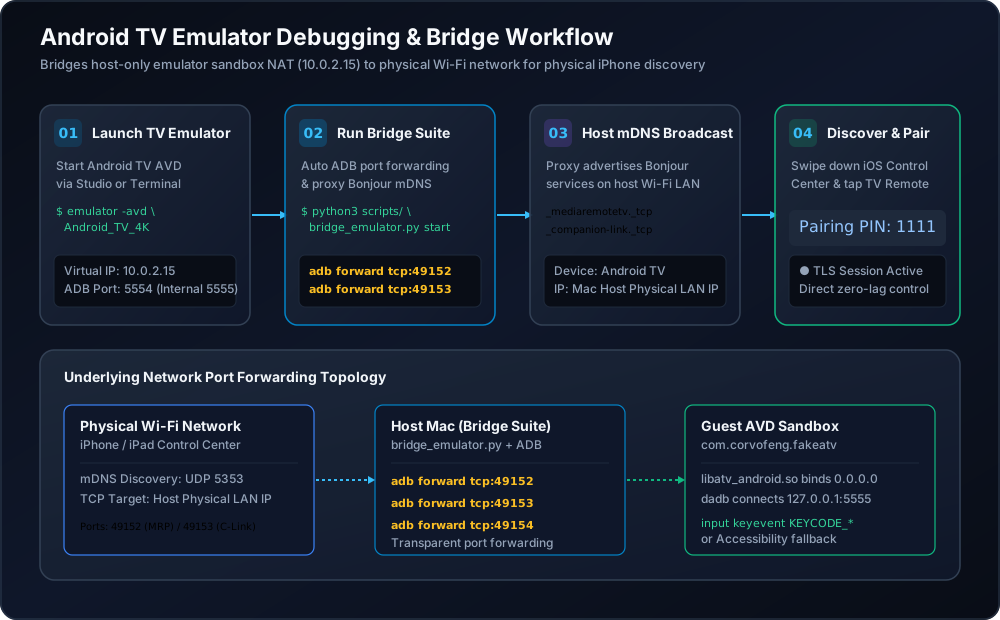
For testing in an Android Studio Android TV AVD (physical devices can't discover the emulator's isolated NAT subnet, 10.0.2.15):
# 1. Launch an Android TV AVD (API 30+), verify with: adb devices
# 2. Install the receiver
./scripts/build_android.sh
adb -s emulator-5554 install -r android-tv/app/build/outputs/apk/debug/app-debug.apk
adb -s emulator-5554 shell am start -n com.corvofeng.fakeatv/.MainActivity

# 3. Start the bridge daemon
python3 scripts/bridge_emulator.py start        # or: start -f (foreground, live logs)
python3 scripts/bridge_emulator.py status       # port-forward & mDNS state
python3 scripts/bridge_emulator.py logs -f      # tail logs
python3 scripts/bridge_emulator.py stop         # stop daemon
Then pair from iPhone → Control Center → Apple TV Remote → Android TV Emulator → PIN 1111.
The bridge forwards ports 49152/49153/49154 via adb forward and proxies the Bonjour records (_mediaremotetv._tcp, _companion-link._tcp) onto the physical Wi-Fi, so the iPhone connects to the host and is transparently routed to the emulator.
macOS Web Inspector (port 8765)
With the daemon or menu bar app running, open http://127.0.0.1:8765:
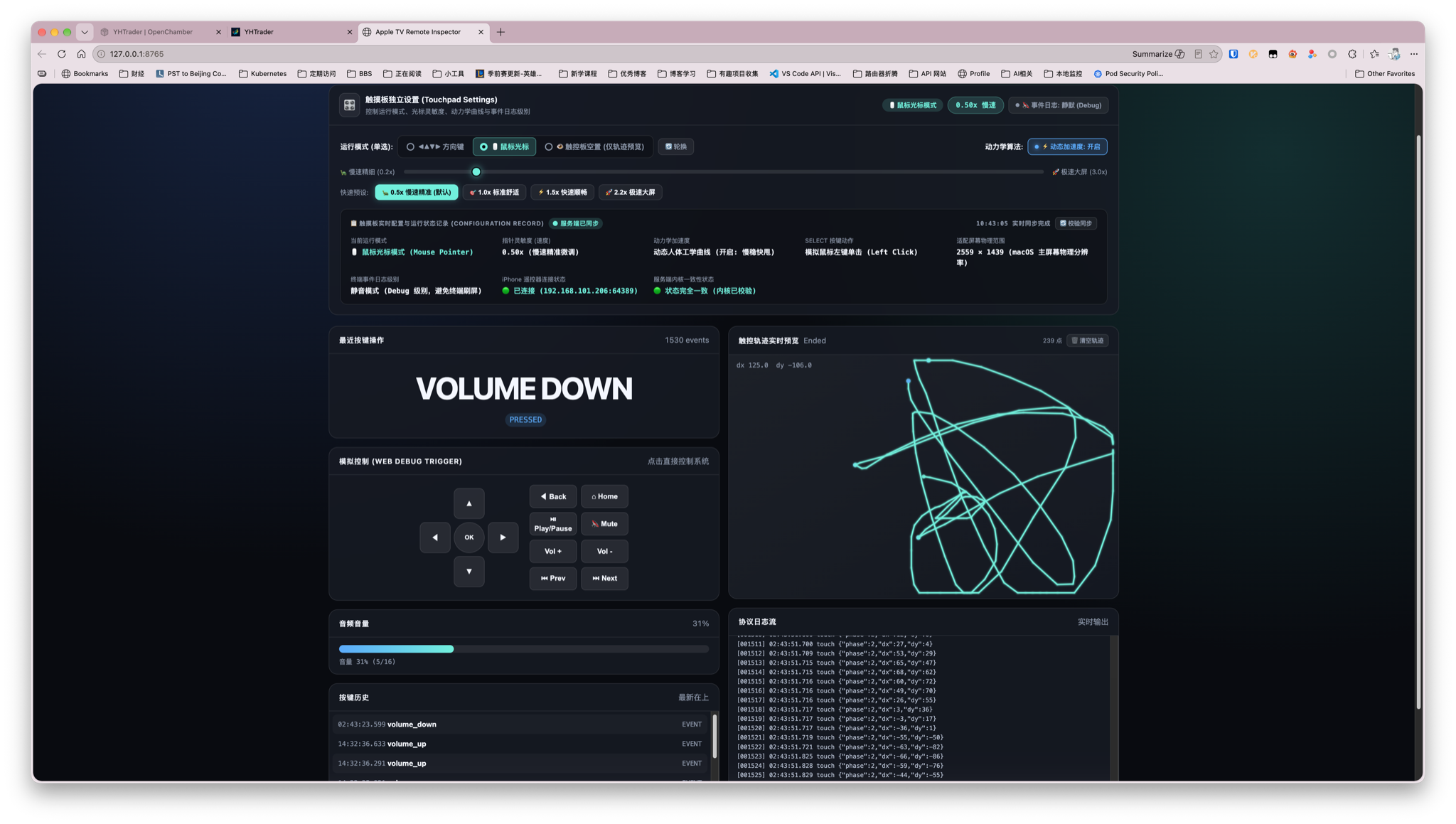
- Live touch-vector canvas: finger coordinates, gesture phases (
Began/Moved/Ended), velocity vectors, direction detection. - On-page virtual remote to trigger Mac/TV responses without holding the phone.
- Ballistics presets:
0.5x Precise,1.0x Standard,1.5x Fast,2.2x Ultra-Wide. - Connected-device metadata and live volume telemetry.
macOS host diagnostics (port 8766)
Open http://127.0.0.1:8766 to inspect process health, port bindings, and live protocol handshakes:
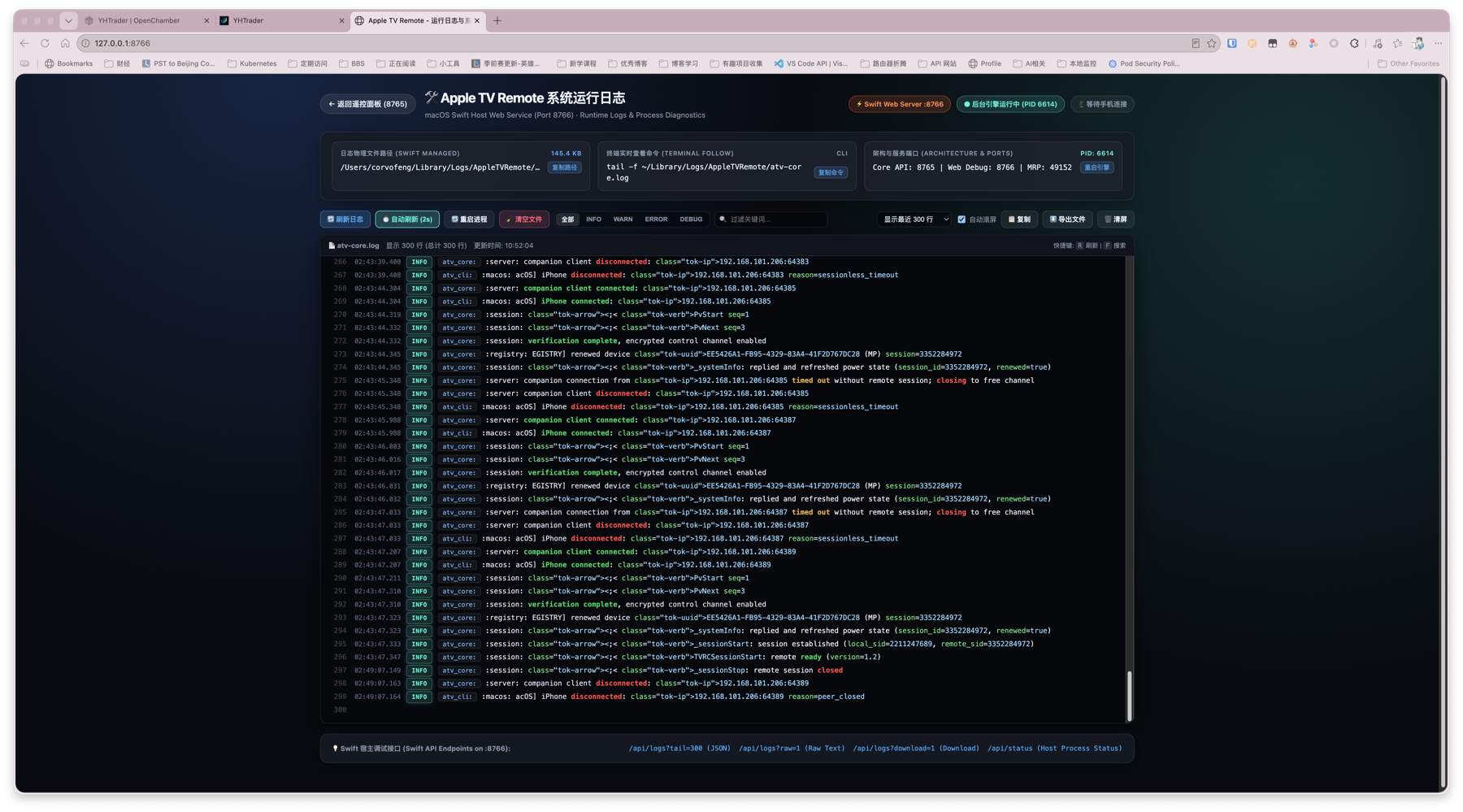
- Session tracing: Companion client connections, SRP auth, MRP encrypted channel init.
- Process telemetry: Core API (
8765), Web debug (8766), MediaRemote (49152), background PID, log filter, restart controls.
Touchpad gestures & focus accumulation
The Companion Link protocol streams high-frequency delta coordinates. atv-core turns them into grid focus shifts (Android TV) or accelerated cursor motion (macOS):
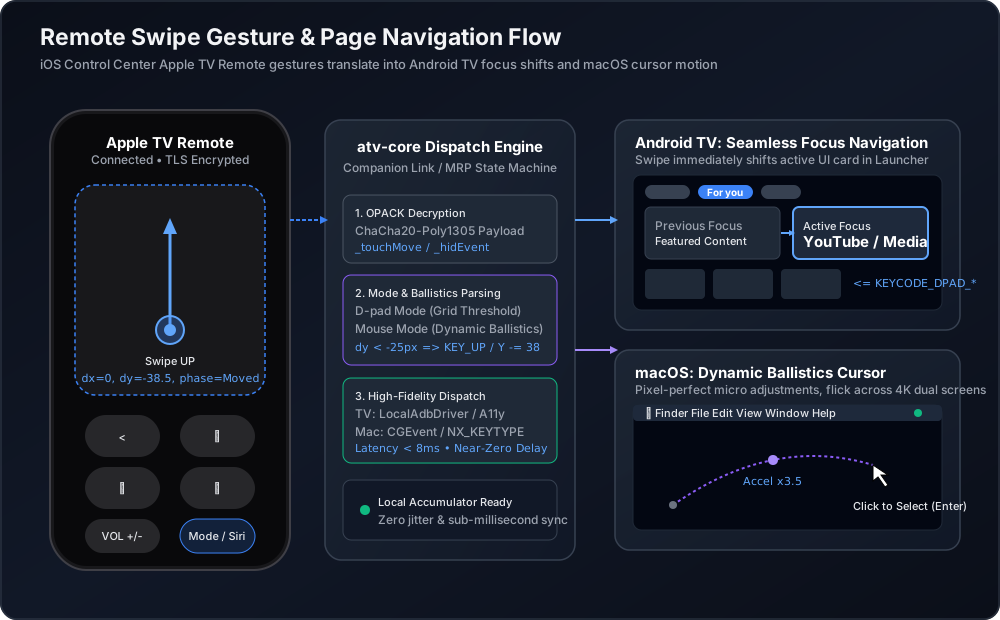
- Delta accumulator — aggregates micro-displacements to suppress jitter and accidental touches.
- Direction deadzone — resolves horizontal vs. vertical intent and filters diagonal noise.
- Platform dispatch — Android TV emits
KEYCODE_DPAD_*; macOS computes velocity-based ballistics and emitsCGEventmotion.
Driver dispatch hierarchy
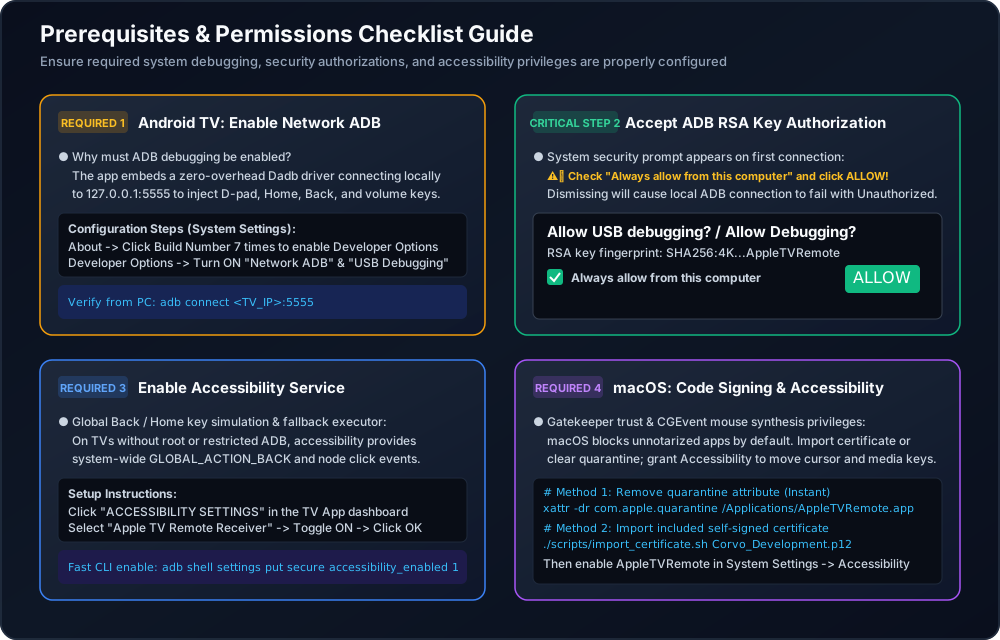
- Android — Primary:
dadbloopback to127.0.0.1:5555for direct keycode dispatch. Fallback: Accessibility Service for global window actions. - macOS — Accessibility API (
CGEvent) for cursor/keystrokes; CoreAudio / MediaRemote for hardware volume and media HUD.
Android TV dashboard & configuration
| Main dashboard | Input injection mode | Menu key binding |
|---|---|---|
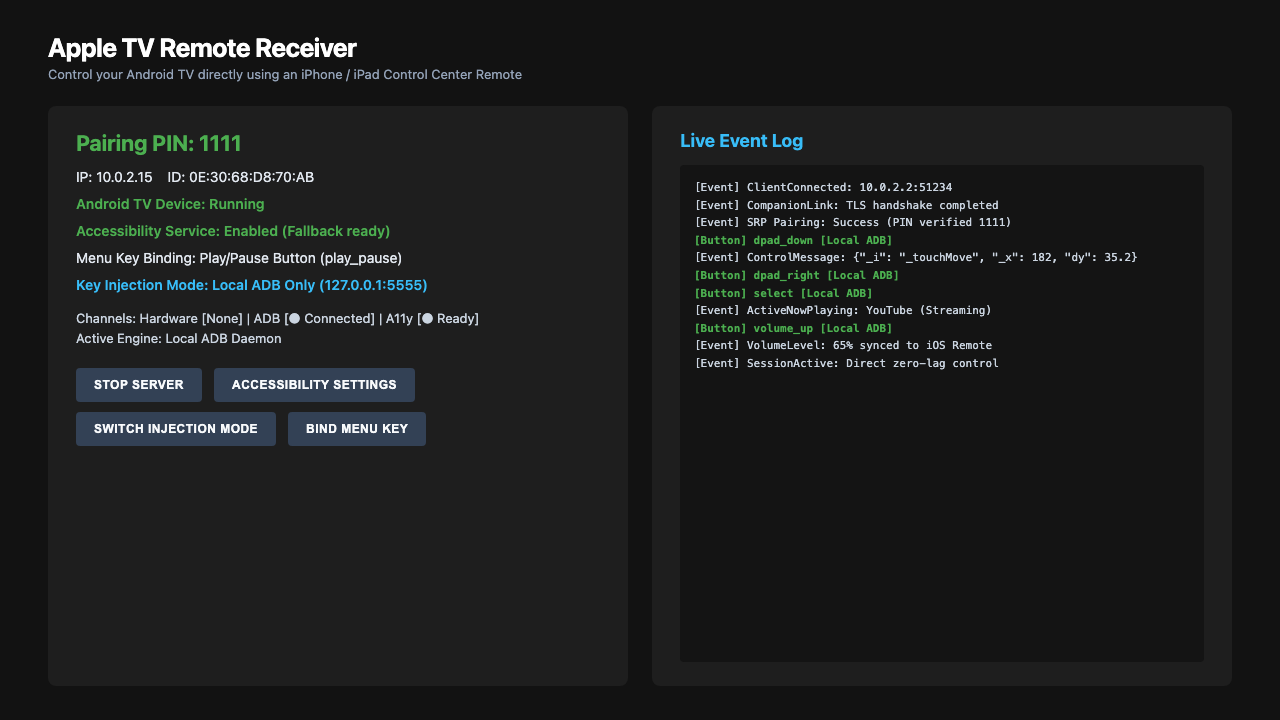 | 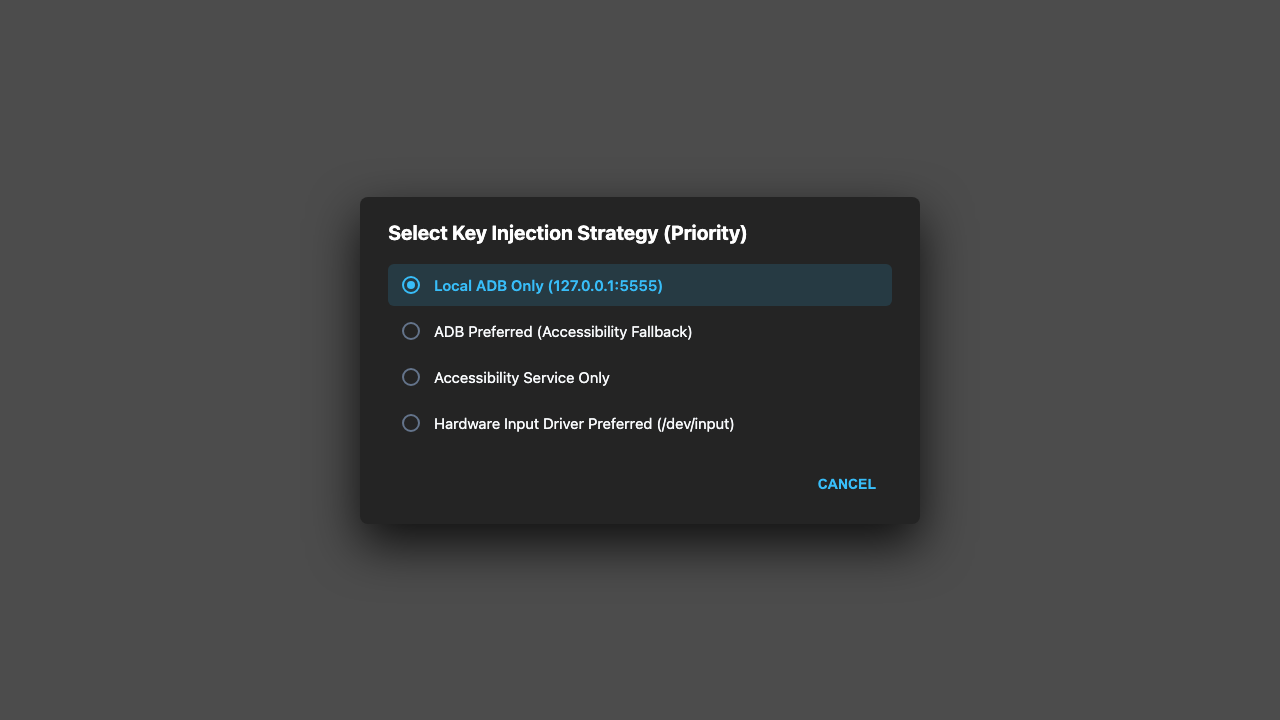 | 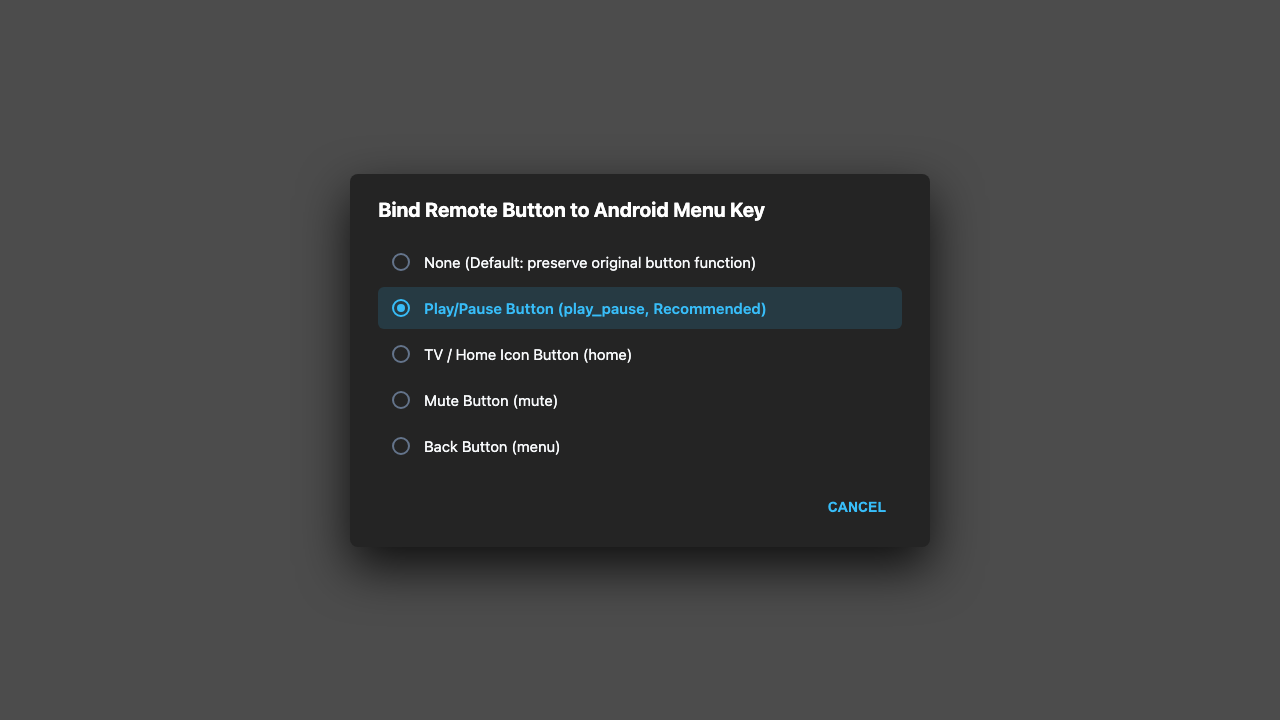 |
- Driver health for
/dev/input/event*, localdadb(127.0.0.1:5555), andAtvAccessibilityService. - Injection strategy: Local ADB Only, Accessibility Only, ADB Preferred (Accessibility fallback), or Hardware Preferred.
- Menu key rebinding: remap Play/Pause, Home, or Mute to
KEYCODE_MENUfor legacy TV apps.
Accessibility setup screens:
| Service list | Confirmation dialog | Ready |
|---|---|---|
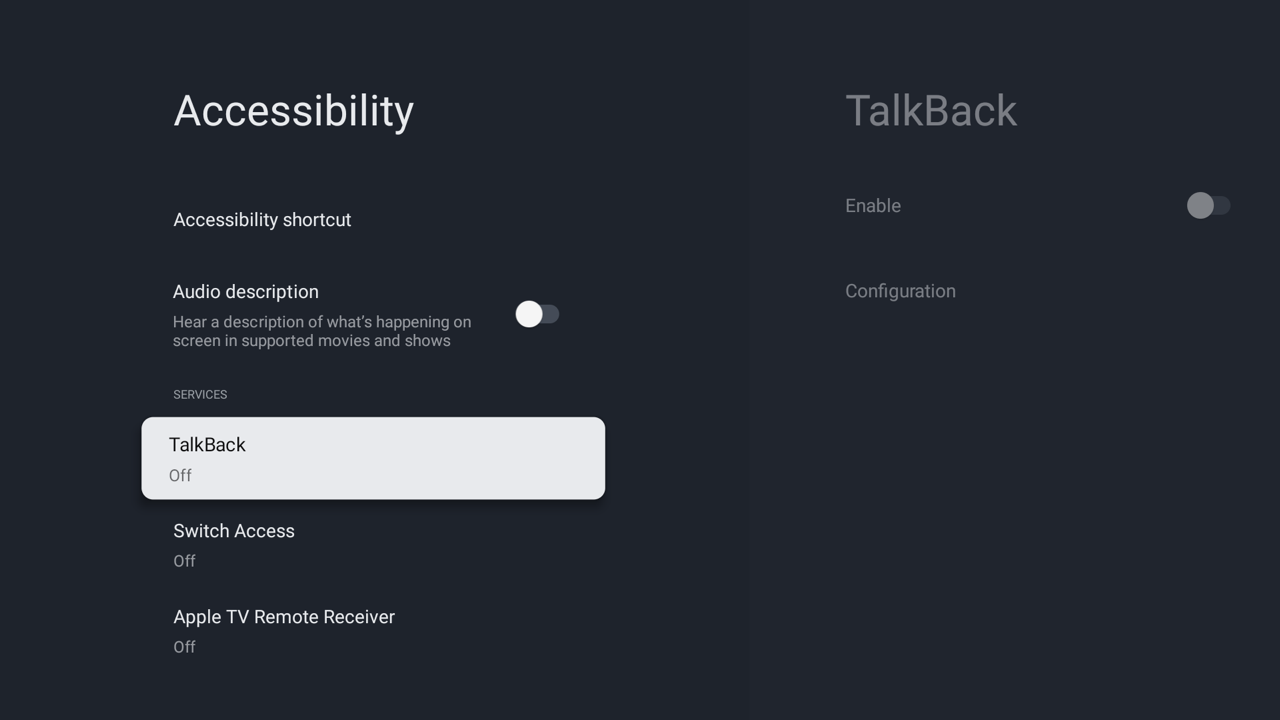 | 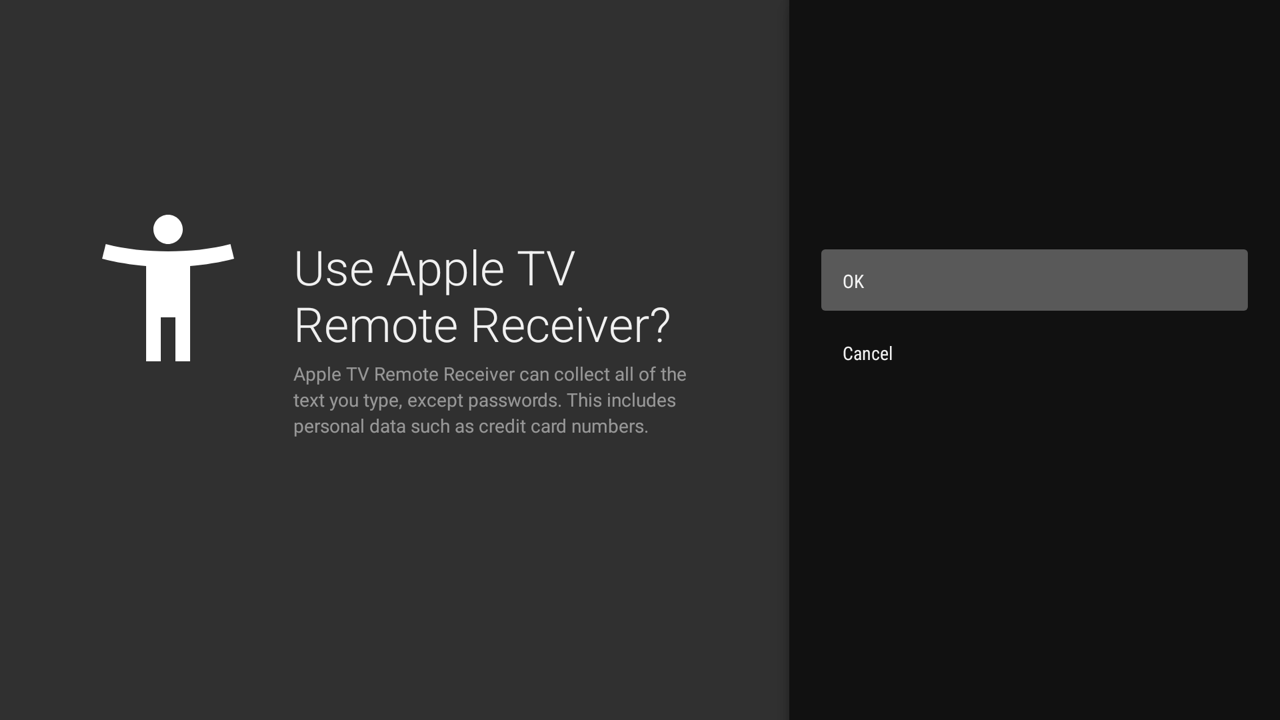 | |
Troubleshooting & FAQ
Device doesn't appear in Control Center?
- Confirm iPhone and target are on the same Wi-Fi subnet (disable AP isolation / guest mode).
- On macOS, run
dns-sd -B _mediaremotetv._tcpto verify Bonjour advertisement. - For the emulator, check the bridge:
python3 scripts/bridge_emulator.py status.
Keys don't respond on TV / ADB connection error?
- Verify "Network ADB" and "USB Debugging" are on in Developer Options.
- Relaunch the app and watch for the RSA fingerprint dialog — check "Always allow" and tap Allow.
- If no prompt appears, run
adb connect <TV_IP>:5555from a computer to trigger initial trust.
Can't find Accessibility settings on Android TV? Some TV skins hide the menu. Use the "ACCESSIBILITY SETTINGS" dialog in the app, or run:
adb shell settings put secure enabled_accessibility_services com.corvofeng.fakeatv/.AtvAccessibilityService
adb shell settings put secure accessibility_enabled 1
macOS says the app is damaged / from an unidentified developer?
xattr -dr com.apple.quarantine /Applications/AppleTVRemote.app
# or trust the bundled certificate:
./scripts/import_certificate.sh Corvo_Development.p12
License
MIT. Intended for educational and local device interoperability research.