





Garmin Connect
The Garmin Connect integration connects your Garmin Connect cloud service to Home Assistant, enabling users to monitor their health and fitness data from Garmin wearable devices directly in Home Assistant.
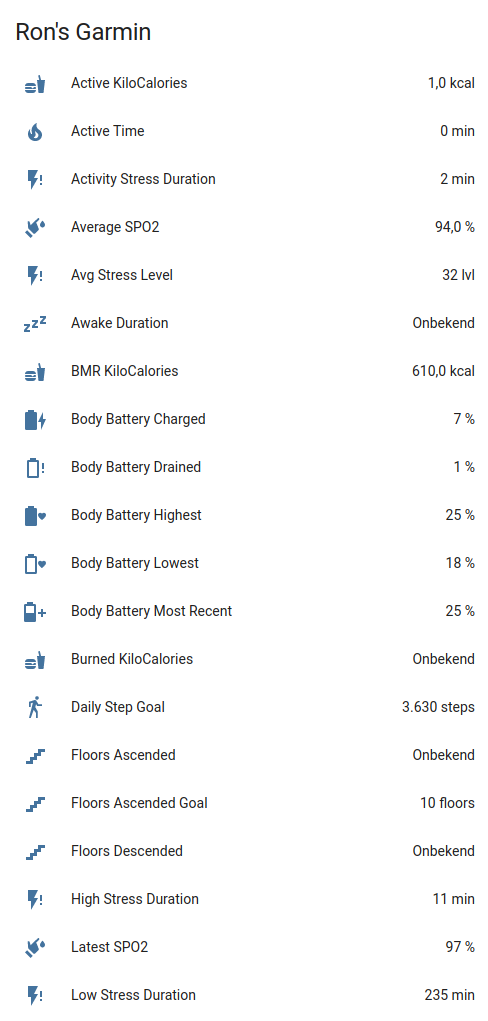
The integration provides 130+ sensors across the following categories:
- Daily health metrics — Steps, distance, floors climbed, calories burned
- Heart rate monitoring — Resting, min, max, and 7-day average heart rate
- HRV (Heart Rate Variability) — Status, weekly/nightly averages, baseline metrics
- Stress tracking — Average/max stress levels, stress duration breakdowns
- Sleep analysis — Total sleep, deep/light/REM sleep, sleep score, sleep need, bedtime/wake targets
- Body Battery — Current level, charged/drained values
- Body composition — Weight, BMI, body fat, muscle mass, bone mass, hydration
- Training metrics — Training readiness, training status, lactate threshold, endurance/hill scores, power-to-weight and FTP by sport
- Activities & workouts — Last activity, recent activities list, workout tracking
- Goals & badges — Active/future goals, goal history, earned badges
- Blood pressure — Systolic, diastolic, pulse measurements
- Menstrual cycle tracking — Cycle phase, day, fertile window (disabled by default)
- Gear tracking — Dynamic sensors for shoes, bikes, and other equipment
- Hydration — Daily intake, goals, sweat loss
Prerequisites
- A Garmin Connect account
- At least one Garmin device synced to your account
- If you have MFA (Multi-Factor Authentication) enabled, you'll need access to your authentication method during setup
Installation
HACS (Recommended)

Alternatively:
- Install HACS if not already installed
- Search for "Garmin Connect" in HACS
- Click Download
- Restart Home Assistant
- Add via Settings → Devices & Services
Manual Installation
- Copy
custom_components/garmin_connectto your<config>/custom_components/directory - Restart Home Assistant
- Add via Settings → Devices & Services
Configuration
- Navigate to Settings → Devices & Services
- Click + Add Integration
- Search for "Garmin Connect"
- Enter your Garmin Connect email and password
- If MFA is enabled, enter the verification code when prompted
Options
After setup, configure these options via the integration's Configure button:
| Option | Default | Description |
|---|---|---|
| Scan interval | 300 | How often to fetch data in seconds (60–3600) |
Data updates
The integration uses cloud polling to fetch data from Garmin Connect servers. Data is refreshed based on the configured scan interval (default: 5 minutes). Nine independent coordinators fetch data in parallel:
| Coordinator | Data |
|---|---|
| Core | Steps, distance, calories, heart rate, stress, sleep, body battery, SpO2, respiration, intensity |
| Activity | Last activity, recent activities, workouts |
| Training | Training readiness/status, HRV, lactate threshold, endurance/hill scores, power-to-weight and FTP by sport |
| Body | Weight, BMI, body fat, muscle mass, hydration, fitness age |
| Goals | Active/future goals, goal history, badges, user points |
| Gear | Shoes, bikes, equipment usage and distance |
| Blood Pressure | Systolic, diastolic, pulse |
| Menstrual | Cycle phase, day, fertile window |
| Nutrition | Consumed calories & macros, goals, per-meal breakdown (Connect+, disabled by default) |
Tip: Garmin devices sync to Garmin Connect when in Bluetooth range of the paired phone or via WiFi. Sensors update after your device syncs to Garmin Connect and the integration polls for new data.
Sensors
All sensors are created under a single "Garmin Connect" device. Entity IDs follow the pattern sensor.garmin_connect_[sensor_name].
Note: Most sensors are enabled by default. Menstrual cycle and nutrition sensors are disabled by default and can be enabled in the entity settings. Sensor values depend on your Garmin devices and connected apps — not all data may be available for your account.
Activity & Steps
| Sensor | Description |
|---|---|
| Steps | Daily step count |
| Daily Step Goal | Your configured step target |
| Distance | Distance walked/run in meters |
| Yesterday Steps / Distance | Previous day's complete totals |
| Weekly Step / Distance Avg | 7-day averages |
| Floors Ascended / Descended | Floors climbed and descended |
| Floors Ascended Distance | Vertical distance climbed in meters |
Calories
| Sensor | Description |
|---|---|
| Calories | Total daily calories |
| Active Calories | Calories from activity |
| BMR Calories | Basal metabolic rate calories |
| Burned / Consumed / Remaining Calories | Calorie tracking |
Heart Rate
| Sensor | Description |
|---|---|
| Resting Heart Rate | Daily resting HR |
| Min / Max Heart Rate | Daily HR range |
| 7-Day Average Resting Heart Rate | Weekly resting HR average |
| Min / Max Average Heart Rate | Average min/max HR |
| Abnormal Heart Rate Alerts | Count of abnormal HR alerts |
HRV (Heart Rate Variability)
| Sensor | Description |
|---|---|
| HRV Status | Current HRV status (balanced, low, etc.) |
| HRV Weekly Average | 7-day HRV average |
| HRV Last Night Average | Overnight HRV average |
| HRV Last Night 5-Min High | Peak 5-minute HRV during sleep |
| HRV Baseline | Personal HRV baseline range |
Stress & Recovery
| Sensor | Description |
|---|---|
| Average / Max Stress Level | Stress measurements |
| Stress Qualifier | Overall stress descriptor |
| Total Stress Duration | Total time in stress |
| Rest / Activity / Low / Medium / High Stress Duration | Duration breakdowns |
| Stress Percentage | Percentage breakdowns by category |
Sleep
| Sensor | Description |
|---|---|
| Sleep Score | Overall sleep quality score |
| Sleep Need | Target sleep need in minutes |
| Sleep Duration | Total time asleep |
| Total Sleep Duration | Total sleep window duration |
| Awake Duration | Time awake during sleep |
| Deep / Light / REM Sleep | Time in each sleep stage |
| Bedtime / Wake Time | Actual bedtime and wake timestamps |
| Optimal Bedtime / Optimal Wake Time | Recommended sleep timing timestamps |
| Nap Time | Daytime nap duration |
| Unmeasurable Sleep | Unclassified sleep time |
Body Battery
| Sensor | Description |
|---|---|
| Body Battery | Current energy level (0–100) |
| Charged / Drained | Energy gained and spent |
| Highest / Lowest | Daily peak and low |
Body Composition
| Sensor | Description |
|---|---|
| Weight | Body weight in kg |
| BMI | Body Mass Index |
| Body Fat / Body Water | Percentage measurements |
| Muscle Mass / Bone Mass | Mass measurements in kg |
| Visceral Fat | Visceral fat percentage |
| Physique Rating | Body physique rating |
| Metabolic Age | Estimated metabolic age |
Hydration
| Sensor | Description |
|---|---|
| Hydration | Daily water intake (ml) |
| Hydration Goal | Target intake |
| Hydration Daily Average | Average daily intake |
| Hydration Sweat Loss | Estimated fluid loss |
| Hydration Activity Intake | Intake during activities |
Blood Pressure
| Sensor | Description |
|---|---|
| Systolic | Systolic blood pressure (mmHg) |
| Diastolic | Diastolic blood pressure (mmHg) |
| Pulse | Pulse from blood pressure reading (bpm) |
Health Monitoring
| Sensor | Description |
|---|---|
| Average / Lowest / Latest SpO2 | Blood oxygen levels |
| Latest SpO2 Time | When SpO2 was last measured |
| Highest / Lowest / Latest Respiration | Breathing rate (brpm) |
| Latest Respiration Time | When respiration was last measured |
| Average Sleep Respiration | Breathing rate averaged over the sleep window (brpm) |
| Average Altitude | Average monitoring altitude |
Fitness & Training
| Sensor | Description |
|---|---|
| Fitness Age / Achievable / Previous Fitness Age | Estimated fitness ages |
| Chronological Age | Your actual age |
| Endurance Score | Overall endurance rating |
| Hill Score | Hill running/climbing score |
| Training Readiness | Training readiness score (%) |
| Morning Training Readiness | Wake-up readiness score (%) |
| Training Status | Current training status phrase |
| VO2 Max | Most recent VO2 Max value (mL/(kg·min)) |
| Lactate Threshold HR | Lactate threshold heart rate (bpm) |
| Lactate Threshold Speed | Lactate threshold pace (m/s) |
| Power to Weight [Sport] | Dynamic per-sport power-to-weight sensor (W/kg), e.g. Running, Cycling |
| FTP [Sport] | Dynamic per-sport functional threshold power sensor (W), e.g. Running, Cycling |
| Next Alarm | Next scheduled alarm time |
| Solar Intensity | Solar charging utilization (%) at the moment of the last sync, for solar-capable devices |
| Average Solar Intensity | Solar charging utilization (%) averaged over today's readings so far |
| Solar Time Gained | Extra battery time gained from solar today (minutes), resets daily |
| Devices | Number of registered Garmin devices, with per-device details and last used device as attributes |
| Connected Sensors | Number of paired ANT+/BLE sensors (power meters, HR straps, etc.), with per-sensor id and battery status as attributes |
Power-to-weight and FTP sensors are created dynamically for each available sport in your Garmin training data. Names are formatted like
Power to Weight RunningandFTP Running.
Goals & Achievements
| Sensor | Description |
|---|---|
| Active Goals | Number of in-progress goals with progress |
| Future Goals | Upcoming scheduled goals |
| Goals History | Last 10 completed goals with status |
| Badges | Total badges earned |
| User Points / User Level | Gamification metrics |
Goal sensors include detailed attributes:
goalType,targetValue,currentValue,progressPercent,startDate,endDate, andactivityType.
Activity Tracking
| Sensor | Description |
|---|---|
| Last Activity | Most recent activity with details |
| Last Activities | Recent activities list (attributes) |
| Last Workout / Workouts | Scheduled/planned training sessions |
| Today's Scheduled Workout | Today's training-calendar session, e.g. from a Garmin Coach plan |
| Next Scheduled Workout | The next upcoming training-calendar session (today or later) |
| Training Plan Goal Event | Active plan's goal race: name, target distance, target date, projected/predicted time |
| Last Synced | Last device sync timestamp |
Scheduled workouts (including Garmin Coach / adaptive training plan sessions) are also exposed as a calendar.garmin_connect_scheduled_workouts calendar entity — usable with HA's built-in Calendar dashboard card, calendar.get_events, and trigger: calendar automations.
Known limitation: this data comes from Garmin's
calendar-serviceendpoint, the same one used elsewhere in this integration. For adaptive/Coach plans, the Garmin Connect app can show upcoming days further out than this endpoint returns — that fuller view lives behind a different Garmin API that requires session-cookie authentication this integration doesn't support. Expect these sensors and the calendar entity to sometimes show fewer upcoming sessions than the app does, or none at all, even inside the current/next month window.
Blood Pressure
Requires a Garmin blood pressure device (e.g., Index BPM). Sensors are populated from the most recent measurement.
| Sensor | Description |
|---|---|
| Blood Pressure Systolic | Systolic blood pressure (mmHg) |
| Blood Pressure Diastolic | Diastolic blood pressure (mmHg) |
| Blood Pressure Pulse | Pulse from blood pressure reading (bpm) |
| Blood Pressure Category | Category name (e.g., Normal, Elevated) |
| Blood Pressure Measurement Time | Local timestamp of the measurement |
Menstrual Cycle Tracking
| Sensor | Description |
|---|---|
| Cycle Phase | Current menstrual phase |
| Cycle Day | Day of the current cycle |
| Cycle Type | Type of cycle tracking |
| Cycle Start | Start date of current cycle |
| Period Length | Period length (days) |
| Days Until Next Phase | Days remaining in current phase |
| Fertile Window Start / End | Predicted fertile window |
| Next Predicted Cycle Start | Predicted start of next cycle |
Menstrual cycle sensors are disabled by default and only available if tracking is enabled in your Garmin Connect account.
Nutrition
Requires a Garmin Connect+ subscription with nutrition logging set up in the Garmin Connect app. Without Connect+, sensors report
unknown— enable them in entity settings after confirming your account has nutrition data.
| Sensor | Unit | Notes |
|---|---|---|
| Nutrition consumed calories | kcal | Per-meal breakdown in meals attribute |
| Nutrition consumed protein / fat / carbs | g | Daily totals from nutrition log |
| Nutrition calorie / protein / fat / carbs goal | kcal / g | Targets from your meal plan |
| Nutrition remaining calories | kcal | Goal minus consumed (may be negative) |
| Nutrition logged entries | entries | Count of food log entries today |
| Nutrition last logged | timestamp | Most recent log entry (UTC) |
Nutrition sensors are disabled by default. Enable them under Settings → Devices & services → Garmin Connect → Entities.
Statistics caveat: Editing or deleting meals in the Garmin app can decrease daily totals. Long-term statistics may not reflect retroactive changes accurately.
Meals logged via the add_nutrition_log service appear after the next poll (default 5 minutes).
Automation example — evening protein reminder:
alias: Low protein reminder
trigger:
  - platform: time
    at: "20:00:00"
condition:
  - condition: template
    value_template: >
      {{ states('sensor.garmin_connect_nutrition_consumed_protein') | float(0)
         < states('sensor.garmin_connect_nutrition_protein_goal') | float(1) * 0.8 }}
action:
  - service: notify.mobile_app
    data:
      message: "You're below 80% of your protein goal today."
Gear Tracking
Gear sensors are dynamically created for each piece of equipment registered in Garmin Connect (shoes, bikes, etc.). They track total distance in meters and include attributes like gear_uuid, total_activities, gear_make_name, gear_model_name, and default_for_activity.
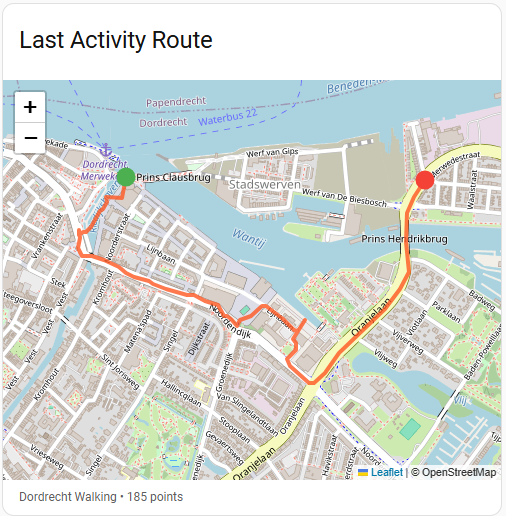
Activity Route Map
The Last Activity Route sensor (sensor.garmin_connect_last_activity_route) contains a polyline attribute with GPS coordinates when the activity has GPS data. This can be displayed on a map using the included custom Lovelace card.
Installation:
- Copy all three files from the
www/folder to your<config>/www/folder:garmin-polyline-card.jsleaflet.jsleaflet.css
- Add the card as a resource: Settings → Dashboards → ⋮ → Resources → Add Resource
- URL:
/local/garmin-polyline-card.js - Type: JavaScript Module
- URL:
- Hard refresh your browser (Ctrl+Shift+R)
Usage:
type: custom:garmin-polyline-card
entity: sensor.YOUR_PREFIX_last_activity_route
attribute: polyline
title: Last Activity Route
height: 400px
color: "#FF5722"
Note: The entity ID depends on your account name. Find yours in Settings → Devices & Services → Garmin Connect or search for
last_activity_routein Developer Tools → States.
| Option | Default | Description |
|---|---|---|
entity | (required) | Sensor entity with polyline attribute |
attribute | polyline | Attribute containing GPS coordinates |
title | Activity Route | Card title |
height | 300px | Map height |
color | #FF5722 | Route line color |
weight | 4 | Route line thickness |
Actions (Services)
garmin_connect.set_active_gear
Set gear as the default for an activity type.
| Parameter | Required | Description |
|---|---|---|
gear_uuid | No* | UUID of the gear (from sensor attributes) |
entity_id | No* | Alternatively, select a gear sensor entity |
activity_type | Yes | running, cycling, hiking, walking, swimming, other |
setting | No | set this as default, unset others / set as default / unset default |
*Either gear_uuid or entity_id is required.
action: garmin_connect.set_active_gear
data:
  entity_id: sensor.garmin_connect_my_running_shoes
  activity_type: running
  setting: "set this as default, unset others"
garmin_connect.add_body_composition
Record body composition metrics to Garmin Connect.
| Parameter | Required | Description |
|---|---|---|
entity_id | No | Garmin Connect entity whose account should receive the measurement |
weight | Yes | Weight in kg |
timestamp | No | ISO datetime (defaults to now) |
bmi | No | Body Mass Index |
percent_fat | No | Body fat percentage |
percent_hydration | No | Hydration percentage |
visceral_fat_mass | No | Visceral fat in kg |
bone_mass | No | Bone mass in kg |
muscle_mass | No | Muscle mass in kg |
basal_met | No | Basal metabolic rate (kcal) |
active_met | No | Active metabolic rate (kcal) |
physique_rating | No | Physique rating (1–9) |
metabolic_age | No | Metabolic age (years) |
visceral_fat_rating | No | Visceral fat rating (1–59) |
action: garmin_connect.add_body_composition
data:
  entity_id: sensor.garmin_connect_weight
  weight: 82.3
  percent_fat: 23.6
  muscle_mass: 35.5
garmin_connect.add_blood_pressure
Record a blood pressure measurement.
| Parameter | Required | Description |
|---|---|---|
entity_id | No | Garmin Connect entity whose account should receive the measurement |
systolic | Yes | Systolic pressure (60–250 mmHg) |
diastolic | Yes | Diastolic pressure (40–150 mmHg) |
pulse | Yes | Pulse rate (30–220 bpm) |
timestamp | No | ISO datetime (defaults to now) |
notes | No | Additional notes |
action: garmin_connect.add_blood_pressure
data:
  entity_id: sensor.garmin_connect_blood_pressure_systolic
  systolic: 120
  diastolic: 80
  pulse: 60
  notes: "Morning measurement"
garmin_connect.add_hydration
Log a hydration intake to Garmin Connect. Use a negative value to subtract from today's total.
| Parameter | Required | Description |
|---|---|---|
entity_id | No | Garmin Connect entity whose account should receive the measurement |
value_in_ml | Yes | Amount in millilitres (negative to subtract) |
timestamp | No | ISO datetime (defaults to now) |
action: garmin_connect.add_hydration
data:
  entity_id: sensor.garmin_connect_hydration
  value_in_ml: 250
garmin_connect.create_activity
Create a manual activity in Garmin Connect.
| Parameter | Required | Description |
|---|---|---|
entity_id | No | Garmin Connect entity whose account should receive the activity |
activity_name | Yes | Name of the activity |
activity_type | Yes | running, cycling, walking, hiking, swimming, fitness_equipment, other |
duration_min | Yes | Duration in minutes (1–1440) |
start_datetime | No | ISO datetime (defaults to now) |
distance_km | No | Distance in kilometres |
time_zone | No | Time zone (defaults to HA config) |
action: garmin_connect.create_activity
data:
  entity_id: sensor.garmin_connect_last_activity
  activity_name: "Morning Run"
  activity_type: running
  duration_min: 30
  distance_km: 5.0
garmin_connect.upload_activity
Upload an activity file (FIT, GPX, TCX) to Garmin Connect.
| Parameter | Required | Description |
|---|---|---|
entity_id | No | Garmin Connect entity whose account should receive the upload |
file_path | Yes | Absolute path or relative to HA config directory |
action: garmin_connect.upload_activity
data:
  entity_id: sensor.garmin_connect_last_activity
  file_path: "activities/morning_run.fit"
garmin_connect.download_activity
Download an activity file from Garmin Connect and save it on the HA host. Supports response data with the saved path and size.
| Parameter | Required | Description |
|---|---|---|
entity_id | No | Garmin Connect entity whose account owns the activity |
activity_id | Yes | Garmin activity ID (see last_activity sensor attributes) |
file_format | No | fit (default, extracted from original zip), original (raw zip), tcx, gpx, kml, csv |
file_path | No | Target file or directory. Custom paths must be in allowlist_external_dirs. Defaults to <config>/garmin_activities/activity_<id>.<format> |
action: garmin_connect.download_activity
data:
  activity_id: 23545484677
  file_format: gpx
response_variable: download
garmin_connect.add_nutrition_log
Log a Quick Add nutrition entry to Garmin Connect. Requires a Connect+ subscription and initial nutrition setup in the Garmin Connect app.
| Parameter | Required | Description |
|---|---|---|
entity_id | No | Garmin Connect entity whose account should receive the entry |
calories | Yes | Calories (0–10000 kcal) |
carbs | No | Carbohydrates in grams |
protein | No | Protein in grams |
fat | No | Fat in grams |
name | No | Label for the entry (defaults to Quick Add) |
timestamp | No | ISO datetime (defaults to now) |
action: garmin_connect.add_nutrition_log
data:
  entity_id: sensor.garmin_connect_calories
  calories: 650
  carbs: 80
  protein: 35
  fat: 20
  name: "Lunch"
garmin_connect.add_gear_to_activity
Associate gear with a specific activity.
| Parameter | Required | Description |
|---|---|---|
activity_id | Yes | Activity ID (from last_activity sensor attributes) |
gear_uuid | No* | UUID of the gear |
entity_id | No* | Alternatively, select a gear sensor entity |
*Either gear_uuid or entity_id is required.
action: garmin_connect.add_gear_to_activity
data:
  activity_id: 12345678901
  entity_id: sensor.garmin_connect_my_running_shoes
Automation Examples
Sync Withings scale data to Garmin
alias: "Sync Withings to Garmin"
triggers:
  - trigger: state
    entity_id: sensor.withings_weight
conditions:
  - condition: numeric_state
    entity_id: sensor.withings_weight
    above: 40
    below: 200
actions:
  - action: garmin_connect.add_body_composition
    data:
      weight: "{{ states('sensor.withings_weight') }}"
      timestamp: "{{ now().isoformat() }}"
      bmi: "{{ (states('sensor.withings_weight') | float(0) / 1.72**2) | round(1) }}"
      bone_mass: "{{ states('sensor.withings_bone_mass') }}"
      muscle_mass: "{{ states('sensor.withings_muscle_mass') }}"
      percent_fat: "{{ states('sensor.withings_fat_ratio') }}"
Auto-assign running shoes after a run
alias: "Assign shoes to running activity"
triggers:
  - trigger: state
    entity_id: sensor.garmin_connect_last_activity
conditions:
  - condition: template
    value_template: "{{ state_attr('sensor.garmin_connect_last_activity', 'activityType') == 'running' }}"
actions:
  - action: garmin_connect.add_gear_to_activity
    data:
      activity_id: "{{ state_attr('sensor.garmin_connect_last_activity', 'activityId') }}"
      entity_id: sensor.garmin_connect_my_running_shoes
Daily running distance template sensor
template:
  - sensor:
      - name: "Today's Running Distance"
        unit_of_measurement: "km"
        state: >
          {% set today = now().strftime('%Y-%m-%d') %}
          {% set activities = state_attr('sensor.garmin_connect_last_activities', 'last_activities') | default([]) %}
          {% set running = namespace(total=0) %}
          {% for a in activities if a.activityType == 'running' and (a.startTime | as_datetime | as_local).strftime('%Y-%m-%d') == today %}
            {% set running.total = running.total + a.distance %}
          {% endfor %}
          {{ (running.total / 1000) | round(2) }}
Migration from v1
If you're upgrading from an older version of this integration (which used the garminconnect / garth library), the integration will automatically:
- Migrate entity unique IDs so your existing entity IDs are preserved (automations and dashboards keep working)
- Request re-authentication since the authentication method has changed
- Entity naming entities now have default prefix 'Garmin Connect' we try to convert them, you can change it afterwards, this may break automations and dashboards
After upgrading, go to Settings → Devices & Services, find Garmin Connect, and complete the re-authentication flow. If you have multiple Garmin accounts configured, each will prompt separately.
Known Limitations
- Cloud-based — Requires internet connection; data depends on Garmin servers availability
- Polling delay — Data updates only when your device syncs to Garmin Connect and the integration polls
- MFA sessions — MFA sessions may expire, requiring re-authentication
- Rate limiting — Excessive polling may trigger Garmin's rate limits; minimum interval is 60 seconds
- China region — Users with
.cnGarmin accounts can enable the "Use Garmin Connect China" option during setup or reconfiguration
Troubleshooting
Re-authentication required
- Go to Settings → Devices & Services
- Find Garmin Connect and click Reconfigure
- Enter your credentials and MFA code if prompted
Sensors show "unknown" or "unavailable"
- Check if your Garmin device has synced recently
- Verify the Garmin Connect website/app shows current data
- Not all data may be available depending on your Garmin device model
- Check Home Assistant logs for error messages
Rate limit errors
If you see 429 or rate limit errors wait 5-30 minutes before reloading the integration
Enable debug logging
logger:
  default: info
  logs:
    custom_components.garmin_connect: debug
Or enable via the UI: Settings → Devices & Services → Garmin Connect → Enable debug logging.
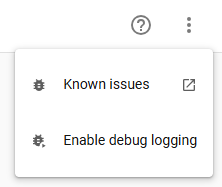
Then perform any steps to reproduce the issue and disable debug logging again. It will download the relevant log file automatically.
Support This Project
If you find this integration useful, please consider supporting its development:
- Star this repository
- Report issues
- Share with other Home Assistant users
License
This project is licensed under the MIT License — see the LICENSE file for details.