Linux on the ZTE F50 / MU300 and U30 Air






The ZTE F50 is a pocket 5G router. This project turns it into a small Linux computer: Ubuntu (24.04 or 26.04 LTS) or OpenWrt (plain, or with a control panel for the modem), with SSH, Wi-Fi, Bluetooth and its 5G modem working. Android stays on the device, and you can go back to it at any time.
Think of it as a Raspberry Pi that already has a 5G modem, a Wi-Fi access point and 32 GB of storage inside.
The ZTE U30 Air is supported too: the same board and chip with a battery. The installer recognises which one it is talking to; see Supported devices.
Türkçe: ZTE F50 / MU300'ü küçük bir Linux bilgisayarına çevirir: Ubuntu (24.04 veya 26.04) veya OpenWrt (düz ya da modem kontrol paneliyle); SSH, Wi-Fi, Bluetooth ve 5G modem çalışır. Android cihazda kalır, istediğiniz an geri dönersiniz. Kurulum: önce
./install.sh --checkile cihazınıza bakın, sonra./install.shile kurun;./uninstall.shile kaldırın. Linux dahili belleğe ya da SD karta kurulur; bilgisayarsız kurulum için Magisk zip'leri de var. ZTE U30 Air de desteklenir (aynı kart, pilli); kurulum programı cihazı kendisi tanır.
A hobby project, at your own risk
This is an experimental hobby project, made in spare time by people who like these devices. It is not a product, it has no support line, and it comes with no warranty of any kind. Everything here is offered as it is; a release that works on our boards may not work on yours.
What you do with your device is your decision and your responsibility. In particular:
- Rooting, unlocking and recovery are not part of this project. Getting a device rooted, flashing with Magisk, SPD/BROM or any other third-party tool, and anything you download from anywhere else to do so, is done at your own risk, following those tools' own instructions. We did not write them, we do not check them, and we cannot say what they do to your device, your data or your warranty.
- Writing to a phone-class device can leave it unusable. The installer takes care to touch as little as it can (see Before you start), and the device falls back to Android when Linux does not start, but a wrong partition, a power cut at the wrong moment, a bad cable or a mistake on our side can still brick it or erase it. Keep a backup; do not install on a device you cannot afford to lose.
- The modem, the radio and the network are yours to use lawfully. Changing what your device sends (TTL, IMEI-related settings, band locks, VPNs) may break your operator's terms or local law. Check before you turn something on.
- Nothing here is endorsed by ZTE, Unisoc or any operator, and no trademark is claimed.
To the fullest extent allowed by law, the authors and contributors are not liable for any damage, loss of data, loss of service, cost or injury arising from the use of this software, this documentation or anything linked from them. If that is not acceptable to you, do not install it.
Türkçe: Bu deneysel bir hobi projesidir; ürün değildir, desteği ve hiçbir garantisi yoktur. Cihazın root'lanması, kilidinin açılması ve Magisk, SPD/BROM gibi üçüncü taraf araçlarla yapılan her türlü işlem bu projenin dışındadır ve tamamen sizin sorumluluğunuzdadır. Kurulum cihazı kullanılamaz hâle getirebilir ya da verilerinizi silebilir; yedek alın, kaybetmeyi göze alamayacağınız bir cihaza kurmayın. Yazarlar ve katkıda bulunanlar, bu yazılımın kullanımından doğabilecek hiçbir zarar, veri veya hizmet kaybından sorumlu değildir.
Supported devices
| ZTE F50 / MU300 | ZTE U30 Air | |
|---|---|---|
| Board, chip | ums9620_2h10_feimao, Unisoc T760 (UMS9620) | the same |
| Power | USB only | battery (4050 mAh), charger and fuel gauge |
| LEDs used by Linux | as in ZTE's firmware: network (blue: 4G, white: 5G, red: no service), Wi-Fi (on while the hotspot is up) | as in ZTE's firmware: battery (white: Linux is up), network (blue: 4G, white: 5G, red: no service), Wi-Fi (white: 2.4 GHz, blue: 5 GHz) |
| Heat alarm | the network LED flashes red, white, blue in turn: the SoC at 85 °C, until it cools down (thermal-guard) | the battery LED flashes red, white, blue in turn: the SoC at 85 °C or the battery at 50 °C, until they cool down (thermal-guard) |
| USB network | 192.168.77.1 | 192.168.78.1 (so both can be plugged into one computer) |
| Tested | everything below | 5.4, 6.18 and 7.2: USB, Wi-Fi hotspot, Bluetooth, mobile data, VPN, LEDs |
| Battery | - | level, voltage, current, temperature and charging state in mu300-toolkit, the openwrt-luci dashboard and /sys/class/power_supply on every kernel (mainline: sc27xx-fgu). Charging: on 5.4 by the vendor charger stack; on 6.18 and 7.2 by the bq256xx driver, which is on main (PR #55) and comes with the next release. The mainline kernels of v2026.10.11 and older leave charging off, so the battery drains while plugged in: use 5.4 with those |
| USB host (OTG) | - (its USB port is its power supply) | sudo mu300-usb host with an OTG adapter: flash drives (FAT, exFAT), keyboards and mice, USB modems and Ethernet adapters, with 5 V from the battery; sudo mu300-usb device back to the computer (the default at every boot). Mainline kernels; HDMI through USB-C adapters does not work |
| SD card | the Linux filesystem can live on a card instead of the internal storage (see Install) | no card slot |
| Buttons | power: held 3 s shuts down | power: a short press wakes the LEDs (they go dark after 60 s), held 3 s shuts down; the Wi-Fi key switches the hotspot 2.4 / 5 GHz, held 3 s turns it off or on |
| NFC | - | a phone held to the device joins the hotspot, as with ZTE's firmware: sudo mu300-nfc shows the tag, wifi writes the hotspot's name and password (again at every hotspot start), url https://... or text ... anything else, clear empties it, on/off is the NFC switch of ZTE's web interface (kept in the tag) |
Both run the same kernel, the same systems and the same releases; what differs is a handful of drivers for the U30
Air's charger and LEDs, which its boot image loads in place of the F50's (kernel/u30air.fragment).
Nothing about the device has to be chosen by hand: the installer reads it from Android, and the boot image, the
LEDs and the default address follow. The U30 Pro is a different chip (UMS9632) and is not supported.
What you get
- A real Linux system, not an app or a container: Ubuntu 24.04 or 26.04 LTS with systemd and
apt, OpenWrt with its LuCI web interface, or OpenWrt with the MU300 control panel (below). - Three kernels to choose from: Unisoc's vendor 5.4, mainline 6.18 LTS and mainline 7.2, with KVM
(
/dev/kvm) on all three. - Internet over 5G/LTE, shared with everything connected to the device.
- A Wi-Fi hotspot (5 GHz or 2.4 GHz) and USB networking: plug it into a computer and it shows up as a network adapter.
- SSH access at
192.168.77.1(U30 Air:192.168.78.1), plus a USB serial console. - Bluetooth and the Mali GPU (OpenCL; no screen output).
mu300-toolkit, a menu likeraspi-config: temperatures, CPU and RAM use, network speeds, performance profiles, stress tests, VPN and services.- Android stays installed. One command switches back.
What it costs you
- Android and Linux share the device. Only one runs at a time; a reboot switches between them.
- No screen output. HDMI over USB-C does not work (the power-delivery chip never answers), so this is a headless machine you use over SSH or the web interface.
- No sound. The board has no speaker and no microphone. Voice calls with audio, through the modem's audio DSP, are work in progress and do not carry sound yet (see What works).
- About 1.4 GB of RAM. Most of the rest is reserved for the modem firmware.
Before you start
Your device must already be rooted and unlocked (it must already boot a modified Android boot image), and you
need adb on your computer. Getting to that point is not part of this project.
Warning. Installing writes to the
boot_bandmiscpartitions. If something goes badly wrong you may need a recovery tool (SPD/BROM) to revive the device. On the usual 64 GB device Android, its data and the partition table are never modified. The 32 GB variant is the exception: it has no free space at all, and the installer offers to make some by shrinkinguserdata— that rewrites the partition table and erases everything in Android, it is experimental, and it asks first. Take a full backup withtools/backup-device.shbefore going that way. There is always some risk. Nothing here is endorsed by ZTE or Unisoc.
What protects you:
-
Linux is installed into empty, unused space on the internal storage, or onto an SD card; Android's partitions are not touched (except on the 32 GB variant, where you can choose to shrink
userdatato create that space). -
Linux starts as a "trial boot". If it fails to start 5 times in a row (you choose 1-6), the device returns to Android by itself.
-
./uninstall.shputs everything back.
You need:
- A ZTE F50 / MU300 or U30 Air, rooted, connected by USB, with USB debugging enabled.
- A computer with
adb:- macOS or Linux: also Python 3,
lz4andcurl(usually already installed). - Windows 10/11: PowerShell. The installer installs Python 3 (for your user, with winget or from
python.org) and its
lz4module itself when they are missing. Useinstall.ps1/uninstall.ps1below, orinstall.cmd/uninstall.cmdfrom cmd.exe (no execution-policy change needed).
- macOS or Linux: also Python 3,
- About 15 minutes.
Install
Step 0 — back up what cannot be replaced (recommended).
tools/backup-device.sh # macOS / Linux, device in rooted AndroidThis copies your unit's own data — prodnv, the modem calibration and IMEI partitions, the bootloader chain — to
your computer and verifies every dump against the device. Installing never touches these, but if they are ever lost
no firmware download can bring them back, and the modem stays broken. Keep the folder somewhere safe and out of any
repository: it contains your IMEI.
Step 1 — check your device. This only reads; it writes nothing.
./install.sh --check          # macOS / Linux
.\install.ps1 -Check          # Windows (PowerShell)
install.cmd -Check            # Windows (cmd)
It reports the storage size, where Android's partitions end and how much free space follows them. On the 64 GB device that is about 32 GiB.
If it reports none at all, you have the 32 GB variant, where userdata fills the disk. The installer can make
room by shrinking it — that erases everything in Android and rewrites the partition table, so it is experimental
and it asks first. Back the device up with tools/backup-device.sh before saying yes. If the numbers look like
neither case, stop and open an issue with what --check printed; they identify the variant. With an SD card in the
slot there is a way that erases nothing: --check says so, and the installer offers the card instead.
On the SD card. With a card of at least 700 MiB in the slot the installer asks whether the Linux filesystem
goes there instead of into the free eMMC space (MU300_STORAGE=sd answers it). The card is formatted (ext4,
label mu300sd); on the eMMC only boot_b and 32 bytes of misc are written, so a device with a small eMMC
needs no repartitioning. A card that holds another Linux (ext4) filesystem is never formatted. A mu300sd card
always comes first. Without the card the device starts the internal installation if there is one; with none, it
waits 8 s for the card (30 s while one is still being detected), then returns to Android after about five minutes.
All three kernels read the card. The U30 Air has no card slot, so it never asks there.
- Put the card in while the device is switched off. A card inserted while Linux runs is seen, but it cannot be read until the next reboot.
- The boot image starts any card whose filesystem is labelled
mu300sd. That keeps the device bootable when the card is replaced, and it also means that whoever has the device can start a system of their own from a card.
Step 2 — install.
./install.sh                  # macOS / Linux
.\install.ps1                 # Windows (PowerShell)
install.cmd                   # Windows (cmd)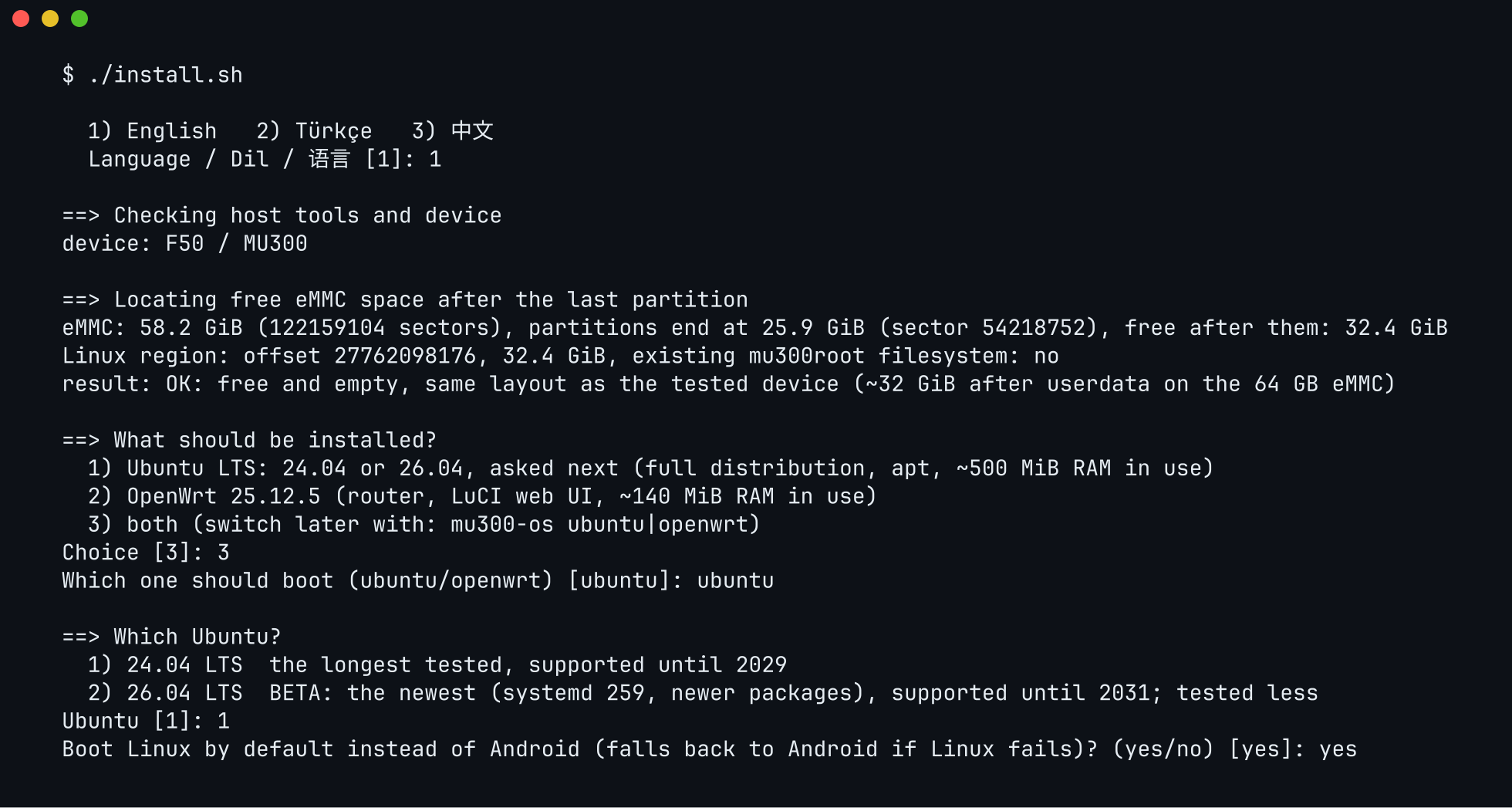
It asks a few questions (internal storage or SD card; Ubuntu, OpenWrt or both, and which Ubuntu, which OpenWrt and
which kernel; which one boots; whether Linux boots by default; a password; the VPN extra), downloads the ready-made images,
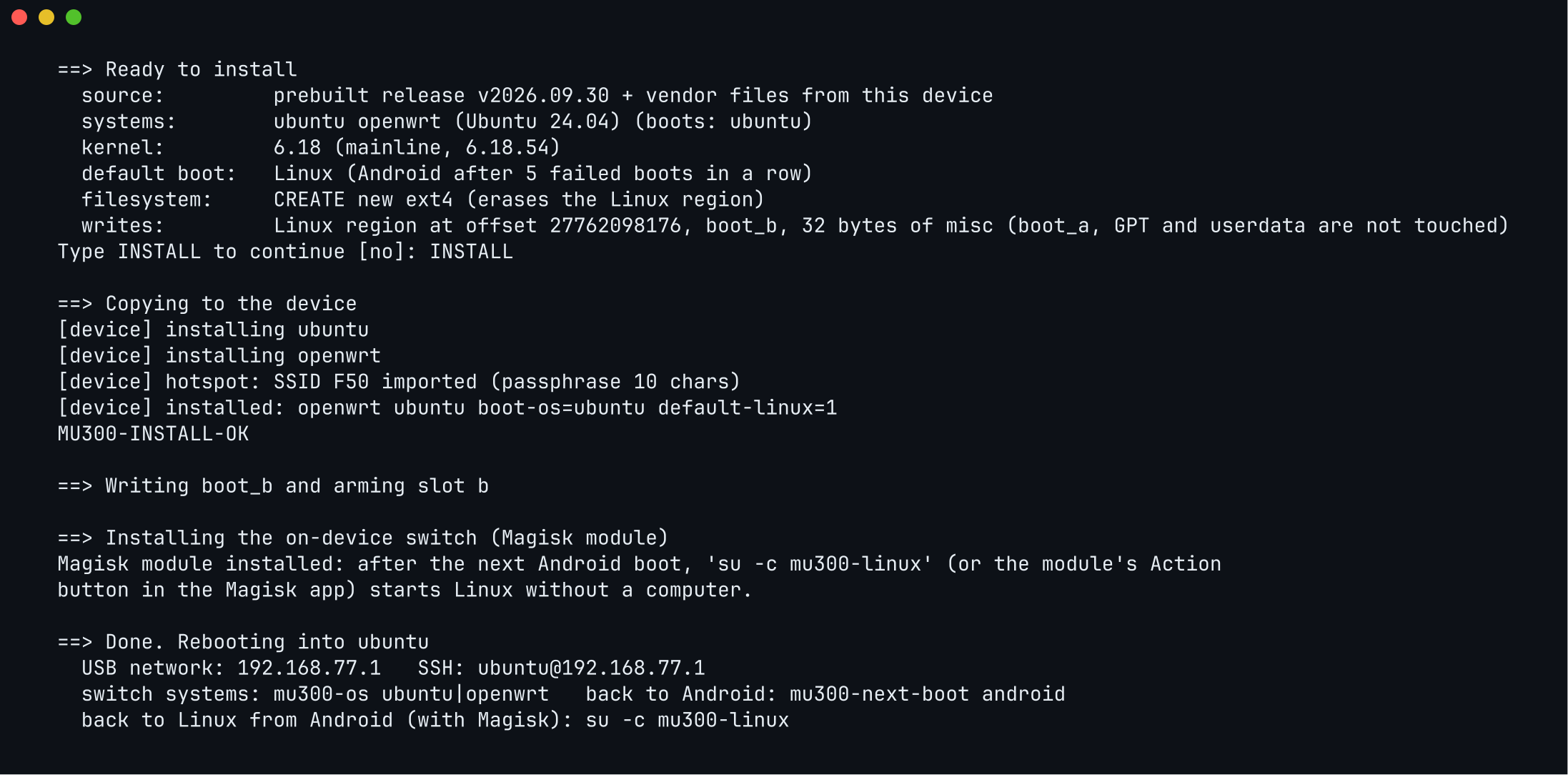
copies the Wi-Fi and modem files from your own device, shows exactly what it is about to write, and waits for you to
type INSTALL. Then it reboots into Linux.
The installer speaks English, Türkçe and 中文: it asks at the start (English is the default; MU300_LANG=tr
or .\install.ps1 -Lang zh skips the question). Adding a language is one file: see i18n/README.md. Before anything else it brings your copy of the project up to date
with GitHub - a git clone is fast-forwarded, a downloaded zip gets the files that changed - and restarts itself if
there was anything new; without GitHub it simply continues (MU300_NO_SELF_UPDATE=1 / -NoSelfUpdate skips it).
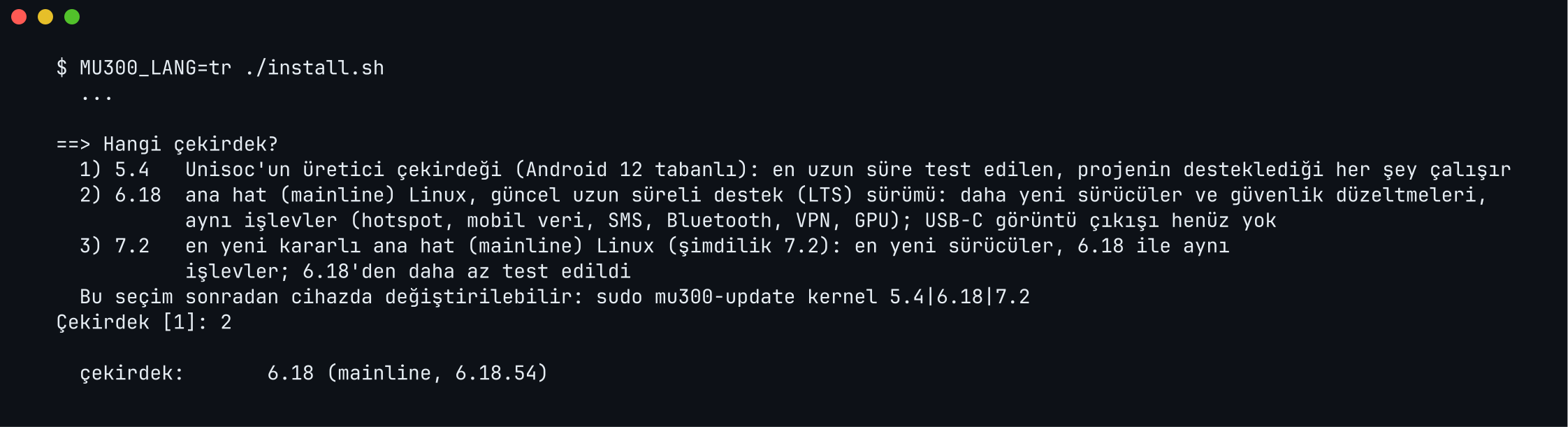
With Ubuntu it asks for the release: 24.04 LTS (the default, the longest tested) or 26.04 LTS (beta) - the
newest, with systemd 259; tested on the device for a shorter time. An installed Ubuntu moves
to the other release with sudo MU300_UBUNTU=26.04 mu300-update apply (or 24.04), keeping settings and data.
It also asks for the kernel:
| choice | kernel | |
|---|---|---|
| 1 | 5.4 | Unisoc's vendor kernel (Android 12 base): the longest tested, everything this project supports |
| 2 | 6.18 | mainline Linux, the current long-term (LTS) release: newer drivers and security fixes, the same functions (hotspot, mobile data, SMS, Bluetooth, VPN, GPU); no USB-C video output yet |
| 3 | latest stable (7.2 for now) | the newest mainline release: the newest drivers, the same functions as 6.18; tested less than 6.18 |
It can be changed later on the device with sudo mu300-update kernel 5.4, ... kernel 6.18 or ... kernel 7.2.
Ubuntu 26.04 needs 6.18 or 7.2 (its programs use system calls 5.4 does not have), and so does USB host mode on the
U30 Air.
Before it writes anything it shows what it is about to do and waits for INSTALL:
If Linux is already installed it asks whether to update or wipe:
- update — reinstalls the systems but keeps your settings and data:
/etc/mu300(hotspot, VPN, toolkit), user accounts and home directories,/usr/local, SSH host keys, OpenWrt's UCI config, and the services you enabled yourself. - wipe — erases the Linux filesystem and installs from scratch.
If the device is running Linux rather than Android when you start, the installer notices and offers to reboot it into Android for you over SSH.
Step 3 — log in. Wait about a minute, then on the computer it is plugged into:
ssh ubuntu@192.168.77.1 # the password you chose during the installFor OpenWrt use ssh root@192.168.77.1, or open http://192.168.77.1 in a browser for LuCI. On a U30 Air the
address is 192.168.78.1 instead.
The Wi-Fi network the device broadcasts is its hotspot; unless you chose otherwise it uses the name and password copied from Android.
OpenWrt with the MU300 control panel
The third system, openwrt-luci, is OpenWrt 25.12 with a LuCI application written for these devices, in English,
Turkish and Chinese (29 more with the lang extra, see Languages). It is an option next to plain OpenWrt, not a replacement: the installer asks "Which OpenWrt?"
whenever OpenWrt is chosen (MU300_OPENWRT=plain|luci answers without asking), and the system lives in
/openwrt-luci on the Linux disk. Its release asset is mu300-openwrt-luci-rootfs.tar.gz; switch to it with
sudo mu300-os openwrt-luci. The panel's pages:
- Status dashboard: live radio readings (signal, bands, cells, temperatures), mobile data state; on the U30 Air also the battery: its level, whether it charges, and the power in watts.
- Cellular > Network locks: network mode, band, cell and EN-DC locks that persist across reboots and are replayed at boot, before the radio comes on where the modem allows it.
- Cellular > SMS: read, send and delete messages. A pool daemon syncs the SIM every 30 s with
AT+CMGL, which marks unread messages on the SIM as read (measured, FINDINGS 35; the panel keeps its own unread state). Do not runsms delete readon this system. - Cellular > AT terminal: guarded AT commands over the same channel daemons the system uses.
- Cellular > Device management: USB role (device or host), the USB network mode (NCM, ECM or RNDIS, applied at the next boot) and adapters in host mode that can join the LAN bridge.
- Cellular > Adapter settings: how the panel reaches the modem (AT backend, serial port, custom AT adapter).
- System > Languages: the language of the interface, and the lang extra: download it, or upload the file.
- System > Power: the active power profile and why, the battery and the power source, the idle knobs of the three profiles (Wi-Fi idle minutes, radio idle keep/lte/off, LEDs, CPU), the saver threshold and the charge limit (100 or 80 %).
IPv6 on this system is relayed from the carrier (router advertisements and NAT66) instead of the prefix extension plain OpenWrt uses. Aurora is the default theme, Bootstrap stays installed. Its boot timings, measured on an F50 and a U30 Air, are in FINDINGS 35.
The panel is the work of kanoqwq (kanoqwq/mu300-linux, branch
clean-tf-7.2); this repository ports it, with translations rewritten as standard LuCI catalogs and the shared
fixes applied to all three systems. The theme is Aurora by
eamonxg. The app's own notes are in openwrt/luci-app-mu300/README.md.
Everyday use
sudo mu300-toolkit opens a menu for everything below. The direct commands:
| I want to… | Command |
|---|---|
| Watch temperatures, CPU, RAM, network speed | mu300-toolkit top |
| Make it faster, or cooler and quieter | sudo mu300-toolkit profile performance (also eco, balanced) |
| Test stability under load | sudo mu300-toolkit stress all 10 |
| Check the mobile connection | sudo mobile-data status |
| Set the APN | Ubuntu: /etc/mu300/mobile-data.conf (MU300_APN, MU300_PDP_TYPE). OpenWrt: LuCI → Network → Interfaces → wan, or uci set network.wan.apn='…'; uci commit network; ifup wan. Leave it empty to keep the context the SIM defines, which is what most carriers expect |
| Change the Wi-Fi name or password | Ubuntu: edit /etc/mu300/hotspot.conf, then sudo systemctl restart mu300-hotspot. OpenWrt: LuCI → Network → Wireless (that file is only read once, at the first boot) |
| Read and send SMS | sudo sms list, sudo sms send NUMBER TEXT..., sudo sms delete INDEX (OpenWrt with the panel: Cellular → SMS) |
| Send a USSD code (balance, own number) | sudo mu300-ussd '*101#' |
| Change the kernel | sudo mu300-update kernel 6.18 (or 5.4, 7.2), then reboot |
| Connect the device to someone else's Wi-Fi | sudo mu300-toolkit → Network → Wi-Fi → "Join a network", or sudo wifi-client scan then sudo wifi-client connect "NAME" (it asks for the password); see Wi-Fi client |
| Update to the newest release | sudo mu300-update check then sudo mu300-update apply. The device looks for a new release at boot and every 6 hours and says so at login and in mu300-toolkit; it never installs one by itself |
| Fixed TTL for mobile data (so the operator cannot tell hotspot traffic from the device's own) | sudo mu300-ttl set 64 (sudo mu300-ttl off goes back to the default), mu300-toolkit -> Network -> TTL, or LuCI Cellular -> TTL. On the mainline kernels the rule is in tc and flow offloading stays on; on 5.4 it is in nftables and offloading is off while a TTL is set |
| Switch between OpenWrt and Ubuntu | sudo mu300-os openwrt / sudo mu300-os ubuntu (openwrt-luci for the one with the control panel) |
| Failed boots in a row before it falls back to Android (1-6, default 5) | sudo mu300-next-boot attempts N |
| Go back to Android | sudo mu300-next-boot android, then sudo reboot |
| Return to Linux from Android | su -c mu300-linux on the device (see below), or boot/android-boot-linux.sh work/boot-linux-slotb.img from a computer |
| Send all traffic through a VPN | see below (sudo mu300-extra install vpn first) |
| Add or remove optional parts (the VPN engines, more web interface languages) | mu300-extra list, sudo mu300-extra install vpn, sudo mu300-extra remove vpn (lang for the languages) |
| Save battery: profiles, radios that go idle when nobody is connected, a charge limit | mu300-power status, sudo mu300-power profile battery (plugged, saver, auto), sudo mu300-power set battery.WIFI_IDLE 10, mu300-power log 5 /tmp/power.csv; on openwrt-luci the page System -> Power. A boot that started from a charger stays a charging boot (LED blinking, hotspot and modem down) until the Wi-Fi key is pressed; see FINDINGS 36 |
| Language of the web interface (OpenWrt) | System -> System -> Language and Style; more languages: see Languages below |
| Find out which LED is which | sudo mu300-led test |
Installing from Android with a Magisk zip
If the device already runs a rooted Android with Magisk 26 or newer, Linux can be installed from the device itself,
without a computer: from the Magisk app (reached through scrcpy, a web panel or a phone running adb) or from
adb shell. The zips are built from the files of a release by the "Magisk installers" workflow
(.github/workflows/magisk.yml), which attaches them to that release together with SHA256SUMS-magisk. It runs
by itself when a release is published, so the zips follow the other assets after a few minutes. Building them yourself:
tools/make-magisk-zips.sh RELEASE_DIR OUT_DIR.
1. Take one zip. One per system and kernel. The same zip works on the F50 and on the U30 Air, and installs to
the internal storage or to an SD card: the installer recognises the device and finds the place. There is no zip
for openwrt-luci (the OpenWrt with the control panel): that one comes with ./install.sh.
| zip | system | kernel | size |
|---|---|---|---|
mu300-magisk-<tag>-openwrt-k5.4.zip | OpenWrt | 5.4 (vendor) | 48.3 MB |
mu300-magisk-<tag>-openwrt-k6.18.zip | OpenWrt | 6.18 LTS | 37.0 MB |
mu300-magisk-<tag>-openwrt-k7.2.zip | OpenWrt | 7.2 | 37.7 MB |
mu300-magisk-<tag>-ubuntu-24.04-k5.4.zip | Ubuntu 24.04 | 5.4 | 123.6 MB |
mu300-magisk-<tag>-ubuntu-24.04-k6.18.zip | Ubuntu 24.04 | 6.18 LTS | 112.3 MB |
mu300-magisk-<tag>-ubuntu-24.04-k7.2.zip | Ubuntu 24.04 | 7.2 | 113.0 MB |
mu300-magisk-<tag>-ubuntu-26.04-k6.18.zip | Ubuntu 26.04 | 6.18 LTS | 124.6 MB |
mu300-magisk-<tag>-ubuntu-26.04-k7.2.zip | Ubuntu 26.04 | 7.2 | 125.3 MB |
The sizes are those of the v2026.10.11 build. The VPN engines are not in the zips: add them on the device with
sudo mu300-extra install vpn (see VPN). There is no Ubuntu 26.04 zip with kernel 5.4: its programs need system
calls that kernel does not have, the same rule as for install.sh. Check a download with SHA256SUMS-magisk.
2. Install it. Put the zip on the device and open it in the Magisk app (Modules, Install from storage), or run
su -c 'magisk --install-module /sdcard/Download/<zip>'. Not from recovery.
3. Read the output. It shows the device it found, where Linux goes, what it will write, and the password it
generated. The password is also in /data/adb/mu300-linux-password.txt (mode 600; read it with
su -c cat /data/adb/mu300-linux-password.txt, and delete the file after the first login). A zip installed over a
system that is already there (an update) keeps its accounts and passwords and says "unchanged".
4. Reboot. Linux starts. If it does not, the device returns to Android by itself.
Both systems: two zips. Install the OpenWrt zip and the Ubuntu zip one after the other, in either order. The
second one adds its system next to the first and becomes the one that boots; mu300-os openwrt and
mu300-os ubuntu switch. Ubuntu 26.04 needs kernel 6.18 or 7.2, so with it installed a zip with kernel 5.4 refuses.
After a successful install the zip stays as the Magisk module "MU300 Linux" (the switch module of
android/magisk/README.md, same id): its Action button and su -c mu300-linux start
Linux from Android later.
What is written. Linux goes to its own place: a free region of the internal storage behind the partitions, or an SD card (a card that already holds a Linux installation of this project is used first, as the device does when it boots). Beyond that:
- the boot partition of the slot Android is not on (
boot_bwhen Android runs from slot a,boot_awhen it runs from slot b), checked after writing; - 32 bytes of
misc, written last, only when everything before succeeded.
Android's own boot partition, vbmeta, the partition table and userdata are never written. If the install stops
before the last step, misc is as it was and Android boots. If misc itself does not read back right after the last
step, the installer writes back the block it held before and says whether that worked.
Back to Android. From Linux: sudo mu300-next-boot android, then sudo reboot. Without doing anything, the device
falls back to Android after 5 failed boots in a row (1-6, MU300_BOOT_ATTEMPTS below, mu300-next-boot attempts N
later) and when Linux does not come up at all.
Not offered here. Shrinking userdata to make room (the 32 GB variant) rewrites the partition table and erases
Android's data. It stays with the computer installer (./install.sh), where a backup step and a typed ERASE come
first. When there is not enough room inside, the installer says so and names what this device has: the SD card, a
bigger card, or the computer installer.
Choosing something else: mu300-install.conf
Magisk's install screen cannot ask questions, so the installer decides from what is on the device and only a
settings file changes that. The file is KEY=VALUE lines (# for comments, quotes optional). It is read, never run;
a key that is not in the table is reported and ignored, and a value that is not one of those listed stops the
installer before anything is written. Every run writes /sdcard/mu300-install.conf.example with every key, its
meaning (on the comment line above it) and the value that run used; copy it to mu300-install.conf, remove the #
in front of the keys you want, and install the zip again. MU300_DRY_RUN=1 prints the plan and writes nothing; the zip is then not installed as a module.
There are two places for the file, because any app with storage access can write /sdcard:
/sdcard/mu300-install.conf(or/sdcard/Download/mu300-install.conf) may choose only what destroys nothing and reveals nothing./data/adb/mu300-install.confcounts for everything. Only root can create files there, and the installer uses it only when root owns it and neither group nor others can write it. Amu300-install.confinside the zip'smu300/folder counts the same (it is as trusted as the scripts next to it).
A key of the second kind found in the /sdcard file is reported and ignored, and the installer prints the command
that turns that file into one only root can change:
su -c 'cp /sdcard/mu300-install.conf /data/adb/mu300-install.conf && chmod 600 /data/adb/mu300-install.conf'Where both files name a key, the one from /data/adb wins, and the plan the installer prints says which file each
value came from. A permission to erase counts only when the choice of storage it applies to comes from /data/adb
too: erasing an SD card needs MU300_STORAGE=sd and MU300_SD_ERASE=yes both there (or a card that already holds
mu300sd, with no MU300_STORAGE set), and overwriting internal space needs MU300_REGION_OVERWRITE=yes with
MU300_STORAGE=internal there, or no MU300_STORAGE.
A setting that erases counts for one install: once a successful install has used MU300_MODE=wipe,
MU300_SD_ERASE=yes or MU300_REGION_OVERWRITE=yes from /data/adb/mu300-install.conf, the installer turns that line
into a comment (as it does with MU300_PASSWORD and MU300_PASSWORD_RESET) and says so. Otherwise the next zip - the second of two, or an
update - would wipe or erase again. For another erase, put the line back.
| key | values | from | default |
|---|---|---|---|
MU300_STORAGE | internal, sd | either | Where an installation already is (the card first); else internal when the free region is big enough; else the install is refused with the reason |
MU300_SD_ERASE | yes | /data/adb only | Not set: an SD card is never formatted, not a new one and not one holding an installation with MU300_MODE=wipe |
MU300_REGION_OVERWRITE | yes | /data/adb only | Not set: an internal region whose free space holds data is not used |
MU300_MODE | update, wipe | update either, wipe /data/adb only | update when a filesystem is there already (settings and data are kept) |
MU300_BOOT_OS | ubuntu, openwrt, openwrt-luci | either | The system of this zip |
| MU300_BOOT | linux, android | either | linux: Linux is the default boot, Android after failed boots. android: Android stays the default and Linux starts on demand |
| MU300_BOOT_ATTEMPTS | 1 to 6 | either | 5 |
| MU300_HOTSPOT | yes, no | either | yes: Android's hotspot name and password are copied |
| MU300_GPU | yes, no | either | yes (skipped with a message when this device lacks a file of the GPU set) |
| MU300_PASSWORD | 6 or more characters | /data/adb only | Generated for a new system: 12 characters from /dev/urandom without look-alikes. An update keeps the existing password |
| MU300_PASSWORD_RESET | yes | /data/adb only | Not set: an update keeps the existing password. yes: a new one is generated |
| MU300_PASSWORD_FILE | sdcard | /data/adb only | Not set: the password file is /data/adb/mu300-linux-password.txt |
| MU300_DEVICE | f50, u30air | /data/adb only | Detected; needed only for a model name the installer does not know |
| MU300_LANG | en, tr, zh | either | The language of the Android locale |
| MU300_DRY_RUN | 1 | either | Not set |
Examples. Install to the card, formatting it (everything on it is erased), with a password of your own, from
adb shell as root:
su -c 'printf "MU300_STORAGE=sd\nMU300_SD_ERASE=yes\nMU300_PASSWORD=choose-one-here\n" > /data/adb/mu300-install.conf'
su -c 'chmod 600 /data/adb/mu300-install.conf'
Only look at what an install would do, with the file on /sdcard: MU300_DRY_RUN=1 on a line of its own.
The password. It is never empty and never the image's (ubuntu/ubuntu, OpenWrt's empty root). An update
keeps the accounts and passwords the system has, as mu300-update does: a password is made only for a system that has
none of its own yet (a first install, a wipe, the second system next to the first), or when
/data/adb/mu300-install.conf asks for one with MU300_PASSWORD or MU300_PASSWORD_RESET=yes (put these there, not
into a zip's own mu300/mu300-install.conf, which is never edited and would reset the password at every update). A new one is written to
/data/adb/mu300-linux-password.txt, which only root reads, and shown in the Magisk output (between quotes) before
anything is installed, so an install that stops later never leaves a password nobody has seen. Only a trusted
MU300_PASSWORD_FILE=sdcard writes it to /sdcard/mu300-linux-password.txt instead, where every app with storage
access can read it. A MU300_PASSWORD or MU300_PASSWORD_RESET from /data/adb/mu300-install.conf is replaced by a
comment in that file after a successful install.
Starting Linux from Android without a computer
android/magisk/build.sh builds a small Magisk module for a device that already has Linux (installed from a computer;
the zips above are this module plus the installer). Once it is installed, the Magisk app gets an Action
button that reboots the device into Linux, and su -c mu300-linux does the same from a terminal
(su -c 'mu300-linux status' just shows which system is on which slot). It writes only the same 32 bytes of
misc that the installer does. See android/magisk/README.md.
VPN
The device can send its own traffic and everything from connected clients through a VLESS server. The default
engine is Xray behind hev-socks5-tunnel
on a kernel TUN; ENGINE=sing-box in the config switches back to sing-box. Links that ask for allowInsecure
work: Xray 26 dropped that option, so the server's certificate is fetched once, pinned, and re-fetched by itself
when the server renews it. The kill switch (KILL_SWITCH=1) needs sing-box: with it on, sing-box runs even when
ENGINE=xray is set, and when the engines are missing it stays up while they are downloaded (only the device
itself, only to the release hosts, for 15 minutes at most); nothing that fails takes it down.
The engines (about 40 MB to download, 120 MB on the device) are not part of the systems: they are the vpn extra, which you add once - the installer asks, or on the device:
sudo mu300-extra install vpn          # downloads it from the release, checks it against the release's SHA256SUMS
sudo cp /etc/mu300/vpn.conf.example /etc/mu300/vpn.conf
sudo nano /etc/mu300/vpn.conf         # paste your vless:// link into VLESS_URI, set ENABLE=1
sudo systemctl enable --now mu300-vpn
mu300-vpn status
Extras live on the Linux partition next to the systems (/mnt/mu300-disk/extra), so Ubuntu and OpenWrt share one
copy and an update or reinstall of a system keeps it; mu300-update apply brings them to the new release.
mu300-extra list shows what there is, mu300-extra status what is installed, sudo mu300-extra remove vpn takes it
off again (turn the VPN off first; it refuses while the VPN is on). A device that used the VPN before the engines became an extra keeps it working: the update installs the
vpn extra by itself (or keeps the engines of the old system), and mu300-vpn fetches it when it finds none.
Tailscale through the VPN. Tailscale marks its own connections (WireGuard to peers, DERP relays, the control
server) and gives them a routing rule of their own (fwmark 0x80000/0xff0000 lookup main, pref 5210) that would send
them past the tunnel straight to the carrier - on a network where only the VPN gets out, Tailscale then never
connects. When the tunnel comes up, with either engine, mu300-vpn puts a rule before it (pref 5200, into the
tunnel's table 2022). Private addresses (the device's LAN, RFC 1918) stay outside the tunnel (pref 5199), so peers on
the same network are reached directly. The engine's own connection keeps going to the carrier even with a Tailscale
exit node (pref 5198). The tailnet itself (100.64.0.0/10, Tailscale's table 52) works as before. The kill switch
still drops every Tailscale packet on the cellular interface, so with it on they only leave through the tunnel. With
the VPN off, or with an engine stopped, the rules have nothing to send packets into and Tailscale goes out directly
as usual; mu300-vpn off and the next start clear them. IPv4 only. TAILSCALE=0 in vpn.conf turns this off.
Languages
Both OpenWrt systems speak English, Turkish and Simplified Chinese out of the box: LuCI's own pages (from
OpenWrt's translations of LuCI, its firewall and its package manager) and, on openwrt-luci, the MU300 control
panel. The web interface starts in English; switch it under System -> System -> Language and Style, or on
openwrt-luci under System -> Languages. An update keeps the language you picked.
Every other language is the lang extra (about 2 MB, OpenWrt only - Ubuntu has no web interface): LuCI in the 40
further languages OpenWrt 25.12.5 translates it to, and the control panel in 29 of them (ar, az, bg, cs, da, de, el,
es, fa, fi, fr, he, hi, hu, id, it, ja, kk, ko, nl, pl, pt-BR, ro, ru, sk, sv, uk, vi, zh-TW; az, kk and id have no
LuCI translation, only the panel's). Install it from the panel (System -> Languages: download it, or upload
mu300-extra-lang.tar.gz from the release page when the device has no internet) or on the device:
mu300-extra install lang                                 # from the release of this system
MU300_EXTRA_FILE=/tmp/mu300-extra-lang.tar.gz mu300-extra install lang   # from a file, offline
mu300-extra lang                                         # the languages, and which are offered
mu300-extra lang disable all; mu300-extra lang enable de ja   # offer only some of them
mu300-extra remove lang
The languages appear in the language list at once (no reboot); the extra stays across updates and is updated with
them. Which of its languages a system offers is that system's own setting (/etc/mu300/languages).
The control panel's translations other than Turkish and Chinese are machine (AI) translations from the English
original. Corrections are very welcome: edit openwrt/luci-app-mu300/po/<language>/mu300.po and open a pull request
(python3 tools/luci-i18n.py check must stay clean; a new language also needs a row in
openwrt/luci-languages.tsv).
Wi-Fi client
The radio can join another Wi-Fi network instead of being the hotspot (one or the other: the SC2355 does one at a time). The device then uses that network for itself and shares it with its USB clients, as it does mobile data.
sudo wifi-client scan                    # the networks in range: signal, security, name
sudo wifi-client connect "NAME"          # asks for the password; nothing is shown as you type
sudo wifi-client connect "NAME" --open   # an open network
sudo wifi-client status
sudo wifi-client disconnect              # the hotspot comes back, and stays after a reboot
sudo wifi-client reconnect               # join the saved network again
sudo wifi-client forget # delete the saved network- Give the password when asked, not on the command line.
sudowrites the whole command line to the system journal, sosudo wifi-client connect "NAME" "PASSWORD"leaves the password there (it still works, with a warning). From a script, pipe it in with-:printf '%s\n' "$PW" | sudo wifi-client connect "NAME" -, or keep it in a file only root can read and use--password-file FILE. The joined network and its password are saved in/etc/mu300/wifi-client.conf(root only) and joined again at every boot. disconnectlasts: the next boot keeps the hotspot too.sudo wifi-client disconnect --keepleaves the network joined at the next boot;reconnectturns it back on.- Joining needs the radio as a client, which is decided at boot: while it is the hotspot,
connectsaves the network and asks for a reboot (or usemu300-toolkit, which offers a reboot with the hotspot off to scan). - WPA2 and WPA2/WPA3 mixed networks work; WPA3-only ones do not. The scan labels them
WPA3(WPA2/3is mixed mode, joined as WPA2), andconnectrefuses them as soon as it sees one: this Wi-Fi driver has no SAE. Set the router to WPA2/WPA3 mixed mode to join it. (A driver that has SAE is used with it.) - Sharing, and what it does not share: USB clients reach the internet through the network, and only the
internet: its own devices and router (private, link-local, CGNAT, multicast and other special-purpose addresses,
and its subnet) are not reachable from the LAN, nor anything over IPv6, so a guest on the device's USB does not
end up on your home or hotel network (its router's public address is the internet's, though, and some routers
answer on it). From that network only ping, DHCP, IPv6 neighbour discovery and answers
come in: SSH and the device's other services are closed to it, as they are to the modem (use USB to reach the
device). The firewall is up, closed, before the radio joins; sharing starts only once DHCP has answered and the
address is checked (a network on the LAN's own subnet is refused). A lost link closes the sharing again and drops
the address (mobile data takes over); when the link comes back, DHCP is asked again and the new address checked
before anything is shared. The lease is renewed while joined, and a renewal
that brings another address goes through the same check. Leaving (
disconnect,forget, a failed or interrupted join) removes everything in one step, and only once the radio is off the network: a supplicant that will not stop keeps the firewall closed. Forwarding is turned off again then unless mobile data is sharing. What counts is the table nft lists, never a file: after every change the listing is compared rule for rule with what was asked, and a mismatch (or an nft that cannot say) ends closed, or with the address and routes dropped;wifi-client statusshows the state nft reports. Stoppingmu300-wifi-client.servicetakes the client down the same way, without touching the saved settings. nftables tablesip mu300_wifi_nat(Ubuntu) andinet mu300_wifi_filter; on OpenWrtwlan0also joins thewanfirewall zone (fw4 does the NAT), with a rule (mu300-wifi-client-private) for the private addresses. (ALAN_CIDRSentry in vpn.conf does not open the other network to LAN clients either.) With the VPN on, clients still go through the tunnel, and its kill switch coverswlan0as it does the modem; these tables never let anything past it. - Names are shown as the network sends them when they are printable UTF-8; control characters, terminal escape
sequences, invisible and bidirectional characters, bytes that are not UTF-8 and a backslash itself are shown
as
\xNN, and so are spaces at either end of a name. Such a network cannot be picked from themu300-toolkitlist; join it withsudo wifi-client connectand its real name (a name with control characters cannot be joined). - The Wi-Fi route has metric 50 and mobile data 100, so with both the Wi-Fi is used and the SIM stays idle.
Updating
The device can update itself from a published release, without a computer:
sudo mu300-update check           # installed version vs newest release
sudo mu300-update apply           # system, kernel and boot image: download, unpack, switch; then reboot
sudo mu300-update rollback        # back to the previous system
sudo mu300-update rollback-boot   # back to the previous kernel and boot image
sudo mu300-update kernel 7.2      # another kernel: 5.4 (vendor), 6.18 (LTS) or 7.2; no argument shows the current one
mu300-toolkit offers the same under System -> Software update. Your settings, users, /usr/local and the vendor
files (Wi-Fi firmware, Android modem userspace) and the installed extras are carried over (the extras are brought to
the new release), and the previous version is kept as <os>.old for
a rollback until you run mu300-update clean. The new filesystem is unpacked beside the old one and only swapped in
at the end, so an interrupted download cannot leave a half-updated system.
The kernel and the boot image are updated too. The boot image keeps your device's own part (its Android files and
the stock header) as it is and gets the release's kernel and the generic part of its ramdisk, so no computer and
nothing from Android are needed. The previous image is kept for rollback-boot, and a kernel that does not start
sends the device back to Android on its own after the usual number of failed boots.
mu300-update apply downloads and checks every file first and changes nothing before all of them are there; from
v2026.09.28 on it also switches to the updater of the release it installs before it starts.
Updating from v2026.09.27 or older? Fetch the new updater first, then update; do both right after a reboot (older boot images can lose mobile data after a few quiet minutes, see docs/FINDINGS.md 32):
sudo curl -fL https://github.com/dikeckaan/mu300-linux/releases/latest/download/mu300-update -o /opt/mu300/bin/mu300-update
sudo mu300-update apply
On OpenWrt, as root: wget -O /opt/mu300/bin/mu300-update https://github.com/dikeckaan/mu300-linux/releases/latest/download/mu300-update
and then mu300-update apply. Reboot afterwards to start the new system and kernel.
Back in Android after an update? With the older boot images a single crash or reset of Linux (the update could
cause one, see above) makes the device fall back to Android and stay there. Start Linux again with the Linux button
of the Magisk module or su -c mu300-linux, then update as above. If Linux does not start any more, the boot image
did not survive: run the installer again from a computer and choose update - it writes a fresh boot image and
keeps your settings and data.
Uninstall
With the device back in Android:
./uninstall.sh                # macOS / Linux
.\uninstall.ps1               # Windows (PowerShell)
uninstall.cmd                 # Windows (cmd)
It makes Android the boot system again, restores the second boot partition and erases the Linux filesystem. Your Android data is left alone, unless you ask it to give the space back (see below). You choose how thorough the erase is:
- secure (default) — overwrites the whole Linux region and then verifies it is empty, so your files are really gone. Takes a few minutes.
- quick — only erases the filesystem headers; the files stay readable on the flash until the space is reused.
- keep — leaves the Linux filesystem alone; it simply never boots again.
A Linux filesystem on the SD card gets its own question: erase (the default) overwrites its first 64 MiB, which is quick, and the files stay readable on the card until the space is reused; keep leaves the card as it is. A card with any other filesystem is never touched.
If you shrank userdata to make room on the 32 GB variant, it then offers to grow it back over the freed space.
That is off by default and asks twice, because on the 64 GB device the same answer would hand Android the free
area it has always had — and like the shrink, it erases Android's data again.
Like the installer, it offers to reboot the device from Linux into Android first.
What works and what does not
| Ubuntu 24.04 LTS, OpenWrt 25.12, OpenWrt with the control panel | ✅ |
| Ubuntu 26.04 LTS | 🚧 beta: kernel 6.18 or 7.2 only, tested for a shorter time than 24.04 |
| Kernels | ✅ vendor 5.4, mainline 6.18 LTS and 7.2, with the same functions (USB host on the U30 Air: mainline only); the mainline bundles carry about 360 modules (WireGuard, SQM, tunnels, USB adapters and modems, NTFS/exFAT/btrfs/NFS/CIFS, dm-crypt, containers). 6.18 hangs at boot about once in 20 boots and the device goes back to Android (FINDINGS 31m) |
| KVM | ✅ /dev/kvm on all three kernels |
| Mobile data (5G NSA / LTE) | ✅ shared with Wi-Fi and USB clients; reconnects by itself after modem resets |
| SMS, USSD | ✅ sms, mu300-ussd; on openwrt-luci also in the panel |
| Wi-Fi access point | ✅ 5 GHz (802.11ac) or 2.4 GHz, one at a time |
| Wi-Fi client | ✅ WPA2 and WPA2/WPA3 mixed, shared with USB clients; ✗ WPA3-only networks (the driver has no SAE) |
| USB network + serial console | ✅ 192.168.77.1 (U30 Air 192.168.78.1), screen /dev/cu.usbmodem* 115200 |
| SSH, telnet | ✅ |
| VPN (VLESS) | ✅ Xray or sing-box, kill switch, Tailscale through the tunnel; the engines are the vpn extra |
| Bluetooth | ✅ BlueZ, scanning works |
| GPU (Mali-G57) | ✅ OpenCL 3.0, headless |
| Storage | ✅ about 32 GB in the unused area of the internal eMMC on the 64 GB device; on the 32 GB one you choose the split with Android, or use an SD card (F50) |
| RAM | ✅ about 1.4 GB usable (MemTotal 1473 MiB; the modem firmware keeps most of the rest) |
| Temperature control, status LEDs, SIM tray | ✅ |
| U30 Air: battery, buttons, NFC, USB host | ✅ battery readings on every kernel, charging on 5.4 (on mainline from the next release, see Supported devices); USB host on mainline only |
| Back to Android, automatic rollback | ✅ |
| Screen output (HDMI over USB-C) | ✗ the USB-C power chip never answers, so no display |
| Sound | ✗ the board has no speaker and no microphone. Call audio through the modem's audio DSP is work in progress and not in the releases (kernel/build-audio.sh, mu300-audio-dsp, mu300-voice): with those, the sound card comes up (sprdphone-sc2730, 19 PCM devices) and the DSP answers, but no audio moves in any scene, and a call without audio ends after about 20 seconds, as it does under Android on this board (FINDINGS 24, 24b). The kernels have USB audio drivers, not tried here |
How it works, in short
The device has two Android boot slots, A and B. Android lives on one of them (A, when the computer installer is
used) and is left alone. The installer puts a Linux kernel into the other slot and marks it as a trial. At boot, a
small startup program loads the device's drivers, finds the Linux filesystem on the SD card or in the unused part of
the internal storage and starts Ubuntu or OpenWrt from it. If Linux fails to start several times in a row (5 unless
you chose otherwise), the device falls back to Android by itself. Three small Android programs (modem_control,
refnotify, cp_diskserver) keep running inside Linux in a sandbox, because the modem needs them.
The 5.4 kernel is built from ZTE's published (GPL) source; 6.18 and 7.2 are mainline Linux with this project's
patches and the vendor drivers ported to them (upstream/). The reasoning behind each step is in
docs/FINDINGS.md, and the full build is in docs/BUILD.md.
Common problems
The device does not come back after installing. Wait two minutes. If there is still nothing, unplug and replug
it. Every boot that does not finish counts, and after 5 of them in a row (or the number you chose) the device starts
Android. Collect logs with tools/collect-logs.sh.
Back in Android without having asked for it, on kernel 6.18. About one boot in 20 hangs in its first seconds
(FINDINGS 31m), and the device then falls back to Android. Start Linux again with the Linux
button of the Magisk module or su -c mu300-linux.
The computer sees the device but gets no address (macOS). macOS does not set up a network interface it has
never seen while the screen is locked. Each device has its own USB MAC address, so the first time one is plugged in
(or after an update that brought these addresses) unlock the Mac, and the interface appears. With both an F50 and a
U30 Air plugged in, they are 192.168.77.1 and 192.168.78.1; two of the same kind need /etc/mu300/lan.conf to
tell them apart.
No internet. Check that the SIM has a data plan, then run sudo mobile-data status. A missing plan looks like a
connection that keeps dropping.
Kernel warnings are not in journalctl -k. On Ubuntu they are in journalctl -t kernel (warnings and errors
only, from the start of each boot, with the kernel's own timestamps; repeating vendor chatter is left out, see
/etc/mu300/kmsg-ignore). Everything else is in dmesg.
Websites think you are in another country. The device has no GPS, so sites guess from the IP address; mobile operators and VPN servers often look like a different city.
I forgot the password, and Linux boots by default. You do not need to log in to get out:
- Back to Android: unplug the device about ten seconds after it powers on, then plug it in again, as many
times in a row as the failed boots you chose (5 by default;
mu300-next-boot attempts). The device then sees unfinished boots and falls back to Android by itself (mu300-boot-okonly confirms a boot ~30 s after the system is up, so an interrupted boot never counts as successful). - Set a new password from your computer, without booting Linux:
It mounts the Linux filesystem from Android and rewrites the password hash, keeping all your data.
tools/reset-password.sh # ubuntu, openwrt or both - Start Linux again with
boot/android-boot-linux.sh work/boot-linux-slotb.img, or reboot if Linux is the default.
Re-running ./install.sh and choosing update keeps your data and sets the password you type (the Magisk zip's
update keeps the old one unless MU300_PASSWORD_RESET=yes is in /data/adb/mu300-install.conf).
Downloads are slow. GitHub's release CDN throttles single connections in some regions (0.2 MB/s on a
180 Mbit/s line here). The installer already downloads in 8 parallel chunks, which measured 8x faster; set
MU300_FETCH_JOBS to change that, or point MU300_RELEASE_URL at your own mirror.
Never use OpenWrt's sysupgrade or flash OpenWrt firmware images here. They are written for ordinary computers
and would overwrite the device's storage. A normal apk upgrade is fine, except kernel and kmod-* packages.
For developers
docs/BUILD.md— build the kernel and images yourself (kernel/build-all.shdoes it in one step).docs/FINDINGS.md— everything learned about this hardware and why each workaround exists.docs/DISTROS.md— running other distributions (ImmortalWrt, Arch Linux ARM, Debian, Kali; the Ubuntu image'sDockerfiletakes another base with--build-arg BASE=...) and what the 5.4 kernel rules out.upstream/— the mainline kernel port, 6.18 LTS and 7.2.tests/—cd tests && python3 -m unittestruns them all (standard library only;lz4for the boot image tests), andpython3 tools/check-i18n.pychecks the installers' translations. CI (.github/workflows/):tests.ymlon Ubuntu, macOS and Windows,installer.yml(translations, script syntax),mainline.yml(the port built every week against the newest longterm and stable kernels) andmagisk.yml(the Magisk zips of each release).- Releases — prebuilt images. They contain no proprietary files; the installer takes those from your own device.
| Path | Contents |
|---|---|
install.sh, uninstall.sh | installer and remover for macOS/Linux |
install.ps1, uninstall.ps1 | the same for Windows (PowerShell); install.cmd, uninstall.cmd launch them from cmd.exe |
kernel/ | kernel build environment, config, patches |
boot/ | initramfs init, boot image builder, slot handling |
rootfs/ | Ubuntu image: Dockerfile, assemble.sh, services and scripts in overlay/ |
openwrt/ | OpenWrt and ImmortalWrt image build; luci-overlay/ and luci-app-mu300/ make the openwrt-luci system |
arch/ | Arch Linux ARM image build |
upstream/ | the mainline kernel port (6.18, 7.2) |
android/magisk/ | the Magisk module and the zip installer |
android-vendor/ | scripts that copy the needed Android files from your device |
tests/ | unit tests for the installers, the boot image, boot/init and the device scripts |
tools/ | helper programs, release tooling, backup, SSH/serial/log helpers |
The kernel source used here is mirrored at
dikeckaan/zte-ums9620-kernel-5.4.254.
Credits and licenses
-
Kernel source: ZTE's GPL release for the U30 Air (mirrored by Enceka) and the Unisoc drivers in it — GPL-2.0. The mainline kernels are Linux from kernel.org — GPL-2.0.
-
Wi-Fi, Bluetooth and GPU drivers: realme C51/C53 AndroidT kernel release — GPL-2.0; the patches in
kernel/patchesare GPL-2.0. -
Scripts, tools and documentation in this repository: MIT (see
LICENSE). -
kanoqwq (
kanoqwq/mu300-linux,clean-tf-7.2):openwrt/luci-app-mu300, the control panel, changed here; the idea of the SD card installation and the core of its boot-side change; and fixes ported from that branch (the faster USB rebind, the early DHCP lease, RNDIS, the radio-on sequence; onopenwrt-lucithe SMS pool and IPv6 relay mode), measured in FINDINGS 35. -
The Aurora theme (
luci-theme-aurora) by eamonxg is downloaded at build time, pinned and checked by hash. -
The vpn extra holds Xray-core (MPL-2.0), sing-box (GPL-3.0-or-later) and hev-socks5-tunnel (MIT), downloaded from their releases, pinned and checked by hash.
-
Stock firmware, Android vendor components and bootloaders belong to their owners and are not distributed here, with one exception:
stock/holds the stocktrustos(TEE) image for firmwareZYV1.0.0B09, as a last-resort repair for devices whose own TEE is damaged; all rights to it remain with ZTE/Unisoc. Readstock/README.mdbefore touching it — it can make a non-booting device worse.