
Drop Icons
Drop Icons is an app to convert images to icons (.ico) for Windows, with a simple Drag and Drop feature.





• Supported Languages •
README - English :speech_balloon: README - Español
Features
- Clean and intuitive interface.
- Quickly convert multiple images to icons at once, with Drag and Drop feature.
- Support for .png .jpg .jpeg .jfif .bmp .gif and .svg images.
- Customize theme color.
- Number of images to convert, subtracting three that are displayed as preview.
- Settings are saved in an .ini file, except for switches.
- Save icons in the same folder (default) or in a specific one.
- Enable and disable Topmost.
- Format options to choose sizes included within the icon, multiple and 256 px. 𝐢
- Prevent duplication of an image that has been previously added.
- Option to generate tiny icon.
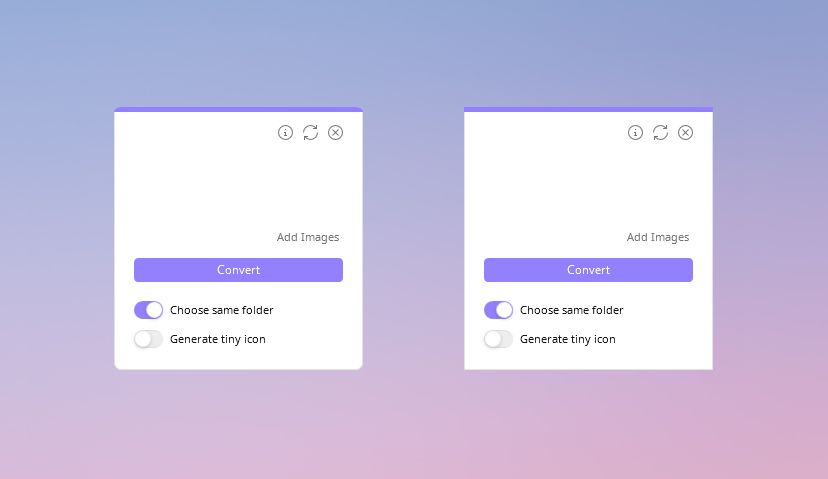
- Adaptive corners (rounded or metro), depending on the OS version.
Preview
Usage
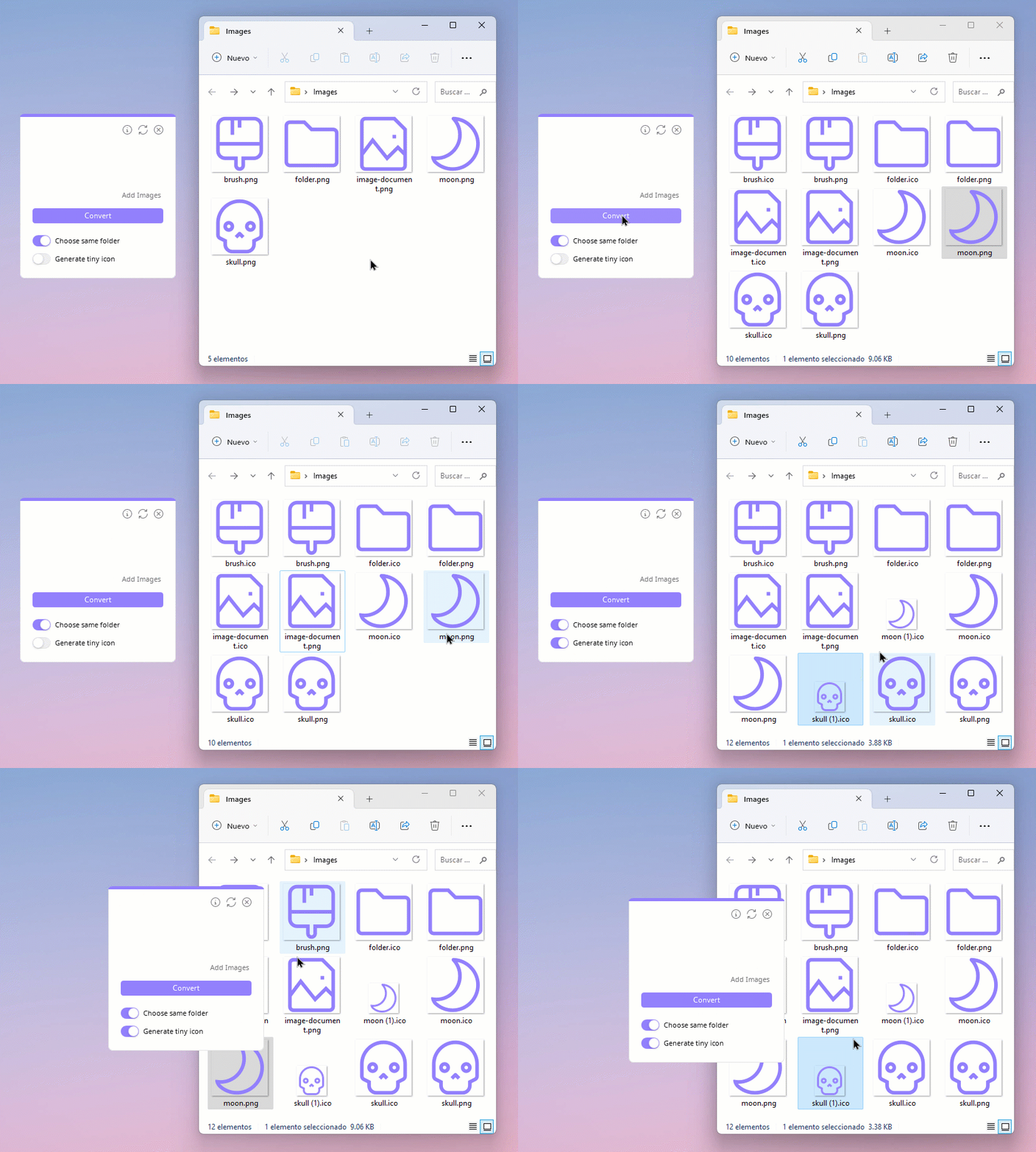
Drag and drop your images into the empty space, you will preview three images except if you only drag one or two. Below you can see the total amount of images to convert, subtracting three from preview. If you cannot drag, click on Add images.
Leave the first switch on if you want to save them in the same folder, if you prefer to choose a specific folder, turn it off. You can also generate a tiny icon by turning on the second switch. Finally, click on Convert button, wait for the interface to restart because this indicates that it has finished and your icons are ready.
If you need to delete the images you have added by mistake, click on the arrows icon. Remember that you can drag images as many times as you want before clicking the Convert button.
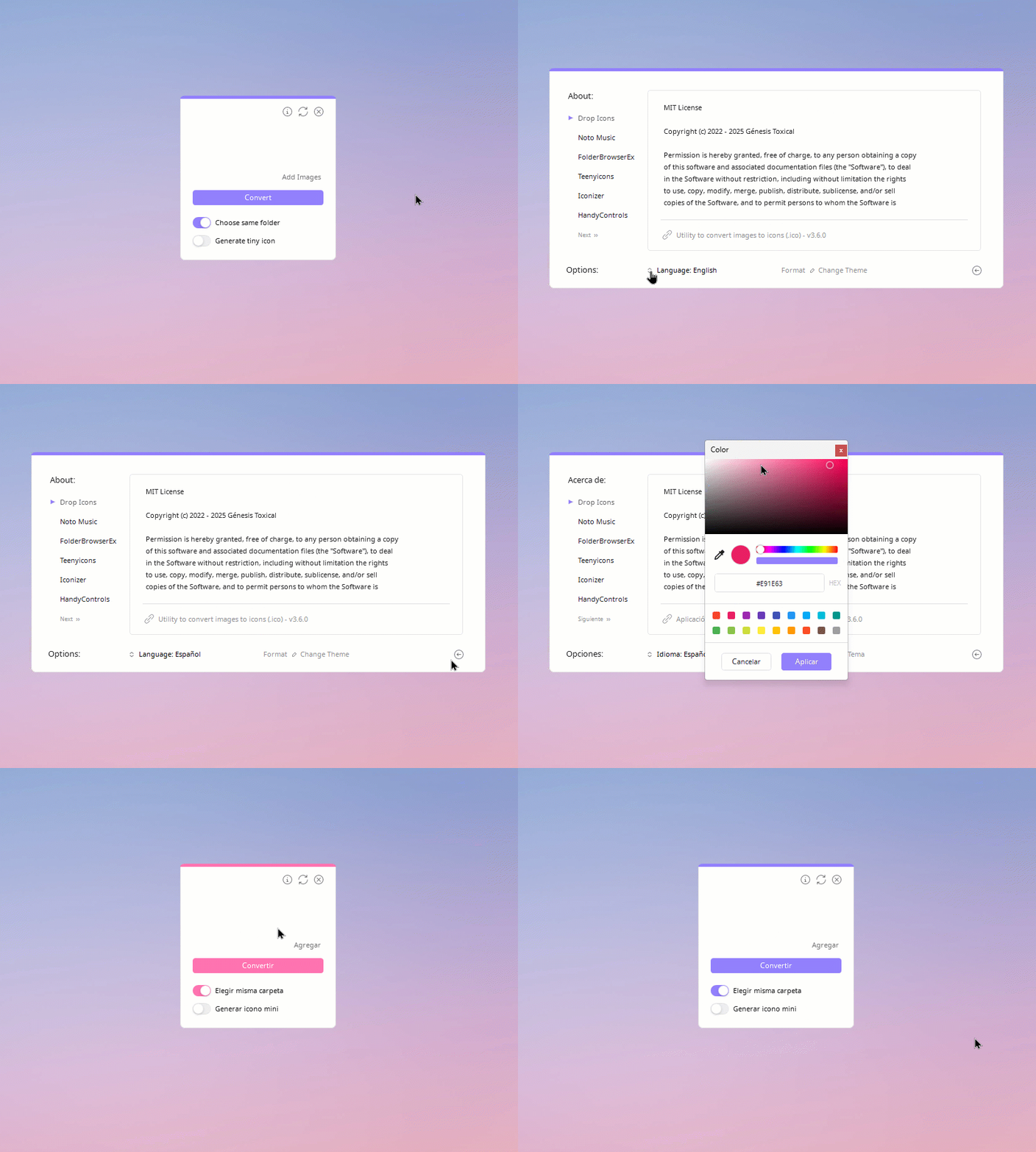
By clicking on the upper Info button, a new window will appear in which you can:
-
Change theme: Click on
Change Themeto open the color picker and choose a custom one, then click Apply. To return to default values, repeat the previous steps and press the purple button below the tone selector. Finally click Apply. -
Change language: In the Language section below, click on the little arrows icon to change between English, Español or Deutsch. Finally click on the return button to apply and see changes.
-
Format: Clicking on
Formatwill display a menu with two options to choose the sizes that will be included within the icon: Multiple generates a high quality icon that include all necessary sizes such as 16, 32, 48, 64, 128 and 256 pixels, although the output dimensions will be 16px. The last two options are 256 px and 512 px, which generate an icon with only that size.Note: If the Generate tiny icon switch is on, a small icon will be created regardless of its format.
-
Third-party content: On the left side are the names of each library, project, icons or fonts that were used, click one to read its license and author(s), as well as a short description. You can click on the clip icon to go to each repository/official site and change pages with Next 🢖🢖 or 🢔🢔 Back.
To choose whether Drop Icons is on top of all windows (Topmost) or not, right-click anywhere in the main window and choose Enable Topmost or Disable Topmost.
Options
Installer
To compile the installer you need Inno Setup, the files are located in the installer src folder. You just need to open the project (Installer.iss) and compile it, unless you want to make a change. When finished, it will leave a folder called Output in the same location.
- Please note that you must first compile the source code in Visual Studio to get the binaries, otherwise you will get a 📍Compiler Error.
- Alternatively, you can download the compiled app from the Drop Icons page.
Portable with 7zip.bat allows you to quickly zip the portable version. It only works with 7zip.
Both .iss and .bat get the files that are needed within their folder and/or the Release folder (due to relative paths).
Contributing
- HandyControls package will no longer be updated (for now or permanently) as the latest version does not allow resizing of ToggleButtonSwitch.
- If you make comments in the code, preferably in Spanish, please.
- Variable names must be in English.
- If you open an Issue, it can be in English o Spanish.
- Pull request in English, in the description you can add details in English or Spanish.
Config
Config.ini file stores information about the language, theme color, icon format and whether or not the Topmost option is enabled.
[Options]
Language = en
Topmost = false

[Theme]
#FF9280FF

[Format]
Size = multiple
Note: The two switch-type options are not saved because they are not options that are usually activated all the time.
Adaptive corners
Credits
Drop Icons is based on Iconizer under MIT License.
-
HandyControls under MIT License.
-
FolderBrowserEx library under MIT License.
-
Noto Music under SIL Open Font License.
-
Icons are part of Teenyicons under MIT License.
-
SVG under MS-PL license.
This package includes five dependencies, read more details in this file. -
WinVersion detection under MIT License.
You can find all licenses here.
✨ Special thanks to the translators:
- German Translation by uDEV2019.
- Simplified Chinese Translation by huqiu2.
- French Translation by logounet.
What's new?
Version 3.1.0 includes one more language: 📍German translation for both the application and installer. To avoid interface issues, updates for HandyControls package have been disabled.
Version 3.2.0 includes another language: 📍Simplified Chinese language, for app only.
Version 3.6.0 another translation was added (Wow, thanks): 📍French language, for app only. Option to create 512px icons in Format was also included 📍Please add 512 px.
Now the Language option unfolds and a tooltip appears when you hover over it, to show credits.
Version 3.6.1 fixed an issue where context menus were in the wrong position on some computers.
License
MIT License
Copyright (c) 2022 - 2026 Génesis Toxical (read here).
Related:
🩷 Image to Icon Convert image to icon online: genesistoxical.github.io/imagetoicon or Repository.
🩷 Pixie Folders Set of six minimalist and editable folder icon designs: Download or Repository.