





LAZYSQL
A cross-platform TUI database management tool written in Go.
Table of Contents
About The Project
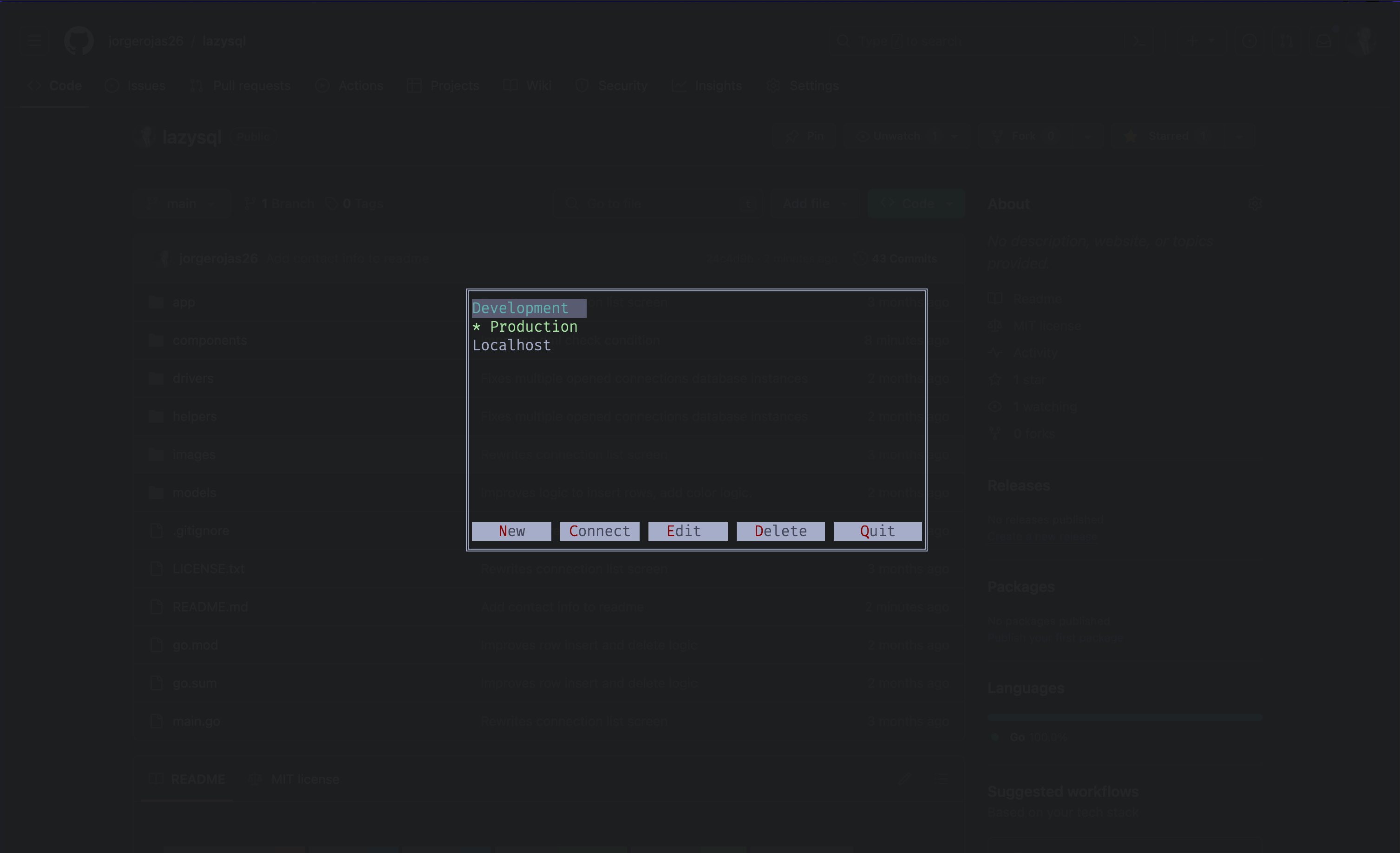
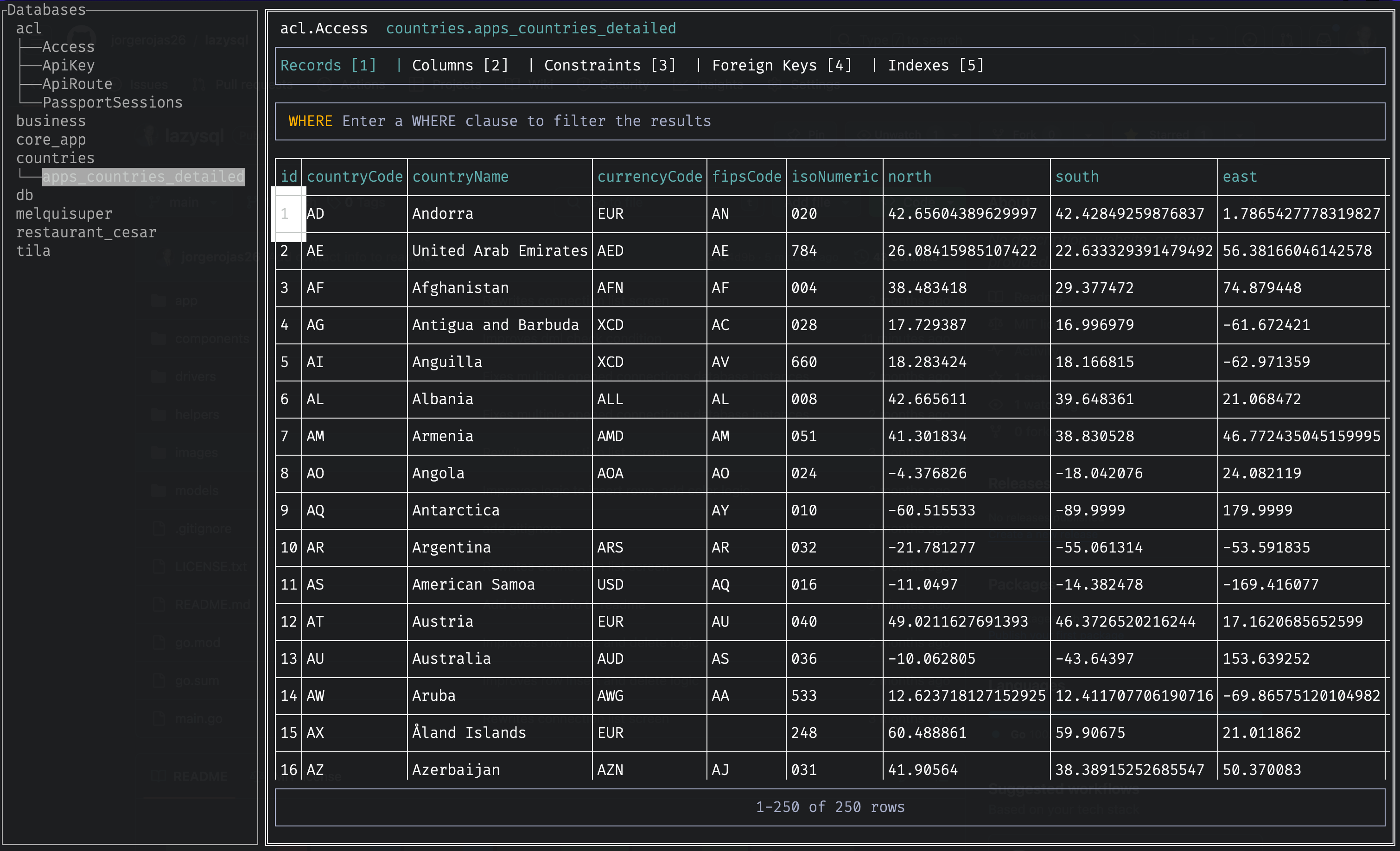
This project is heavily inspired by Lazygit, which I think is the best TUI client for Git.
I wanted to have a tool like that, but for SQL. I didn't find one that fits my needs, so I created one myself.
I live in the terminal, so if you are like me, this tool can become handy for you too.
This is my first Open Source project, also, this is my first Go project. I am not a brilliant programmer. I am just a typical JavaScript developer that wanted to learn a new language, I also wanted a TUI SQL Client, so blanca y en botella, leche! (white and bottled).
This project is in ALPHA stage, please feel free to complain about my spaghetti code.
I use Lazysql daily in my full-time job as a full-stack javascript developer in its current (buggy xD) state. So, the plan is to improve and fix my little boy as a side-project in my free time.
Built With


Features
- Cross-platform (macOS, Windows, Linux)
- Vim Keybindings
- Can manage multiple connections (Backspace)
- Tabs
- SQL Editor (CTRL + e)
Getting Started
Installation
Homebrew (macOS/Linux)
brew install lazysqlInstall with go package manager
go install github.com/jorgerojas26/lazysql@latestBinary Releases
For Windows, macOS or Linux, you can download a binary release here
Third party (maintained by the community)
Arch Linux users can install it from the AUR with:
paru -S lazysql
or
yay -S lazysql
or install it manual with:
git clone https://aur.archlinux.org/lazysql.git
cd lazysql
makepkg -siConfiguration
If the XDG_CONFIG_HOME environment variable is set, the configuration file will be located at:
${XDG_CONFIG_HOME}/lazysql/config.toml
If not, the configuration file will be located at:
- Windows:
%APPDATA%\lazysql\config.toml - macOS:
~/Library/Application Support/lazysql/config.toml - Linux:
~/.config/lazysql/config.toml
The configuration file is a TOML file and can be used to define multiple connections.
Example configuration
[[database]]
Name = 'Production database'
Provider = 'postgres'
DBName = 'foo'
URL = 'postgres://${user}:urlencodedpassword@localhost:${port}/foo'
ReadOnly = true
Commands = [
  { Command = 'ssh -tt remote-bastion -L ${port}:localhost:5432', WaitForPort = '${port}' },
  { Command = 'whoami', SaveOutputTo = 'user' },
]
[[database]]
Name = 'Development database'
Provider = 'postgres'
DBName = 'foo'
URL = 'postgres://postgres:urlencodedpassword@localhost:5432/foo'
[application]
DefaultPageSize = 300
DisableSidebar = false
SidebarOverlay = false
JSONViewerWordWrap = false
EnterOpensJSONViewer = false
The ReadOnly field (optional, defaults to false) can be set to true to enable read-only mode for a connection. When enabled, all mutation queries (INSERT, UPDATE, DELETE, DROP, etc.) will be blocked.
The [application] section is used to define some app settings. Not all settings are available yet, this is a work in progress.
Application settings
| Setting | Default | Description |
|---|---|---|
| DefaultPageSize | 300 | Number of records to fetch per page |
| DisableSidebar | false | Disable the sidebar |
| SidebarOverlay | false | Show sidebar as overlay instead of side panel |
| JSONViewerWordWrap | false | Enable word wrap in JSON viewer |
| EnterOpensJSONViewer | false | Open JSON viewer when pressing Enter on a cell |
Local Configuration
You can place a .lazysql.toml file in your project directory (next to your .git folder) to override the global configuration for that project. This is useful for defining project-specific database connections or settings.
lazysql searches for .lazysql.toml by walking up from the current working directory. It stops at the git repository root (where .git is found). If no local config is found, the global configuration is used as-is.
Merge behavior:
| Section | Behavior |
|---|---|
[application] | Deep merge — local values override global, unset fields keep global/defaults |
[[database]] | Replace — local connections completely replace global connections |
[keymap.*] | Deep merge — local keybindings override global ones for the same command |
Example .lazysql.toml:
[application]
DefaultPageSize = 500

[[database]]
Name = 'Local development'
Provider = 'postgres'
URL = 'postgres://localhost/myproject_dev'
With this local config, DefaultPageSize overrides the global value, and only the Local development connection is available (global connections are replaced).
Environment variables (${env:VAR_NAME}) work in local config files just like in the global config.
Note: When a local .lazysql.toml is found, the full config is saved to the local file when you modify connections from the UI.
Usage
For a list of keyboard shortcuts press
?
Open the TUI with:
$ lazysqlTo launch lazysql with the ability to pick from the saved connections.
$ lazysql [connection_url]To launch lazysql and connect to database at [connection_url].
$ lazysql --read-only [connection_url]To launch lazysql in read-only mode.
Connect to a DB
- Start
lazysql - Create a new connection (press
n) - Provide a name for the connection as well as the URL to connect to (see example connection URL)
- Connect to the DB (press
<Enter>)
If you already have a connection set up:
- Start
lazysql - Select the right connection (press
jandhfor navigation) - Connect to the DB (press
cor<Enter>)
Create a table
There is currently no way to create a table from the TUI. However you can run the query to create the table as a SQL-Query, inside the SQL Editor.
You can update the tree by pressing R, so you can see your newly created table.
Execute SQL queries
- Press
<Ctrl+E>to open the built-in SQL Editor - Write the SQL query
- Press
<Ctrl+R>to execute the SQL query
To switch back to the table-tree press
HAfter executing a
SELECT-query a table will be displayed under the SQL-Editor with the query-result.
To switch focus back to SQL-Editor press/
Open/view a table
- Expand the table-tree by pressing
eor<Enter> - Select the table you want to view
- next node
j - previous node
k - last node
G - first node
g
- next node
- Press
<Enter>to open the table
To switch back to the table-tree press
H
To switch back to the table pressL
Filter rows
- Open a table
- Press
/to focus the filter input - Write a
WHERE-clause to filter the table - Press
<Enter>to submit your filter
To remove the filter, focus the filter input (press
/) and press<Esc>.
Insert a row
- Open a table
- Press
1to switch to the record tab - Press
oto insert a new row - Fill out all columns
- Press
<Ctrl+S>to save the changes
Edit a column
- Open a table
- Press
1to switch to the record tab - Move to the column you want to edit
- Press
cto edit, Press<Enter>to submit - Press
<Ctrl+S>to save the changes
Export to CSV
From Table View
- Open a table
- Apply filters or sorting as needed
- Press
Eto open the export dialog - Optionally modify the file path and batch size
- Select export scope:
- Export Current Page: Export only the currently displayed rows
- Export All Records: Fetch and export all records from the table
Batch size (default: 10000): When exporting all records, data is fetched in batches to avoid timeout or memory issues with large tables. Increase for faster exports, decrease if you encounter any errors.
The default file path is
~/Downloads/{database}_{table}_{timestamp}.csv.
From SQL Editor
- Execute a SQL query
- Press
Eto open the export dialog - Optionally modify the file path
- Select Export to save all query results
Support
- MySQL
- PostgreSQL
- SQLite
- MSSQL
- MongoDB
Support for multiple RDBMS is a work in progress.
Commands
In some cases, mostly when connecting to remote databases, it might be necessary to run a custom command before being able to connect to the database. For example when you can only access the database through a remote bastion, you would probably first need to open an SSH tunnel by running the following command in a separate terminal:
ssh remote-bastion -L 5432:localhost:5432In order to make it easier to run these commands, lazysql supports running custom commands before connecting to the database. You can define these commands in the configuration file like this:
[[database]]
Name = 'server'
Provider = 'postgres'
DBName = 'foo'
URL = 'postgres://${user}:password@localhost:${port}/foo'
Commands = [
  { Command = 'ssh -tt remote-bastion -L ${port}:localhost:5432', WaitForPort = '${port}' },
  { Command = 'whoami', SaveOutputTo = 'user' },
]
The Command field is required and can contain any command that you would normally run in your terminal.
The WaitForPort field is optional and can be used to wait for a specific port to be open before continuing.
The SaveOutputTo field is optional and can be used to make user-defined variables. The output (stdout) from the command will be saved into the variable, and the variable can be used in the URL or future commands via the ${VARIABLE} syntax.
When you define the ${port} variable in the URL field, lazysql will automatically replace it with a random
free port number. This port number will then be used in the connection URL and is available in the Commands
field so that you can use it to configure the command.
You can even chain commands to, for example, connect to a remote server and then to a postgres container running in a remote k8s cluster:
[[database]]
Name = 'container'
Provider = 'postgres'
DBName = 'foo'
URL = 'postgres://postgres:password@localhost:${port}/foo'
Commands = [
  { Command = 'ssh -tt remote-bastion -L 6443:localhost:6443', WaitForPort = '6443' },
  { Command = 'kubectl port-forward service/postgres ${port}:5432 --kubeconfig /path/to/kube.conf', WaitForPort = '${port}' }
]
Environment variables
You can use environment variables in the configuration file using the ${env:VAR_NAME} syntax. This is useful for keeping sensitive information like passwords out of the configuration file.
[[database]]
Name = 'Production'
Provider = 'postgres'
URL = 'postgres://${env:DB_USER}:${env:DB_PASSWORD}@localhost:5432/mydb'
export DB_USER=admin
export DB_PASSWORD=secret
lazysqlNote: Undefined environment variables will be replaced with an empty string.
Keybindings
Custom Keybindings
You can customize keybindings by adding a [keymap.<Group>] section to your config.toml file. Each entry maps a command name to a key.
[keymap.Home]
SwitchToEditorView = "i"
Quit = "Esc"

[keymap.Tree]
GotoTop = "t"
Search = "Ctrl-F"
For single character keys, use the character directly (e.g., "q", "G", "1", "/"). For special keys, use the tcell key name (e.g., "Enter", "Esc", "Ctrl-S"). Only key names defined in tcell are supported.
Group names are case-insensitive (Home, home, and HOME all work).
Available groups: Home, Connection, Tree, TreeFilter, Table, Editor, Sidebar, QueryPreview, QueryHistory, JSONViewer.
Default Keybindings
Home
| Default Key | Command | Description |
|---|---|---|
| L | MoveRight | Focus table |
| H | MoveLeft | Focus tree |
| Ctrl-E | SwitchToEditorView | Open SQL editor |
| Ctrl-S | Save | Execute pending changes |
| q | Quit | Quit |
| Backspace | SwitchToConnectionsView | Switch to connections list |
| ? | HelpPopup | Help |
| Ctrl-P | SearchGlobal | Global search |
| Ctrl-_ | ToggleQueryHistory | Toggle query history modal |
| T | ToggleTree | Toggle file tree |
Connection
| Default Key | Command | Description |
|---|---|---|
| n | NewConnection | Create a new database connection |
| c | Connect | Connect to database |
| Enter | Connect | Connect to database |
| e | EditConnection | Edit a database connection |
| d | DeleteConnection | Delete a database connection |
| q | Quit | Quit |
Tree
| Default Key | Command | Description |
|---|---|---|
| g | GotoTop | Go to top |
| G | GotoBottom | Go to bottom |
| Enter | Execute | Open |
| j | MoveDown | Go down |
| Down | MoveDown | Go down |
| Ctrl-U | PagePrev | Go page up |
| Ctrl-D | PageNext | Go page down |
| k | MoveUp | Go up |
| Up | MoveUp | Go up |
| / | Search | Search |
| n | NextFoundNode | Go to next found node |
| N | PreviousFoundNode | Go to previous found node |
| p | PreviousFoundNode | Go to previous found node |
| P | NextFoundNode | Go to next found node |
| c | TreeCollapseAll | Collapse all |
| e | ExpandAll | Expand all |
| R | Refresh | Refresh tree |
Tree Filter
| Default Key | Command | Description |
|---|---|---|
| Esc | UnfocusTreeFilter | Unfocus tree filter |
| Enter | CommitTreeFilter | Commit tree filter search |
Table
| Default Key | Command | Description |
|---|---|---|
| / | Search | Search |
| c | Edit | Change cell |
| d | Delete | Delete row |
| w | GotoNext | Go to next cell |
| b | GotoPrev | Go to previous cell |
| $ | GotoEnd | Go to last cell |
| 0 | GotoStart | Go to first cell |
| y | Copy | Copy cell value to clipboard |
| o | AppendNewRow | Append new row |
| O | DuplicateRow | Duplicate row |
| J | SortDesc | Sort descending |
| R | Refresh | Refresh the current table |
| K | SortAsc | Sort ascending |
| C | SetValue | Toggle value menu (NULL, EMPTY, DEFAULT) |
| [ | TabPrev | Switch to previous tab |
| ] | TabNext | Switch to next tab |
| { | TabFirst | Switch to first tab |
| } | TabLast | Switch to last tab |
| X | TabClose | Close tab |
| > | PageNext | Switch to next page |
| < | PagePrev | Switch to previous page |
| 1 | RecordsMenu | Switch to records menu |
| 2 | ColumnsMenu | Switch to columns menu |
| 3 | ConstraintsMenu | Switch to constraints menu |
| 4 | ForeignKeysMenu | Switch to foreign keys menu |
| 5 | IndexesMenu | Switch to indexes menu |
| S | ToggleSidebar | Toggle sidebar |
| s | FocusSidebar | Focus sidebar |
| Z | ShowRowJSONViewer | Toggle JSON viewer for row |
| z | ShowCellJSONViewer | Toggle JSON viewer for cell |
| E | ExportCSV | Export to CSV |
Editor
| Default Key | Command | Description |
|---|---|---|
| Ctrl-R | Execute | Execute query |
| Esc | UnfocusEditor | Unfocus editor |
| Ctrl-Space | OpenInExternalEditor | Open in external editor |
Specific editor for lazysql can be set by $SQL_EDITOR.
JSON Viewer
| Key | Action |
|---|---|
| w | Toggle word wrap |
| y | Copy to clipboard |
| z/Z | Close viewer |
The JSON viewer can be opened by pressing z (cell) or Z (row) on a table cell. If EnterOpensJSONViewer is enabled, pressing Enter on a cell will also open the JSON viewer.
Sidebar
| Default Key | Command | Description |
|---|---|---|
| s | UnfocusSidebar | Focus table |
| S | ToggleSidebar | Toggle sidebar |
| j | MoveDown | Focus next field |
| k | MoveUp | Focus previous field |
| g | GotoStart | Focus first field |
| G | GotoEnd | Focus last field |
| c | Edit | Edit field |
| Enter | CommitEdit | Add edit to pending changes |
| Esc | DiscardEdit | Discard edit |
| C | SetValue | Toggle value menu (NULL, EMPTY, DEFAULT) |
| y | Copy | Copy value to clipboard |
Query Preview
| Default Key | Command | Description |
|---|---|---|
| Ctrl-S | Save | Execute queries |
| q | Quit | Quit |
| y | Copy | Copy query to clipboard |
| d | Delete | Delete query |
Query History
| Default Key | Command | Description |
|---|---|---|
| s | Save | Save query |
| d | Delete | Delete query |
| q | Quit | Quit |
| y | Copy | Copy query to clipboard |
| / | Search | Search |
| Ctrl-_ | ToggleQueryHistory | Toggle query history modal |
| [ | TabPrev | Switch to previous tab |
| ] | TabNext | Switch to next tab |
JSON Viewer
| Default Key | Command | Description |
|---|---|---|
| Z | ShowRowJSONViewer | Toggle JSON viewer |
| z | ShowCellJSONViewer | Toggle JSON viewer |
| y | Copy | Copy value to clipboard |
| w | ToggleJSONViewerWrap | Toggle word wrap |
External Editor
The external editor feature (CTRL + Space in SQL Editor, CTRL + o in Table) uses the following environment variables to determine which editor to use:
- SQL Editor:
$SQL_EDITOR>$EDITOR>$VISUAL>vi - Table cells:
$EDITOR>$VISUAL>vi
This feature is only available on Linux and macOS.
Example connection URLs
postgres://user:pass@localhost/dbname
pg://user:pass@localhost/dbname?sslmode=disable
mysql://user:pass@localhost/dbname
mysql:/var/run/mysqld/mysqld.sock
sqlserver://user:pass@remote-host.com/dbname
mssql://user:pass@remote-host.com/instance/dbname
ms://user:pass@remote-host.com:port/instance/dbname?keepAlive=10
oracle://user:pass@somehost.com/sid
sap://user:pass@localhost/dbname
file:myfile.sqlite3?loc=auto
/path/to/sqlite/file/test.db
odbc+postgres://user:pass@localhost:port/dbname?option1=
Roadmap
- Support for NoSQL databases
- Columns and indexes creation through TUI
- Table tree input filter
- Custom keybindings
- Show keybindings on a modal
- Rewrite row
create,updateanddeletelogic
See the open issues for a full list of proposed features (and known issues).
Clipboard support
We use atotto/clipboard to copy to clipboard.
Platforms:
- OSX
- Windows 7 (probably work on other Windows)
- Linux, Unix (requires 'xclip' or 'xsel' command to be installed)
Contributing
Contributions, issues, and pull requests are welcome!
License
Distributed under the MIT License. See LICENSE.txt for more information.
Contact
Jorge Rojas - LinkedIn - jorgeluisrojasb@gmail.com