English | 简体中文
ComfyTV
ComfyTV — the canvas-based app that truly belongs to ComfyUI.
ComfyTV turns ComfyUI into a TapNow / LibTV-style canvas app — and keeps going, all the way to a full media workbench. Every operation is its own node; results flow downstream automatically. Chain stages into a complete flow: generate → pick → edit → composite → export, across image, video, audio, music, panorama, 2D layers, and 3D.
Today that means ~190 stages, each with its own reference page.
📖 Documentation: comfytv.org — bilingual (English / 中文) guides plus a per-node reference for every stage.
Core ideas
- Per-node Run: each stage runs on its own, not through ComfyUI's global queue. Downstream stages consume the snapshot of an upstream stage's last output, so re-running one node doesn't drag the whole chain with it.
- Project-centric: stages belong to a project; every output is kept with full history and restores on reload.
- Your models, your workflows: a curated set of workflows ships under
workflows/<kind>/, all running against your own local models. Import any ComfyUI workflow as JSON, bind its inputs in the sidebar GUI editor, save per-stage presets, and star a default workflow per stage. - Part of the ComfyUI ecosystem: subgraphs and third-party plugins just work; Bridge nodes connect any plugin into a ComfyTV pipeline; remote ComfyUI machines can be registered as extra runners (Servers tab) with capability preflight.
- Libraries built in: a project asset library (images / video / audio / 3D models), a resource library (LUTs, fonts, SoundFonts), and reusable prompt fragments — all in the 9-tab sidebar, and all reachable from any prompt via
@references. - Eagle as your archive: connect the local Eagle app — browse and search your Eagle library in the sidebar, drag items straight onto the canvas, and optionally auto-archive every render into per-project Eagle folders, each carrying its full generation provenance (workflow / prompt / parameters) in the annotation. Guide →
- Rich in-node editors: many stages embed a real editor in the node — layer editor, storyboard workbench, piano rolls, 3D viewports, scopes — with live previews on most video effects.
- Agent-native: an embedded Bot, a 45-tool MCP server, and installable Agent Skills — see the Agents section below.
- Two looks: the classic node shells, plus an experimental content-first V2 skin (light + dark) behind a Settings toggle.
What's inside
Image
Generation (text-to-image, image-to-image, edit, inpaint, outpaint, erase, upscale, relight, variations, multi-angle 3D camera), instant browser-side tools (crop / rotate / mirror / grid split), SAM-based part splitting + mask cleanup, line-art extraction, contact sheets.
2D layer editor & storyboard
A full layered editor inside a node: raster, text (real font parsing), vector-shape, parametric-fill (solid / gradient), and adjustment layers; per-layer masks; selections with magic wand, boolean ops and morphology; non-destructive transforms; undo; PSD import & export. The storyboard workbench reuses the same engine per board and adds onion skin, timeline playback, animatic / GIF / PDF / ZIP export, and Fountain script import.
The editor engine is developed as its own project, Pentrado — try it standalone in your browser at pentrado.com.
Video (~100 nodes)
- Edit: clip, split, concat, crop, resize, speed / reverse, rotate, scene detect, frame extraction, proxy generation with transparent proxy playback.
- Color: color wheels / curves / LUT / ASC CDL / HueCorrect / selective color / histogram EQ / gray world.
- Keying: chroma key plus a full keyer suite — PIK, Keyer, Despill, Color Suppress, KeyMix, matte monitor / morphology, Select0r.
- Roto & tracking: bezier roto masks with feather, point motion tracking, optical-flow mask propagation, corner pin, paint strokes with clone brushes.
- Compositing: 39 blend modes, keyframed transforms, 57 xfade transitions + luma wipes, time remap, sequencing.
- FX: glow, god rays, particle system, lens distortion (multiple lens models), chromatic aberration, lens flare, Z-defocus, old film, regrain, glitch, kaleidoscope, wave warp, water, light graffiti, slit scan, feedback, strobe, stylize, and more.
- 360: projection + stabilization for 360° footage, Card3D, STMap UV remapping + STMap generator.
- Infrastructure: parameter expressions, FX Chain (stack many effects, render in a single pass), scopes (waveform / vectorscope / histogram), titles / subtitles / annotations, speech-to-text subtitle generation.
Audio (30+ nodes)
Dynamics (compressor / gate / limiter / de-esser), parametric EQ with graph UI, loudness normalization, denoise / repair, echo, modulation, stereo tools, time-stretch / pitch-shift, saturation; convolution reverb — including capturing the sound of your own room — and an algorithmic reverb; stem split into vocals / accompaniment / drums / bass / other (built in, nothing extra to install), noise reduction, beats & notes extraction; mix, crossfade, sidechain ducking, segment export, analysis and visualization; audio-reactive parameter automation and meter overlays for video.
Music (symbolic)
Score stage with MusicXML and engraved notation, piano-roll score and MIDI editors, performance rendering with style profiles, a SoundFont (SF2/SF3) synthesizer, click track, and chord accompaniment — composition → performance → synthesis → mixing on one canvas.
Panorama
360° viewer with single- and multi-viewport capture; text-to-panorama and image-to-panorama workflows.
3D
Scene3D DCC-style stage (multi-camera, keyframed camera paths, multi-channel viewport capture), 3D model generation and loaders, a geometry workshop (mesh ops, booleans, primitives, map baking), PBR material stage with per-part material binding, and line-art rendering from 3D.
Compose & flow
Auto-spawned pickers (image / audio / video), A/B compare, track-style sequence assembly, and a Director console: a shot-by-shot clip timeline where every clip is generated, with per-clip transitions, a shared reference cast for cross-shot consistency, content-addressed caching (only changed clips re-render), and a master timeline with ruler, playhead and unified film preview. A storyboard → per-shot image pipeline is on the roadmap.
Install
cd ComfyUI/custom_nodes
git clone https://github.com/jtydhr88/ComfyTV
Restart ComfyUI. ComfyTV nodes appear under the ComfyTV category in the Add-Node menu, grouped into sub-categories (Project / Input / Generate / Image / Panorama / Video / VideoFX / Keying / Compose / Timeline / Audio / AudioFX / Music / 3D / Material / Storyboard / Bridge).
ComfyUI Desktop / macOS / multiple ComfyUI installs
If you use ComfyUI Desktop, are on macOS, or have more than one ComfyUI on your machine, the relative cd ComfyUI/custom_nodes above can easily drop you into the wrong instance (a common symptom: the clone succeeds but ComfyTV never shows up). Install into the running instance by its absolute path instead:
- Find the running instance. Read the ComfyUI startup log — it prints the base path it loaded from, e.g.
/Users/you/Downloads/ComfyUI (1)/ComfyUI. That is the instance to install into. - Clone straight into that instance's
custom_nodes, quoting the path (quotes are required if it contains spaces or parentheses). Keep it on one line so no stray line-continuation\splits it apart:If you must wrap it across lines, thegit clone https://github.com/jtydhr88/ComfyTV.git "/Users/you/Downloads/ComfyUI (1)/ComfyUI/custom_nodes/ComfyTV"\has to be the very last character of the line with nothing after it — a stray\at the end of thecdline, for example, silently joins the next command sogit clonenever runs on its own. - Verify the layout. The first level of
custom_nodes/ComfyTV/must contain__init__.py. If you instead see a nestedComfyTV/ComfyTV/…, move the inner folder up one level. - Fully restart the ComfyUI backend (quit and relaunch the Desktop app, or stop and restart the server — not just a browser refresh). On success the startup log shows ComfyTV loading and registering its nodes.
User guides
The full documentation lives at comfytv.org — guides plus a reference page for every node, in English and 中文. The guide sources are also browsable in docs/:
| Guide | What it covers |
|---|---|
| getting-started.md | Install, the canvas basics, your first generation, per-node Run, picking from a set |
| sidebar.md | The 9-tab sidebar: workflow config, asset library, Eagle browser, prompt fragments, stage manager, presets, resources, servers, settings — plus @ references in prompts |
| eagle.md | The Eagle integration: browsing your Eagle library, drag-to-canvas import, sending assets, auto-archive with provenance, AI search |
| generate.md | Text / Image / Video / Audio generation, choosing a model, running |
| image-tools.md | Crop, Rotate, Mirror, Inpaint, Erase, Cutout, Upscale, Outpaint, Grid Split, Variations, Multiangle, Relight |
| panorama.md | Loading/viewing a 360° panorama, capturing single + multi viewports |
| video-and-audio.md | The video & audio suites: editing, color, keying, compositing, FX, audio processing |
| making-music.md | Composition → performance → synthesis → mixing on one canvas: MusicXML, every Music-node parameter, reverb presets |
| compose.md | Pickers, A/B Compare, and the bigger arranging tools |
| roadmap.md | What works today vs TODO (backend workflows not yet built) |
| models.md | Per-workflow model files + folder locations + download URLs for everything shipped under workflows/ |
| custom-workflows.md | Adding your own ComfyUI workflow as a JSON file (no Python edits) |
| sidebar-config-editor.md | The sidebar GUI for editing how a stage's inputs map to its workflow nodes |
| bridges.md | Connecting third-party ComfyUI plugins (mesh2motion, IPAdapter, …) via Bridge nodes |
| mcp.md | The MCP endpoint: 45 agent tools, connecting clients, agent patterns |
| bot.md | The embedded sidebar chat agent: providers, attachments, skills |
| skills.md | Agent Skills: the format, managing them, writing your own |
Agents — Bot, MCP server, Skills
ComfyTV is built to be driven by AI agents as well as by hand. Three pieces, all managed from the Settings tab (MCP and the Bot are off by default):
ComfyTV Bot — a chat agent docked beside the canvas (the agent button at the top right), using the same panel the ComfyUI frontend ships for its cloud agent. Describe what you want; it builds nodes, runs workflows, waits for renders, looks at the results with real vision and iterates. It drives your locally installed agent CLI — Claude Code, Codex, Qwen Code — or any OpenAI-compatible local LLM server; no API keys are ever stored. Image / video attachments, @ mentions of nodes, per-provider model choice, persistent conversations. Guide →
MCP server — a built-in MCP endpoint at /comfytv/mcp with 45 tools: read the live canvas, build / run / wait on stages, inspect results (view_image returns actual pixels), edit the native ComfyUI graph (graph_edit / graph_run — any node from any plugin), and manage workflow bindings. It runs inside the ComfyUI server process — no extra install:
claude mcp add --transport http comfytv http://127.0.0.1:8188/comfytv/mcp
Canvas writes are executed by the open ComfyTV page (Comfy Desktop or a browser). The endpoint shares ComfyUI's trust boundary — expose port 8188 carefully. Pairs with the official comfy-mcp for the machine layer (installing nodes, downloading models). Guide →
Agent Skills — installable SKILL.md instruction packs (the open Agent Skills format) that teach agents your methodologies. Every agent above discovers them automatically; invoke one explicitly from the Bot by starting a message with /<name>, or from Claude Code as a /mcp__comfytv__<name> slash command. One skill ships built in: h3-cinematic-director, a director-grade MiniMax H3 production methodology. Guide →
Quick tour
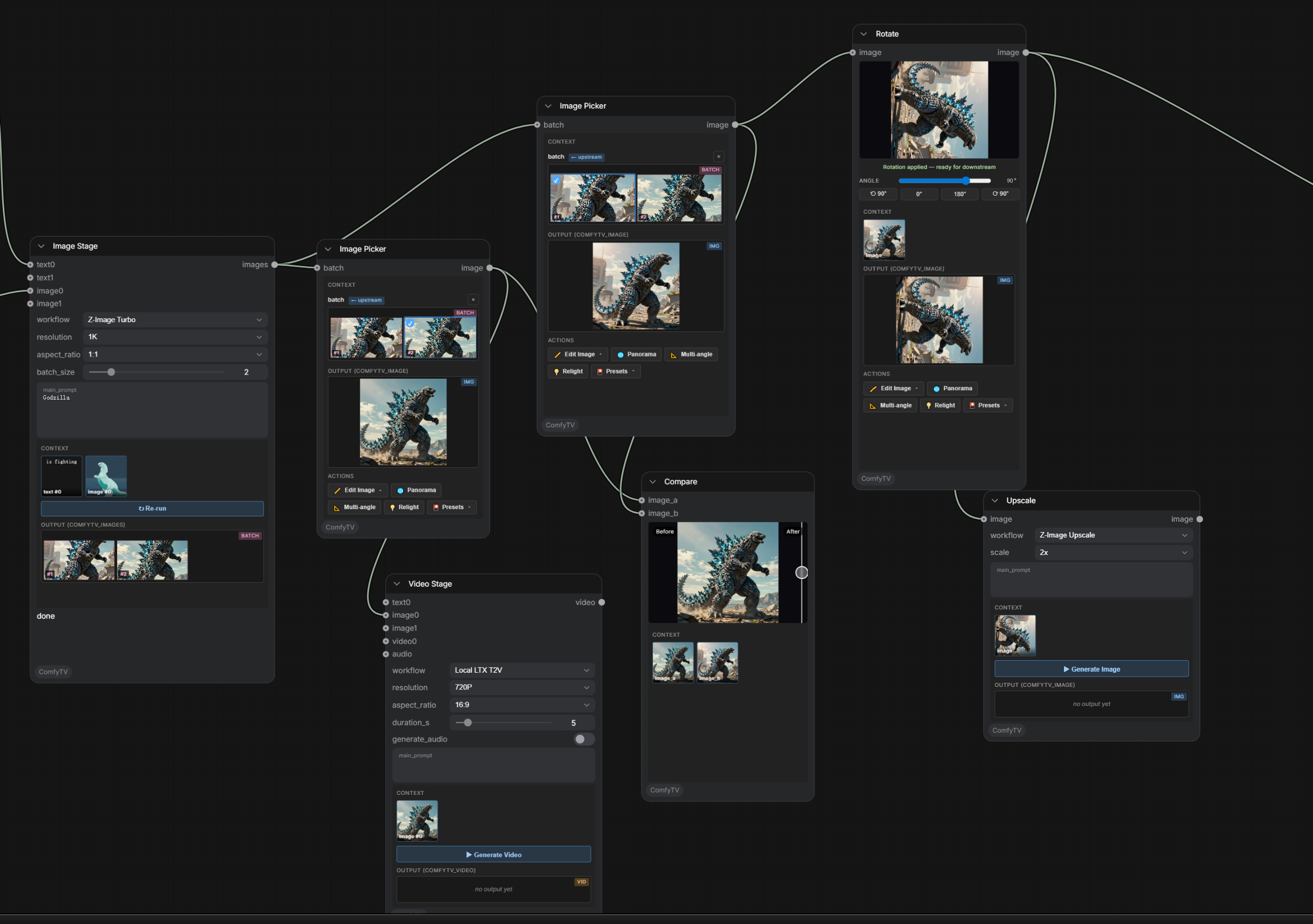
- Drop a Generate → Image node, type a prompt, pick
Local SD1.5as the workflow, click Run. It produces a set of images and auto-spawns an Image Picker. - Pick a frame in the picker. Its
✏️ Edittoolbar offers Inpaint / Crop / Rotate / Mirror / Grid Split / Upscale / Outpaint / Cutout. - Crop / Rotate / Mirror happen entirely in the browser — no Run needed.
- Wire the picked image into a Generate → Video node (
Local LTX I2V) and Run. - Chain a few VideoFX nodes (color, glow, grain, …) into an FX Chain and render them in a single pass — most effects preview live right in the node.
- Use Compose → Compare to A/B the before/after.
License
GPL-3.0 — see LICENSE. The bot panel under src/agent/native is
vendored from ComfyUI_frontend
(GPL-3.0); src/agent/native/UPSTREAM records the commit it was taken from and
python scripts/agent/sync_native.py refreshes it.