Tock





Features
•
Quick Start
•
Commands
•
OpenClaw
Configuration
•
Theme
•
File Format
•
Shell
•
Inspiration
•
License
Features
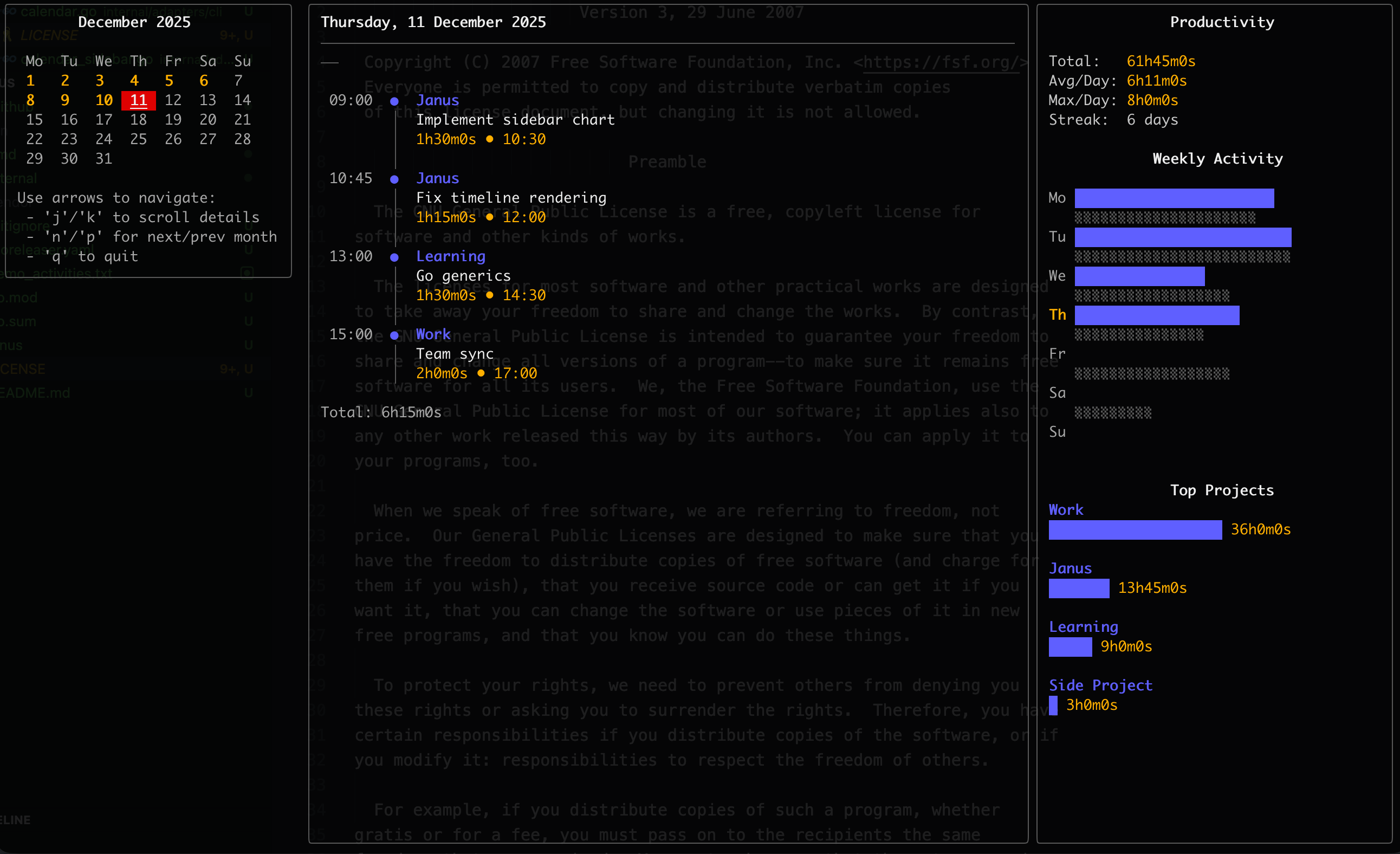
Tock is a powerful time tracking tool for the command line. It saves activity logs as plaintext files and provides an interactive terminal UI for viewing your time.
Features include:
- Simple plaintext format - Activities stored in human-readable files (default)
- Multiple Backends - Support for flat files, TodoTXT, TimeWarrior, and SQLite databases
- Notes & Tags - Attach detailed notes and tags to activities
- Interactive TUI - Beautiful terminal calendar view using Bubble Tea
- Fast & Lightweight - Single binary, no dependencies
- Compatible - Reads/writes Bartib file format, TodoTXT-compatible lines, and TimeWarrior data files
- Customizable Themes - Multiple color themes and custom color support
- Report Export - Export report data as text, CSV, or JSON
- iCal Export - Generate .ics files for calendar integration, or sync with system calendars (macOS only)
Quick Start
Installation
Homebrew (macOS)
# https://formulae.brew.sh/formula/tock
# Install from official repository (build from source)
brew install tock

# Install pre-built binary via latest release (Goreleaser)
brew install kriuchkov/tap/tock
Go Install
go install github.com/kriuchkov/tock/cmd/tock@latest
Build from source
go build -o tock ./cmd/tock
Install Script (Linux & macOS)
curl -sS https://raw.githubusercontent.com/kriuchkov/tock/master/install.sh | sh
Download Binary
Download the latest release from the Releases page.
Basic Usage
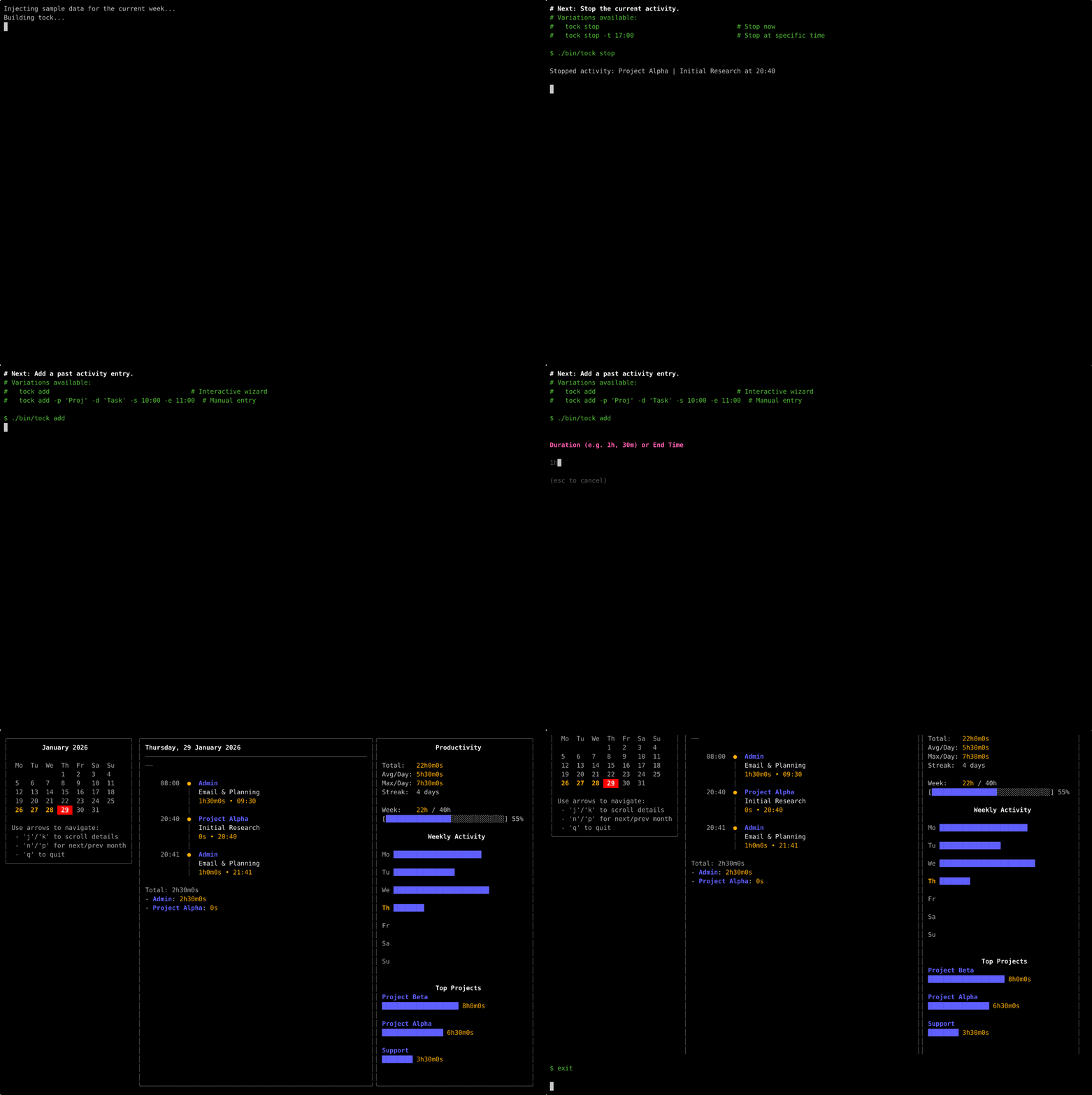
Start tracking time:
tock start # Interactive mode (requires no arguments)
tock start "My Project" "Implementing features" # Quick start with arguments
tock start "My Project" "Implementing features" "Some notes" "tag1,tag2"  # Quick start with arguments + notes/tags
tock start -d "Implementing features" -p "My Project" # Start with flags
tock start -d "Implementing features" -p "My Project" -t 14:30 --note "Some notes" --tag "afternoon" # Start with flags + time + notes/tags
Stop the current activity:
tock stop # Stop now
tock stop -t 17:00 # Stop at specific time
tock stop --note "Finished for the day" # Stop with a note
tock stop --tag "end-of-day" # Stop with a tag
Continue a previous activity (Create a new entry with the same project/description):
tock continue  # Continue the last activity
tock continue 1   # Continue the 2nd to last activity
tock continue -d "New" # Continue last activity but with new description
tock continue -p "New Project" # Continue last activity but with new project
tock continue -t 14:00 # Continue last activity but with specific start time
tock continue --note "Resuming work" --tag "resumed" # Continue last activity with a note and tag
View activities in interactive calendar:
tock list
Calendar controls:
Arrow Keys/h,j,k,l: Navigate daysn: Next monthp: Previous monthq/Esc: Quit
tock calendar
Configuration
Tock supports a flexible configuration system using YAML files and environment variables.
Priority Order:
- Command-line flags
- Environment variables
- Configuration file (
~/.config/tock/tock.yamlor./tock.yaml) - Default values
Configuration File
Example tock.yaml:
backend: file
file:
    path: /Users/user/tock.txt
todotxt:
  path: /Users/user/todo.txt
sqlite:
    path: /Users/user/tock.db
time_format: "24"
theme:
    faint: '#404040'
    highlight: '#FFFF00'
    name: custom
    primary: '#FF00FF'
    secondary: '#00FFFF'
    sub_text: '#B0B0B0'
    text: '#FFFFFF'
timewarrior:
    data_path: /Users/user/.timewarrior/data
  use_tock_tag_colors: true
  use_tock_tag_colors_calendar: true
  use_tock_tag_colors_weekly_activity: true
  use_tock_tag_colors_top_projects: true
working_hours:
  enabled: true
  stop_at: "17:30"
  weekdays: "mon,tue,wed,thu,fri"
calendar:
    time_spent_format: "15:04"
    time_start_format: "15:04"
    time_end_format: " • 15:04"
export:
    ical:
        file_name: "tock_export.ics"
weekly_target: "40h"
check_updates: true
When working_hours.enabled is true, tock will automatically stop the latest running activity at working_hours.stop_at the next time you run a command after that cutoff. The feature is disabled by default.
You can specify a custom config file path with the --config flag:
tock --config /path/to/tock.yaml list
Example a config file tock.yaml.example.
Environment Variables
All settings can be overridden with environment variables (prefix TOCK_).
-
TOCK_BACKEND:file,todotxt,timewarrior, orsqlite -
TOCK_EXPORT_ICAL_FILE_NAME: Custom filename for bulk iCal export (default:tock_export.ics) -
TOCK_FILE_PATH: Path to activity log -
TOCK_TODOTXT_PATH: Path to TodoTXT activity log -
TOCK_TIME_FORMAT: Time display format (12or24) Notes are stored as individual files in~/.tock/notes/(or relative to your configured file path). -
TOCK_THEME_NAME: Theme name (dark,light,custom) -
TOCK_WEEKLY_TARGET: Weekly workload target as a duration (e.g.,40h,37h30m) -
TOCK_CHECK_UPDATES: Check for updates (default:true)
Storage Backends
Tock supports multiple storage backends.
OpenClaw
Tock includes a workspace-ready OpenClaw skill in skills/tock.
This integration model uses the local tock CLI instead of coupling Tock to OpenClaw internals. For agent-safe flows, use machine-readable commands where possible:
tock current --json
tock last --json -n 10
tock export --today --format json --stdout
tock start -p "Backend" -d "Implement OpenClaw skill" --json
tock stop --json
Setup details are documented in docs/openclaw.md.
1. Flat File (Default)
Stores activities in a simple plaintext file.
export TOCK_FILE_PATH="$HOME/.tock.txt"
2. TodoTXT
Stores activities in a TodoTXT-compatible file. Tock keeps exact timestamps and full field fidelity in tock_* key:value extensions, so round-tripping remains lossless even though base TodoTXT has date-only task metadata.
# Enable TodoTXT backend
export TOCK_BACKEND="todotxt"

# Optional: Specify custom TodoTXT file path (default: ~/.tock.todo.txt)
export TOCK_TODOTXT_PATH="$HOME/.tock.todo.txt"
3. TimeWarrior
Integrates with TimeWarrior data files.
# Enable TimeWarrior backend
export TOCK_BACKEND="timewarrior"

# Optional: Specify custom data directory (default: ~/.timewarrior/data)
export TOCK_TIMEWARRIOR_DATA_PATH="/path/to/timewarrior/data"

# Optional: Ignore tags.*.color from timewarrior.cfg and use tock theme.tag_colors
export TOCK_TIMEWARRIOR_USE_TOCK_TAG_COLORS="true"

# Optional: Selective overrides for specific calendar sections
export TOCK_TIMEWARRIOR_USE_TOCK_TAG_COLORS_CALENDAR="true"
export TOCK_TIMEWARRIOR_USE_TOCK_TAG_COLORS_WEEKLY_ACTIVITY="true"
export TOCK_TIMEWARRIOR_USE_TOCK_TAG_COLORS_TOP_PROJECTS="true"
4. SQLite
Stores activities in an SQLite database file.
# Enable SQLite backend
export TOCK_BACKEND="sqlite"

# Optional: Specify custom database file path (default: ~/.tock.db)
export TOCK_SQLITE_PATH="/path/to/tock.db"
Or use flags:
tock --backend timewarrior list
Calendar View
Customize the time format in the calendar view (tock calendar).
calendar:
  # Format for duration display (Go time syntax, or "decimal" for decimal hours)
  time_spent_format: "15:04" # Default
  # time_spent_format: "decimal" # Decimal hours: 2h15m → "2.25", 5h45m → "5.75"

  # Format for start time (Go time syntax)
  # Default: uses global time_format
  time_start_format: "15:04"

  # Format for end time (appended to duration)
  # Includes separators or icons.
  # Default: " • " + global time_format
  # Example: " 🏁 15:04"
  time_end_format: " • 15:04"

  # Format for total daily duration (Go time syntax, or "decimal").
  # Defaults to time_spent_format.
  time_total_format: "15:04"

  # Align duration to the left side in the details view
  # true:  "01:30 Project Name"
  # false: "- Project Name: 01:30" (Default)
  align_duration_left: false
Theming
Tock supports customizable color themes for the calendar view.
You can configure the theme in tock.yaml:
theme:
  name: custom
  primary: "#ff0000"
Or use environment variables:
Theme Name
Set TOCK_THEME_NAME (or theme.name in config) to one of:
dark: Standard 256-color dark themelight: Standard 256-color light themeansi_dark: 16-color dark themeansi_light: 16-color light themecustom: Use custom colors defined by environment variables
Auto-detection
If theme.name is not set, Tock automatically selects the best theme:
- Detects terminal capabilities (TrueColor/256 vs ANSI).
- Detects background color (Light vs Dark).
- Selects the appropriate theme (e.g.
lightfor light background,ansi_darkfor dark ANSI terminal).
Custom Colors
When theme.name is custom, you can override specific colors using these variables (accepts ANSI color codes or hex values):
export TOCK_THEME_NAME="custom"
export TOCK_COLOR_PRIMARY="63"   # Blue
export TOCK_COLOR_SECONDARY="196" # Red
export TOCK_COLOR_TEXT="255"     # White
export TOCK_COLOR_SUBTEXT="248"  # Light Grey
export TOCK_COLOR_TAG="34"       # Green
Per-Tag Colors
You can assign individual foreground colors to specific tags. This works with all backends.
theme:
  tag_colors:
    work: "2"        # ANSI green
    personal: "196"  # ANSI red
    urgent: "#FF5F00"
When using the TimeWarrior backend, colors defined in timewarrior.cfg via color.tag.* entries are automatically merged on top of the tag_colors values — so TimeWarrior's own palette takes precedence for tags that appear in both sources.
Example: Cyberpunk / Fuchsia Theme
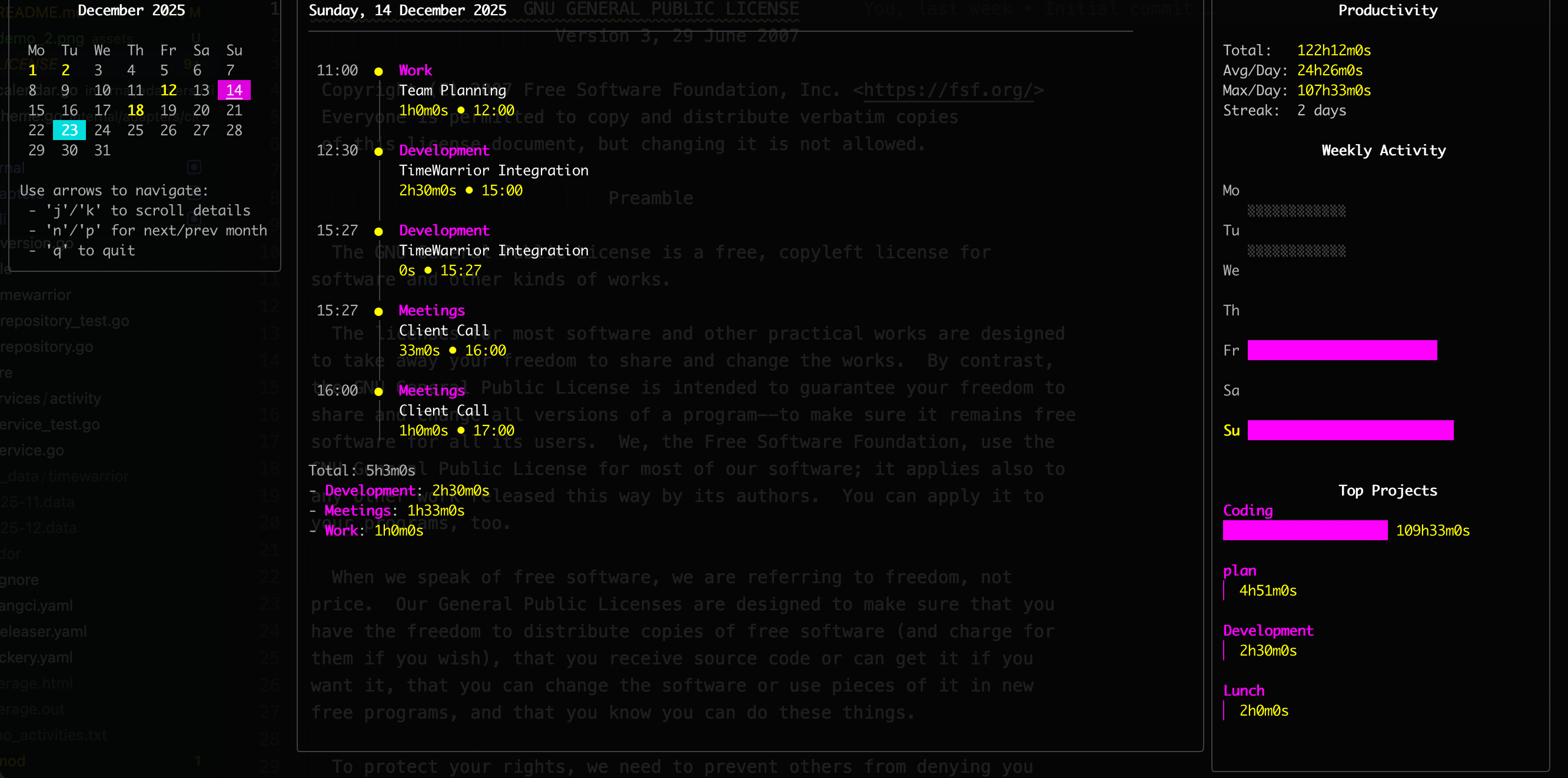
export TOCK_THEME_NAME="custom"
export TOCK_COLOR_PRIMARY="#FF00FF"   # Fuchsia
export TOCK_COLOR_SECONDARY="#00FFFF" # Cyan
export TOCK_COLOR_TEXT="#FFFFFF"      # White
export TOCK_COLOR_SUBTEXT="#B0B0B0"   # Light Grey
export TOCK_COLOR_FAINT="#404040"     # Dark Grey
export TOCK_COLOR_HIGHLIGHT="#FFFF00" # Yellow
export TOCK_COLOR_TAG="#00FF00"       # GreenGrey
export TOCK_COLOR_FAINT="#404040"     # Dark Grey
export TOCK_COLOR_HIGHLIGHT="#FFFF00" # Yellow
Time Format
Configure how times are displayed and input via config file or environment variable:
# In tock.yaml
time_format: "12"  # Use 12-hour format with AM/PM
time_format: "24"  # Use 24-hour format (default)
# Or via environment variable
export TOCK_TIME_FORMAT="12"  # Use 12-hour format with AM/PM
export TOCK_TIME_FORMAT="24"  # Use 24-hour format (default)
12-Hour Format Examples
tock start -p Project -d Task -t "3:04 PM"   # or "03:04 PM"
tock start -p Project -d Task -t "3PM"       # Minutes optional
tock add -s "9:00 AM" -e "5:00 PM"
tock stop -t "4:45pm"                        # Case insensitive

# Times display as: "03:04 PM" instead of "15:04"
# Input accepts both "3:04 PM" and "03:04 PM" formats
24-Hour Format (Default)
tock start -p Project -d Task -t 15:04
tock stop -t 17:30

# Times display as: "15:04"
Notes:
- Times display with zero-padded hours (e.g., "08:12 AM") for better alignment
- Input accepts both zero-padded ("03:04 PM") and non-padded ("3:04 PM") formats
- 24-hour input (e.g., "15:04") is still accepted in 12-hour mode as a fallback
Commands
A simple timetracker for the command line

Usage:
  tock [command]

Available Commands:
  add         Add a completed activity
  analyze     Analyze your productivity patterns
  calendar    Show interactive calendar view
  completion  Generate the autocompletion script for the specified shell
  continue    Continues a previous activity
  current     Lists all currently running activities
  export      Export report data to file
  help        Help about any command
  ical        Generate iCal (.ics) file for a specific task, all tasks in a day, or all tasks.
  last        List recent unique activities
  list        List activities (Calendar View)
  note        Append a note to an existing activity
  tag         Append tags to an existing activity
  remove      Remove an activity
  report      Generate time tracking report
  start       Start a new activity
  stop        Stop the current activity
  version     Print the version info
  watch       Display a full-screen stopwatch for the current activity

Flags:
  -b, --backend string   Storage backend: 'file' (default), 'todotxt', 'timewarrior', or 'sqlite'
      --config string    Config file path (default is $HOME/.config/tock/tock.yaml)
  -f, --file string      Path to the activity log file (or data directory for timewarrior)
  -h, --help             help for tock
  -v, --version          version for tock

Use "tock [command] --help" for more information about a command.
Start tracking
Start a new activity. You can provide project and task as arguments, use flags, or use the interactive mode.
tock start                                             # Interactive mode
tock start "Project Name" "Task description"           # Positional arguments
tock start "Project" "Desc" "My note" "tag1, tag2"     # Positional notes/tags
tock start -p "Project" -d "Task" -t 14:30             # Start at specific time
tock start --note "Meeting notes" --tag "meeting"      # Start with note & tag flags
Flags:
-d, --description: Activity description-p, --project: Project name-t, --time: Start time (format depends on TOCK_TIME_FORMAT: HH:MM or "h:mm AM/PM", optional, defaults to now)--note: Activity notes--tag: Activity tags (can be used multiple times)
Stop tracking
Stop the currently running activity.
tock stop
tock stop -t 17:00                          # Stop at specific time
tock stop --note "Done for today"           # Stop and append a note
tock stop --tag "coding,feature"            # Stop and add tags
Flags:
-t, --time: End time (format depends on TOCK_TIME_FORMAT: HH:MM or "h:mm AM/PM", optional, defaults to now)--note: Activity notes--tag: Activity tags (can be used multiple times)
Add past activity
Add a completed activity manually. You can use flags or the interactive wizard.
tock add                                         # Interactive wizard
tock add -p "Project" -d "Task" -s 10:00 -e 11:00
tock add -p "Project" -d "Task" --day 2026-04-21 -s 10:00 -e 11:00
tock add -p "Project" -d "Task" -s 14:00 --duration 1h30m
tock add -p "Project" -d "Task" -s "2026-04-21 10:00" -e "2026-04-21 11:00"
tock add -p "Project" -d "Task" -s 10:00 -e 11:00 --note "Fixed bug #123" --tag "bugfix"
Flags:
-d, --description: Activity description-p, --project: Project name--day: Day for time-only--start/--endvalues (YYYY-MM-DD)-s, --start: Start time (format depends on TOCK_TIME_FORMAT: HH:MM/YYYY-MM-DD HH:MM or "h:mm AM/PM"/"YYYY-MM-DD h:mm AM/PM")-e, --end: End time (format depends on TOCK_TIME_FORMAT: HH:MM/YYYY-MM-DD HH:MM or "h:mm AM/PM"/"YYYY-MM-DD h:mm AM/PM")--duration: Duration (e.g. 1h, 30m). Used if end time is not specified.--note: Activity notes--tag: Activity tags (can be used multiple times)
Remove activity
Remove a previously tracked activity.
tock remove                      # Remove the last activity (asks for confirmation)
tock remove -y                   # Remove the last activity without confirmation
tock remove 2025-12-10-01        # Remove a specific activity by ID
Flags:
-y, --yes: Skip confirmation
Add note later
Append a note to an already logged activity. If no key is provided, Tock updates the last activity.
tock note "Added retro summary"
tock note 2026-01-07-01 "Confirmed follow-up with design"
tock note 2026-01-07-01 "Confirmed follow-up with design" --json
Flags:
--json: Output the updated activity as JSON
Add tags later
Append tags to an already logged activity. If no key is provided, Tock updates the last activity. Existing tags are preserved, and duplicates are skipped.
tock tag review urgent
tock tag 2026-01-07-01 review urgent
tock tag 2026-01-07-01 review urgent --json
Flags:
--json: Output the updated activity as JSON
Continue activity
Continue a previously tracked activity. Useful for resuming work on a recent task.
tock continue          # Continue the last activity
tock continue 1        # Continue the 2nd to last activity
tock continue -d "New" # Continue last activity but with new description
tock continue --note "Starting phase 2" --tag "phase-2" # Continue with notes/tags
Flags:
-d, --description: Override description-p, --project: Override project-t, --time: Start time (format depends on TOCK_TIME_FORMAT: HH:MM or "h:mm AM/PM")--note: Activity notes--tag: Activity tags (can be used multiple times)
Current activity
Show the currently running activity and its duration.
tock current
tock current --format "{{.Project}}: {{.Duration}}" # Custom format (1h30m)
tock current --format "{{.Project}}: {{.DurationHMS}}" # Custom format (01:30:00)
Stopwatch (Watch Mode)
Display a full-screen stopwatch for the current activity.
tock watch
tock watch --stop  # Stop the activity when quitting watch mode
Flags:
-s, --stop: Stop the activity when exiting watch mode (default false)
Controls:
Space: Pause/Resumeq/Ctrl+C: Quit
Recent activities
List recent unique activities. Useful to find the index for tock continue.
tock last
tock last -n 20  # Show last 20 activities
Flags:
-n, --number: Number of activities to show (default 10)
Calendar View (TUI)
Open the interactive terminal calendar to view and analyze your time.
tock calendar
Controls:
Arrow Keys/h,j,k,l: Navigate daysn: Next monthp: Previous monthq/Esc: Quit
Text Report
Generate a simple text report for a specific day.
tock report --today
tock report --yesterday
tock report --date 2025-12-01
tock report -p "My Project" -d "Fixing bugs" # Filter by project and description
tock report --summary        # Show project totals only
tock report --json           # Output in JSON format
Flags:
--today: Report for today--yesterday: Report for yesterday--date: Report for specific date (YYYY-MM-DD)-p, --project: Filter by project and aggregate by description-d, --description: Filter by description (case-insensitive substring)-s, --summary: Show only project summaries--json: Output report as JSON
Report Export
Export report data as text, CSV, or JSON.
tock export --today                             # Export today's report as a text file
tock export --yesterday --format csv           # Export yesterday's report as CSV
tock export --date 2026-01-29 --fmt json       # Export a specific day as JSON
tock export --from 2026-04-01 --to 2026-04-15  # Export date range
tock export --from 2026-04-01                  # Export from date to present
tock export --to 2026-04-15                    # Export all activities up to date
tock export -p "Work" -d "meeting" -m csv      # Export filtered activities as CSV
tock export --today --stdout                   # Print the export to stdout
tock export --today -o ./exports               # Write the export file to a specific directory
Flags:
--today: Export data for today--yesterday: Export data for yesterday--date: Export data for a specific date (YYYY-MM-DD)--from: Start date for export range (YYYY-MM-DD)--to: End date for export range (YYYY-MM-DD)-p, --project: Filter by project-d, --description: Filter by description-m, --format: Export format:txt,csv, orjson(defaulttxt)--fmt: Alias for--format-o, --path: Output directory--stdout: Print output to stdout instead of writing a file
Calendar Integration (iCal)
Generate iCalendar (.ics) files for your tracked activities, compatible with Google Calendar, Apple Calendar, Outlook, etc.
Single Activity Export:
Use the unique key shown in tock list or tock report (format YYYY-MM-DD-NN).
tock ical 2026-01-07-01                    # Print ICS to stdout
tock ical 2026-01-07-01 > meeting.ics      # Save to file
tock ical 2026-01-07-01 --open             # Open in default calendar app (macOS)
Bulk Export (All activities):
tock ical --path ./export                # Export all activities to a single ICS file
tock ical --open                         # Export all and open in calendar app (macOS)
tock ical 2026-01-07 --path ./export     # Save all tasks for a specific day to a single ICS file
Flags:
--path: Output directory for .ics files (required for bulk export unless --open is used)--open: Automatically open generated file(s) in system calendar (macOS only)
Productivity Analysis
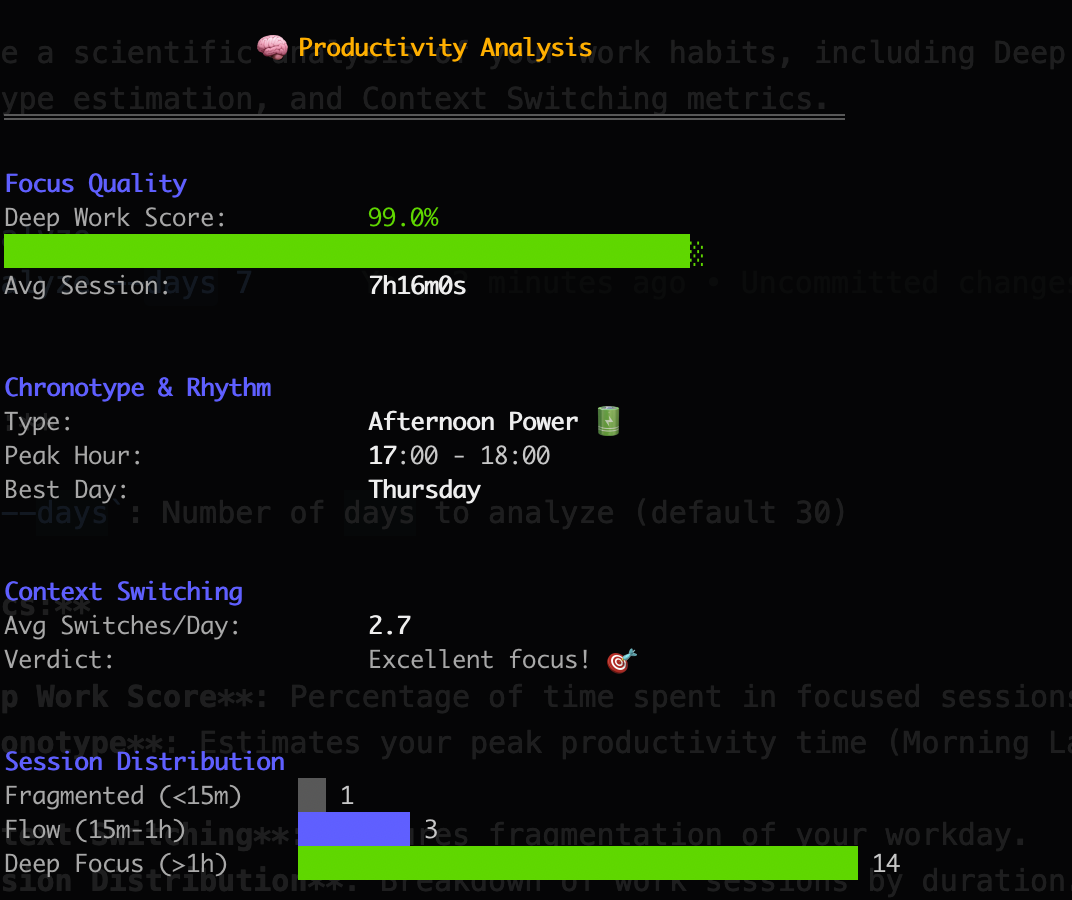
Generate an analysis of your work habits, including Deep Work Score, Chronotype estimation, and Context Switching metrics.
Metrics:
- Deep Work Score: Percentage of time spent in focused sessions (>1h).
- Chronotype: Estimates your peak productivity time (Morning Lark, Night Owl, etc.).
- Context Switching: Measures fragmentation of your workday.
- Session Distribution: Breakdown of work sessions by duration.
tock analyze
tock analyze --days 7
Flags:
-n, --days: Number of days to analyze (default 30)
Update Check
Tock automatically checks for updates once a week. When a new version is available, you will see a notification after running commands like start or stop.
You can disable this check by setting check_updates: false in your configuration file or using the environment variable TOCK_CHECK_UPDATES=false.
File Format
Activities are stored in plaintext format (compatible with Bartib):
  2025-12-10 09:00 - 2025-12-10 11:30 | Project Name | Task description
  2025-12-10 13:00 | Another Project | Ongoing task
You can edit this file manually with any text editor.
Shell Completion
Tock supports shell completion for Bash, Zsh, Fish, and PowerShell. This includes basic command completion and intelligent suggestions for:
- Projects: Suggests existing project names when using
-p/--project. - Descriptions: Suggests recent activity descriptions when using
-d/--description.- Suggestions are context-aware: if a project is selected, it only suggests descriptions previously used for that project.
- Continue IDs: Suggests valid activity IDs (with details) for the
tock continuecommand.
Installation
To enable shell completion (e.g. for Oh My Zsh):
- Create a directory for the plugin:
mkdir -p ~/.oh-my-zsh/custom/plugins/tock
- Generate the completion script:
tock completion zsh > ~/.oh-my-zsh/custom/plugins/tock/_tock
- Add
tockto your plugins list in~/.zshrc:
plugins=(... tock)
- Restart your shell:
exec zsh
Shell Integration
You can display the current tracked activity directly in your shell prompt.
Zsh / Oh My Zsh
Add the following function to your ~/.zshrc:
function tock_info() {
    # Returns empty string if no activity is running
    tock current --format "{{.Project}}: {{.Duration}}" 2>/dev/null
}
Then add $(tock_info) to your prompt (PROMPT/PS1) or RPROMPT.
Example:
PROMPT='$(tock_info) %~ > '
Starship
If you use Starship, add this to your starship.toml:
[custom.tock]
command = "tock current --format '{{.Project}}: {{.Duration}}'"
when = "tock current > /dev/null 2>&1"
format = "[$output]($style) "
style = "bold yellow"
shell = ["bash", "--noprofile", "--norc"]
Technology Stack
- CLI Framework: Cobra
- TUI Components: Bubble Tea, Bubbles, Lipgloss
- Go Version: 1.26+
Project Structure
cmd/tock/main.go- Entry point and runtime bootstrapinternal/core/- Domain layer (models, ports, and domain errors)internal/services/- Business logicinternal/adapters/repositories/- File, TodoTXT, TimeWarrior, SQLite, and notes storage adaptersinternal/app/commands/- Cobra commands and Bubble Tea TUIsinternal/app/export/- Text, CSV, JSON, and iCal export generationinternal/app/insights/- Productivity analysis and calendar aggregationsinternal/app/localization/- Embedded locale catalogs and localized formattinginternal/app/runtime/- Shared command runtime/bootstrap wiringinternal/app/updatecheck/- Release update checksinternal/app/watching/- Watch mode and stopwatch helpersinternal/config/- Configuration loading and management
Inspiration
Tock is inspired by and compatible with Bartib - an excellent time tracking tool written in Rust by Nikolas Schmidt-Voigt. It's saved me countless hours and helped me stay organized, so I wanted to create a similar tool in Go with a clean architecture approach and an interactive terminal UI.
License
GPL-3.0-or-later