Timeline Visualizer
Turn your Timeline file into an animated travel video on your Android phone. Choose exact dates, preview the Journey, and create an MP4 ready to watch or share.



Use on iPhone
Open the iPhone web app in Safari. There is no app to install and no Timeline file is uploaded.
- In Google Maps, open profile picture → Settings → Personal content →
Export Timeline data and save
Timeline.jsonin Files. - Return to the web app and select Choose Timeline.json.
- Choose a month range or exact dates, select the camera movement, and confirm the map privacy notice.
- Preview the journey, then select Create MP4.
- Play, share, or download the finished video.
MP4 creation requires Safari 16.4 or newer with H.264 encoding support. Keep the tab open while the video is being created. To keep the web app on the Home Screen, use Safari's Share menu and choose Add to Home Screen.
Install on Android
The app is not yet on Google Play. Install it from this repository's latest release:
- Under Assets, download
TimelineVisualizer-v2.2.0.apkon your phone. - Open the downloaded file.
- If Android blocks the installation, select Settings, allow your browser or file manager to Install unknown apps, then return and try again.
- After installation, you can turn that permission off again.
Only download the APK from this repository. Android may display a warning because the app is installed outside Google Play. That warning is expected for a directly distributed APK. Future releases can be installed over this release.
Requires Android 8.0 or newer.
Get your Timeline file
On Android, the export is in the phone's Settings app, not in Google Maps:
- Open Phone Settings.
- Select Location → Location services → Timeline.
- Select Export Timeline data, then Continue.
- Save
Timeline.jsonsomewhere easy to find, such as Downloads.
See Google's Timeline Help if the Timeline menu is missing or the labels differ on your phone.
Names and menu locations can vary by phone. In Timeline Visualizer, Get Timeline file shows these instructions and can open Location settings for you. Android does not provide apps with a standard link directly to the Timeline page.
On iPhone, the exported JSON can be used directly in the iPhone web app. It can also be moved to an Android phone and opened in the Android app.
Restore a missing Google Maps Timeline
If older trips disappeared after changing phones, reinstalling Google Maps, or resetting a device, an encrypted Timeline backup may be available in Google Maps. Use the app's Restore Google Maps Timeline link or follow the restoration guide.
Restore the history in Google Maps first, then export a new JSON file. Timeline Visualizer cannot access your Google account or encrypted backup and does not restore it directly.
Create and share a video
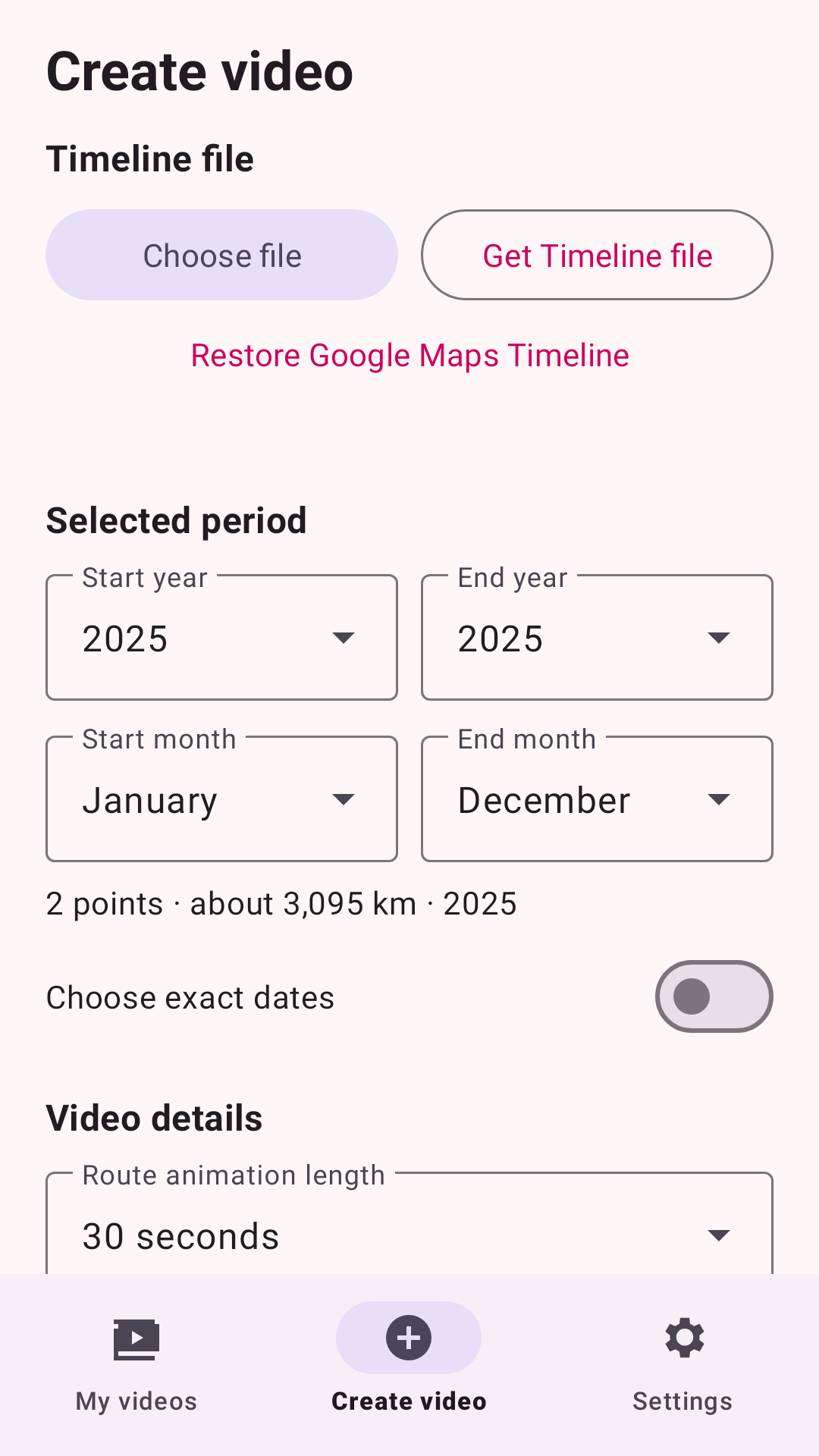
- Open Create video, select Choose file, and choose your Timeline file.
- Choose a month range or use Exact dates for a trip lasting only a few days. The latest full year is selected by default, and ranges may cross year boundaries.
- Confirm the name and title template, then choose a preset or a custom journey
duration from 10 through 300 seconds. The template is saved for next time and
supports
{year}and{name}. Durations over 60 seconds show a rendering-time and storage reminder. - Select Preview to check the animated map. This is an interactive preview. The saved video uses the same design with map tiles prepared before rendering.
- Select Create video. On Android 10 and later, the app saves it automatically
under
Movies/Timeline Visualizer. Android 8 and 9 use the system Save As picker. The app shows each stage, an estimated time when enough progress has been measured, and a cancel button. You can switch apps or turn off the screen while it continues. - When the video is saved, watch or share it, use Save as to copy it elsewhere, optionally save or share the 1080 × 1080 Journey overview, or create another video.
After a Timeline is loaded successfully, the app remembers its document reference and reopens it when New video opens and the storage provider retains access. It does not copy the Timeline data. If the file was moved or permission was lost, the app returns to the normal loading flow.
Older travel fades behind the moving marker so long, detailed Timelines remain clear and efficient to render. After the selected journey duration, the video adds a 1.5-second ending that zooms out, reveals the complete route, and holds the final overview for half a second.
If you cancel, the app removes the incomplete output file. After a preview reaches the end, selecting Preview again starts it from the beginning. On Android 13 or newer, allow notifications to follow progress outside the app and receive a ready alert. Video creation continues even if you decline notification access.
Keep your videos
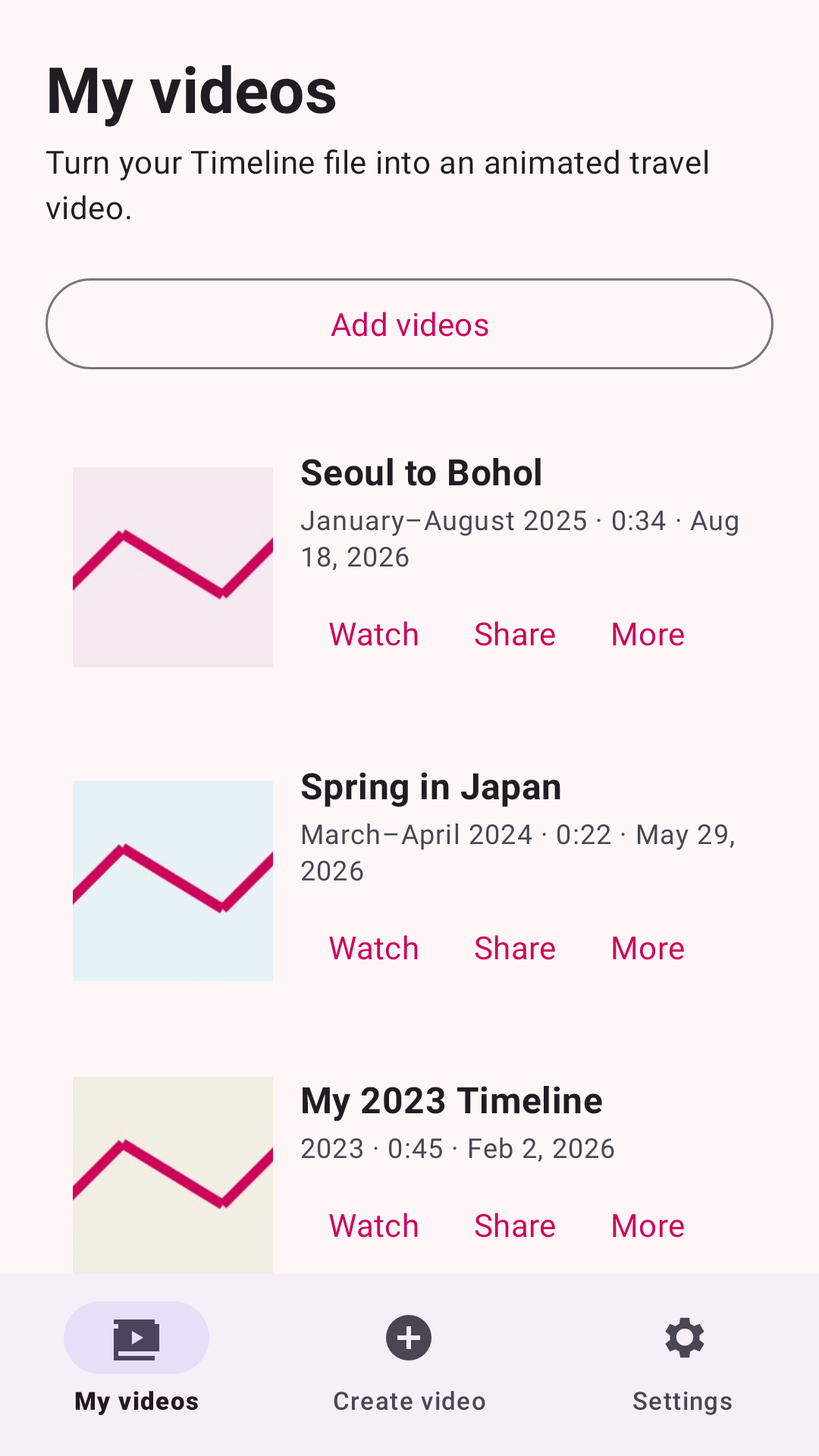
Completed videos are added to My videos automatically. Each entry keeps its
thumbnail, title, Timeline period, duration, and creation date, with quick actions
to watch or share it. Videos open in a full-screen player inside the app, with
seeking, sharing, and an external-player fallback. Automatically created MP4 files remain in Movies/Timeline Visualizer. The app stores
only a small local index and a deterministic thumbnail made from the final journey overview.
Use Add videos to include MP4s made before this library was introduced. You can select several videos at once. If a file is moved or deleted outside the app, its entry is marked File unavailable so you can remove it from the list.
Remove from list leaves the MP4 untouched. Delete video is a separate, confirmed action that permanently deletes the file when its storage provider allows it. Delete all removes every available video after confirmation. The bottom navigation keeps My videos, Create video, and Settings easy to reach.
Video settings
Settings controls defaults for every new video. Steady camera and Balanced long-trip compression are the defaults. Fixed camera keeps one zoom level, while Dynamic camera follows local movement more actively. Long-trip compression changes only animation timing and never route geometry. Video format offers square 480p, 720p, and 1080p output plus portrait 1080 × 1920 and landscape 1920 × 1080 presets. Restore defaults returns all video settings to the recommended values.
Timeline processing uses Conservative GPS outlier filtering by default. It ignores only isolated, implausible out-and-back coordinates, reports the number ignored, and keeps the original JSON file unchanged. Set the filter to Off to use every location from the selected file.
The app supports English, Korean, Japanese, Simplified Chinese, Traditional Chinese, Spanish, French, German, and Brazilian Portuguese. Choose any supported language in Settings or keep System default. Settings also shows the installed version and build code.
Long flights and other sparse routes are interpolated along a great-circle path, so the camera follows the trip smoothly instead of jumping to the destination. During local travel, the marker can move within a stable central area before the camera follows it. This reduces rapid back-and-forth map movement on commutes without changing or removing any Timeline points.
Supported exports
- Current Android and iOS direct-array Timeline exports
- Older
{ "semanticSegments": [...] }exports - Timeline paths, activities, and visits
- String,
latLng, degree,geo:, and E7 coordinates - Routes crossing the international date line
Privacy
No Google sign-in, location permission, account permission, analytics, or broad storage permission is used. The app reads only the JSON and video files you choose, and video rendering stays on the device.
Google Sign-In could provide a profile name, but Google does not expose the phone's Timeline history through Sign-In. Requiring it would add account access without removing the export step, so the app uses your editable phone name for the default title.
Your Timeline file is never uploaded. The basemap is the only network feature. CARTO receives requests for the map areas shown and serves tiles based on OpenStreetMap data. This can reveal viewed areas to the tile provider, but the Timeline JSON is not uploaded. Before the first Timeline is loaded, the app explains this transfer and lets you cancel. See the full privacy explanation.
Desktop Python version
The original Python generator remains available for desktop users. It requires
Python 3.9+, FFmpeg, and the packages in requirements.txt.
python -m pip install -r requirements.txt
python visualizer.py --input Timeline.json --year 2025 --camera-movement steady \
  --long-trip-compression balanced --output my_trip_2025.mp4
Build and test
Android development requires JDK 17, Android SDK Platform 36, and Build Tools 36.0.0.
./gradlew test lint assembleGithubDebug assemblePlayDebug
python -m pip install -r requirements-dev.txt
python -m pytest
Basemap attribution is displayed in every preview and exported video: © OpenStreetMap contributors and © CARTO.
Licensed under the MIT License.