
A small, lightweight, high-performance terminal, SSH, SFTP, FTP, and serial client, built with Rust + Tauri.
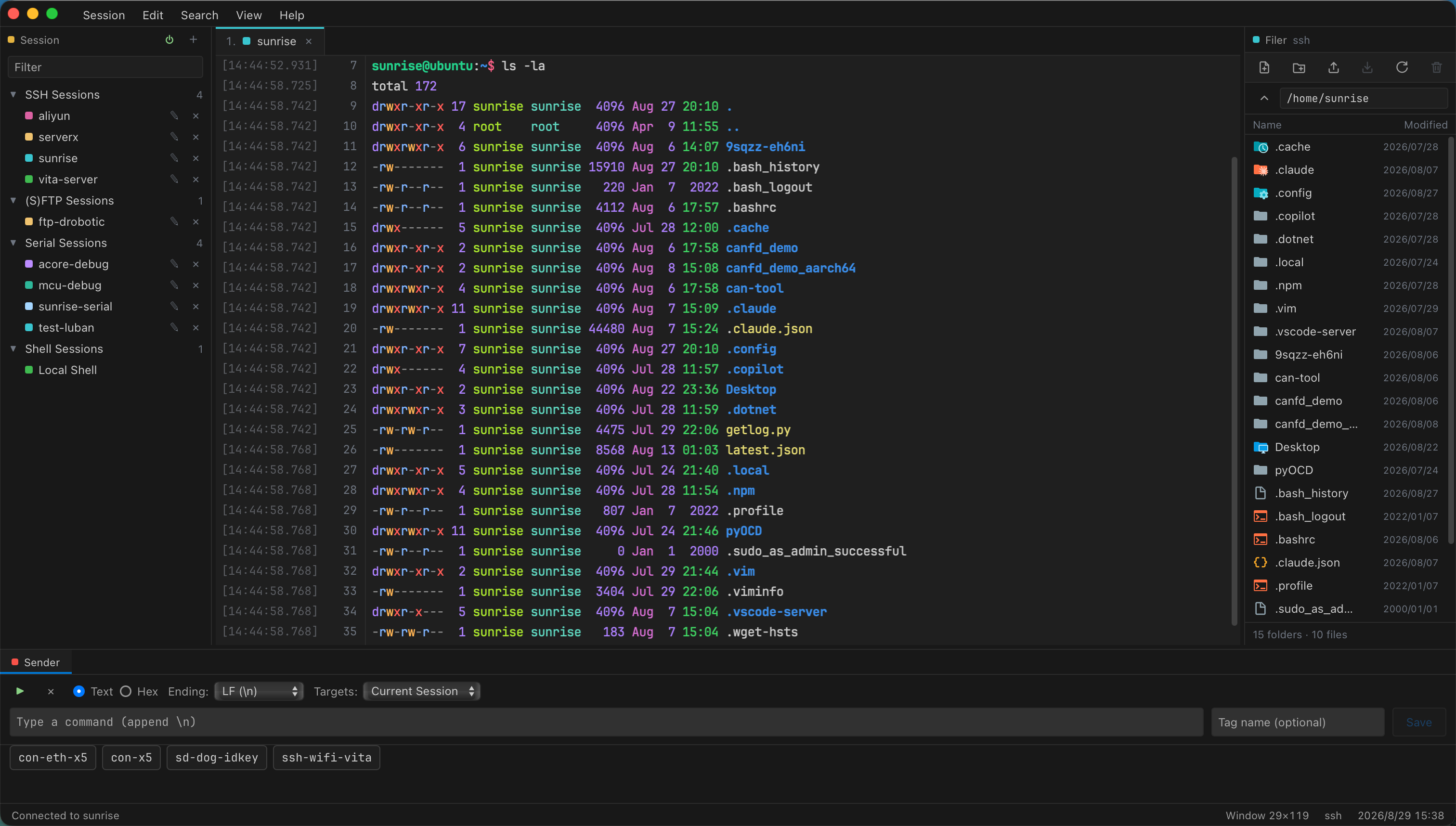
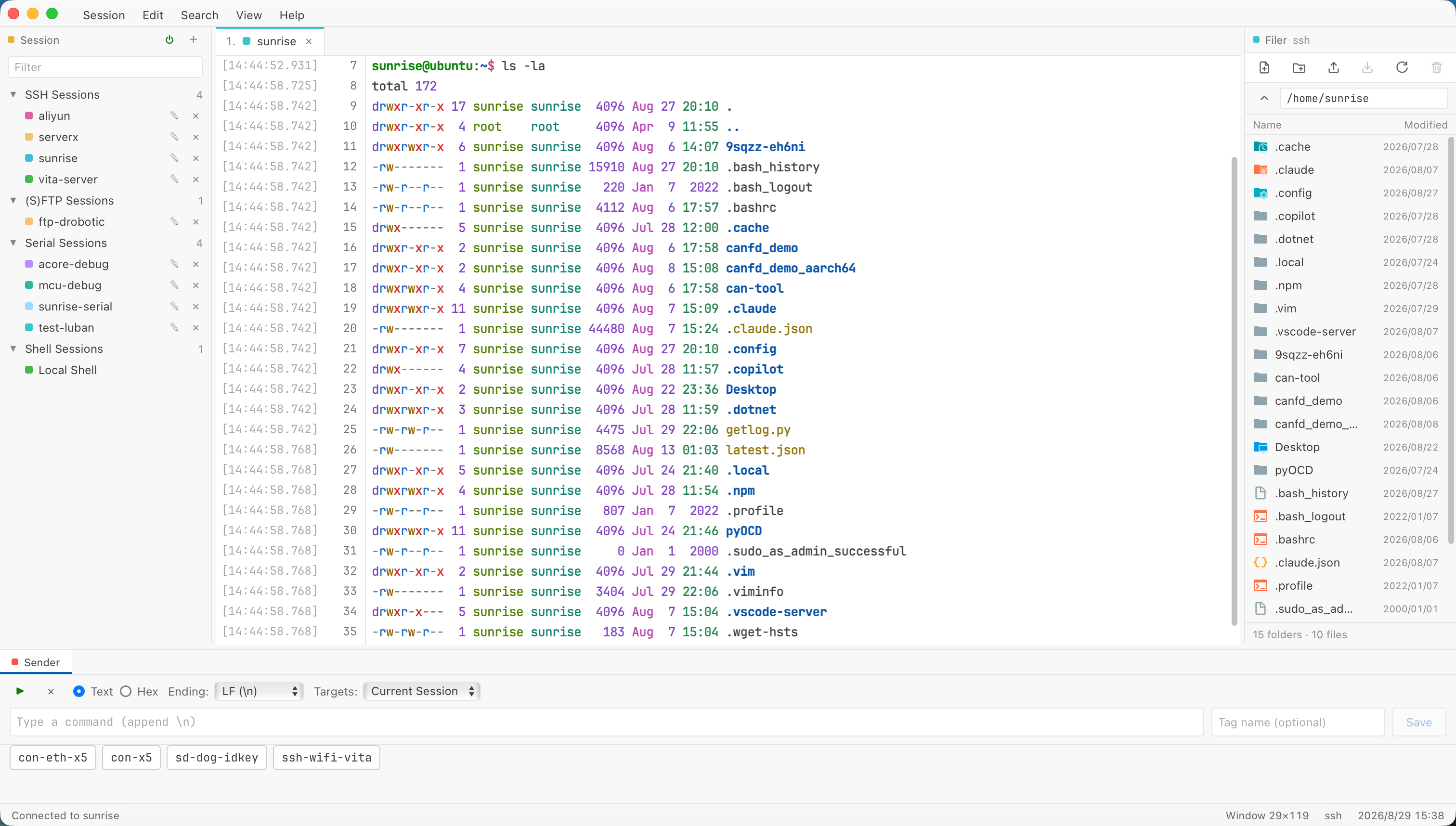
Small and lightweight
| Package (v0.4.1) | Download size |
|---|---|
Windows x64 installer (.exe) | 3.9 MB |
macOS Apple Silicon (.dmg) | 4.7 MB |
Linux .deb (x64 / ARM64) | 5.3 MB / 5.2 MB |
Features
Session types
| Type | Backend | Description |
|---|---|---|
| Local shell | portable-pty | A real pseudoterminal with synchronized window resizing; the Shell field takes a command line with arguments, such as wsl.exe -d Ubuntu or pwsh -NoLogo. On macOS a bare shell starts as a login shell, the way Terminal.app starts it, so ~/.zprofile and Homebrew's PATH are in place before ~/.zshrc runs; a command line with arguments runs exactly as written |
| SSH | russh + russh-sftp | Password, public-key, and ssh-agent authentication, followed by keyboard-interactive rounds where the server asks for a second factor (a one-time code, a push confirmation); jump hosts (ProxyJump) through another saved session, chained if needed; SFTP reuses the same connection with streaming file and folder transfers |
| SFTP | russh + russh-sftp | A file-transfer-only session over SSH — same authentication and host-key policy, opened straight into the dual-pane file manager with no terminal |
| FTP | suppaftp | Password or anonymous authentication; passive-mode browsing, UTF-8/GBK filename decoding, and streaming file and folder transfers in both directions |
| Serial | serialport | Configurable baud rate, data bits, stop bits, parity, and flow control |
Older SSH servers
Switches, routers, firewalls and other long-lived devices often run SSH servers that stop at algorithms modern clients no longer offer. EdgeTerm still connects to them: besides the NIST ECDH curves (ecdh-sha2-nistp256/384/521), it offers the SHA-1 key exchanges diffie-hellman-group14-sha1, diffie-hellman-group-exchange-sha1 and diffie-hellman-group1-sha1, the aes128/192/256-cbc ciphers and the hmac-sha1 MACs, with no setting to change. They come after every modern algorithm, so a server that supports anything better gets that, and because both sides' algorithm lists are signed by the server's host key, nobody in between can strip the better choices to force the old ones. A session that did need one shows Legacy SSH in the status bar; hover over it to see which server and which algorithms. A server that offers nothing EdgeTerm supports (only ssh-dss host keys, 3des-cbc or hmac-md5, say) is refused with the list it offered.
Text encoding and locale
Terminal sessions are UTF-8 unless the session dialog's Encoding says otherwise: a server or device that talks GB18030 / GBK, Big5, Shift_JIS, EUC-JP, EUC-KR or a Windows / KOI8 code page has its output decoded for the terminal and typed input encoded for the far end, while ZMODEM and XMODEM transfers stay binary. What a shell prints for a non-ASCII file name is decided by its locale, not by the terminal — $'\346\226\207'-style escapes from ls mean the shell's locale is not UTF-8 — so a local shell started with no locale in its environment (every GUI application on macOS) is given a UTF-8 LANG, and the dialog's Locale field sets LANG explicitly: for an SSH session it is sent with the shell request and applied by servers whose sshd_config has AcceptEnv LANG.
Session recording
Any terminal session — shell, SSH or serial — can be recorded to a file: tick Record this session's output to a file in the session dialog (it is off unless you turn it on) and every connection of that session writes a new file, <name>_<date>_<time>.log, to the folder you choose or to EdgeTerm Recordings in your Documents (a portable copy uses data/recordings). The file is the raw output the terminal received, escape sequences included, between a header and a trailer line naming the session and the times, so cat replays it in a terminal; what you typed appears only as the far end echoed it, so a password entered without echo is not in it. While a recording runs the status bar shows REC; click it to open the folder. The file is written as output arrives and closes with the session. If it cannot be created the connection fails with the reason rather than running unrecorded, and if the disk fails later the session carries on and the status bar says the recording stopped.
Interface
- Timestamp and line-number gutter — WindTerm's most recognizable feature. Every output line includes
[HH:MM:SS.SSS]and a cumulative line number, with the cursor line highlighted. Four display modes are available from theSessionmenu. - Session (left): saved connection profiles in a collapsible tree; double-click to connect. Right-click a heading or a group to create (nested) groups, rename or delete them; right-click a session to connect, edit, move it to another group, or delete it. The New Session dialog lets you choose which group a session is saved to.
- Filer (right): a file browser that automatically switches to SFTP for SSH sessions, with file and folder upload, download, create-directory, and delete operations. Drag and drop works in both directions, anywhere on the panel: dropping files or folders from Finder / Explorer uploads them into the current remote directory, or copies them into the folder on screen when the Filer is showing local files; dragging an entry out of the window drops it on the desktop or in a file manager — a remote entry is copied down first, so hold the drag until it is ready. A drop the panel cannot take says why instead of doing nothing. Other terminal sessions browse the local filesystem.
⌘J/Ctrl+Shift+J(also in the terminal's context menu and the Filer's locate button) jumps the Filer to the directory the shell is in: a local shell is asked through the OS, an SSH shell through the server (Linux hosts), and a shell that reports its directory with OSC 7 — fish does by default; bash and zsh with a one-line prompt hook — is answered everywhere,sudoand nested shells included. - Sender (bottom): send text with a chosen line ending (none / LF / CRLF) to the current session or to all open sessions at once. Text may span several lines (
Shift+Enteradds one) and each line is sent in turn, waiting for the shell's prompt between them, so a saved multi-line script runs cleanly instead of arriving as typeahead. The clock button repeats a command on a timer — every N seconds, a set number of times or until stopped — for an inspection loop or to keep a session alive; it keeps running while the panel is hidden and stops from the strip. Saved commands are scoped — to one session, a Session panel group, a session kind (serial / SSH / shell) or everywhere — and the Sender lists the ones that apply to the active tab, most specific first.
Display settings
View → Display Settings… sets the interface and terminal font sizes, the family each uses, the cursor's shape (block, underline or bar) and whether it blinks, and how many lines of scrollback a session keeps. No fonts are bundled: leaving a family blank uses the platform's own stack, and each family field lists the fonts installed on this machine — fixed-pitch ones for the terminal, all of them for the interface — while accepting any name you type, so a private Nerd Font build works too. The icons prompt themes such as Powerlevel10k and Starship print show up without choosing anything: when a Nerd Font is installed, the terminal falls back to it for the glyphs its own font lacks. The window itself opens at the size it had when it was last closed, maximized again if it was.
Command suggestions
With Edit → Command Suggestions enabled, EdgeTerm remembers the commands you run in the terminal and shows matching history in a popup as you type. ↓ steps into the list, Enter / Tab accepts, Esc dismisses; while nothing in the popup is selected, every other key still reaches the shell. Edit → Clear Command History… clears the recorded history.
Tab activity
A background tab shows what is running in it and keeps a highlight afterwards until you visit it, so you can start something slow and switch away. Agentic CLIs — Claude Code, Codex, Gemini CLI, Aider and the like — are followed differently: their session lasts as long as you keep the tool open, so the tab reports the assistant's turns instead, running while it works and finished when it hands the terminal back.
Split panes
The terminal area splits the way VS Code's editor area does: every pane has its own tab strip, and the panes can be nested side by side and one above the other and resized on their dividers. Split Right / Split Down — on a tab's context menu, in View, on the buttons at the right end of the menu bar, or with ⌘\ / Ctrl+Shift+\ — opens the session's profile again in a new pane beside it, the way a terminal split works, since one session cannot show in two places. To put an existing tab beside another, drag it: onto another pane's strip to file it there, onto the middle of a pane to join it, or onto a pane's edge to split that pane on that side. A pane whose last tab closes folds away. The tab context menu also closes the other tabs of the strip — Close Others, Close to the Left, Close to the Right, Close All — asking once for all the sessions still connected.
Data export and import
Session → Export Data… writes the saved sessions and their groups, the Sender's saved commands, and the display settings to a single .edgeterm file (plain JSON inside); Session → Import Data… accepts only .edgeterm files.
Session → Import OpenSSH Config… (also on the SSH Sessions heading) reads an OpenSSH client configuration — ~/.ssh/config by default — and turns its Host entries into saved SSH sessions in one step, resolving each the way ssh does: HostName, Port, User, IdentityFile and Included files, with Host * defaults applied. A single-hop ProxyJump becomes a saved jump host; a multi-hop chain is not imported (the session is still saved, just without a jump host). The dialog lists every host with what it connects to and lets you pick which to import and which group to file them under; a host already saved is shown so importing it updates that session in place. Passwords are never in the file, so imported sessions ask for theirs on first connect.
ZMODEM and XMODEM transfers
Local shell, SSH, and serial terminals automatically detect ZMODEM sessions. Run rz in the terminal to choose and send one or more local files, or run sz <file> to choose where each incoming file is saved.
XMODEM has no handshake to detect, so it is started from Session → File Transfer. Start the other end in the terminal first (rx <file>, sx <file>, a bootloader's loadx, …), then choose Send via XMODEM… or Send via XMODEM-1K… and pick the file, or Receive via XMODEM… and pick where to save it. Receiving accepts CRC and checksum blocks of 128 bytes or 1 KiB; sending uses CRC when the receiver asks for it and falls back to plain 128-byte checksum blocks otherwise. XMODEM carries no file size, so a received file keeps the sender's ^Z padding at the end of its last block. Cancel Transfer in the same menu aborts either protocol.
Mouse copy / paste
On Windows and Linux a right click follows the console convention — it copies the selection if there is one and pastes otherwise — the way conhost, PuTTY and Xshell do. Edit → Right Click switches it to Show Menu: a context menu with Copy, Paste, Select All, Clear Buffer and Reveal Working Directory in Filer, with the word under the pointer selected first. macOS always uses the menu. Middle-click pastes on every platform. Programs that take over the mouse (vim, tmux with mouse support, htop) receive the clicks instead; on Windows / Linux hold Shift to bypass them.
Edit → Copy on Select puts a selection on the clipboard as soon as the mouse button comes up, the way PuTTY, Xshell and X11 terminals do; it is off by default, and a Select All made from the keyboard or a menu is left alone.
A paste that would submit more than one command — or a single line too long to have been read — is shown first, with the lines it holds, so a clipboard that turns out to be six commands does not run six commands on a production host. Enter pastes, Esc cancels, and Edit → Warn Before Multi-line Paste turns the check off.
Keyboard shortcuts
| macOS | Windows / Linux | Action |
|---|---|---|
⌘N | Alt+N | Open the new-session dialog |
⌘W | Ctrl+Shift+W | Close the current session (asks for confirmation while it is still connected) |
⌘F / ⌘G | Ctrl+Shift+F / Ctrl+Shift+G | Search the terminal buffer / find next |
⌘K | Alt+K | Clear the screen |
⌘J | Ctrl+Shift+J | Reveal the shell's working directory in the Filer |
⌘[ / ⌘] | Alt+[ / Alt+] | Switch to the previous / next tab of the pane |
⌘\ / ⌘⇧\ | Ctrl+Shift+\ / Ctrl+Alt+\ | Split the pane: open the current session's profile again to the right / below |
⌘⌥[ / ⌘⌥] | Ctrl+Alt+[ / Ctrl+Alt+] | Focus the previous / next pane |
⌘1–⌘9 | Alt+1–Alt+9 | Switch to tab N |
⌘⌥← / ⌘⌥→ / ⌘⌥↓ | Ctrl+Alt+← / Ctrl+Alt+→ / Ctrl+Alt+↓ | Show or hide Session / Filer / Sender |
⌘C / ⌘V | Ctrl+Shift+C / Ctrl+Shift+V | Copy / paste inside the terminal |
⌘A | Ctrl+Shift+A | Select the whole terminal buffer |
Every shortcut above can be rebound in View → Keyboard Shortcuts… — click a command's keys and press the combination you want, or clear it to leave the command unassigned — except the tab-number keys. Copy, paste and select all are in the table too, so Ctrl+Insert / Shift+Insert or plain Ctrl+C / Ctrl+V work for those used to them; a copy key that is plain Ctrl+letter still reaches the shell while nothing is selected, so Ctrl+C keeps interrupting. Help → Restore Default Settings… puts the whole table back.
Releases
| Platform | Package |
|---|---|
| Windows x64 | NSIS installer (.exe) and portable .zip |
| macOS Apple Silicon | .dmg, plus the .app.tar.gz bundle used by the in-app updater |
| Linux x64 / ARM64 | .AppImage, .deb and .rpm |
Debian, Ubuntu and their derivatives take the .deb; Fedora, RHEL and the other RPM distributions take the .rpm — sudo dnf install ./EdgeTerm-<version>-1.x86_64.rpm. The RPM lists the libraries the binary links against, so dnf installs WebKitGTK 4.1 (webkit2gtk4.1 and javascriptcoregtk4.1 on Fedora) with it; a distribution that only ships the older WebKitGTK 4.0 cannot run EdgeTerm, and the AppImage is the way in there.
The Windows portable zip needs no installation: it ships a data folder next to EdgeTerm.exe, and while that folder exists every setting is stored inside it, so the whole folder can move between machines or live on a removable drive (saved passwords are encrypted with a machine-bound key and do not decrypt elsewhere; sessions and settings travel fine). The AppImage likewise runs in place on Linux without installation.
Installed copies check the latest Release on startup and can update in place; Help → Check for Updates… does the same on demand. A portable copy is not updated in place — it announces new versions and opens the download page instead.
Releases are not notarized on macOS or code-signed with Windows Authenticode; the macOS application uses ad hoc signing only, so the operating system may show a security warning on first install.
License
EdgeTerm is licensed under the GNU General Public License v3.0. Derivative works that are distributed must be released under the same license with their full source code.
The interface icons are Codicons by Microsoft, used under the Creative Commons Attribution 4.0 license.