
Caprine
Elegant Facebook Messenger desktop app
Caprine is an unofficial and privacy-focused Facebook Messenger app with many useful features.
Caprine is feature complete. However, we welcome contributions for improvements and bug fixes.Website
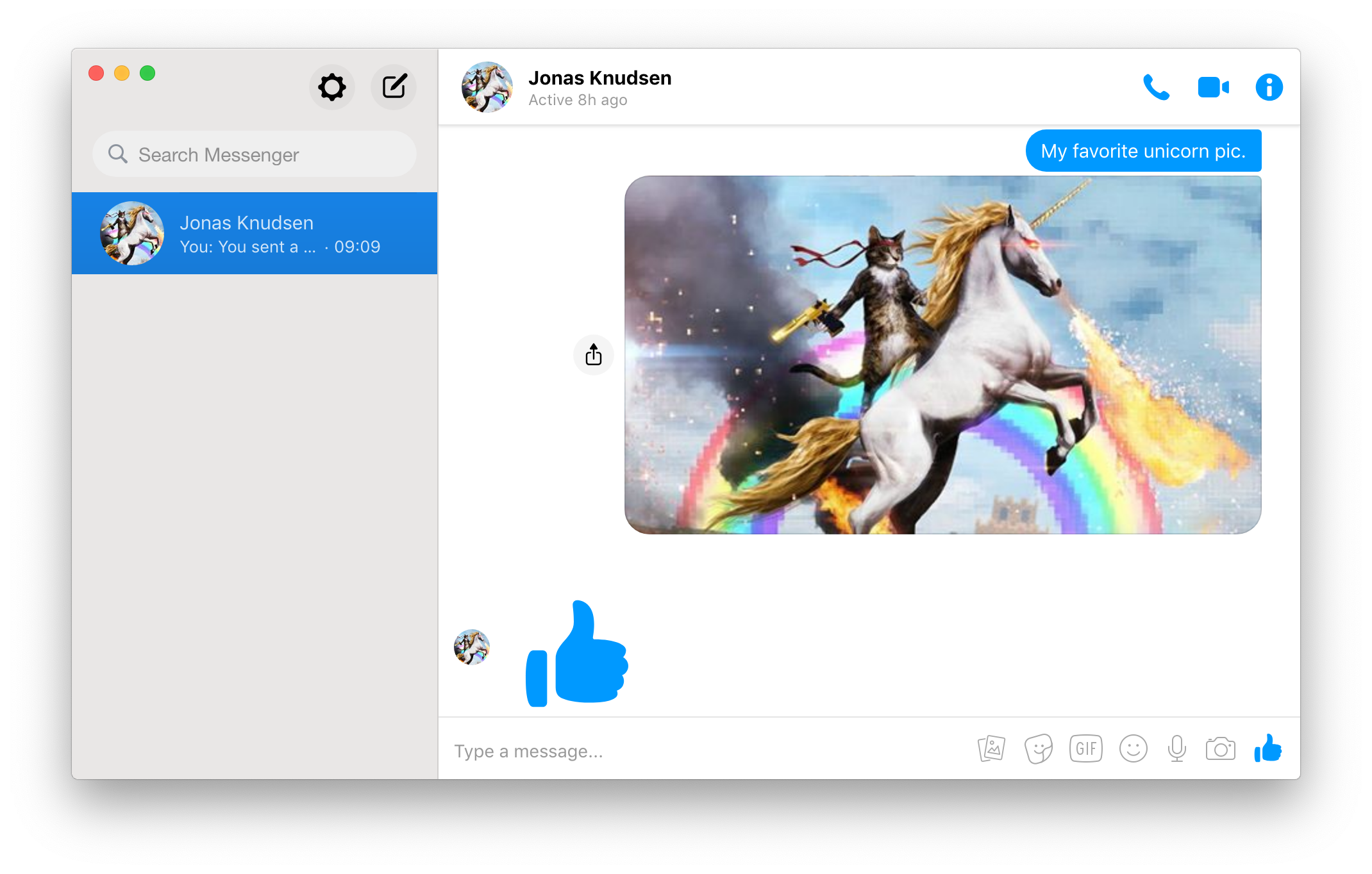
Highlights
- Dark theme
- Vibrant theme*
- Privacy-focused
- Keyboard shortcuts
- Menu bar mode*
- Work Chat support
- Code blocks
- Touch Bar support*
- Custom styles
- Cross-platform
- Silent auto-updates
- Custom text size
- Emoji style setting
- Respects Do Not Disturb*
*macOS only
Install
macOS 10.12+ (Intel and Apple Silicon), Linux (x64 and arm64), and Windows 10+ (64-bit) are supported.
Download the latest version on the website or below.
macOS
Download the .dmg file.
Or with Homebrew: $ brew install caprine
Linux
| Distribution | Repository | Automatic Updates | Maintainer | How to install |
|---|---|---|---|---|
| Arch Linux | Community | ✔️ | Frederik Schwan | pacman -S caprine |
| Debian / Ubuntu (manually) | GitHub | ❌ | Official | Download the .deb file |
| Debian / Ubuntu (deb-get) | GitHub | ✔️ | Official | Follow the instructions below |
| Debian / Ubuntu (APT) | Gemfury | ✔️ | Lefteris Garyfalakis | Follow the instructions below |
| RHEL / Fedora / openSUSE | Copr | ✔️ | Dušan Simić | Follow the instructions below |
| AppImage | GitHub | ✔️ | Official | Follow the instructions below |
| Flatpak | Flathub | ✔️ | Dušan Simić | Visit Flathub and follow the instructions |
| Snap | Snapcraft | ✔️ | Official | Visit Snapcraft and follow the instructions |
Installation using deb-get:
- Download and install deb-get.
- Run
deb-get install caprine.
Note: deb-get is 3rd party software, not to be associated with apt-get.
APT repository (Gemfury):
Run the following command to add it:
wget -q -O- https://raw.githubusercontent.com/sindresorhus/caprine/main/packages/deb/addRepo.sh | sudo bashAlternatively (for advanced users):
# Add the repository
echo "deb [trusted=yes] https://apt.fury.io/lefterisgar/ * *" > \
/etc/apt/sources.list.d/caprine.list

# Update the package indexes
sudo apt update

# Install Caprine
sudo apt install caprine
Copr:
For Fedora / RHEL:
sudo dnf copr enable dusansimic/caprine
sudo dnf install caprine
For openSUSE:
- Create a new file in
/etc/zypp/repos.d/caprine.repo. - Copy the contents of this file and paste them into the file you just created.
Alternatively use the following one-liner:
curl -s https://copr.fedorainfracloud.org/coprs/dusansimic/caprine/repo/opensuse-tumbleweed/dusansimic-caprine-opensuse-tumbleweed.repo | sudo tee /etc/zypp/repos.d/caprine.repoAppImage:
Download the .AppImage file.
Make it executable:
chmod +x Caprine-2.xx.x.AppImageThen run it!
About immutable Linux distributions:
Fedora Silverblue, Fedora Kinoite, EndlessOS, CarbonOS and other immutable distributions only support Flatpak and/or AppImage.*
Note: On some distributions Flatpak must be pre-configured manually.
Windows
| Method | Repository | Automatic Updates | Maintainer | How to install |
|---|---|---|---|---|
| Manually | GitHub | ❌ | Official | Download the .exe file |
| Chocolatey | Community | ✔️ | Michael Quevillon | choco install caprine |
For taskbar notification badges to work on Windows 10, you'll need to enable them in Taskbar Settings.
Features
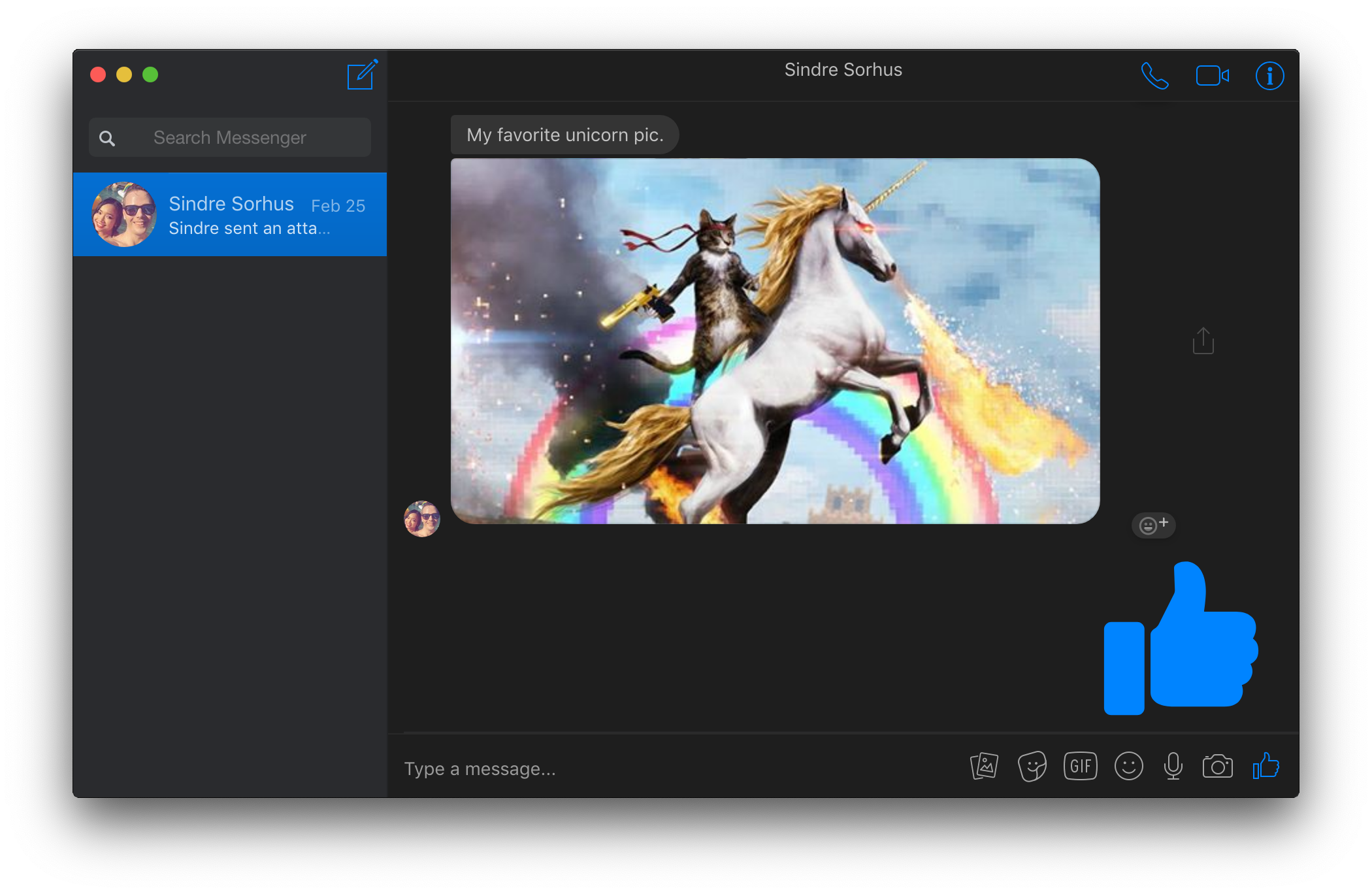
Dark mode
You can toggle dark mode in the View menu or with Command d / Control d.
Hide Names and Avatars
You can prevent others from looking at who you're chatting with by enabling the “Hide Names and Avatars” feature in the “View” menu or with Command/Control Shift n.
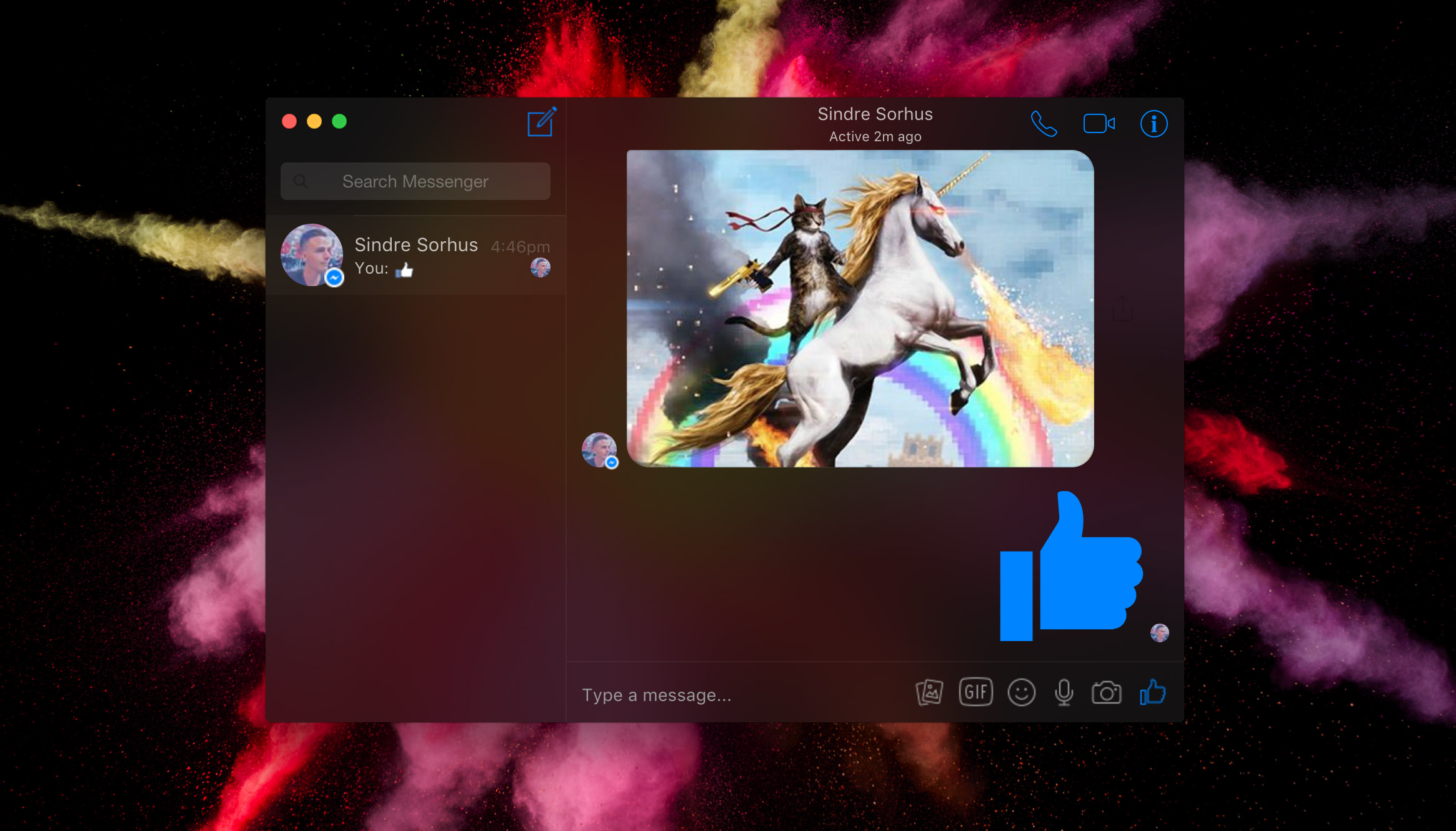
Vibrancy (macOS only)
On macOS, you can toggle the window vibrancy effect in the View menu.
Privacy
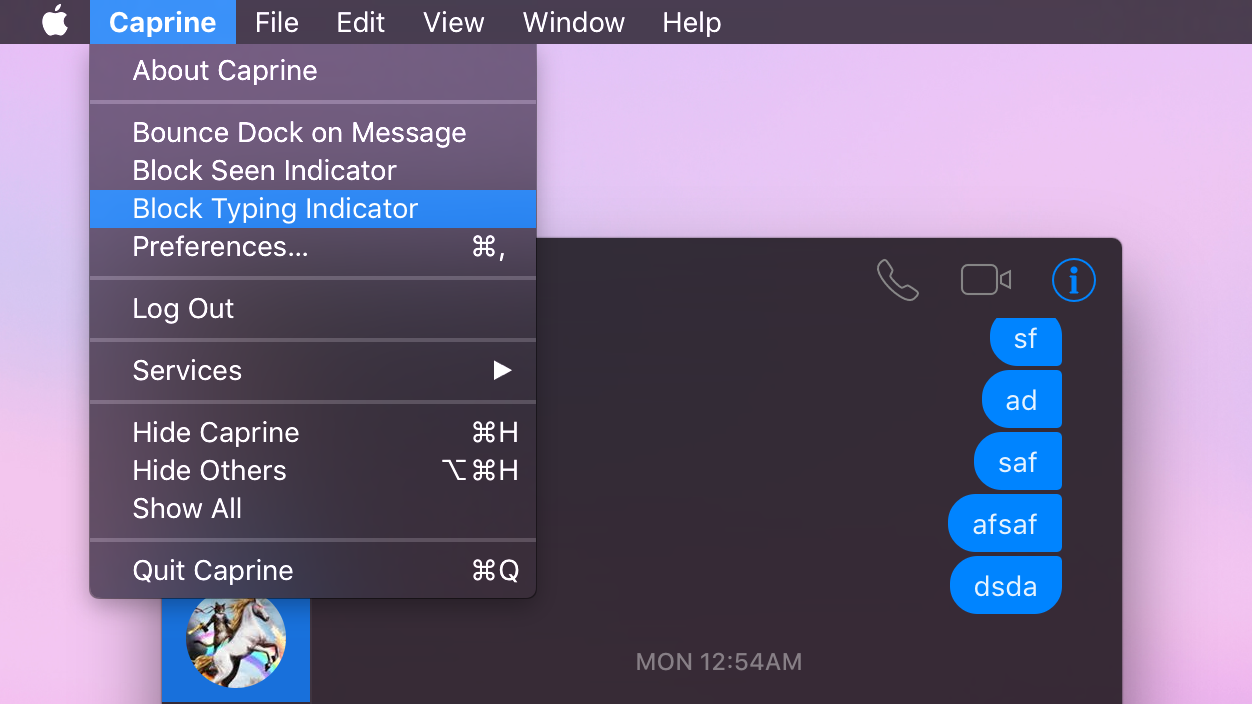
You can choose to prevent people from knowing when you have seen a message and when you are currently typing. These settings are available under the Caprine/File menu.
Mute desktop notifications (macOS only)
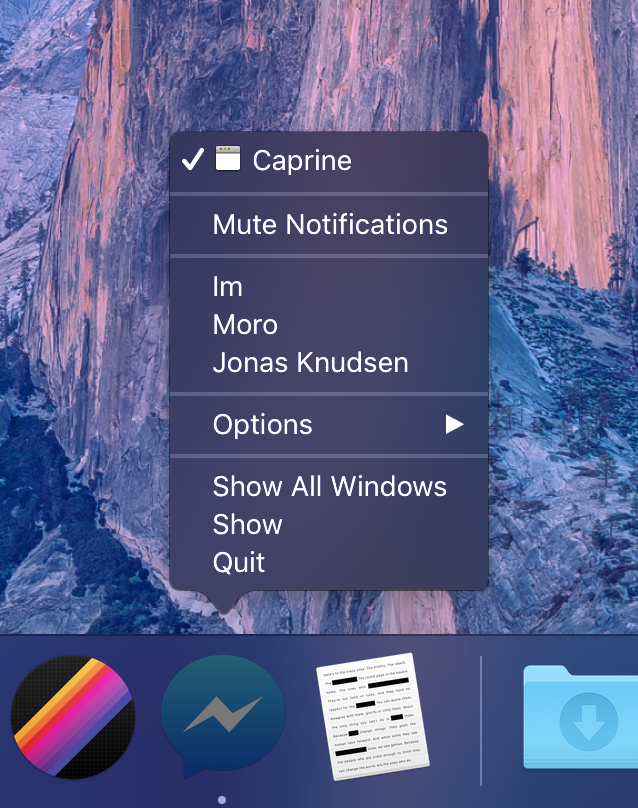
You can quickly disable receiving notifications from the Caprine/File menu or the Dock on macOS.
Hide notification message preview
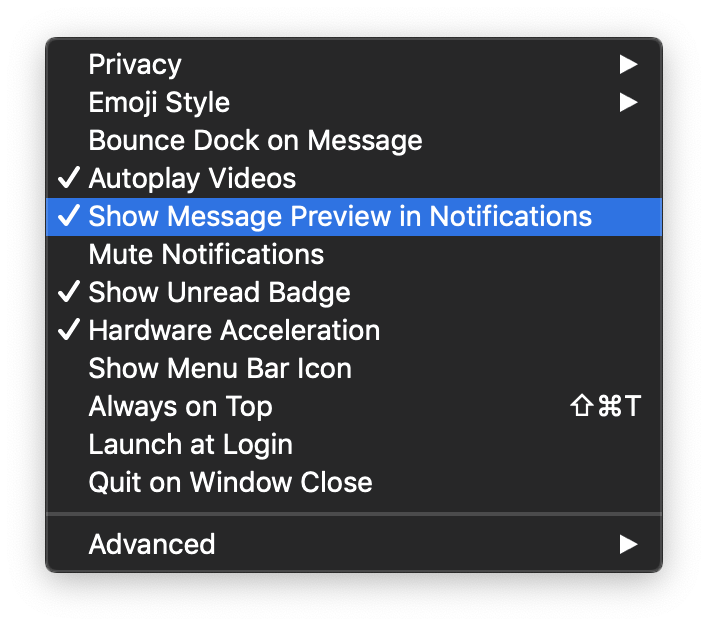
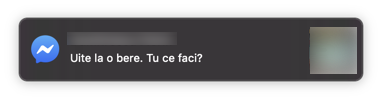
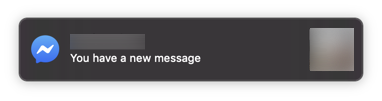
You can toggle the Show Message Preview in Notification setting in the Caprine/File menu.
Prevents link tracking
Links that you click on will not be tracked by Facebook.
Jump to conversation hotkey
You can switch conversations similar to how you switch browser tabs: Command/Control n (where n is 1 through 9).
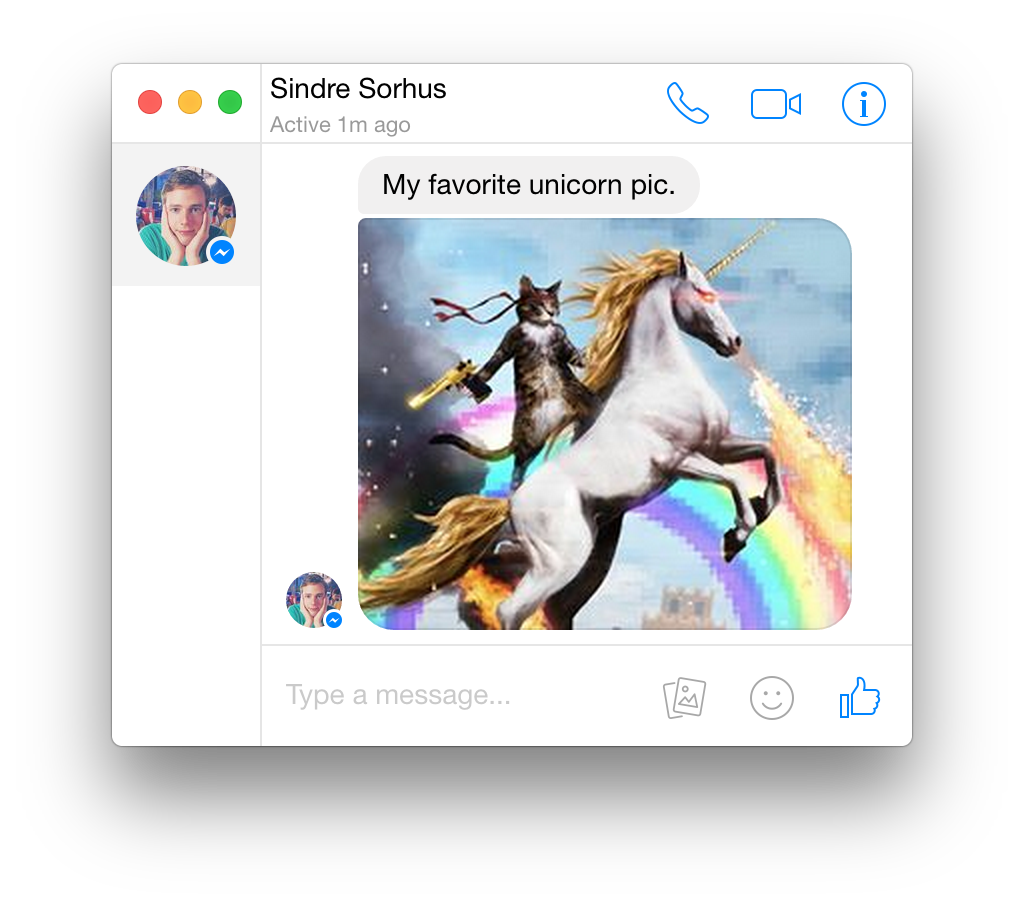
Compact mode
The interface adapts when resized to a small size.
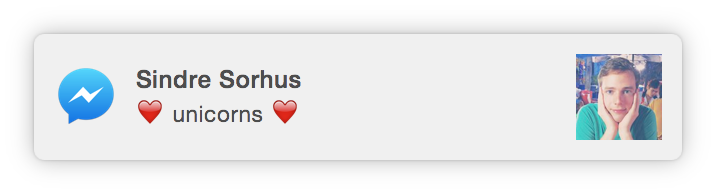
Desktop notifications
Desktop notifications can be turned on in Preferences.
Always on Top
You can toggle whether Caprine stays on top of other windows in the Window/View menu or with Command/Control Shift t.
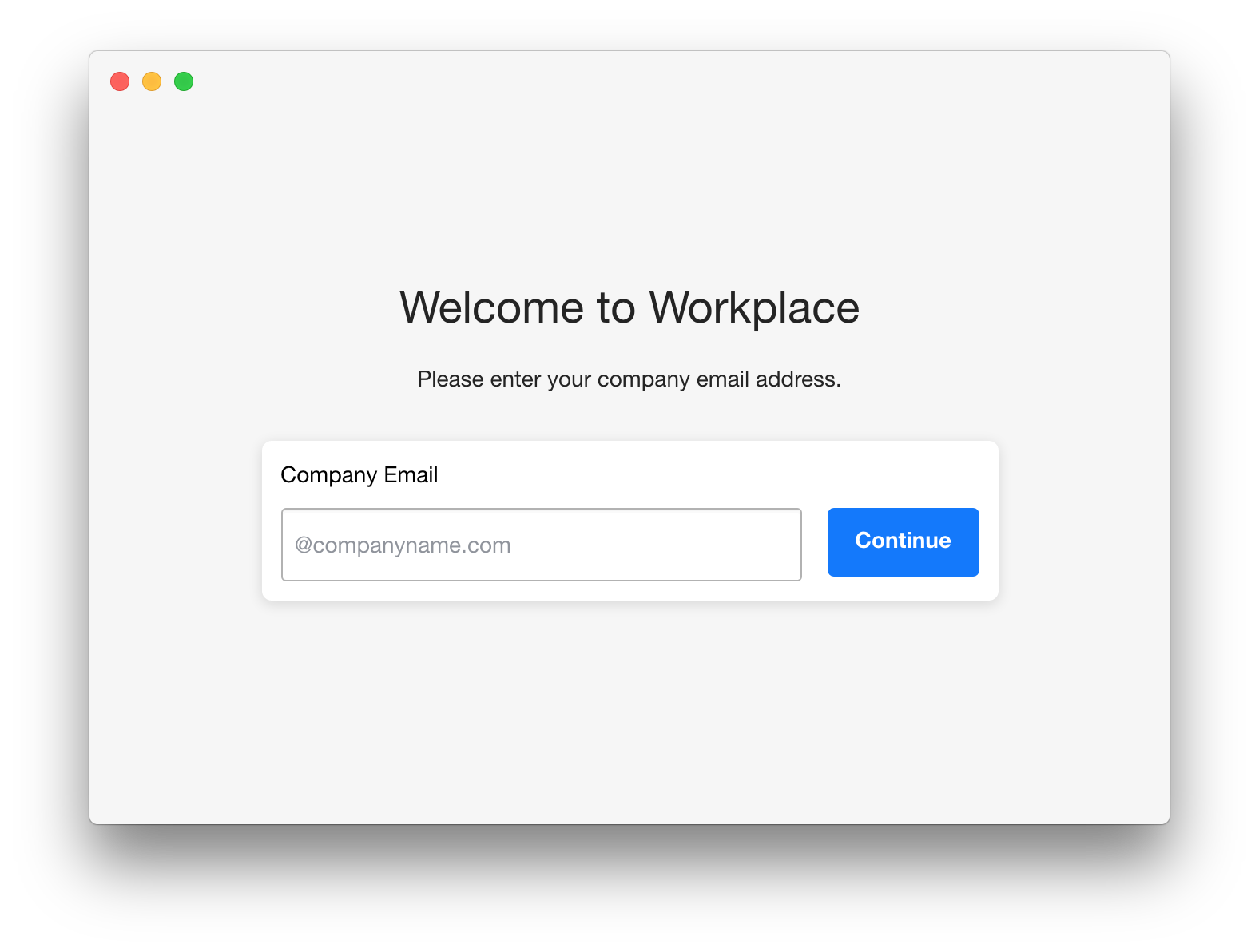
Work Chat support
Support for Work Chat: Messenger for Workplace. You can switch to it in the Caprine/File menu.
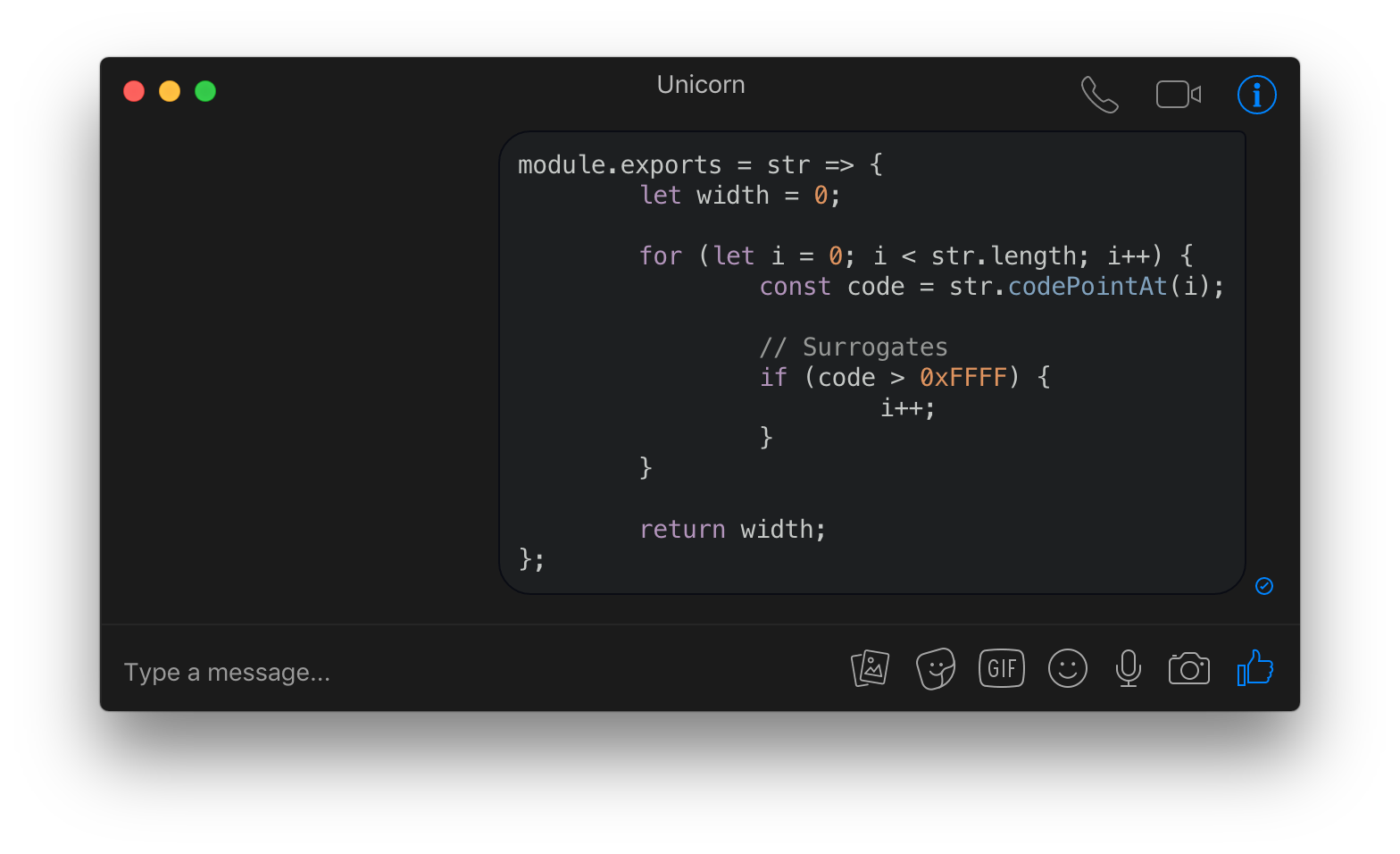
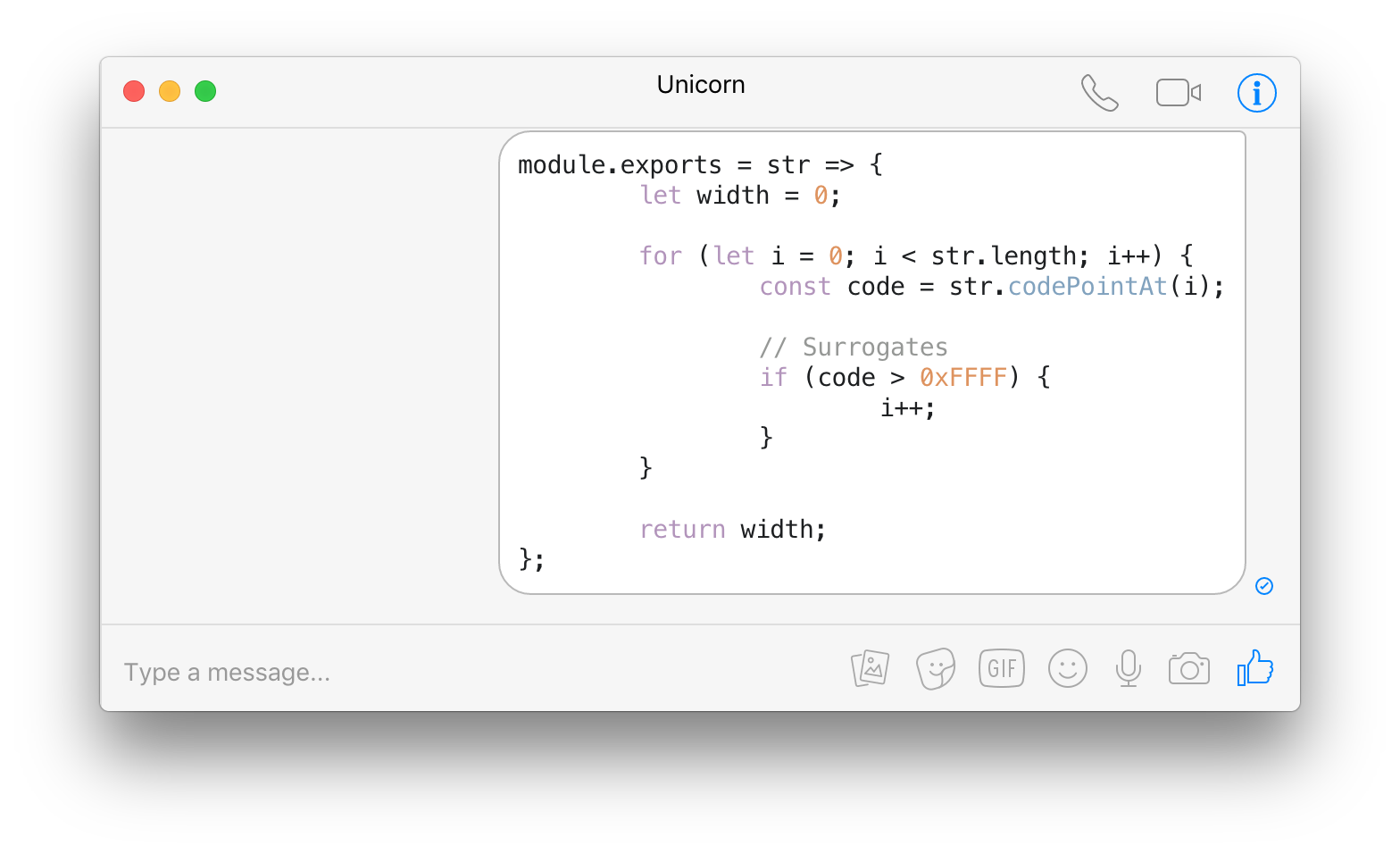
Code blocks
You can send code blocks by using Markdown syntax.
Background behavior
When closing the window, the app will by default continue running in the background, in the dock on macOS and the tray on Linux/Windows. Right-click the dock/tray icon and choose Quit to completely quit the app. On macOS, click the dock icon to show the window. On Linux, right-click the tray icon and choose Toggle to toggle the window. On Windows, click the tray icon to toggle the window.
Note that you can change the behavior of Caprine so that the app closes when the window is closed. For this, you'll need to go to the settings and click on Quit on Window Close.
Quick access to conversations from the Dock menu (macOS only)
Touch Bar support (macOS only)

Custom languages for spell-check (Not for macOS)
Users can select supported languages from Conversation → Spell Checker Language.
macOS detects the language automatically.
Custom styles
Advanced users can modify the colors/styles of Caprine. Click the menu item Caprine/File → Caprine Settings → Advanced → Custom Styles and a CSS file will open up in your default editor.
Menu Bar Mode (macOS only) 
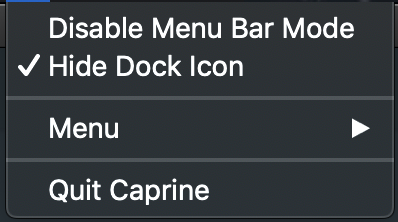
You can enable Show Menu Bar Icon in the Caprine Preferences menu to have a Caprine icon in the menu bar. The icon will indicate when you have unread notifications and you can click it to toggle the Caprine window. You can also toggle the Caprine window with the global shortcut Command Shift y.
You can also remove Caprine from the Dock and task switcher by clicking Hide Dock Icon menu item from the menu bar icon. There will then no longer be any menus for the window, but you can access those from the Menu item in the menu bar icon menu.
Keyboard shortcuts
| Description | Keys |
|---|---|
| New conversation | Command/Control n |
| Search conversations | Command/Control k |
| Toggle "Dark mode" | Command/Control d |
| Hide Names and Avatars | Command/Control Shift n |
| Next conversation | Command/Control ] or Control Tab |
| Previous conversation | Command/Control [ or Control Shift Tab |
| Jump to conversation | Command/Control 1…9 |
| Insert GIF | Command/Control g |
| Insert sticker | Command/Control s |
| Insert emoji | Command/Control e |
| Attach files | Command/Control t |
| Focus text input | Command/Control i |
| Search in conversation | Command/Control f |
| Mute conversation | Command/Control Shift m |
| Hide conversation | Command/Control Shift h |
| Delete conversation | Command/Control Shift d |
| Toggle "Always on Top" | Command/Control Shift t |
| Toggle window menu | Alt (Windows/Linux only) |
| Toggle main window | Command Shift y (macOS only) |
| Toggle sidebar | Command/Control Shift s |
| Switch to Messenger | Command/Control Shift 1 |
| Switch to Workchat | Command/Control Shift 2 |
| Preferences | Command/Control , |
Tip
On macOS, you can change these in the System Preferences and you can even add your own keyboard shortcuts for menu items without a predefined keyboard shortcut.
FAQ
Can I contribute localizations?
The main app interface is already localized by Facebook. The app menus are not localized, and we're not interested in localizing those.
Dev
Built with Electron.
Run
npm install && npm startBuild
See the electron-builder docs.
Publish
npm run releaseThen edit the automatically created GitHub Releases draft and publish.
Maintainers
Former
Links
Press
- The Essential Windows Apps for 2018 - Lifehacker
- Caprine review: Customize Facebook Messenger on Windows 10 - Windows Central
Disclaimer
Caprine is a third-party app and is not affiliated with Facebook.