
Macterm
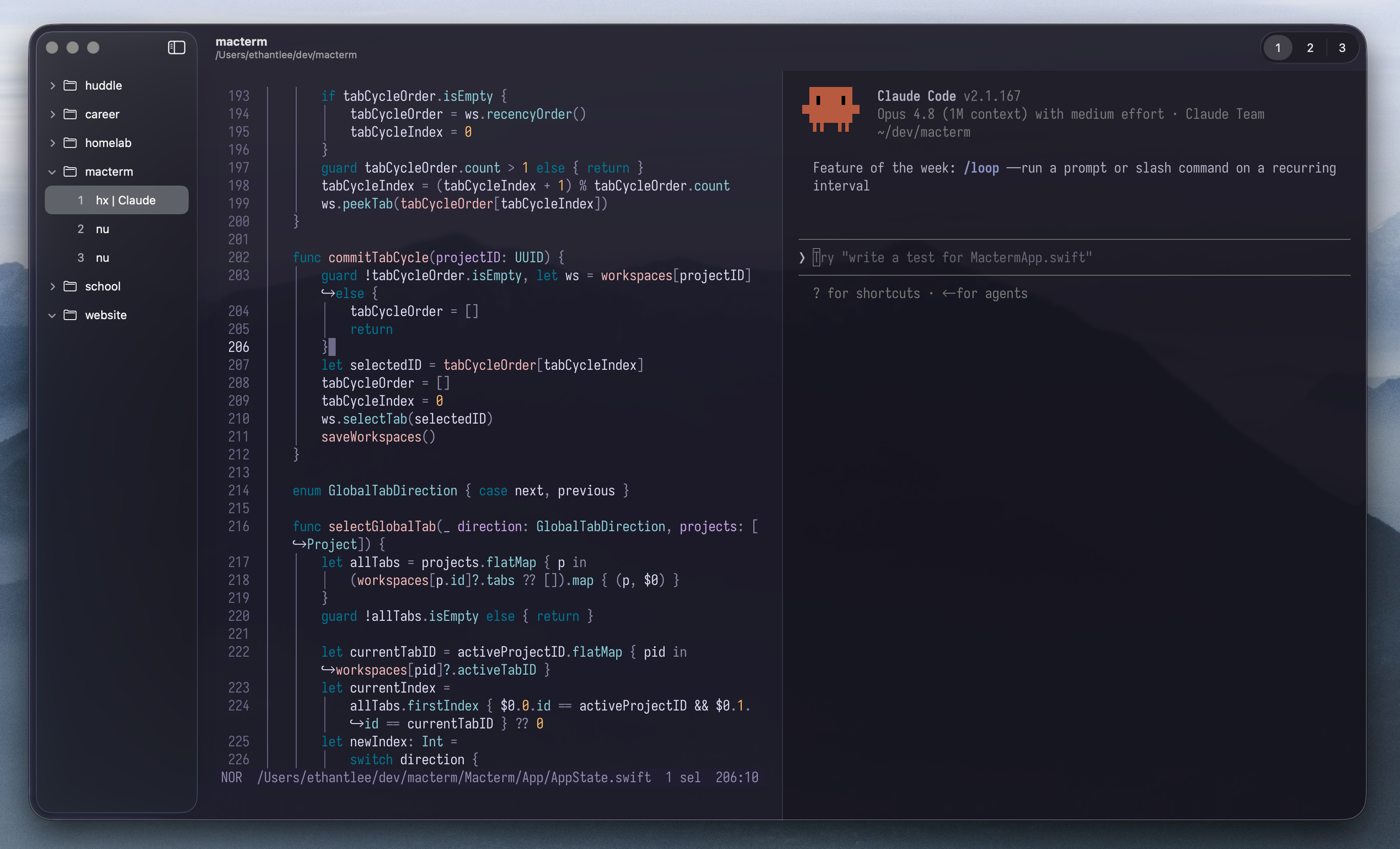
A native macOS terminal with vertical tabs and persistent multiplexing, built on libghostty




Features
- Vertical Project Sidebar: Native macOS sidebar for organizing projects and tabs vertically.
- Persistent Multiplexing: Projects, tabs, and panes are saved and restored automatically on relaunch.
- Declarative Layouts: Define a
.macterm/layout.yamldescribing each project's tabs, splits, and the process every pane runs; apply or save it from the command palette. - Ghostty Config Compatibility: Macterm reads your existing Ghostty config. Theme, font, notification, keybinds — all of it just works.
- Command Palette: Versatile command palette to interact with multiplexing and manage projects
- Quick Terminal: Global terminal accessible from anywhere with a hotkey.
- Smart Tab Naming: Tabs name themselves after the program running in the pane, making them easily identifiable in the sidebar.
- Keyboard-driven Control: Customizable keybinds for many actions including navigating projects, tabs, and panes.
Install
Homebrew
brew install --cask thdxg/tap/macterm
The cask strips the Gatekeeper quarantine xattr on install, so the app launches without any extra prompts.
From Releases
Download the latest .dmg from Releases, open it, and drag Macterm to Applications.
Since the app isn't signed with an Apple Developer certificate, macOS will block it on first launch. To allow the app to launch, run this command in another terminal (you only need to do this once):
xattr -cr /Applications/Macterm.app
Demos
Keybinds
Macterm is very keyboard-oriented, so you can perform the majority of actions without lifting your hand.
https://github.com/user-attachments/assets/42b2dce8-1d6d-41d6-a4c8-2e0c1339810b
Window Opacity & Blur
Macterm's window appearance is highly customizable and hot-reloaded. Drop the opacity below 100% and choose between a classic Gaussian Background Blur or the macOS 26 Liquid Glass material — in two styles, frostier Regular or more transparent Clear — all in Settings → General → Window.
https://github.com/user-attachments/assets/1486ed55-e653-43ce-98aa-232a61d234a7
Configuration
Macterm reads your ~/.config/ghostty/config on launch — themes, fonts, palettes, keybinds, and everything else Ghostty supports works the same here. See the Ghostty option reference for the full list of available settings. If your config is elsewhere, set the path in Settings → General → Ghostty Config.
Macterm ships a thin layer of first-launch defaults on top of Ghostty's own — add any of those keys to your Ghostty config to override them. Macterm-specific settings (window opacity, blur style, quick terminal size, hotkeys) live in Macterm → Settings.
A few settings are overridden because Macterm handles that chrome itself: background-opacity and background-blur are forced to 0 (use Settings → General → Window instead), and titlebar, window decoration, split-divider, and quick-terminal settings are ignored.
Ghostty keybinds work normally unless they conflict with a Macterm shortcut — on conflict, Macterm wins. Every Macterm shortcut is rebindable in Settings → Keymaps. Note that Ghostty app-level actions (new_split, new_tab, etc.) do nothing in Macterm; use Macterm's own keybinds for those.
The ssh-env, ssh-terminfo, and path features require the ghostty CLI; install Ghostty.app to enable them. The ssh features additionally need a Ghostty new enough to provide the +ssh action (Ghostty 1.4.0 / tip); against an older install they stay disabled and ssh runs normally.
Usage
Command Palette
Press ⌘P to open the command palette — the fastest way to drive Macterm without leaving the keyboard. It searches across everything in one list:
- Commands — split, close, and focus panes; create, rename, and reorder tabs; toggle window chrome; and more. Each row shows its current keybind.
- Projects — jump to any open project, or rename and remove them.
To open a directory as a project, just start typing a path (anything beginning with / or ~). The palette switches to path mode and autocompletes directories as you go; press return on a match to open it (or switch to it, if it's already a project).
Declarative Project Layout
Define a project's tabs, split layout, and the process each pane runs in a .macterm/layout.yaml file at the project root. When a project has a layout file, Macterm builds its workspace from it on open — the committed layout is the source of truth, taking precedence over any restored session for that project. Run Save layout from the palette to write your current workspace out, or Apply layout to re-apply the file on demand.
# .../myapp/.macterm/layout.yaml

# yaml-language-server: $schema=https://raw.githubusercontent.com/thdxg/macterm/main/assets/layout.schema.json
name: "MyApp" # the project name (optional; defaults to directory name)
tabs:
  # A single-pane tab
  - run: "npm run dev"
  # A tab with custom name and splits
  - name: "Dev"
    split:
      direction: horizontal # horizontal | vertical
      ratio: 0.6 # divider position, 0–1 (defaults to 0.5)
      first:
        cwd: "./api" # project-relative working directory
        run: "npm run dev" # typed into the pane's shell on launch
        shell: /bin/zsh # shell (optional; defaults to login shell)
      second:
        split:
          direction: vertical
          first: { cwd: "./api", run: "npm test -- --watch" }
          second: {} # plain shell pane
A pane's run is typed into a normal shell, so you keep the prompt and history and the pane survives when the command exits. The shell is the pane's shell if set, else your login shell.
Related commands:
-
Save layout: Records the project
name:, each tab's split layout, every pane's working directory, and the command each pane is currently running (a pane idle at a prompt gets none). The captured command is the resolved process invocation (e.g.node …/npm-cli.js run dev), which you can tidy by hand. A pane sitting in a non-default shell (one you launched yourself, likezshfrom your usualnu) is saved with thatshell:; a pane in your default shell records none, so the layout stays portable. Applying a layout whosename:doesn't match the current project prompts for confirmation first. -
Apply layout: Reconciles the live workspace toward the file with minimal disruption: a pane already running the declared
runin the same directory is kept (only resized if its split ratio changed), and only panes that genuinely deviate are restarted or closed. When an apply would terminate any pane, Macterm asks first. An invalid layout file is reported and not applied.
Contributing
See CONTRIBUTING.md for setup, build, and PR guidelines.
License
MIT