Jev Browser Use
Jev clicks. Codex thinks and verifies.
A browser Skill powered by TypeSafe’s Jev. Hand off navigation, clicks, toggles, and scrolling; keep Codex in charge of text input, visual judgment, and the final check.

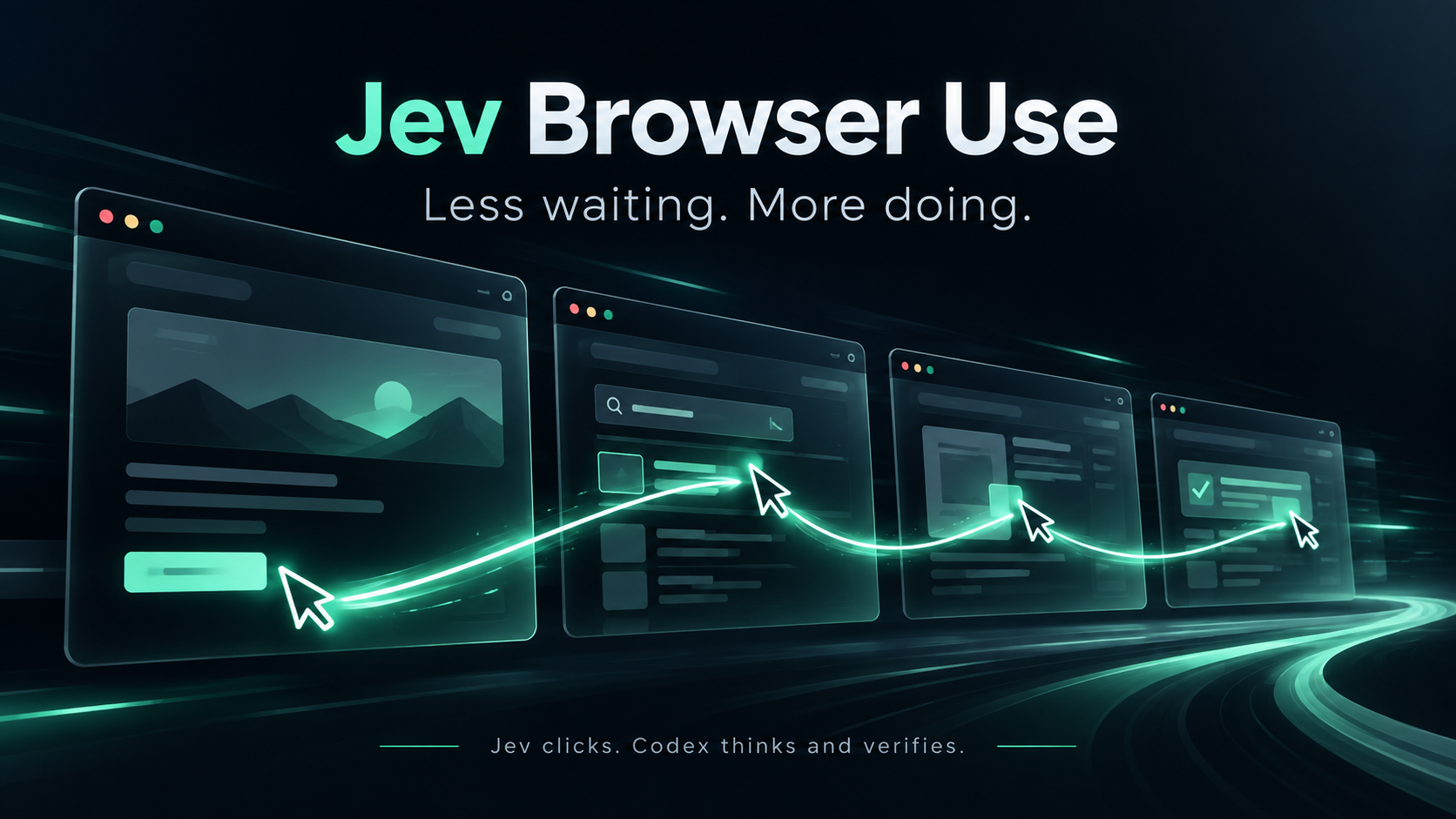
~5–10× faster browser operations in our EZCollegeApp workflows. Your existing browser connection. No extra driver or npm dependencies.
Install · Try it · How it works · Real-world use · Cost · Official guides · Stars
Install
Codex — one command:
npx skills add wy-coliney/jev-browser-use -g -a codex -yThen configure your Jev API and start a new Codex task.
Update a Skill installed this way:
npx skills update jev-browser-use -gStart a new Codex task after updating to load the new Skill instructions. The update does not change your ~/.config/jev-browser-use/config.json or credential file.
Choose the provider that issued your API key. A TypeSafe key goes with provider: "typesafe" and TYPESAFE_API_KEY; an OpenRouter key goes with provider: "openrouter" and OPENROUTER_API_KEY. These keys are not interchangeable, even though both providers offer Jev. Put the key in the dotenv file named by envFile in ~/.config/jev-browser-use/config.json.
You need Node.js 22+, Codex with Computer Use connected to Chrome or its in-app browser, and Jev access through TypeSafe or OpenRouter Decisions. Installing this Skill does not install the browser connection.
Prefer the native Codex plugin?
codex plugin marketplace add wy-coliney/jev-browser-use && codex plugin add jev-browser-use@jev-browser-useRequires a Codex CLI with codex plugin support. Restart Codex after installation. Alternatively, add the marketplace with the first command, then select Jev Browser Use in the desktop plugin directory.
This repository supplies the community marketplace. Choose the plugin or the standalone Skill to avoid duplicate instructions; both use the same Jev configuration.
Have your agent install and configure it
Paste this into Codex:
Install Jev Browser Use following this guide:
https://raw.githubusercontent.com/wy-coliney/jev-browser-use/main/INSTALL.md
Preserve existing configuration. Ask for my chosen provider and local
credential file path if needed. Never ask me to paste an API key in chat.
Claude Code and other agents
npx skills add wy-coliney/jev-browser-useChoose an agent, or install directly into Claude Code:
npx skills add wy-coliney/jev-browser-use -g -a claude-code -yClaude Code browser support is coming soon. The Skill can be installed now; browser execution currently requires the Codex Computer Use runtime.
Manual installation / ZIP
git clone https://github.com/wy-coliney/jev-browser-use.git
cd jev-browser-use
node scripts/install.mjs
Or extract the repository ZIP and run the same Node command. The installer asks for your provider, model, and local credential file path. Existing settings are preserved; credentials stay outside the Skill.
Try it
Give Codex a browser task:
Use Jev Browser Use on the settings page. Open the filters, switch views,
scroll through the results, and restore the original state.
Independently verify the result.
Or prepare something for your review:
Use Jev Browser Use to help prepare a post in my open Chrome tab.
Use the draft and image I provide. Check both, then stop before publishing.
Jev handles the controls. Codex enters text, handles images, and checks the outcome. When a step needs help, Codex takes over and Jev resumes afterward.
How it works
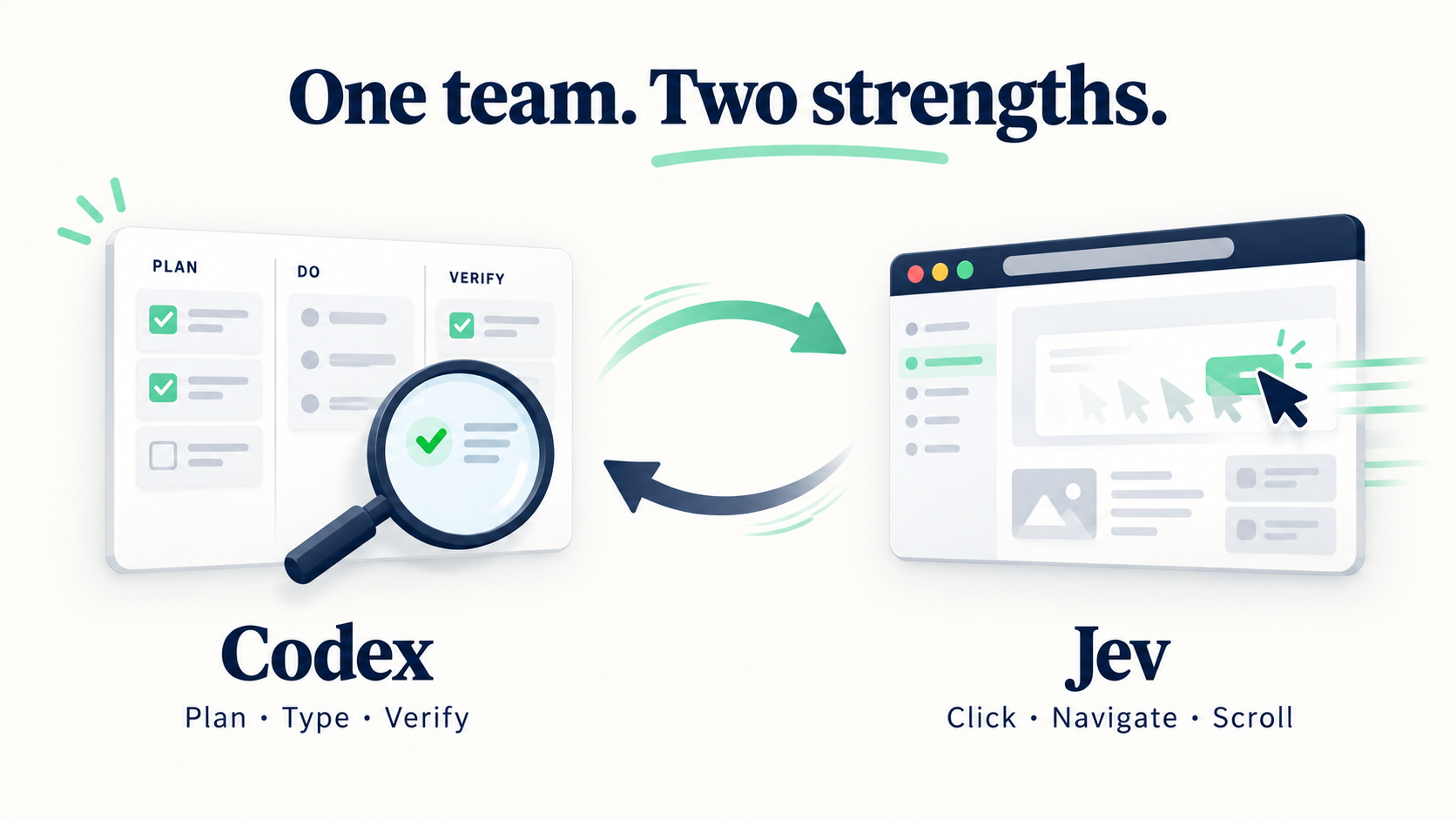
Goal → observe controls → Jev chooses an action → browser → repeat → Codex verifies.
The action loop stays inside the existing Computer Use connection, avoiding a new host-model turn for every click. Sessions retain progress across handoffs and check fresh page state before acting. Jev’s completion signal brings Codex back for verification.
Jev receives accessibility text, not screenshots. Codex handles typing, visual interpretation, and unsupported controls. Use it for dashboards, settings, reports, and browser checks—not just writing tasks.
Built for EZCollegeApp
We built this while testing EZCollegeApp, our college application product. Reviewing an essay feature meant repeatedly opening evaluations, expanding notes, scrolling reports, and returning to the editor.
Jev handles that navigation; Codex checks whether evaluation feedback and inline annotations agree. The same split works anywhere repeated browser operations slow down your agent.
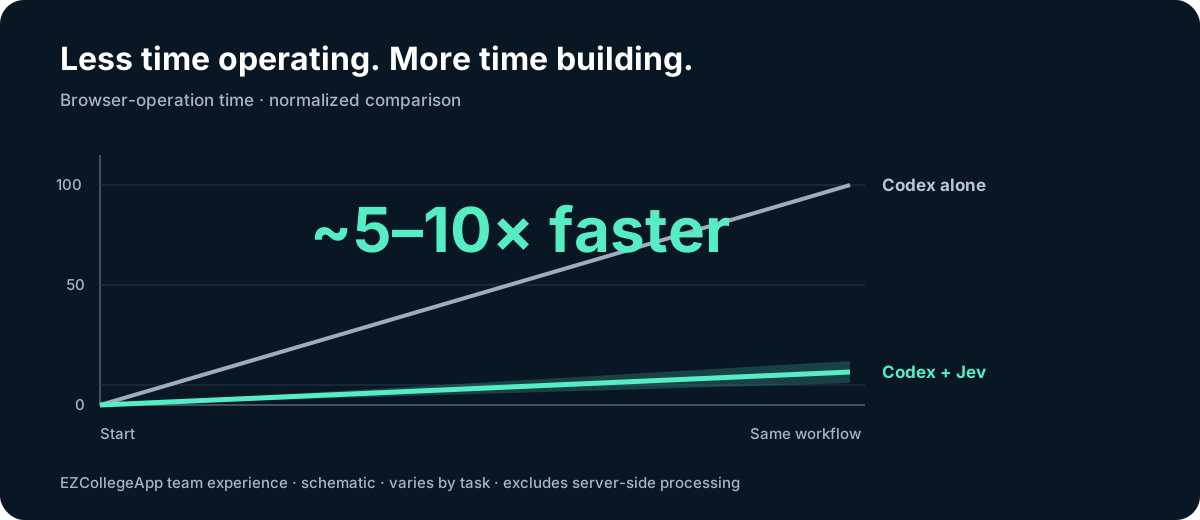
~5–10× is our approximate browser-operation speedup, varying by task. Server-side processing is excluded; the chart illustrates the ratio.
Cost
Put repetitive decisions on Jev and reserve Codex for the work that needs it.
| Model | Input / 1M tokens | Output / 1M tokens | Input price vs. Jev |
|---|---|---|---|
| Jev 1.13 | $0.042 | Free | 1× |
| GPT-5.6 Terra | $2.00 | $12.00 | 48× |
| GPT-5.6 Sol | $4.00 | $20.00 | 95× |
| GPT-6 Astra | $10.00 | $50.00 | 238× |
At 100,000 input tokens, that's $0.0042 for Jev, versus $0.20, $0.40, or $1.00 before output charges. Send repetitive action decisions to Jev and reserve Codex for the work that needs it.
Standard uncached API rates, checked September 18, 2026: TypeSafe pricing, OpenAI model pricing. These compare token prices; total workflow cost also includes Codex and depends on usage.
Setup and updates
- Configuration: Choose your provider and connect your API. All installation methods share
~/.config/jev-browser-use/config.json. - Plugin updates: refresh with
codex plugin marketplace upgrade jev-browser-use, reinstall withcodex plugin add jev-browser-use@jev-browser-use, then restart Codex. - Manual updates: pull the repository and run
node scripts/install.mjs --no-config.
Browser workflows were exercised on macOS. Page text goes to your selected provider; only delegate data you authorize it to process. Keep credentials and private page content out of public issues. See the full Skill for runtime requirements and handoffs.
Troubleshooting
If Codex says the browser tool is missing, check the direct mcp__cua_repl.js discovery steps. The tool is not listed inside functions.exec's deferred tools. Installing the Skill alone does not add Computer Use to a task.
If Chrome connection fails before Jev runs, check the browser connector guidance. When the task allows either browser, the in-app browser may work even if Chrome attachment does not. If a Jev request fails with ENOTFOUND, use the credential-free CUA network probe; a successful shell request does not prove network access inside CUA.
Official guides
Jev introduction · Jev API quick start · Codex plugins · Skills CLI
Also worth exploring: Browser Use’s Jev Ultrafast, a standalone browser-agent project using Jev.
MIT licensed. An independent integration, not an official OpenAI or TypeSafe product.
Star history
If this saves you a few hundred clicks, give it a star.