 ALTRun
English | 简体中文
A lightweight, open-source launcher for Windows, modeled on Alfred for macOS
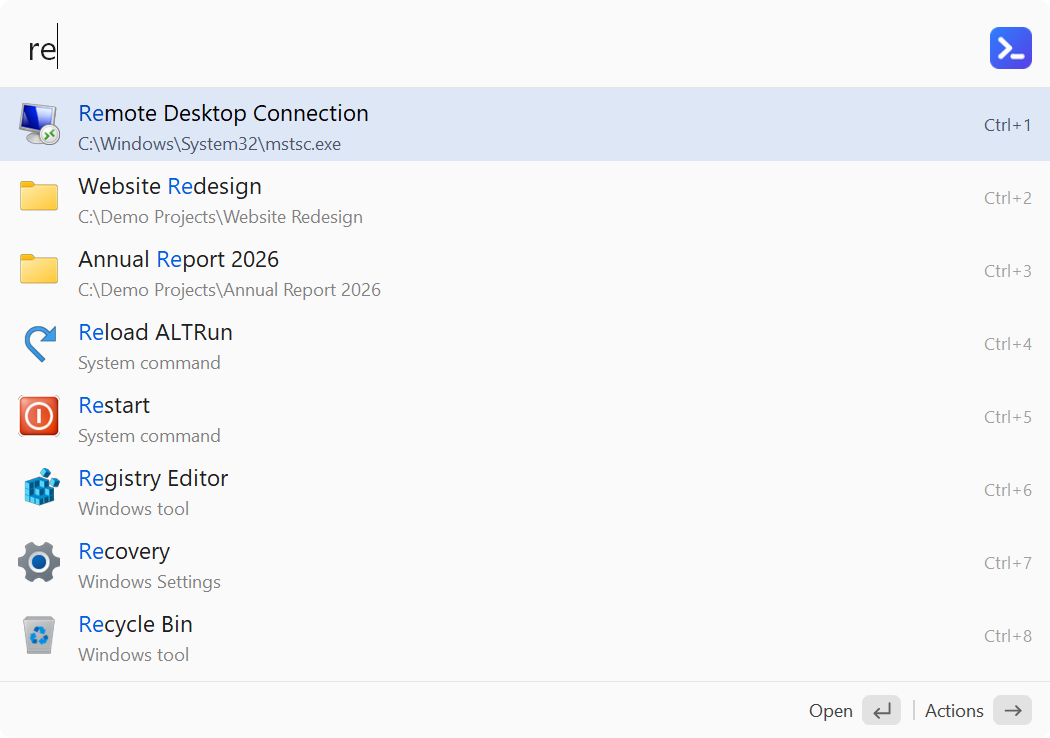
Press Alt+Space, type a few letters, press Enter: apps, files, web search, calculations, clipboard and system commands, all from one window






Website · Why ALTRun · Getting started · Features · Shortcuts · Documentation (Wiki) · Changelog
Why ALTRun
- Tiny: about 2.5 MB, with one
ALTRun.exeand a few resource files; no .NET, Electron or other runtime to install. - Fast: results appear as you type. With Everything running, file searches cover all disks in milliseconds; otherwise, ALTRun uses its built-in index.
- Smart ranking: learns from what you pick; matches word initials (
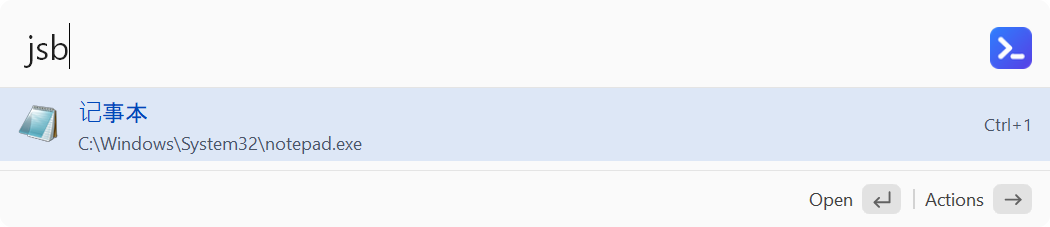
vsc→ Visual Studio Code) and pinyin initials (wx→ 微信; file names too:cs→ 测试文件.zip), and highlights the matched characters. - Beyond launching: Quick Switch jumps Open / Save dialogs to folders open in Total Commander, Directory Opus or Explorer; act on selected text, files or URLs in any app; expand snippets with
;keyword. - All in one: calculate and convert units, search the web, browse bookmarks, manage clipboard history and snippets, run system commands, or open a terminal—without separate tools for each task.
- Keyboard first: use
→for the action panel, see whatEnterwill do in the status bar, edit in place withF3, open a result directly withCtrl+1–Ctrl+9, or useCtrl+Enterto open a file’s containing folder or paste text into the active window. - Portable and private: no installer, registry entries, admin rights, background service or driver. Data stays local by default; the clipboard history is stored in
%LOCALAPPDATA%\ALTRun, so it doesn't travel with a synced or portable copy. No telemetry; internet access is used for updates, optional exchange rates and site icons you request. - Automatic updates: new versions appear in the search window; press
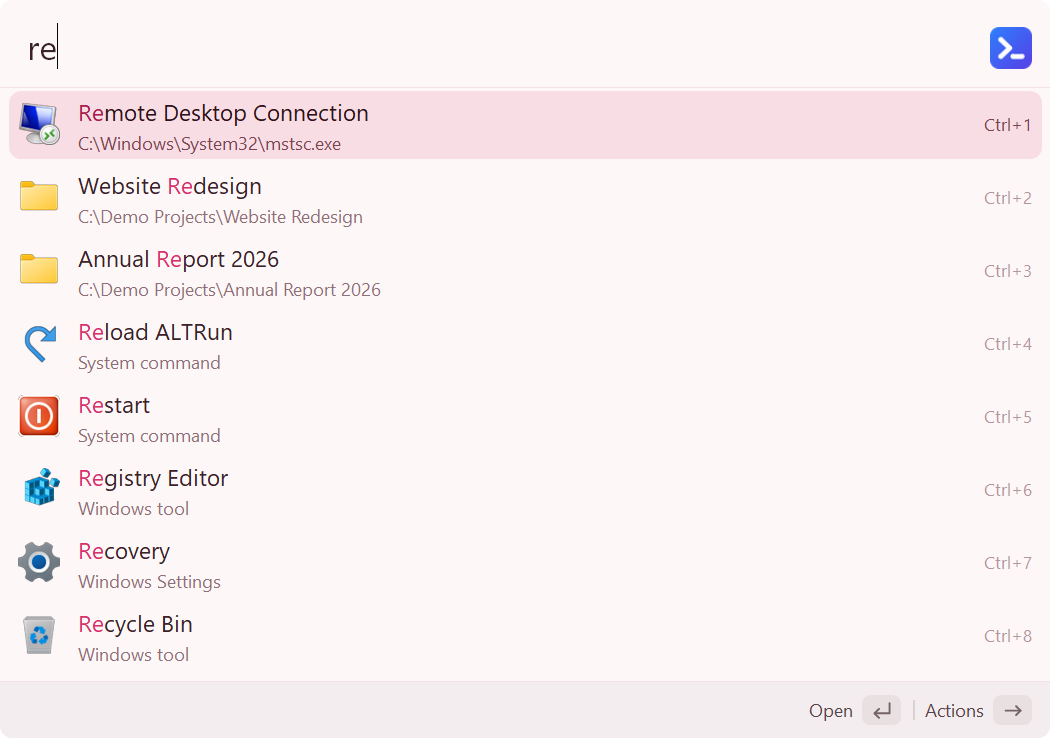
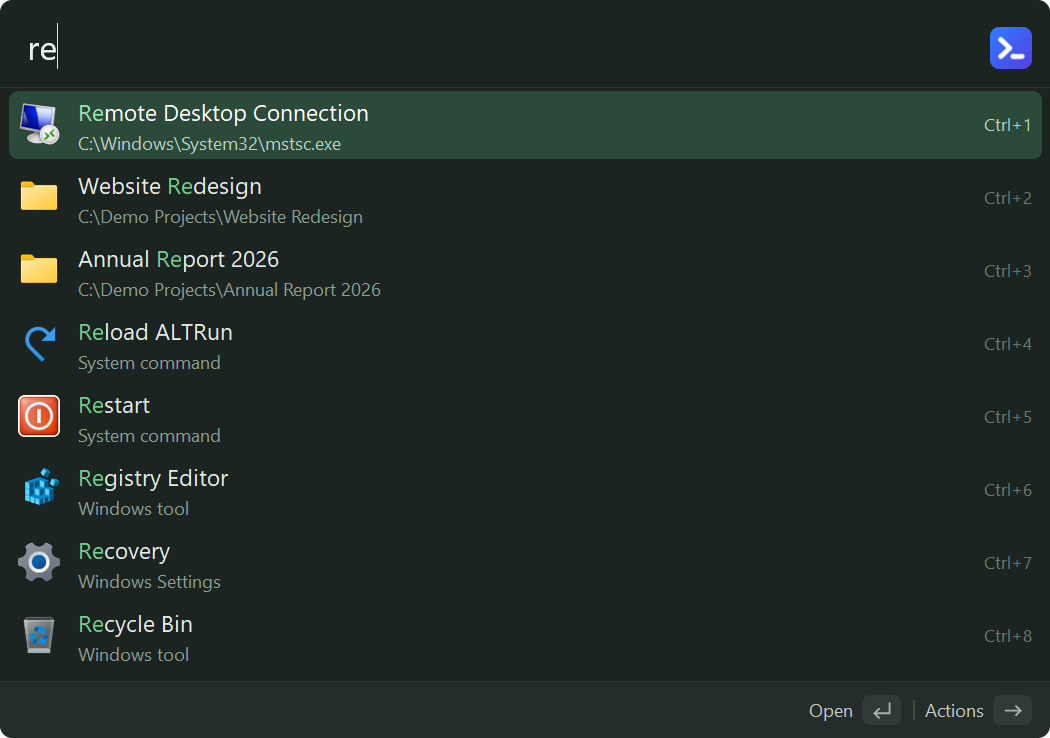
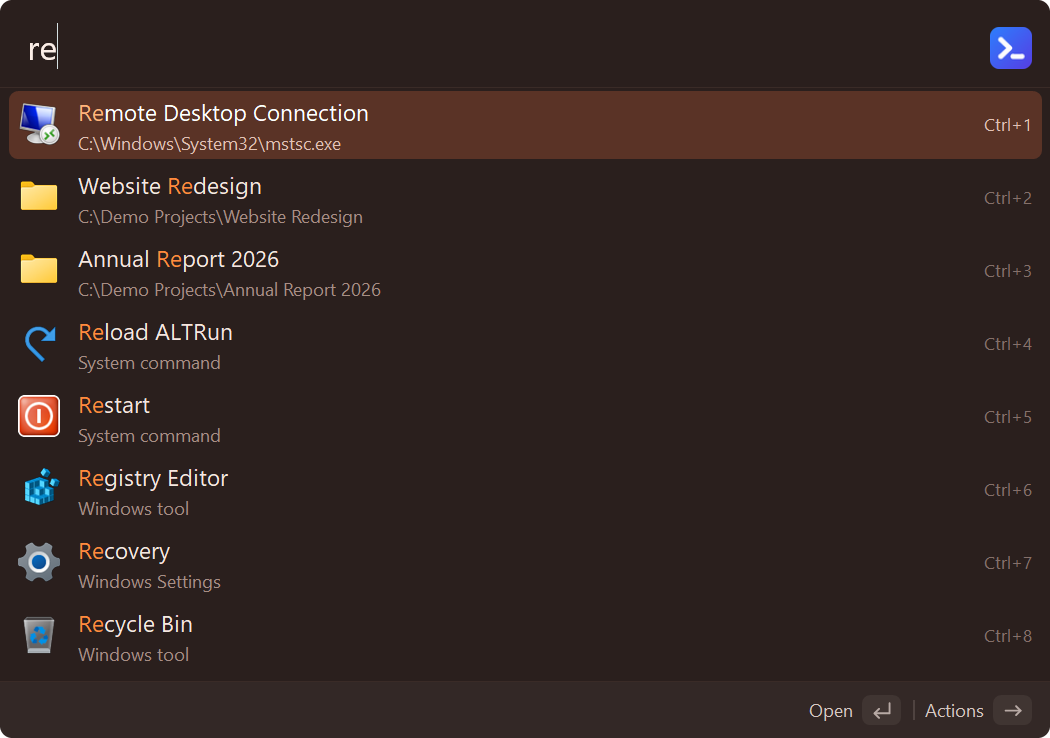
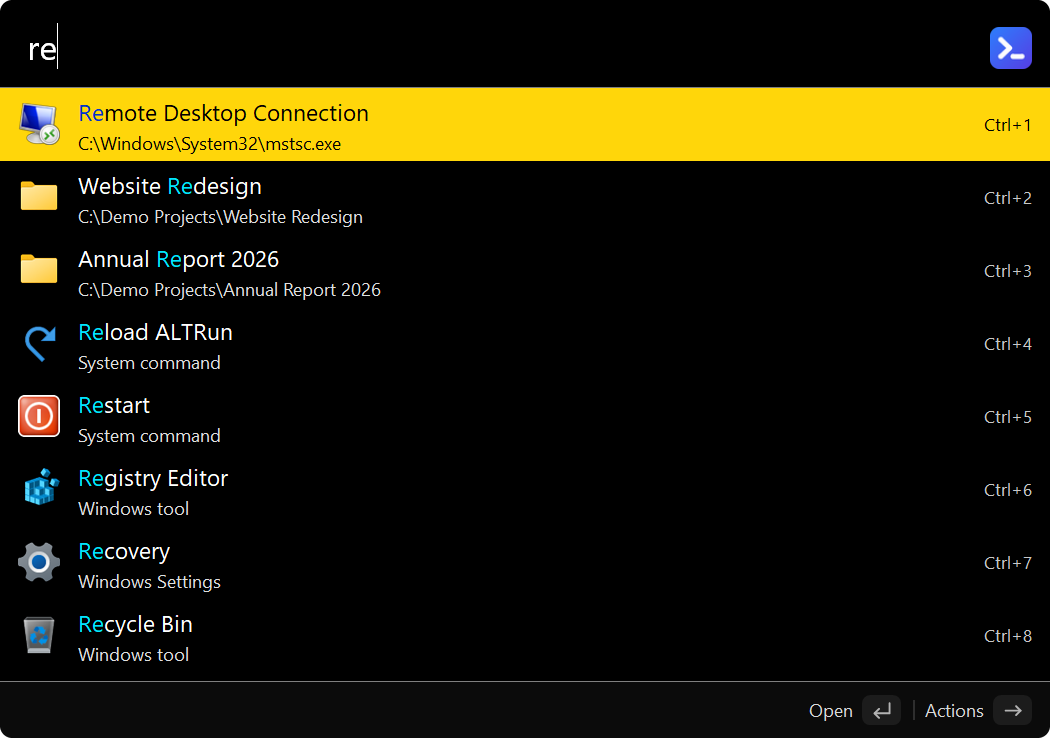
Enterto install. Packages are SHA256-verified and settings are kept; Scoop is also supported. - Customizable: four interface languages—English, Simplified Chinese, Traditional Chinese and Japanese—and 22 built-in themes, each in three densities. Follow Windows light / dark mode or customize themes and settings through plain JSON files.
- Free and open source: GPL-3.0 licensed, with more than 8,000 tests run automatically on Windows for every pull request.
Getting started
- Download the latest release, unzip it to any folder and run
ALTRun.exe— no installation or AutoHotkey required. - Press
Alt+Space(orAlt+R), type an app or file name, then pressEnter. - Type
?to see all search syntax and shortcuts; pressCtrl+,to open Preferences.
If Windows SmartScreen blocks the app, choose More info → Run anyway. For antivirus warnings, see the FAQ.
You can also install with winget or Scoop, or run ALTRun.ahk with AutoHotkey v2. See Installation options and upgrades for details.
Features
Search
- Search window: results update as you type, with a title and path for each; the window grows with the results, can be dragged and remembers its position, and opens on the screen with the mouse pointer when you have several monitors.
- Apps: Start menu, desktop and Microsoft Store apps are indexed automatically, and newly installed programs show up within seconds; press
Ctrl+Delto hide apps or built-in commands you don't want, and restore them in Preferences. - Match highlighting: the parts of a title that match what you typed (consecutive characters, word initials, pinyin initials) are highlighted.
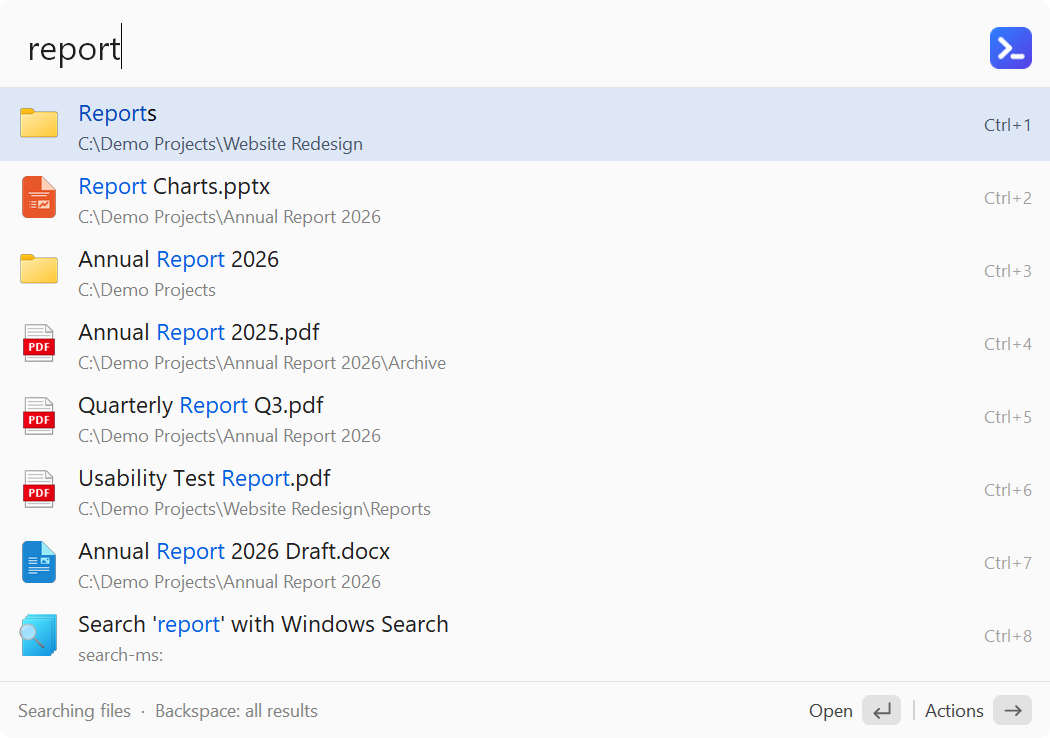
- Files and folders: in an empty search box, press
Spacefirst and then type a name (or use'reportoropen report). With Everything running it searches all disks, otherwise the built-in index; type a path such asD:\Projects\to browse folder by folder;recent reportsearches the files you opened recently in any program. Files can also show in normal results, matched by the start of a name or anywhere in it (Preferences → File Search). - Custom commands: files, folders, programs (with arguments) and web addresses, each with optional keywords (several, separated by commas, if you switch keyboard layouts). Add them from Explorer with right-click → Send to → ALTRun (several at once works too), and check for commands whose path no longer exists.
- Learned ranking: remembers which result you picked for each query and moves frequent picks up.
- Pinned and recent items: before you type anything, the window lists your pinned items and recently opened ones. Drag a file result out to WeChat, an email or a folder to copy it there.
- Usage statistics: counts per day and per feature (only counts are recorded).
- Calculator: type an expression directly; supports unit conversion (
10 km in mi), number bases (255 in hex), date arithmetic (today + 30 days) and optional currency conversion (100 usd to sgd). - Web search:
g keywords(Google),bd keywords(Baidu) and more; search engines are customizable (gand a space with nothing after it searches the clipboard text), and web search is offered when nothing else matches. - Browser bookmarks and history: searches Chrome, Edge, Brave and Vivaldi bookmarks (
bm keywordssearches bookmarks only);h keywordssearches the browser history, most recently visited first. - Window switcher: type a window title or program name to switch to an open window;
w keywordssearches windows only,wlists them all. - System commands: lock, sleep, shut down, empty the Recycle Bin, volume and media control, Windows tools, more than 40 Windows Settings pages (Display, Bluetooth, Wi-Fi and so on), and text conversions (case, sorting, Simplified / Traditional Chinese and more).
Productivity
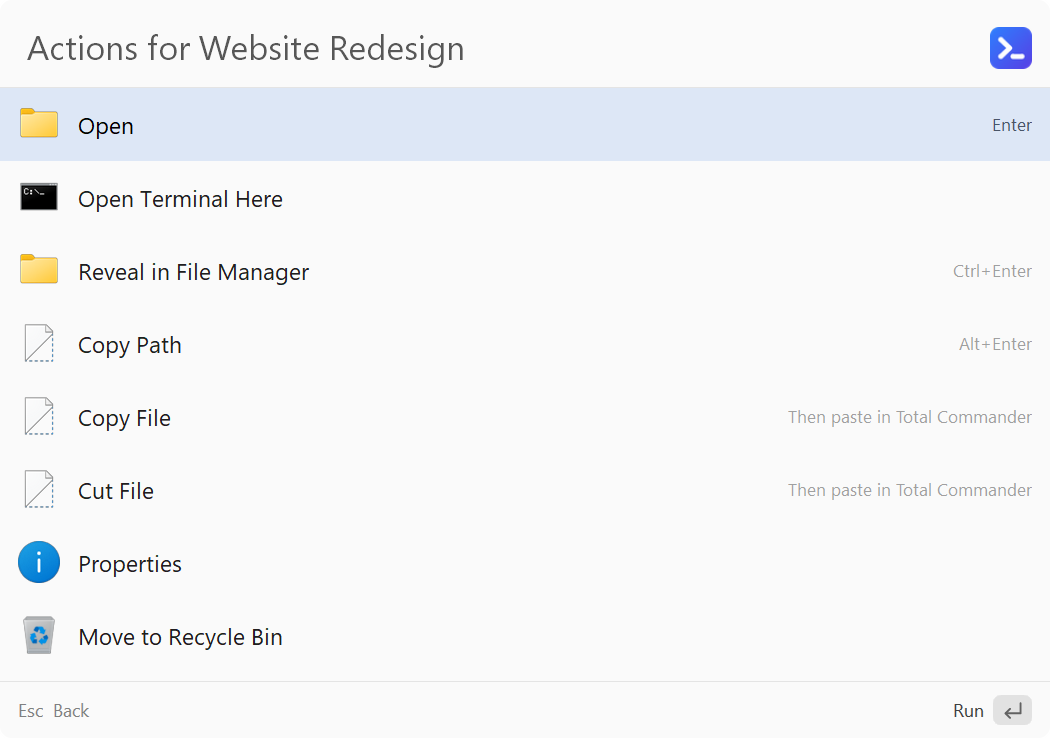
- Action panel: select a result and press
→(or right-click) to list what you can do with it, such as run as administrator, open file location, copy path, open a terminal here, show properties or (when turned on) open the Windows context menu with the items 7-Zip, Git and other programs add (also directly withShift+right-click orShift+→). - Actions on selected content: select text, files or a URL in any program and press
Ctrl+Alt+\for actions such as web search, save as a snippet, or convert and replace the original text; your own commands for content types you define (an order number pattern, PDF files...) come first. - Edit in place: press
F3to edit a command, snippet or search engine; apps and files can be turned into custom commands in one step. - Clipboard history: press
Ctrl+Alt+Cor typeclip. Records text, files and images; what you paste stays on the clipboard for the nextCtrl+V; pin the ones you use often, paste as plain text, and ignore anything copied from password managers. - Text snippets: search by name, keyword or content; placeholders such as
{date},{clipboard}and{cursor}; type;keywordin any program to expand a snippet; import them in bulk from Excel / CSV, or export them. - Terminal: type
>ipconfig /allto run it in a terminal. - Large type: press
Ctrl+Lto show a result in full-screen large type, handy for phone numbers or calculation results (turn it on in Preferences → Features).
Extensions
- Quick Switch: in an Open / Save dialog, press
Ctrl+Gto jump to the folder of the file manager you used last (Total Commander, Directory Opus or Explorer); a folder panel next to the dialog lists every open and recently used folder, with your favorite folders (and their subfolders) in its star menu (Alt+↓orF4in the panel's search box opens it too). Also works in the older Browse for Folder dialog (folder tree only). Optionally also in dialogs of programs running as administrator, through a small helper (ALTRun itself keeps normal rights). - Date stamp: while renaming a file, press
Ctrl+Dto add or update a date before the extension (Report.docx→Report - 28.09.2026.docx). - Custom hotkeys: assign a hotkey to any system command, optionally only inside specific programs; or select text anywhere and press
Ctrl+Alt+Fto search folders with that name (folder {selection}). - Examples on demand: the hotkey, custom command, snippet and web search lists in Preferences can add back the built-in examples you don't have yet ("Add Examples"), without touching your own items.
- Folder sync: keep a folder in step with another one (for example a server share and your OneDrive) with Windows' robocopy: set up in Preferences, run in the task's sync window (live progress) or from the search window; a preview lists what a mirror would delete before anything is deleted.
- Delayed start: start programs such as OneDrive a few minutes after signing in to Windows, so the desktop is ready sooner (Windows Task Scheduler starts them, no administrator rights needed).
- Scripts: put
.ahk,.ps1,.bator.pyscripts into theScripts\folder and run them from the search window, with an argument, in the background or with their output shown; give them a hotkey, offer them for selected content of a type (@altrun.selection), or let one show live results while you type (@altrun.mode filter), such as commands for the program in front that run when chosen.
For structural engineers
- Structural calculations (off by default): the calculator can add beam main bars and rebar area below its result.
- PT Tools: rebar / mesh area calculations and SPF2M post-tensioning tendon profiles, with results you can copy to Excel (two scripts in the script library).
Screenshots
| Search window | Action panel (→) |
|---|---|
 |  |
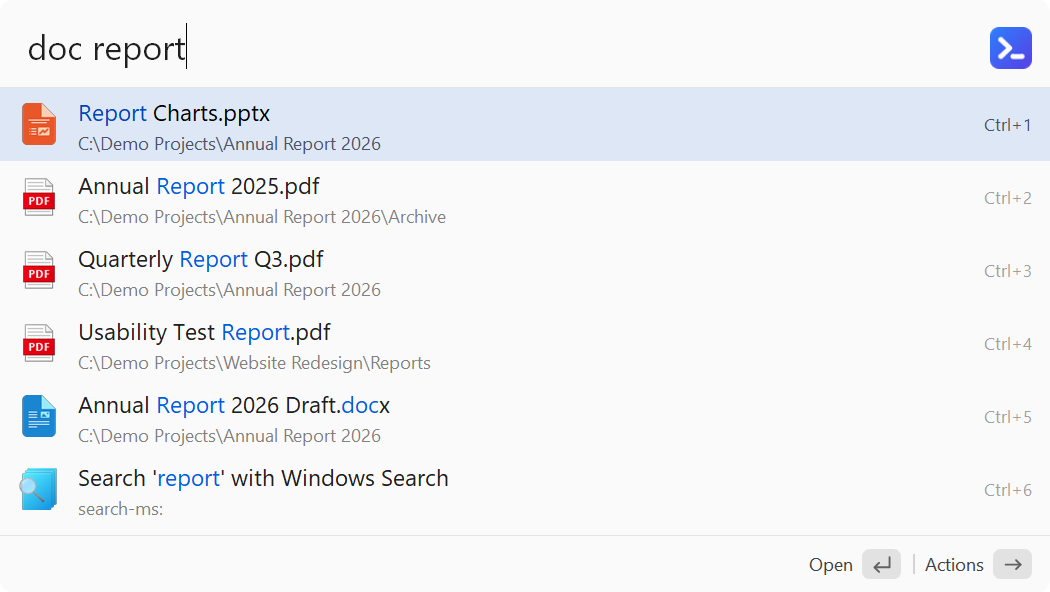
File search (Space + name) | Search by file type (doc + name) |
 |  |
| Calculator and unit conversion | Pinyin initials (jsb finds 记事本, Notepad) |
 |  |
Clipboard history (Ctrl+Alt+C / clip): find and paste | Pinned and recent items (empty search box) |
 | 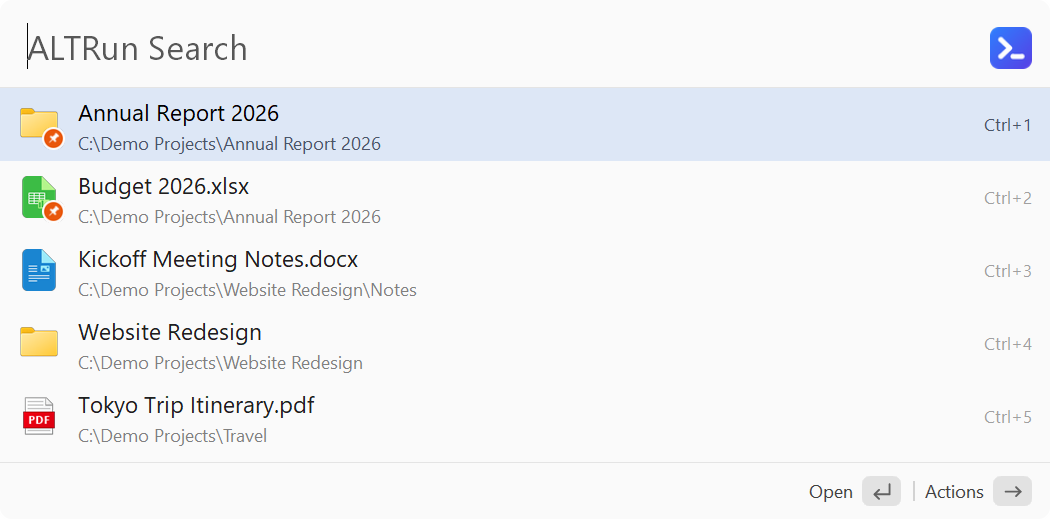 |
Browse folders: Tab goes in, Backspace goes up | Web search (g + keywords) |
 | 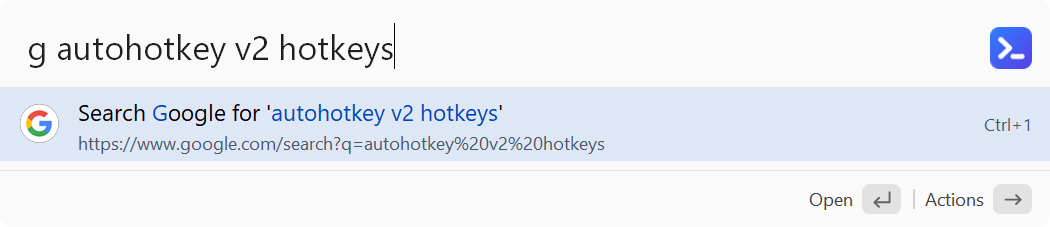 |
| Quick Switch: jump an Open / Save dialog to a folder you have open | Themes (Preferences → Appearance) |
 | 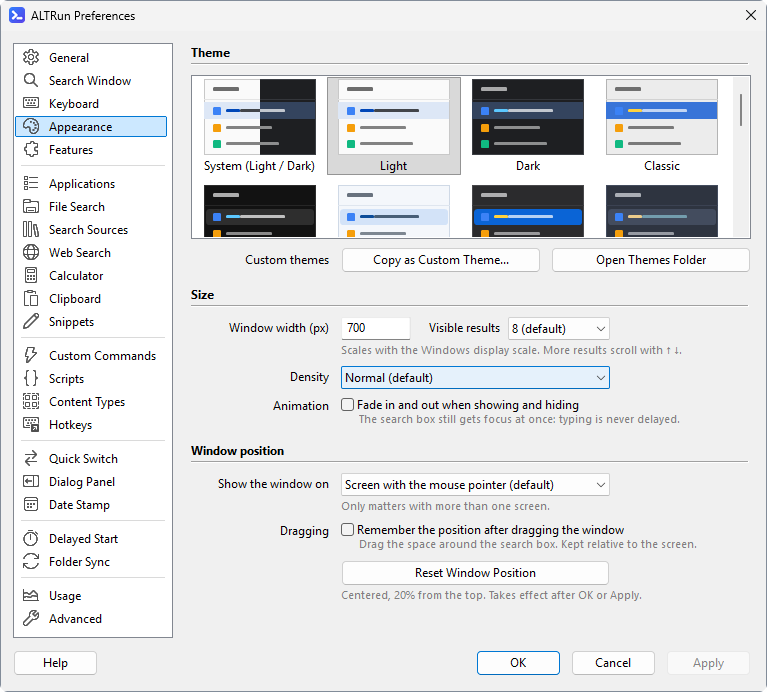 |
Window switching (w + Space) | Add commands from Explorer (right-click → Send to → ALTRun) |
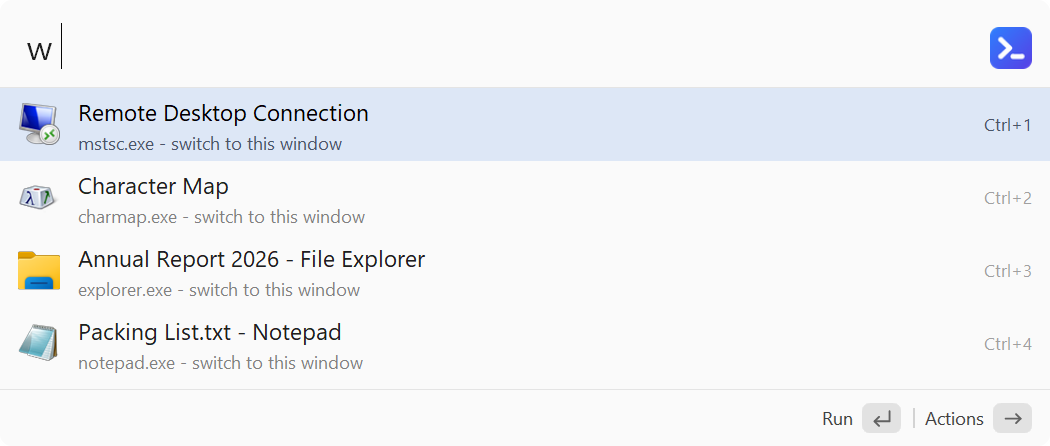 | 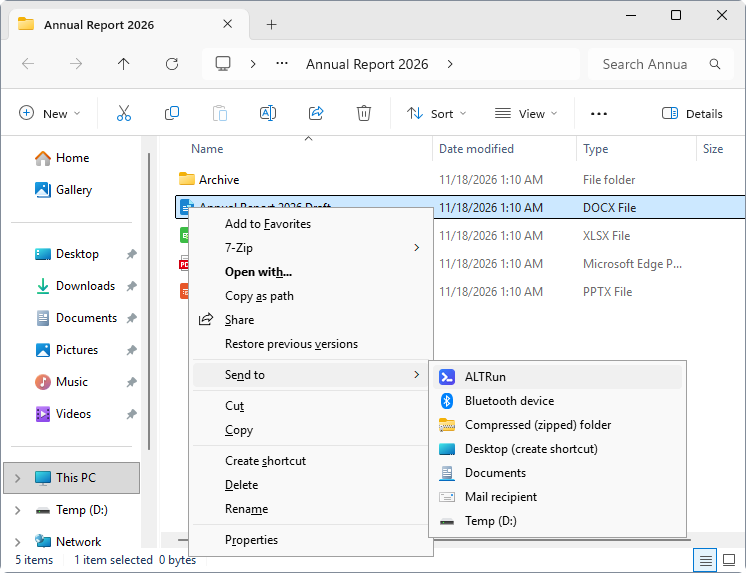 |
| Preferences | Custom commands |
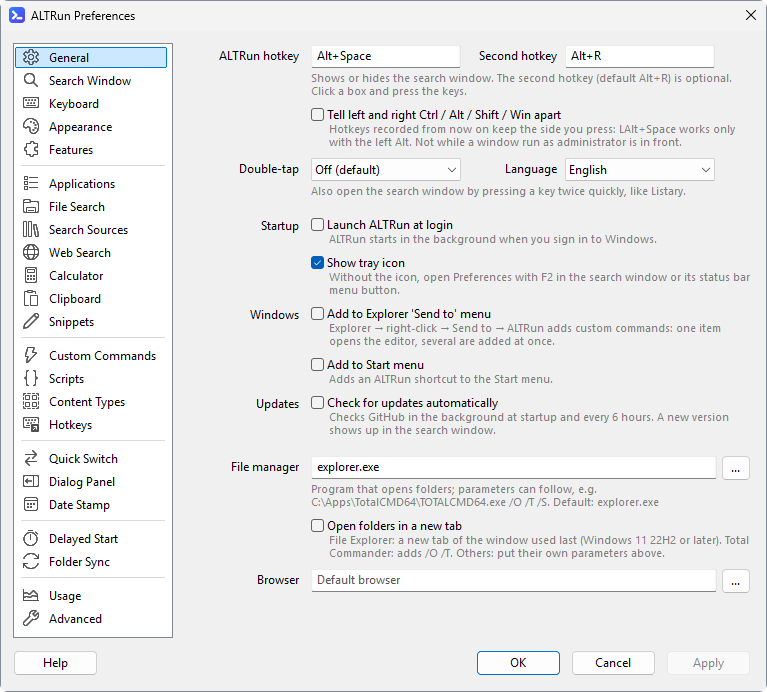 | 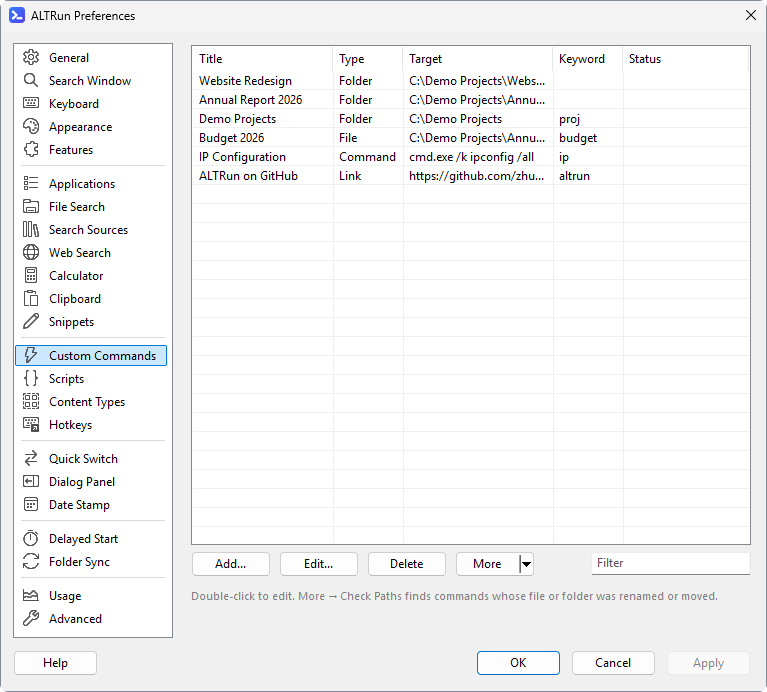 |
Snippets: type ;thx in any program | Scripts |
 | 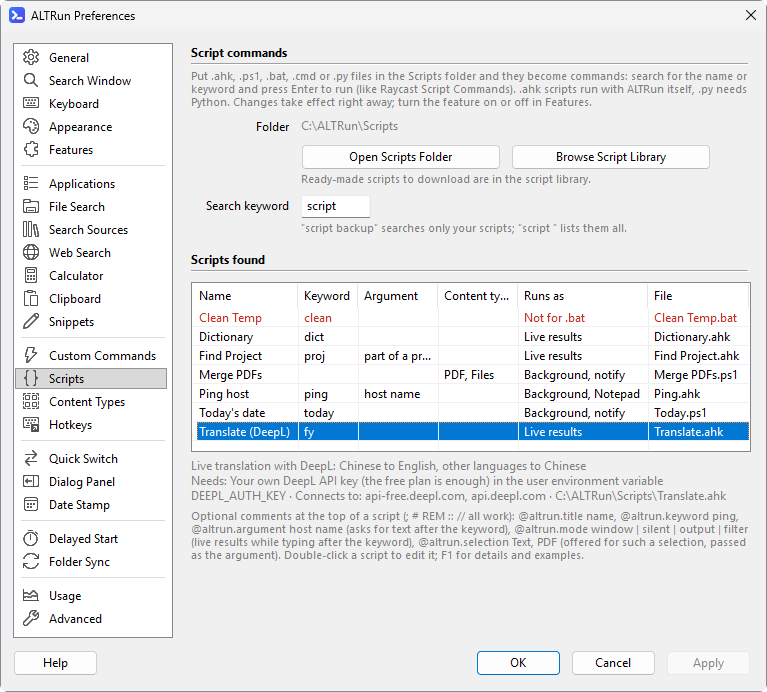 |
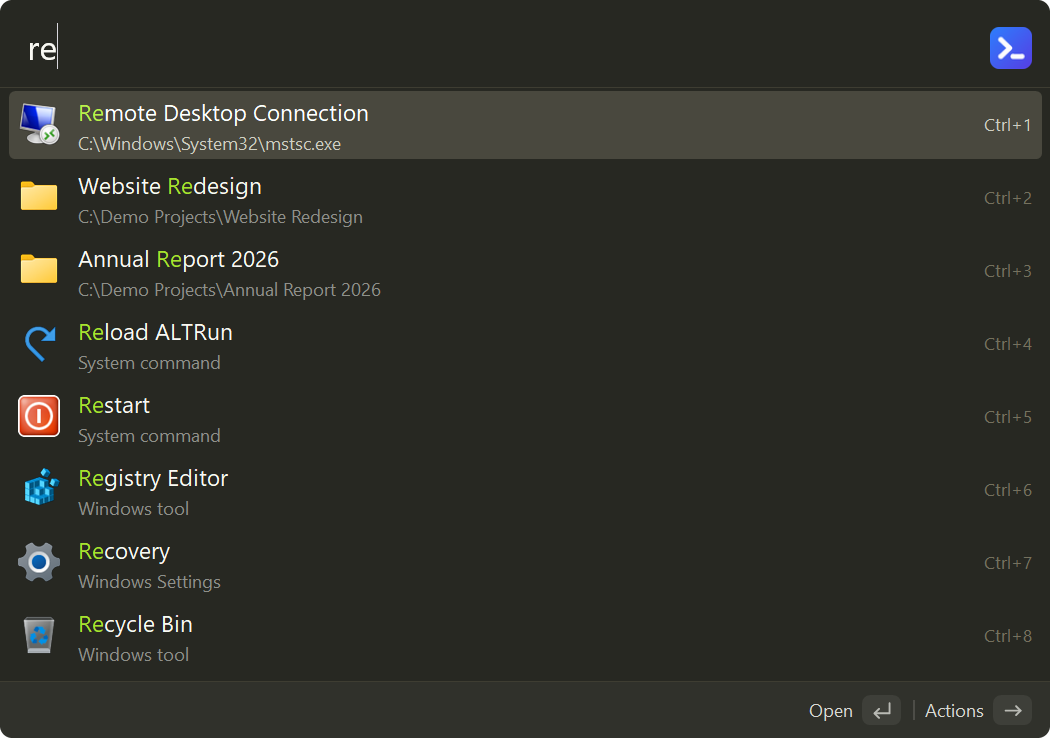
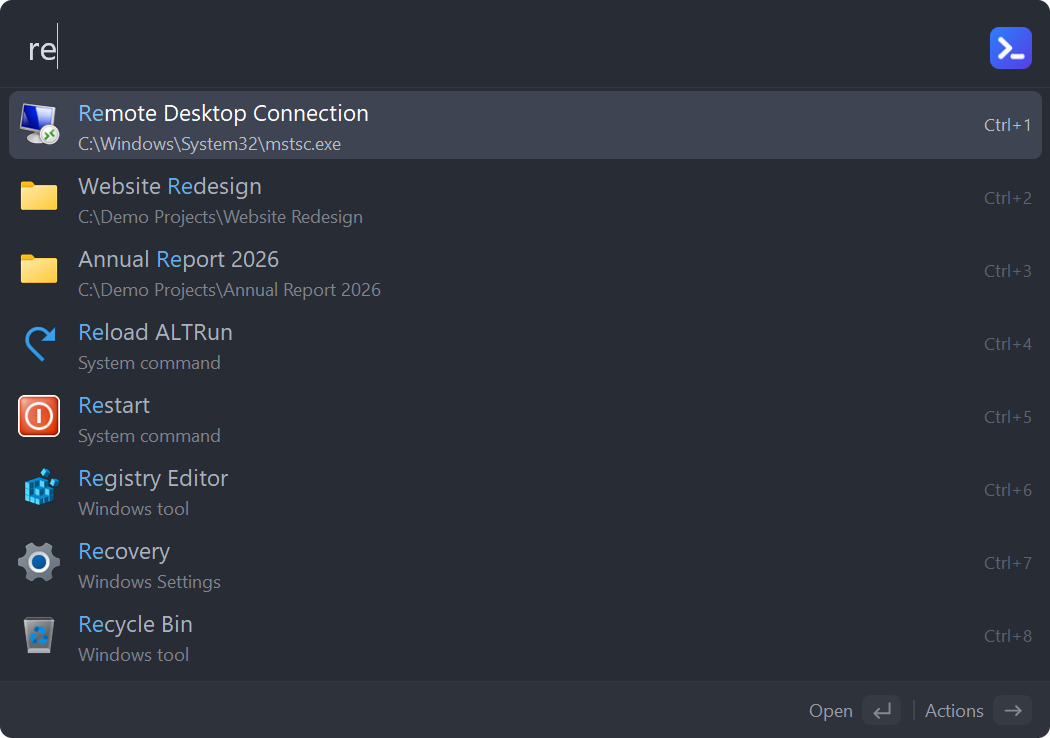
Built-in themes (22 in total, each in three densities; click to expand)
| Dark | Classic | Midnight |
|---|---|---|
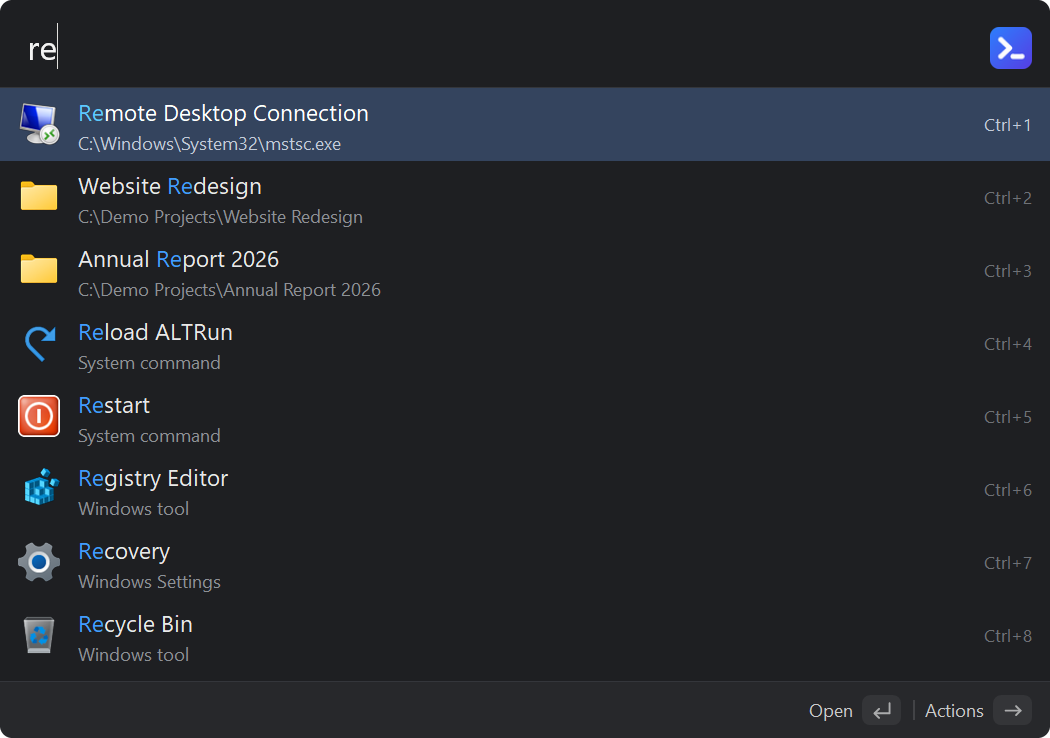 | 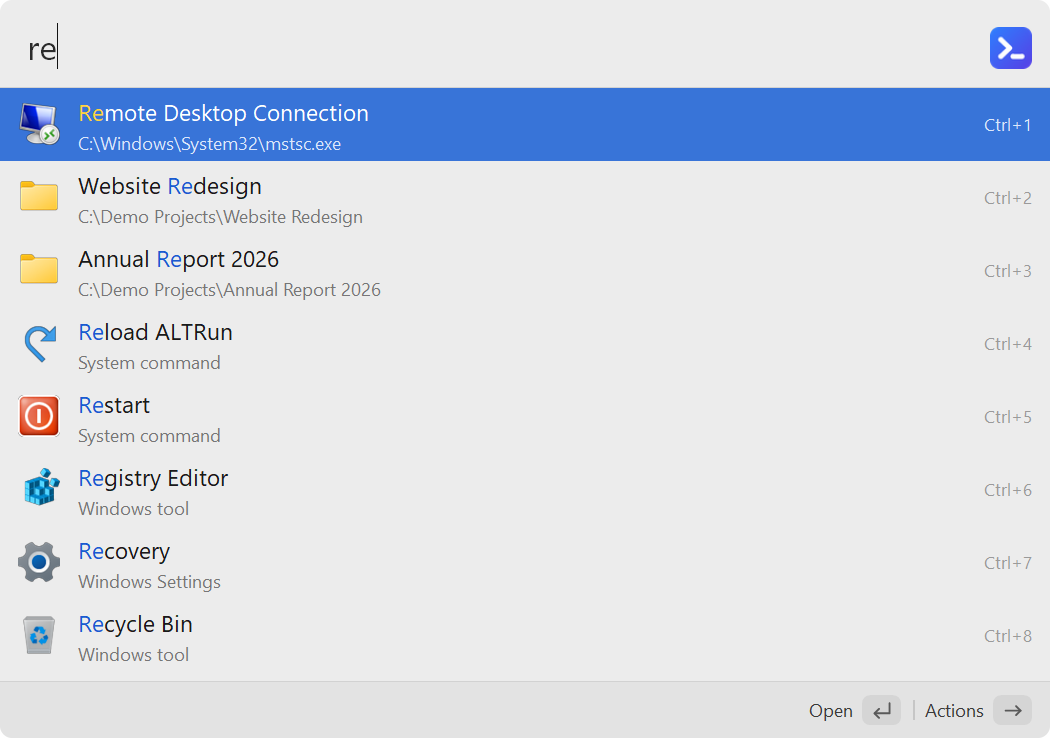 | 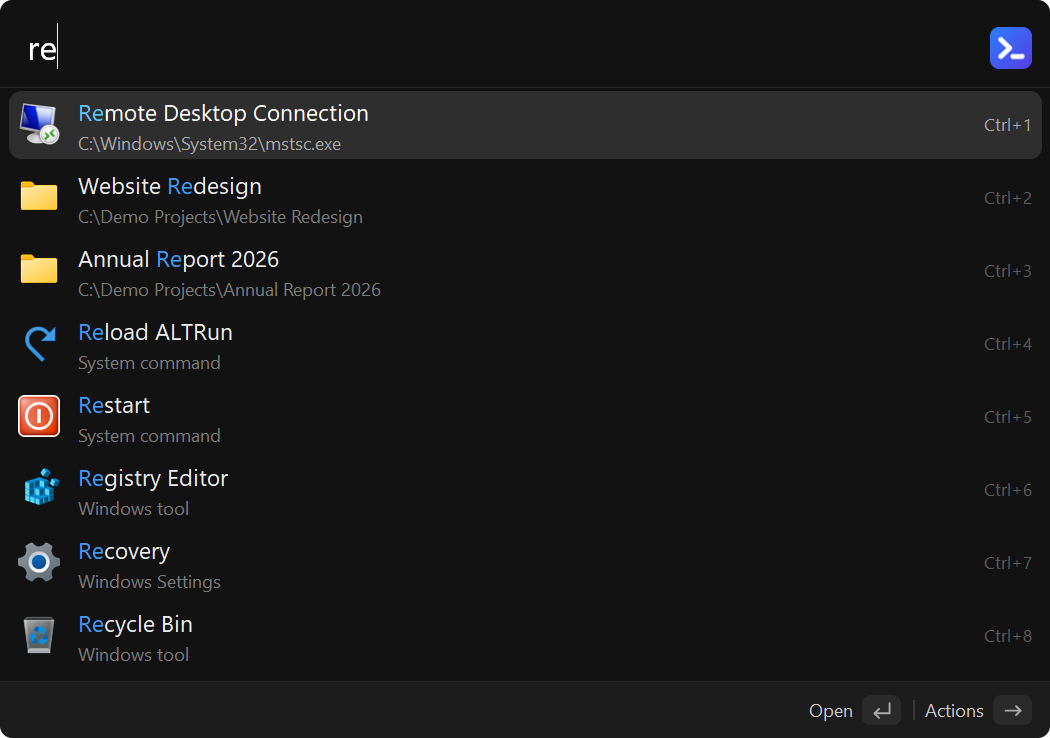 |
| Frost | Graphite | Ocean |
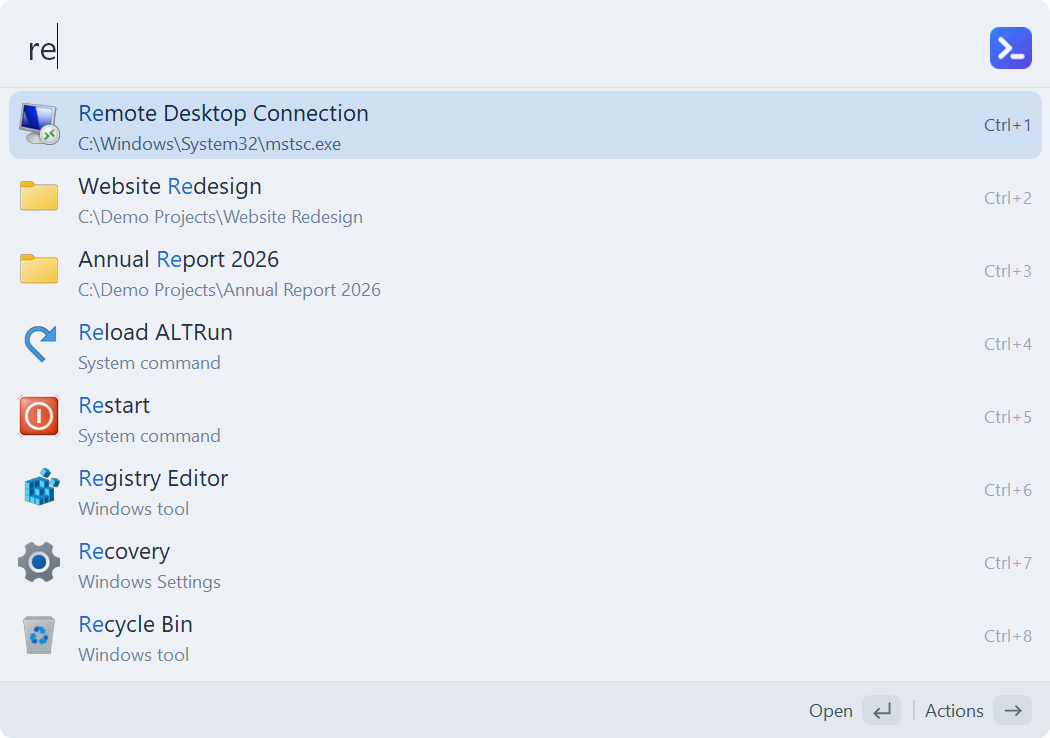 | 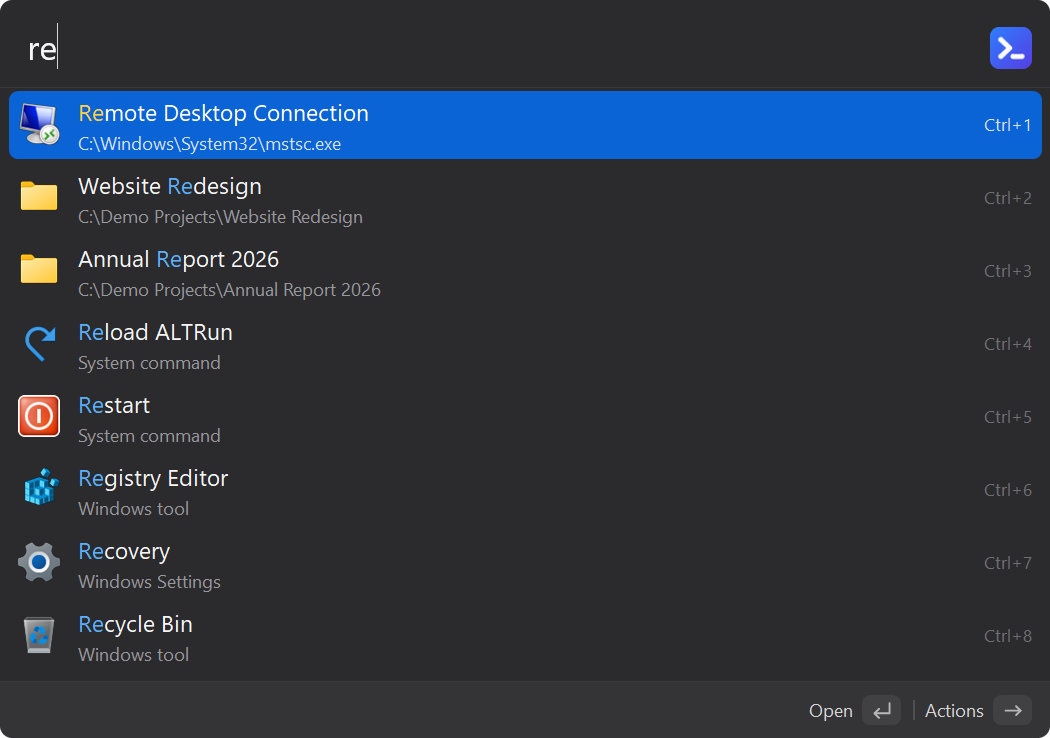 | 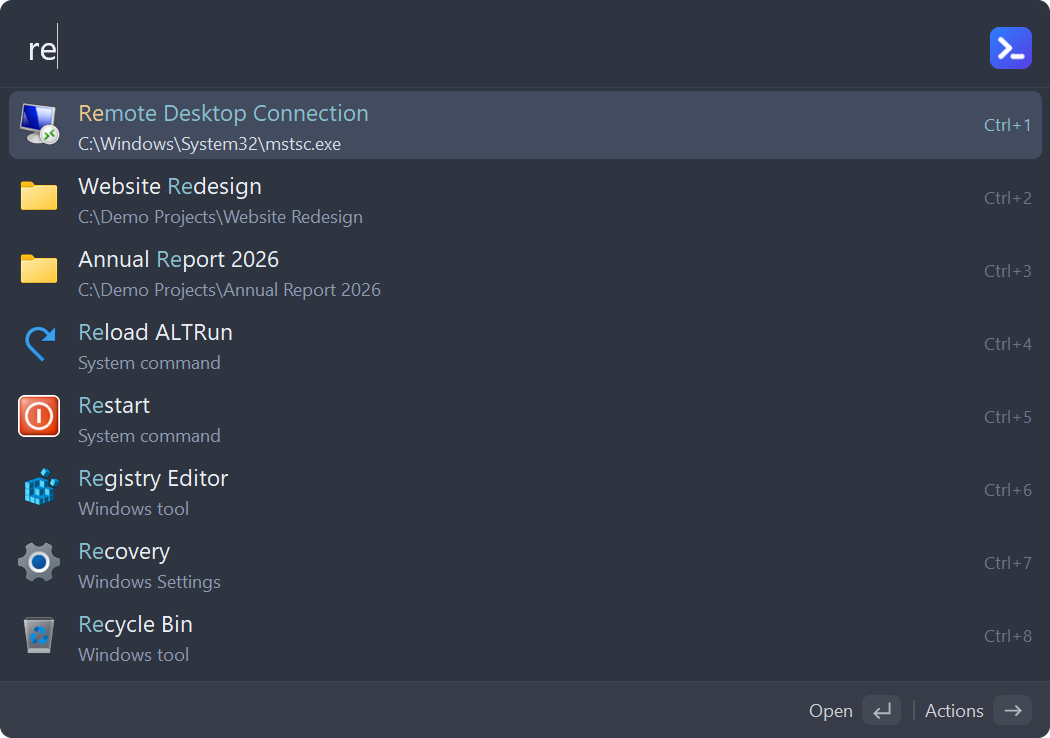 |
| Paper | Lavender | Rose |
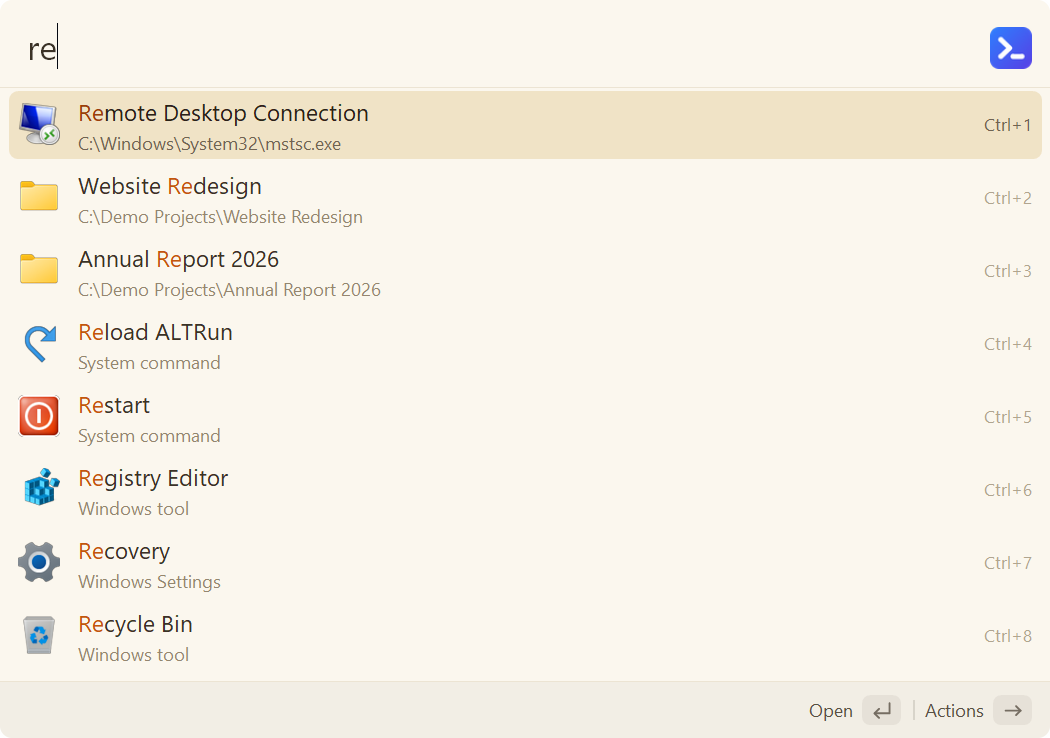 | 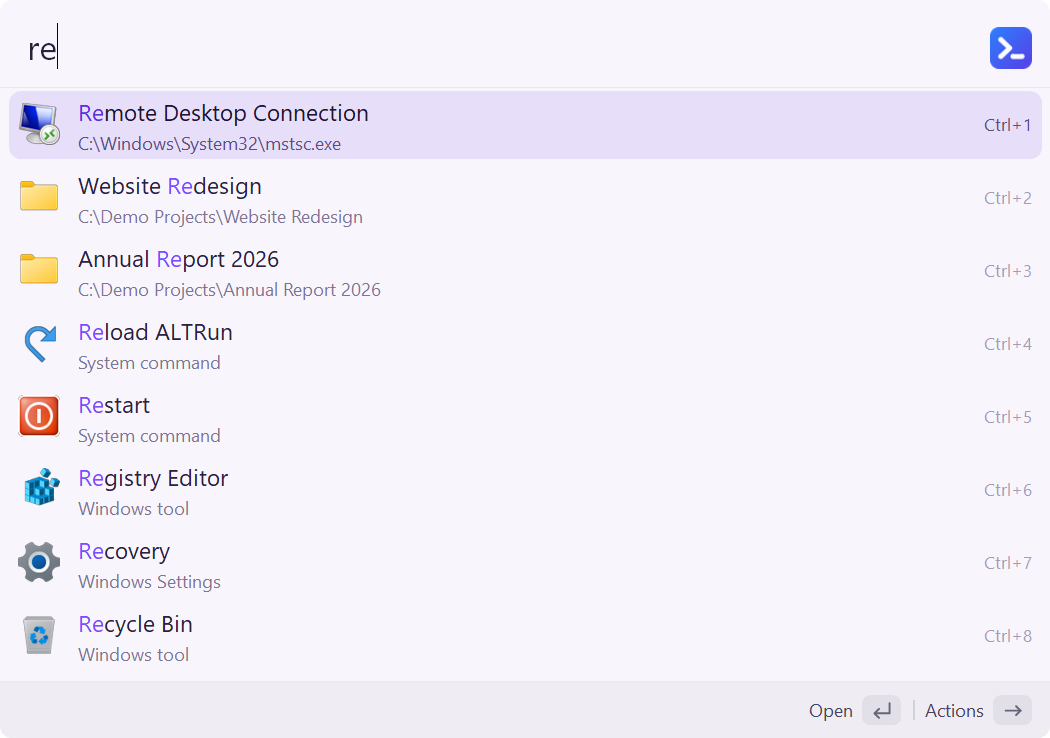 |  |
| Forest | Sunset | HighContrast |
 |  |  |
| Dark · Compact | TokyoNight | Dracula |
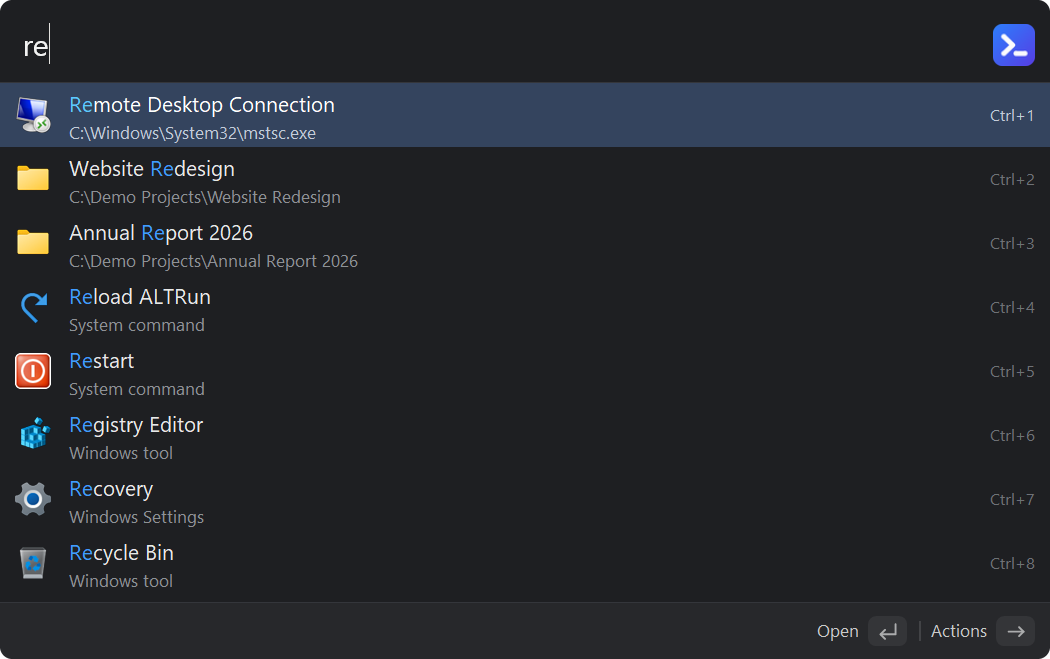 | 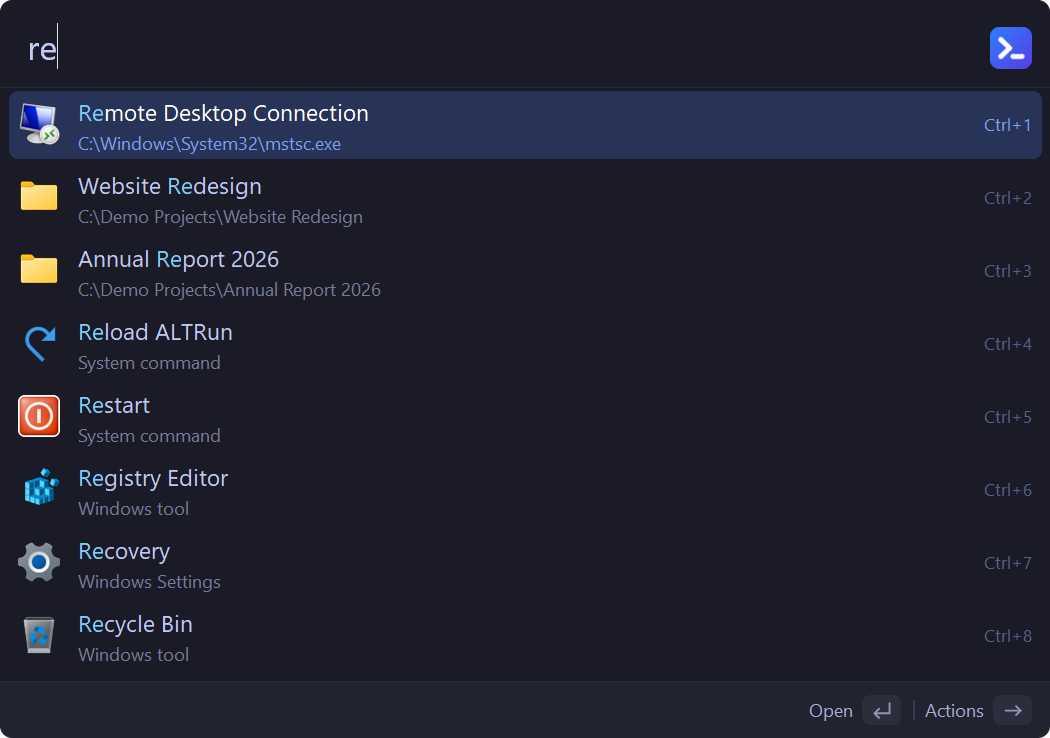 | 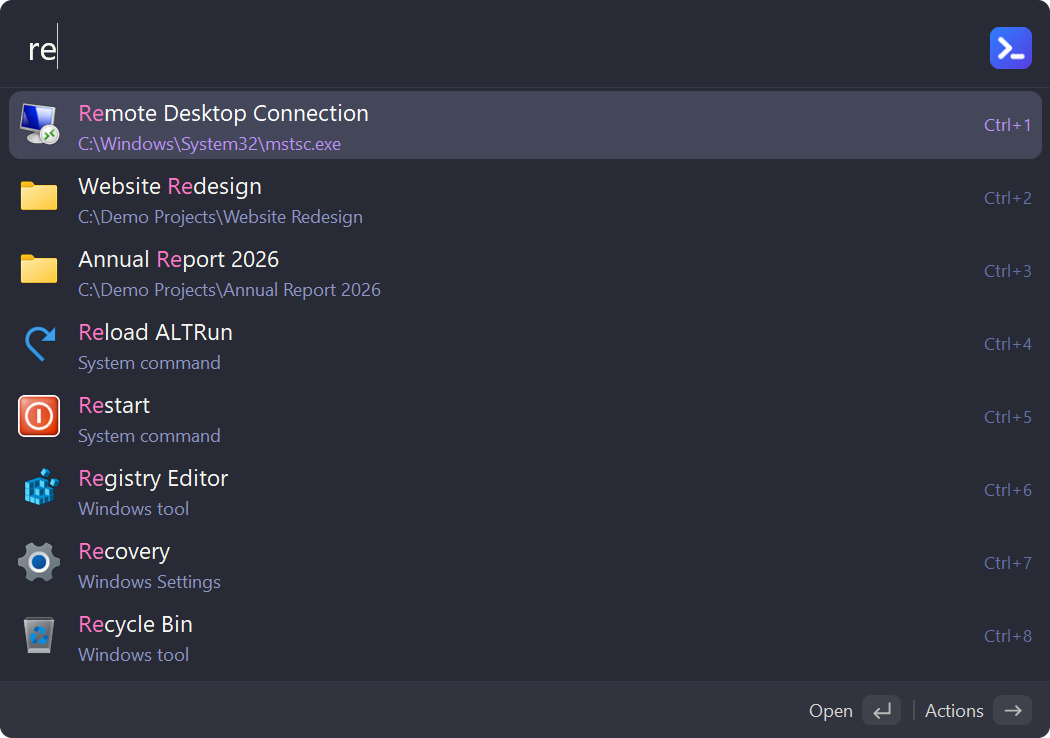 |
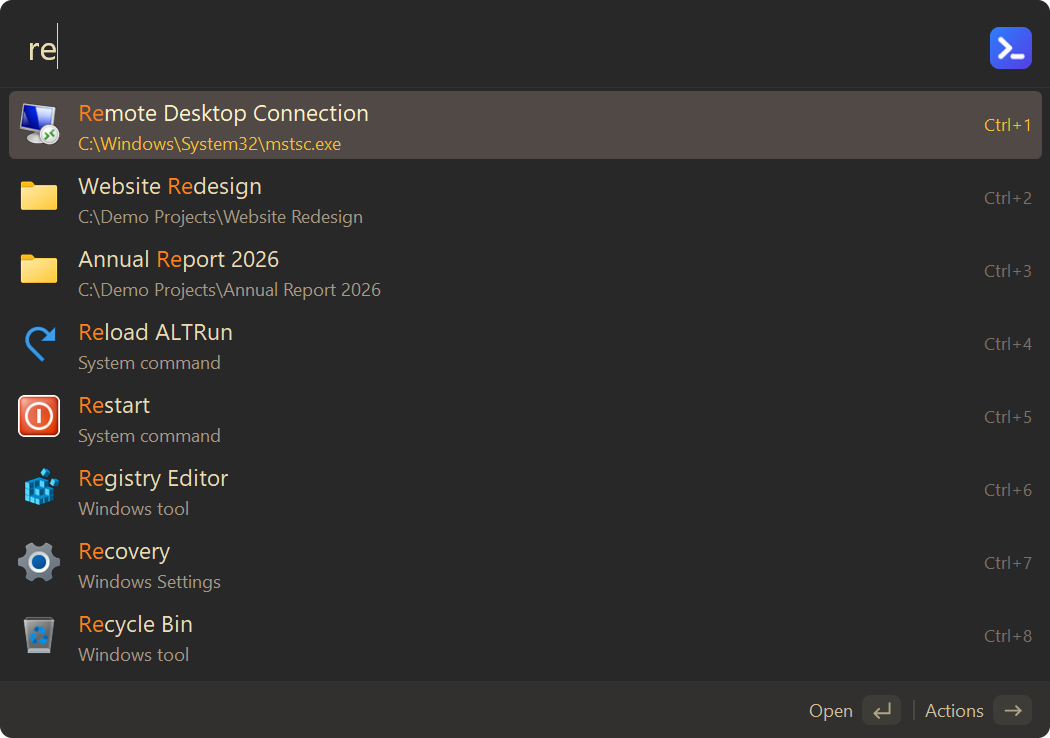
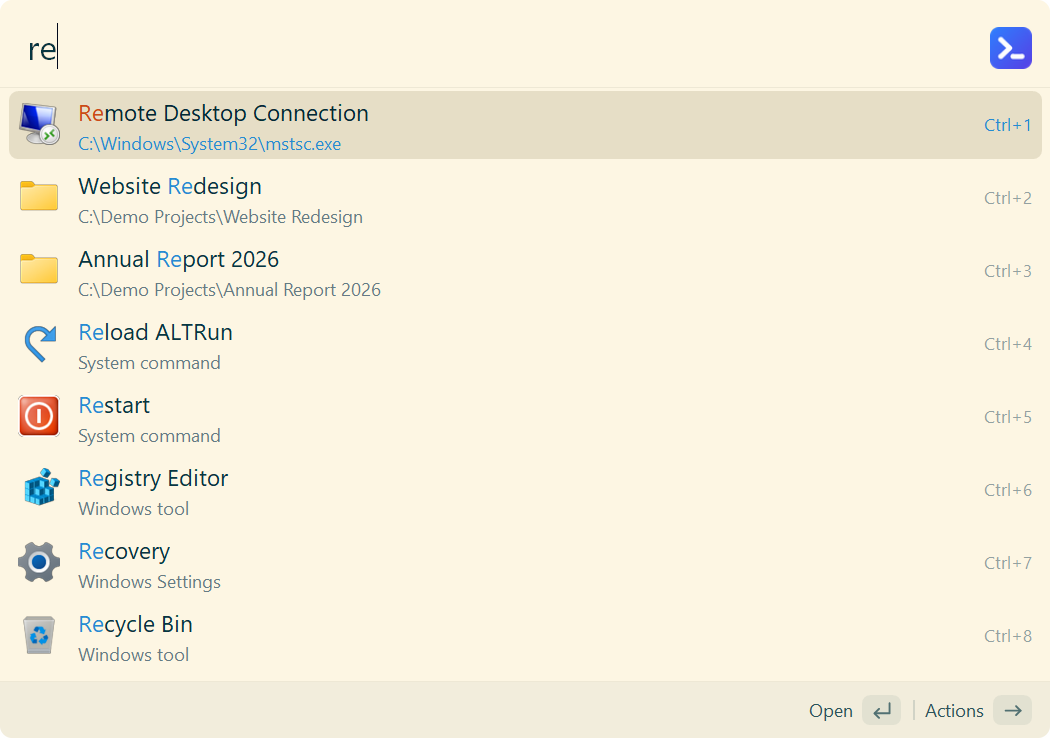
| CatppuccinMocha | GruvboxDark | SolarizedLight |
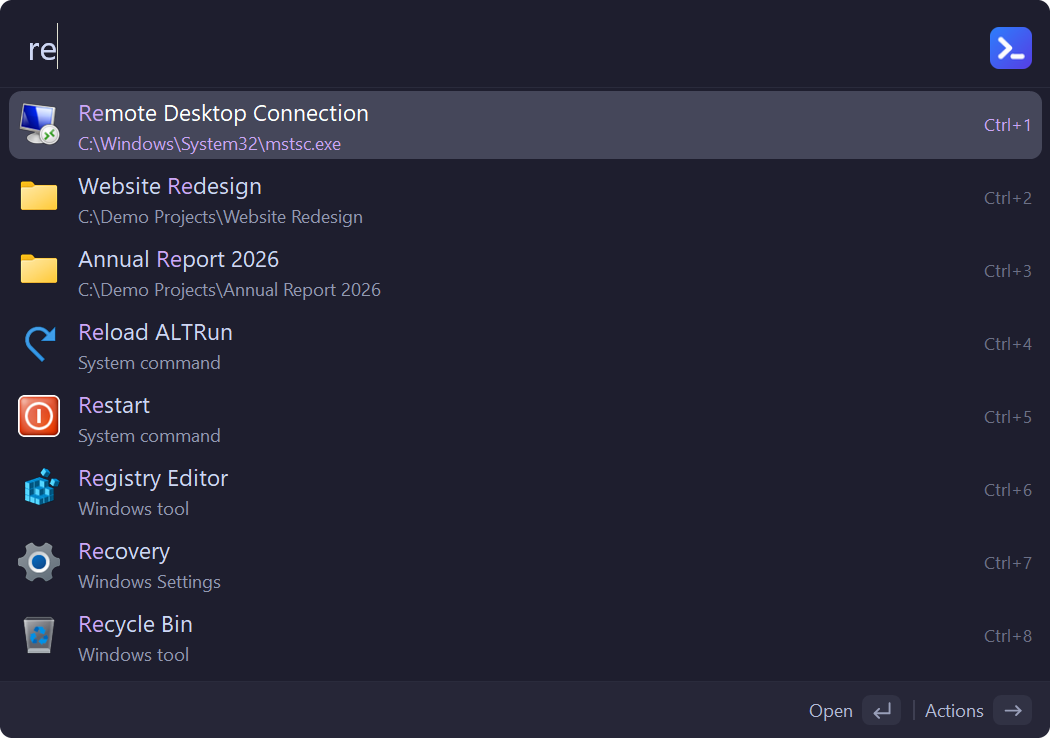 |  |  |
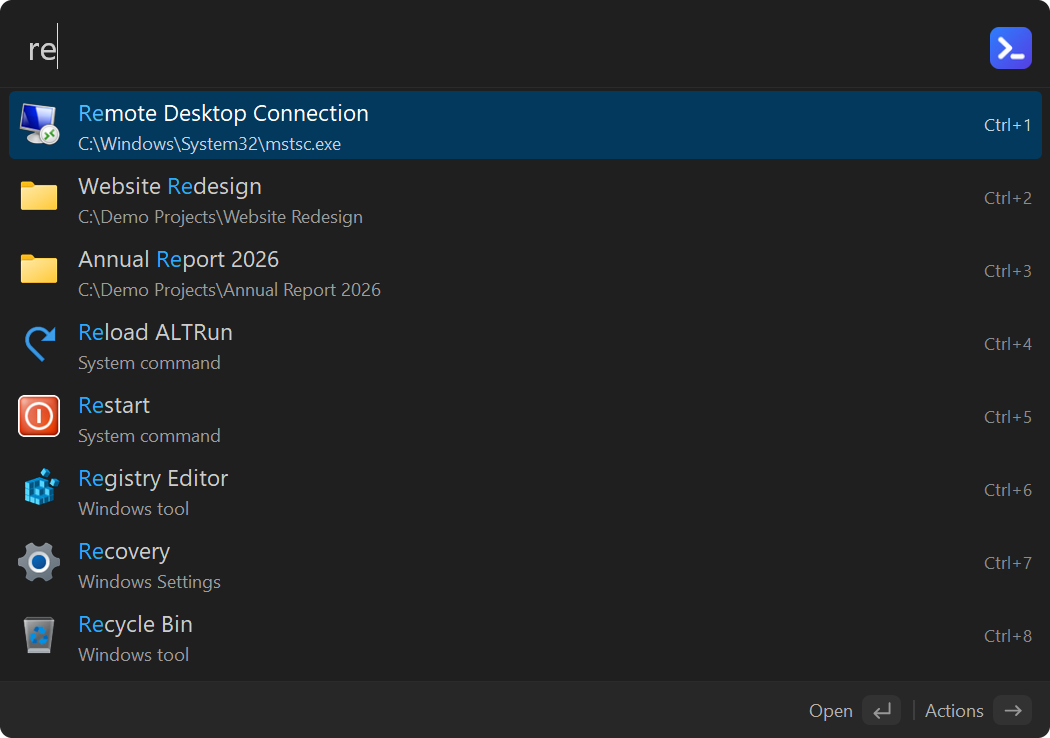
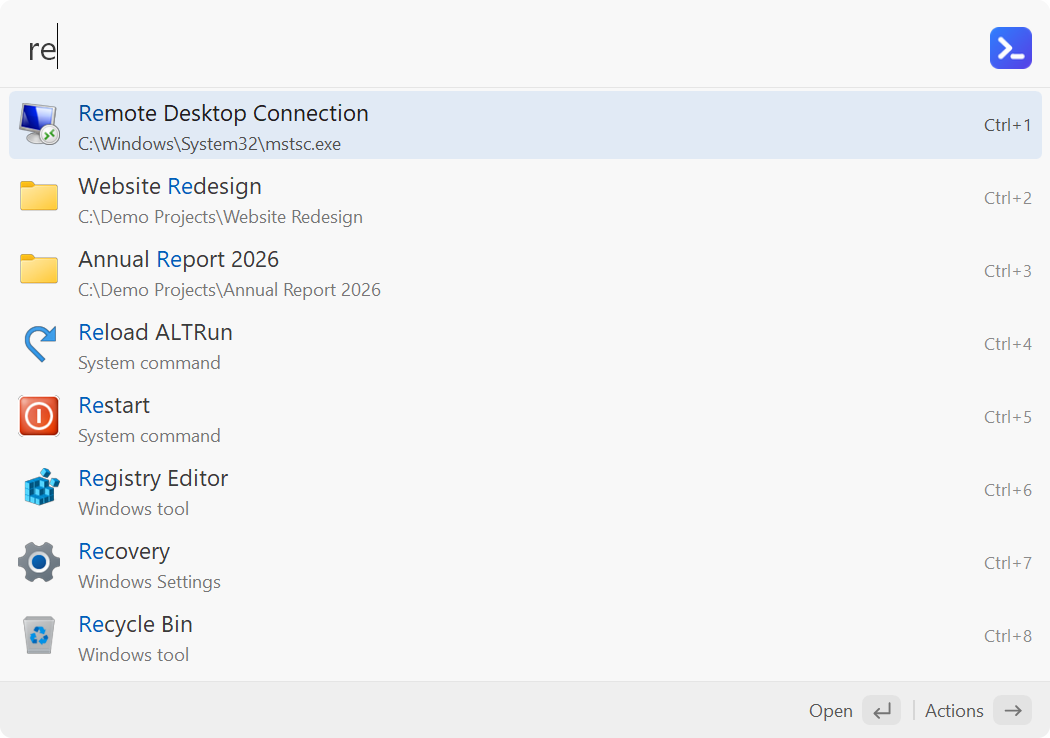
| DarkModern | LightModern | Monokai |
 |  |  |
| OneDark | ||
 |
The screenshots are generated automatically by Tests/Screenshots on a Windows runner in GitHub Actions.
Keyboard shortcuts
| Key | Action |
|---|---|
Alt+Space | Show / hide the search window (configurable) |
Enter | Open the selected result |
Ctrl+Enter | Files / folders: open the containing folder; text: paste into the active window |
Alt+Enter | Copy the path, URL or text |
Ctrl+Shift+Enter | Run the selected program as administrator |
Ctrl+1–Ctrl+9 | Open the Nth result |
↑ ↓ / Ctrl+P Ctrl+N | Move up / down one row |
PgUp PgDn | Previous / next page |
Ctrl+↑ / Ctrl+↓ | Previous / next search from history |
Tab | Autocomplete; folders: browse into them (or select the next result, see Preferences → Keyboard) |
Backspace (browsing a folder) | Up a level |
Insert | Mark several files / folders, then press → to act on all of them |
Space (in an empty search box, or with the cursor at the start) | Switch to file search, keeping what you typed; Backspace in an empty box or at the start switches back |
folder name | Search folders only |
? | Cheat sheet: every syntax and shortcut |
→ / right-click | Action panel / action menu |
F3 | Edit the selected result, or add an app, file or URL as a custom command |
Ctrl+Del | Delete the selected result (with confirmation); apps: hide from results |
Ctrl+C / Ctrl+L | Copy the selected result / large type |
Ctrl+E | Edit the selected file in its editor (e.g. an .ahk script) |
F2 or Ctrl+, / F4 | Preferences / edit ALTRun.json in Notepad |
F1 | About ALTRun (version, check for updates, project page) |
Ctrl+Alt+C | Clipboard history |
Esc | Close the action panel / hide the window |
For the full syntax ('file, >command, clip, snip, web search keywords and more), see Search and shortcuts in the wiki.
Documentation
The full documentation is in the wiki:
| Page | Contents |
|---|---|
| Installation and upgrades | Download, winget / Scoop, start with Windows, automatic updates, upgrading from 2.x, uninstalling |
| Search and shortcuts | Search syntax, shortcuts, action panel, learned ranking, usage statistics |
| Custom commands | Command types, commands with an argument, path variables |
| Snippets | Placeholders, snippet expansion, windows without expansion, import / export |
| File search | Everything integration, built-in index, exclusion rules |
| Themes | Built-in themes, custom themes, every available key |
| Extensions | Quick Switch, date stamp, custom hotkeys, system commands |
| PT Tools | Rebar and mesh areas, bars required, a calculator; SPF2M tendon profiles (script library) |
| Settings reference | Every ALTRun.json setting and its default value |
| FAQ | Hotkey conflicts, things that can't be found, antivirus false positives and more |
| Development guide | Architecture, adding a search feature, code style, tests |
Installation options and upgrades
winget (built into Windows 10 / 11; new versions arrive after Microsoft's review, usually 1–3 days):
winget install zhugecaomao.ALTRun
winget upgrade zhugecaomao.ALTRun    # upgrade (quit ALTRun first)
Scoop (new versions the day they are released; adds a Start menu shortcut and keeps settings across upgrades):
scoop bucket add altrun https://github.com/zhugecaomao/ALTRun
scoop install altrun
scoop update altrun    # upgrade (quit ALTRun first)
To run from source, install AutoHotkey v2 and launch ALTRun.ahk.
For upgrading from an older version or from 2.x, see Installation and upgrades.
Feedback and contributing
- Report a problem: open an issue (please include your Windows version and the steps to reproduce)
- Ideas and discussion: Discussions
- Code contributions: please read CONTRIBUTING.md first; the Development guide covers the project structure, running the tests and adding a search feature
Issues and pull requests are welcome in English or Chinese. If ALTRun is useful to you, a star ⭐ is much appreciated.
Code signing policy
Free code signing provided by SignPath.io, certificate by SignPath Foundation.
- Only
ALTRun.exebuilt from this repository's source by the Release workflow is signed. - Committers and reviewers: zhugecaomao
- Approvers: zhugecaomao
- Privacy policy: SECURITY.md
License and credits
ALTRun is open source under the GPL-3.0 license © zhugecaomao
Thanks to these projects:
- ALTRun (etworker, Delphi): the name and the original design
- RunZ (goreliu, AutoHotkey): the idea of writing a launcher in AutoHotkey
- Alfred: the interaction model
- Listary: its Quick Switch is the model for ALTRun's
- pypinyin (Copyright (c) 2016 mozillazg, 闲耘; MIT): pinyin initials of rare and Traditional characters